
Summarize this blog post with:
Google Search Console is one of the most powerful free tools in any SEO's toolkit; using it correctly can increase your site’s organic traffic by 28%. It does, however, come with a frustrating limitation. Whether you're exporting pages, queries, countries, or devices, GSC caps every report at 1,000 rows. For small sites, that might be fine. For large ecommerce stores, content-heavy publications, or agencies managing multiple client properties, 1,000 rows barely scratches the surface.
The data you're missing matters.
- Low-traffic pages that collectively drive significant organic revenue,
- Long-tail queries you didn't know you were ranking for,
- Device or country breakdowns that could reshape your strategy.
All of it gets cut off.
The good news? There are several ways to bypass this limit and get your full GSC data into Google Sheets, where you can actually work with it. This guide walks you through all of them, including free options and the fastest and safest route using an automated marketing reporting software.
Why Does Google Search Console Export Only 1,000 Rows?
If you've tried to pull a full list of your ranking pages or search queries from Google Search Console, you've likely hit the same wall. The GSC interface displays a maximum of 1,000 rows per report, and when you click that export button in the top right corner, the downloaded file has the same cap. It's not a bug or an oversight. It's simply how the native UI was built, and Google hasn't changed it.
This limit applies across every dimension you can report on - pages, queries, countries, and devices. No matter how you filter or adjust the date range, the export will never give you more than 1,000 rows through the standard interface.
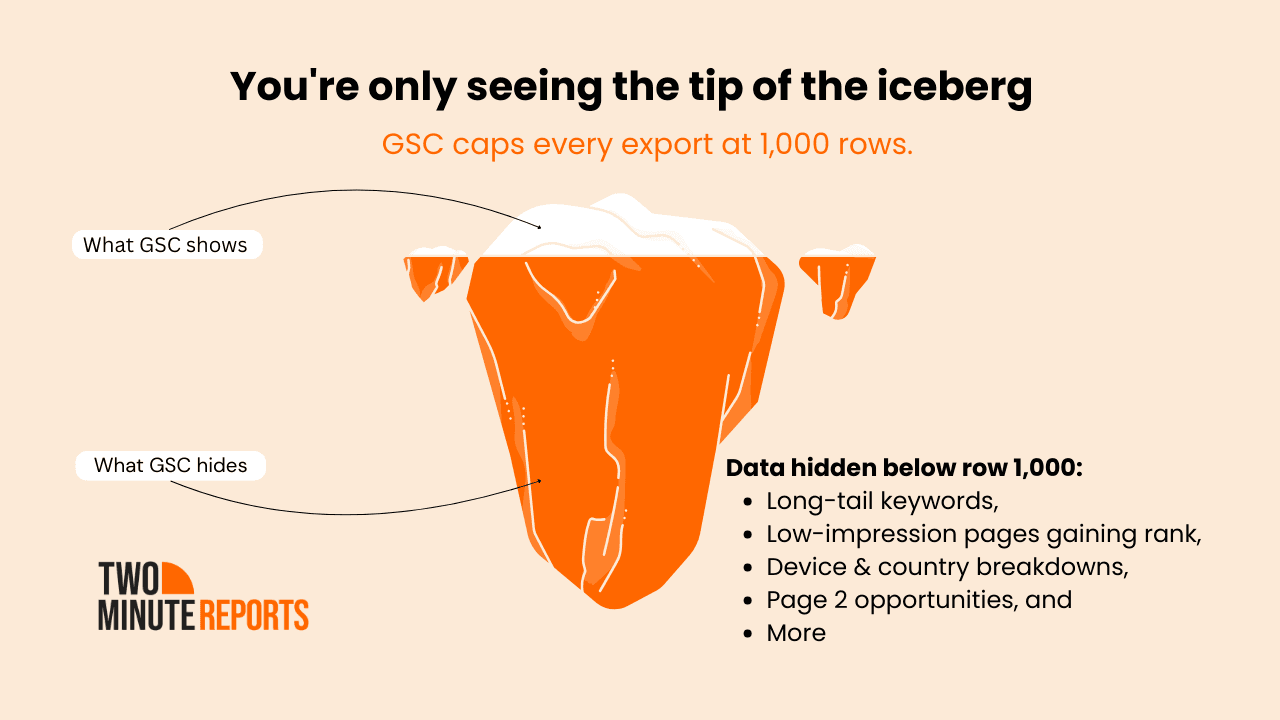
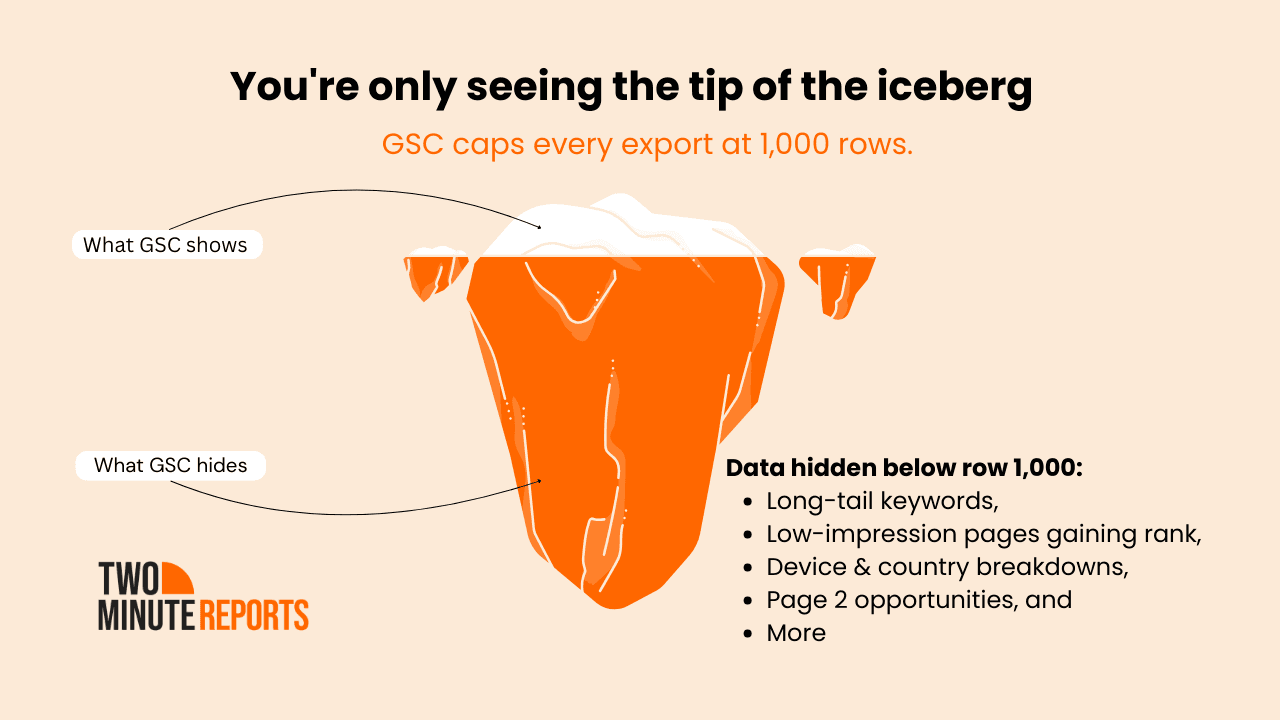
Who feels this the most? Any site with significant scale. Ecommerce stores with thousands of product pages, media publishers ranking for tens of thousands of search terms, and SEO agencies juggling multiple client properties all run into this ceiling fast. Even a mid-sized blog with a few years of content can easily have more than 1,000 URLs receiving at least some organic traffic.
What are you actually missing? More than you might think. The 1,000 rows GSC shows you are ranked by clicks, meaning everything below the top 1,000 gets silently cut off. That includes long-tail keywords driving small but consistent traffic, low-impression pages that are quietly picking up rankings, and URL-level data across devices or regions that could reveal meaningful patterns. Individually, these rows look small. Collectively, they can represent a significant chunk of your organic footprint.
The fix is the GSC API. Unlike the UI, the API has no hard row limit; it can return your complete dataset. The good news is you don't need to write a single line of code to use it. Every method covered in this guide connects to the GSC API under the hood, pulling your full data and landing it directly in Google Sheets.
Method 1 — Export Google Search Console Data to Google Sheets Using Two Minute Reports
The fastest way to export your full GSC data is with Two Minute Reports, a Google Sheets add-on that connects directly to the GSC API. No Python scripts, no BigQuery setup. Everything happens inside the spreadsheet you're already working in.
Two Minute Reports is built for marketers and SEOs who want to track metrics in Sheets without the technical overhead – no row limits, no manual downloads, no copy-pasting between tools. Set it up once, and it keeps your data fresh automatically.
G2 Review: “This is the easiest way I’ve found to connect my data to Google Sheets or Google Data Studio.”
Why it works well for this use case:
- A reliable Google Sheets add-on. Easier to access and adapt UI
- Pulls from the GSC API, bypassing the 1,000-row cap entirely
- Let's you choose exactly which report type, date range, and dimensions, all in one place
- Supports scheduled auto-refresh so your sheet stays up to date without you lifting a finger
- Works across multiple GSC properties and is useful for agencies managing several clients
It's a practical choice for SEOs, content marketers, and agencies who live in spreadsheets and need reliable, full-scale GSC data without technical interference.
Other features worth knowing:
- White-label reporting: add your logo, brand colors, and custom domain for client-ready reports that look yours professionally
- Speedboost: load reports with large datasets in under 5 seconds without errors, so your team always works with fresh data instantly, no waiting, no manual refresh involved
- Fast automated reporting: reports refresh in minutes, so your team always works with fresh data, no manual copy-paste involved
- 30+ integrations: pull data from marketing, ads, and analytics platforms directly into Google Sheets or Google Data Studio
- Pre-made templates: a library of ready-to-use dashboard and report templates to get started quickly
- Custom marketing dashboards: flexible layouts, KPIs, and visualization options built around your goals
- Scheduled delivery: automate email distribution or share live dashboards so clients and teams always get updates on time
- Real-time alerts: get notified instantly when performance metrics cross critical thresholds
- Smart client management: organize multiple accounts, streamline workflows, and scale reporting across clients with ease
- Enterprise-grade security: compliance-first infrastructure with strict access controls
- No technical skills needed: full setup without writing a single line of code
G2 Review: “I find Two Minute Reports immensely beneficial for affiliate management as it allows me to bring data from various sources into Google Sheets effortlessly, without the need to learn new tools.“
Step-by-Step: How to Export GSC Data with Two Minute Reports
Exporting your data is just the first step. Here's how to turn your raw GSC data into a clear, actionable report in four easy steps.
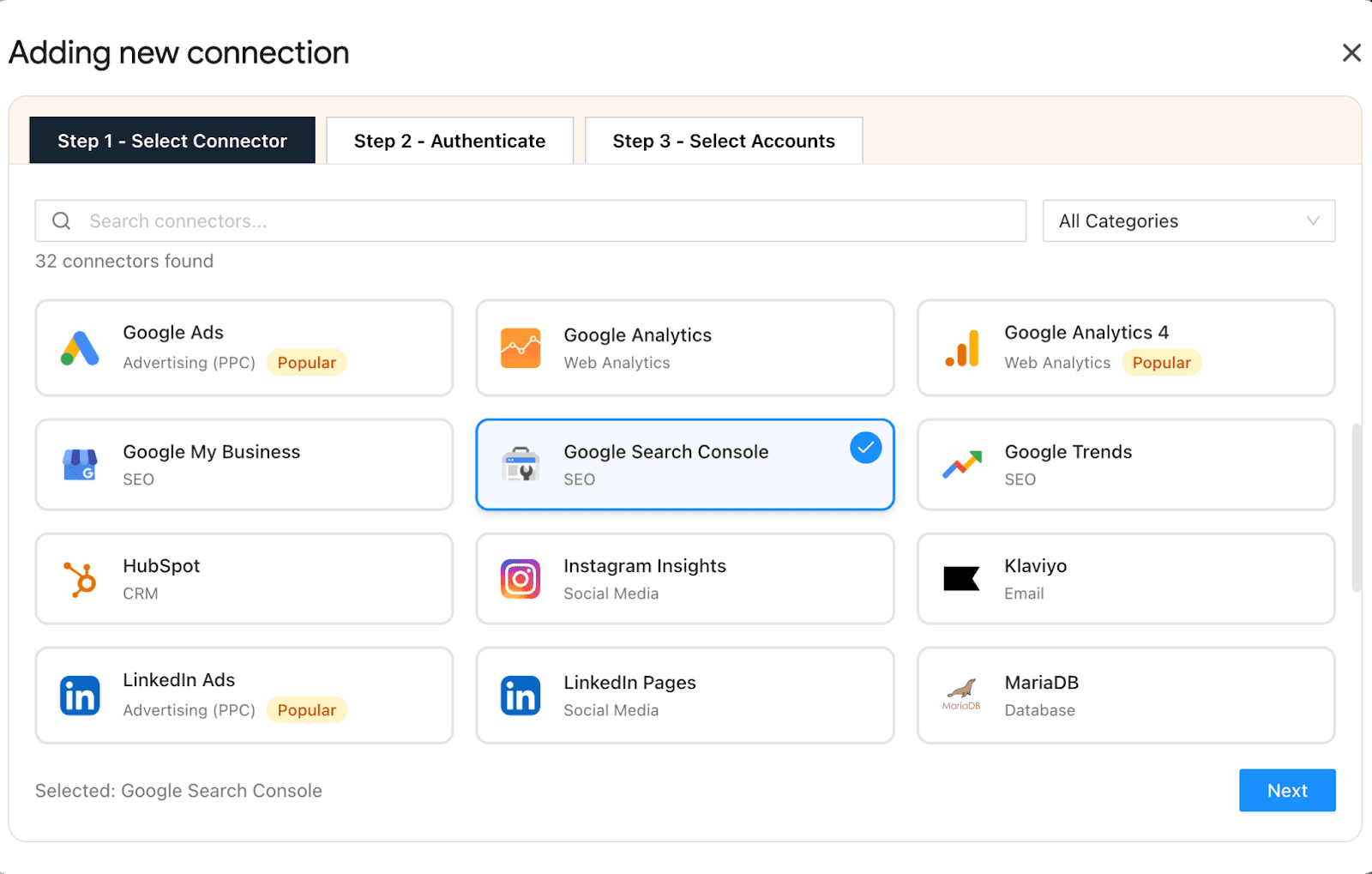
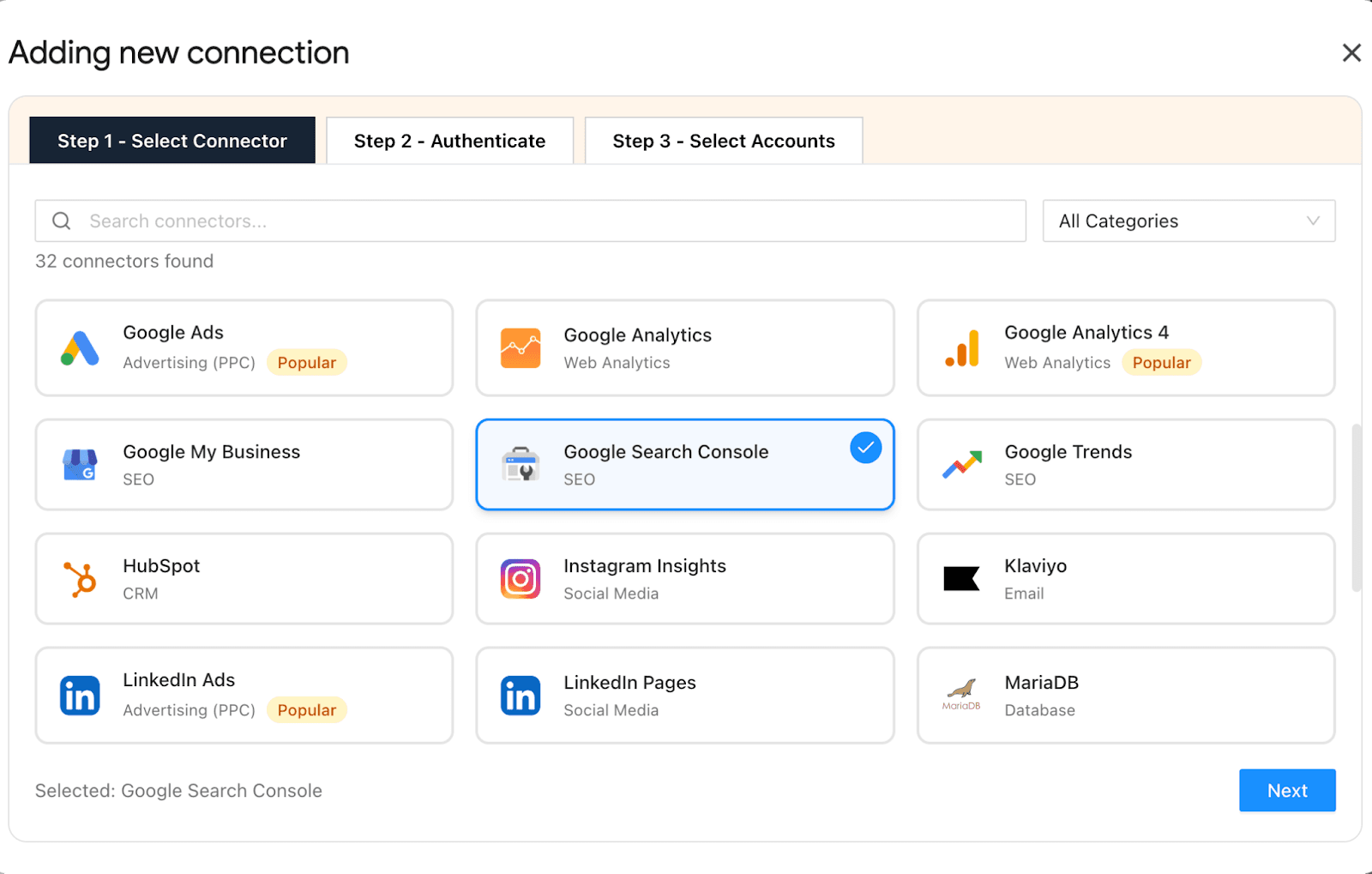
Step 1: Connect Your Google Search Console Property
- Install the Two Minute Reports add-on from the Google Workspace Marketplace
- Authenticate your account to extract page-level and query-level performance data
- Manage and map multiple GSC properties to the right clients effortlessly from a single workspace. No switching accounts, no manual downloads
Step 2: Choose Metrics Based on the Site's SEO Goal
Don't pull everything at once. Align your Google Search Console metrics with what actually matters for your site right now.
- If the goal is visibility → Focus on Impressions and Average Position
- If the goal is traffic → Focus on Clicks and CTR
- If the goal is page performance → Focus on URL-level data such as top landing pages, position by page, and click share per URL
- If the goal is keyword intelligence → Focus on query-level data such as search terms, long-tail opportunities, ranking gaps
Tip: One site, one primary objective per reporting cycle. Structure your GSC report around that goal so the insights are immediately actionable and not overwhelming.
Step 3. Customize Your Google Search Console Reporting Dashboard
This is where your report becomes strategic. Customize based on both site type and SEO goal.
By site type:
- Ecommerce sites → Separate category pages from product pages. A category page losing impressions signals a different problem than a product page with high impressions but low CTR.
- Content publishers → Group URLs by content type or topic cluster. Identify which clusters are gaining authority and which are stagnating.
- Local businesses → Filter by country or region to surface geo-specific performance patterns that a top-level view would mask.
- Agencies → Set up one sheet per client property with a consistent column structure so reporting stays scalable as your client base grows.
By SEO goal:
- If rankings are the focus → Surface pages with positions between 11–20. These are your fastest wins.
- If traffic growth is the focus → Highlight pages with rising impressions but flat or declining clicks — a CTR problem, not a rankings problem.
- If content gap analysis is the goal → Pull your full query list and filter for terms with impressions but zero or near-zero clicks. These are ranking opportunities you haven't fully captured yet.
- If client reporting is the goal → Build a summary tab on top of the raw data that shows week-over-week or month-over-month movement at a glance — no client wants to read a raw data dump.
With Two Minute Reports’ SEO reporting templates, you can quickly build client-ready Google Search Console reports that clearly reflect site growth. Add your logo, apply brand color themes, and use interactive layouts to deliver fully branded, professional dashboards that reinforce your agency’s expertise. You can also reuse existing dashboards for multiple clients by simply customizing them, saving time while maintaining consistent branding.
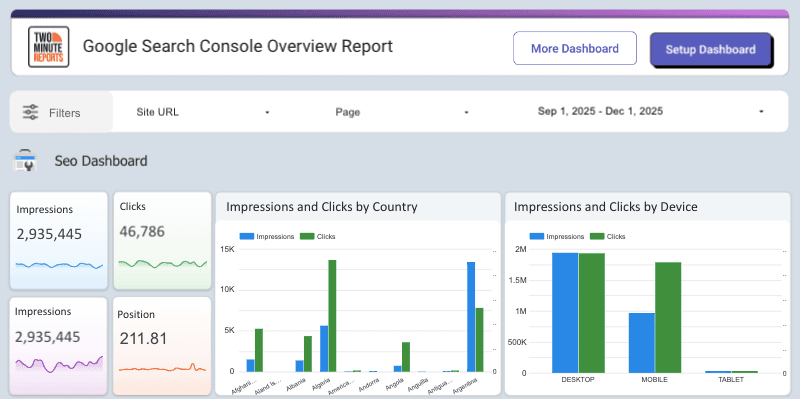
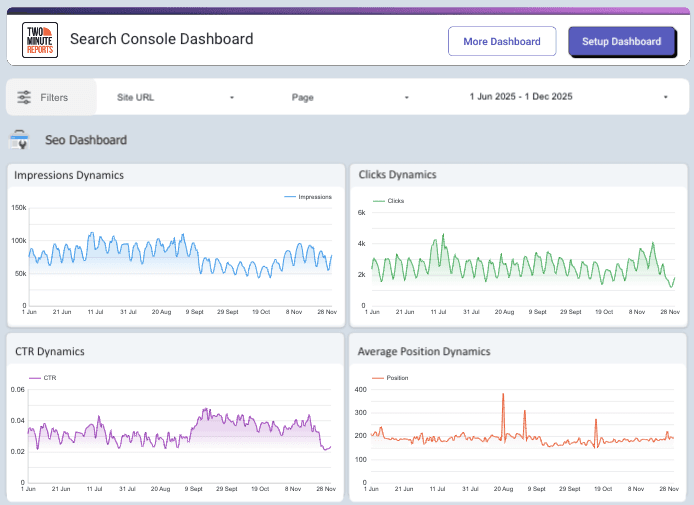
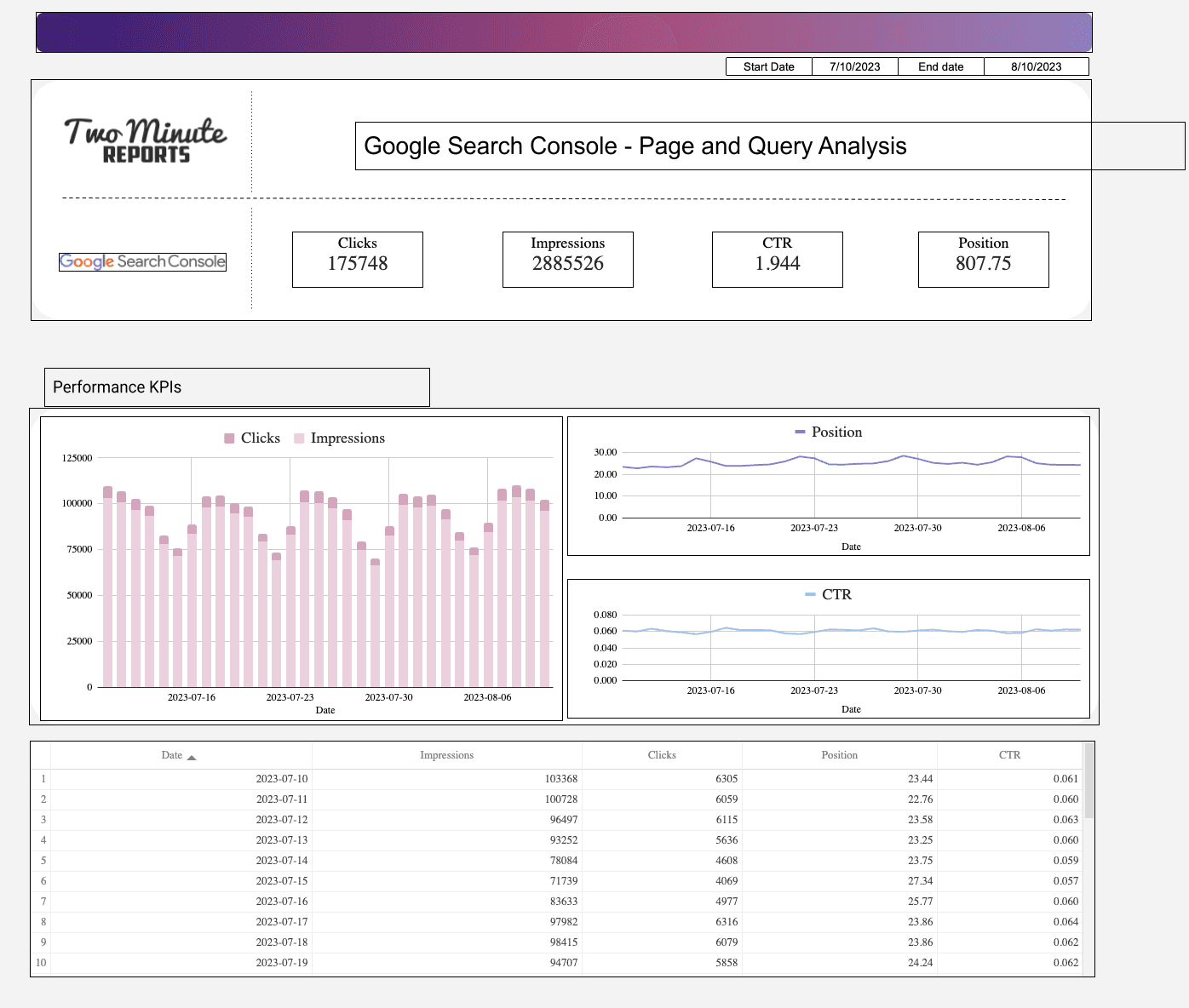
Explore the three best dashboards marketers love the most:
1) Google Search Console Overview Report
2) Google Search Console Dashboard
3) Google Search Console - Page and Query Analysis
Step 4. Automate Your Report for Always-Fresh Data
Finally, schedule your GSC report to refresh at your preferred cadence (daily, weekly, or monthly) directly inside Two Minute Reports.
Each report should include:
- A concise performance summary: clicks, impressions, CTR, and position movement vs. the previous period
- Clear pattern identification: which pages are rising, which are falling, and why
- One priority action: the single most impactful thing to do before the next reporting cycle
- One experiment to track: a change you're testing so the next report can measure its effect
Automation handles the data delivery. Your analysis delivers the value.
Method 2: Export Google Search Console Data via Google Analytics 4 (Free)
If you're already using Google Analytics 4, this is a quick, free option that requires no additional tools. GA4 integrates with GSC natively and can surface more than 1,000 rows of search data that you can manually export to a spreadsheet.
1) Link GSC to GA4
If you haven't connected the two yet, you'll need to do this before any data shows up.
- Open your GA4 property and go to Admin (the gear icon in the bottom left)
- Under the Property column, click Search Console Links
- Click the link and select the GSC property that matches your GA4 property
- Follow the prompts to confirm and save
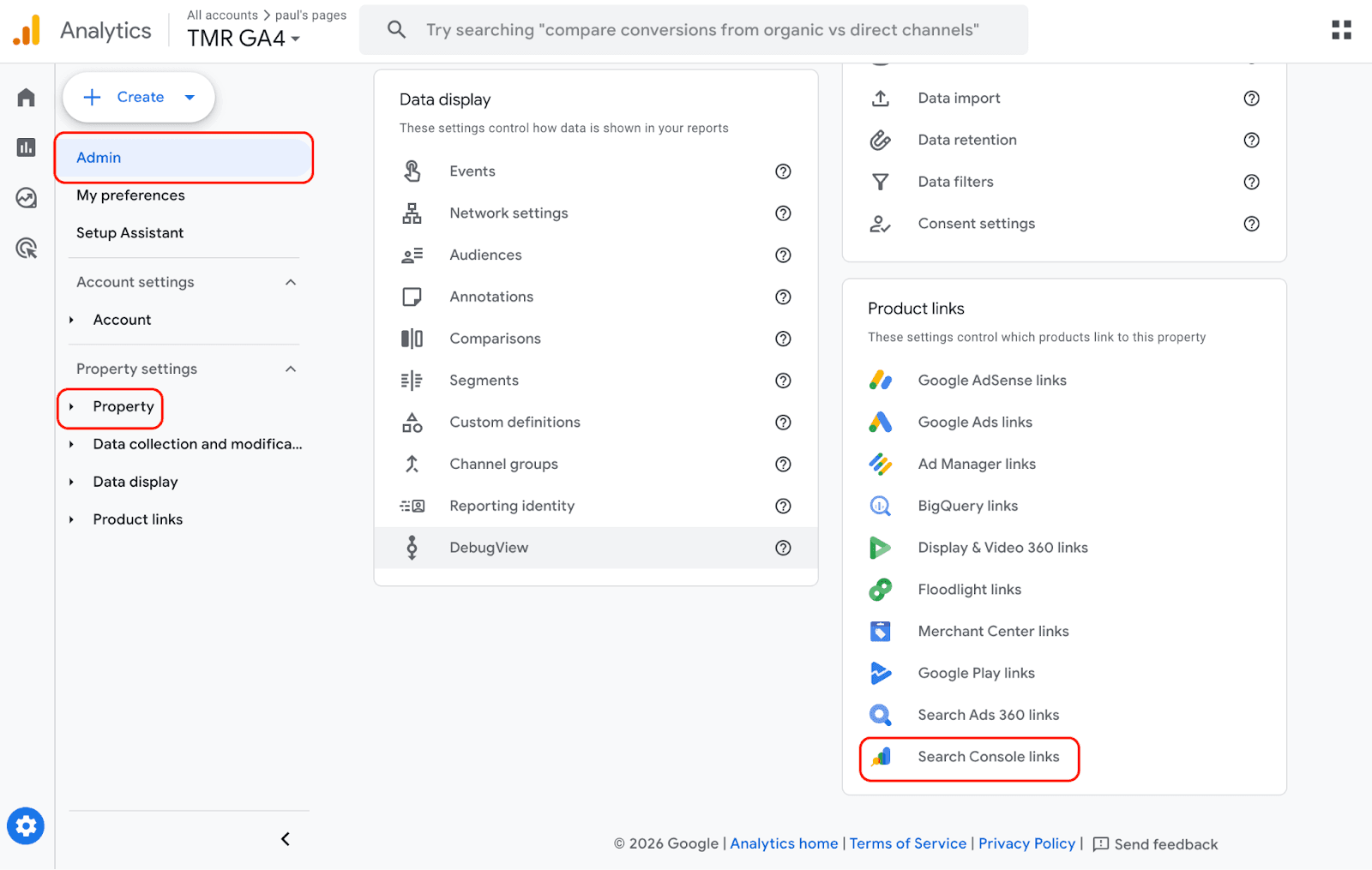
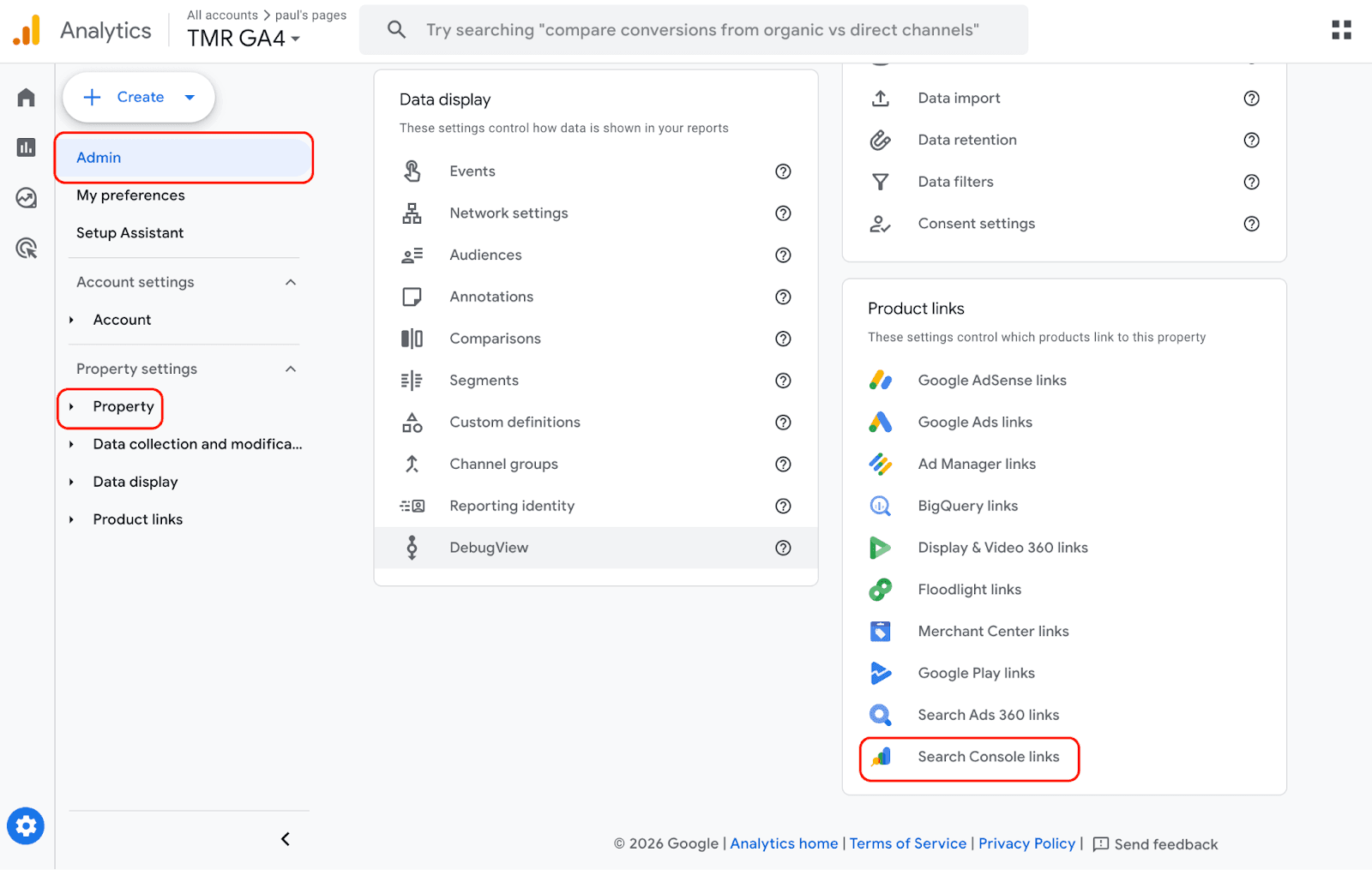
Once linked, GA4 will begin pulling in GSC data.
Note: Historical data won't backfill. The integration only surfaces data from the point you connect to it.
2) Accessing and Exporting the Data
With the integration active, here's how to get to your GSC data inside GA4:
1. In the left sidebar, go to Reports → Search Console
2. Choose either Queries (search terms) or Google organic search traffic for page-level data
3. Scroll to the bottom of the report table and increase the rows displayed. GA4 allows you to show more than the default view, going well beyond the 1,000-row limit you'd hit in GSC directly
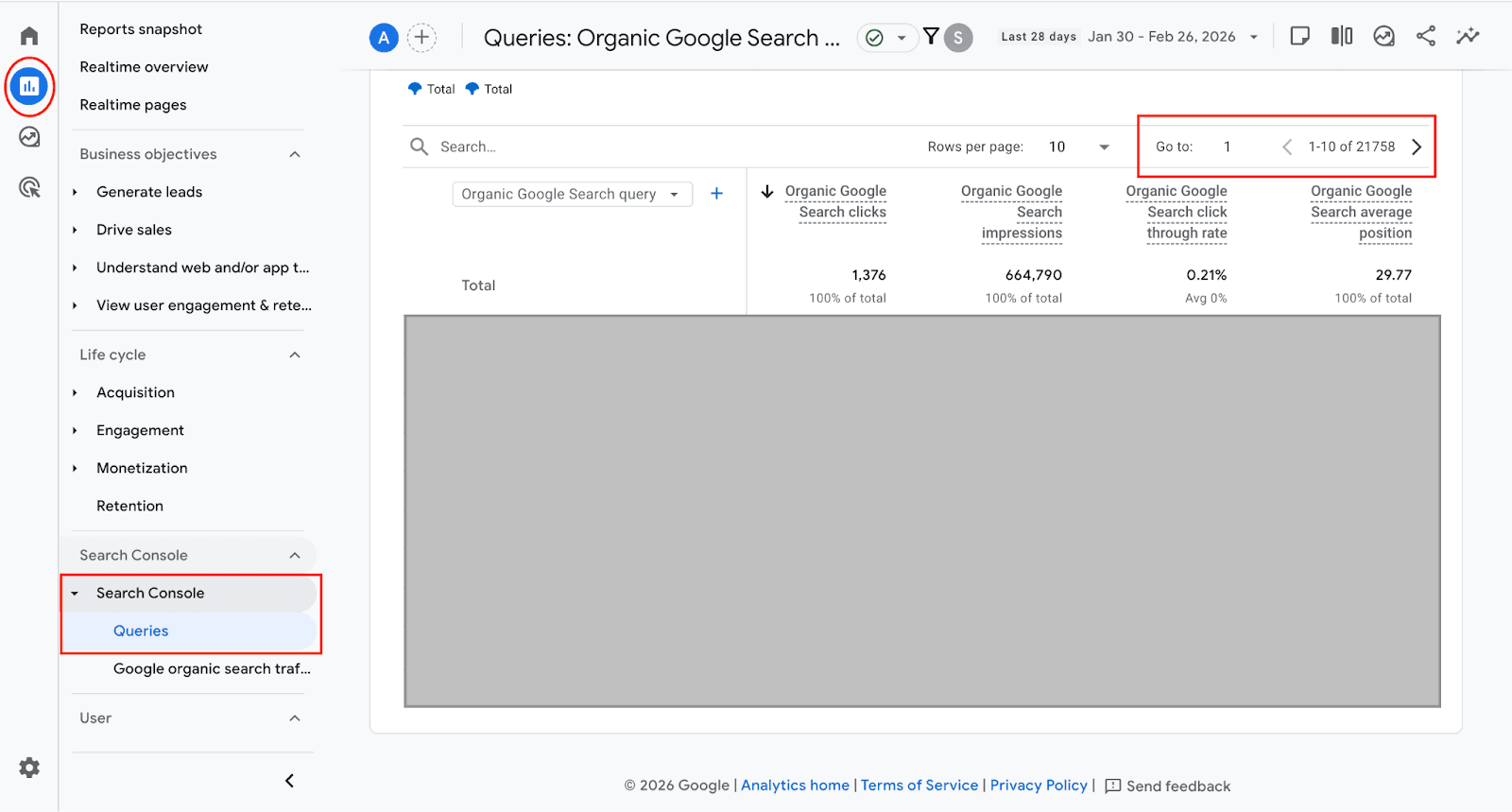
4. Once your full dataset is visible, click the Export button in the top right and choose Google Sheets or CSV
Limitations to Keep in Mind
GA4's GSC integration is useful but comes with some important caveats worth knowing before you rely on it heavily.
- Data is aggregated differently. The numbers in GA4 don't always match what you see natively in GSC. Metrics like clicks and impressions can vary due to how each platform samples and attributes data.
- Not all GSC dimensions are available. You won't get the full flexibility of native GSC reports. Dimensions like search type (web, image, video) or device breakdowns aren't always accessible the same way.
- The integration must be active first. If GSC and GA4 aren't linked yet, there's no historical data to fall back on. You'll need to connect them and wait for data to accumulate.
- No scheduled refresh. This is a manual export every time. There's no way to automate the data pull into Sheets regularly.
Best for: Users who already have GA4 and GSC linked and need a quick, one-off export without setting up any additional tools.
Method 3: Export Google Search Console Data via Google Data Studio (Free)
Google Data Studio is a free data visualization tool from Google. It integrates natively with Google Search Console and pulls data directly from the GSC API, giving you far more than 1,000 rows to work with, all inside an interactive dashboard.
Step 1: Add Google Search Console as a Data Source
1. Go to Google Data Studio and log in with the same Google account linked to your GSC property
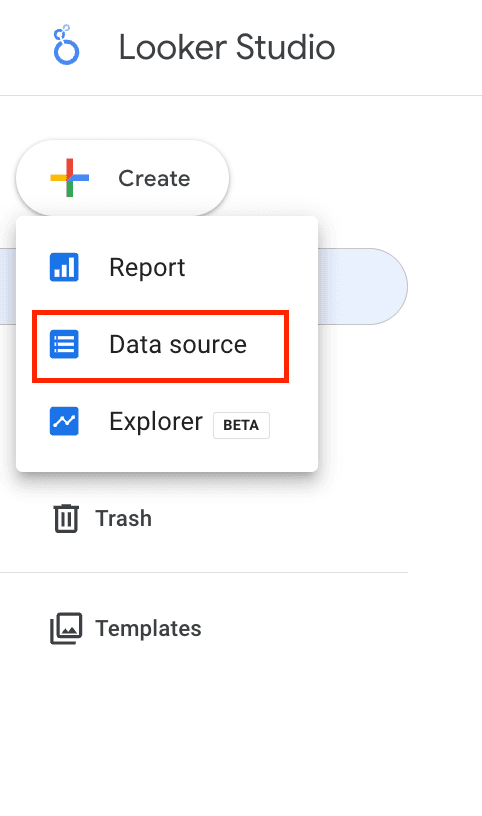
2. Click Create from the top left, then select Data Source
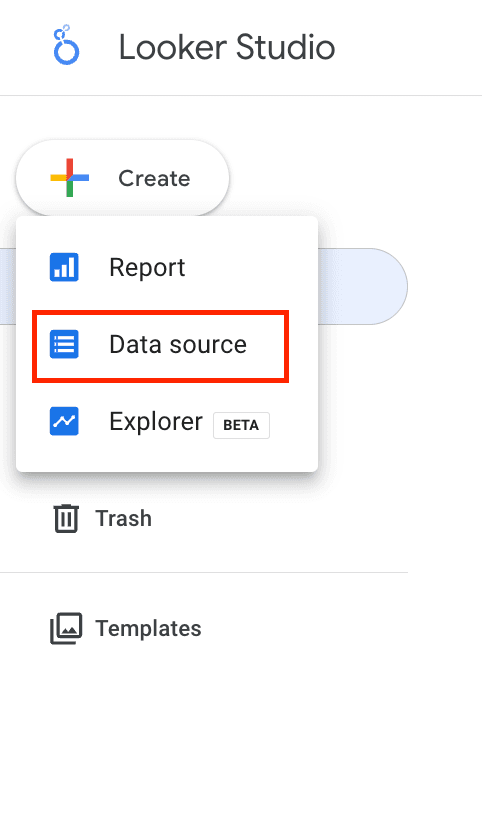
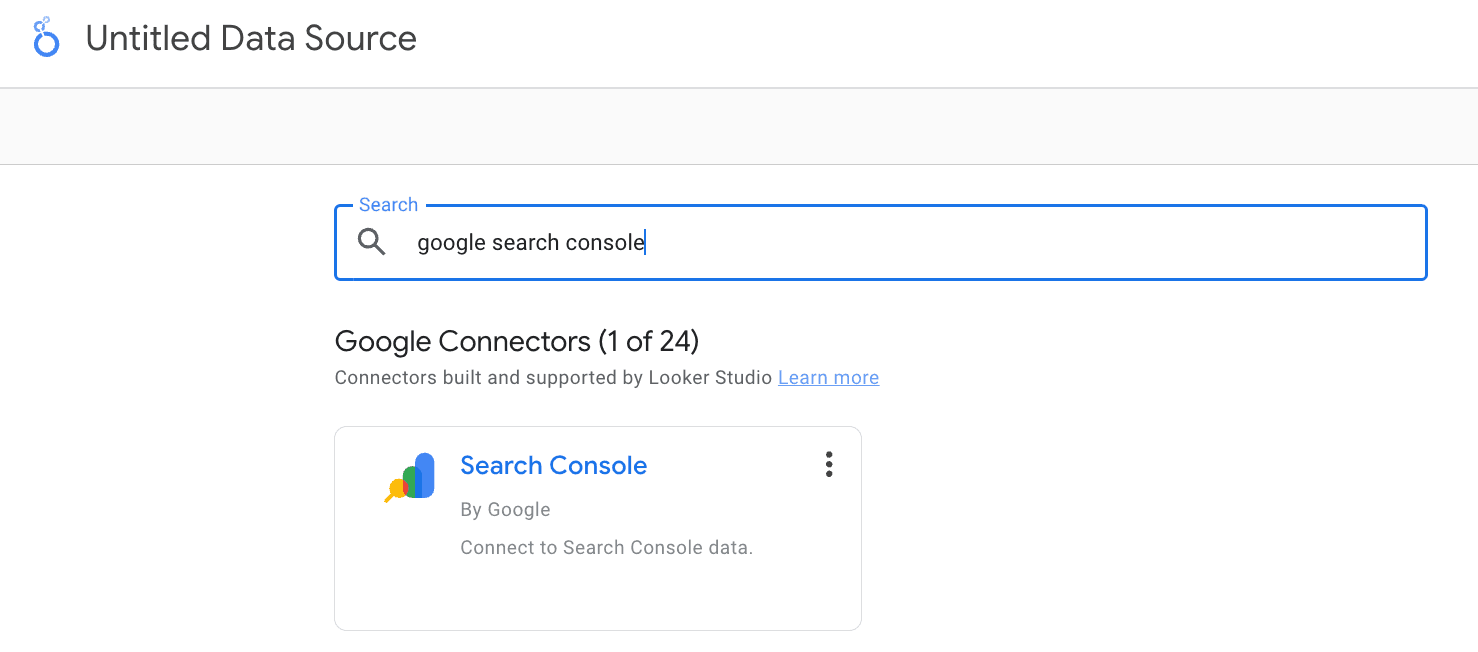
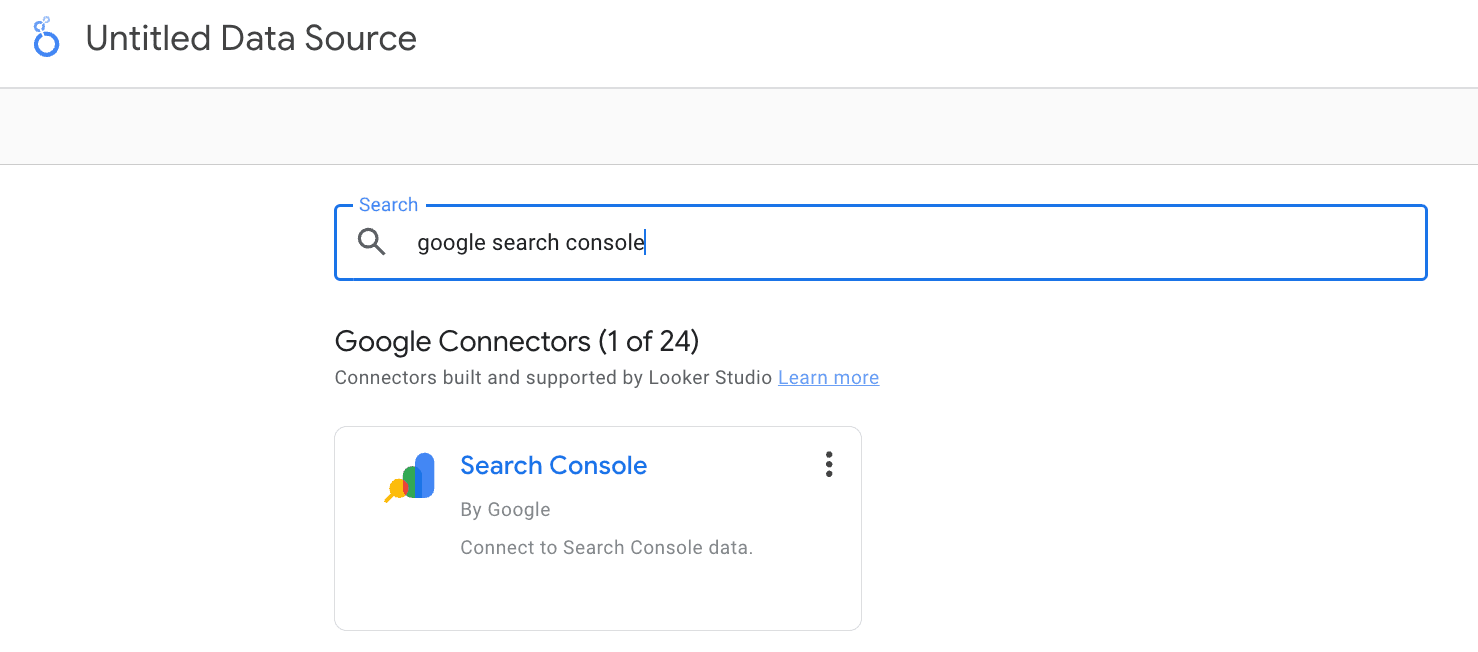
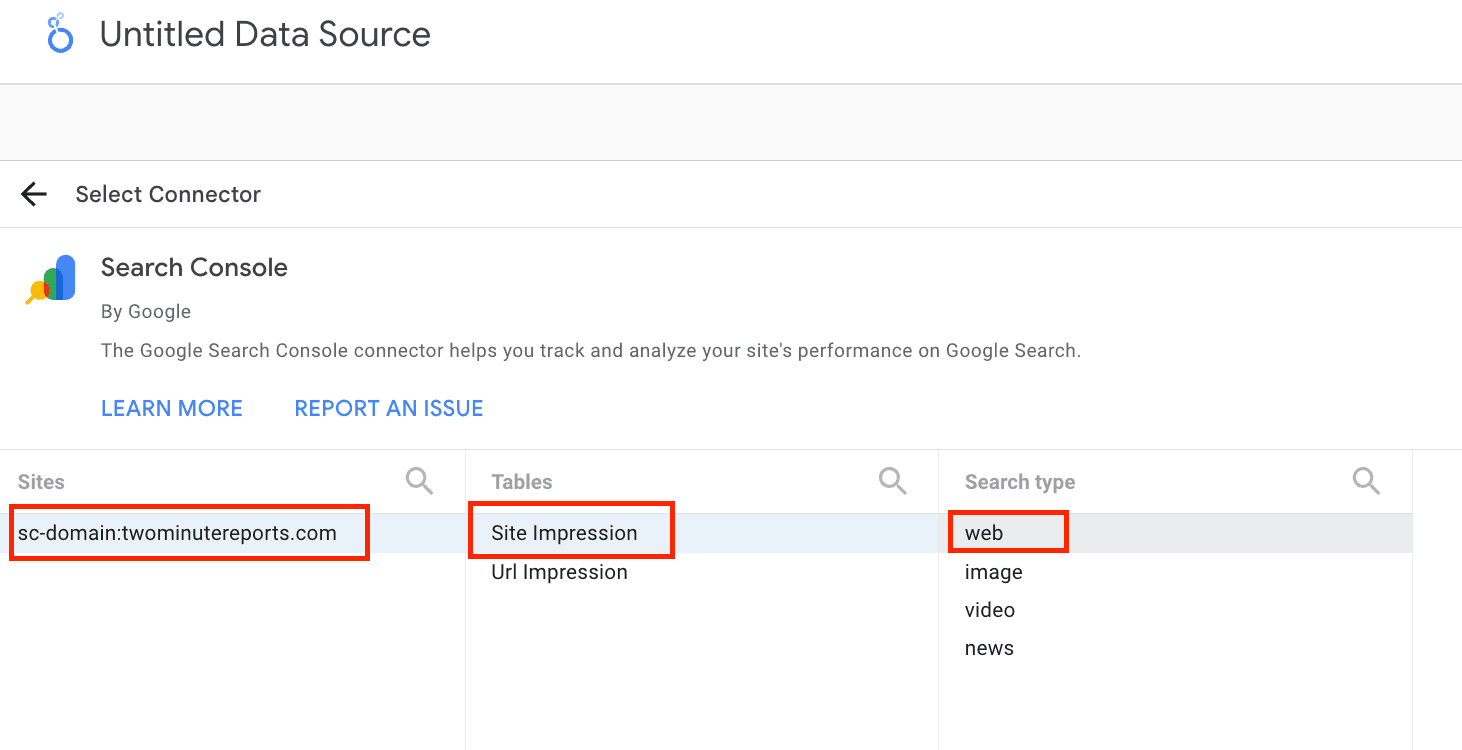
3. In the search bar, type "Search Console" and select it from the connector list
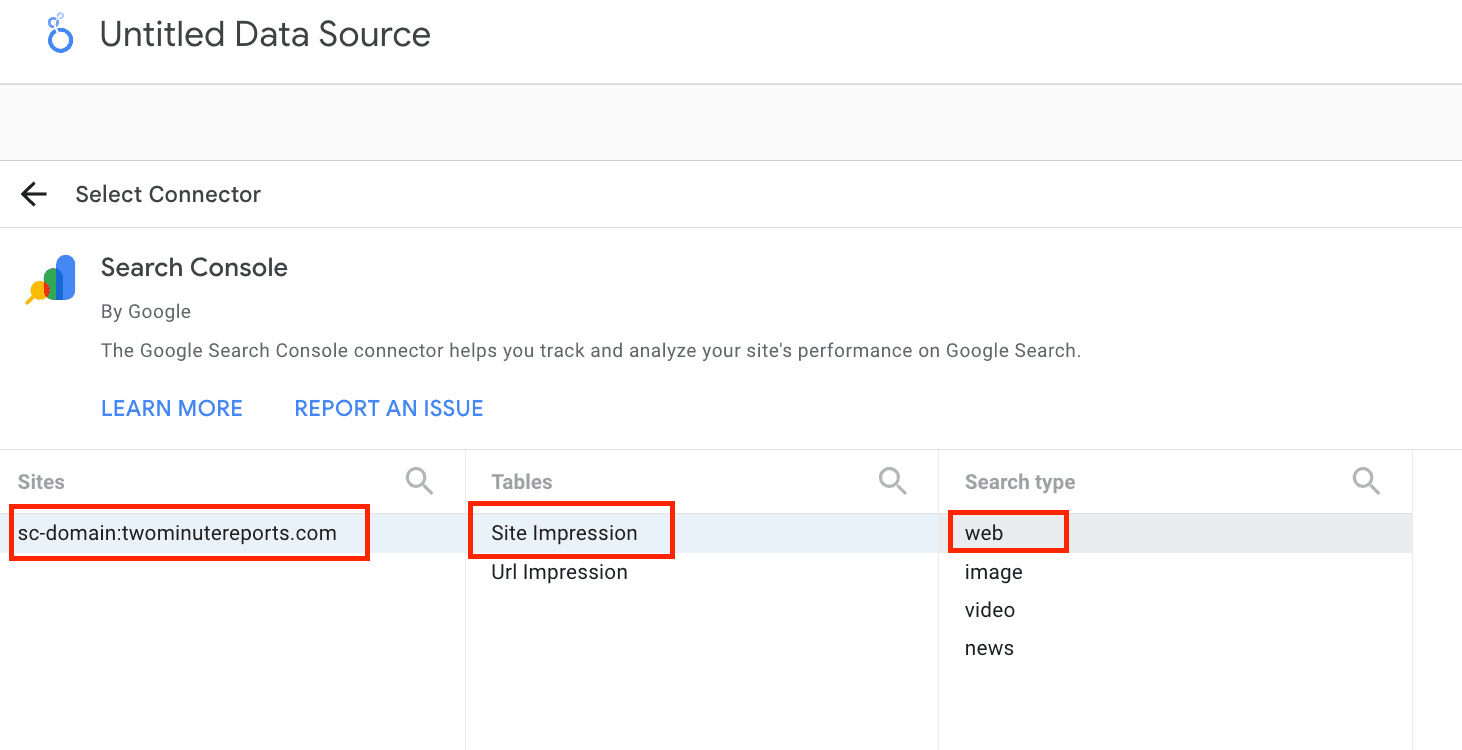
4. Choose the domain you want to pull data from. This should match your GSC property
5. Under Tables, select Site Impression. Set the Property Parameter to Web if the option appears
6. Give your data source a name
7. Click Connect in the top right corner. This saves the data source to your Google Data Studio drive
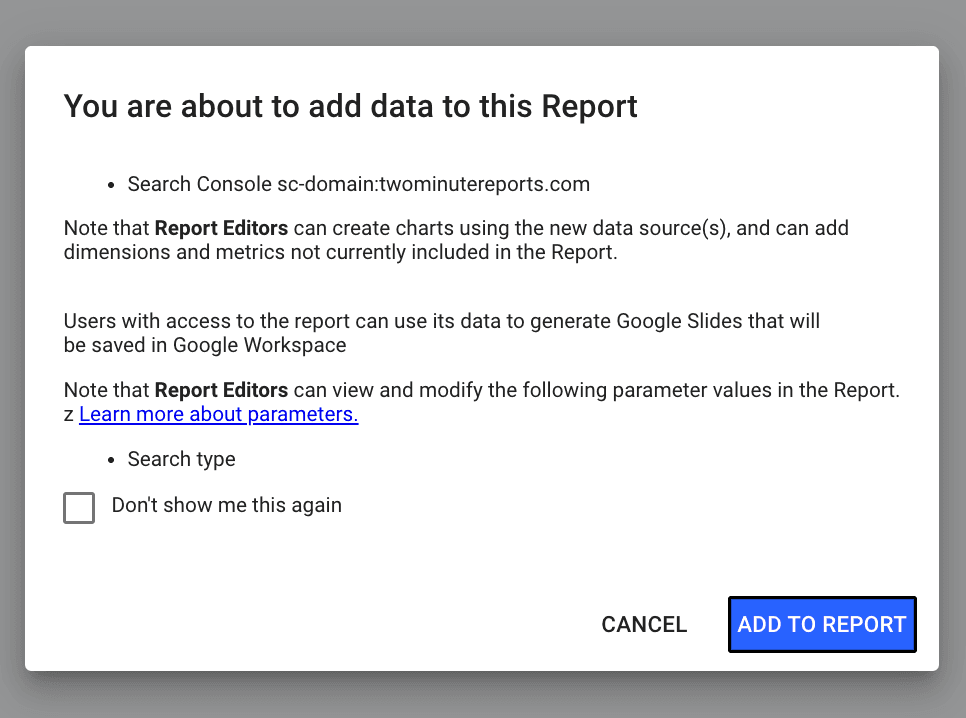
8. Click Create Report, then confirm by clicking Add to Report when prompted
Step 2: Add Your Data Metrics to the Dashboard
You should now have an empty canvas. Here's how to build your report:
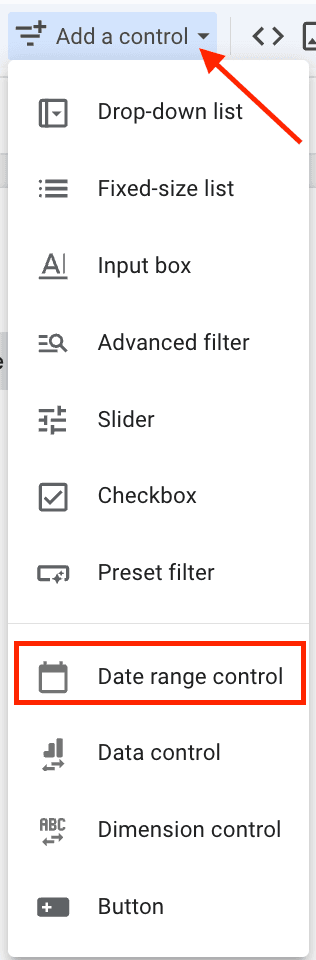
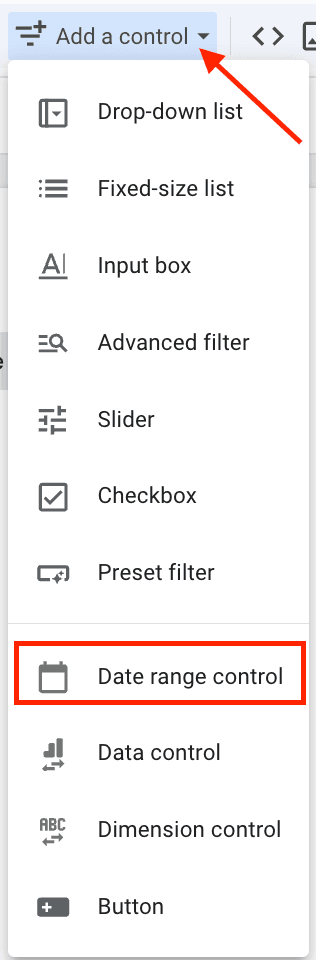
1. Click Add a Control from the top menu, select Date Range Control, and drag it onto the canvas. Set the date range; you can go back up to 16 months if needed
2. Click Add a Chart, select the first Table option, and drag it onto the canvas
3. Click the table you just added. In the right-hand panel, set Query as your dimension and Impressions as your metric
4. Scroll to the bottom of the table, and you'll see more than 1,000 rows of data populated
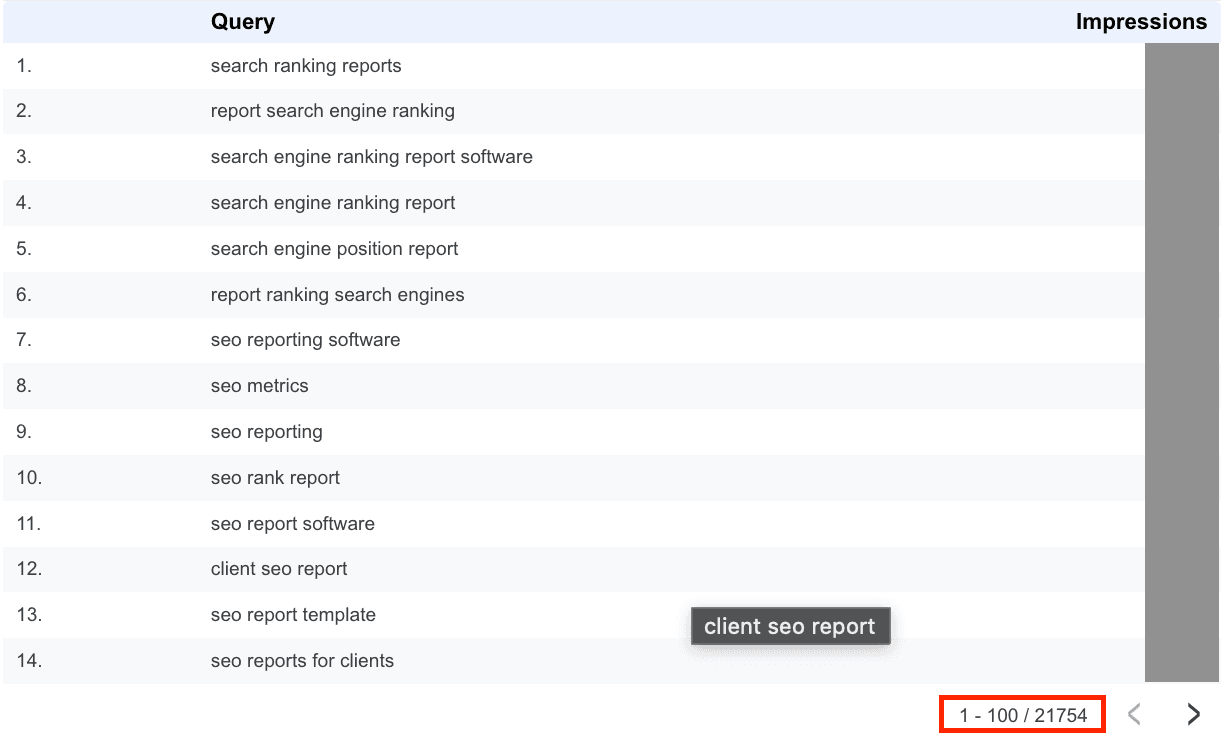
5. Click the three dots on the table to export the data directly to a Google Sheet
Limitations to Keep in Mind
- No scheduled refresh into Sheets. Exports are manual every time; there's no way to automate data delivery to a spreadsheet repeatedly
- Built for visualization, not raw data work. If you need a clean, flexible dataset in Sheets to analyze or share, Google Data Studio adds extra steps compared to the native Sheets tool
- Account access can be a blocker. Google Data Studio requires the same Google account that has access to your GSC property. Technically straightforward, but in practice, this creates friction. If a client is reluctant to share GSC access, or your team operates across different Google accounts, setting this up isn't always as simple as it looks. It's less a technical limitation and more an organizational one worth planning for.
Method 4 — GSC Bulk Data Export to BigQuery (Advanced)
If you manage large websites or need long-term, scalable data storage, Google Search Console’s bulk export to BigQuery is the most robust option. It automatically sends your Search Console data to BigQuery, Google’s cloud data warehouse, where you can store, analyze, and connect it with other marketing data sources. However, this method is best suited for teams with technical resources, as it requires cloud configuration.
How It Works
1. Start by opening Google Search Console → Settings → Bulk data export.
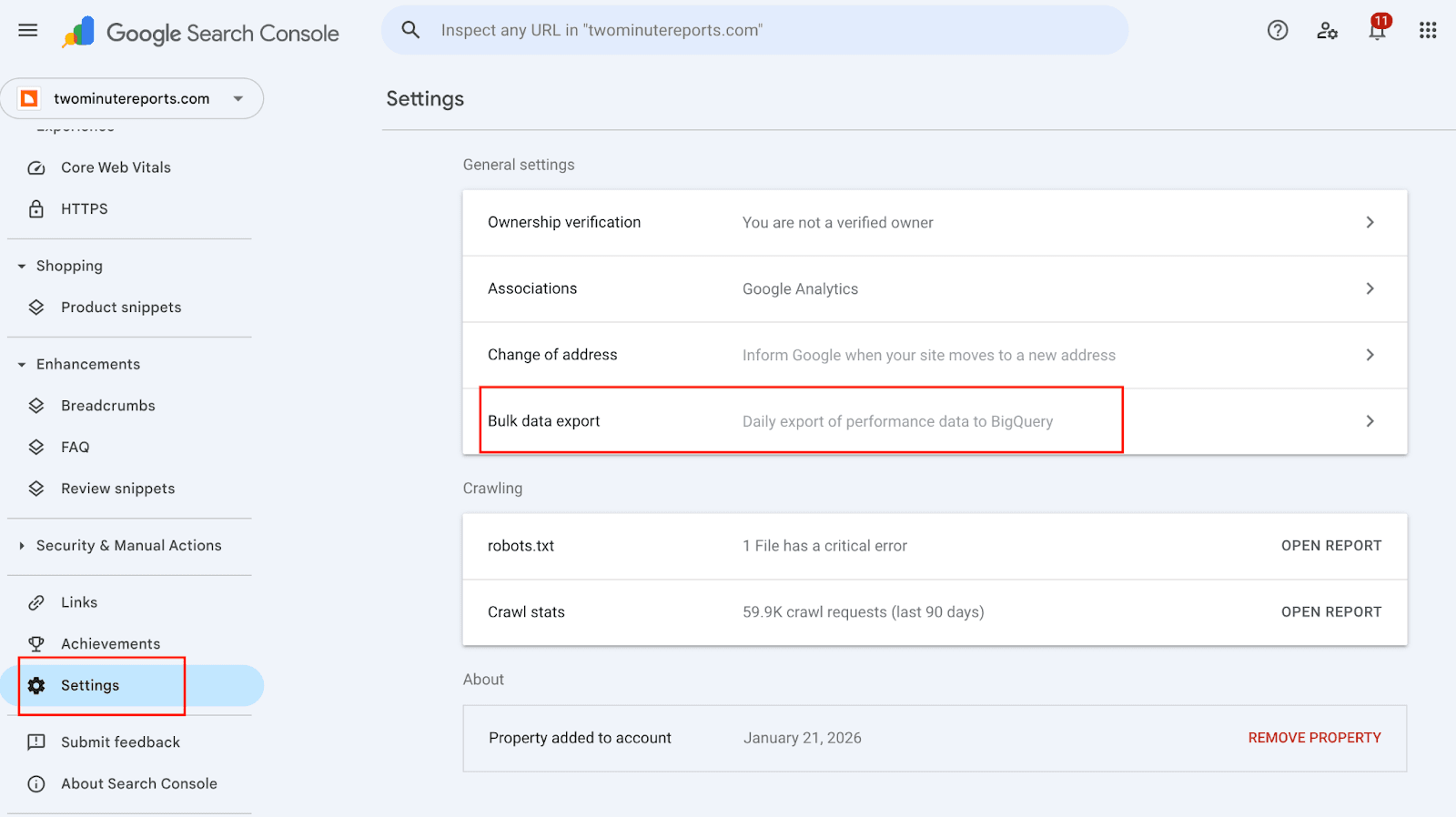
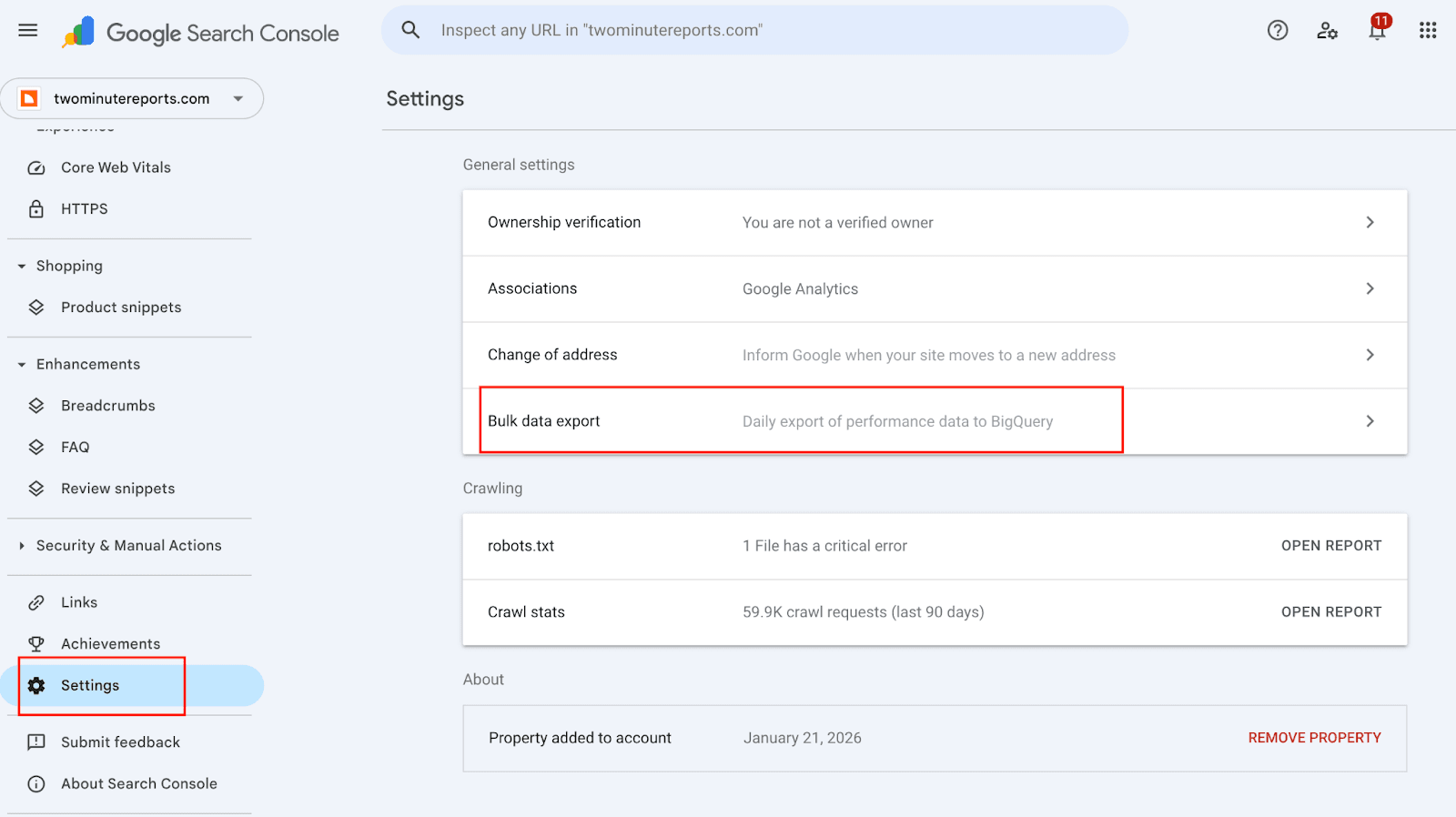
Note: You’ll need verified owner access to enable this feature. You can confirm your access level in the ownership verification section.
2. Next, connect Search Console to a Google Cloud project. This involves selecting or creating a project, enabling billing, and turning on the BigQuery API. Google provides step-by-step prompts during this process.
3. Once connected, enter your project ID and choose a dataset location. Search Console will automatically create the required dataset and begin preparing the export.
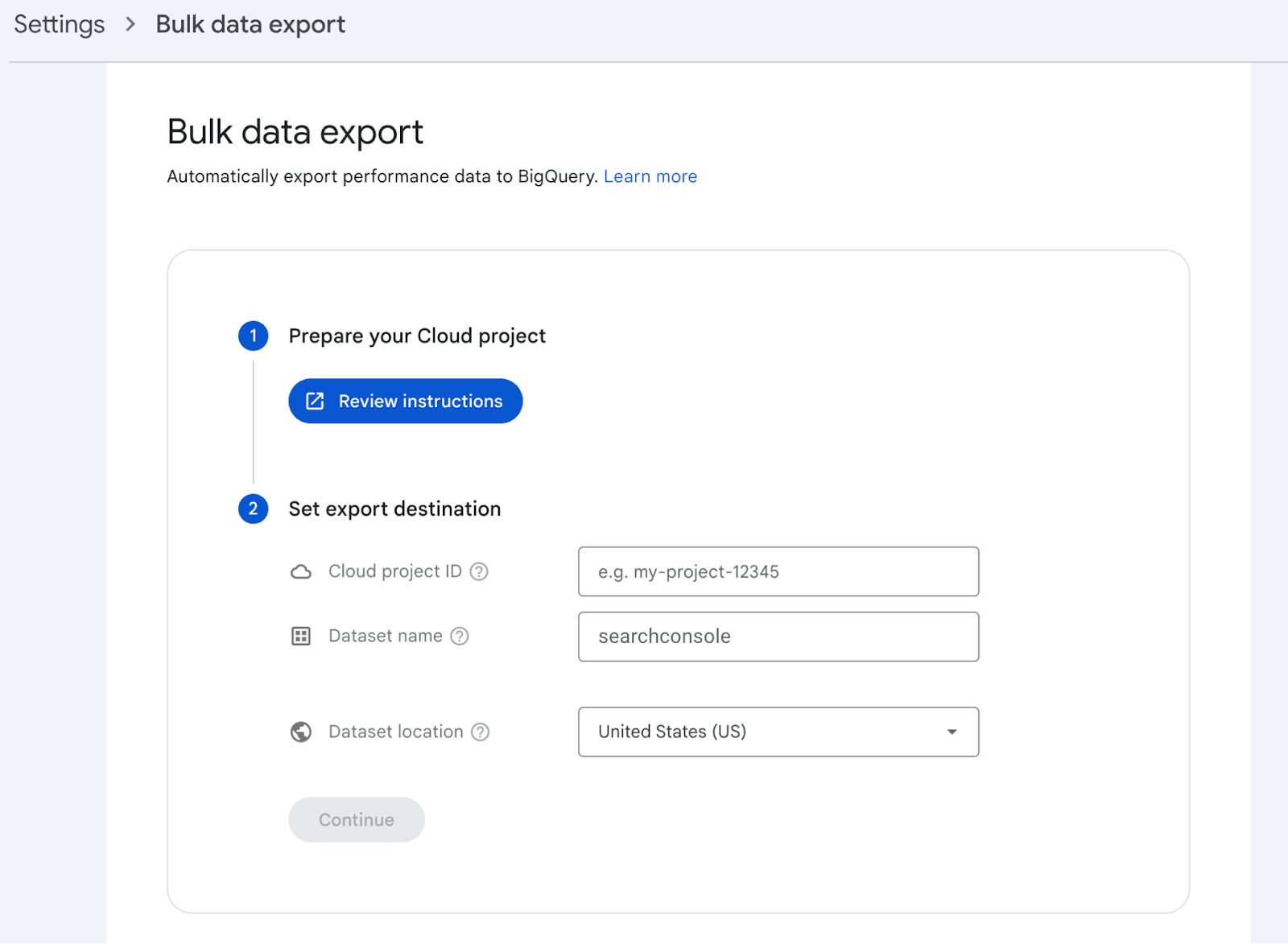
4. After confirming your setup, click Set up export. Your data will begin appearing in BigQuery within about 48 hours and will continue updating automatically every day.
Important limitation to know
Bulk export only captures data from the moment you enable it. It does not include historical Search Console data. If you need past performance data for reporting or client analysis, you’ll need to export it separately or use a reporting tool like Two Minute Reports that can access historical records.
Limitations to Keep in Mind
This method is genuinely powerful, but it comes with a setup cost that puts it out of reach for most SEOs and marketers.
- Google Cloud billing required. BigQuery has a free tier, but you'll need a Google Cloud account with billing enabled. Costs are generally low for most sites, but it's not zero-friction to get started.
- SQL knowledge needed. Getting useful data out of BigQuery means writing queries. If you're not comfortable with SQL, this method will feel steep.
- Setup time is significant. Between creating a Cloud project, configuring the export, and connecting it to Sheets, this isn't a same-day solution for most people.
- Overkill for most use cases. If your goal is simply to export URL or query data into Sheets regularly, a tool like Two Minute Reports gets you there in a fraction of the time.
Best for: Data engineers, SEO technical leads, and large enterprises who need complete, granular GSC data integrated into a broader data infrastructure.
Comparison Table: Which Method Should You Use?
Every method in this guide bypasses the 1,000-row limit, but they're not all built for the same person or the same workflow. Here's a side-by-side breakdown to help you pick the right one.
What to Do With Your Exported GSC Data in Sheets
Getting your full GSC data into Sheets is only half the job. Here's where it gets useful. With 1,000+ rows of clean URL and query data at your fingertips, here are five analyses you can run straight away.
1. Find Pages Stuck on Page 2 (Your Quickest Wins)
Filter your Pages report for URLs with an average position between 11 and 20. These are pages already ranking, just not quite visible enough to drive meaningful clicks. A targeted content update, a stronger internal linking push, or a title tag refresh is often enough to move them onto page 1. This is consistently one of the highest-ROI activities in SEO, and you can only do it properly with a full dataset. If your export is capped at 1,000 rows, many of these opportunities never show up.
2. Identify High-Impression, Low-CTR Pages
Sort your data by impressions (deep to low), then add a filter for CTR below a threshold you set, say, under 2%. These pages are appearing in search results regularly but failing to earn clicks. The fix is usually in the meta title or description; they're not compelling enough to stand out on the SERP. With your full URL list exported, you can systematically work through these rather than guessing which pages have the problem.
3. Spot Pages Losing Clicks Month-Over-Month
If you run two separate exports, one for the current period and one for the previous period, you can use a simple VLOOKUP in Sheets to compare clicks per URL across both datasets. Any page showing a meaningful drop is worth investigating: has it lost rankings, picked up a technical issue, or been cannibalized by another page on your site? Catching these early is far easier than diagnosing a traffic drop months later.
4. Build a Keyword Cannibalization Analysis
Pull both your Pages and Queries reports into the same spreadsheet, one per tab. Then use VLOOKUP or pivot tables to map which queries are driving traffic to which URLs. If the same keyword is sending traffic to two or more different pages, you've found a cannibalization issue. This analysis is nearly impossible to do accurately inside the GSC interface itself, but straightforward in Sheets once you have the full dataset.
5. Automate Weekly SEO Reports for Clients (Agency Use Case)
This is where Two Minute Reports' scheduled refresh feature really pays off for agencies. Set up a GSC report for each client property, schedule it to refresh every Monday morning, and build a summary tab on top of the raw data with the key metrics your clients care about, such as clicks, impressions, top pages, and position movements. Your weekly SEO report effectively writes itself, and every client is working from fresh data without you manually pulling exports every week.
Conclusion
Google Search Console's 1,000-row export limit is a real barrier for anyone trying to do serious SEO work, but as this guide shows, it's not an insurmountable one. Whether you go with GA4 reporting for a quick free pull, Google Data Studio for visualization, BigQuery for enterprise-scale data infrastructure, or Two Minute Reports for a clean, automated Sheets workflow, there's a path that fits your setup.
That said, for most SEOs, marketers, and agencies who live in Google Sheets, Two Minute Reports is the most practical route. No code, no complex setup, no manual exports, just your full GSC data landing directly in Sheets on a schedule you control, at whatever scale your site demands.
Frequently Asked Questions
Google Search Console's interface and standard export function are both capped at 1,000 rows by design. It's a limitation of the native UI, not the underlying data. Google does make your complete dataset available through the GSC API, which has no hard row limit; it's just not accessible through the standard interface without a third-party tool or technical setup.
Yes. While the GSC interface limits you to 1,000 rows, you can export your full dataset by connecting to the GSC API. Tools like Two Minute Reports do this directly inside Google Sheets with no coding required. Other options include Google Analytics 4, Google Data Studio, and BigQuery's native bulk export.
Yes, there are actually two free options. Google Analytics 4 lets you access GSC data beyond 1,000 rows if your GA4 and GSC accounts are linked, and Google Data Studio connects to the GSC API for free and lets you export full datasets. The tradeoff with both is that they require manual exports and don't support automated refresh.
The quickest way is to use Two Minute Reports. Install the Google Sheets add-on, connect your GSC account, select the Pages report type, set your row limit above 1,000, and run the report. Your full list of URLs with clicks, impressions, CTR, and average position will populate directly in Sheets within minutes. Free alternatives include GA4 and Google Data Studio, though these require more manual steps and don't offer automated refresh.
Related Blogs





Meet the Author
Shabika VenkidachalamShabika, at her core, is a storyteller who believes even data-heavy topics can be infused with heart. At Two Minute Reports, she blends creative writing with user intent to create clear, purposeful content that is deeply human. Away from her desk, she finds inspiration in nature, where creativity flourishes without distractions.