Connect ChatGPT Ads to Google Sheets: A Step-by-Step Tutorial
Summarize this blog post with:
OpenAI introduced ads in ChatGPT, giving brands a new way to reach audiences through relevant conversations. If you’re a marketer or an agency owner running ChatGPT Ads for multiple clients and looking for ways to automate it, you’ve landed in the right place.
In this guide, I’ll show you how to connect your ChatGPT Ads to Google Sheets using Two Minute Reports. In the end, you’ll be able to create ChatGPT Ads reports in Google Sheets within minutes and make informed decisions to improve campaign performance.
How to Connect ChatGPT Ads to Google Sheets?
You can connect ChatGPT Ads to Google Sheets through the Two Minute Reports Hub. It is your workspace for managing and organizing your ChatGPT Ads data in one place. Here’s how to get started:
Step 1: Creating a Connection
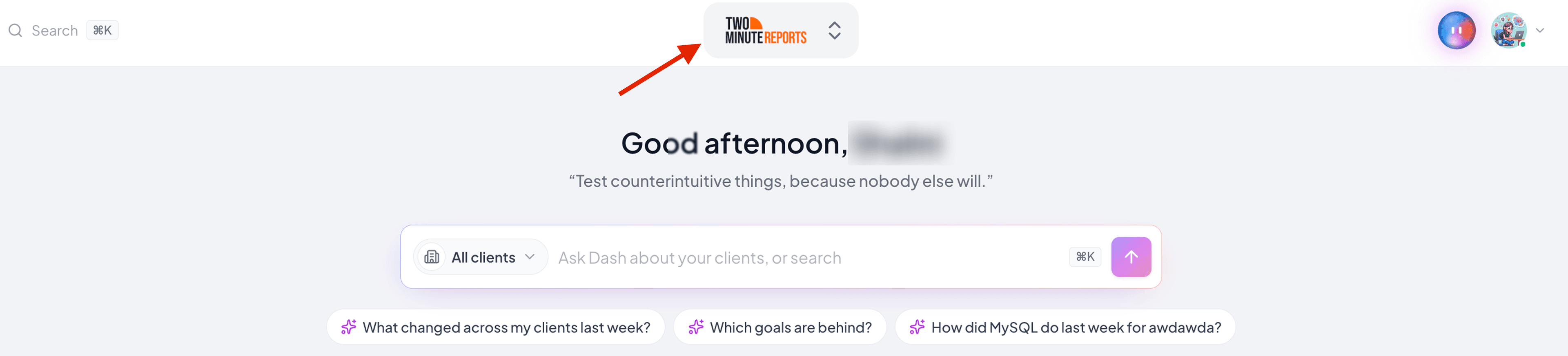
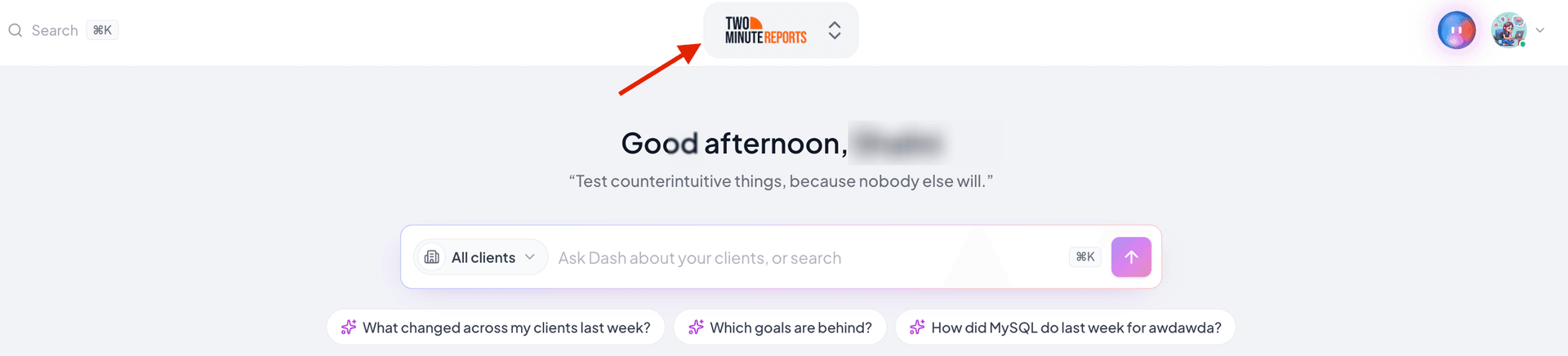
1. Go to hub.twominutereports.com. Click the Two Minute Reports Hub dropdown in the centre to view and select the Connections & accounts option.
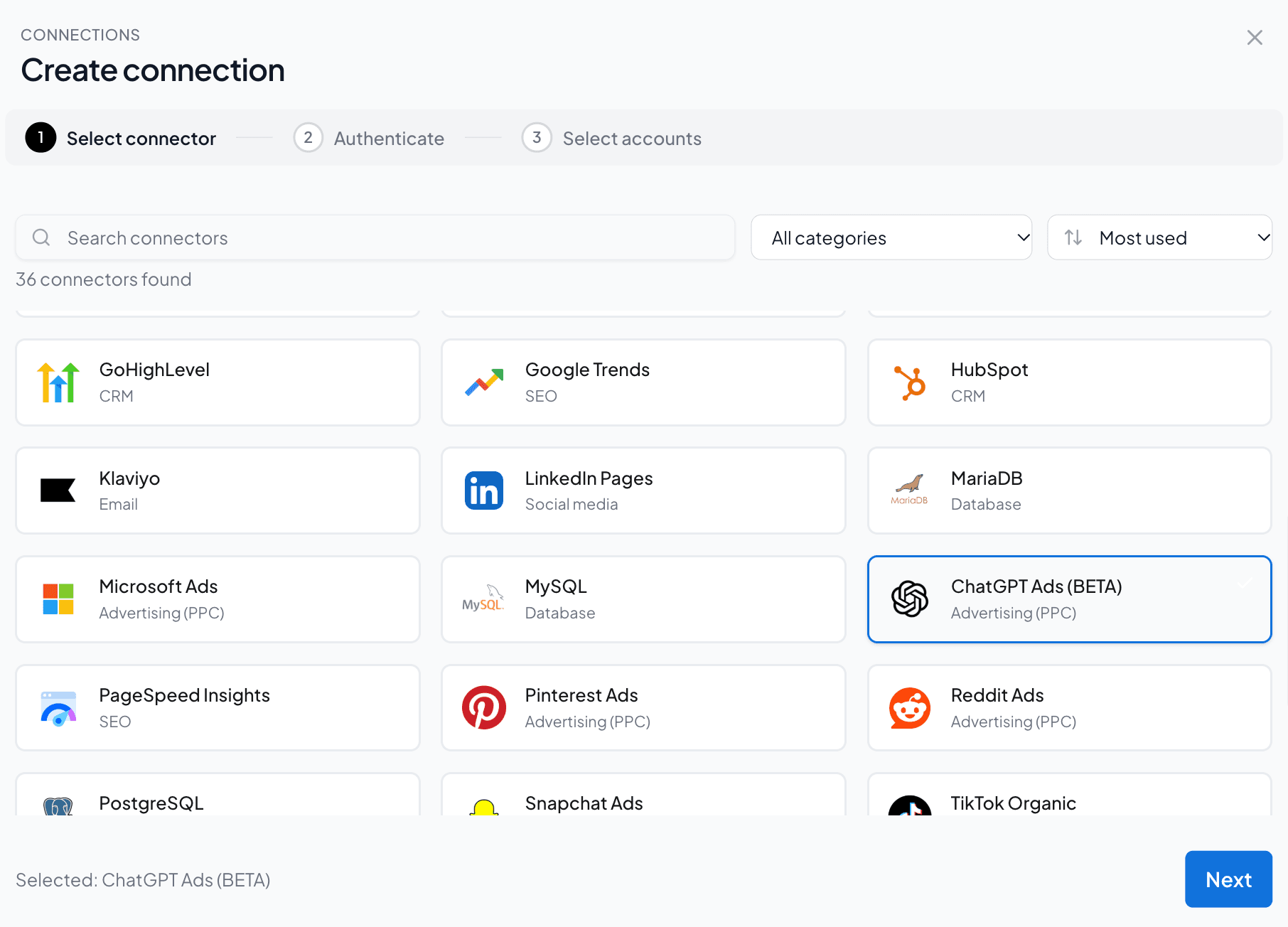
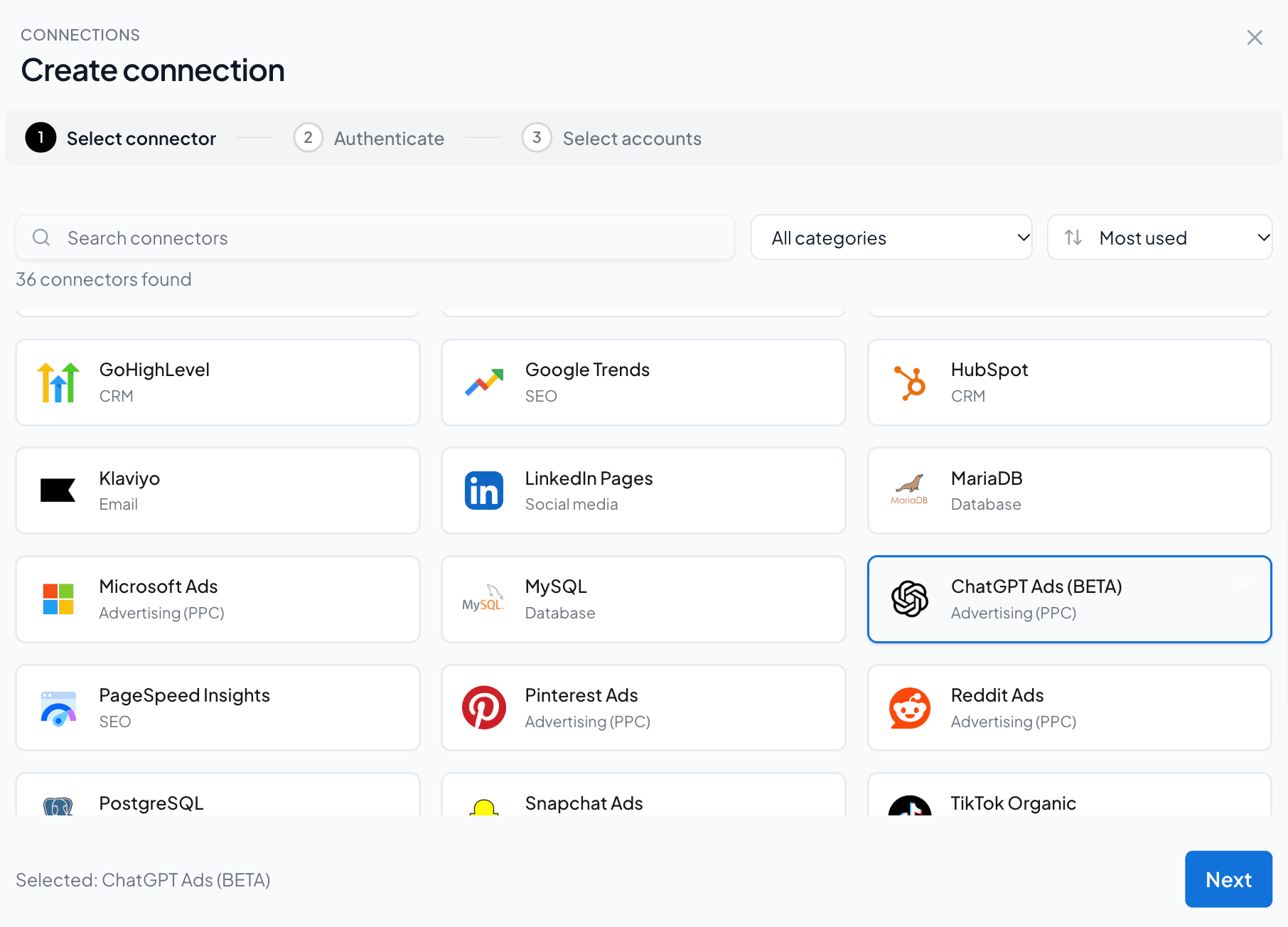
2. Click +Create Connection. Select ChatGPT Ads from the list of connectors and click Next.
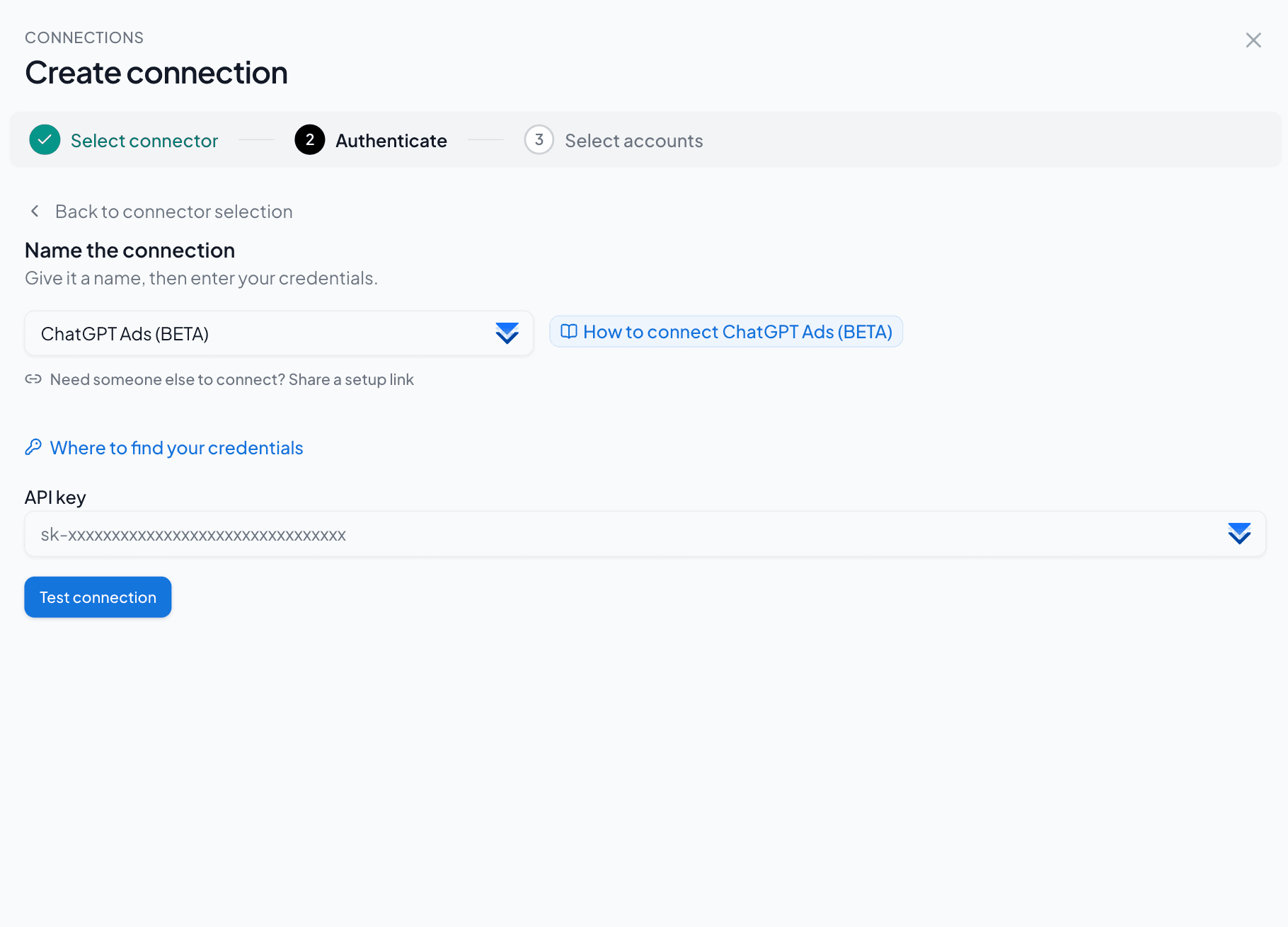
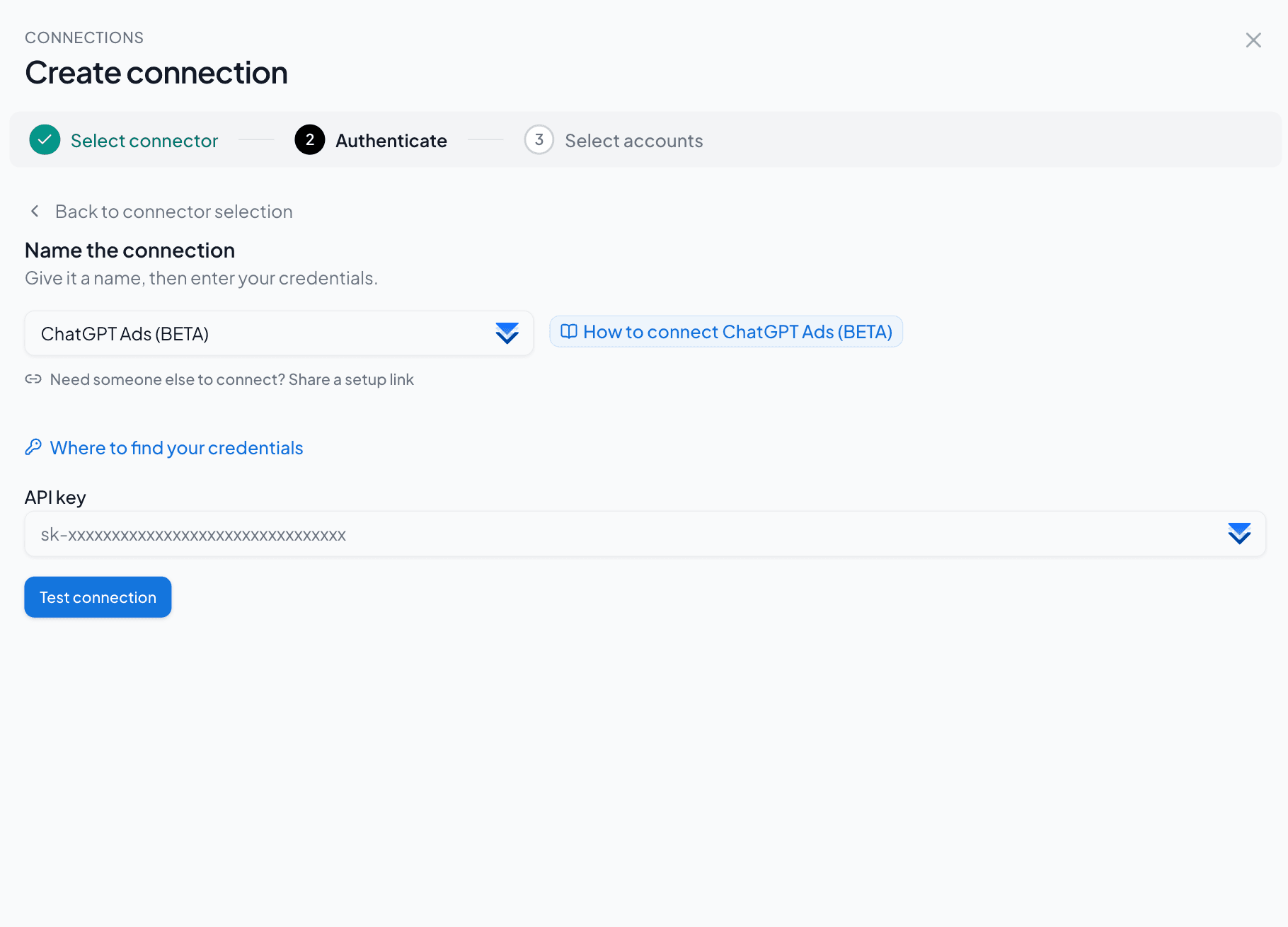
3. Authorize your connection by specifying the name and your API key. If you do not have an API key, please check our article on how to get the credentials. Click Test connection.
4. Once you’ve authenticated your account, enable the ad accounts for which you want to track and measure ChatGPT Ads performance. Please note that you cannot fetch data from the disabled accounts.
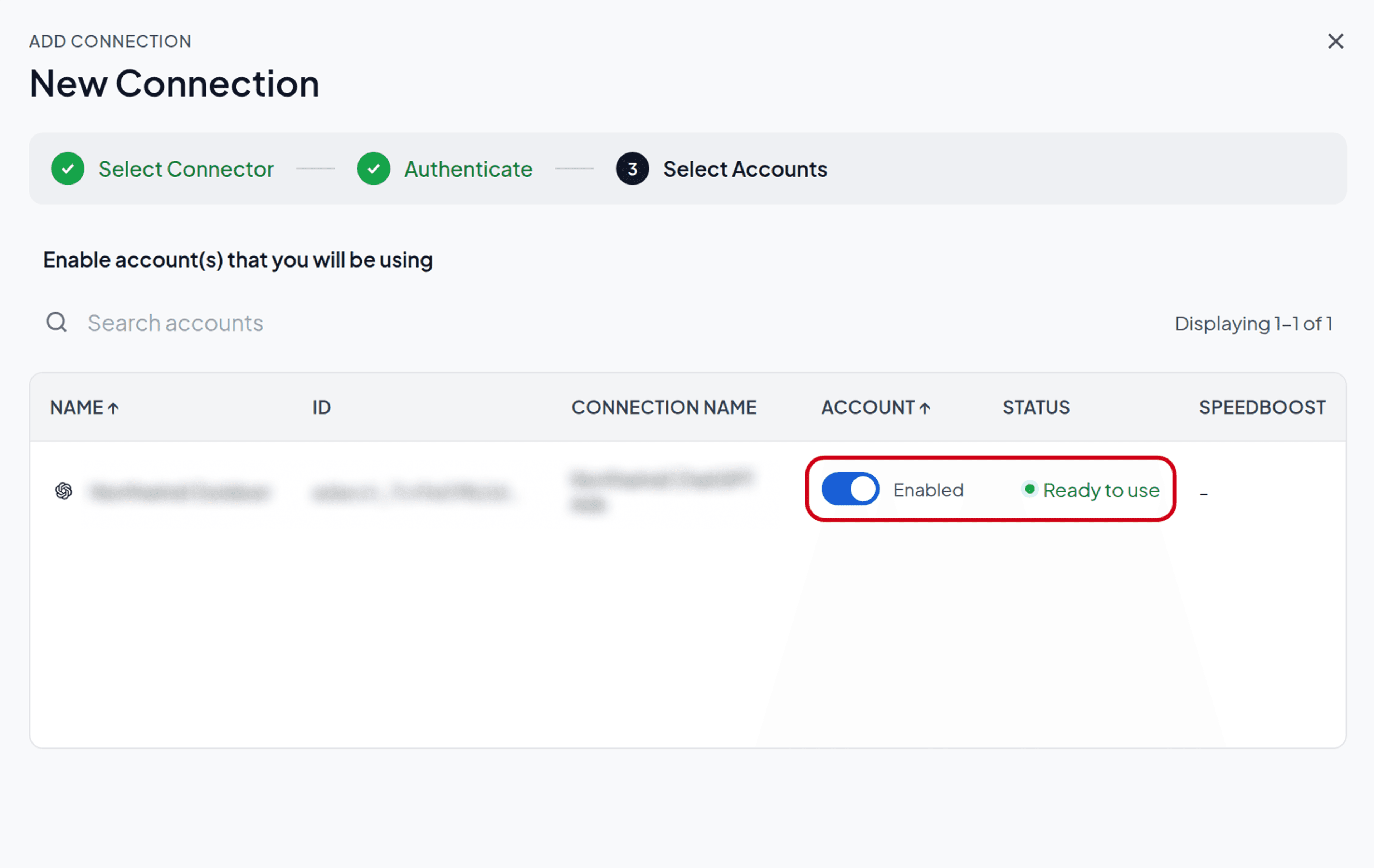
5. Once done, click the Two Minute Reports Hub dropdown and select Google Sheets. Click + Create Spreadsheet.
6. Click Use Template and follow the on-screen instructions to launch the Two Minute Reports add-on in your spreadsheet.
Step 2: Configure and Run Your Query
1. Once you’ve installed the add-on, navigate to Menu → Data Queries and click Add.
2. Select the ChatGPT Ads accounts you want to include from the sidebar.
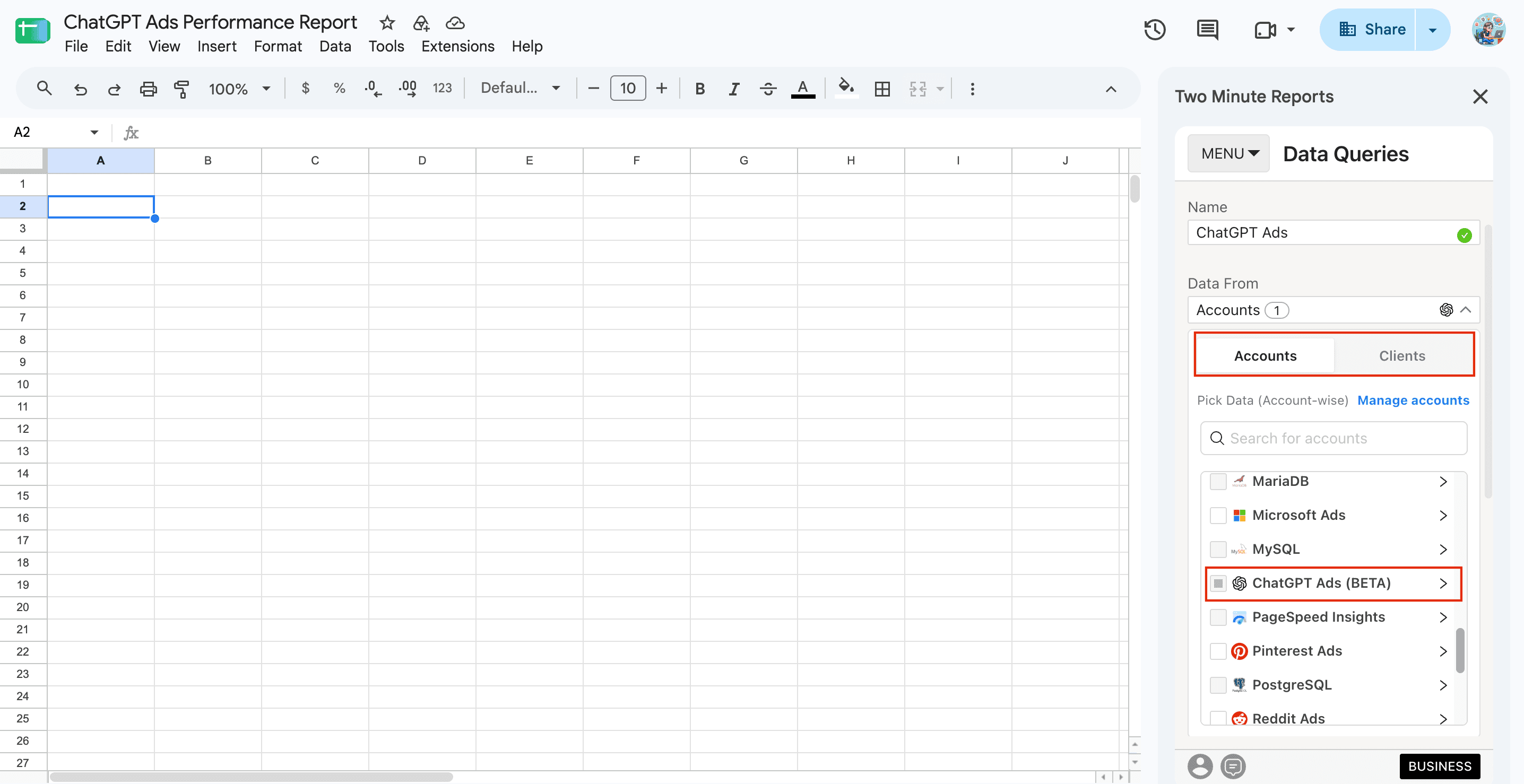
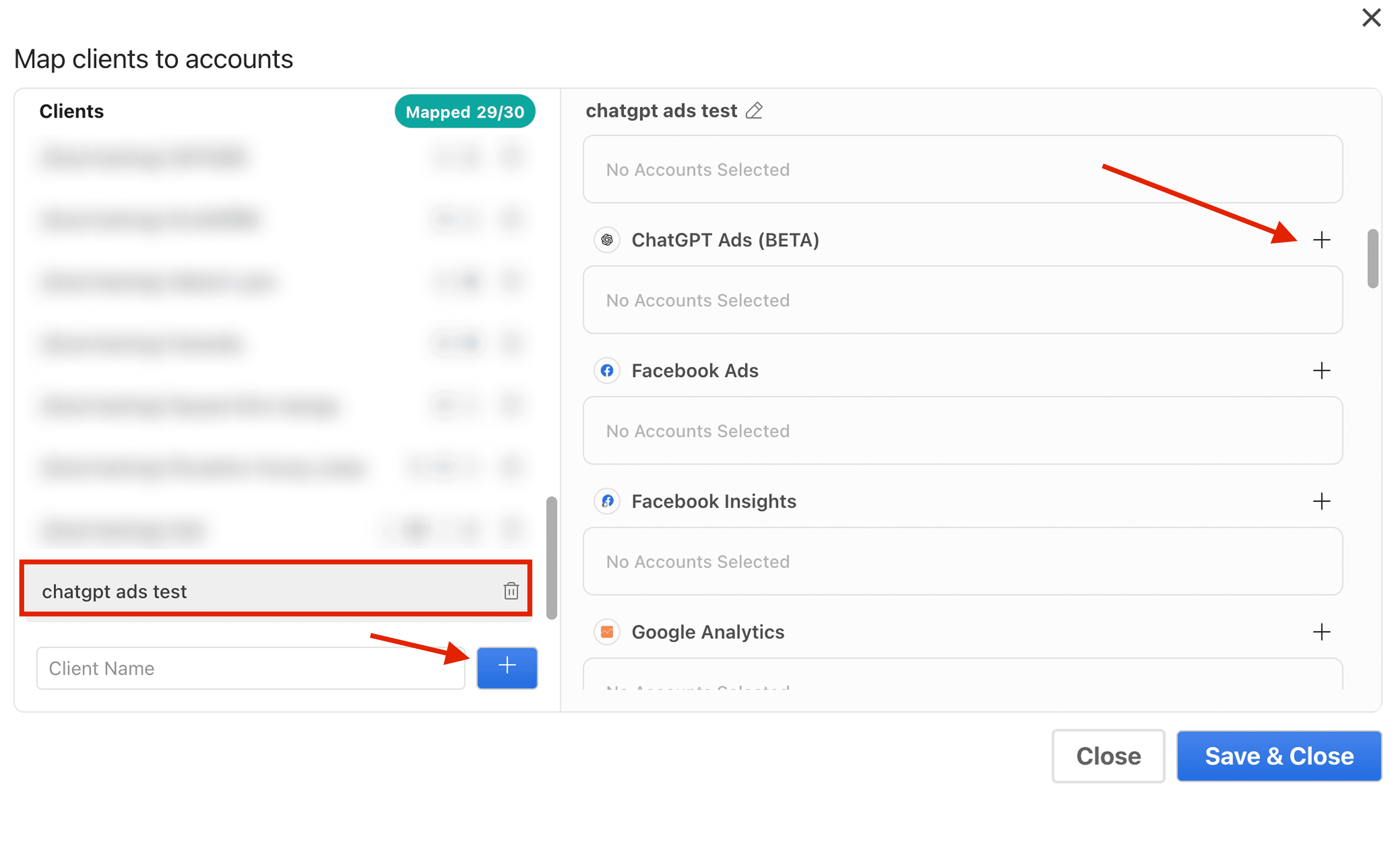
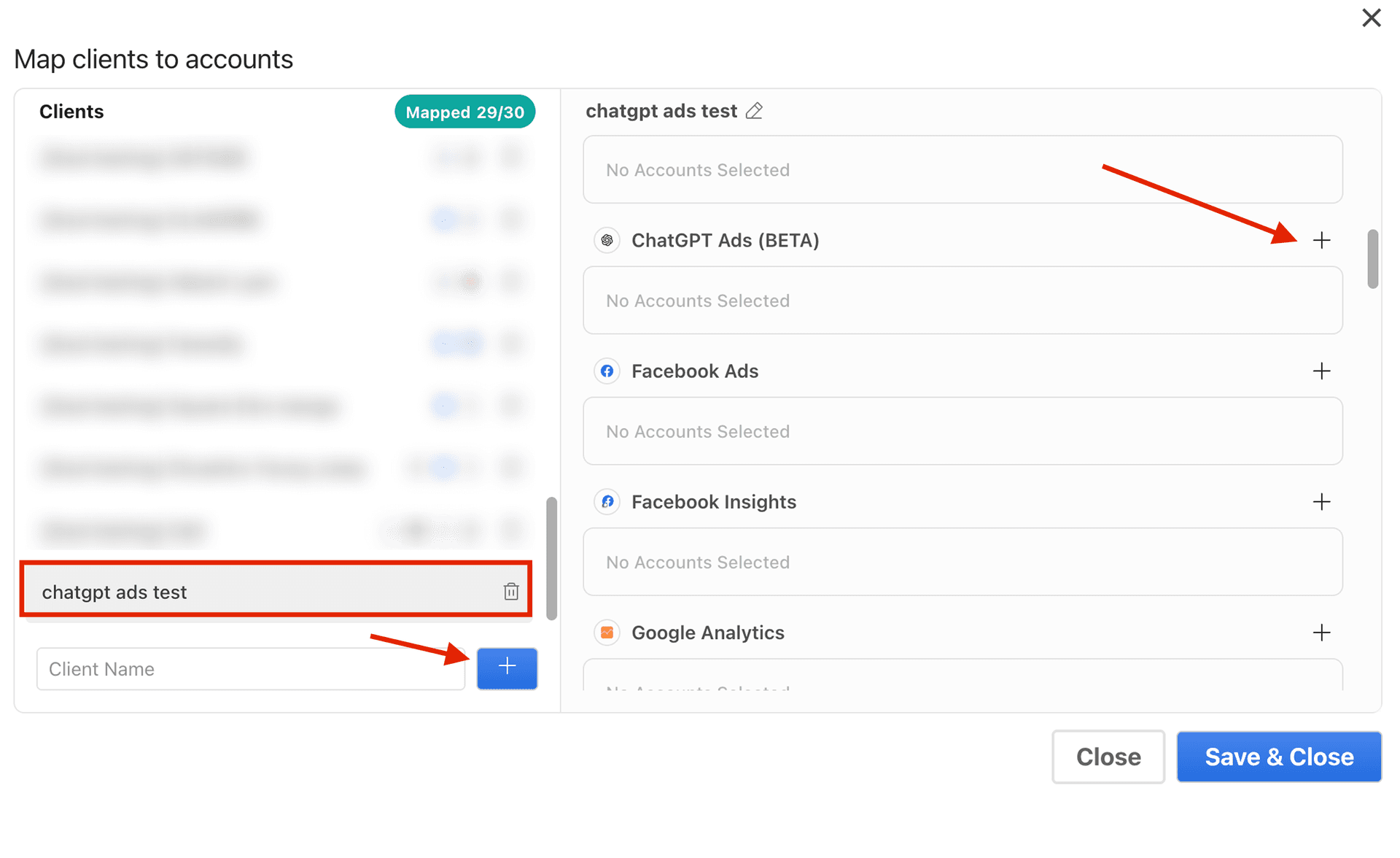
3. If you’re managing multiple clients, go to Clients → Manage Clients (in the sidebar), map your ChatGPT Ads accounts to the relevant clients and click Save & Close.
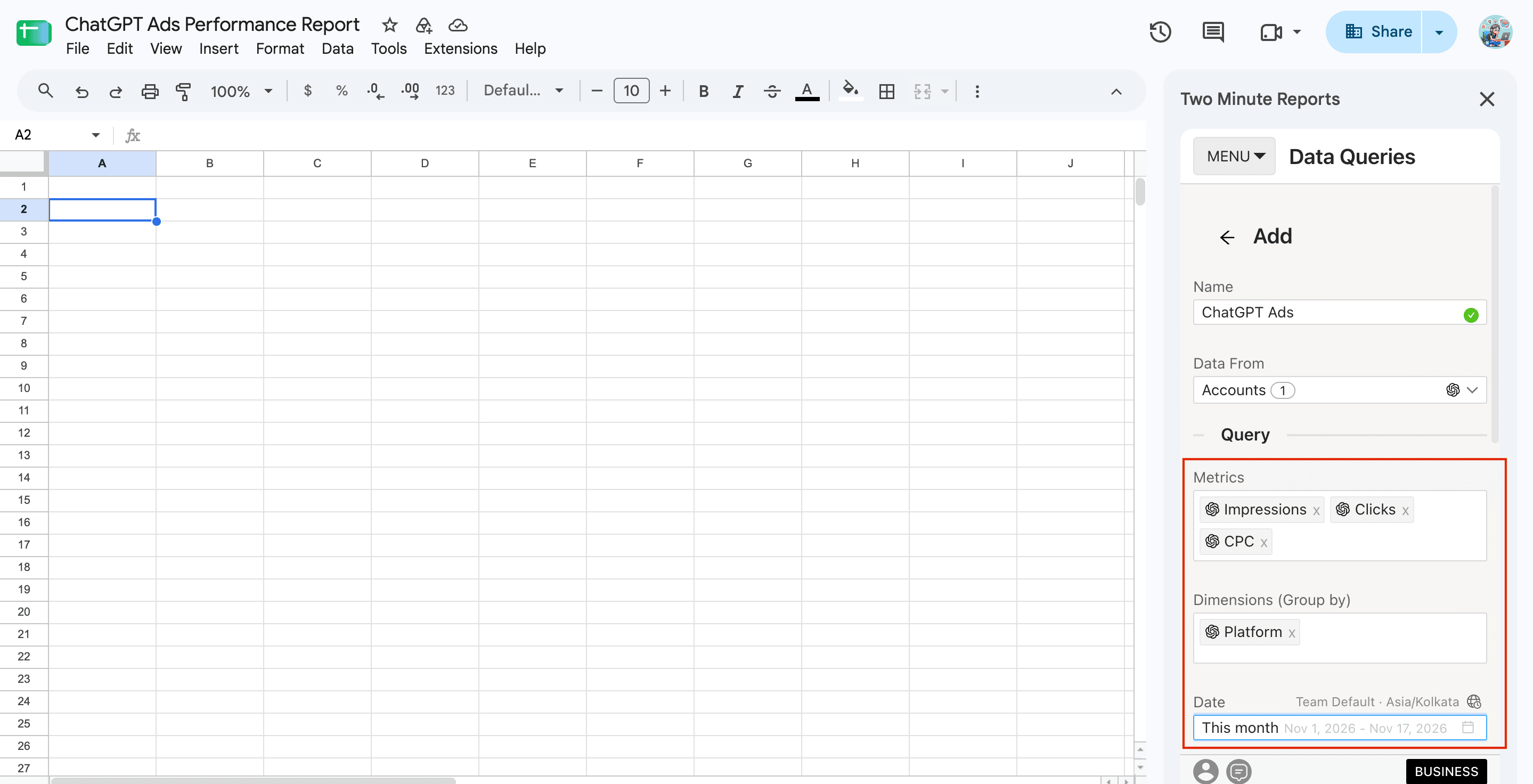
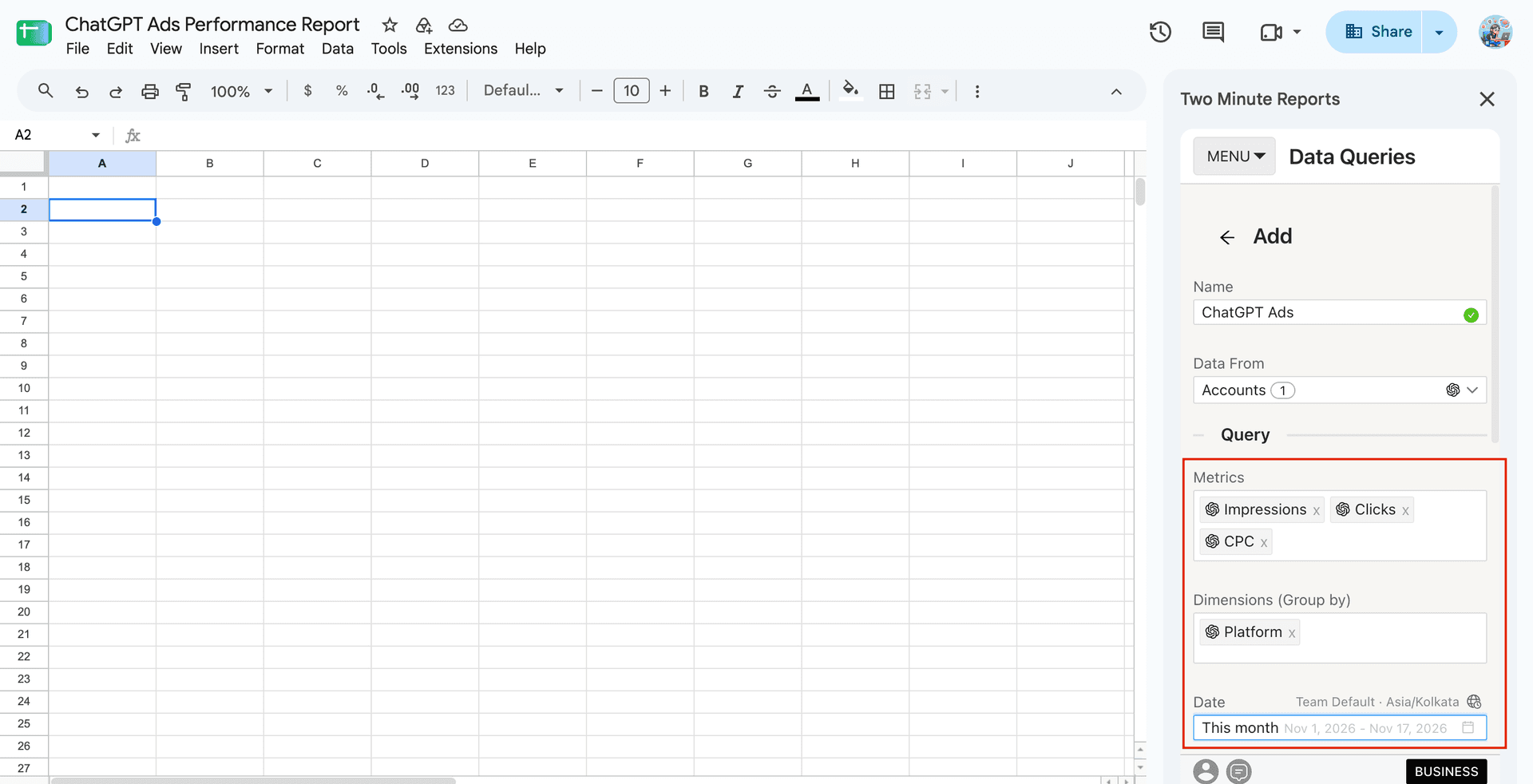
4. Next, choose the relevant ChatGPT Ads metrics and dimensions and select your date range.
5. Click Run Query to pull the data into your chosen sheet and cell. Now you can see the insights populated in your Google Sheets report.
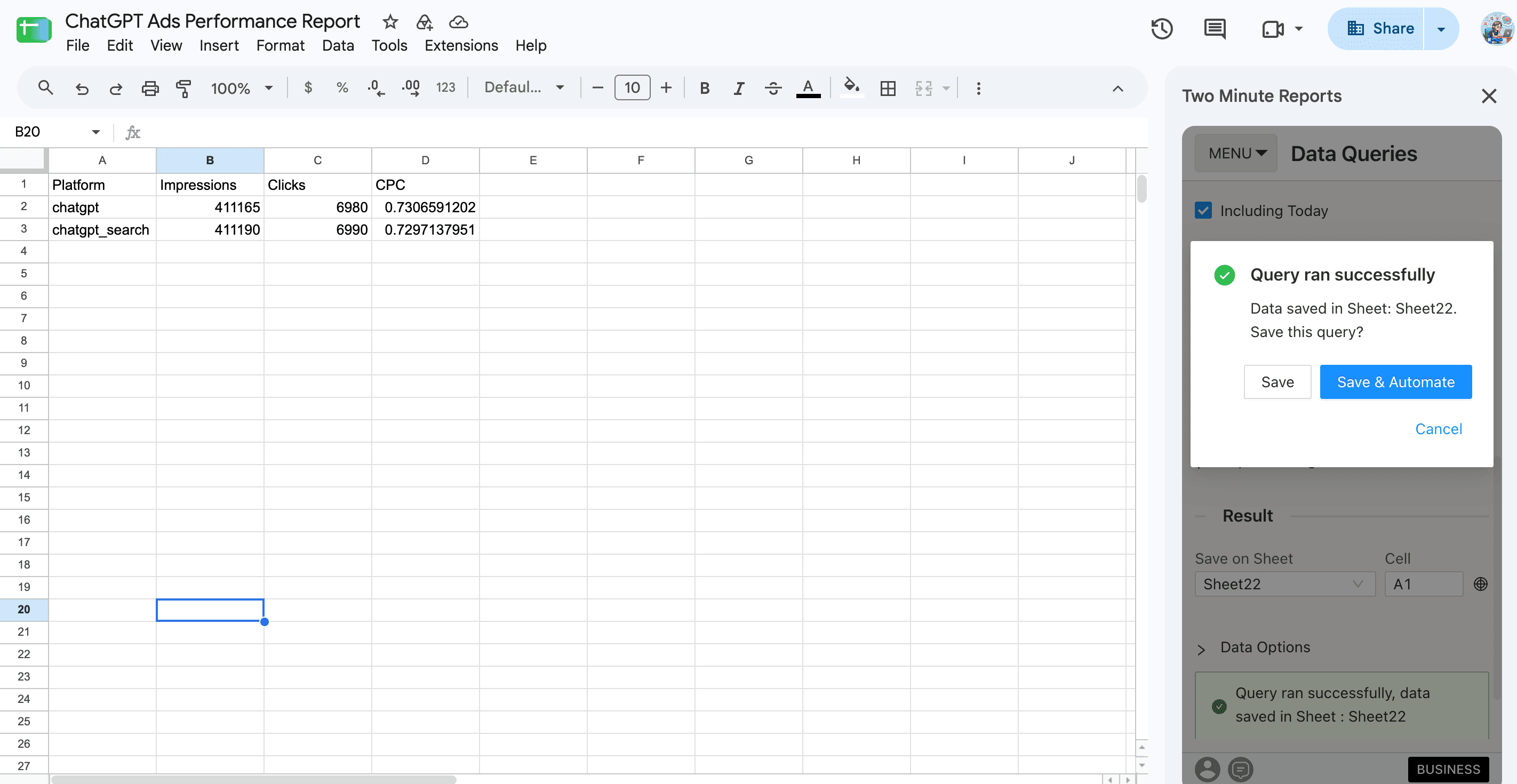
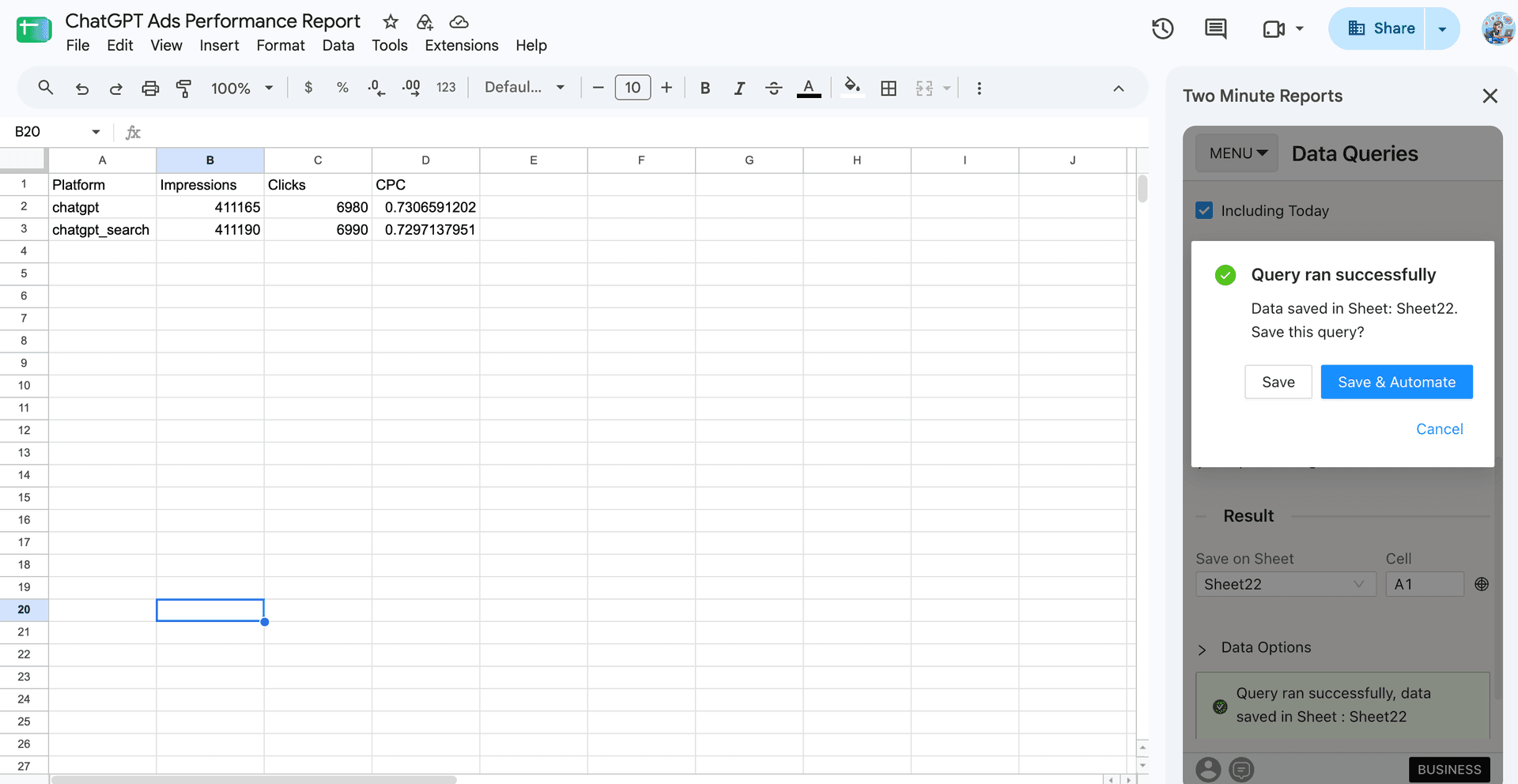
Now that you have the report, the next step is to automate it. Let’s have a look at it in the next section
How to Automate ChatGPT Ads in Google Sheets?
You can either click Save & Automate as shown in the above screenshot or navigate to Menu → Schedule Refresh. Either way, the steps remain the same. For now, let’s click Save & Automate. Then follow the steps below:
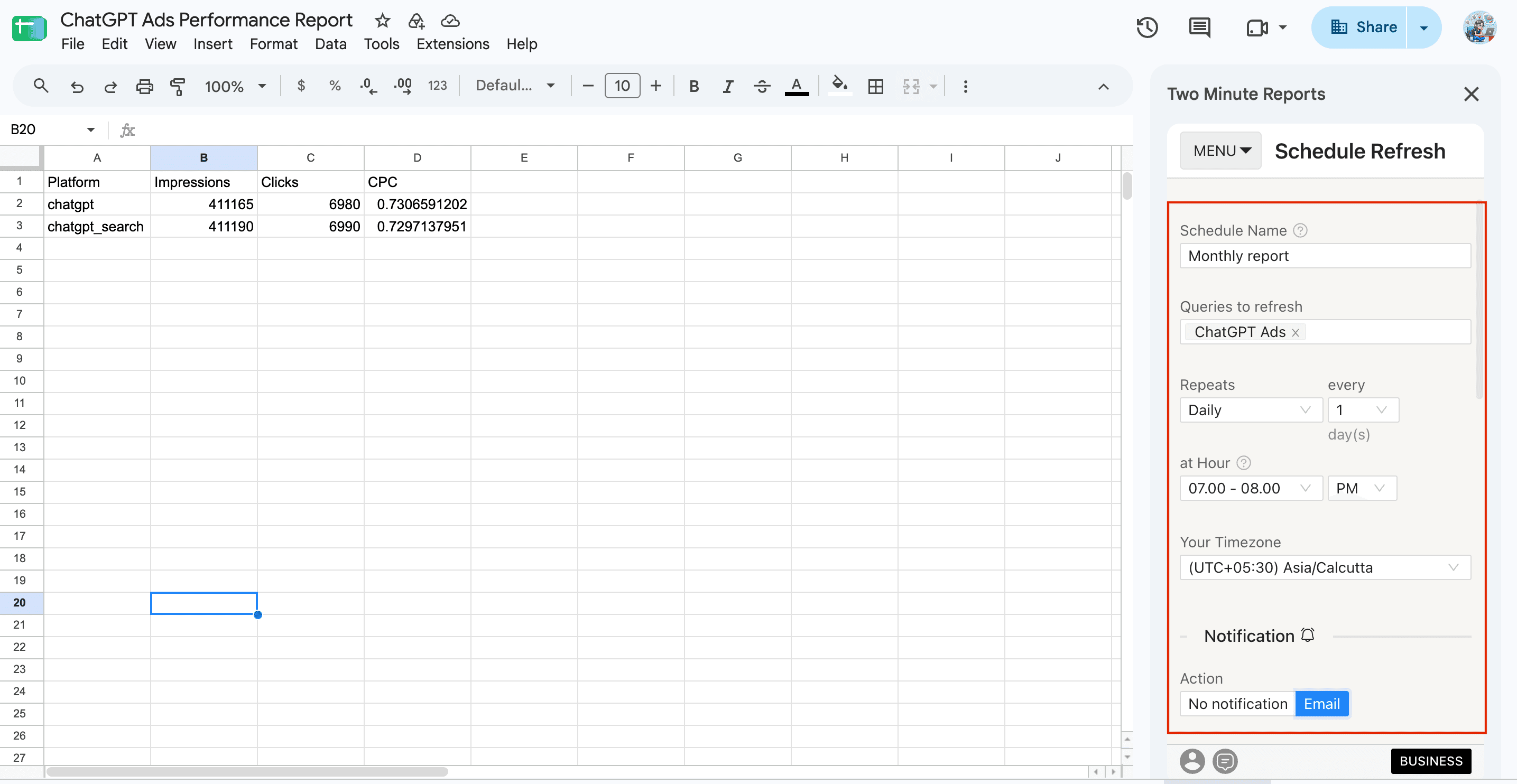
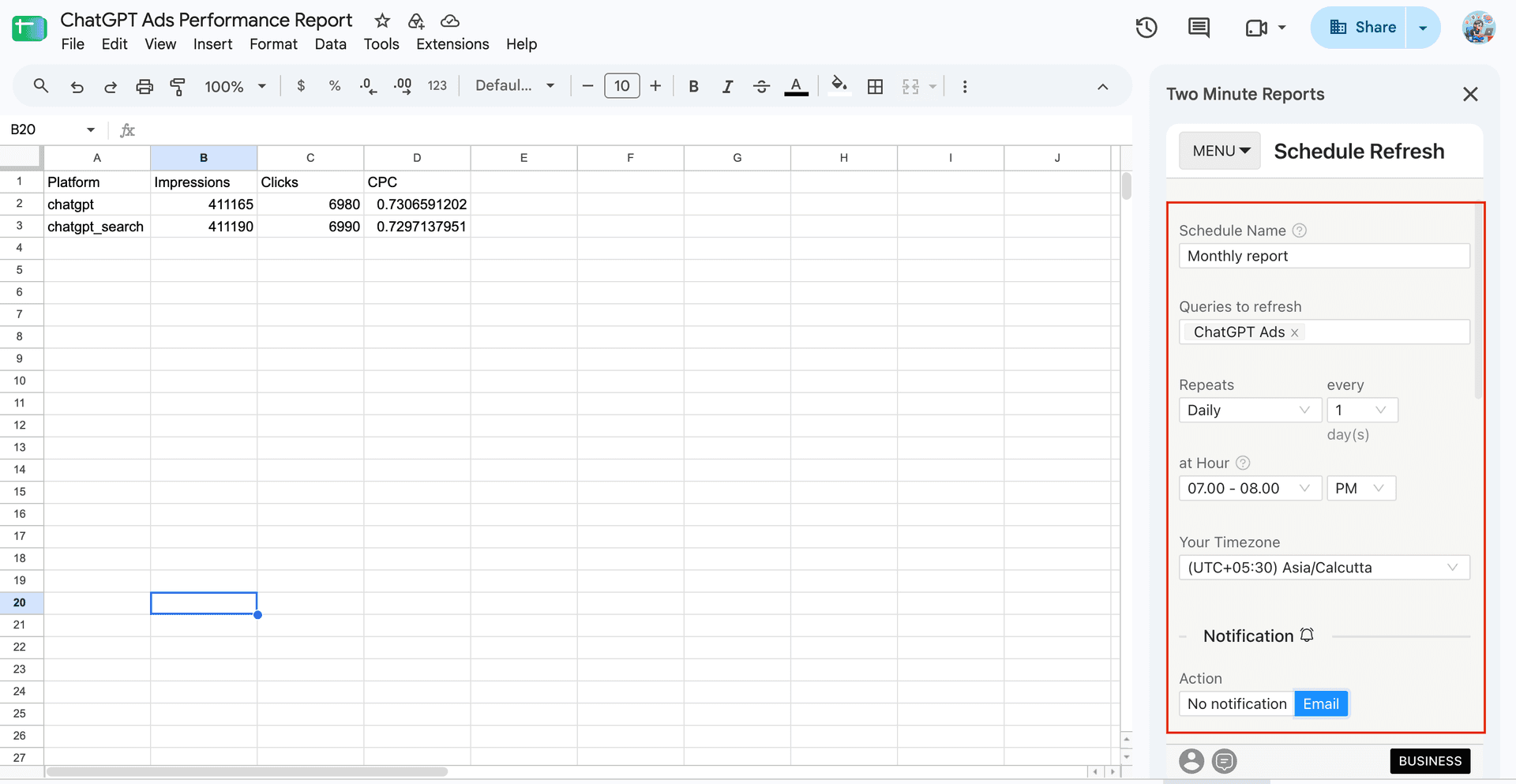
- First, enter your schedule name.
- Next, select the queries to include in this schedule. You can choose multiple queries if you want them to refresh on the same schedule.
- Then, choose how often you want to refresh – hourly, daily, weekly and monthly.
- Specify the exact time and timezone for the refreshes to occur.
Once you are done with the above steps, you can set up your reports to be delivered via email. Here’s how you can:
- To enable email delivery, move the toggle to ‘Email’.
- Next, select the Sheet to report.
- Enter the email addresses of your recipients – your clients, team members or stakeholders.
- Select whether you need to attach the report as a PDF, Excel/CSV or both.
- Write a customized email subject and body message to include with each report.
And that’s it. Your schedule is now saved. From here on, your clients will receive the latest ChatGPT Ads insights in their inbox automatically.
How to Analyze ChatGPT Ads in Google Sheets?
Once your ChatGPT Ads data is connected to Google Sheets via Two Minute Reports, you can analyze campaign performance across multiple clients holistically.
Ready to Connect ChatGPT Ads to Google Sheets?
With Two Minute Reports, you can bring your ChatGPT Ads data directly into Google Sheets, so you can build campaign dashboards, analyze results across multiple client accounts, campaigns, and ad groups and keep your ChatGPT Ads reports updated on a predefined schedule.
Try Two Minute Reports free for 14 days and see how you can turn your ChatGPT Ads data into actionable reports to automate performance.
Frequently Asked Questions
You can connect ChatGPT Ads to Google Sheets through the Two Minute Reports Hub or by installing the Two Minute Reports add-on from the Google Workspace Marketplace. Once connected, enable the ChatGPT Ads account you want to track, launch the TMR add-on in your spreadsheet, select the metrics and build a custom ChatGPT Ads report in Google Sheets.
You can track key metrics such as impressions, clicks, amount spent, CTR, CPC, cost per conversion, etc. You can also break down your data using dimensions such as account name, campaign name, ad group, ad name, country, and product attributes like brand, price, and availability.
With Two Minute Reports’ ChatGPT Ads reporting tool, you can schedule unlimited data refreshes. Go to Menu → Schedule Refresh, choose the queries you want to refresh, select your frequency and enter the recipient email addresses. Your ChatGPT Ads reports will then automatically refresh and can be delivered to your clients or stakeholders at scheduled intervals.
Yes. Agencies can connect multiple ChatGPT Ads accounts and organize them by client. You can select relevant accounts when creating queries and build client-specific reports. Track campaign performance, ad spend, conversions, ROAS, etc., across multiple clients from one reporting workflow.
Yes. You can try Two Minute Reports free for 14 days. During the free trial, you can connect your ChatGPT Ads account to Google Sheets, explore the available metrics, create custom reports and schedule automated refreshes to see how the platform fits your reporting workflow before committing.

Meet the Author
Shalini MuruganShalini is driven by ideas that create a tangible impact. At Two Minute Reports, she specializes in content that helps marketers optimize their reporting workflows. When she's not transforming complex data into meaningful insights, you might find her lost in a book, jotting down ideas in her notebook, or connecting the dots others overlook.