

ChatGPT Ads

The ChatGPT Ads connector gets your ChatGPT Ads data into Google Sheets and Google Data Studio. Use it to track your key metrics in a spreadsheet or a Google Data Studio report.
What you can report on
- Campaign, ad group, and ad performance: impressions, clicks, amount spent, CTR, CPC, and CPM
- Conversions, click-through conversions, view-through conversions, and cost per conversion
- Attributed order value and ROAS
- Performance by country, device, platform, and product
- Campaign, ad group, and ad settings: status, budget, bidding, and review status
- Product feed items: title, brand, price, and availability
Prerequisites
- An ad account in ChatGPT Ads Manager
- Access to Settings › General in Ads Manager for that ad account, to create an API key
How to get your credentials
The connector uses an API key from ChatGPT Ads Manager. One API key gives access to one ad account.
- Sign in to ChatGPT Ads Manager.
- If you have more than one ad account, select the ad account that you want to report on.
- In the left menu, go to Settings › General.
- In the API Keys section, select Create New Key.
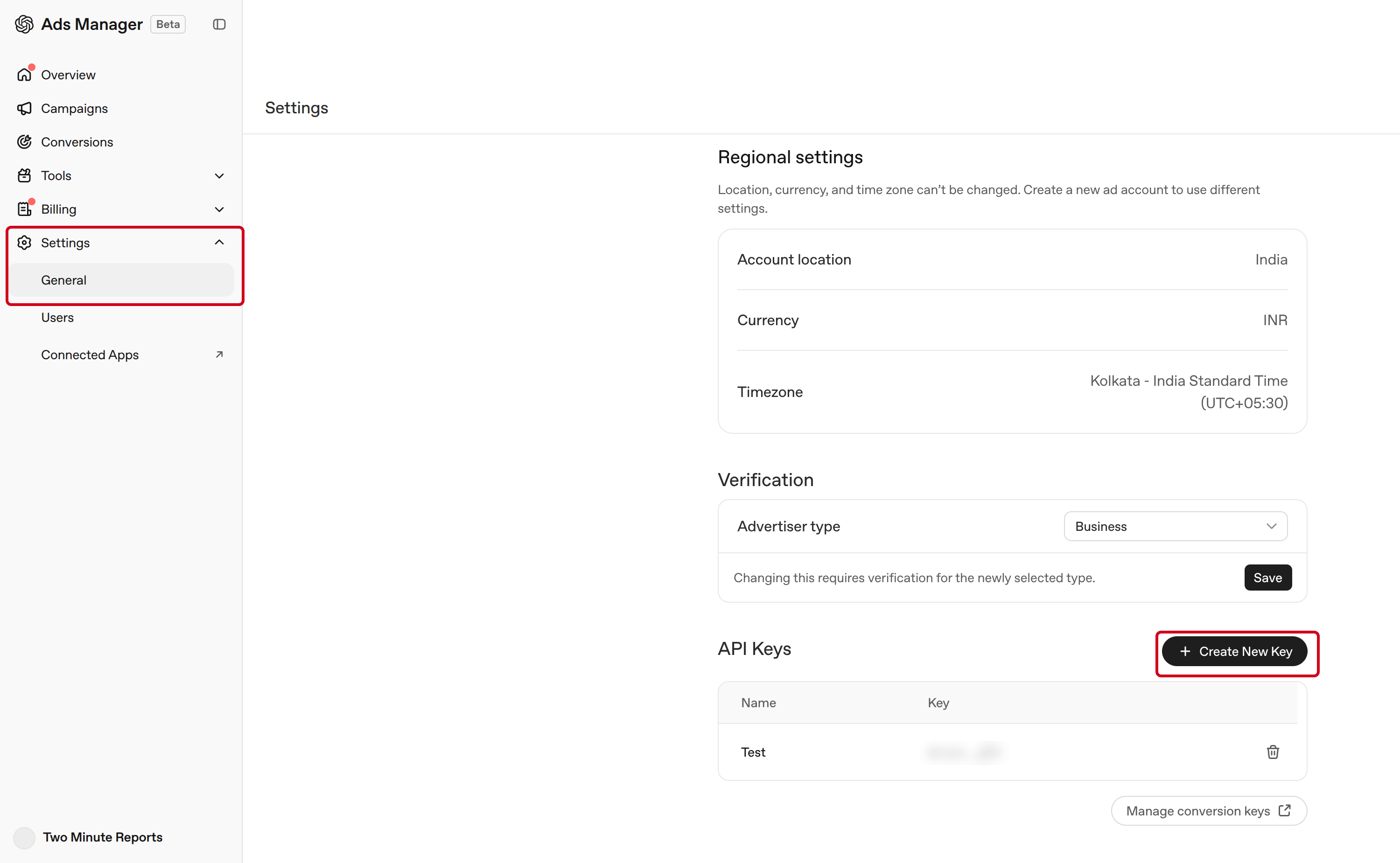
- Enter a name that you can find again, for example
Two Minute Reports. Then create the key. - Copy the API key and keep it in a safe place. After you close the dialog, Ads Manager shows only the start and the end of the key.
How to create a connection
- In the Hub, open Connections & accounts.
- Select Create connection.
- Select ChatGPT Ads in the connector list.
- Select Next.
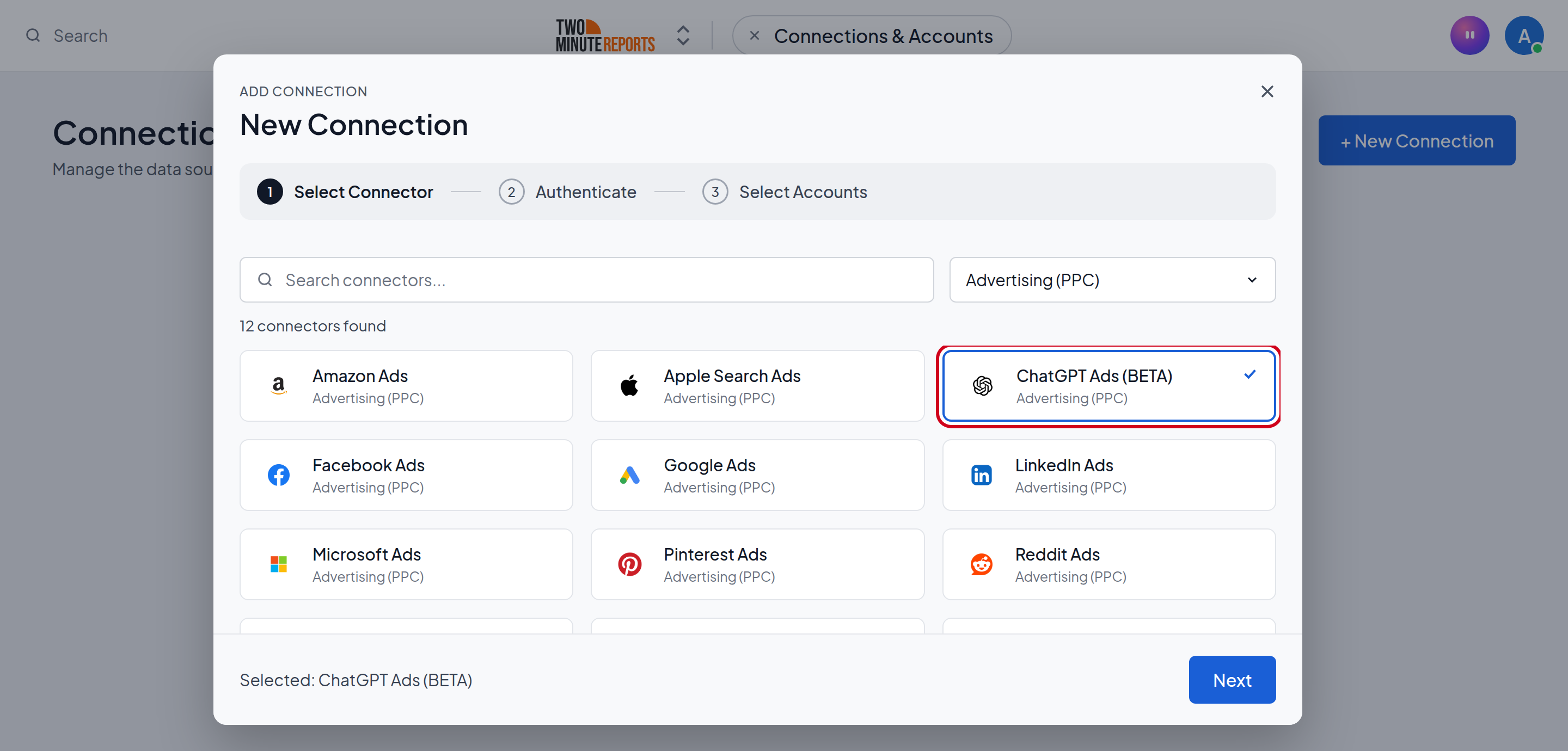
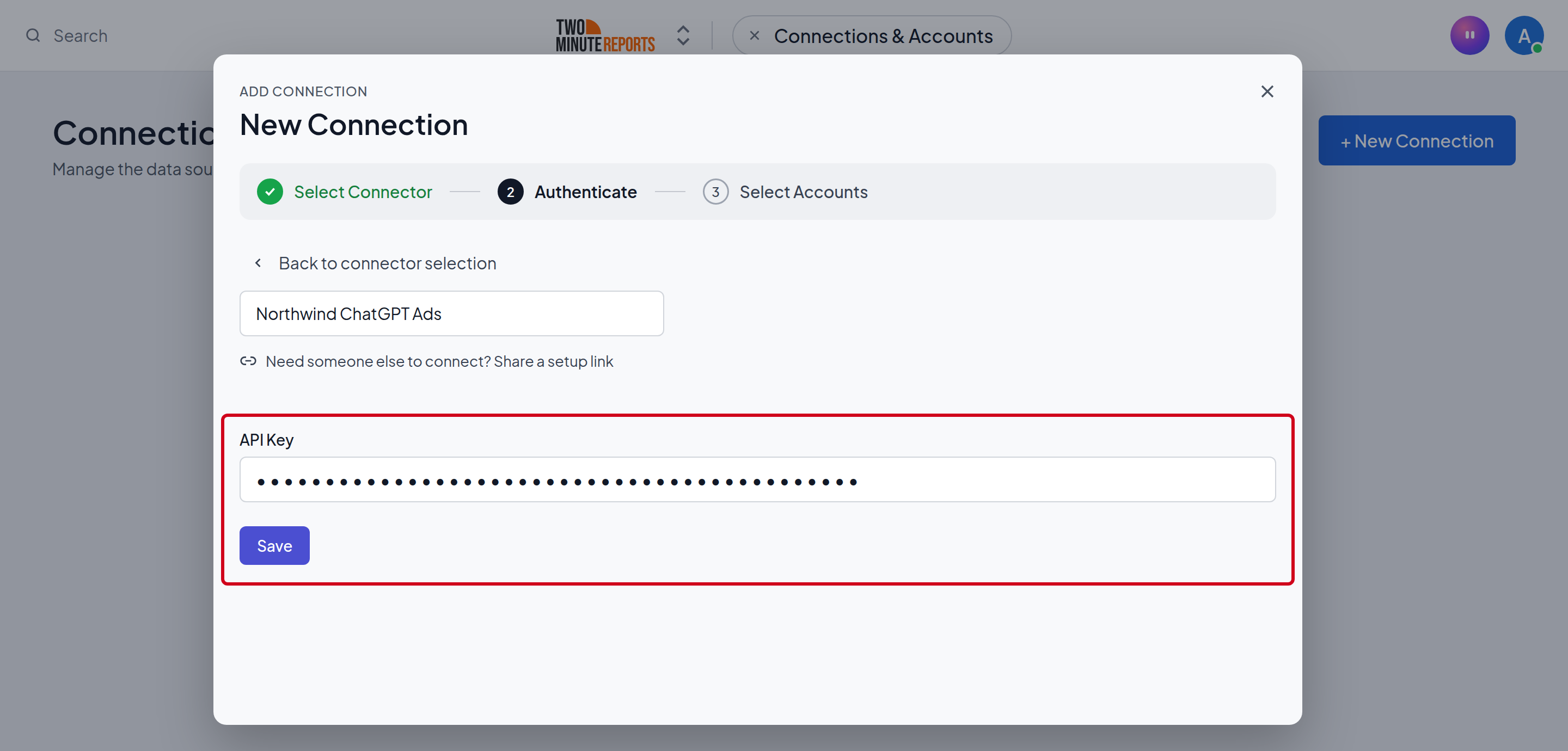
- In Name the connection, enter a name.
- In API key, paste your API key. If you do not have an API key, see How to get your credentials.
- Select Test connection.
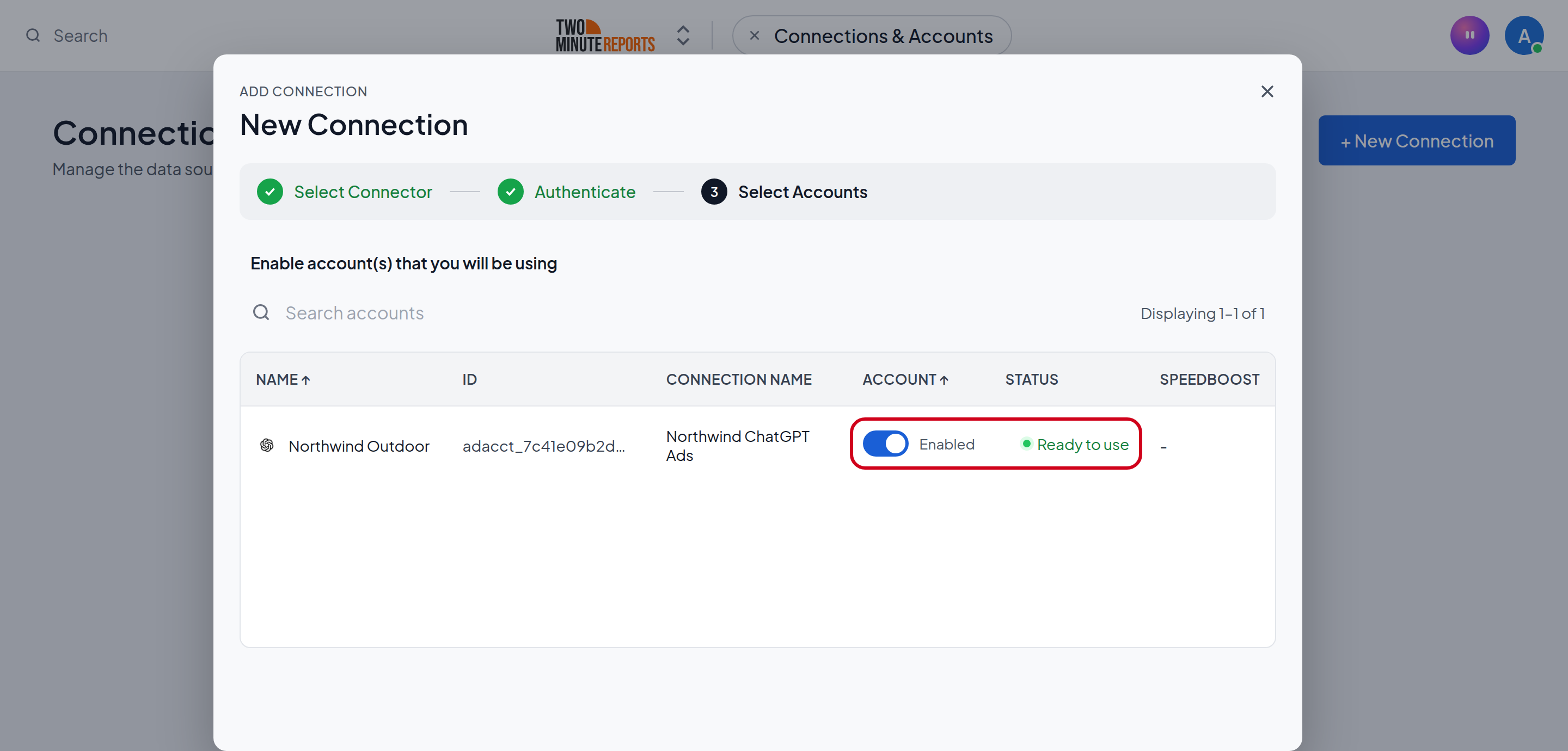
- Enable the ad account you want to report on.
- Select Done.
How to get ChatGPT Ads data into Google Sheets or Google Data Studio
To get ChatGPT Ads data into Google Sheets:
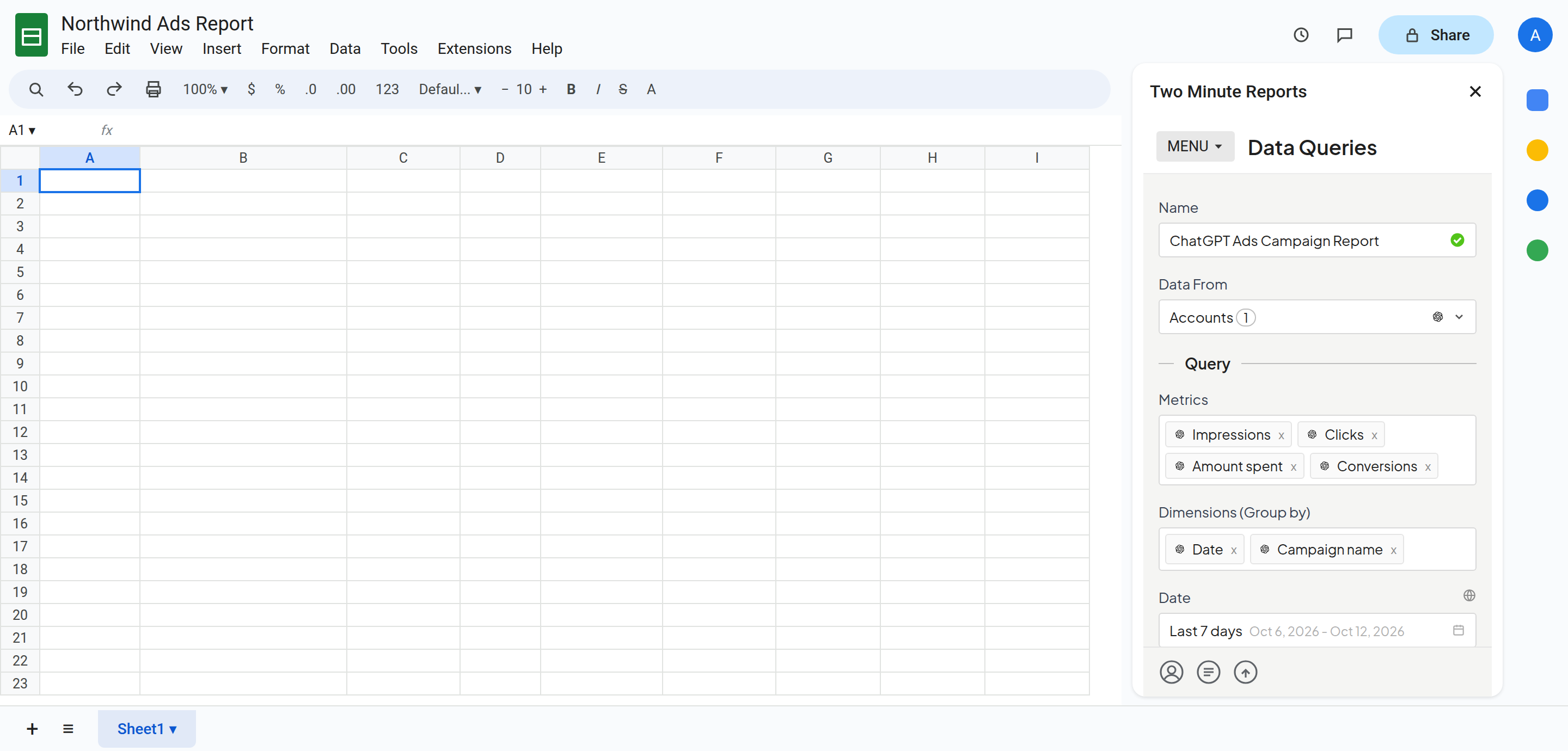
- In the Two Minute Reports sidebar, open Data Queries.
- Select Add.
- Select the ad accounts you want to report on. You can select more than one.
- Select your metrics and dimensions.
- Select the date range.
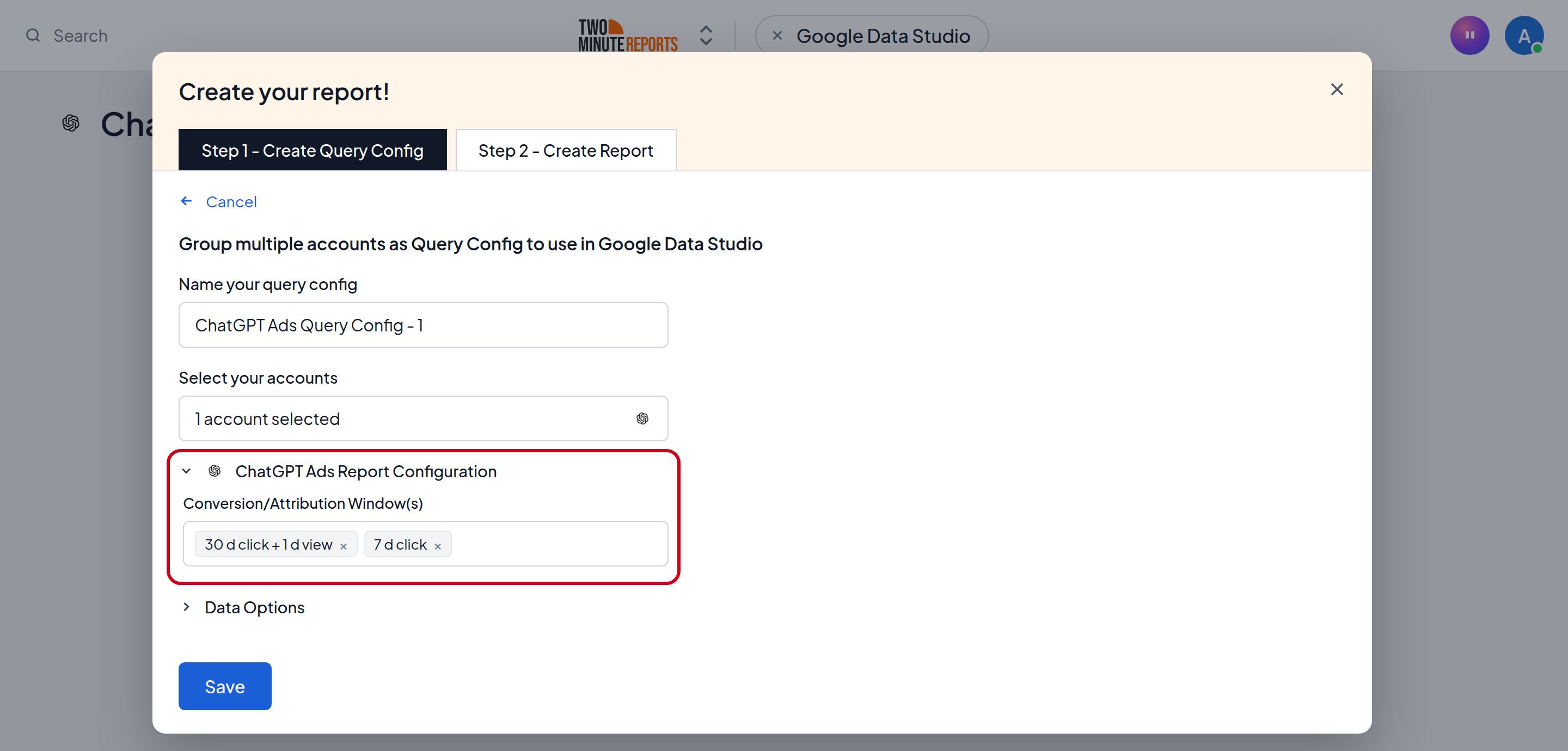
- To change the attribution window for conversions, open ChatGPT Ads Report Configuration. Then select one or more windows in Conversion/Attribution Window(s). See Attribution windows.
- Set sorting and filters if you need them.
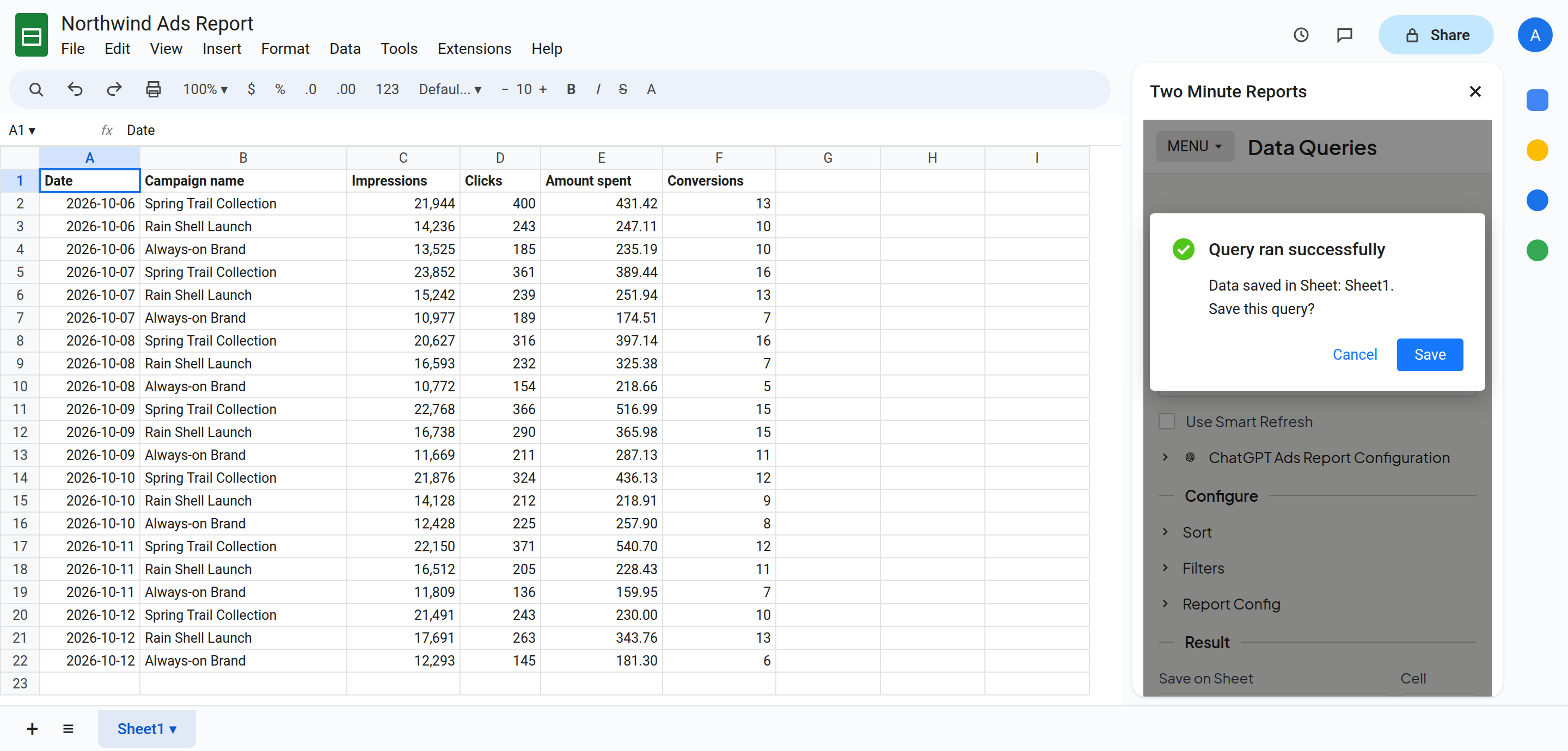
- Select Run query. Two Minute Reports adds the data to your sheet.
To get ChatGPT Ads data into Google Data Studio:
- In the Hub, open Google Data Studio › ChatGPT Ads.
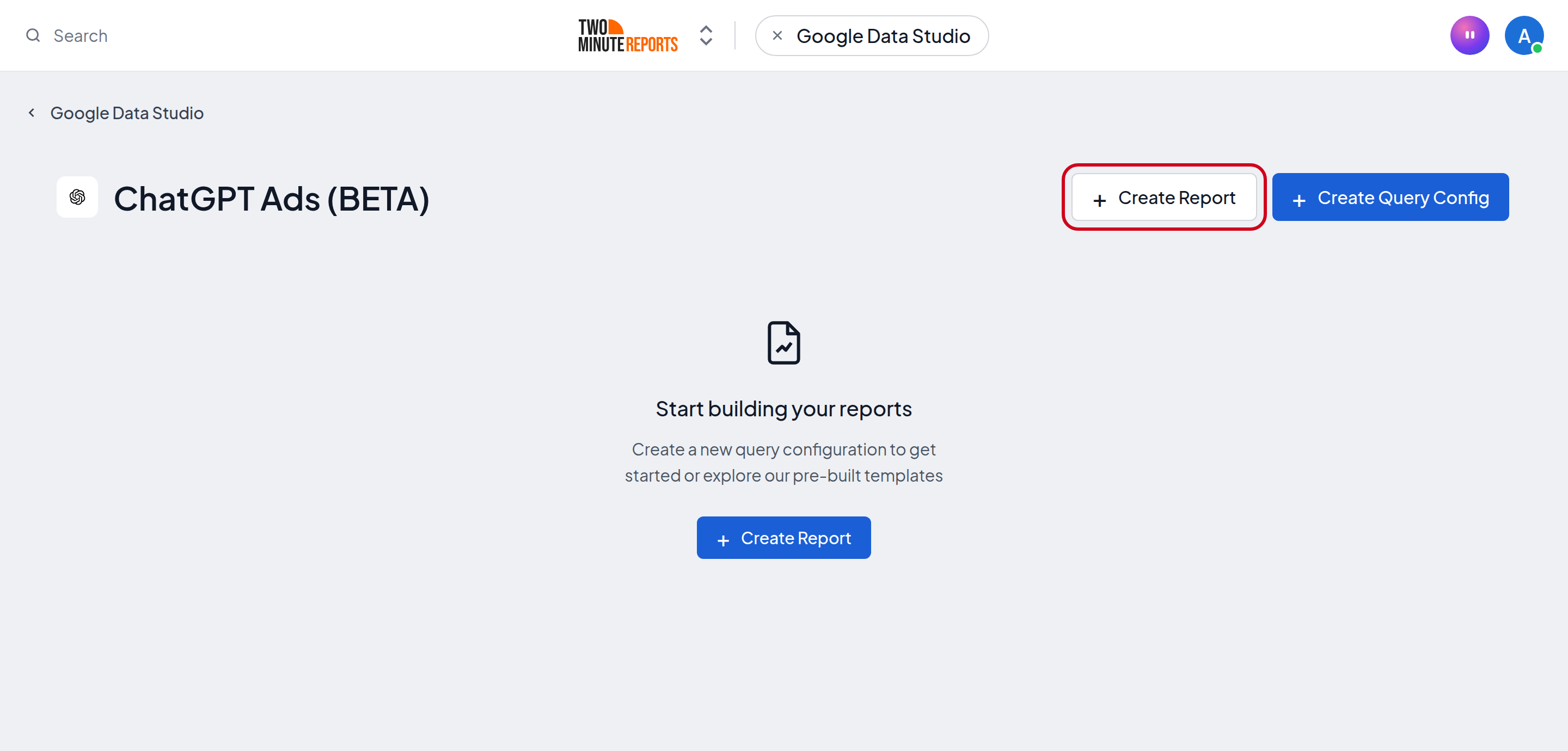
- Select Create report.
- Select or create a query config:
- To use a query config you have: select it in Choose your query config. Then select Save.
- To create a query config: if you already have one, first select Create new query config in the list. Enter a name in Name your query config, and select the ad accounts in Select your accounts. To change the attribution window, open ChatGPT Ads Report Configuration and select one or more windows in Conversion/Attribution Window(s). Select Save.
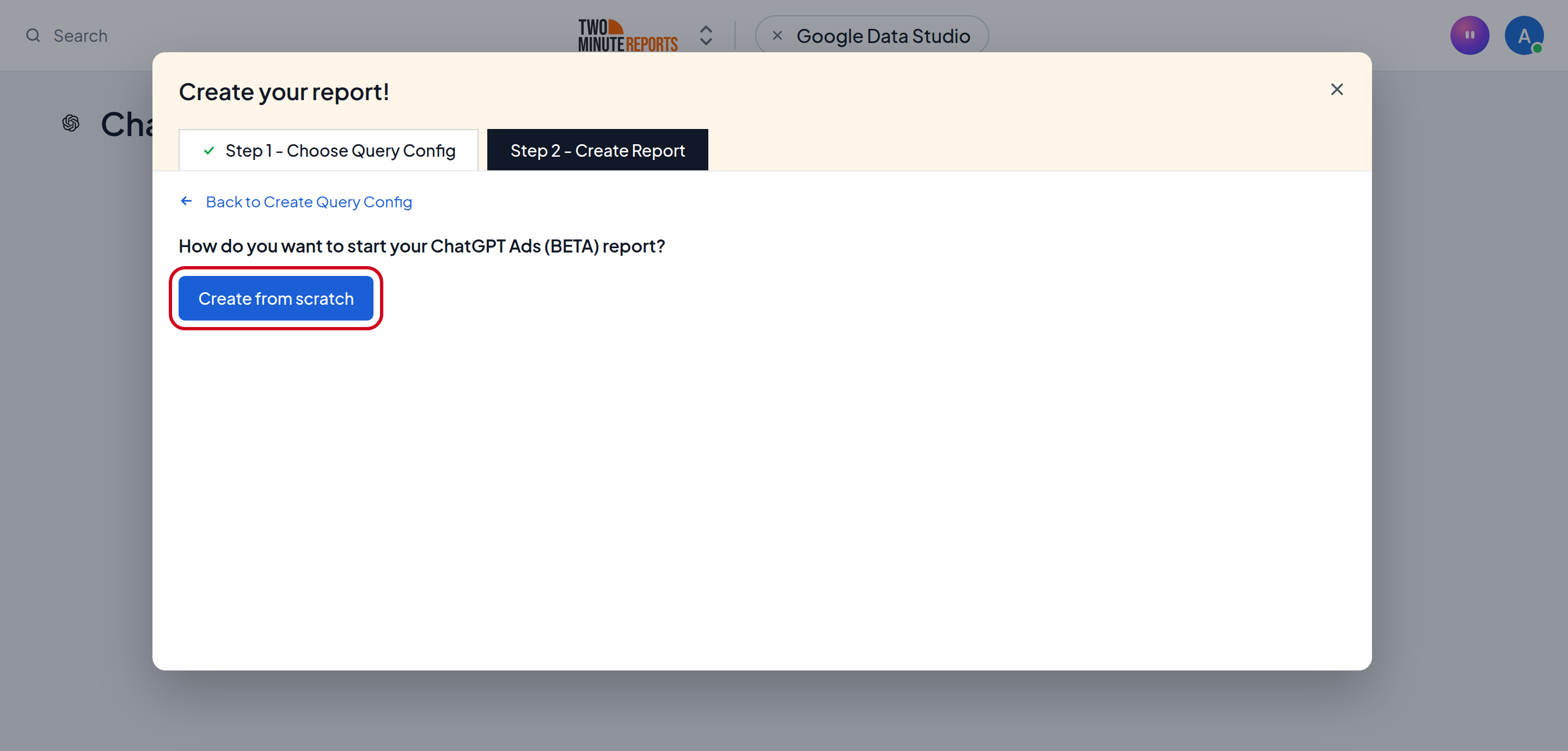
- Select Create from scratch. If templates show under Quick start from a template, you can select one instead.
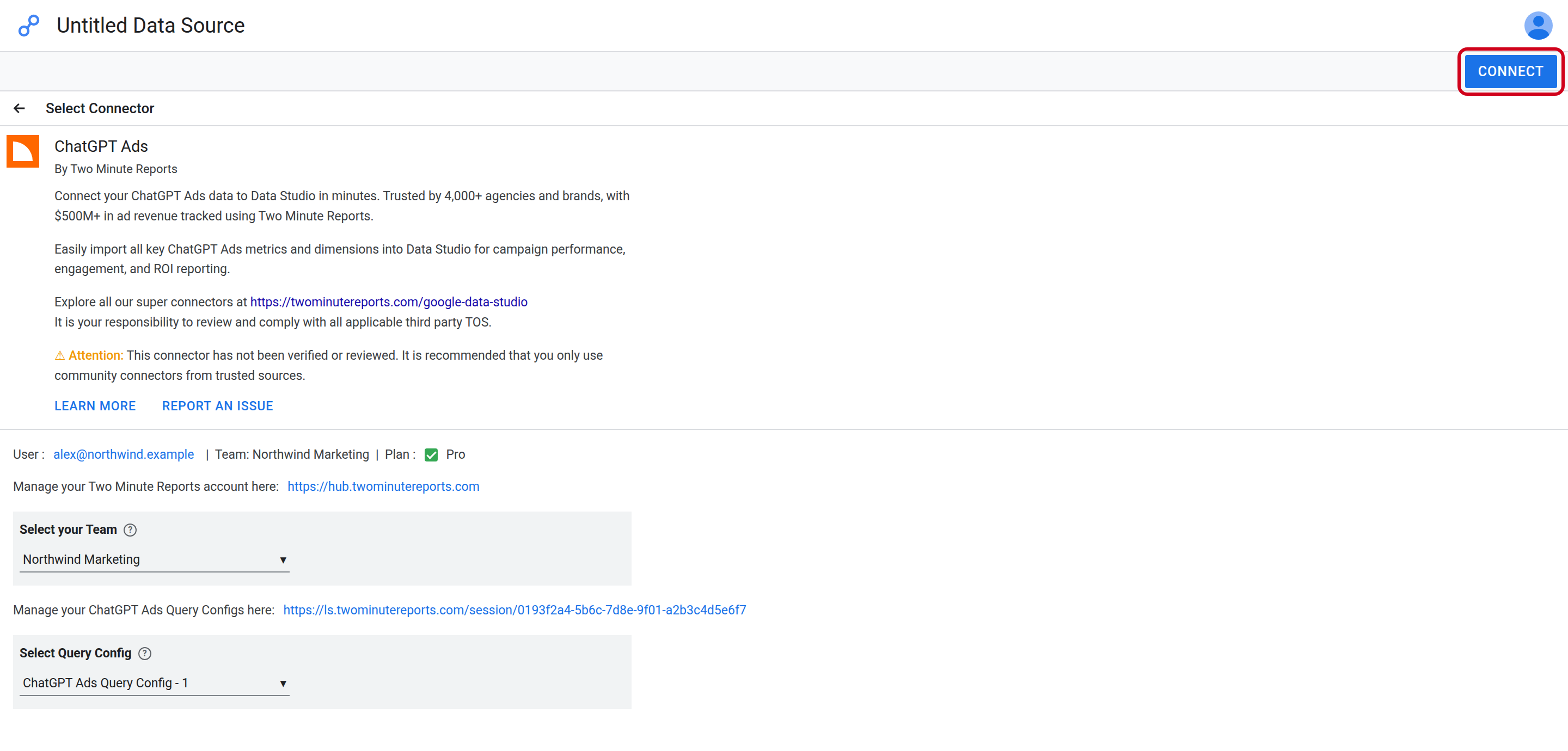
- Looker Studio (formerly Google Data Studio) opens in a new tab, with the Two Minute Reports connector. If you are in more than one team, select your team in Select your Team.
- In Select Query Config, select your query config.
- Select Connect in the top-right corner.
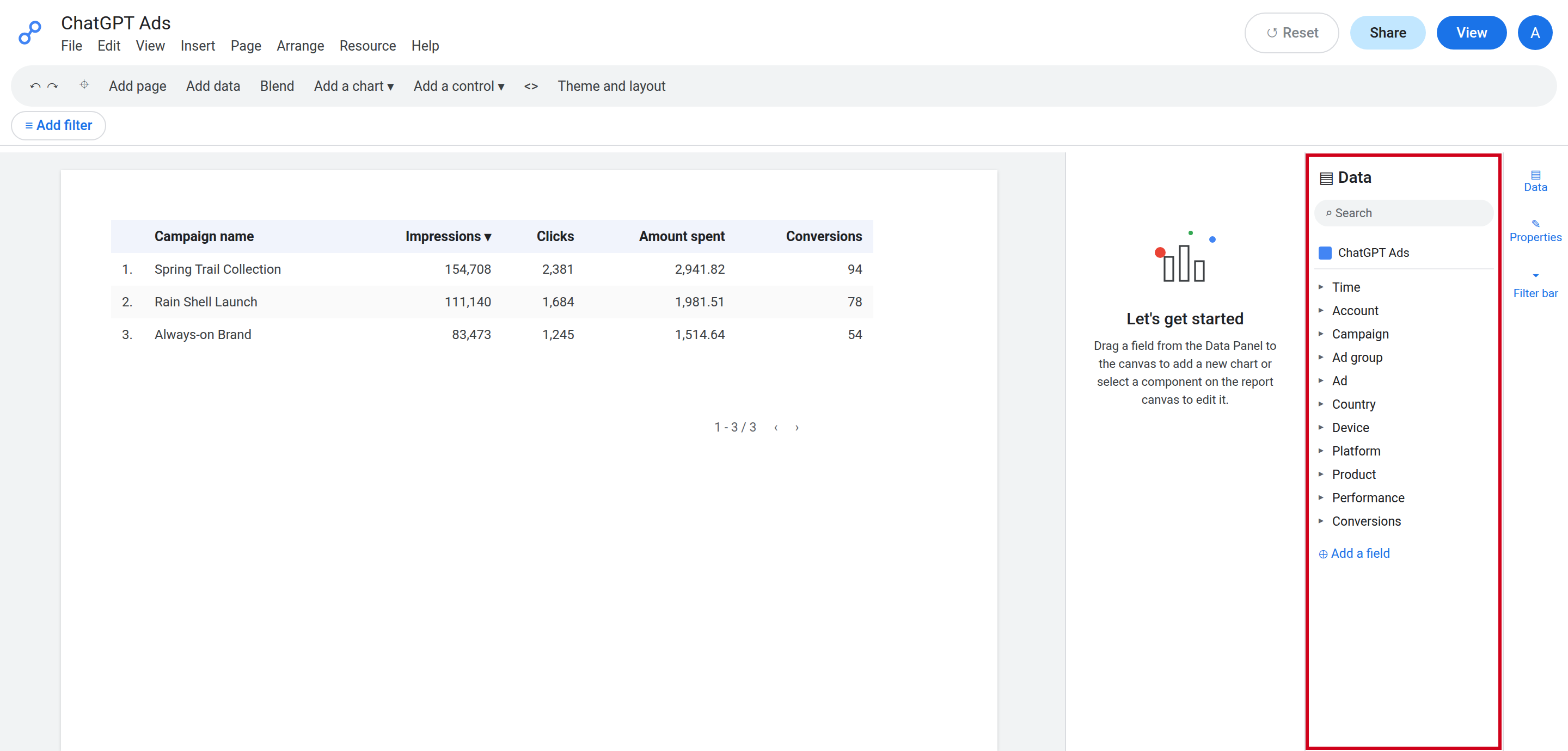
- In your new report, add ChatGPT Ads metrics and dimensions to the canvas.
Good to know
Attribution windows
Conversion metrics use an attribution window. The default window is 30 days after a click and 1 day after a view. You can also select 7, 14, or 30 days after a click, with or without 1 day after a view.
If you select more than one window, each conversion metric gets one column for each window. The column for the default window keeps the usual name, for example Conversions. The other columns show the window in the name, for example Conversions (7 d click).
Fields that you cannot use together
- You can use only one of Country, Device, Platform, and Product in a query.
- Conversion metrics are not available by Platform or Product. This includes conversions, cost per conversion, attributed order value, and ROAS.
- Attributed order value and ROAS are not available by Country, Device, Platform, or Product.
Data freshness
A query can show data that is up to 8 hours old.
Troubleshooting
- "Save" fails when you create the connection: make sure that you copied the full key from the API Keys section in ChatGPT Ads Manager. A conversion key or an API key from the OpenAI API platform does not work.
- "No ad account was found for this ChatGPT Ads API key": create the API key in Settings › General of your ad account in ChatGPT Ads Manager, then try again.
- "This ChatGPT Ads connection has an invalid API key": the API key was deleted or replaced in ChatGPT Ads Manager. Create a new API key for the same ad account. Then edit the connection and paste the new key.
If you need help, contact [email protected].