

Theming
Theming controls how a dashboard looks. A theme sets the background, fonts, colors, and widget styling for the whole dashboard at once, so everything looks consistent and on-brand. You can also override styling on individual widgets and save themes to reuse across dashboards.
What you can do
- Style the entire dashboard from one theme editor
- Set backgrounds, typography, and a semantic color palette
- Define default widget styling and chart appearance
- Override the theme on individual widgets
- Save themes and apply them to other dashboards
The theme editor
To style the dashboard, switch to edit mode and select Theme in the side panel. Changes show on the canvas as you make them.
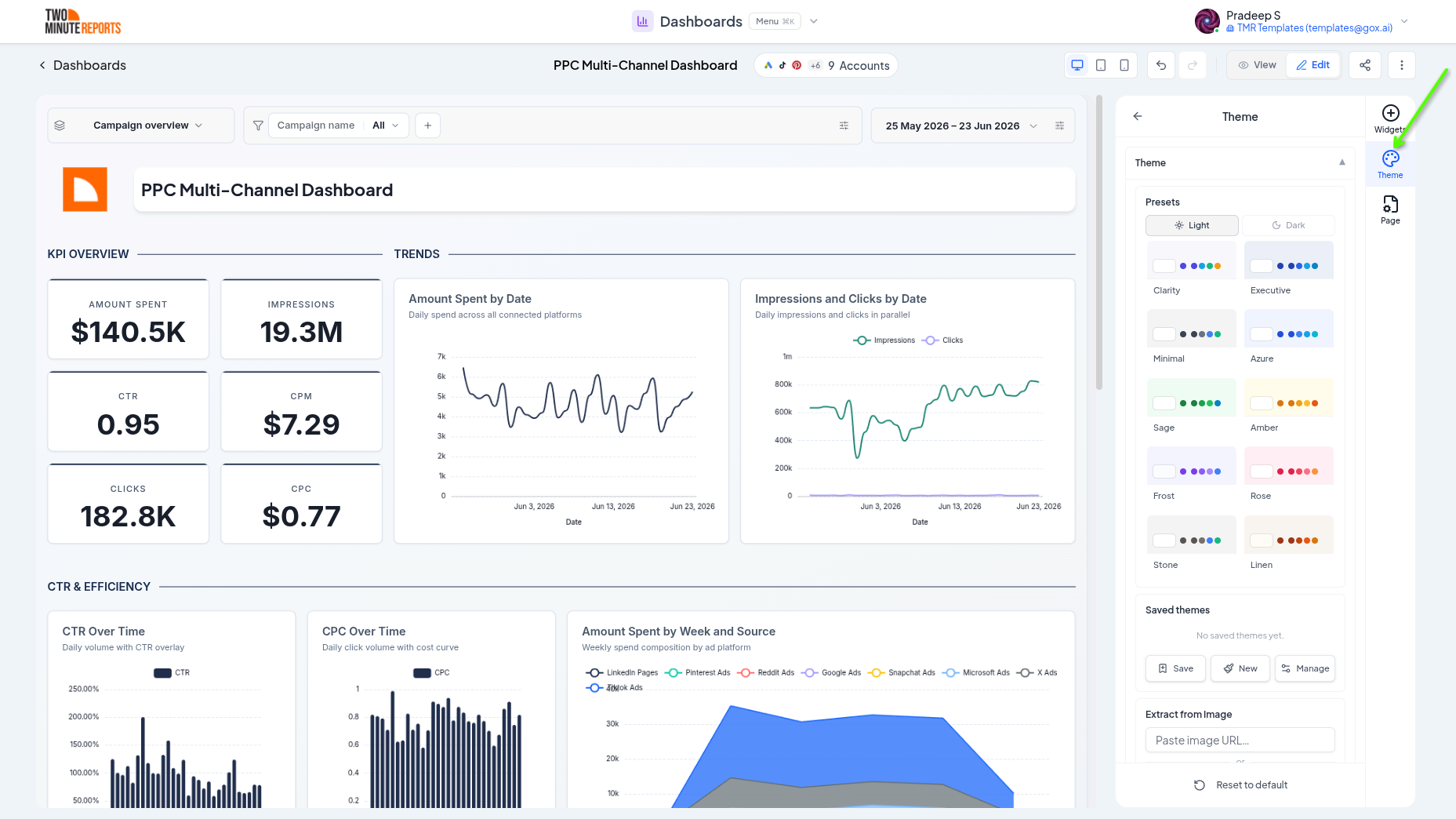
Background
Set the dashboard background to a solid color, a gradient, or an image from a URL. This is useful for matching a client's brand or creating a polished presentation surface.
Typography
Choose the font family for the dashboard, and the text sizes for widget titles, headings, chart text, tables, funnels, and gauges.
Colors
Define the palette the dashboard draws from, including semantic colors that carry meaning across widgets:
- Positive - good outcomes (typically green)
- Negative - bad outcomes (typically red)
- Warning - values that need attention (typically amber)
- Neutral - baseline and secondary values
These colors flow into charts, compare deltas, and gauge zones so good and bad always read the same way.
Widget styling
Under Widget chrome, set the default look for widget containers: border, corner radius, shadow, opacity, and padding. The widget background color is under Colors. This gives every widget a consistent "card" style without configuring them one by one.
Chart defaults
Under Chart defaults, set defaults that every chart inherits, such as legend position, grid lines, bar corner radius, area gradient, and donut hole size. Individual widgets can still override any of these (see Widgets and charts).
Animation
Set the Duration and Easing of chart animations when they load. A shorter duration gives a calmer feel.
Per-widget overrides
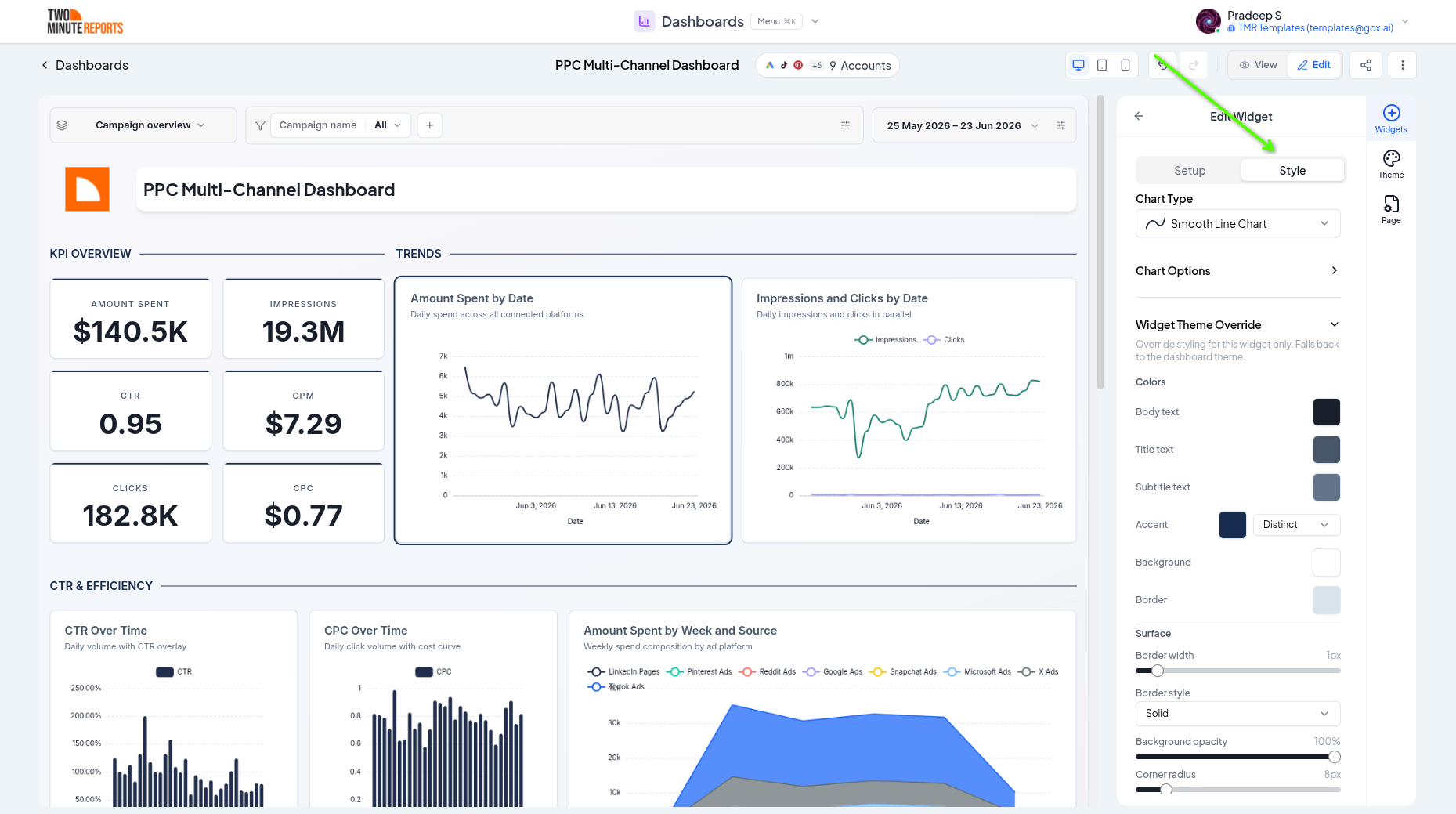
Sometimes one widget needs to stand out, for example a hero scorecard in your brand's accent color. In the widget editor, open the Style tab, then expand Widget theme override. Change the widget's colors, chart colors, and container styling there, independently of the dashboard theme. Everything else continues to follow the theme.
Saved themes
Once you've designed a look you like, save it as a reusable theme with the Save current theme button at the top of the Theme panel. Saved themes belong to your team, so you can:
- Apply the same theme to a new dashboard in one step
- Keep every client dashboard on a consistent house style
- Update a saved theme and reapply it when your branding changes
Best practices
- Build one branded theme per client and reuse it across their dashboards
- Keep semantic colors meaningful: don't use your "positive" green for a neutral metric
- Favor subtle widget styling (light borders, soft shadows) so the data stays the focus
- Preview in view mode and on a smaller screen to confirm contrast and readability
Next steps
- Widgets and charts - Override chart appearance per widget
- Share and export dashboards - Share the themed dashboard with your client
- Layout and pages - Arrange the canvas your theme styles
Data, dates, and filters
Choose a dashboard's accounts, set date ranges with period comparisons, and apply filters across a whole dashboard in Two Minute Reports.
Share and export dashboards
Choose who can open a dashboard: only people you add, your client's contacts, or anyone with the link. Or export it to PDF or PNG.