

Create a dashboard
There are three ways to create a dashboard. Describe what you need and let Dash build it, start from a template, or start from scratch. Every dashboard belongs to your team and can be scoped to a specific client.
What you can do
- Describe a dashboard and let Dash build it
- Start from a ready-made template and use your own accounts in it
- Create an empty dashboard and build it widget by widget
- Copy an existing dashboard for the same client, another client, or all clients
- Scope a dashboard to a specific client, or keep it at the team level
Choose how to start
- In the sidebar, open Dashboards.
- Select Create dashboard.
- Under How would you like to start?, select Create with Dash, Use a template, or Start from scratch.
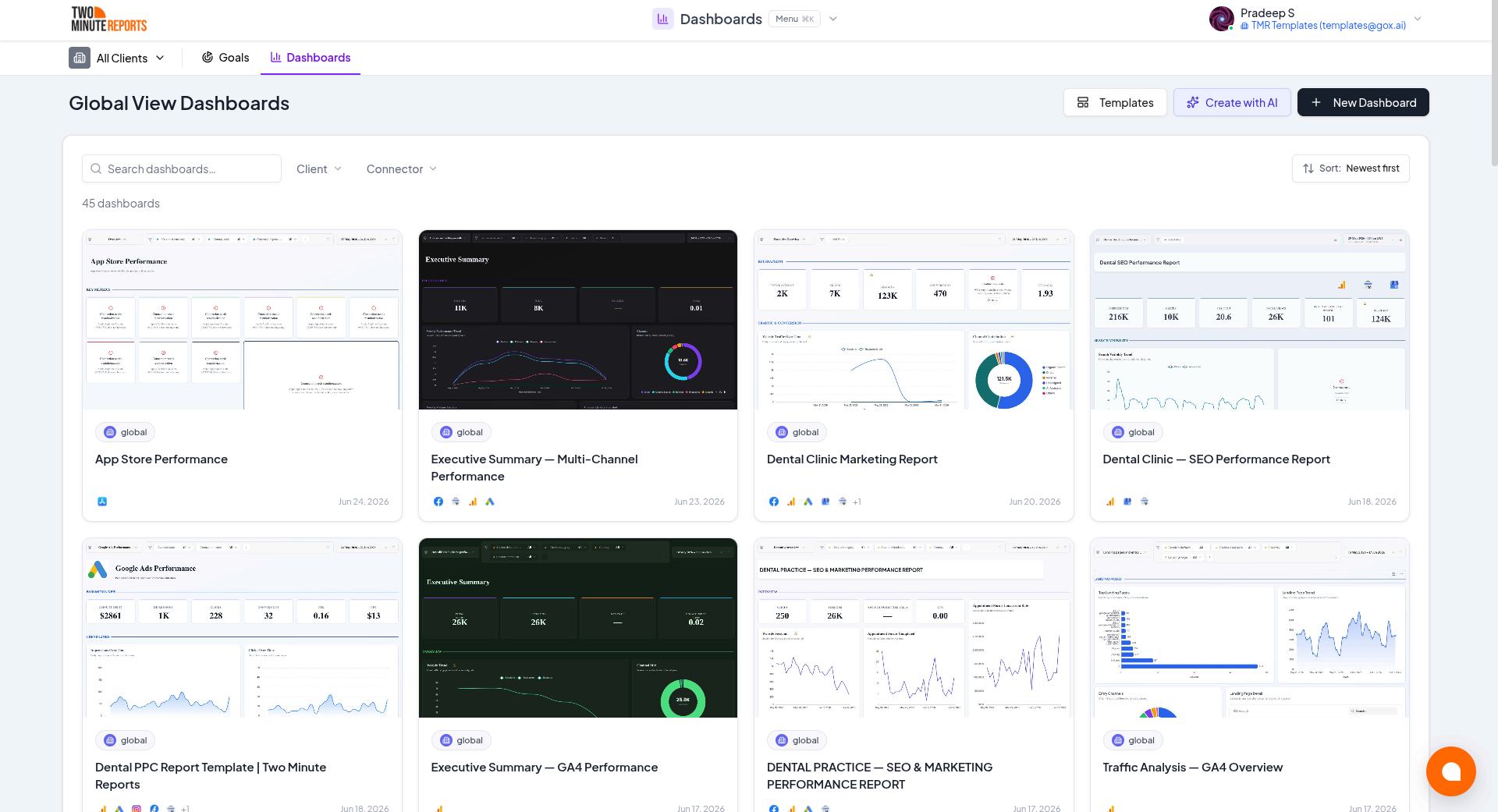
When your team has no dashboards yet, the list also shows Start blank and Create with Dash buttons.
Create with Dash
Describe what you want, and Dash builds the whole dashboard in one step.
Describe your dashboard
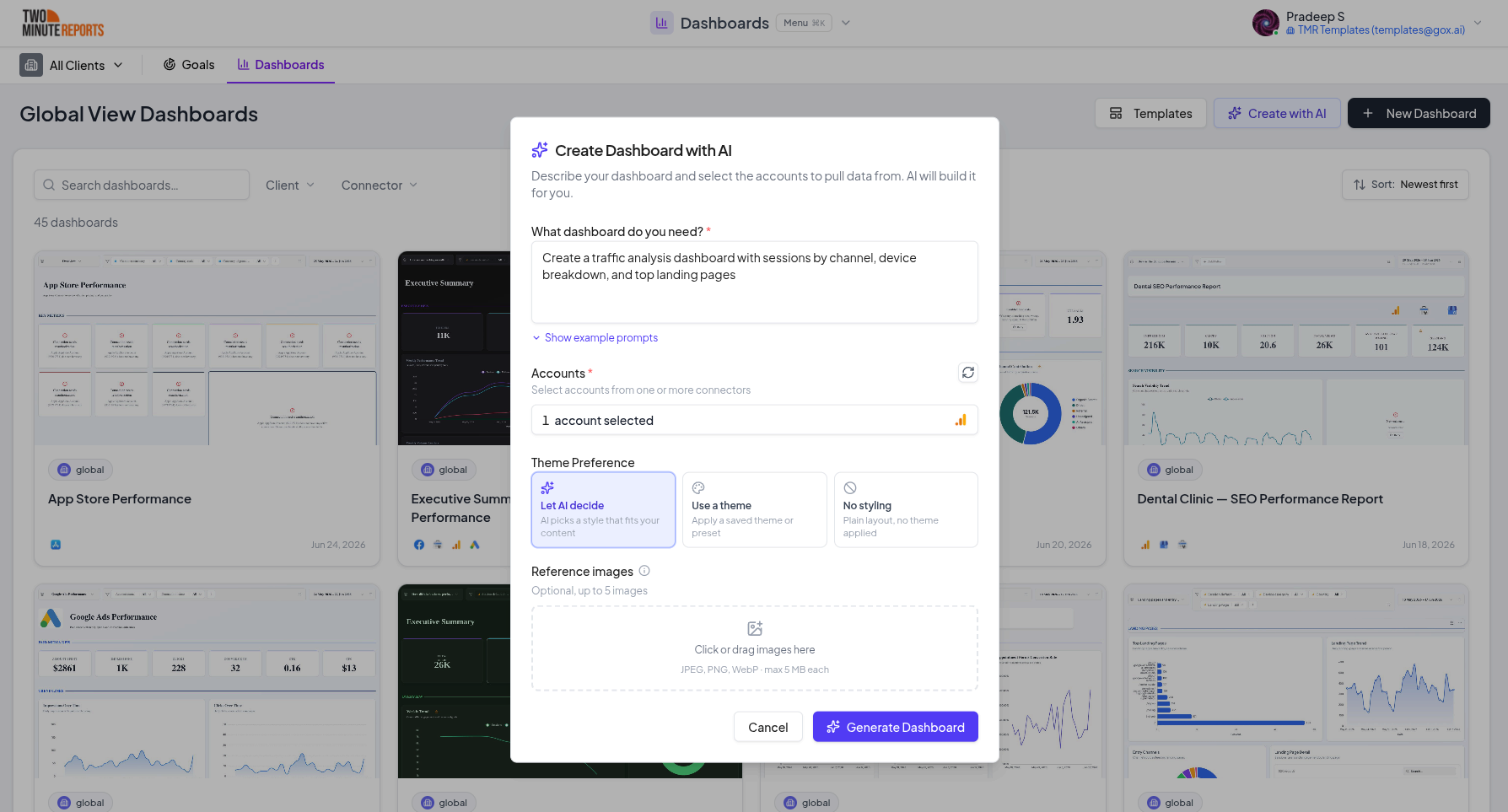
Select Create with Dash. On the Describe step, fill in What should the dashboard show? in plain language. For example: "A paid media overview for my Google and Facebook ads with spend, ROAS, and a daily trend." To start from an example, select one under Try an example, then edit it. Select Next.
Choose your data and style
On the Data & style step, select the accounts under Accounts. Dash builds the widgets on these accounts. Under Theme, select Let Dash decide, My theme, or None.
To rebuild a report you already have, upload it under Recreate an existing report. See Migrate existing reports.
Create and review
Select Create with Dash. Building usually takes 45 to 90 seconds. When it's done, the dashboard opens. Refine it like any other dashboard: add or remove widgets, change the theme, and adjust the date range.
Use a template
Templates give you a complete, laid-out dashboard. You only need to tell the template which of your accounts to use.
Browse the templates
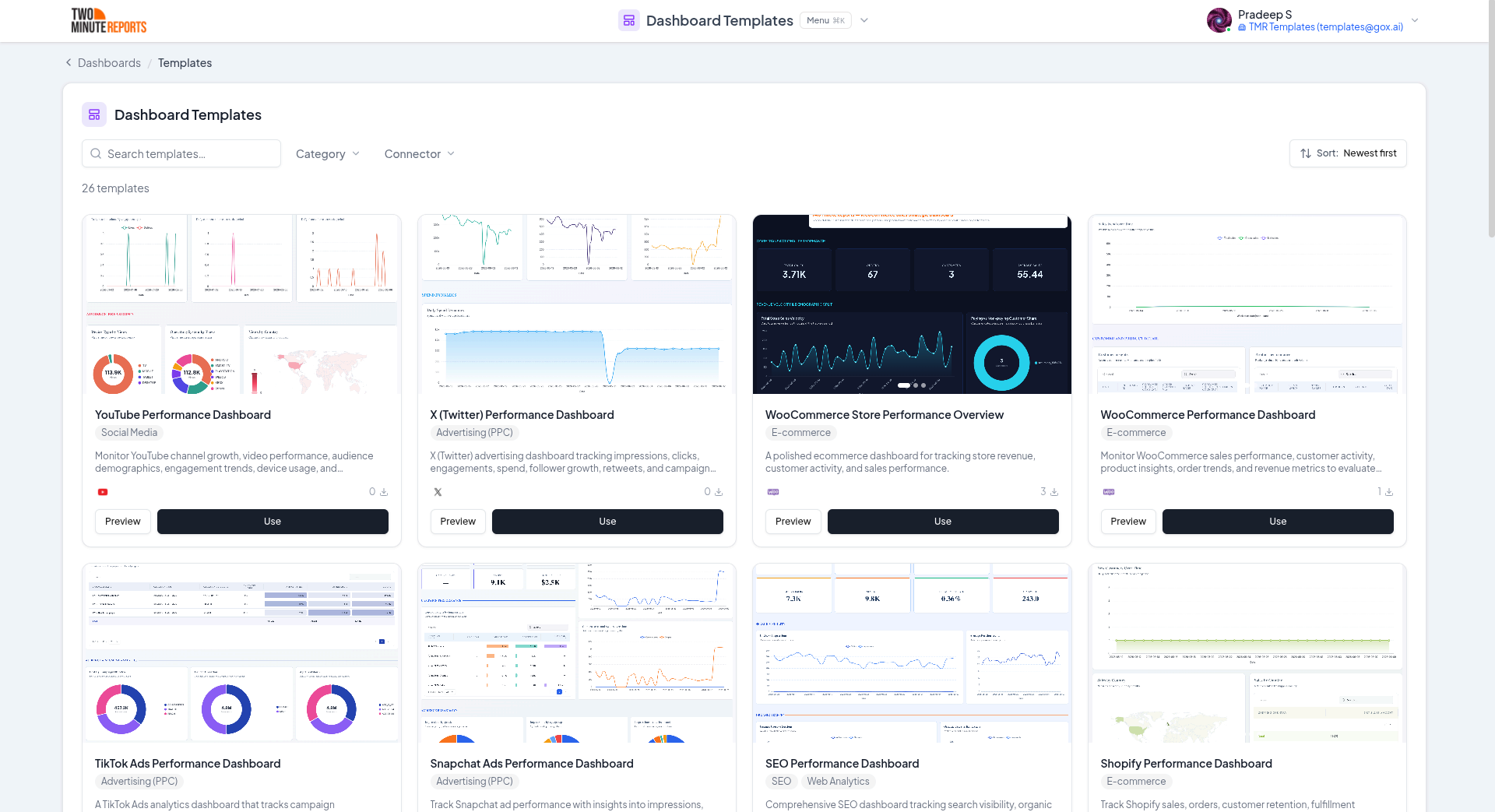
Select Use a template. The Dashboard templates page opens. Each template is built around a specific use case, for example a paid media overview or an SEO dashboard. To see a template first, select Preview.
Set up the template
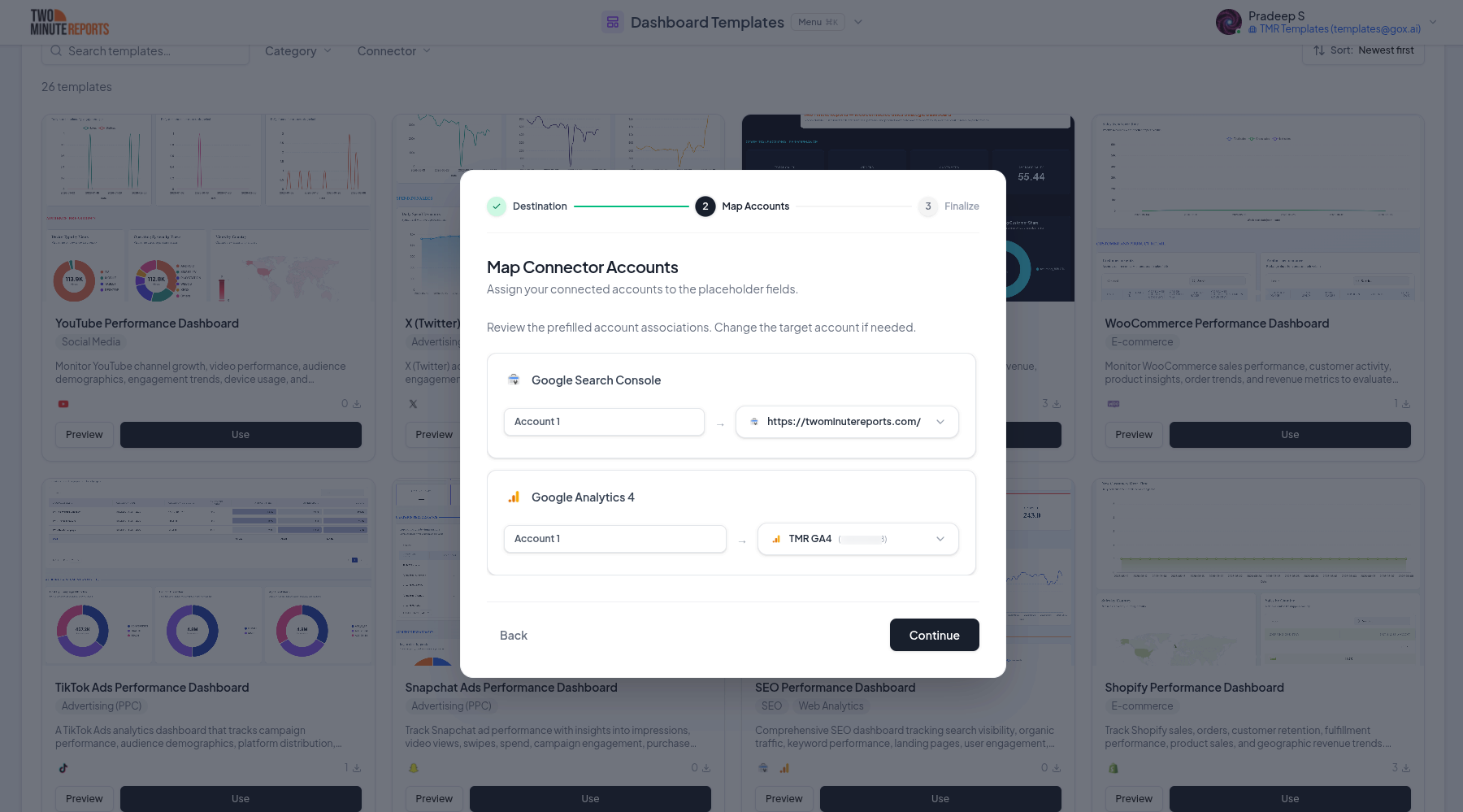
On a template, select Use, or select Use my own data on its preview. A short setup follows:
- Choose destination: select the client the dashboard is for, or All clients.
- Connect your accounts: connect at least one of the template's platforms. This step appears only when you still need a connection.
- Select accounts: choose the accounts to use from each platform.
- Name and create dashboard: enter a name, then select Create dashboard.
Review and customize
The template becomes your own dashboard. Rename it, add or remove widgets, change the theme, and adjust the date range, like any dashboard you built yourself.
Start from scratch
Use this when you want full control, or when no template matches what you need.
- Select Start from scratch. A new dashboard named "Untitled" opens.
- To rename it, select the pencil next to its name.
- Select Edit to switch to edit mode.
- Add your first widget from the Widgets panel. See Widgets and charts.
Copy a dashboard
Copying is the fastest way to reuse a layout, for example when you send the same dashboard to many clients.
- In the dashboard list, point to the dashboard's card, open its menu (⋮), and select Copy dashboard.
- Under Destination, select Same client, Different client, or Global.
- Under Map accounts, choose which accounts replace the original accounts, so the copy shows that client's data.
- Enter a name for the copy, then select Create copy.
When you copy to another client, an image widget that shows the original client's logo shows the destination client's logo instead.
Benefits
Faster setup: Templates and Dash get you to a working dashboard in minutes instead of hours.
Consistency across clients: Copies keep every client's dashboard on the same proven layout.
Full ownership: However you start, the dashboard is yours to edit, restyle, and share.
Next steps
- Add widgets and charts - Fill your dashboard with data
- Layout and pages - Organize widgets across pages
- Data, dates, and filters - Control the data behind every widget
Dashboards
Build dashboards from your connected accounts, with drag-and-drop widgets, multi-page layouts, custom themes, share links, and briefings.
Widgets and charts
The full dashboard widget catalog, from scorecards and charts to tables, maps, and text, and how to configure a chart's data, filters, and display options.