

Custom Roles
If none of the six standard roles fits how your team works, build your own. A custom role is a name, a description, and any combination of the permissions you hold yourself — 75 of the 76 are available, for the reason in The One Rule and the section after it.
Custom roles belong to one team. Creating one in Team A does not put it in Team B.
Creating One
- Sign in to hub.twominutereports.com and select your team
- Go to Settings → Roles
- Click New role
- Give it a name (up to 64 characters) and a description (up to 255)
- Tick the permissions it should include — they are grouped by area, and each has a tooltip saying what it actually does
- Click Create role
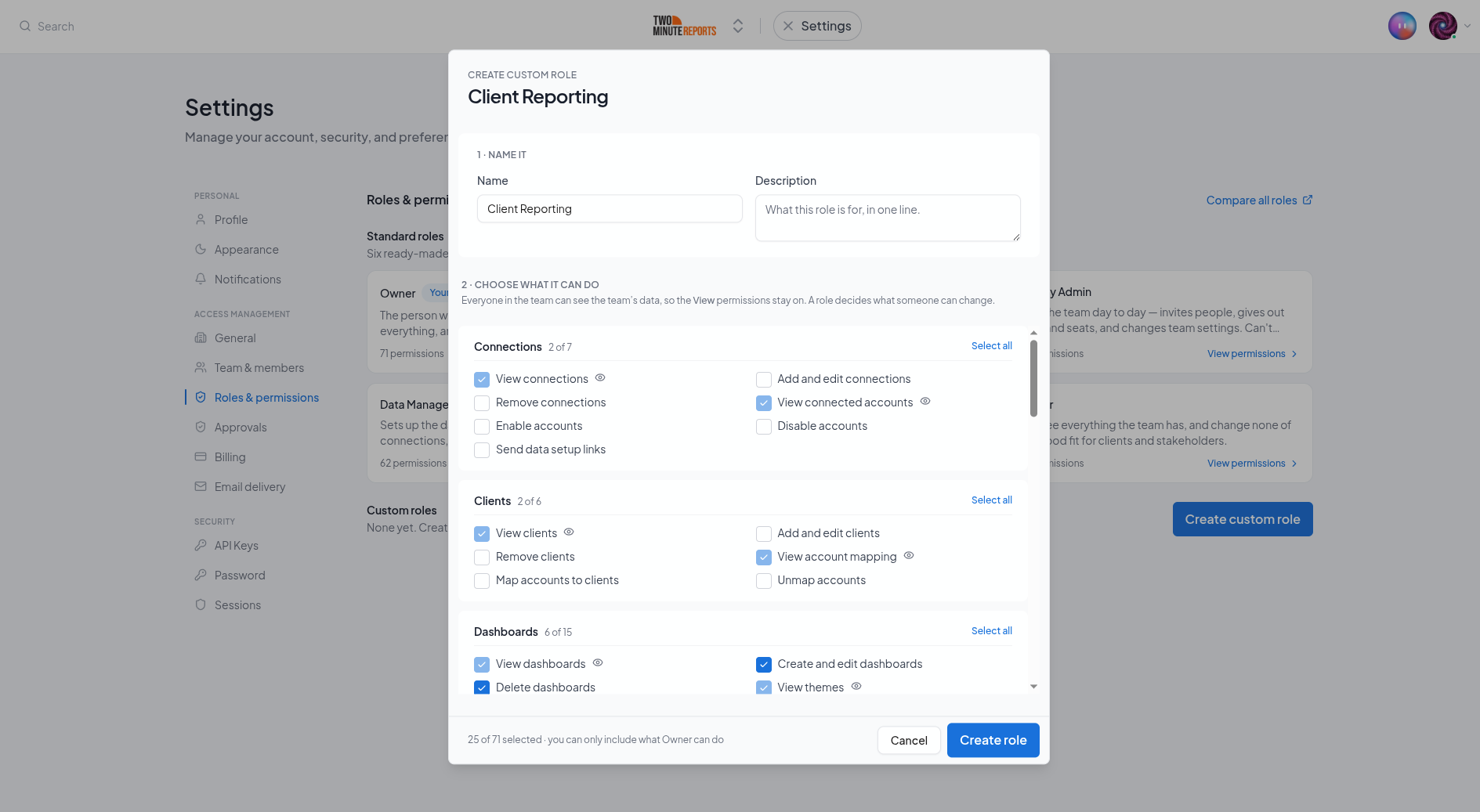
The role is then available in the role dropdown everywhere you assign one.
Viewing Is Always Included
The View permissions are ticked for you and cannot be turned off. A custom role decides what somebody can change, not what they can see.
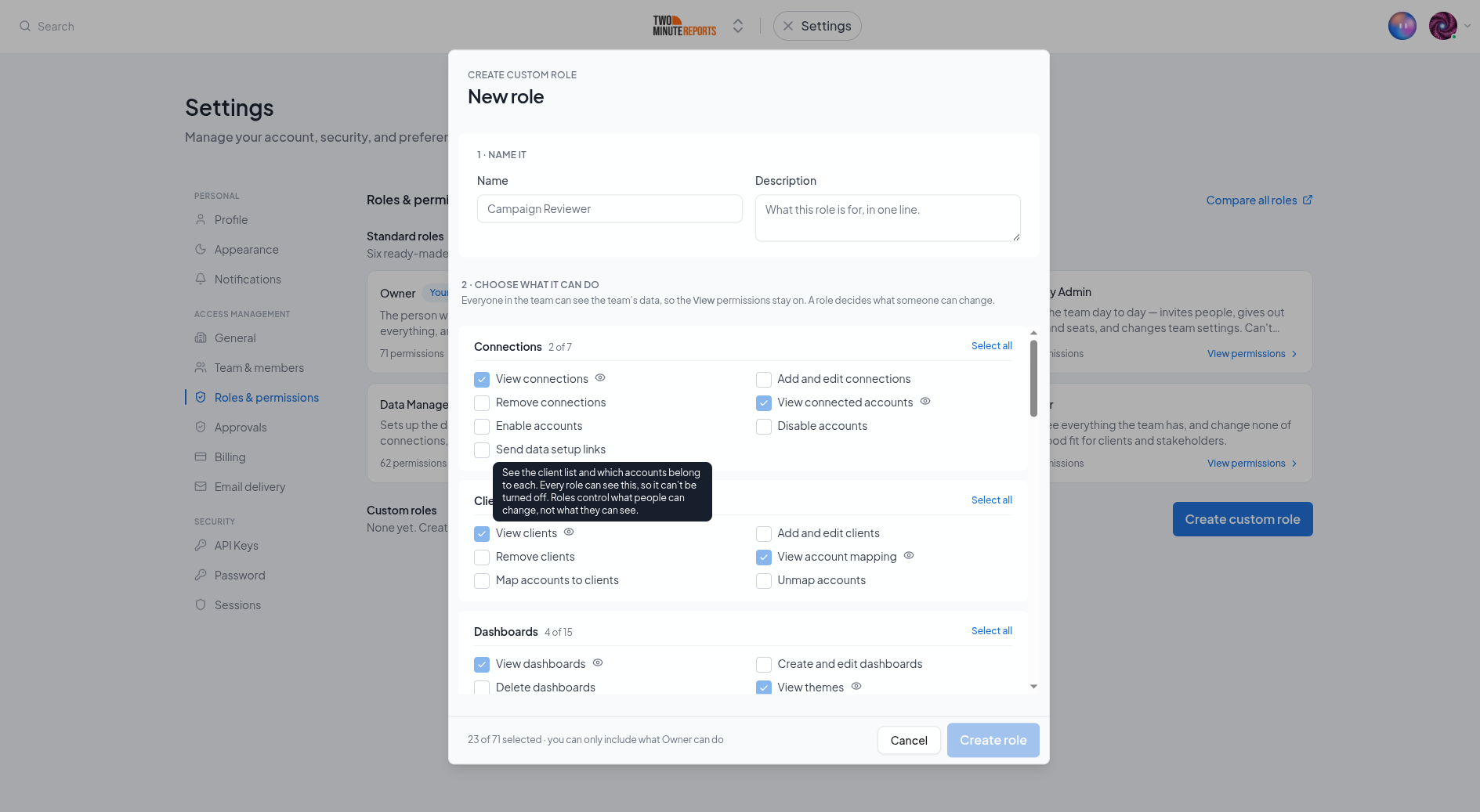
This is not a limitation of the builder — it is how the product works. Several screens fetch connections, queries, schedules and setup state in a single request and cannot answer part of it, so a "View connections" switch you could turn off would hide the connections page and still show the same connections in the Sheets add-on. A control that works in one place and quietly fails in another is worse than no control, so we do not offer one.
If somebody genuinely must not see a client's data, a custom role is the wrong tool. Share a single dashboard with a share link instead, or send a setup link so they can connect their own accounts without joining the team at all.
Some Roles Worth Building
Reporting Analyst — an Editor who can also run queries but cannot delete anything. Useful when several people share the same sheets and an accidental delete is the thing you actually worry about.
Client Onboarder — connections, connected accounts and clients, without dashboards. For contractors who set data up and hand it over.
Billing Contact — the plan and invoices, and no ability to change anything else. For a finance colleague who needs to see what you spend. They will still be able to view the team's reports and connections, because viewing is always included.
Read-only plus briefings — viewing, plus sending a briefing, and nothing else editable. For an account manager who reports to clients but never builds.
Building a Role: You Can Only Grant What You Hold
You cannot create or edit a role that includes a permission you do not have yourself.
Without that limit, building a role would be a way around every other rule: you could mint a role containing a permission the product withheld from you, assign it to yourself, and have it. Every permission model has to close that door, and this is where this one closes it. The same applies when you edit an existing role — if it contains a permission you do not hold, you cannot remove it either, or editing a role would become a way to quietly strip access you were never given authority over.
In the builder, a permission you cannot grant appears locked, with a lock icon and a tooltip naming the reason — not hidden. Hiding it would make the builder look like it offers less than it does, and leave you wondering whether the permission exists at all.
Creating Roles Is Not Something a Custom Role Can Grant
Create and edit custom roles is shown locked in the builder for everybody, including the Owner. It is the one permission a custom role can never contain.
Not because it would be unsafe — the rule above already prevents that, since a role you build can only hold permissions you have. It is excluded because defining the team's roles is the team's vocabulary, and that stays with the Owner and Admins. Creating a role and assigning one are also separate permissions, so a custom role that could create roles but not hand them out would only be able to make roles nobody could use.
Assigning a Role: Four Rules
The rule above is about building a role. These four are about handing one out, and they apply to the six standard roles exactly as they do to your own.
- You cannot give someone a role bigger than your own. The role you assign must be one whose permissions you hold — the same reason as building.
- You cannot change someone whose role is not smaller than yours. Two Deputy Admins cannot
re-role each other, and nobody can re-role an Admin from below. Roles are editable downwards
only, and "equal" counts as not-below — otherwise two colleagues with identical roles could
demote each other.
The account Owner is the exception and can change or remove anybody. Admin holds exactly the same permissions as Owner, so without that exception the person who pays could not manage their own Admins. - You cannot change your own role or seat. Not even to reduce it. Self-service demotion sounds harmless until it is the last Admin doing it by accident, and then nobody is left who can undo it.
- The Owner is outside all of it. The Owner cannot be re-roled or removed by anyone, including another Admin. It follows the account rather than a role assignment — contact support to change who it is.
Deleting a Custom Role
You can only delete a role that nobody holds. Re-assign the members first — that way a deletion never silently drops someone's access to whatever the role happened to include.
The six standard roles cannot be deleted or edited.
Custom Roles and Seats
A custom role is subject to seats like any other. If it contains permissions marked Yes in the Seat column of the matrix, the member needs a seat before those take effect.
Since viewing is always included and no View permission is seat-gated, a custom role with no editing permissions at all works fully without a seat — so it costs nothing to hand out. Adding any permission that changes something is what makes a seat necessary.
Seats
A seat is permission to act in one team — to change things, and to use what the team pays for. What a seatless member can still do on every surface, what is refused, and why scheduled refreshes never stop.
Managing Members
Invite people, change a role, assign and un-assign seats, remove a member, and find people by name, role, seat or 2FA — including what happens to the dashboards and reports a removed member built.