

Skills
Skills are audits and reports that run on your own Two Minute Reports data. A skill tells the AI tool which data to get, how to analyze it, and how to show the result. Every number comes from your connected accounts.
Two Minute Reports writes and updates the skills. You use them; you do not build them.
What you can do
- Run a full audit or report with one question, for example "Audit my Google Ads account".
- Use any skill in Dash, with nothing to install.
- Install the skills in Claude, ChatGPT, Claude Code or Codex.
- See what a skill does before you run it.
Find a skill
- In the Hub, select AI tools, then the Skills tab.
- Find a skill by its category (SEO, PPC, Social or Ecommerce), or search for it.
Each skill shows the connectors that it needs:
- Ready shows that your team has a connection for each connector that the skill needs.
- Needs names a connector that your team must connect first. To connect it, select the link next to it, for example Connect Google Ads.
To filter the list to skills that your team can run, select Ready for you.
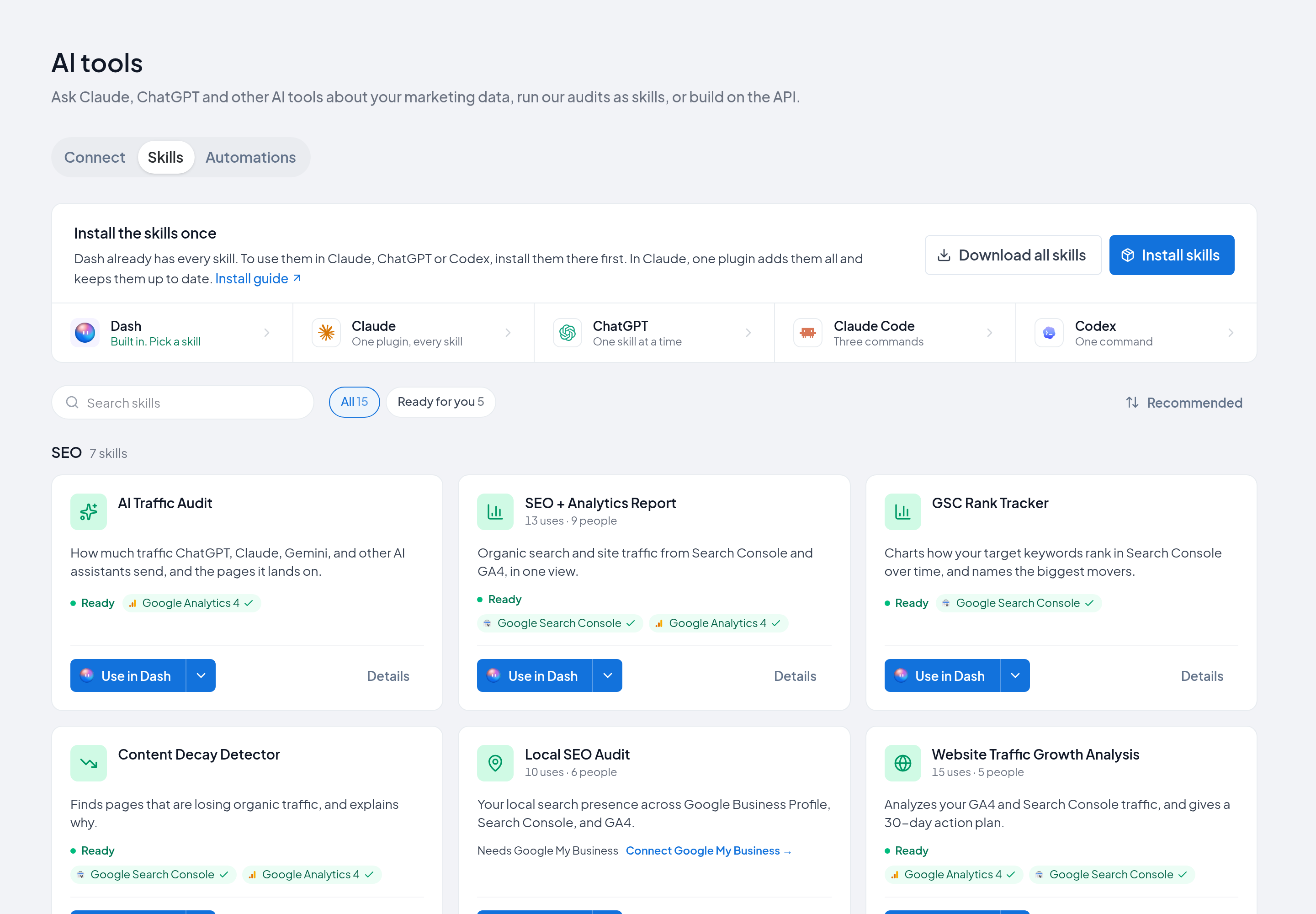
To open a skill, select its card. The Overview shows what the skill does, the connectors that it needs, and the question that runs it. Preview and Raw file show the skill's instructions.
Use a skill in Dash
- On the Skills tab, find the skill.
- Select Use in Dash.
- Dash opens with the skill attached and its question ready. Send the question.
To choose from every skill in Dash, select the Dash tile at the top of the Skills tab. Dash opens with its skill list. In Dash, you can also type / to open the list.
See Dash.
Install the skills in an AI tool
The steps are different for each AI tool:
| AI tool | How to install | Updates |
|---|---|---|
| Claude | One plugin with every skill. Pro, Max, Team or Enterprise plan. | Automatic, with Sync automatically |
| ChatGPT | Upload each skill as a .zip file. Business, Enterprise, Edu or Healthcare plan. | Upload the skill again |
| Claude Code | Three /plugin commands | /plugin marketplace update |
| Codex | One command that copies the skills | Run the command again |
On the Skills tab, select Install skills to see these steps in the Hub. To get every skill as .zip files, select Download all skills.
Run a skill in an AI tool
- Ask for the skill's job, for example "Audit my Google Ads account". The AI tool uses the skill when your request agrees with what the skill does.
- Or select the skill in the AI tool. In Claude, type
/. In Claude Code, type/tmr-marketing-skills:. In Codex, type$. - Or, on the Skills tab, open the skill's menu and select Use in Claude or Use in ChatGPT. A new chat opens with the skill's question. The first time, the Hub asks if the skill is installed in that AI tool.
If the skill is not installed, the AI tool can still answer from your data, but without the skill's checks and scores.
Usage numbers
A skill can show how many times people used it, for example "32 uses · 14 people". The number counts each run of the skill in Dash or in an AI tool. It does not count downloads. The number shows when a skill has 10 or more uses.
Next steps
- Claude
- ChatGPT
- Connectors: connect the data that your skills use