

Passkeys
A passkey lets you sign in with your fingerprint, your face or your screen lock, the same way you unlock your phone or laptop. There is no password to type and no code to copy.
In Two Minute Reports a passkey does two jobs:
- It is a way to sign in on its own. Select Sign in with a passkey and you're in. No password, and no second step.
- It is a 2FA method. When you sign in another way (password, Google, Microsoft or an email code), your passkey can be the second step.
Adding a passkey therefore turns on two-factor authentication. A passkey and an authenticator app are equally good second steps; use whichever suits you, or both.
What a passkey actually is
A passkey is a secret your device creates and keeps for one website. When you sign in, your device proves it holds that secret, but only after it has checked it's you with your fingerprint, face or screen lock. Two things follow from that:
- Nothing to steal from us. The secret never leaves your device or password manager, so there is no password on our side to leak.
- It can't be used on a fake sign-in page. A passkey only works on the real Two Minute Reports site. A lookalike page cannot ask for it.
Passkeys are saved in a password manager: iCloud Keychain on Apple devices, Google Password Manager on Android and in Chrome, or an app such as 1Password. A passkey saved there is available on your other devices signed in to the same password manager.
Adding a passkey
If 2FA is off, adding a passkey is how you turn it on. Follow Turning on 2FA with a passkey; you will save recovery codes at the end.
If 2FA is already on:
Select Add a passkey
In Settings › Security, under Passkeys, select Add a passkey.
Confirm it's you
Use a passkey you already have or your authenticator app. See Confirm it's you.
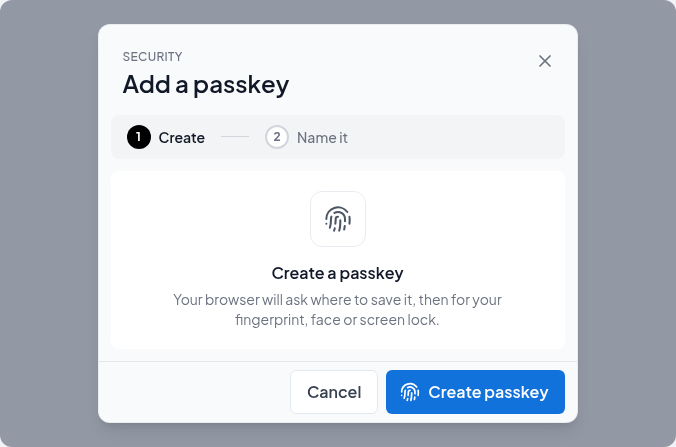
Create the passkey
Select Create passkey. Your browser asks where to save it, then for your fingerprint, face or screen lock.
Name it
Keep the suggested name or type your own, so you can tell your passkeys apart.
You do not get new recovery codes when you add a second passkey: the ones you saved still work. We email you that a passkey was added.
Your passkey list
Each passkey under Passkeys in Settings › Security shows its name, where it is saved, when it was added and when it was last used, for example iCloud Keychain · added 1 Oct 2026 · last used today.
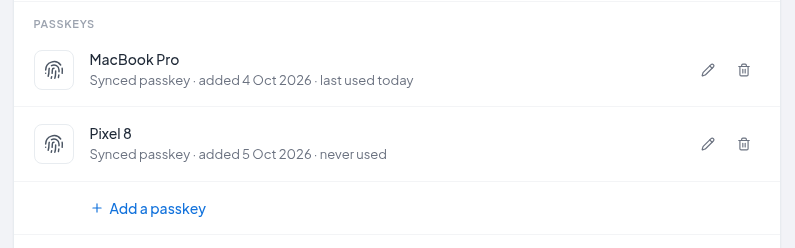
To rename a passkey, select the edit icon on its row. Renaming does not ask you to confirm.
Removing a passkey
Select the delete icon
In Settings › Security, under Passkeys, select the delete icon on the passkey's row.
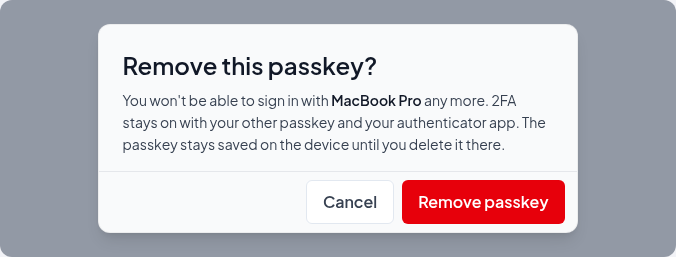
Read what will happen
The dialog Remove this passkey? says which methods you still have. Select Remove passkey.
Confirm it's you
Use another passkey or your authenticator app. A recovery code is not accepted for removing a single passkey.
You can no longer sign in with that passkey. 2FA stays on with your other methods.
The passkey stays saved on the device until you delete it there, in your password manager's settings. If you try to sign in with it after removing it, the Hub says This passkey isn't linked to an account anymore. Sign in another way.
Removing your last passkey
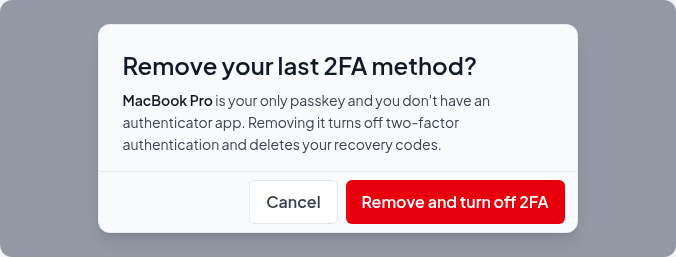
If the passkey is your only 2FA method, removing it turns 2FA off: the dialog says Remove your last 2FA method? and the button reads Remove and turn off 2FA. Your recovery codes are deleted too, your other browsers are signed out, and every trusted browser is forgotten, exactly as when you turn 2FA off.
If a team you belong to requires 2FA, the Hub shows You can't remove this passkey yet instead. Add another passkey or an authenticator app first, then remove this one.
Signing in with a passkey
On the sign-in page, select Sign in with a passkey. Your browser lists the passkeys saved for Two Minute Reports. Pick yours, confirm with your fingerprint, face or screen lock, and the Hub opens.
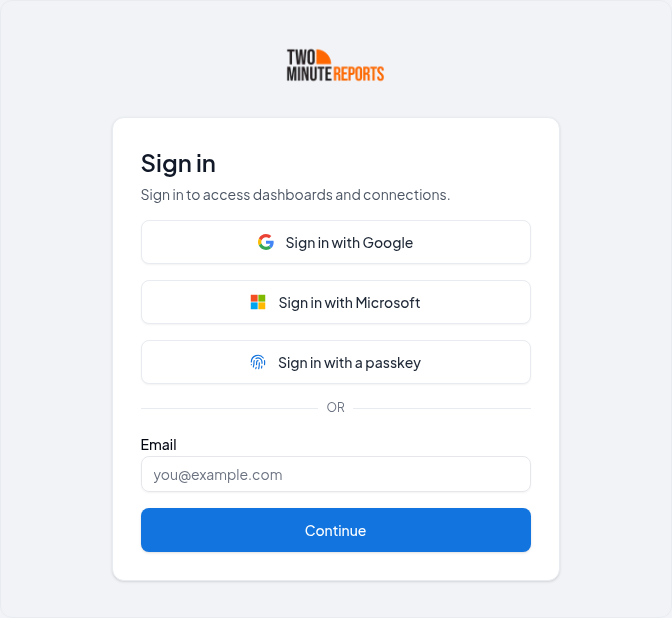
You can also select the Email field: many browsers offer your saved passkeys there, as they would a saved password.
A passkey sign-in never asks for a second step, because it has already checked two things: the device you have, and that it's you.
Using the passkey on your phone with a computer
Your passkey does not have to be saved on the computer you are using. If it's on your phone:
- Start signing in, or confirming, on the computer.
- In the browser's passkey window, choose Use a phone or tablet.
- Scan the QR code with your phone's camera.
- Confirm on your phone with your fingerprint, face or screen lock.
Your phone may ask you to turn on Bluetooth: it uses it to check that it's near the computer. This works in any browser that can use passkeys, so a phone is a good way to carry one passkey everywhere.
If a passkey prompt doesn't work, the Hub shows Didn't work? and If your passkey is on your phone, choose Use a phone or tablet in the browser window and scan the QR code with your phone. Select Try again to reopen the browser window.
When this browser can't use passkeys
If your only 2FA method is a passkey and the browser you're on cannot use passkeys, the Hub says This browser can't use passkeys. Open the Hub in Chrome, Edge, Safari or Firefox, or select Use my phone to use the passkey on your phone.
Related
Two-factor authentication
Turn on two-factor authentication with a passkey or an authenticator app, save your recovery codes, trust a browser, change your authenticator app, or turn 2FA off.
Confirm it's you
Why the Hub asks you to confirm it's you before sensitive actions, which actions trigger it, how long a confirmation lasts, and which methods you can confirm with.