

Can't sign in with two-factor authentication
Problem
You have two-factor authentication (2FA) on, and you can't get past the Finish signing in step in the Hub. Find what you're seeing below.
I lost my phone or can't use my passkey
Work through these in order:
- Try another method. On Finish signing in, select Use another method. A passkey saved in iCloud Keychain, Google Password Manager or 1Password is usually on your other devices too, and a passkey on your phone works with any computer through Use a phone or tablet and a QR code.
- Use a recovery code. Select Use another method › Recovery code and enter one of the ten codes you saved when you set up 2FA. Then add a new passkey or authenticator app straight away: you have 5 minutes to do it without anything else.
- Ask support. If you have none of those, select Can't use any of these? and email [email protected] from your account email. After one more check that it's you, support turns 2FA off 3 days later, and emails you a link to cancel it in case you didn't ask.
Your team's admins can't reset your 2FA. The full process is in Lost access to 2FA.
My authenticator code doesn't work
The Hub says That code didn't match.
Almost always, the phone's clock is off. Authenticator codes are worked out from the current time, so a phone whose clock has drifted produces codes that are already old, or not valid yet. We accept the code before and after the current one to allow for small differences, but not more.
Set your phone's time automatically
- iPhone: Settings › General › Date & Time › turn on Set Automatically
- Android: Settings › System › Date & time › turn on Set time automatically. The exact menu names vary by manufacturer.
Enter the code the app shows now
Wait for a fresh code to appear and type it straight away, rather than one that is about to change.
If that doesn't fix it, check:
- You're reading the right entry. Look for Two Minute Reports with your email address. If you have more than one Two Minute Reports account, each has its own entry, labeled with its email address.
- You haven't changed apps since. After Change app, codes from the old app no longer work.
- You aren't typing a recovery code. Recovery codes are 16 characters and go under Use another method › Recovery code, not in the 6-digit boxes.
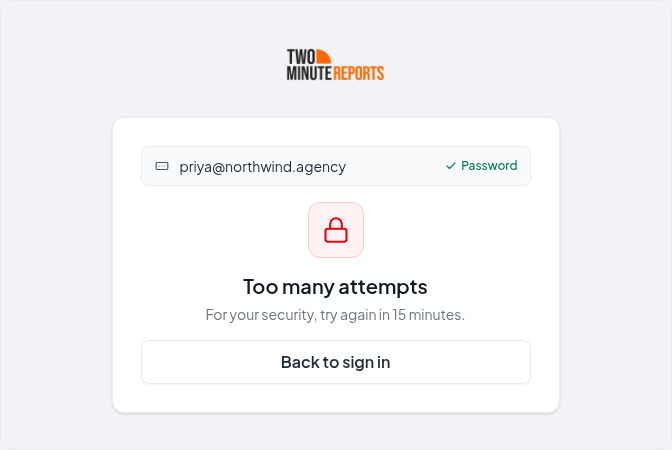
It says "Too many attempts"
After 5 wrong codes in one go, or 10 in 15 minutes across signing in and confirming, the Hub asks you to try again in 15 minutes. Wait, then sign in again. Your account isn't locked, and nothing has been changed.
My passkey doesn't work
- "Didn't work?" Browsers report a cancelled prompt, a timeout and "no passkey on this device" the same way. If your passkey is on your phone, choose Use a phone or tablet in the browser window and scan the QR code with your phone, then select Try again.
- "This passkey isn't linked to an account anymore." The passkey was removed in Settings but is still saved on the device. Sign in another way, and delete the old passkey in your password manager.
- "This browser can't use passkeys." Open the Hub in Chrome, Edge, Safari, or Firefox, or select Use another method.
More in Passkeys.
My recovery code doesn't work
The Hub says That code didn't work. It may have been used already.
- Each code works once. Cross off codes as you use them, and try another.
- Generating new codes cancels the old ones. If you, or someone with your account, selected Generate new codes, only the newest set works.
- Dashes, spaces and capital letters don't matter, so
k7qm2xpa9rteh4wnandK7QM-2XPA-9RTE-H4WNare the same code.
If none of your codes work, see When nothing works: ask support.
I can't open my team
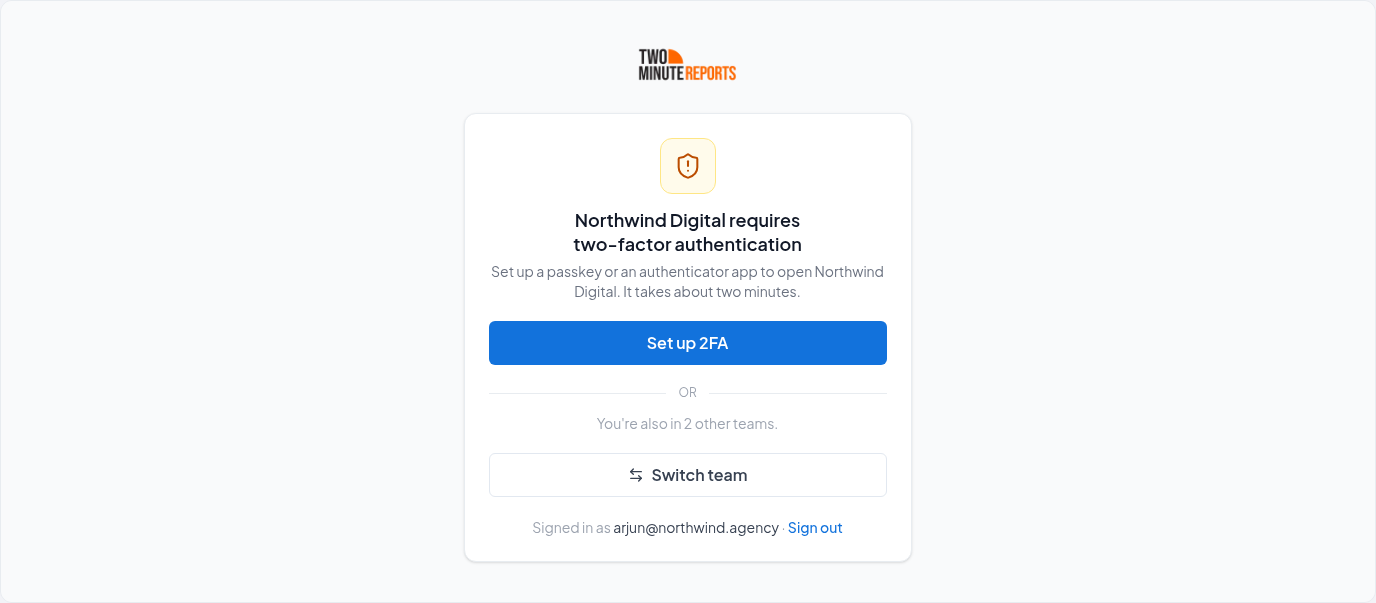
If the Hub shows Team name requires two-factor authentication instead of the team, you're signed in and nothing is wrong with your account: that team requires 2FA, and your deadline has passed or you joined after it was turned on. Select Set up 2FA; it takes about two minutes, and the team opens when you're done. Your other teams keep working meanwhile. See Require two-factor authentication.
Still stuck?
Email [email protected] from the email address you sign in with, and say which step you're stuck on. Don't include your recovery codes or authenticator codes: we don't need them to help you.
Microsoft Ads: organization hasn't enabled the Advertising API
Fix 'Microsoft declined the sign-in' when connecting Microsoft Ads with a work or school account.
Connection blocked by a firewall or IP allowlist
Fix connections that fail to test, or that stop returning data, because your database, store or API only accepts requests from allowlisted IP addresses.