

Formulas and conditions
The Formula method is the most flexible way to build a custom field. For metrics it's a math expression; for dimensions it combines fields and text into a label. On top of either, you can add conditional rules so the field only returns a value when your conditions match.
Formulas for metrics
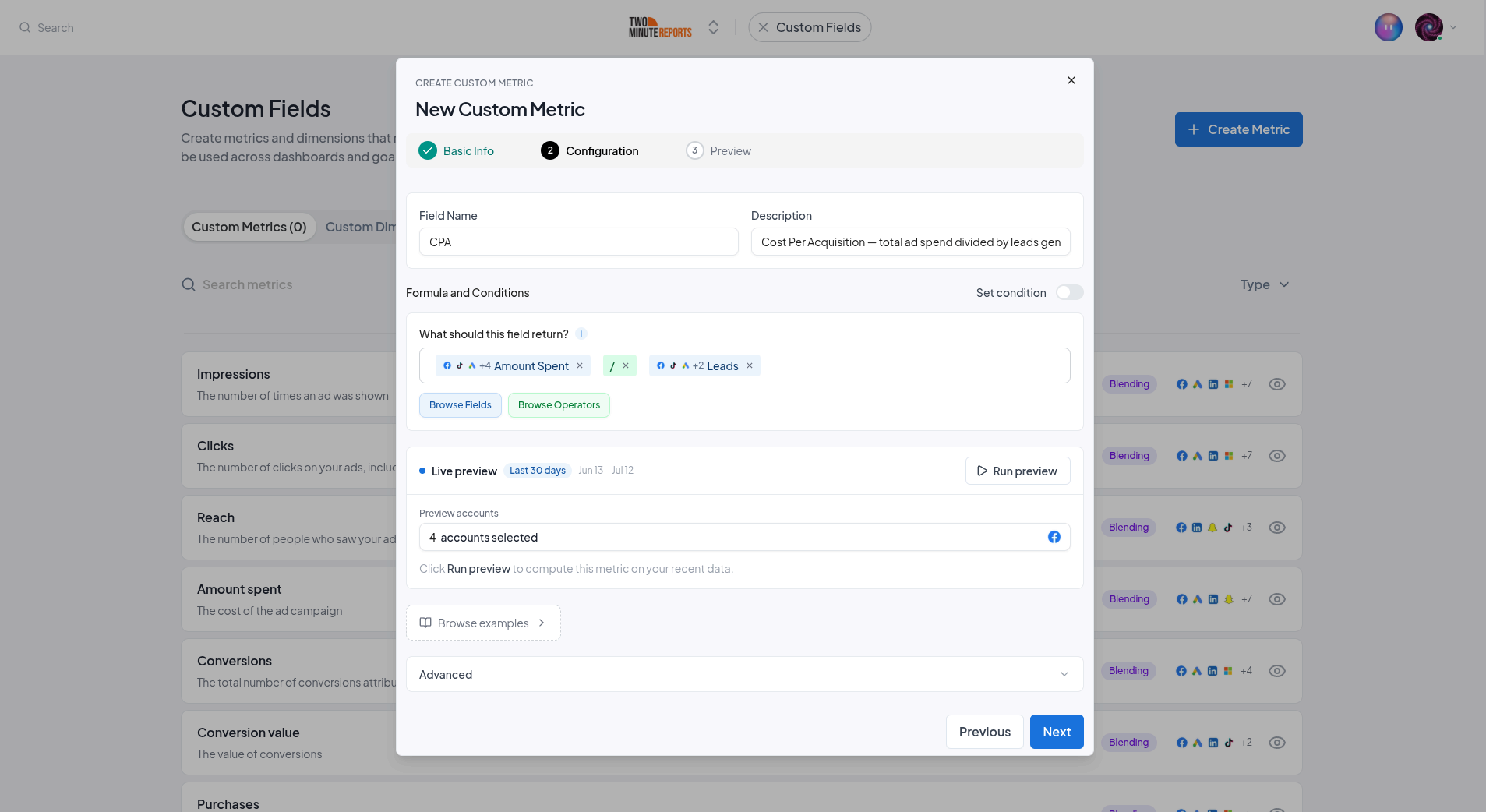
A custom metric formula is an arithmetic expression built from fields, numbers, and operators. You assemble it in the formula editor by adding field chips, typing numbers, and inserting operators.
Build a formula
- Select Browse fields (or start typing a field name) to insert a field
- Type a number and press Enter to add a numeric constant
- Select Browse operators to insert a math operator
The editor checks the formula as you go, with messages like "Formula looks good", "Formula ends with an operator", or "Missing operator between fields".
Operators
| Operator | Meaning |
|---|---|
+ | Add |
- | Subtract |
* | Multiply |
/ | Divide |
% | Modulo (remainder) |
^ | Power |
( ) | Parentheses for grouping |
spend / conversions.Common metric recipes
| Metric | Formula |
|---|---|
| CPA (cost per acquisition) | spend / conversions |
| ROAS (return on ad spend) | revenue / spend |
| CPC (cost per click) | spend / clicks |
| Conversion rate | conversions / clicks * 100 |
| AOV (average order value) | revenue / orders |
Formulas for dimensions
For dimensions, the Formula method combines fields and text into a single value instead of doing math. This is how you build labels and cleaned-up names.
- Add field chips the same way as for metrics
- Type text and press Enter to add a text constant
- Select Add space to insert a space between parts
For example, combine a source field, a space, and a medium field to produce a "Source / Medium" label. Math operators aren't available for dimensions, because dimensions are about text, not calculations.
Conditional rules
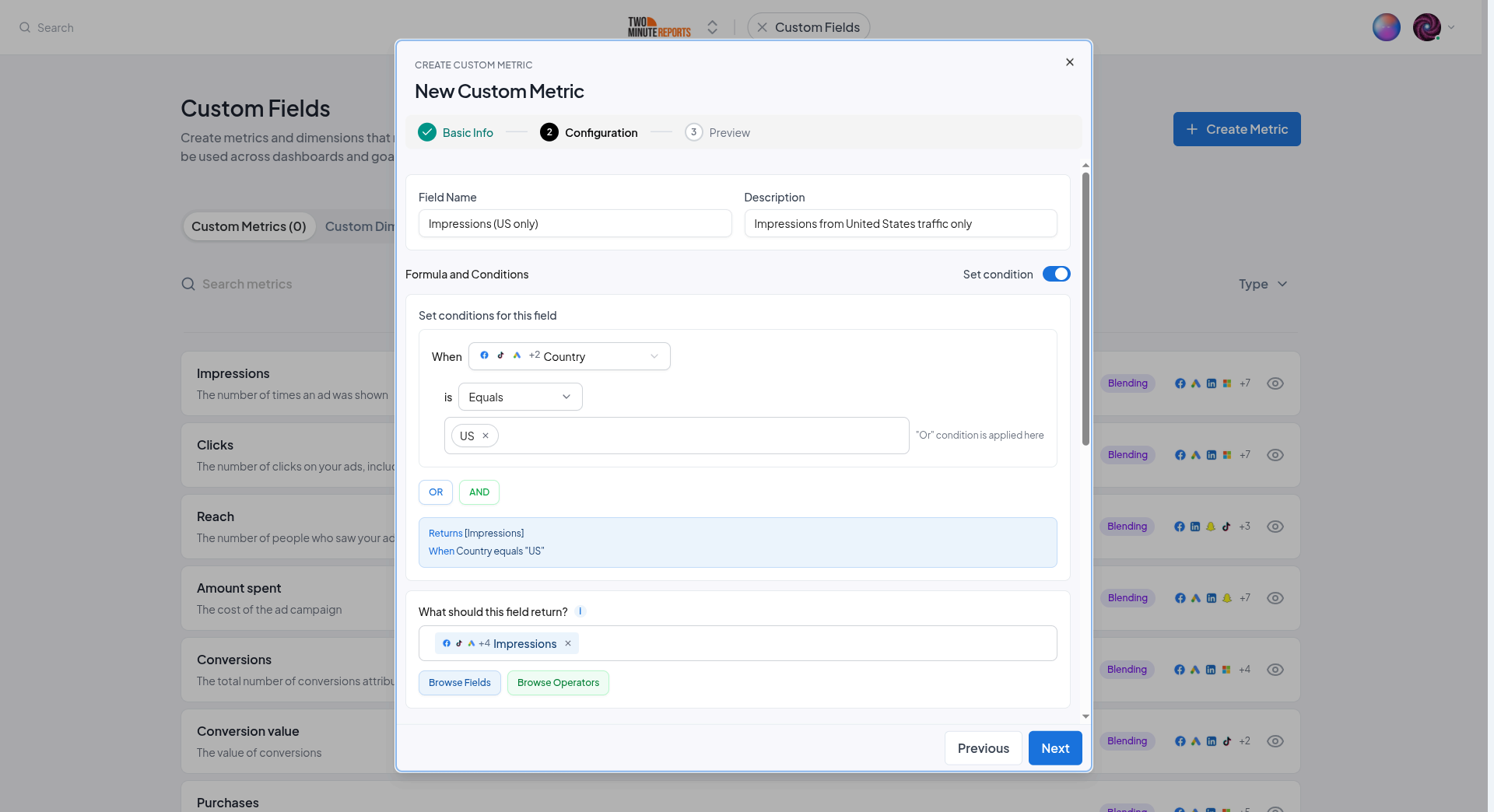
Turn on Set condition in the builder to make a field return its value only when your conditions match. This is CASE-style logic: "when the campaign name contains 'brand', label it Branded".
How conditions work
Each condition reads When field is operator values:
| Operator | Matches when the field… |
|---|---|
| Equals | exactly matches a value |
| Not equals | does not match |
| Contains | includes the text |
| Not contains | does not include the text |
- Add multiple conditions and join them with AND or OR
- Values autocomplete from the real distinct values in your data
Multiple rules (dimensions)
Custom dimensions support multiple rules for IF/ELSE-style mapping. Select + Add rule to add another rule. Rules are evaluated top to bottom and the first matching rule wins. A final rule with no condition acts as the "else" catch-all. If nothing matches, the field uses its fallback value.
Next steps
- Blending across connectors - Apply per-connector logic across platforms
- Split text - Extract a fragment from a naming convention
- Use custom fields - Use your formulas in dashboards and goals
Create a custom field
Walk through the custom field builder: pick a build method, configure it, preview against real data, set a fallback, and save.
Blending across connectors
Map the same field from each of your connectors into a single unified custom field, summed for metrics or unified into one column for dimensions.