

Reports
A report is what you send a client: a document of A4 pages to read, or Slides at 16:9 to present. Dash or a template builds it from the client's accounts, you edit it, and you mark it ready. The figures freeze the first time you mark it ready, so the numbers your client reads are the numbers you checked.
Reports and dashboards
| Dashboard | Report | |
|---|---|---|
| What it is | A live page your client opens | A document or Slides about one period |
| Its figures | Change as the data changes | Freeze the first time you mark it ready |
| How it's built | Widgets on a grid | Rows of blocks on fixed pages or slides |
| How your client gets it | A link, or a briefing | A link, an email with a PDF (once or each month), or a file you download |
Share, download and send work the same way for both: the same three buttons in the report's top bar, the same share dialog, the same email code for viewers, and the same Send dialog. See Share, download and send.
What you can do
- Create a report with Dash from a description, from one of 28 templates, or from an empty report
- Tell Dash how the report must look in the same description, for example "dark theme" or "no cover"
- Choose the accounts, the period and what it's compared with
- Edit on the page: type into text, add blocks with the slash menu, drag blocks, change widths
- Edit the cover and the closing page where you read them
- Ask Dash to rewrite a block, answer a comment or change the report. Dash suggests the changes, and you accept or reject each one, or all at once
- Comment on a block or on selected words, mention a team member, and resolve the thread
- Brand it: presets, team and client themes, logos, your own fonts, six cover layouts, a closing page, headers, footers, page numbers and contents
- Share it, download it as a PDF or PNG images (and PowerPoint for Slides), and email it from your Gmail once or on a schedule
- Start next month's report from this one
Document or Slides
You choose the layout when you create the report. You can't change it later.
| Document | Slides | |
|---|---|---|
| Page | A4 portrait (US Letter is an option in Design) | 16:9 |
| When a page is full | The next rows go onto a new page | The extra is cut off, and the editor tells you to move blocks to a new slide |
| To see it as your client does | Preview | Present, full screen |
| Best for | The monthly report a client reads | The review you present on a call |
Draft and Ready
A report is Draft or Ready. There is no approval step.
- Draft: you're working on it. Everything saves as you go. A download is the report as it is now, marked Draft, for your team to review.
- Ready: you selected Mark ready. The share link, sends and downloads show this version.
Your client keeps seeing the last Ready version while you work on a Draft. The status in the top bar and on the Reports page tells you this, for example Draft · Link shows Nov 4. When you mark it ready again, the link shows the new version at the same address.
A Ready report goes back to Draft when you:
- Edit its pages or blocks. When you accept a change that Dash suggests, that is an edit too.
- Edit the text on its cover or closing page, or the text in its header or footer. Your client keeps seeing the text from the last Ready version until you mark it ready again.
- Change its period, its accounts or its comparison. The editor asks you to confirm first.
- Select Refresh data
To go back to Draft by hand, open the menu (⋮) and select Mark as draft.
These things don't change the status:
- A new name
- A design change: colours, fonts, the cover's layout, image and logos. Design isn't frozen: a change shows on the link right away. A PDF you already sent is kept as it went out.
- Comments
When figures freeze
The first time you mark a report ready, the figures in every data block freeze. After that:
- Editing text, design or layout doesn't change a number.
- A block you add later, or a block whose data you change, loads live until you mark the report ready again. Then it freezes too.
- Refresh data (in the ⋮ menu) loads every block again and sends the report back to Draft. Changing the period or the accounts does the same.
- When you mark it ready after that, the editor tells you how many figures changed since the version your client has.
Each month
Reports are per period. October and November are two reports, not one report edited twice. The reports you make each month for one client are a series.
- New report from this (in the ⋮ menu) keeps the pages, blocks and design, moves to the next period, loads fresh figures, and has Dash write new commentary. The new report continues the series. See Create a report.
- Duplicate report (in the ⋮ menu) makes an exact copy as a new Draft, with nothing rewritten. Give it a name and, if you want, another client. Its figures load fresh when you open it. The copy has no link, no comments and no send history, and it starts a new series. If you change the client, check the copy's accounts in Data: they still point at the first client's.
A recurring send follows the series: each month it sends that month's report. See Send every month.
The Reports page
Reports lists the reports for the client selected in the client switcher. On All clients, filter by Client too.
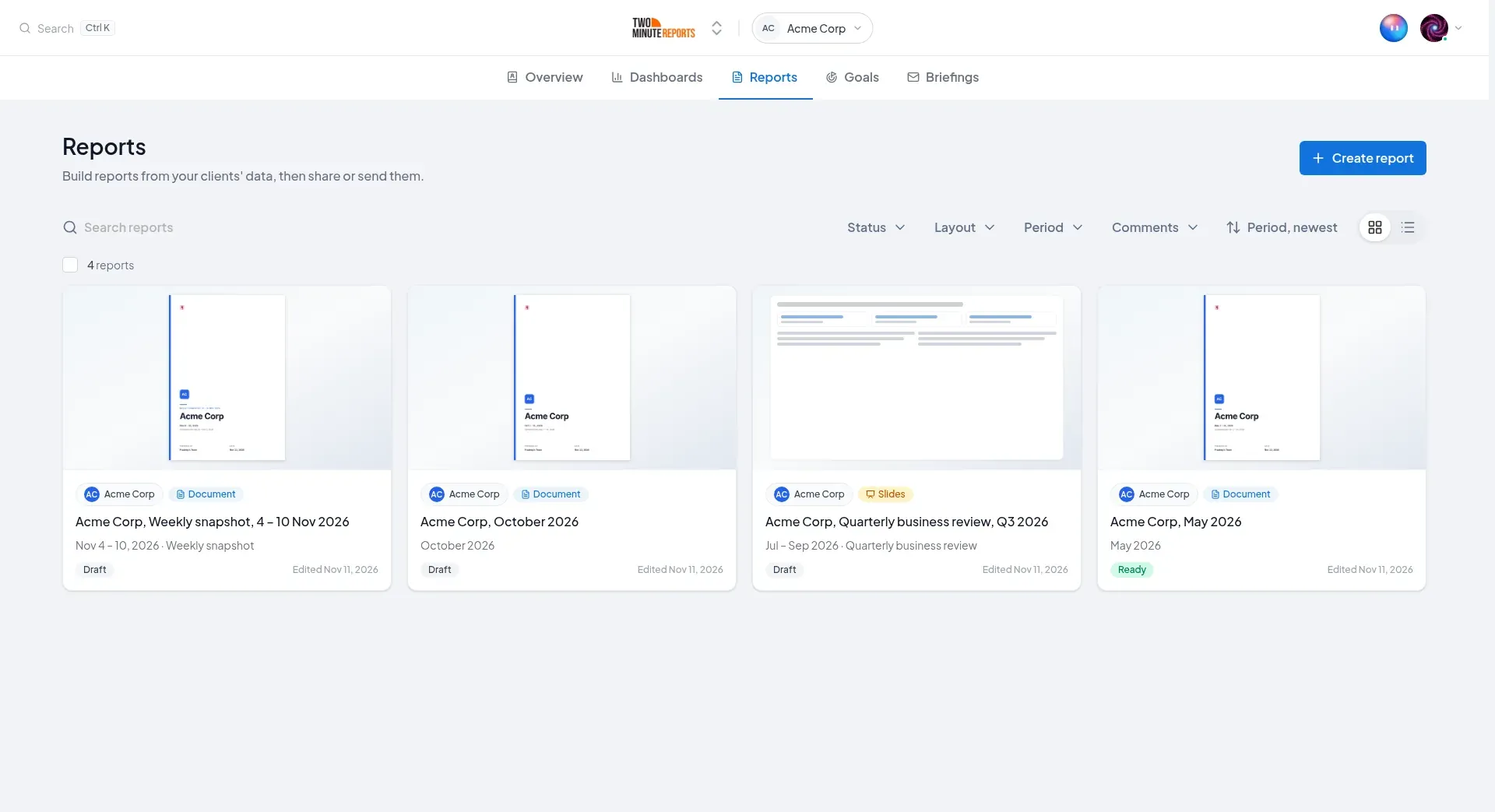
- Search, and filter by Status, Layout, Period (this or last month, quarter or year) and Comments (Mentions me or Open comments).
- Sort by: Period, newest (the default), Last edited, Last sent or Name.
- Switch between List view and Grid view.
- Each report shows its status, how many comments are open, and @ with a number when comments mention you that you haven't read.
- Each report's menu has Share, Download, Send, Duplicate report, New report from this, Sent and scheduled and Delete report.
- Select reports with their checkboxes to download their PDFs or delete them together. A Draft downloads as it is now, marked Draft.
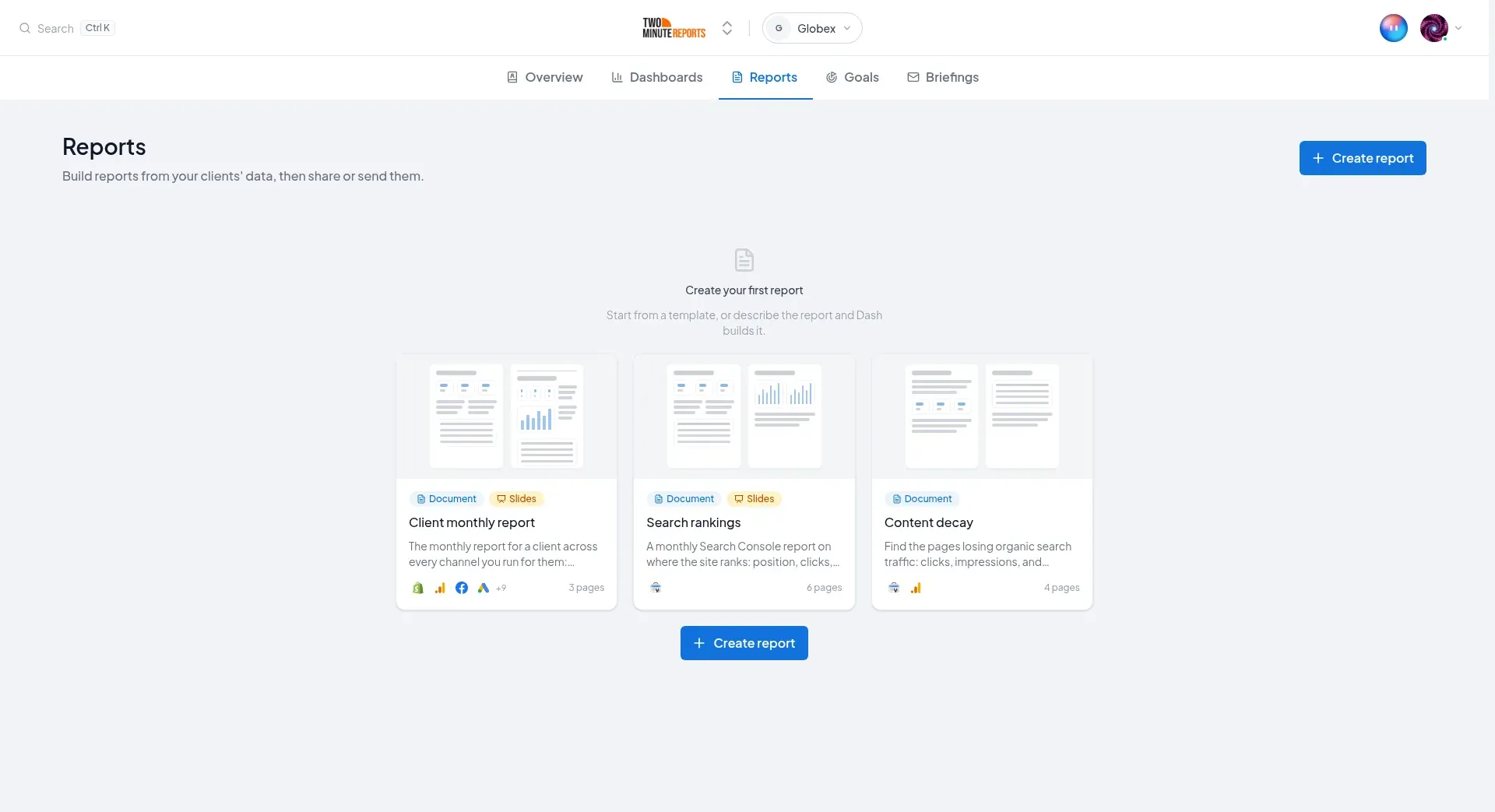
With no reports yet, the page suggests three templates the client's accounts can run: a report across channels, one for its main channel, and an audit. Select one to open Create report at its last step, with that template chosen. A client with no accounts a template can use shows Add accounts instead, and All clients shows Connect an account.
Who can do what
| To | Permission |
|---|---|
| Open reports and read their comments | View reports |
| Create, edit, mark ready, refresh data, upload fonts | Create and edit reports |
| Delete a report | Delete reports |
| Comment, reply and resolve | Comment on reports |
| See who a report is shared with | View who can open reports |
| Share a report, or download it | Share and export reports |
| Remove someone from a report | Remove people from a report |
| Send a report | Create and edit briefings. To send a Draft, which marks it ready, also Create and edit reports |
| Save or change a team theme | Create and edit themes |
| Change the agency logo | Change team settings |
| Change the client logo | Add and edit clients |
The permissions matrix shows which roles hold each one.