

Account missing access or connection expiry
Two Minute Reports shows an error when an account in your queries or schedules loses its permissions, or when its connection expires. This page explains what each error means and how to fix it.
Error messages
You may see messages like these. In a query or in Google Data Studio:
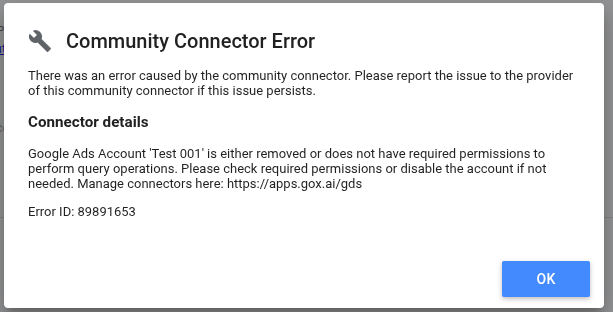
Connector Account 'account' is either removed or does not have required permissions to perform query operations. Please check required permissions or disable the account if not needed.
Next to an account in the Google Data Studio account list:
Account missing access permission. Disable if not needed or check required permission.
These mean that the connection still works, but it does not have the role that it needs on the account.
Account missing access permissions
What does this mean?
The account in your queries (for example, a Google Ads account or a Facebook Ads account) no longer has the permissions that it needs to get data. The connection itself is still active.
Common causes:
- The platform removed your access to the account (for example, you were removed from a Facebook ad account or a Google Ads manager account)
- The account was disconnected or deleted on the platform
What happens if it's not fixed?
After 10 days, the account is disabled and removed from all queries and schedules.
How to fix it
In the Google Sheets add-on, you see a notice on Data Queries, Schedule Refresh, Connections, and in Accounts. Two Minute Reports also sends email reminders before the account is disabled: on the day that the problem is found, and again after 3 and 7 days. On Data Queries, the notice says:
1 account linked to these queries lost access permissions. This account is at risk of being disabled. Review or disable it to avoid disruptions.
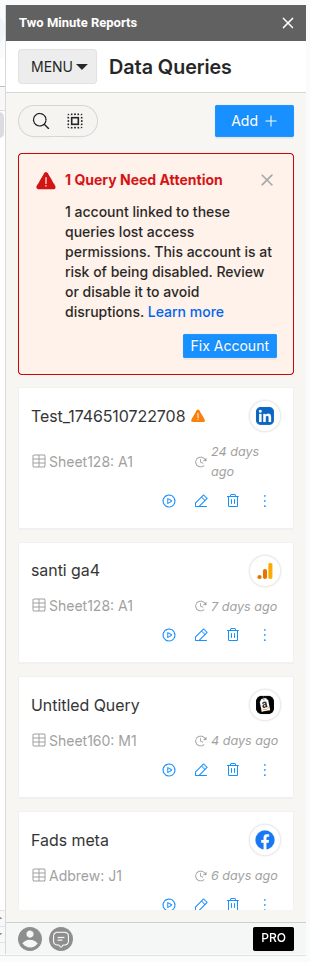
Take one of the following actions:
Option 1: Check and fix the permissions
Open the account on the platform and give back the access that it needs. Each connector needs specific permissions:
- Amazon Ads: Edit access to Campaign Manager, and View access to Advertising reports
- Apple Search Ads: API Account Manager or API Account Read Only role
- Microsoft Ads: Advertiser Campaign Manager access, and MFA enabled
- Facebook Ads: Employee access with View Performance, or Ad Account Analyst
- Facebook Insights: Administrator access to the Page
- Google Ads: Read Only access on the account or MCC
- Google Analytics 4: Viewer access at Property level
- Google Search Console: Owner or Full User on the verified property
- Instagram Insights: Business or Creator account linked to an active Facebook Page
- Klaviyo: Admin, Owner, or Manager role
- LinkedIn Ads: Report Viewer access; Admin for Company Page creative metrics
- Pinterest Ads: Viewer access or higher
- Shopify: Store owner or staff with full permissions
- Snapchat Ads: Account Admin or Campaign Manager access
- TikTok Ads: Ad Account Analyst access or higher
- YouTube Analytics: Must be the owner of the YouTube account
After you restore the permissions on the platform, reconnect the connection if needed. In the Hub, open Connections & accounts, find the connection, and select Reconnect.
Option 2: Disable the account
If you no longer need the account:
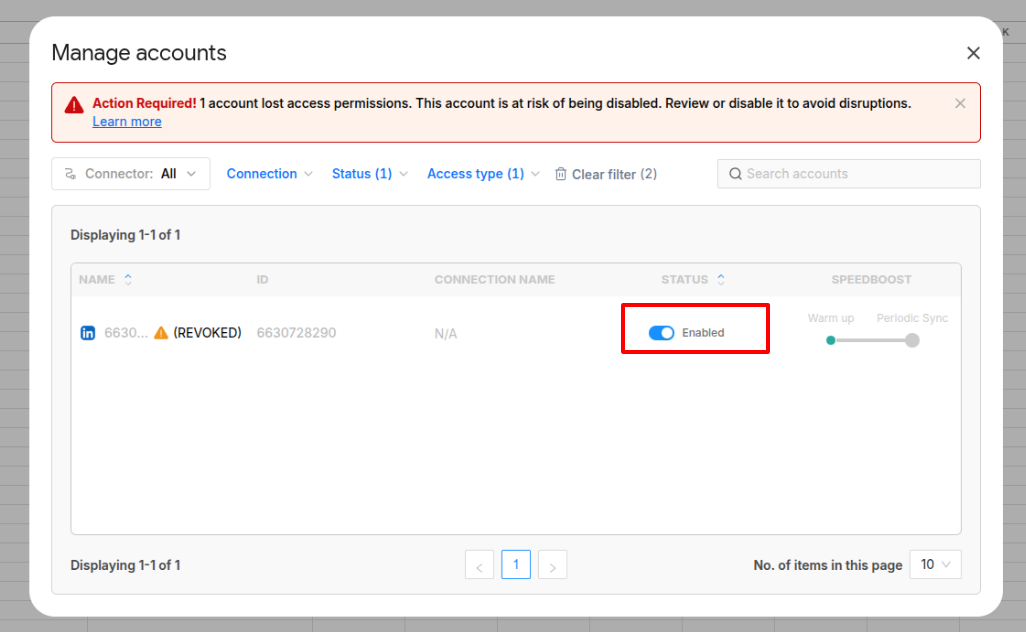
- In the notice, select Fix Account (or Fix Accounts).
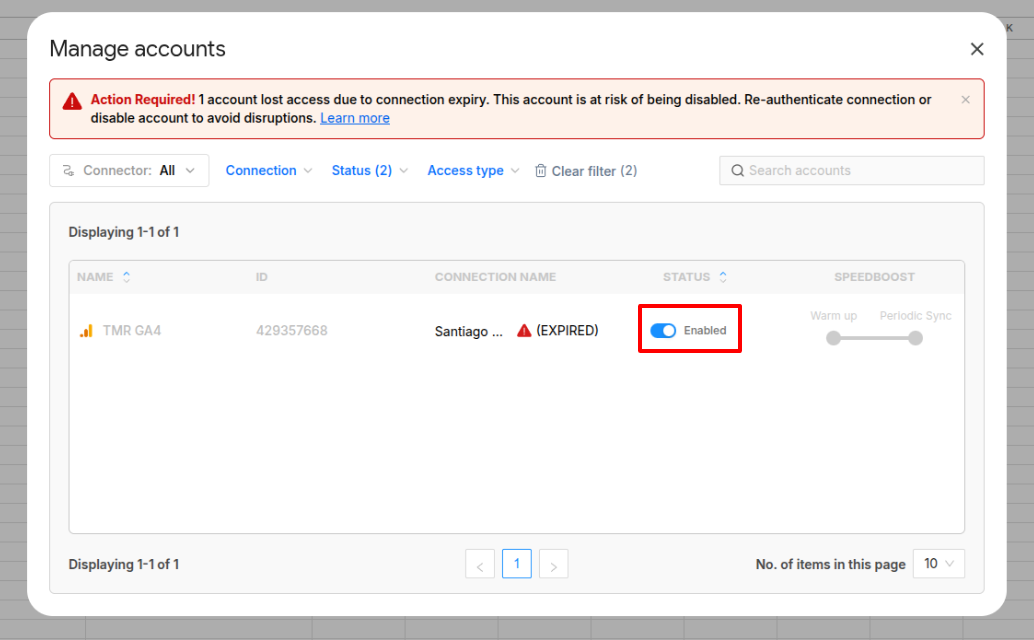
- Manage accounts opens, and shows the accounts with missing permissions.
- Turn off the account to disable it.
Connection expiry
What does this mean?
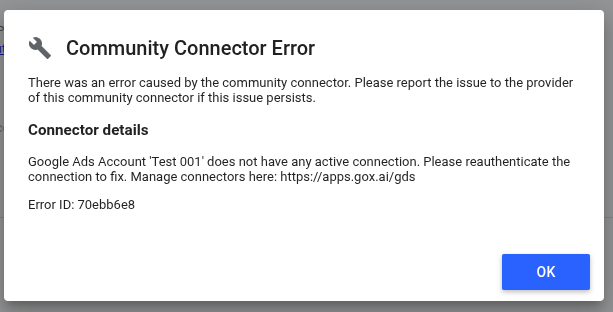
The account in your queries can't get data, because its connection expired. Queries and schedules that use it fail.
Common causes:
- The connection expired after a time without use
- The account password changed on the platform
- Two-factor authentication settings changed, and cancelled the access
- The credentials in the connection stopped working
What happens if it's not fixed?
After 10 days, the affected accounts are disabled and removed from all queries.
How to fix it
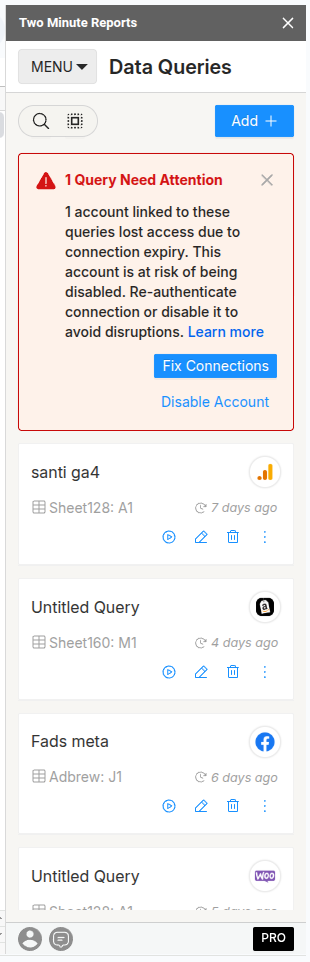
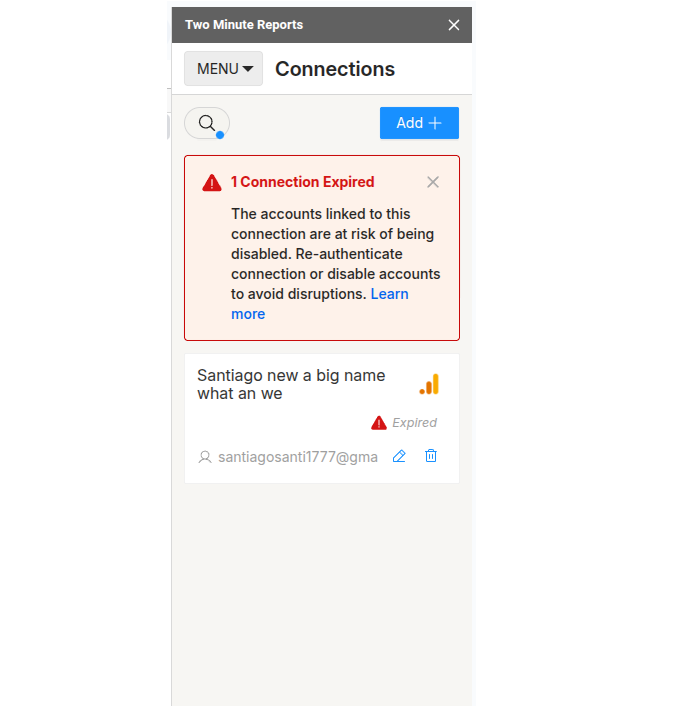
Reconnect the connection:
- In the notice, select Fix Connections.
- Connections opens, and shows the expired connections.
- Select the edit button next to the connection, and sign in to the platform again.
Disable the account (if you no longer need it):
- In the notice, select Disable Account (or Disable Accounts).
- Manage accounts opens, and shows the accounts whose connection expired.
- Turn off the account to disable it.
How you'll be notified
Two Minute Reports shows this error in several places, so that you see it:
- Schedule Refresh: the affected schedules show a warning
- Data Queries: the affected queries show a warning
- Connections: expired connections are marked Expired
- Accounts: accounts with problems are marked (EXPIRED) or (REVOKED)
- Google Data Studio: the connector error names the account
- Email: reminders are sent before the account is disabled, on days 0, 3, and 7
Advanced Scheduler lost access to your Google account
Fix the Advanced Scheduler Google account access error and re-authorize from Hub settings or the Google Sheets add-on.
API Bridge: how to set your Base URL
How to configure the API Bridge Base URL and Suffix URL correctly, and fix duplicate path and connection test errors.