Connectors
Shopify
Connect Shopify to Google Sheets or Google Data Studio

Two Minute Reports' Shopify connector lets you access and analyze your store data directly in Google Sheets or Google Data Studio. Build custom reports, monitor key metrics, and make data-driven decisions — all without writing any code.
What you can report on
- Orders and revenue
- Product performance
- Customer data
Prerequisites
- A Shopify store
- Store owner access, or staff access with the App development and Manage and install apps and channels permissions. Without both, the connection can't install the Two Minute Reports app
How to grant the permissions
In your Shopify admin:
- Go to Settings › Users and permissions
- Select the staff member, or select Add staff to create one
- Scroll to Permissions
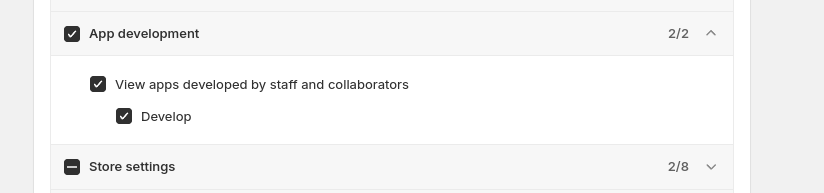
- Enable App development
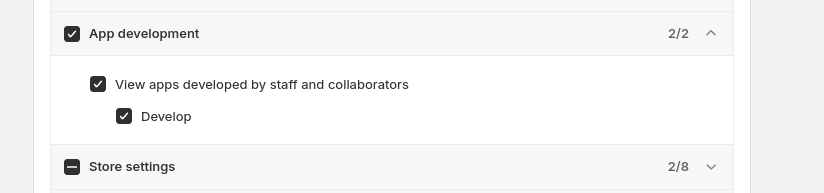
- Enable Manage and install apps and channels
How to create a connection
- Go to https://hub.twominutereports.com/connections
- Select New Connection
- Select Shopify from the list of connectors
- Name the connection, then under Select app type choose Shopify Public app
- Enter your Store Name
Your store name is the subdomain of your Shopify URL. In
https://thisismyshop.myshopify.com, the store name is thisismyshop.- Authorize and install the Two Minute Reports app in the window that opens, then close it
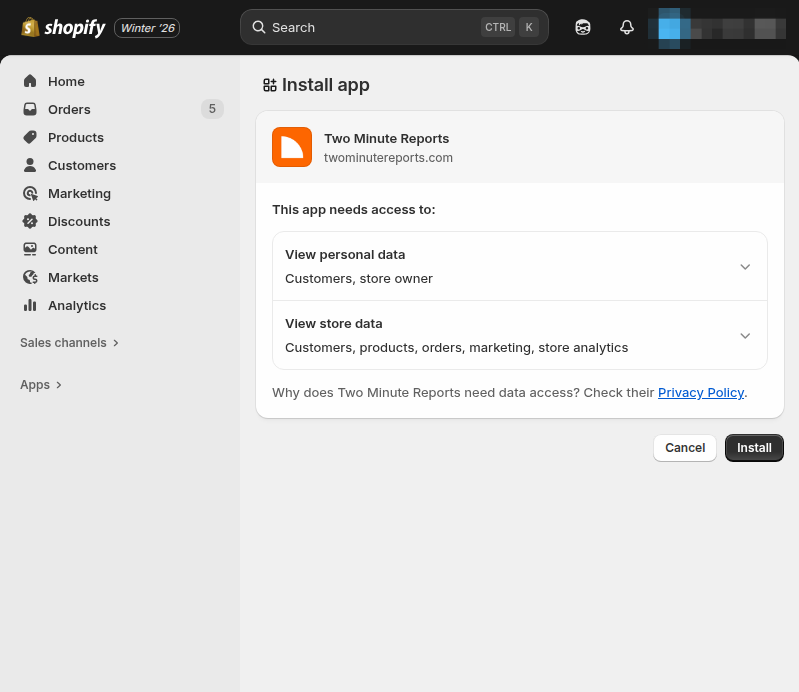
- Enable the store accounts you want to report on
Only enabled accounts fetch data, and only enabled accounts count toward your plan. You can enable or disable accounts at any time on the Connections page.
Connecting with an Admin Custom App
Shopify Admin Custom App is the alternative to the public app. Choose it under Select app type, then enter your Access Token and Store Name instead of authorizing through Shopify.
Shopify Partners Custom App and Private App are deprecated and can no longer be selected.
How to get Shopify data into your reports
To pull Shopify data into Google Sheets:
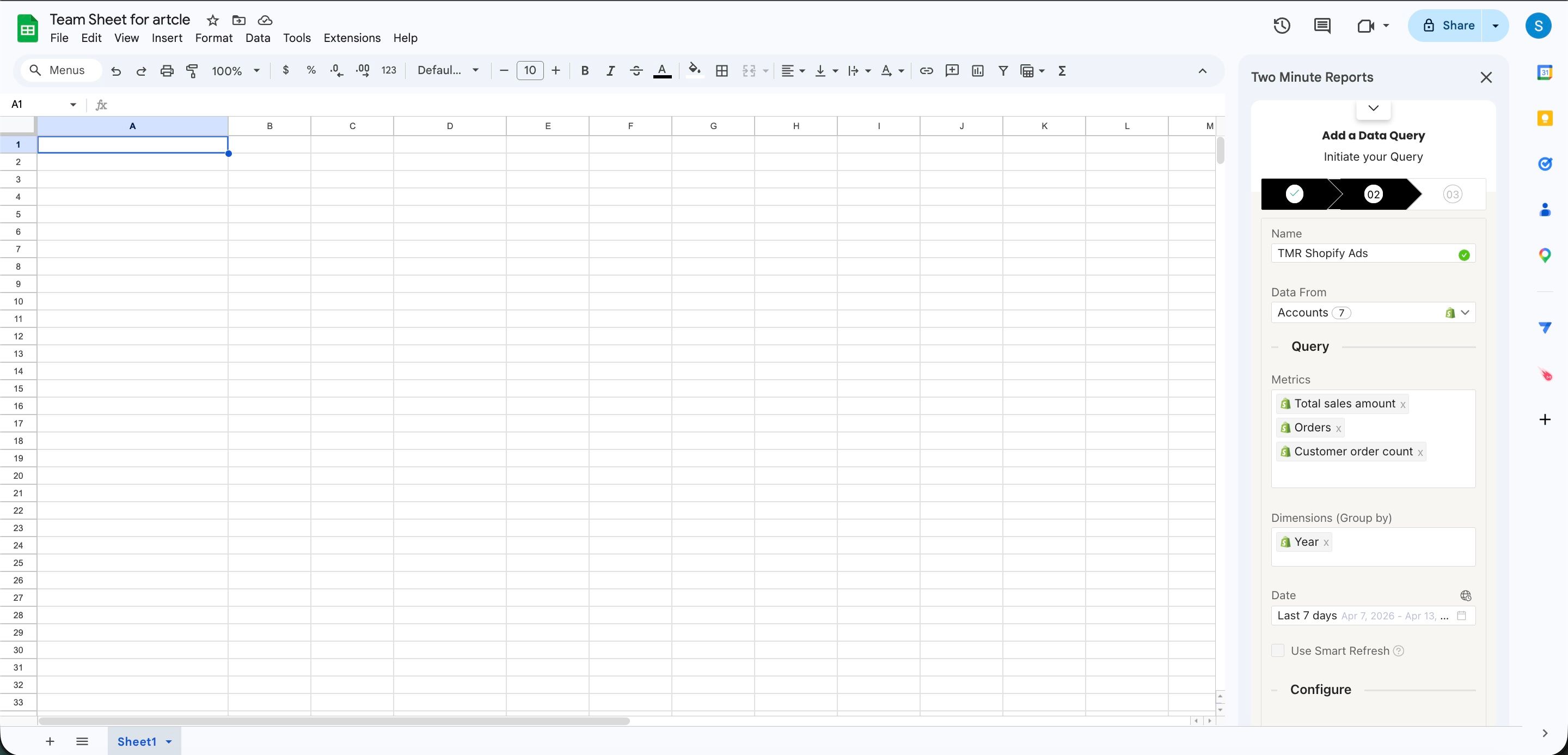
- In the Two Minute Reports sidebar, go to Data Queries and select Add
- Select the accounts you want to analyze. You can select more than one
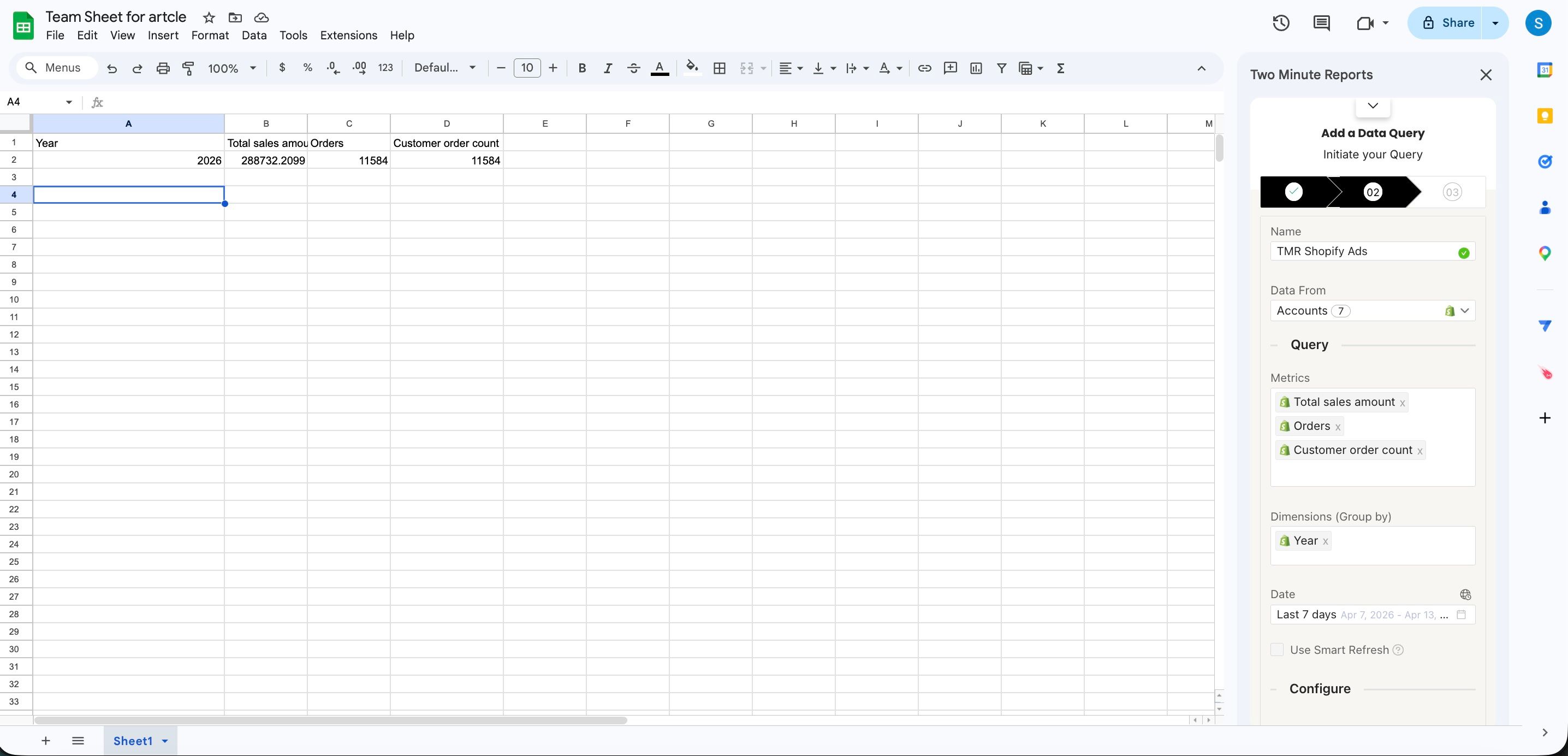
- Choose your metrics and dimensions
- Select the date range
- Set sorting and filtering if you need them
- Select Run Query to pull the data into Google Sheets