

Dynamic Date Range (On-Sheet Cell Reference)
When selecting a date range in Two Minute Reports, you can choose Custom Range (cell reference) to read dates directly from cells in your spreadsheet. This helps you fetch data for any date window without manually updating the query each time.
Example Setup
In this example:
- Start date is in cell F6 (
11/17/2021) - End date is in cell H6 (
12/15/2021) - Both cells are on the Facebook Report sheet tab
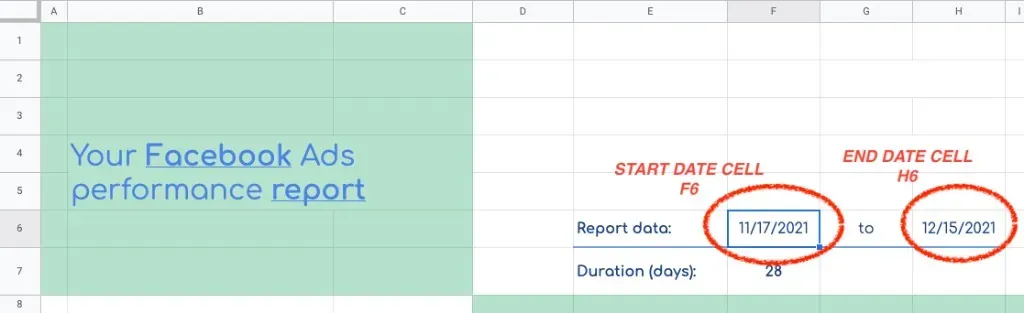
Using Custom Range (cell reference), each query run picks up the latest values from those cells and applies them as filters.
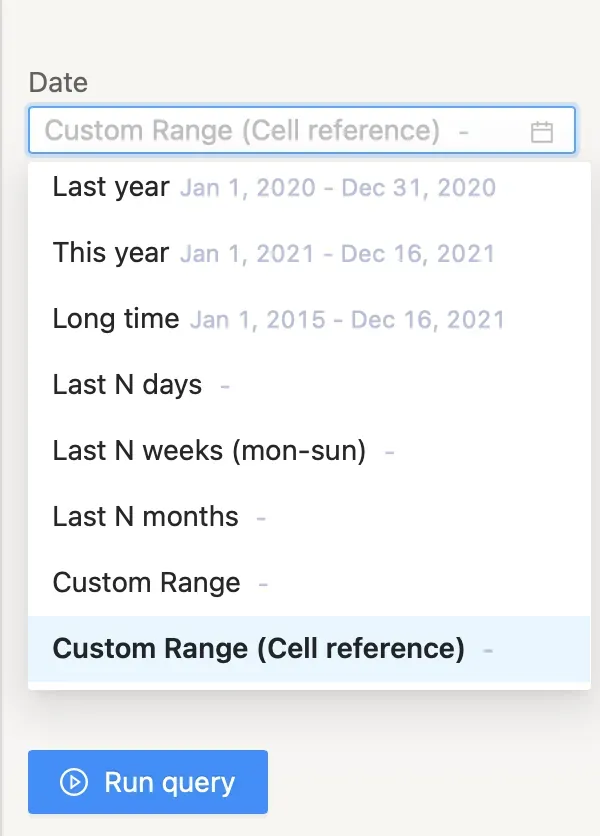
Enter Cell References Manually
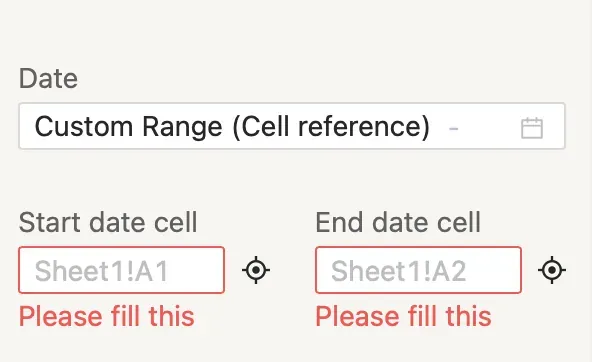
After selecting Custom Range from the Date Range dropdown, enter references in:
- Start Date Cell
- End Date Cell
Use this format:
- Left side of
!= sheet tab name - Right side of
!= cell address
If your sheet tab is Facebook Report:
- Start date in
F6->'Facebook Report'!F6 - End date in
H6->'Facebook Report'!H6
Use the Reference Picker (Crosshair Icon)
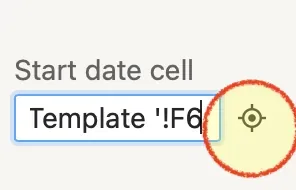
If you prefer not to type cell references, use the Reference Picker:
- Highlight the cell that contains the date.
- Click the Reference Picker (crosshair icon).
- Wait about 3 seconds for the field to auto-populate.
Why This Is Useful
This approach lets you change query date ranges directly from your spreadsheet cells. It is especially useful for recurring reports, templates, and dashboards where date windows need frequent updates.
Related Guides
If you have questions, contact our Support Team at [email protected].