

Confirm it's you
Some actions in the Hub are worth a second check even when you're already signed in, because of what someone could do with them if they sat down at your unlocked computer or copied your browser session. Before those actions the Hub shows a short dialog titled Confirm it's you.
The small heading above the title names the action, such as Create API key, and the line under the title names exactly what you are approving, such as "Looker sync" for Northwind Digital or Claude (claude.ai) to Northwind Digital. Check that line. If it is not what you meant to do, select Cancel and nothing happens.
When you're asked
Changes to how you sign in
You're asked unless you confirmed, or signed in, in the last 5 minutes:
- Setting a password, or changing it
- Turning two-factor authentication on or off
- Adding or removing a passkey
- Removing or changing your authenticator app
- Generating new recovery codes
Lasting access, team-wide changes and billing
You're asked unless you confirmed, or signed in, in the last 15 minutes:
- Creating an API key, or giving an existing key more access than it had
- Connecting an AI tool such as Claude or ChatGPT to a team (when you select Allow). See AI tools.
- Turning a team's 2FA requirement on or off
- Opening the billing portal, or cancelling the subscription
Once you've confirmed, you can carry on with these for 15 minutes without being asked again, and each of them restarts the 15 minutes, up to 2 hours after you confirmed. After that, the next one asks again.
The Hub asks when you select the final button, not when you open the form, so you never lose what you typed: confirm, and the action carries on.
Not asked
Everyday work never asks. Neither do renaming a passkey, revoking or narrowing an API key, inviting or removing members, changing roles or seats, or other team settings.
How you confirm
The dialog opens on the method you used most recently. Use another method lists the others you have.
If you have 2FA
You confirm with a second-step method:
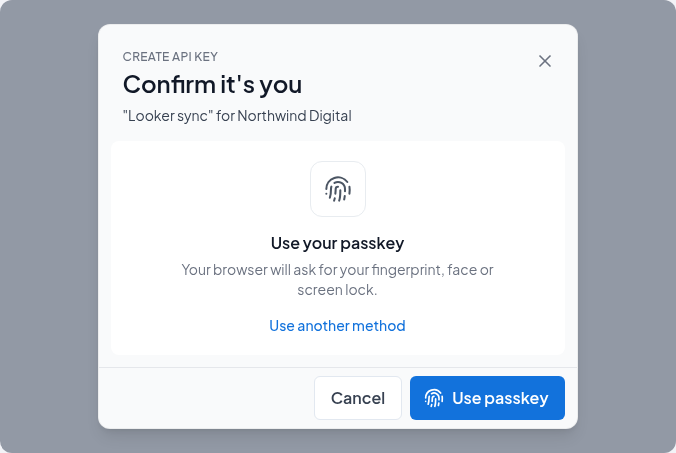
- Your passkey: select Use passkey and confirm with your fingerprint, face or screen lock. If the passkey is on your phone, choose Use a phone or tablet in the browser window and scan the QR code. See Passkeys.
- Your authenticator app: type the 6-digit code and select Confirm.
Your password, Google, Microsoft and email codes are not offered: with 2FA on, they would be a weaker check than the one you chose.
A recovery code is accepted for only two actions: turning 2FA off and changing your authenticator app. Those are what someone who has lost their phone needs to do. Every other action needs a passkey or the app.
If you don't have 2FA
You confirm with a way you sign in:
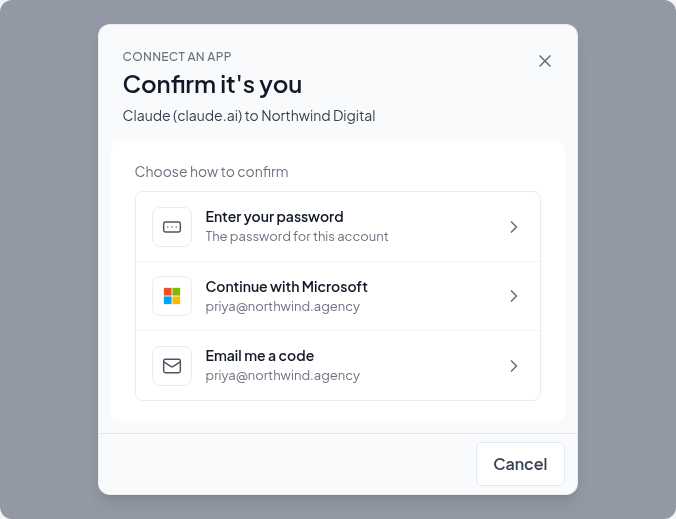
- Enter your password, if your account has one
- Continue with Google or Continue with Microsoft, if you sign in with them. A Google or Microsoft window opens; sign in as the same account you use for Two Minute Reports. Microsoft only appears once you have signed in with it at least once.
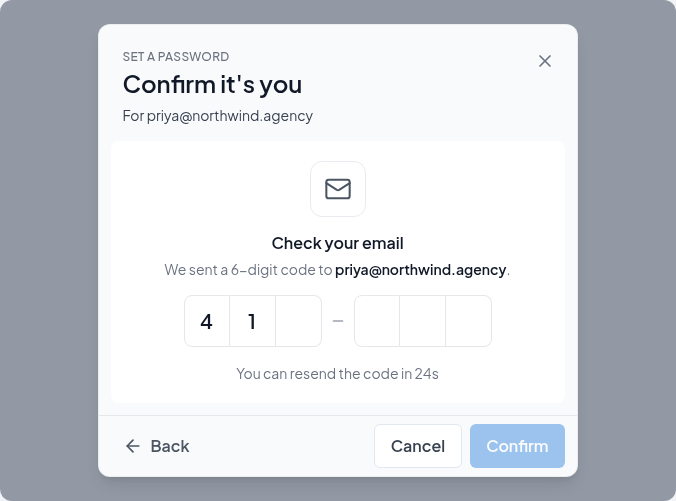
- Email me a code: we send a 6-digit code to your account email. It lasts 10 minutes and allows 5 tries. It is a different kind of code from the one you sign in with, so a sign-in code cannot be used here.
Confirming with Google or Microsoft never signs anyone in or links another account. If you pick a different Google or Microsoft account, the Hub says That's a different Google account (or Microsoft account), and nothing is changed.
If your browser blocks the Google or Microsoft window, the dialog shows a button to open it again.
Wrong codes and passwords
- A wrong code leaves your digits on screen so you can see what you typed: That code didn't match. Enter the code your app shows now.
- After 5 wrong codes in one dialog, or 10 in 15 minutes across signing in and confirming, the Hub says Too many attempts and asks you to try again in 15 minutes. Closing and reopening the dialog does not reset this.
- Wrong passwords count toward the same account lock as wrong passwords at sign-in.
Who can't confirm
- Support. When the Two Minute Reports support team is helping inside your account, they cannot confirm on your behalf, so they cannot change security settings, API keys or billing. They see Support can't do this. Ask the person whose account it is to do it from their own sign-in.
- API keys and connected apps. Security settings, sessions, API keys and billing can only be changed from a Hub sign-in, never by an API key or a connected app.
Trusted browsers still confirm
Trusting a browser for 30 days only skips the second step at sign-in. It never skips Confirm it's you.
Passkeys
Sign in to the Hub with your fingerprint, face or screen lock. What a passkey is, how to add, rename and remove one, and how to use the passkey on your phone with a computer.
Lost access to 2FA
Lost your phone, deleted your authenticator app or can't use your passkey? Sign in with a recovery code, or ask support to turn off two-factor authentication after a 3-day wait.