

Dashboards
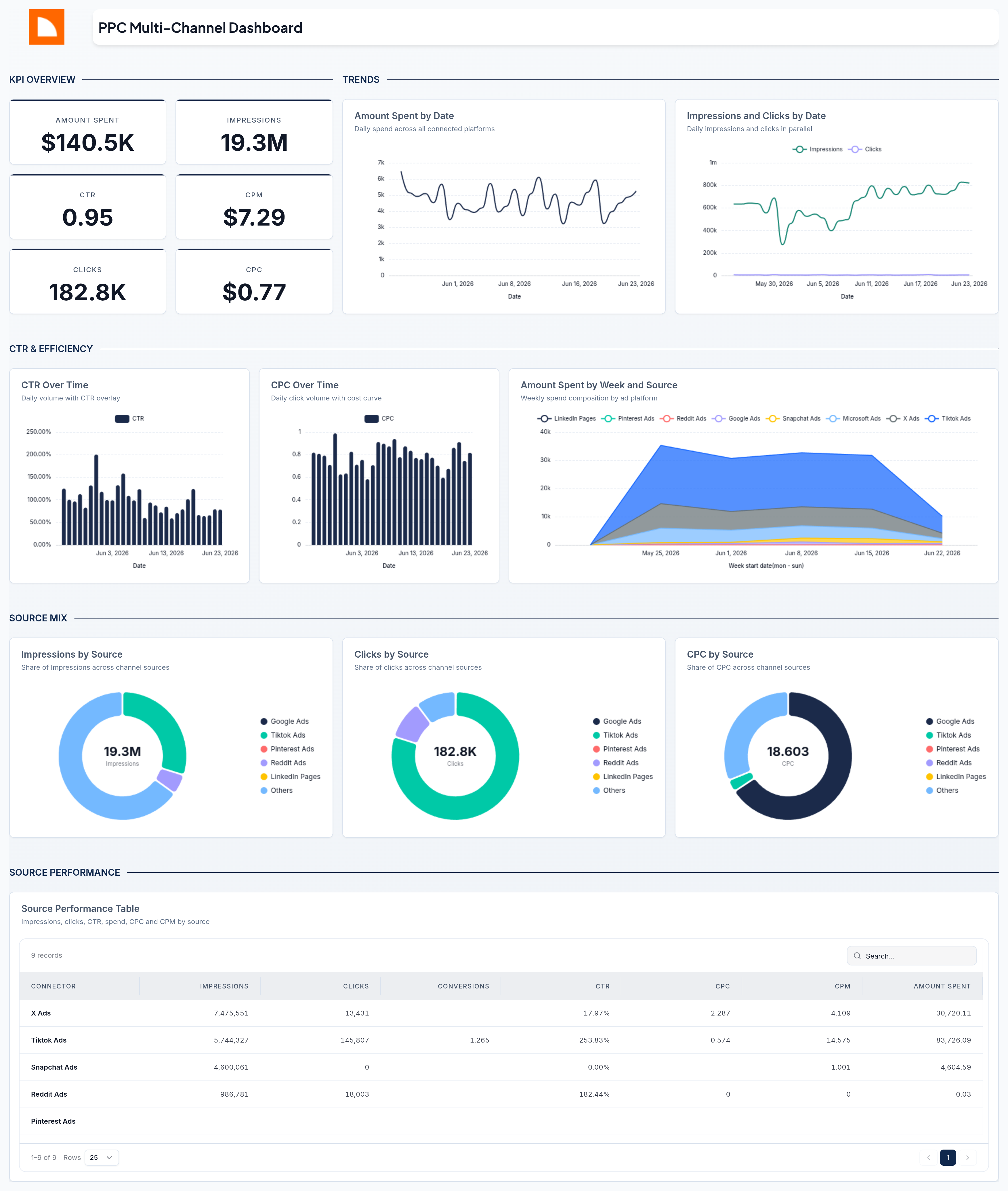
A dashboard shows data from your connected accounts as charts, tables, and scorecards on one canvas. Open it at any time to see the numbers for its date range.
Build a dashboard from scratch, start from a template, or describe what you want and let Dash build it for you.
What you can do
- Build dashboards from a blank canvas, a ready-made template, or a description that Dash builds from
- Add charts, tables, scorecards, maps, and text to a responsive drag-and-drop grid
- Organize content across multiple pages (tabs) in a single dashboard
- Use accounts from your connections, and combine accounts from different connectors in one view
- Set the date range and filters for the whole dashboard, and give a page its own date range
- Compare any period against the previous period or the same period last year
- Style everything with custom themes, colors, fonts, and per-widget overrides
- Share a dashboard with the people you choose, your client's contacts, or anyone with the link, under your own branding
- Export any dashboard to PDF or PNG
- Ask Dash, the AI assistant, to build, edit, and summarize dashboards for you
- Email your clients updates on their dashboards in a briefing, once or on a schedule
Key concepts
Dashboards
A dashboard is the top-level container. It belongs to your team and can be scoped to a specific client. Each dashboard has its own default date range, accounts, filters, and theme.
Pages
Every dashboard has one or more pages, shown as tabs. Pages let you group related widgets, for example an "Overview" page, a "Paid Media" page, and a "Web Analytics" page in the same dashboard. A page can have its own date range and filters.
Widgets
A widget is a single block on the grid: a chart, a table, a scorecard, a map, or a piece of text or imagery. Each widget pulls its own metrics and dimensions from one or more accounts, and can be styled independently.
The grid
Widgets sit on a responsive grid. In edit mode you drag widgets to move them, drag the corners to resize, and the layout automatically reflows to fit. The grid adapts across large, medium, and small screens so dashboards stay readable on any device.
View and edit modes
A dashboard opens in view mode, a clean read-only experience. Switch to edit mode to add, move, resize, configure, and style widgets. Every change is auto-saved, and you can undo or redo recent edits.
Explore dashboards
Next steps
- Create your first dashboard - Three ways to get started
- Edit with Dash - Let the AI assistant build and summarize for you
- Send a briefing - Email your clients updates on their dashboards
- Browse connectors - Connect the platforms that feed your dashboards
- Manage clients - Scope dashboards to individual clients
Client contacts
Save the people at a client. Then share the client's dashboards with them, and select them as recipients when you send a briefing or a setup link.
Create a dashboard
Three ways to start a dashboard in Two Minute Reports: let Dash build it from a description, start from a ready-made template, or start from scratch.