

GoHighLevel
The GoHighLevel connector gets your GoHighLevel CRM data into Google Sheets and Google Data Studio. Use it to track your pipeline, revenue, and funnel metrics in a spreadsheet or a Google Data Studio report.
What you can report on
- Contacts: created over time, sources, tags, and custom fields
- Opportunities and pipelines: stage, status, and monetary value
- Appointments and calendar events
- Conversations and message activity
- Invoices, orders, transactions, and subscriptions
- Form and survey submissions
- Tasks: total, pending, and completed
- Workflows and sub-account users
Prerequisites
- A GoHighLevel account with at least one sub-account (location) you want to report on
- Admin access to that sub-account
How to create a connection
Two Minute Reports offers two ways to connect GoHighLevel. Either one gives you a working connection, so pick whichever suits you:
- Public app: authorize Two Minute Reports inside GoHighLevel and choose the sub-accounts to install it on. The installed sub-accounts are then listed for you to enable.
- Private Integration Token: paste a token you generate yourself, along with the Location ID of a single sub-account.
Connect with the public app
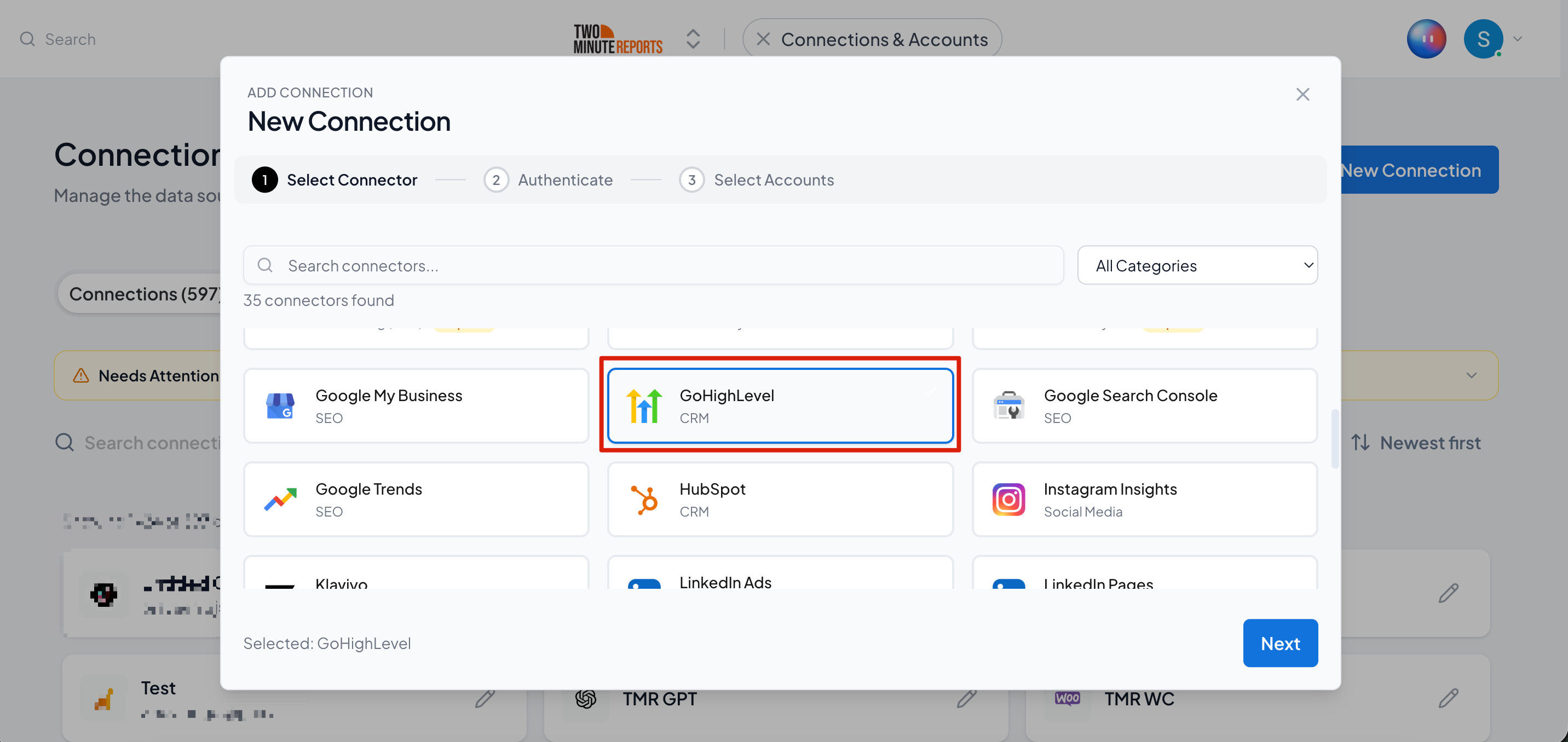
- In the Hub, open Connections & accounts.
- Select Create connection.
- Select GoHighLevel in the connector list.
- Select Next.
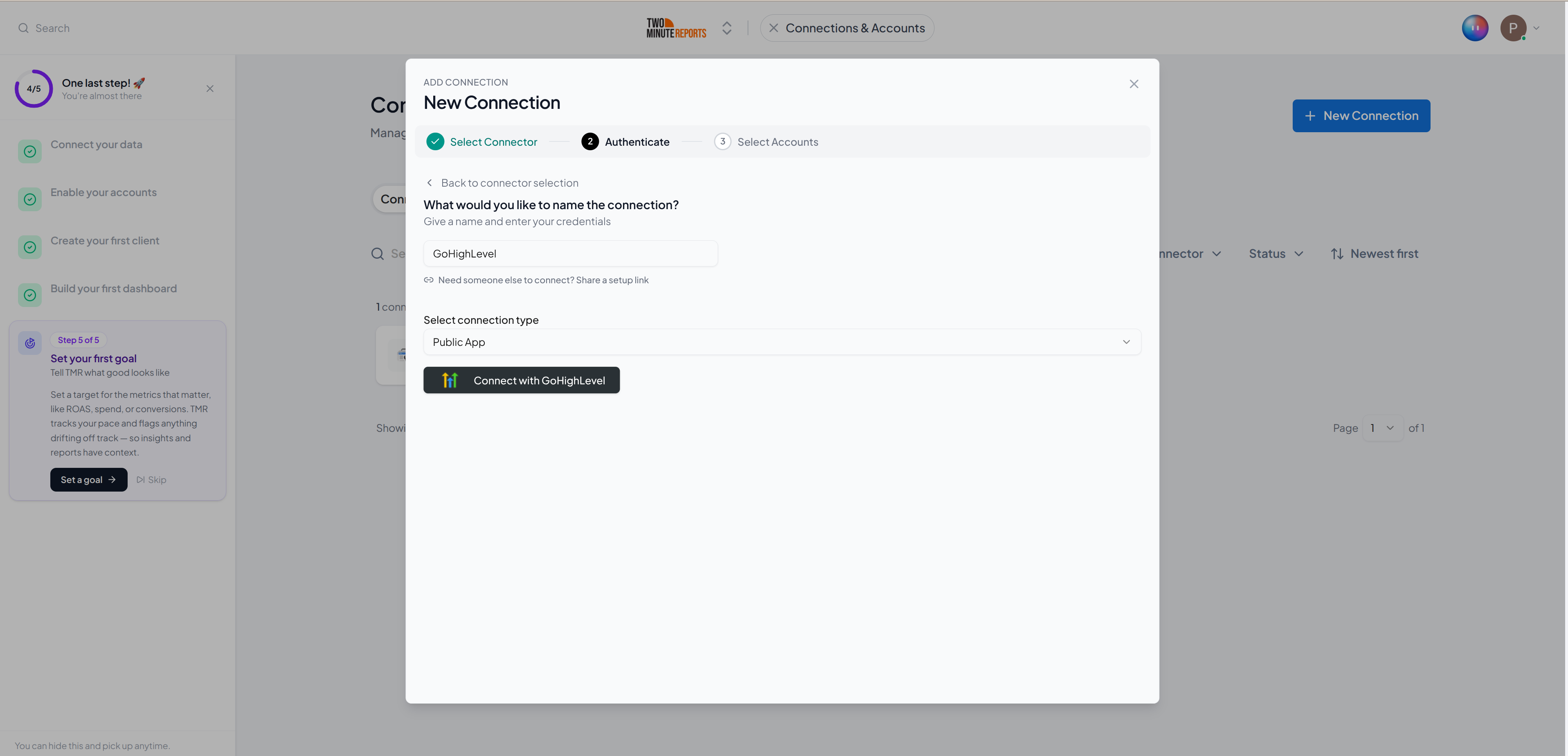
- In Name the connection, enter a name.
- In Select connection type, select Public app.
- Select Connect with GoHighLevel.
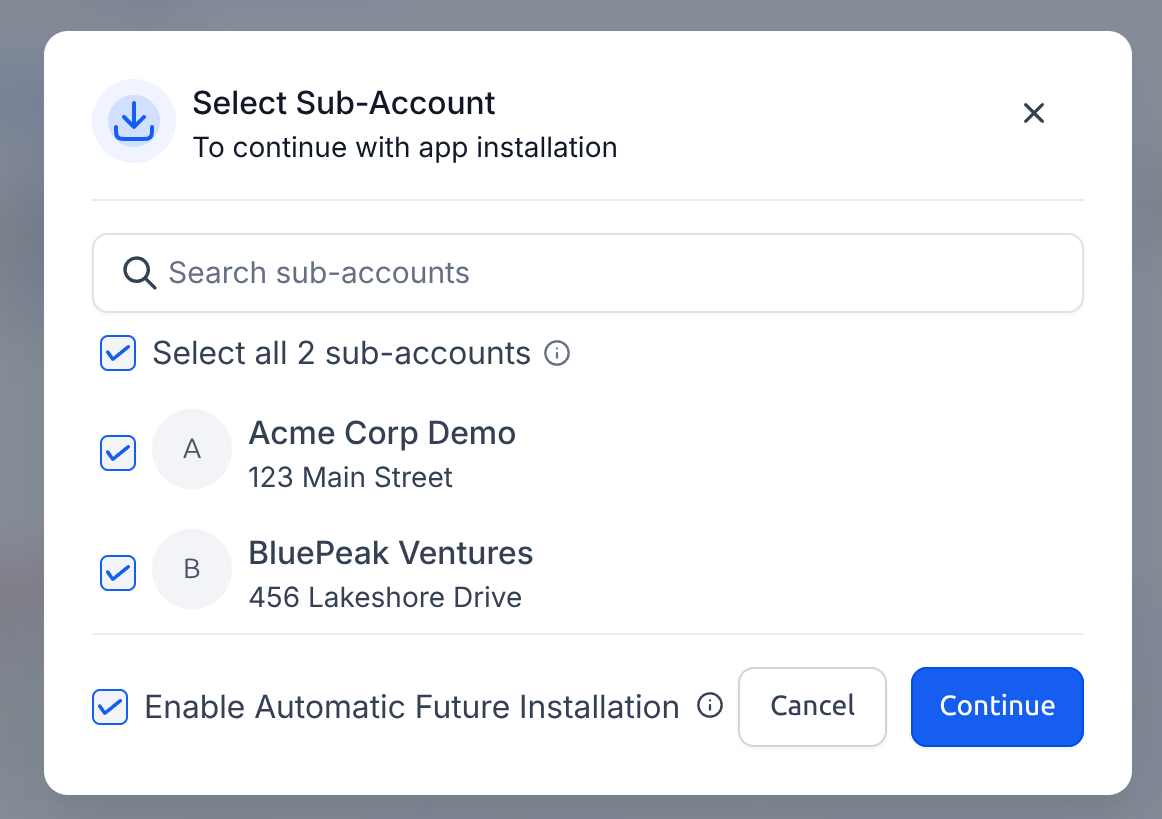
- Sign in to GoHighLevel if it asks you to. Then select Install.
- In Select Sub-Account, select the sub-accounts you want to report on, or use Select all.
- Keep Enable Automatic Future Installation selected, so sub-accounts you create later are added for you. Then select Continue.
GoHighLevel returns you to Two Minute Reports, where the installed sub-accounts (locations) are listed for you to enable.
Connect with a Private Integration Token
Step 1: Get your Location ID (Sub-account ID)
- Sign in to GoHighLevel and switch to the sub-account you want to report on.
- In the left sidebar, go to Settings.
- Open Business Profile.
- Under General Information, copy the Location ID.
Step 2: Create a Private Integration Token
- In the same sub-account, go to Settings › Private Integrations.
- Select Create new integration.
- Enter a name (for example,
Two Minute Reports) and an optional description. - In the Scopes dropdown, select all available scopes.
- Select Create, then copy the generated token.
For more detail, see GoHighLevel's own guide: Private Integrations: everything you need to know.
Step 3: Create the connection
- In the Hub, open Connections & accounts.
- Select Create connection.
- Select GoHighLevel in the connector list.
- Select Next.
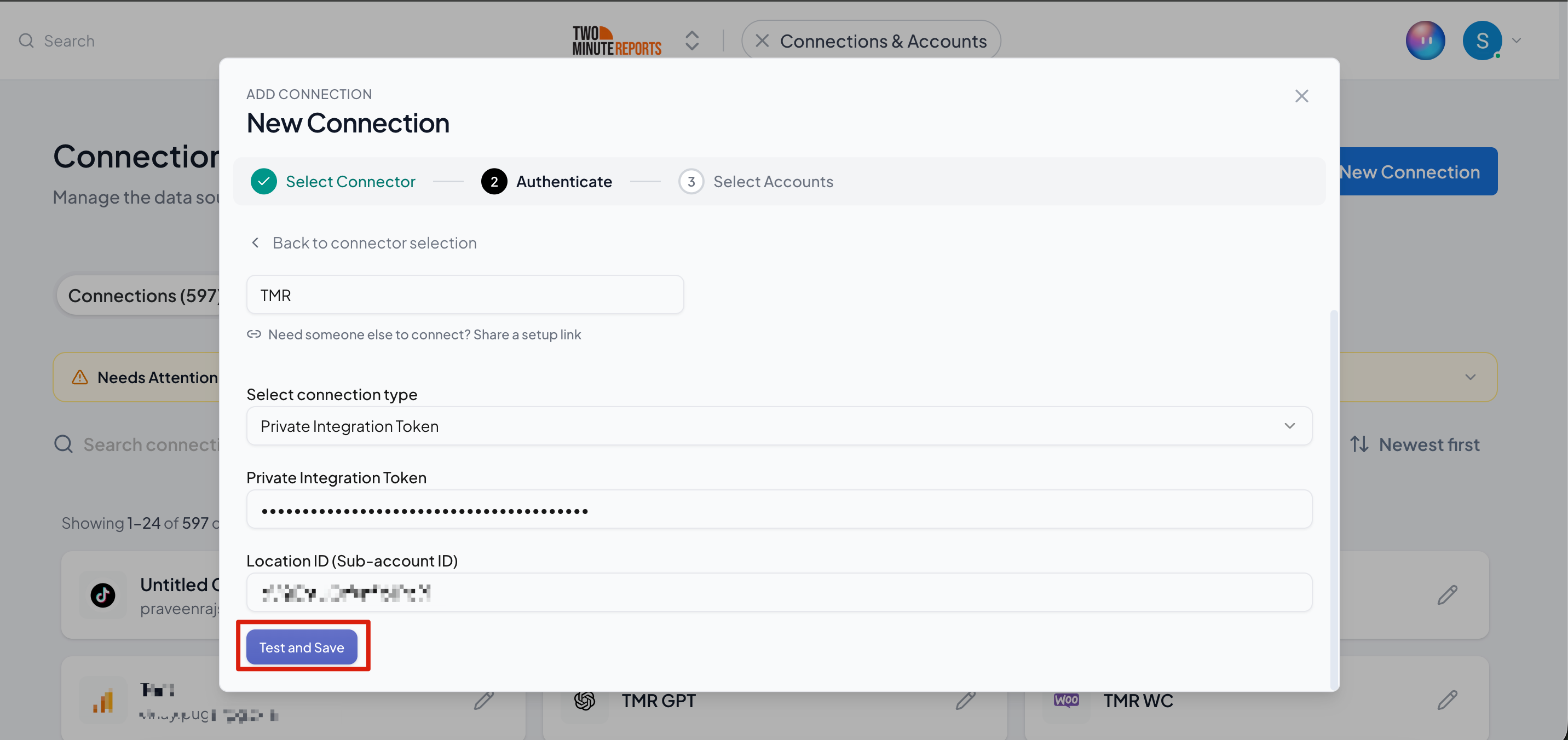
- In Name the connection, enter a name.
- In Select connection type, select Private Integration Token.
- In Private Integration Token, paste the token from Step 2.
- In Location ID (sub-account ID), paste the Location ID from Step 1.
- Select Test and save.
Enable your accounts
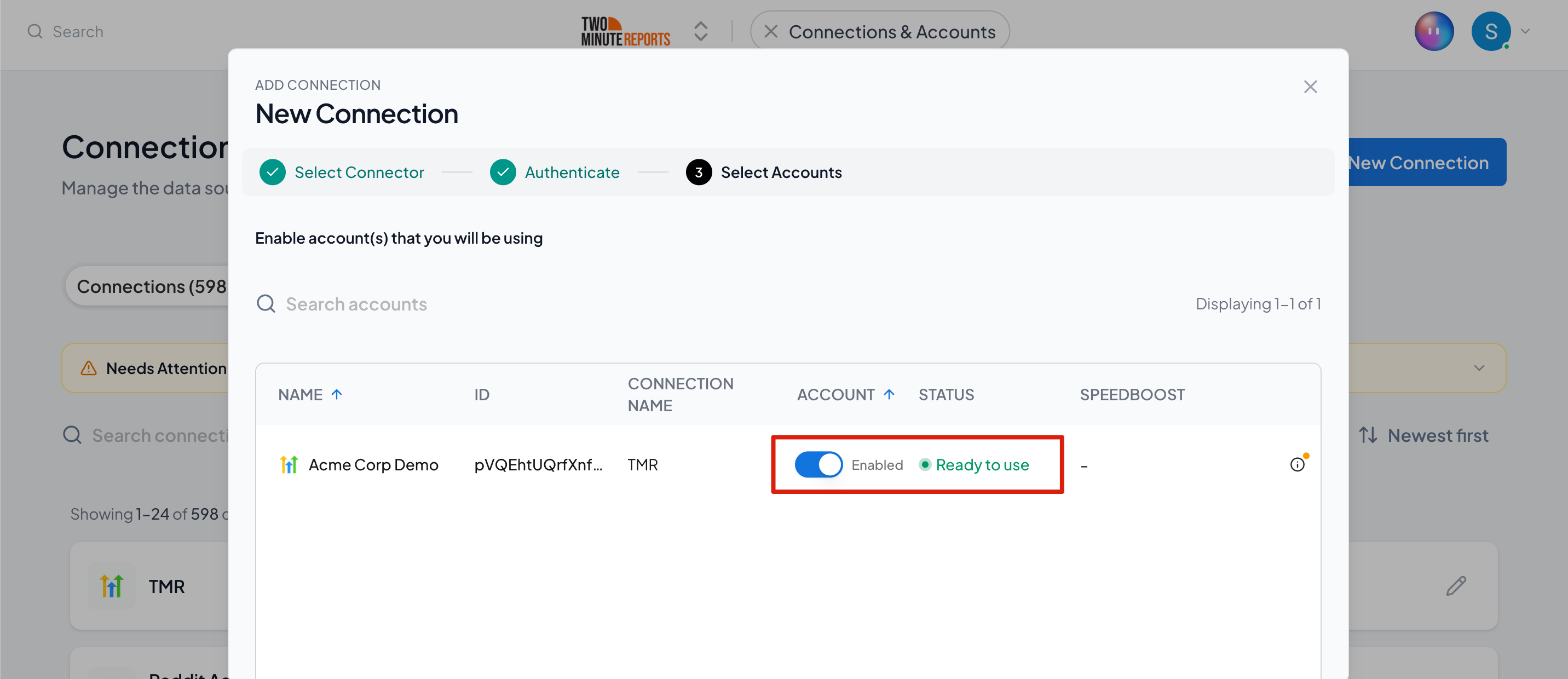
After you create a connection, enable the sub-accounts you want to report on. Then select Done.
How to get GoHighLevel data into Google Sheets or Google Data Studio
To get GoHighLevel data into Google Sheets:
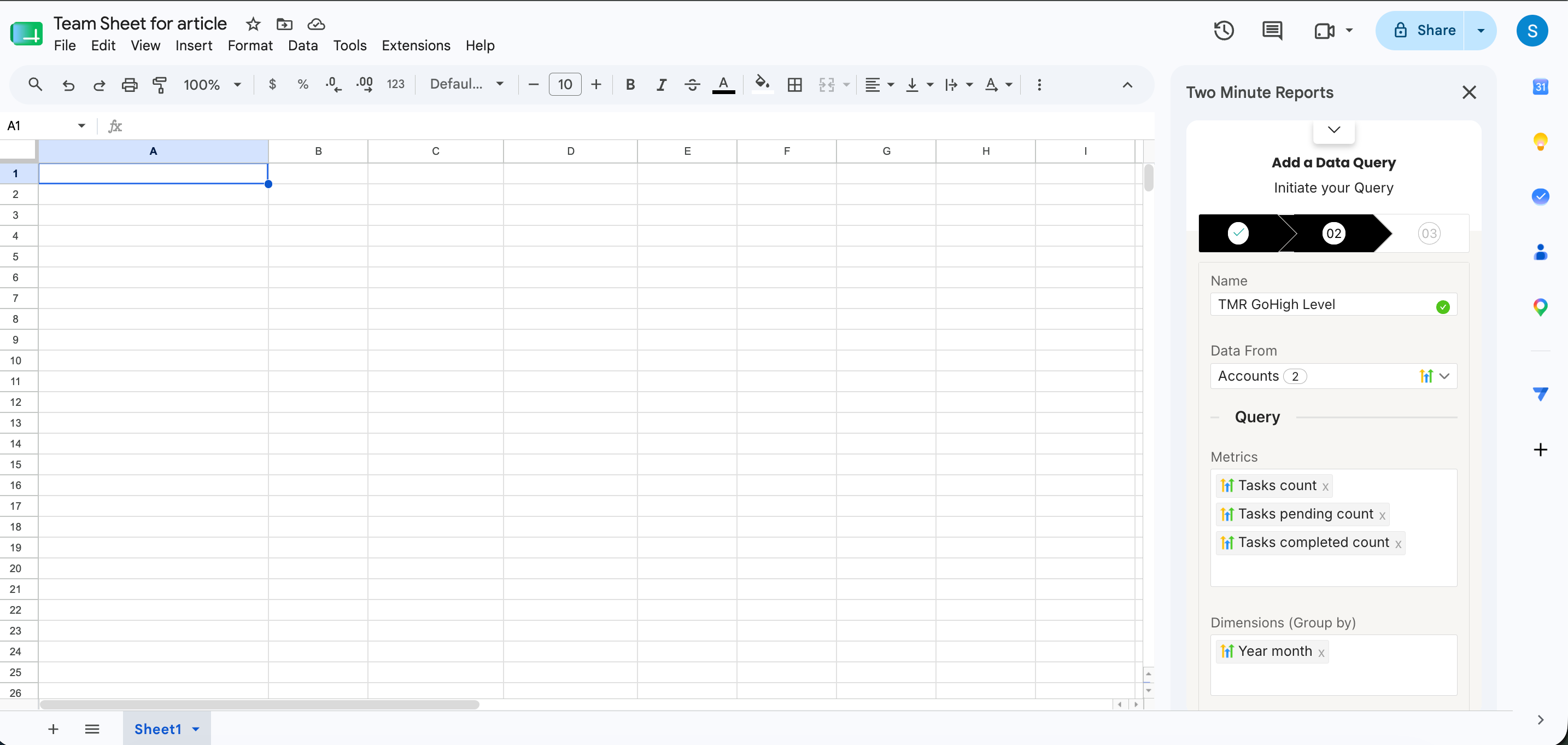
- In the Two Minute Reports sidebar, open Data Queries.
- Select Add.
- Select the sub-accounts you want to report on. You can select more than one.
- Select your metrics and dimensions.
- Select the date range.
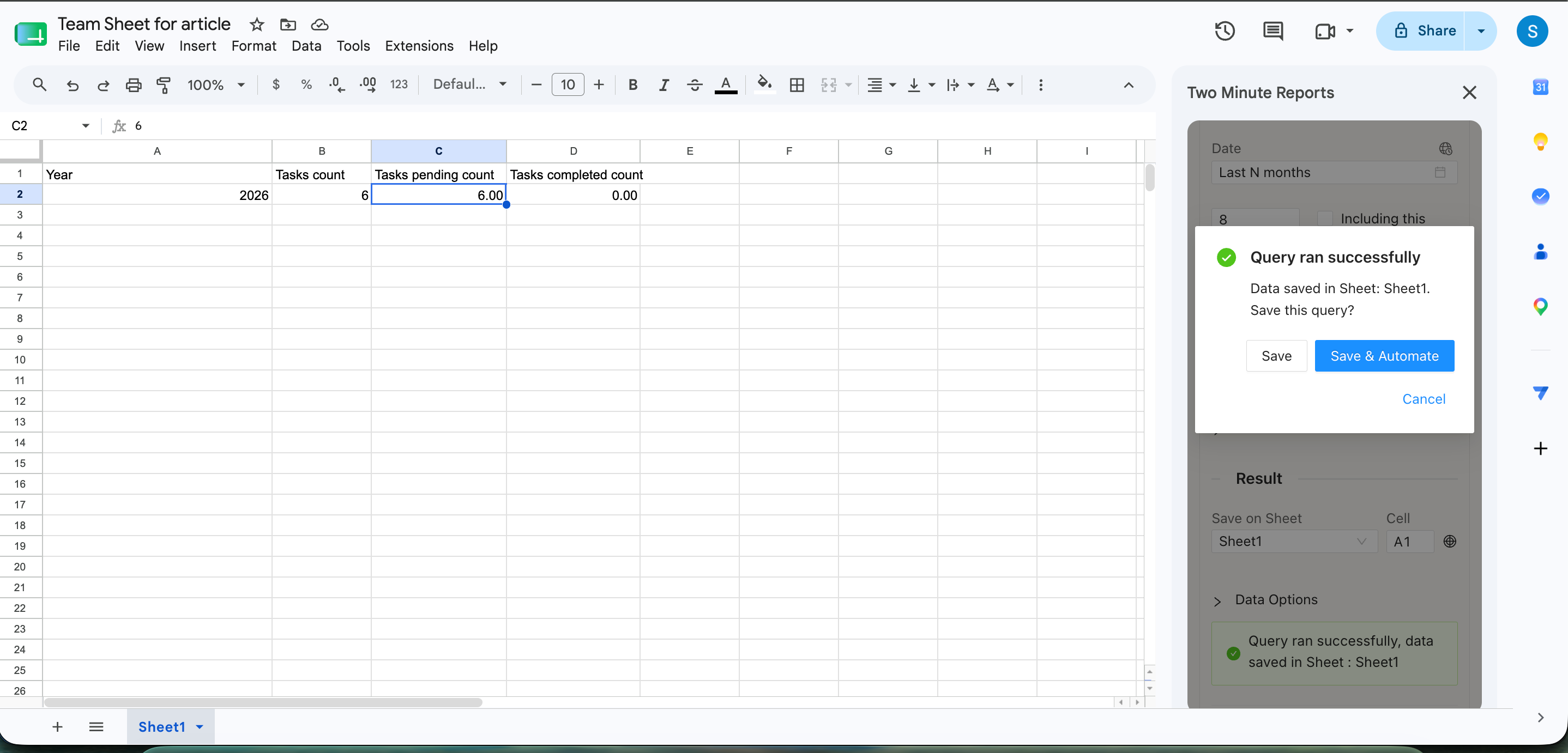
- Set sorting and filters if you need them.
- Select Run query. Two Minute Reports adds the data to your sheet.
To get GoHighLevel data into Google Data Studio:
- In the Hub, open Google Data Studio › GoHighLevel.
- Select Create report.
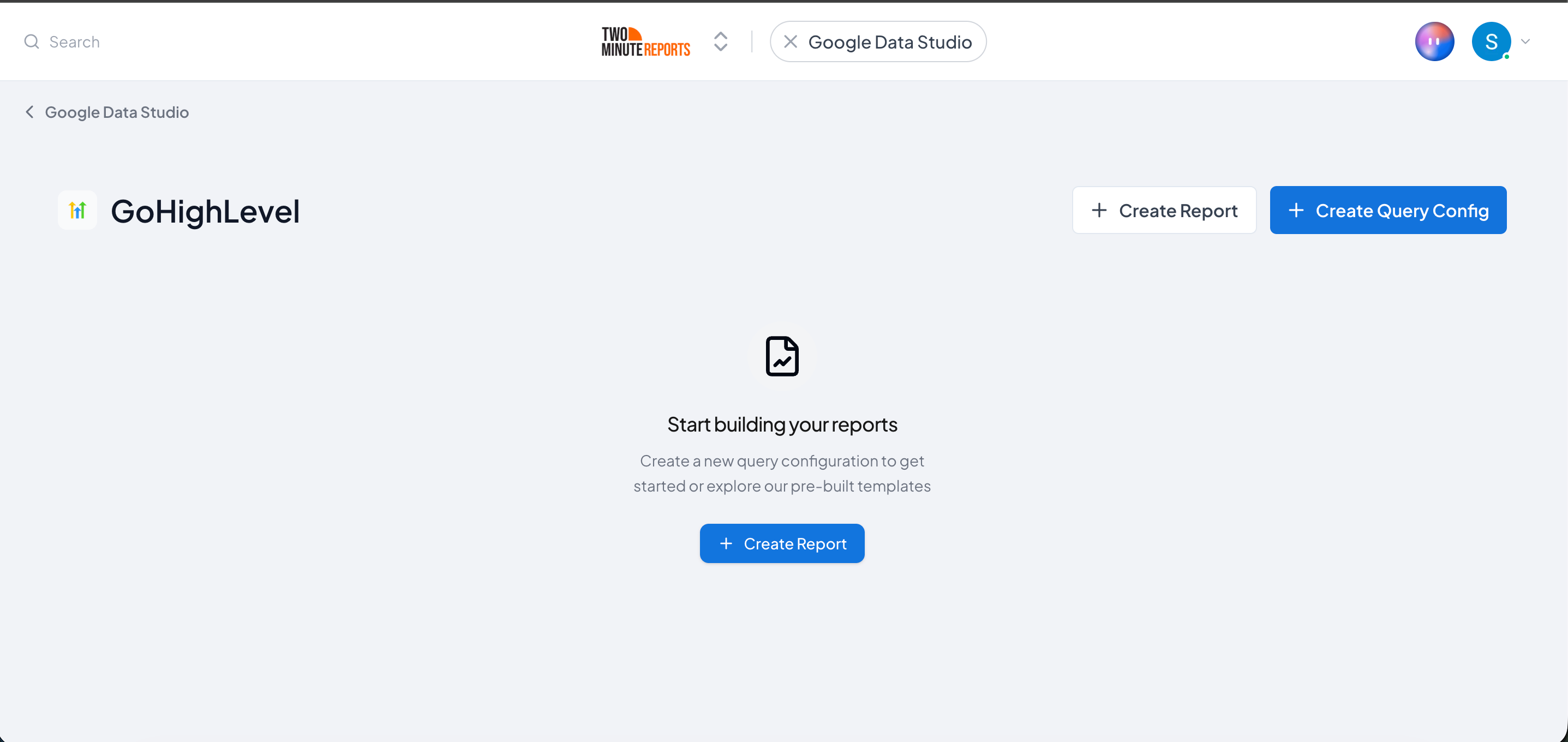
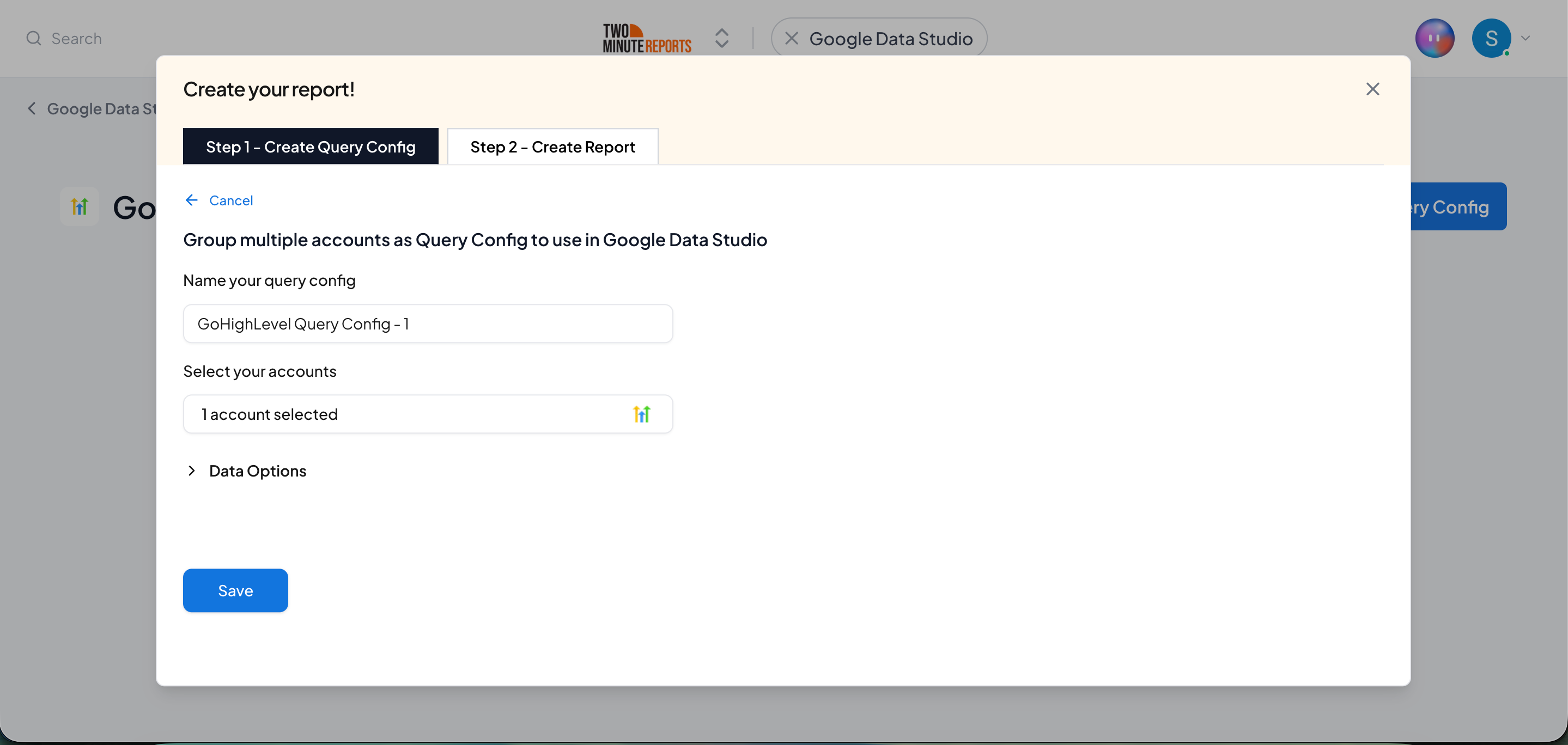
- Select or create a query config:
- To use a query config you have: select it in Choose your query config. Then select Save.
- To create a query config: if you already have one, first select Create new query config in the list. Enter a name in Name your query config, and select the sub-accounts in Select your accounts. Select Save.
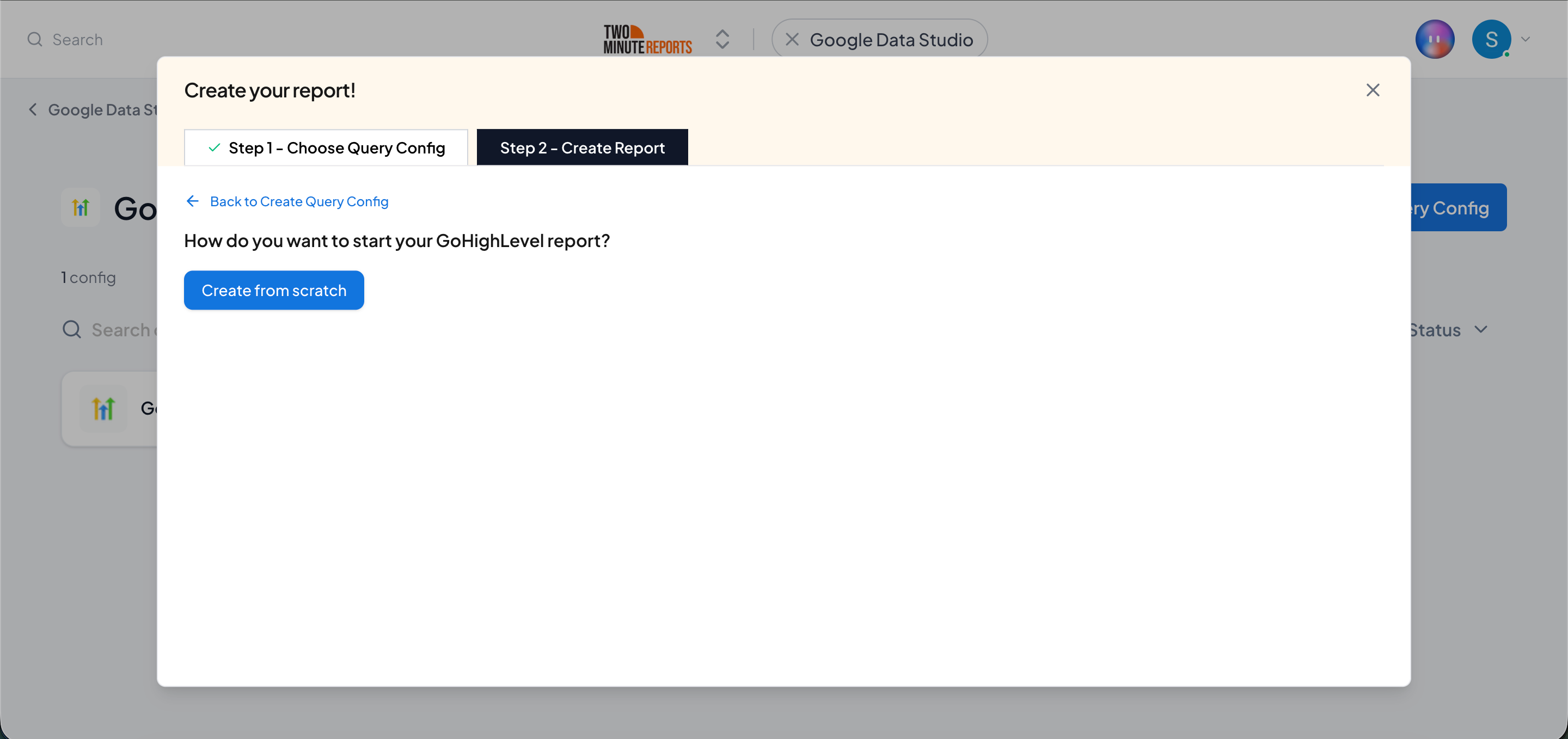
- Select Create from scratch. If templates show under Quick start from a template, you can select one instead.
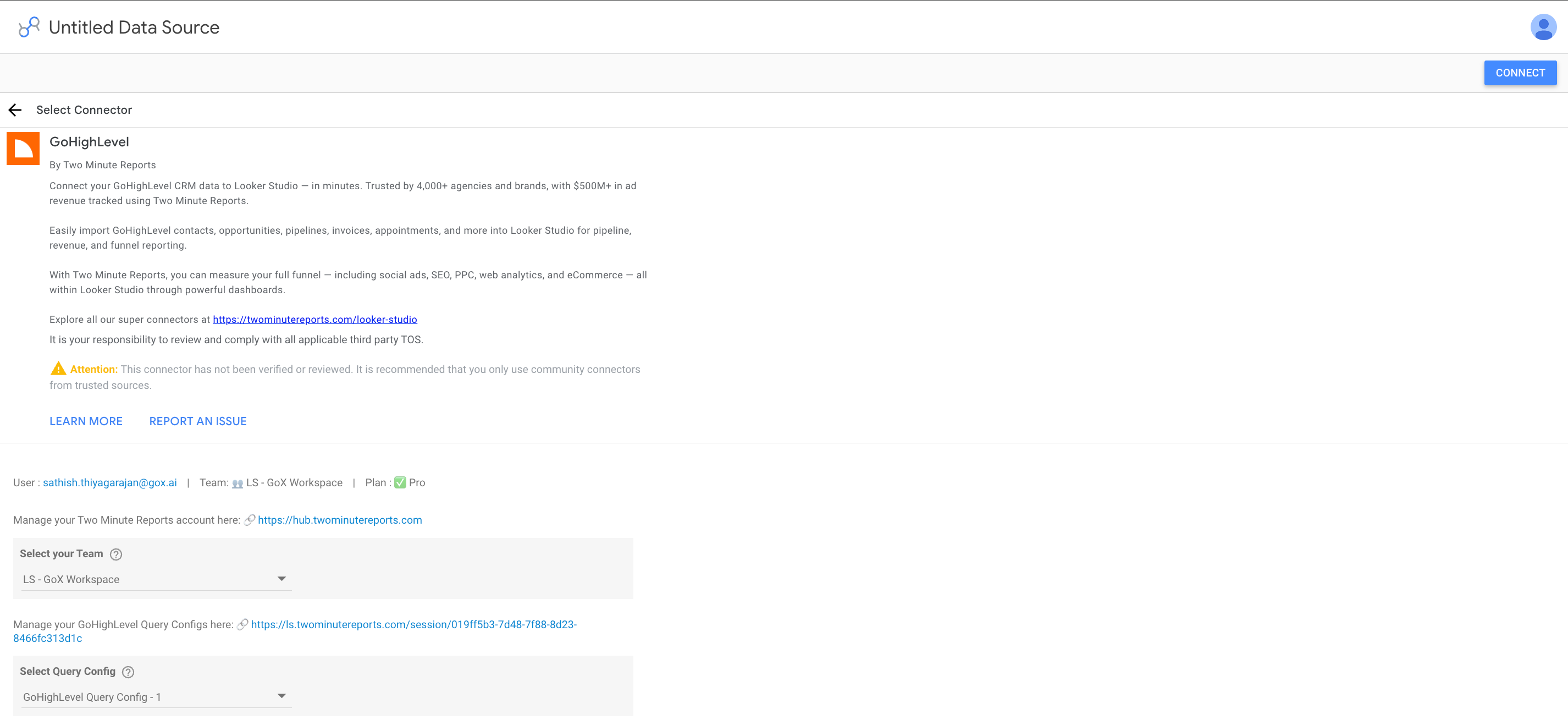
- Looker Studio (formerly Google Data Studio) opens in a new tab, with the Two Minute Reports connector. If you are in more than one team, select your team in Select your Team.
- In Select Query Config, select your query config.
- Select Connect in the top-right corner.
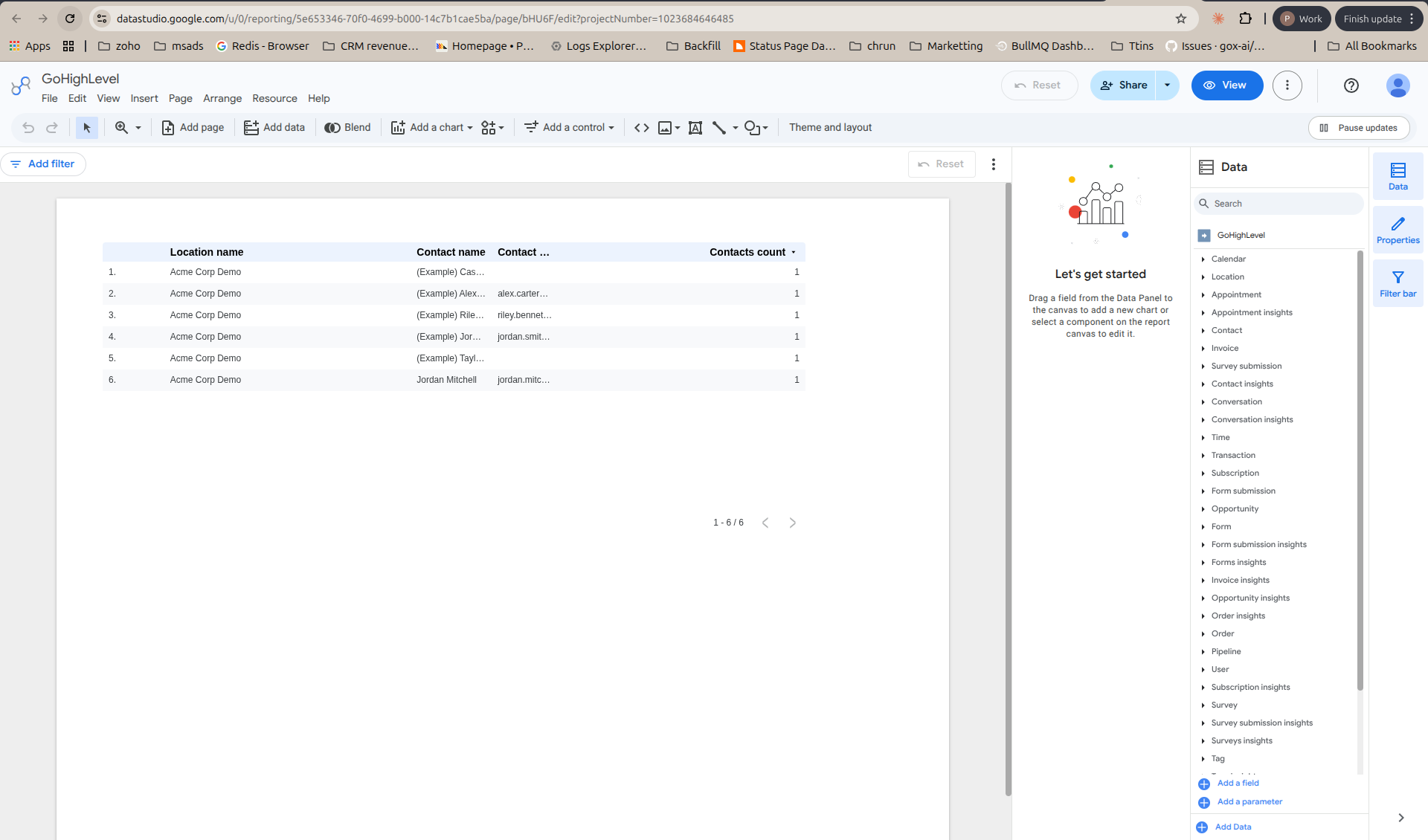
- In your new report, add GoHighLevel metrics and dimensions to the canvas.
Good to know
- Data freshness: There's no provider reporting delay. Current-day records are included.
- Snapshot data: Resources without dates (such as locations, pipelines, users, calendars, tasks, forms, surveys, workflows, and tags) can't be grouped by a date dimension. Remove the date field from those queries if you see an error.
Troubleshooting
- A sub-account is missing after you install the public app: run the public app flow again and select the sub-account you need. Enable Automatic Future Installation covers sub-accounts you create later.
- "Test and save" fails: check that the Location ID belongs to the same sub-account where the token was generated, and that the token was copied in full with no trailing spaces.
- Some resources return no data: the token is most likely missing scopes. Create a new Private Integration with all scopes selected and update the connection.
- Token no longer works: if the Private Integration was deleted or regenerated in GoHighLevel, edit the connection and paste the new token.
If you need help, contact [email protected].