

You already have this connection
Your team has one connection for each login of a connector. When you create a connection in the Hub with a login that your team already connected, Two Minute Reports does not create a second connection. It opens the connection that you already have.
What you see
You create a connection on the Connections & accounts page. You select the connector, enter a name, and sign in. Then the dialog goes to the Select accounts step, with this message at the top:
You already have this LinkedIn Ads connection named "Acme Ads"
Under it, one of these lines shows:
- Nothing new was created. Choose its accounts below. The existing connection works.
- Nothing new was created. Your existing connection is updated. The existing connection had expired. Your new sign-in reconnected it.
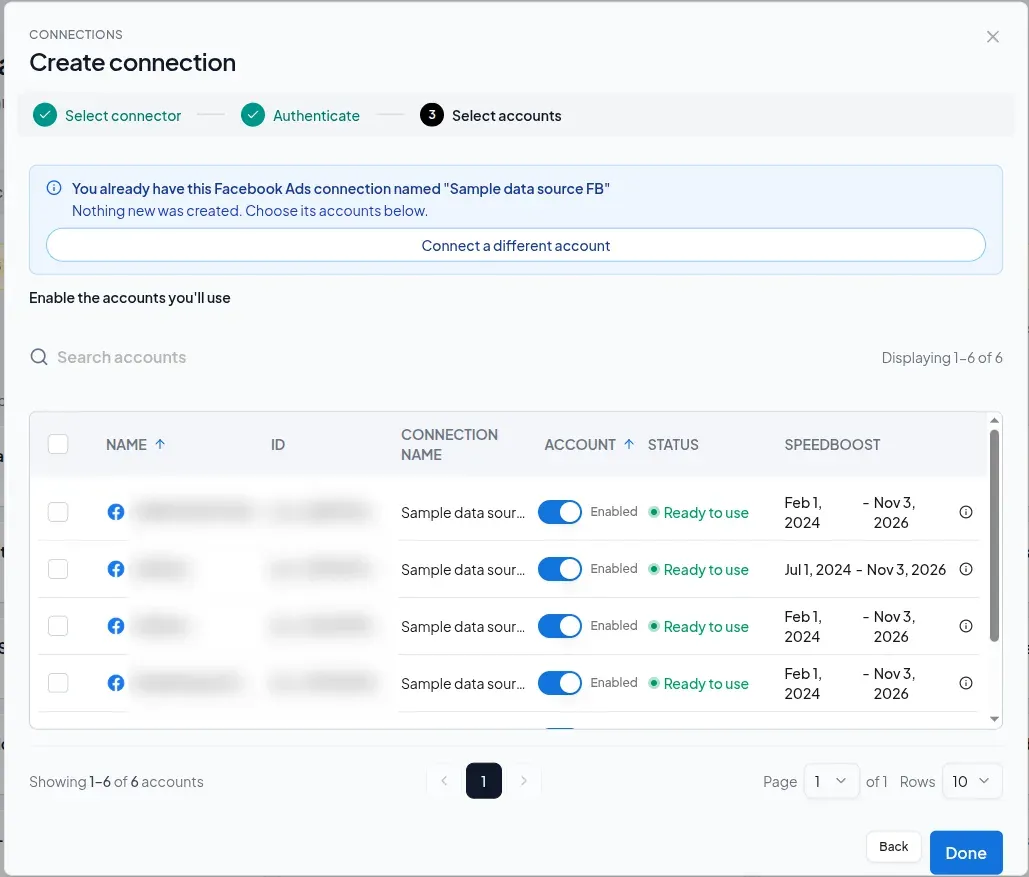
This is what occurs:
- Two Minute Reports does not create a connection. The list on Connections & accounts does not change.
- The name that you entered is not used. The existing connection keeps its name.
- Two Minute Reports updates the existing connection with your new sign-in. If this update fails, the Hub opens the existing connection, so that you can reconnect it.
- The accounts that you enable in this step are enabled on the existing connection.
If you create the connection from the Google Data Studio page of the Hub, an error message shows instead. For example:
A LinkedIn Ads connection already exists for the email "[email protected]". It is named "Acme Ads" in TMR. You may use it to proceed.
Why this happens
A connection is a login, not one account. One login gets the data of all the accounts that it has access to. For example, one LinkedIn Ads login gets all the ad accounts that it can open. Thus, you need only one connection for each login.
Two Minute Reports finds the same connection in a different way for each type of connector:
| Connector | Two Minute Reports finds the same connection when you... |
|---|---|
| Connectors that you sign in to, for example Google Ads, Google Analytics 4, Facebook Ads, LinkedIn Ads, Microsoft Ads and HubSpot | Sign in with the same email address |
| TikTok Ads | Sign in with the same TikTok user |
| Klaviyo, PageSpeed Insights and ChatGPT | Enter the same API key |
| Shopify | Connect the same store |
| WooCommerce | Enter the same store URL |
| Amazon Seller | Use the same seller ID in the same region |
| Apple App Store | Enter the same vendor number |
| MySQL and PostgreSQL | Enter the same values in all the connection fields |
This rule applies to each team. A different team can have its own connection for the same login.
What to do
Use the connection that you already have
- In Enable the accounts you'll use, enable the accounts that you want.
- Select Done.
The accounts are then available in your queries, under the existing connection. If an account is not in the list, see Refresh your account list.
If the message showed on the Google Data Studio page, open Connections & accounts. Find the connection that the message names, and enable the accounts that you want on it.
Rename the existing connection
The existing connection possibly has a name that you do not recognize. To change it:
- In the Hub, open Connections & accounts.
- Find the connection, and select its edit icon (the pencil).
- Select the pencil next to the connection name.
- Enter the new name, and select Save.
The dialog also shows the email address of the login under the connection name. Use it to find which connection uses which login.
Connect a different account
If you want to connect a different login, select Connect a different account in the message. Then sign in with the other login. A different login gives a new connection.
Report on accounts separately
You do not need a second connection to keep the accounts of each client apart. Use Clients, and assign each account to its client. All the accounts can stay on one connection.