

Share, download and send
The report's top bar has the same three buttons as a dashboard, in the same order: Share, Download and Send. On a Draft, the main button is Mark ready, and Send is an icon beside Download. On a Ready report, the main button is Send. The same three are in each report's menu on the Reports page.
Mark it ready first
The link and sends always show the version you last marked ready. See Draft and Ready.
- Share opens before the report is ready, but there is no link until you mark it ready.
- Download works on a Draft too. The file is the report as it is now, marked Draft. See Download a Draft.
- Send on a Draft marks it ready and sends it in one step. See Send a Draft.
When you mark it ready again, the link shows the new version at the same address. You never need to send a new link.
Share a report
Select Share. Sharing works the same way as on a dashboard: see Share and export dashboards for the full detail.
- People with access: your team always has access. Add people by name or email, with the client's contacts suggested. Each person shows when they last opened the report, or not opened yet.
- General access:
Option Who can open it Restricted (the default) Your team and the people you've added contacts Also every contact saved on the report's client. Only on a client's report Anyone with the link Anyone with the link, without an email code. The dialog shows how many times it was opened - People who open a Restricted or contacts report confirm their email with a 6-digit code first.
- With Notify by email, the people you add get an email from your Gmail with the link.
- With a custom domain, the link is on your domain.
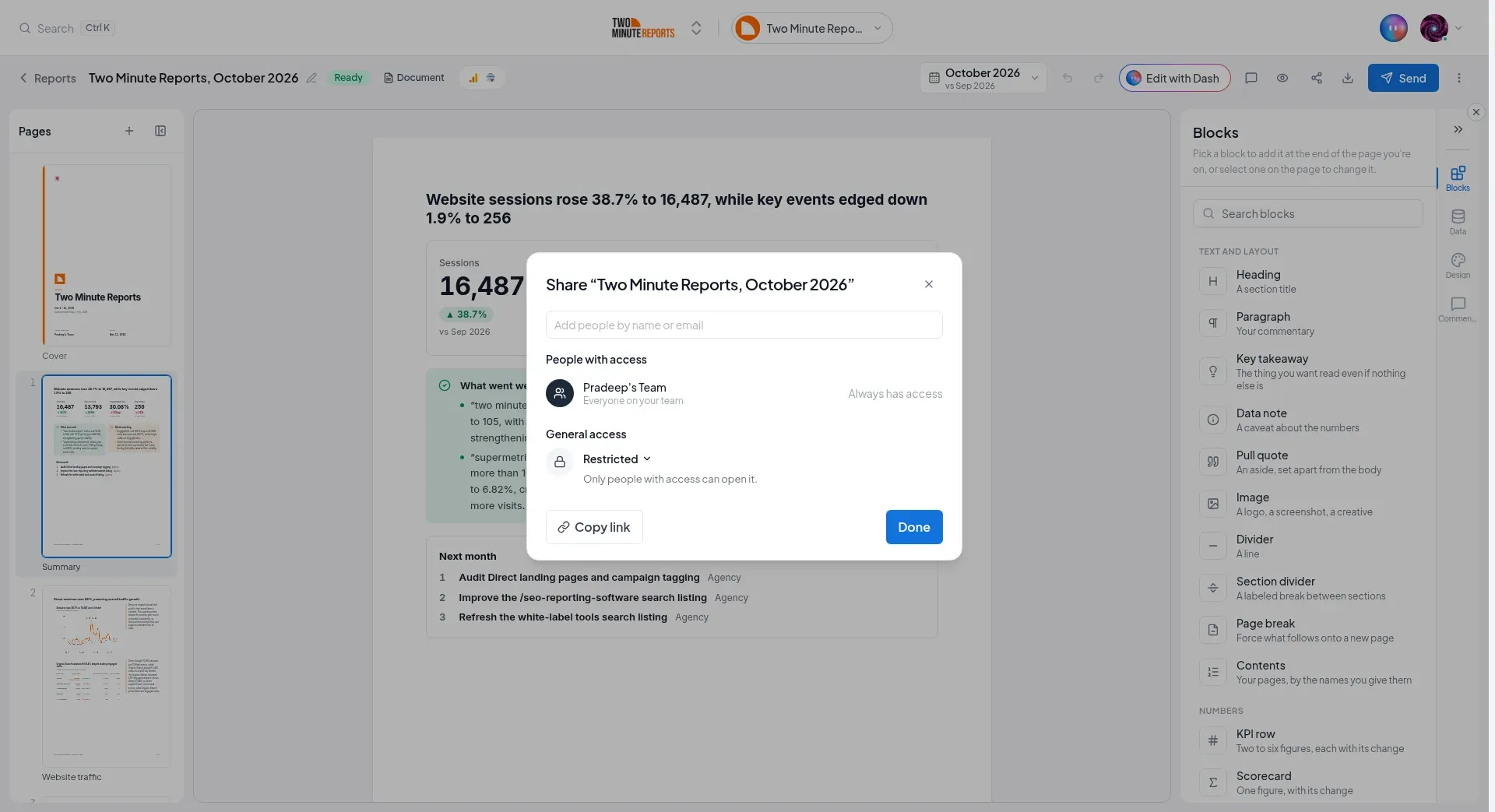
Before the report is first marked ready, the dialog says Mark ready first. and offers Mark ready. You can add people now: Notify by email starts off, because the email links to the report and can go only once the report is ready. On a Draft that was ready before, the dialog tells you which version the link shows.
People you send the report to are added to its people with access, so the link in the email opens for them on a Restricted report.
Download
Select Download and choose a format. On a Ready report, the file is the version you marked ready, the same one your client sees. It's made on our side, so it can take a minute. A card in the corner shows the progress, for example Building the PDF… and Page 2 of 6, and the file downloads by itself when it's ready. You can keep working in the meantime, or select Cancel.
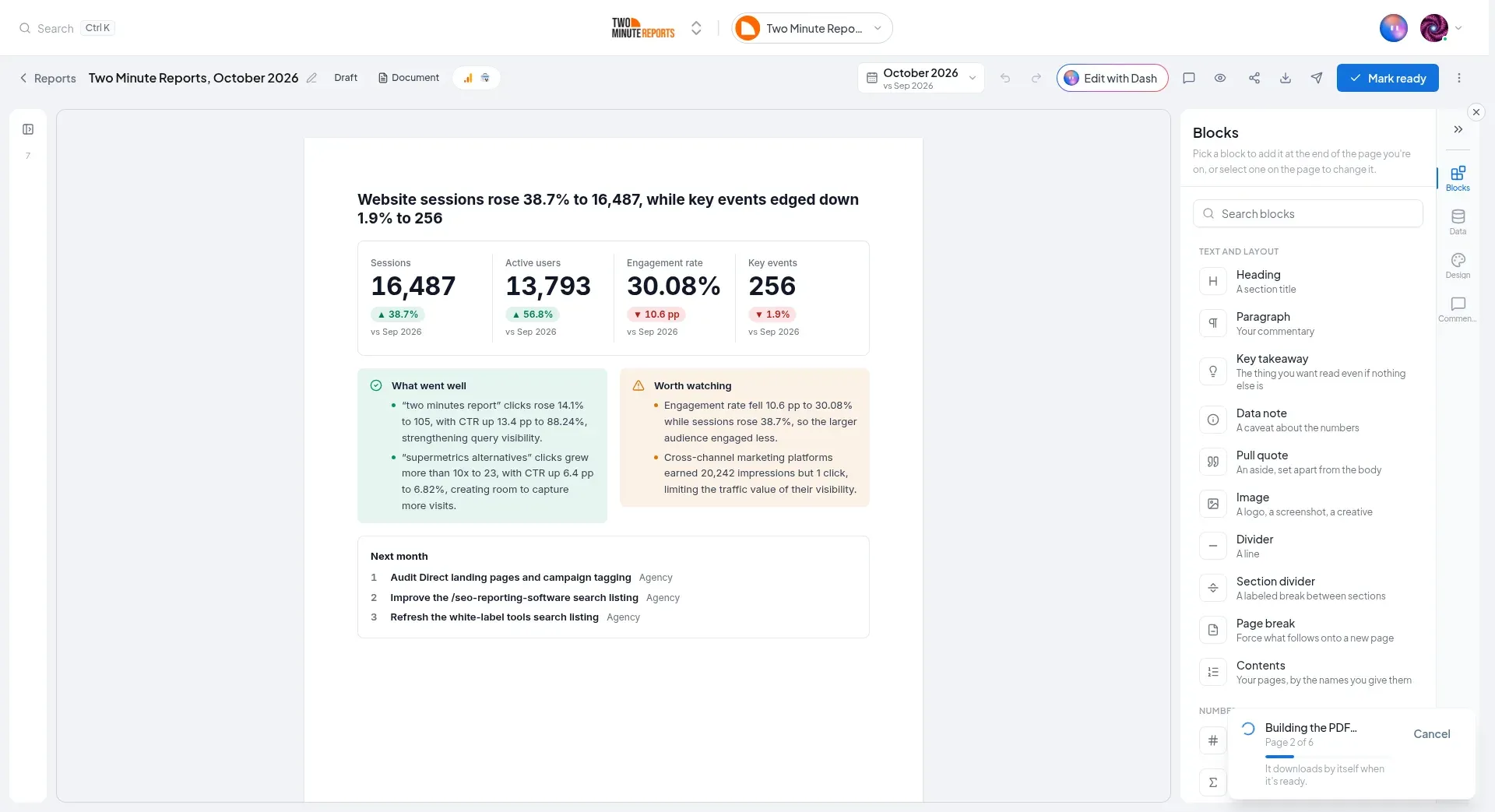
If you or a team member downloaded the report in the same format in the last hour, and nothing in it has changed since, you get that file at once. The notice says so: The same file you made at 3:42 PM: nothing in the report has changed since. Change the dates or edit it for a new one.
| Format | What you get |
|---|---|
| Every page in one file. A4 or US Letter pages for a document, 16:9 for Slides | |
| PowerPoint | Slides only. One slide per page, as images, so the text can't be edited |
| PNG images | One image per page, in a ZIP when there's more than one |
The cover, contents page, closing page, headers, footers and page numbers are in every format.
To download the PDFs of several reports, select them with their checkboxes on the Reports page, then select Download. Drafts in the selection download as they are now.
Download a Draft
Download a Draft to review it offline or share it with your team. The file is the report as it is now, with the figures you see in the editor and your latest changes:
- The file name ends in (draft), for example
Acme, October 2026 (draft).pdf. - Every page has a Draft mark in the top corner, so a forwarded page can't be mistaken for the final report.
Downloading a Draft doesn't change what your client sees. Their link and every send still show the version you last marked ready. Each send keeps the PDF that went out: open it in Sent and scheduled and select PDF.
Send a report
Select Send. The email goes out from a team member's Gmail, like a briefing. The dialog is the same one a dashboard uses. At the top, choose Once or Recurring.
If the report was already sent, or has a recurring send, a line at the top says so, for example Sent 2 times, last Nov 4. Select See all to open Sent and scheduled.
Compose
- From: who it's sent from. It starts with you. You can choose a team member who connected Google.
- To: add people by name or email. The client's contacts and your team members are suggested. Press Enter to add any other address. Select Cc to add people in copy. A report with no client suggests your team.
- Template: fills the subject and the message. A send of a report starts on Report ready: a short note with the report's summary and its link. Choose another template, or write your own.
- Subject and Message: type
{{or select Insert a field to add a field that fills in when the email goes. See Fields. - To have Dash write the message, type what you want in the bar under it, such as "make it shorter" or "mention the leads". On an empty message, it's Write with Dash. On a written one, it's Rewrite with Dash.
- Attach: PDF attaches the report. Link puts the report's link in the email. Both are on by default.
- Select Next to see the email as your client gets it. Select Send test to me to get a copy first.
If the sender's Google account isn't connected, the From list says so. To connect it, go to Settings › Authorized access.
Report sends count toward your team's limit of 500 client emails in 24 hours. See The daily limit.
Fields
| Field | What it fills in |
|---|---|
| Client name | The client's name |
| Report name | The report's title |
| Report period | The report's period, such as "October 2026" |
| Comparison | What the report compares with, such as "vs September 2026" |
| Report summary | The text of the report's key takeaways, as your team wrote it and marked it ready. A report with no key takeaway uses the first paragraph under a heading such as "Summary" |
| Report link (client) | The link your client opens. It shows the version marked ready |
| Report link (team) | The report in the Hub. Only your team can open it |
| Sender name, Sender first name, Sender email | Who it's sent from |
| Send date, Send month, Send year | When the email goes out |
| AI summary, AI highlights | Text Dash writes at each send. On a recurring send, nobody reviews this text before it goes. For a reviewed summary, use Report summary |
Send once
On a Ready report, select Send. The dialog asks you to confirm, then the report goes. The editor tells you when it's delivered.
You can send a report more than once.
Send a Draft
On a Draft, the dialog tells you before you write anything: sending marks the report ready, so its figures stop updating and your client gets it as it is now. If it was ready before, your client gets this version in place of the earlier one.
Select Mark ready and send. The dialog asks Mark it ready and send it as it is now? Select Mark ready and send again.
To mark a Draft ready, you also need the permission to edit reports. Without it, the dialog tells you that the report must be marked ready first.
When you mark a report ready again after you sent it, it doesn't go out again on its own. The Marked ready notice offers Send the corrected version, which opens Send with "Corrected:" at the start of the subject.
Send every month
An agency doesn't send the same report every month. It sends the client a new report each month, made from last month's with New report from this. A recurring send works the same way: it follows the report's series, and each time it sends the report for the period that just ended.
To set one up, select Send, then Recurring. Write the email as for a single send, then go to Schedule.
When to send
- On a date: choose Weekly or Monthly, the day, the time and the timezone. A new report send starts on the 3rd of each month at 09:00. The dialog shows the next send, for example Next: Dec 3, 9:00 AM, with the November 2026 report.
- As soon as it's marked ready: each period's report goes the first time someone marks it ready.
Select Schedule briefing.
Which report goes
On a monthly send, the report for the month before goes. A send on December 3 sends the November report. On a weekly send, the report for the Monday-to-Sunday week before goes.
The report must be in the series and marked ready. A Draft is never sent on a schedule.
When the report isn't ready
If that period's report is still a Draft, or doesn't exist yet, nothing is sent. The send shows Waiting for the report, and the person who made the schedule gets an email that says which report it waits for. Needs your attention on Home shows it too, with one button:
- Open the draft, when a Draft exists
- Create the {month} report, when it doesn't. This opens New report from this on the last report.
Under If it isn't ready by then:
- Send it as soon as it's marked ready (on by default): the report goes when someone marks it ready. Before they do, the Mark ready dialog tells them that it also sends the report, and to whom. If nobody marks it ready within 10 days, the send shows Skipped, with the reason "not ready", and the next month goes as usual.
- Turn it off to skip that period: the send shows Skipped, and the next period goes as usual.
Reminder
Remind is on by default, 2 days before the send date. If that period's report isn't ready by then, an email goes to you and to the person who last edited the report. Choose how many days before, or turn it off.
Approval
Your team's approval policy for briefings doesn't apply to report sends. Marking a report ready is its review, and the Mark ready dialog tells you when marking it ready also sends it.
Series
- New report from this continues the series. A recurring send finds the new report when its period comes.
- Create report and Duplicate report start a new series.
Sent and scheduled
Open the menu (⋮) and select Sent and scheduled, or select See all in the Send dialog. It has two tabs.
Scheduled lists the recurring sends of this report's series. The menu of each one has Send now, View history, Edit, Pause (or Resume), and Delete briefing.
Sent lists every time the report was emailed, newest first: the subject, who it went to, who sent it, when, and what happened:
| Status | What it means |
|---|---|
| Sent | It was delivered |
| Sending… | It is going now |
| Didn't send | It failed, with the reason. Select Send again, or Reconnect Google when the sender's Google account needs it |
| Waiting for the report | A recurring send whose report isn't marked ready yet. Select Open the draft or Create the {month} report |
| Skipped | A send that didn't go, with the reason beside it: for a recurring report send, its report wasn't marked ready in time |
Select a send to see the exact email that went out. Each send keeps the PDF exactly as it went out: select PDF to download it. If you edit the report later, the file your client got doesn't change. We keep a sent PDF for two years. After that, the send is still listed, without the file.
Delete a report
Open the menu (⋮) and select Delete report. Its link stops working for everyone right away. The record of what you sent is kept.
Next steps
Design and branding
Make a report look like your agency: presets, team and client themes, logos, your own fonts, six cover layouts, a closing page, headers, footers, page numbers and contents.
Briefings
Every email you send a client, in one place: a report, an update on a dashboard, or a plain message. Send it now, later, or on a schedule, from your own Gmail.