

Two-factor authentication
Two-factor authentication (2FA) adds a second step when you sign in to the Hub, so a stolen password or inbox is not enough to get into your account. You set it up once, in Settings › Security, and it takes about two minutes.
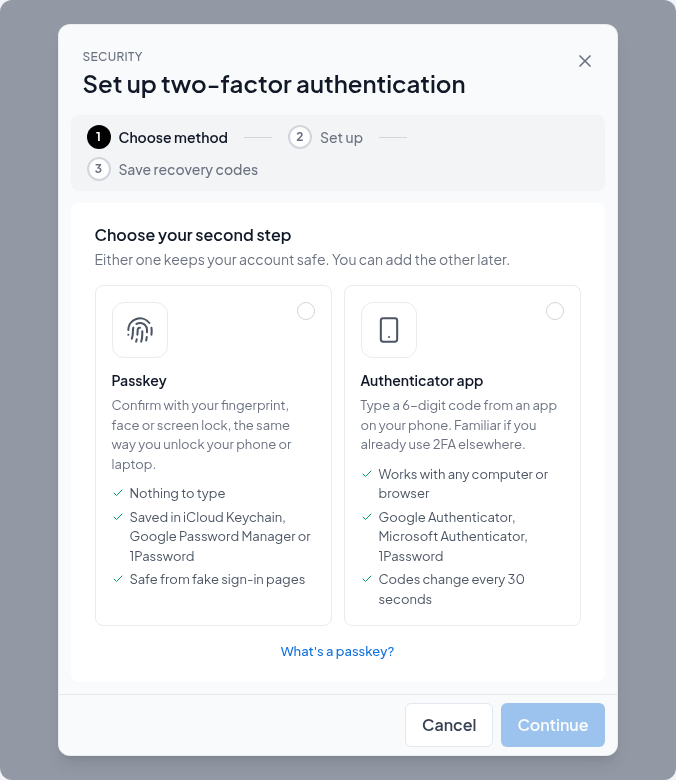
You can use a passkey or an authenticator app. Either one keeps your account safe, and you can add the other later:
| Passkey | Authenticator app | |
|---|---|---|
| How you use it | Your fingerprint, face or screen lock, the same way you unlock your phone or laptop | You type a 6-digit code from an app on your phone |
| Where it lives | A password manager such as iCloud Keychain, Google Password Manager or 1Password | An app such as Google Authenticator, Microsoft Authenticator or 1Password |
| Good to know | Nothing to type, and it cannot be used on a fake sign-in page | Works with any computer or browser. Familiar if you already use 2FA elsewhere |
2FA is on as soon as you have one of them. Once it's on, every sign-in to the Hub asks for your passkey or authenticator code as a second step, except a sign-in with a passkey, which counts as both steps on its own.
Turning on 2FA with a passkey
Open Security settings
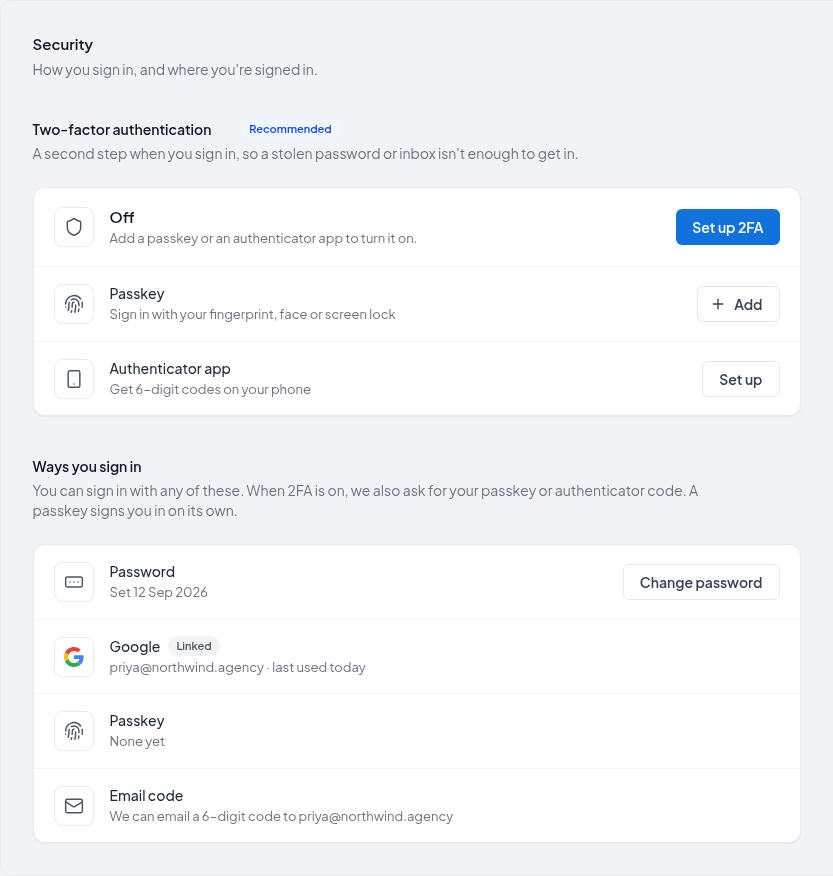
Go to Settings › Security. Under Two-factor authentication, select Set up 2FA.
Confirm it's you
Because this changes how you sign in, the Hub first asks you to confirm it's you with your password, Google, Microsoft or an email code.
Choose Passkey
Under Choose your second step, select Passkey and select Continue. Not sure what a passkey is? Select What's a passkey? for a short explanation.
Create the passkey
Select Create passkey. Your browser asks where to save it, then asks for your fingerprint, face or screen lock. Save it to your password manager if you want to use it on your other devices too.
Name it
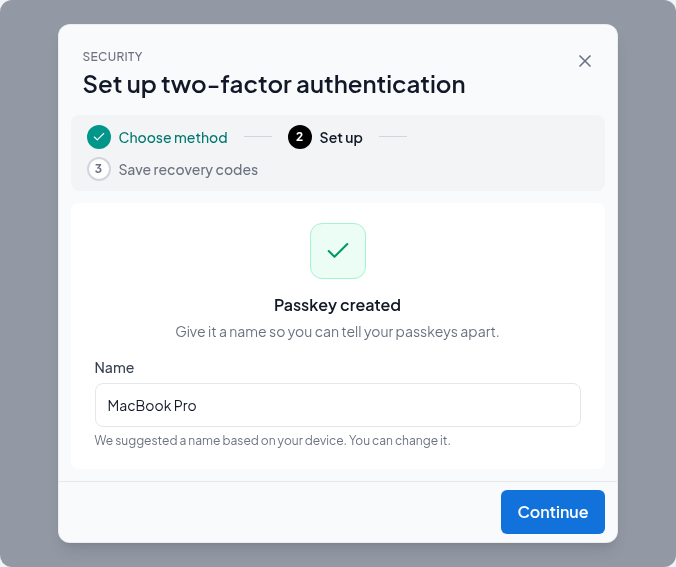
The Hub suggests a name based on your device, such as MacBook Pro. Change it if you like, so you can tell your passkeys apart later, and select Continue.
Save your recovery codes
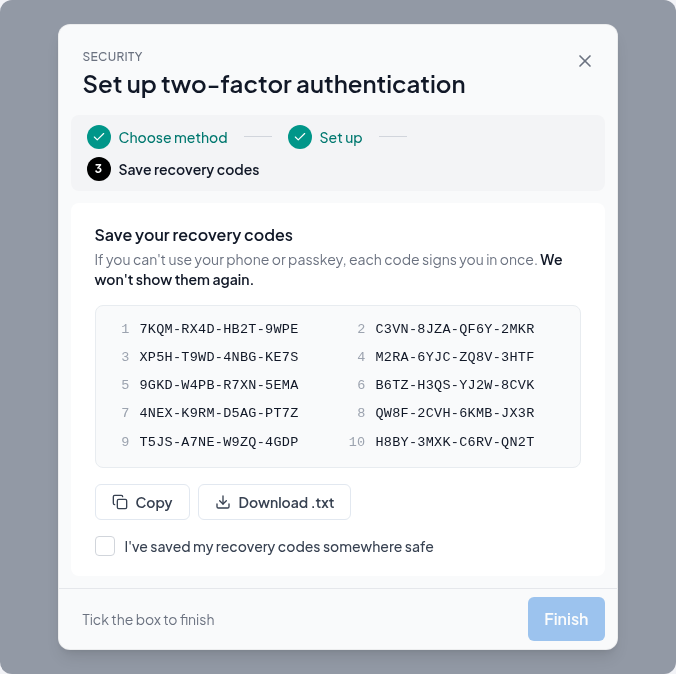
Save the ten recovery codes, select I've saved my recovery codes somewhere safe, and select Finish. See Recovery codes below.
If the browser says your device can't check it's you, the device has no screen lock. Turn on a fingerprint, face or PIN lock and try again, or save the passkey to your phone. We only accept passkeys that check it's you every time, because a passkey that anybody holding the device could use would not be a second factor.
If it says this device already has a passkey for your account, use a different device or password manager, or choose the authenticator app.
Turning on 2FA with an authenticator app
Open Security settings
Go to Settings › Security. Under Two-factor authentication, select Set up 2FA.
Confirm it's you
Confirm with your password, Google, Microsoft or an email code.
Choose Authenticator app
Under Choose your second step, select Authenticator app and select Continue.
Add Two Minute Reports to the app
Open your authenticator app and tap Add or +. Scan the QR code on screen, or type in the setup key shown under it. Not sure which app to use? Select Which app should I use?. Google Authenticator, Microsoft Authenticator and 1Password all work.
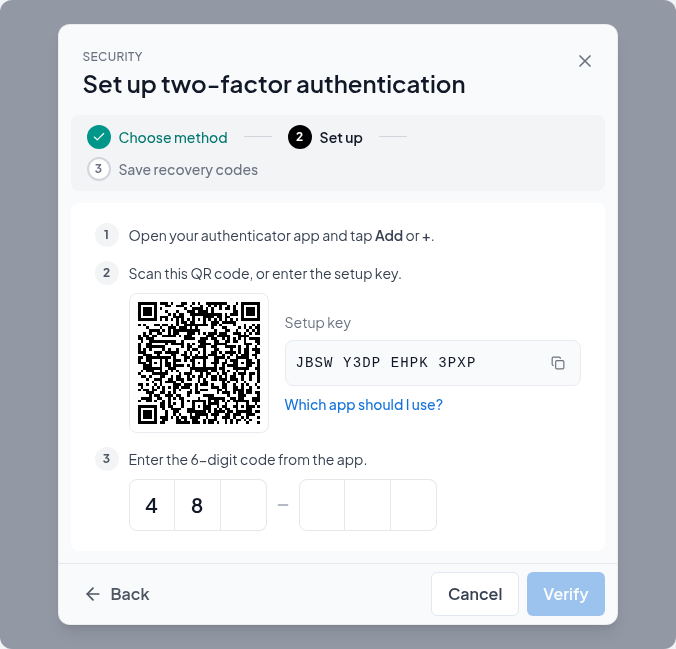
The app adds an entry called Two Minute Reports with your email address.
Enter the code
Type the 6-digit code the app shows and select Verify. The app is only saved once a correct code has been entered.
Save your recovery codes
Save the ten recovery codes, select I've saved my recovery codes somewhere safe, and select Finish.
You can also start from the method rows in the same block: Add next to Passkey, or Set up next to Authenticator app. Either one turns 2FA on.
Recovery codes
Recovery codes are for the day you cannot use your phone or your passkey. You get ten of them, straight after you add your first 2FA method. Each one:
- is 16 characters long, shown as four groups of four, like
K7QM-2XPA-9RTE-H4WN - works once, in place of your passkey or authenticator code
- ignores dashes and capital letters, and never uses the characters I, L, O, U, 0 or 1, so nothing looks alike
We show them only once. We store them in a form we cannot read back, so they cannot be shown again later, by the Hub or by support. Select Copy or Download .txt and keep them somewhere safe that is not your phone: a password manager, or a printed copy.
If you close the setup window before saving them, the Hub asks Did you save your recovery codes? 2FA stays on either way. If you did not save them, Settings › Security shows a red Not saved row under Recovery codes until you do. Select Generate codes to get a fresh set.
Generating new codes
Settings › Security shows how many codes you have left, such as 8 of 10 left. At 3 or fewer the row turns amber, and at none it turns red.
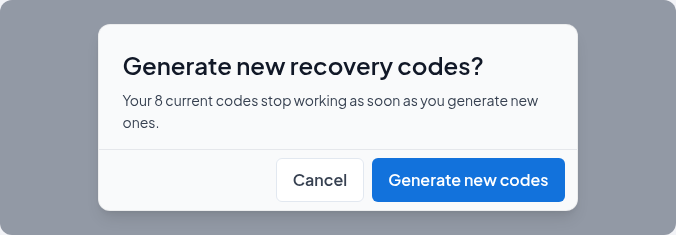
To get a fresh set, select Generate new codes, then confirm it's you with your passkey or authenticator app. Your old codes stop working as soon as the new ones are made, so save the new set before closing the window.
Do this whenever you use a code, run low, or think someone else may have seen them.
Trusting a browser for 30 days
On the second step at sign-in there is a check box: Don't ask for a second step on this browser for 30 days. It is cleared by default. Select it, and this browser skips the second step at sign-in for the next 30 days.
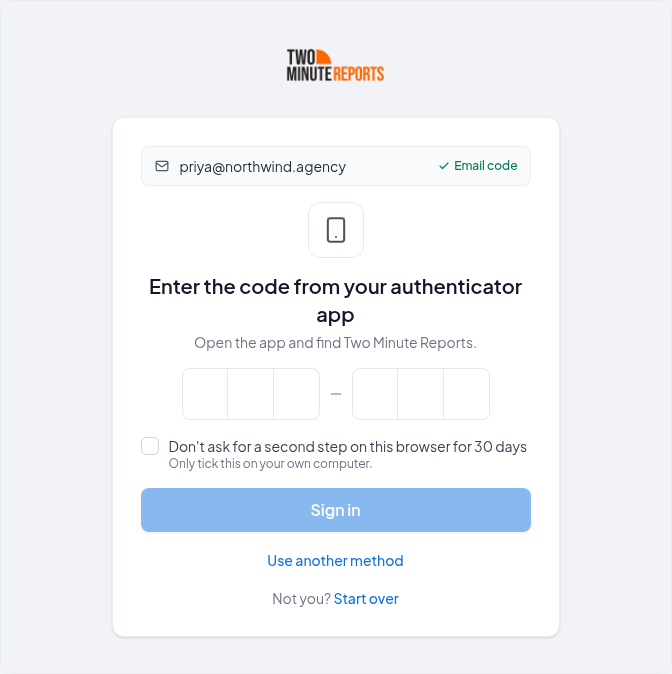
Only check this on your own computer. Not on a shared, borrowed or public one.
A trusted browser:
- skips only the second step at sign-in. It never skips Confirm it's you.
- is not offered when you sign in with a recovery code.
Every trusted browser is forgotten, and will ask for the second step again, when you:
- set, change or reset your password
- add or remove a passkey or authenticator app, or turn 2FA off
- sign in with a recovery code
- select Sign out of all other browsers
Changing your authenticator app
Moving to a new phone, or switching apps:
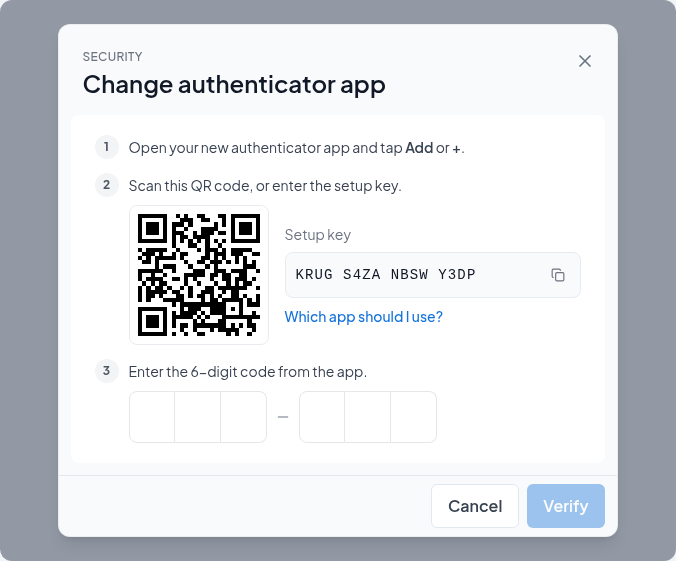
Select Change app
In Settings › Security, next to Authenticator app, select Change app.
Confirm it's you
Use your authenticator app, a passkey, or a recovery code. A recovery code is accepted here so that someone whose old phone is gone can still make the change.
Add Two Minute Reports to the new app
Open your new authenticator app, tap Add or +, and scan the QR code or enter the setup key.
Enter the code
Type the 6-digit code from the new app and select Verify.
Your old app keeps working until the new code is verified. After that, codes from the old app no longer work, and you can delete its Two Minute Reports entry. Your recovery codes are unchanged.
Removing one method
If you have more than one method, you can remove one and 2FA stays on with the rest.
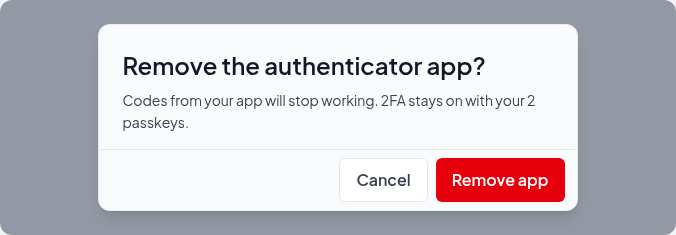
- To remove the authenticator app, select the delete icon on its row, then Remove app. Codes from the app stop working.
- To remove a passkey, see Removing a passkey.
Either way, you then confirm it's you with a passkey or the authenticator app. A recovery code is not accepted for removing a single method.
Removing your last method turns 2FA off, with everything described in the next section. The Hub tells you so before you confirm: Remove your last 2FA method?
Turning off 2FA
Select Turn off 2FA
In Settings › Security, under Two-factor authentication, select Turn off 2FA.
Read what will happen
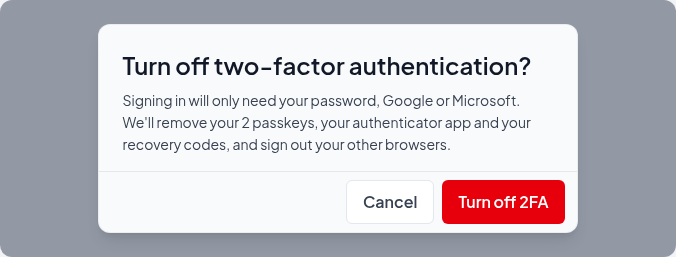
The dialog lists what will be removed. Select Turn off 2FA.
Confirm it's you
Use a passkey, your authenticator app or a recovery code.
Turning 2FA off:
- removes every 2FA method: all your passkeys, your authenticator app and your recovery codes. Your passkeys stop working for sign-in too, because they were part of 2FA.
- signs out your other browsers and forgets every trusted browser.
- leaves your password, Google and Microsoft sign-in, API keys and connected apps as they were.
After that, signing in needs only your password, Google, Microsoft or an email code. We email you to confirm. To turn it back on, set it up again; you get new recovery codes.
Signing in with 2FA
After the first step (password, Google, Microsoft or email code), the Hub shows Finish signing in, with what already worked shown at the top.
- It opens on the method you used most recently. Select Use passkey, or type your authenticator code and select Sign in.
- Use another method lists everything you have: Passkey, Authenticator app and Recovery code.
- Can't use any of these? explains how to get help signing in.
After 5 wrong codes in one go, or 10 in 15 minutes across signing in and confirming, the Hub says Too many attempts and asks you to try again in 15 minutes. Your account is never locked by wrong 2FA codes.
If someone enters your password correctly and then gets the second step wrong 5 times, we email you: Someone tried to sign in to your account. 2FA stopped them, but they have your password, so change it.
Related
Account security
Two-factor authentication, passkeys and "Confirm it's you": what they are, how they change signing in to the Hub, and where to manage them.
Passkeys
Sign in to the Hub with your fingerprint, face or screen lock. What a passkey is, how to add, rename and remove one, and how to use the passkey on your phone with a computer.