

PostgreSQL

Two Minute Reports' PostgreSQL connector lets you access and analyze your data directly in Google Sheets or Google Data Studio. Build custom reports, monitor key metrics, and make data-driven decisions - all without writing any code.
What you can report on
- Any custom data stored in your PostgreSQL database
- Sales, orders, and transactional records from your systems
- User activity and product engagement metrics
- Operational and logistics data
- Custom KPIs and business metrics specific to your product
Prerequisites
- A PostgreSQL server accessible over the network
- Database host, port, username, and password
- A database user with SELECT permissions on the tables you want to query
- Your database firewall set to accept Two Minute Reports' IP addresses (see IP whitelisting below)
How to create a connection
- Go to https://hub.twominutereports.com/connections
- Select New Connection
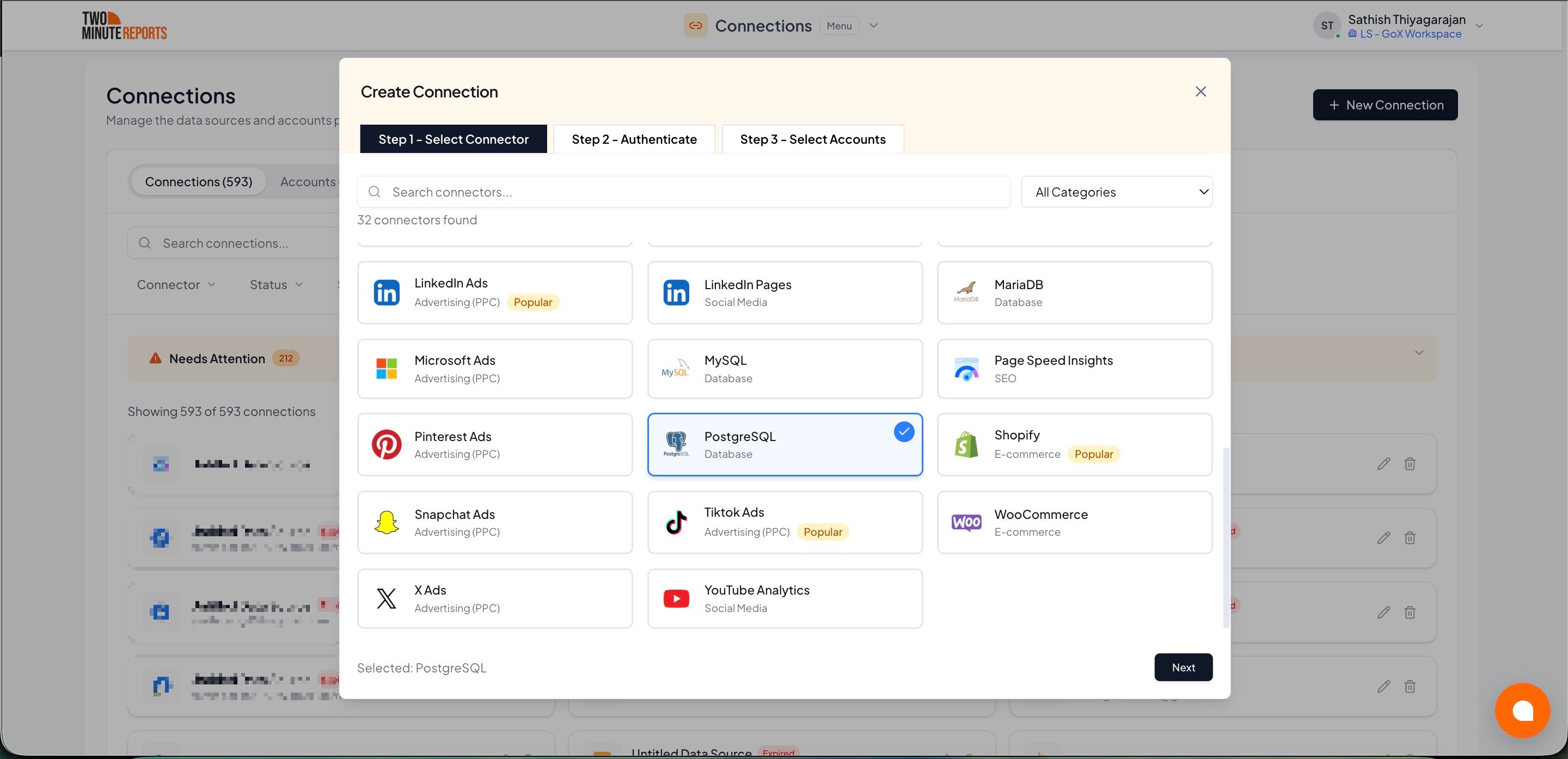
- Select PostgreSQL from the list of connectors
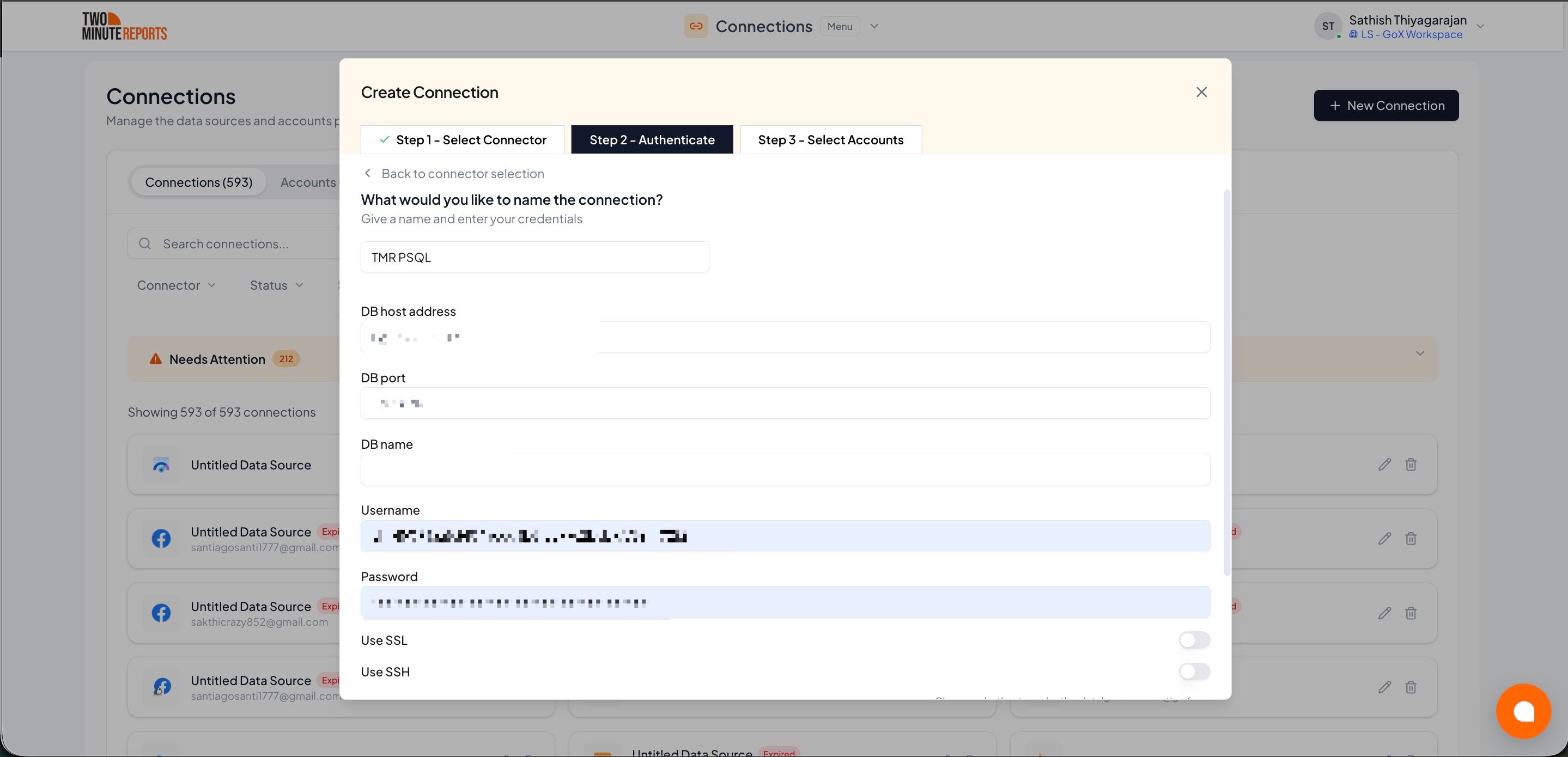
- Name the connection and authorize with your account credentials
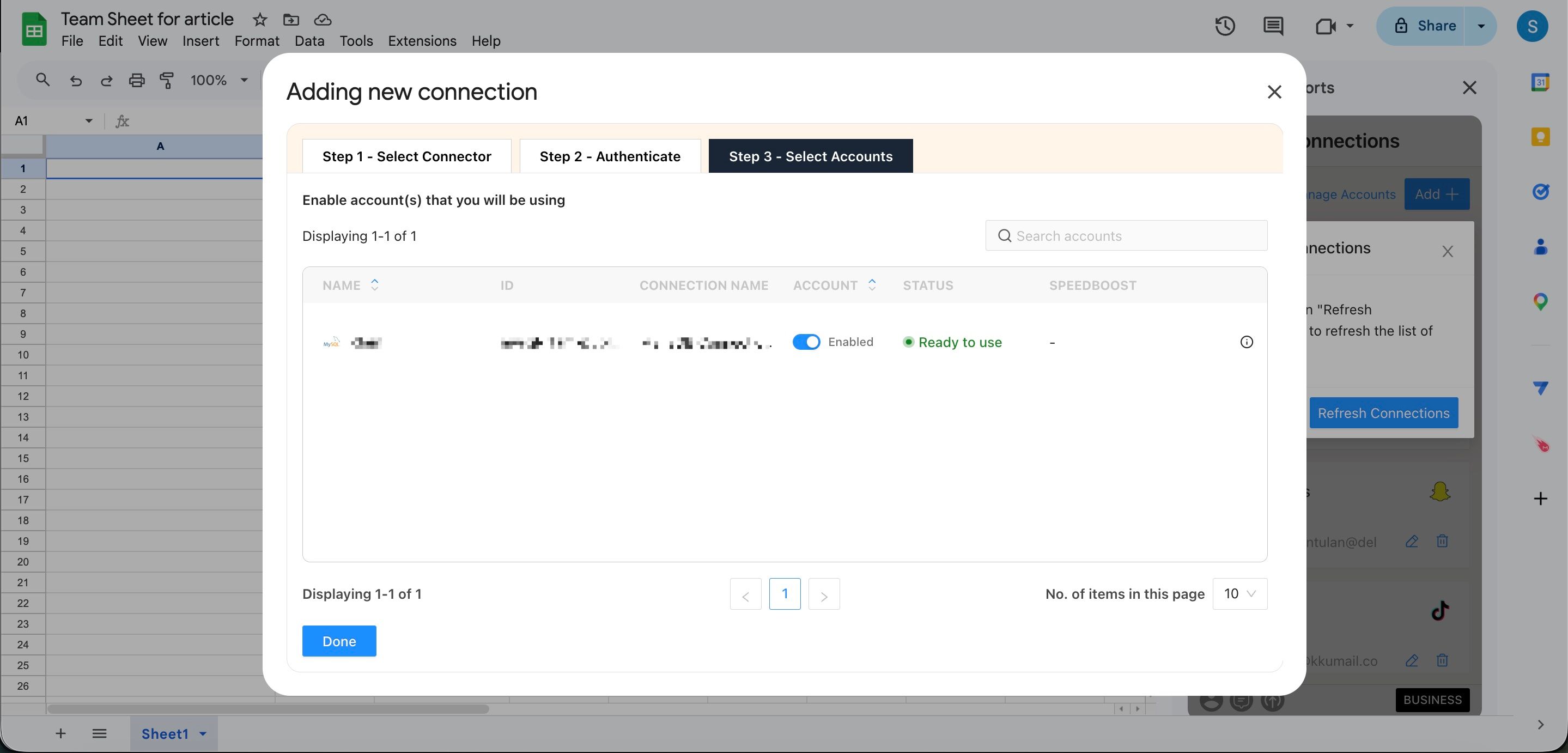
- Enable the accounts you want to report on
How to get PostgreSQL data into your reports
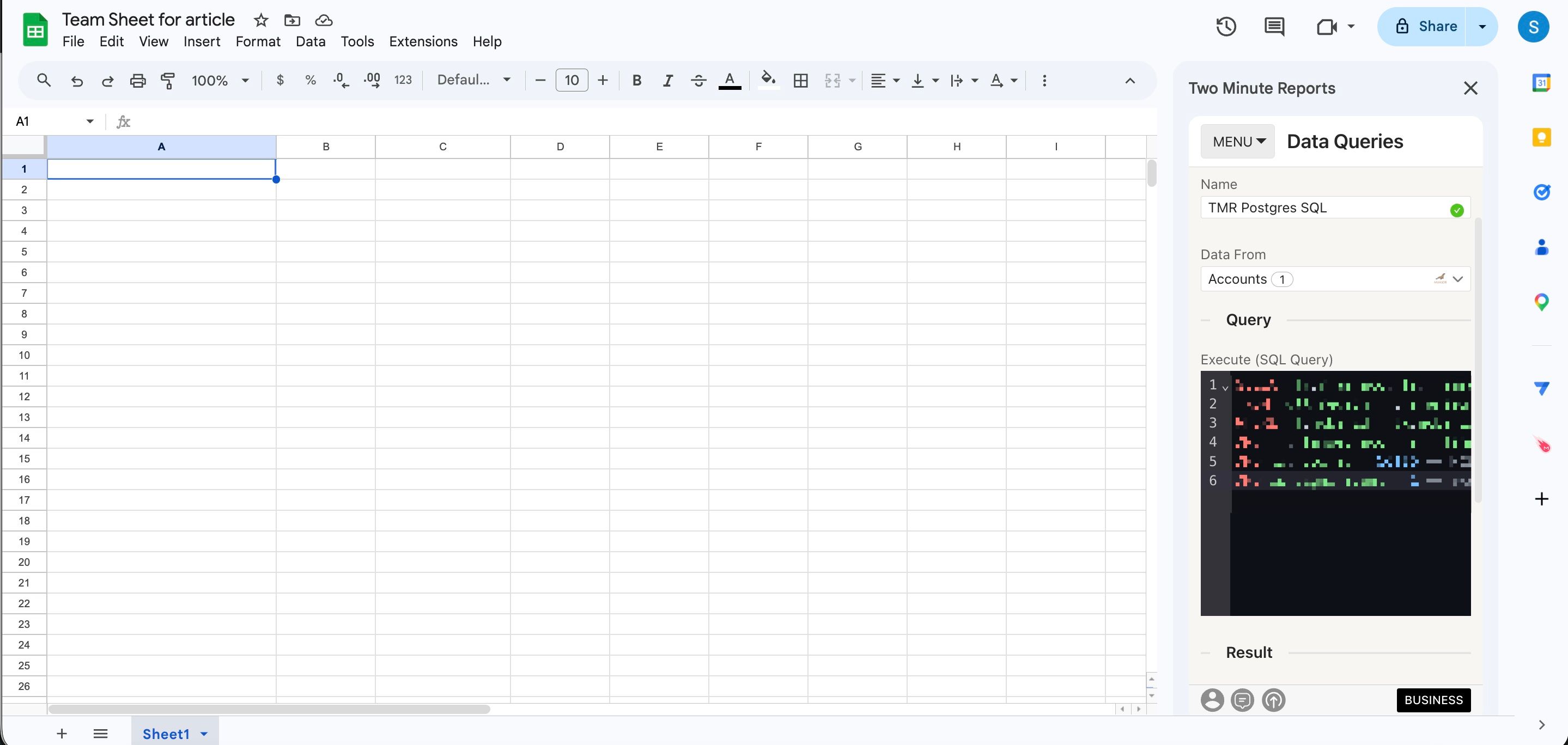
To pull PostgreSQL data into Google Sheets:
- In the TMR sidebar, go to Data Queries and select Add
- Select the accounts you want to analyze (can select multiple)
- Choose your metrics and dimensions from available options
- Select the date range for your analysis
- Configure sorting and filtering options as needed
- Select Run Query to populate the data into Google Sheets
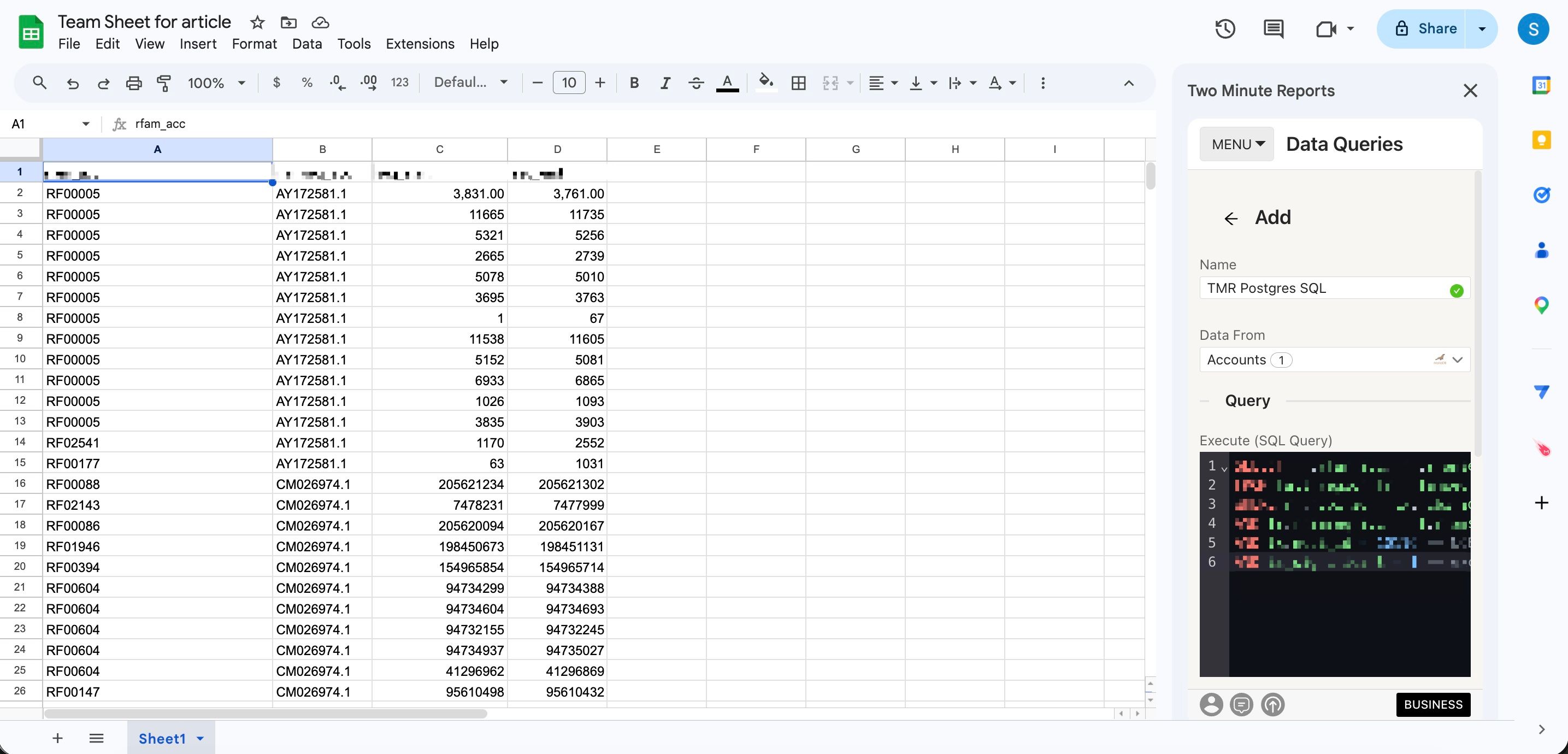
To pull PostgreSQL data into Google Data Studio:
- Select Open in Google Data Studio, then select + Create Report.
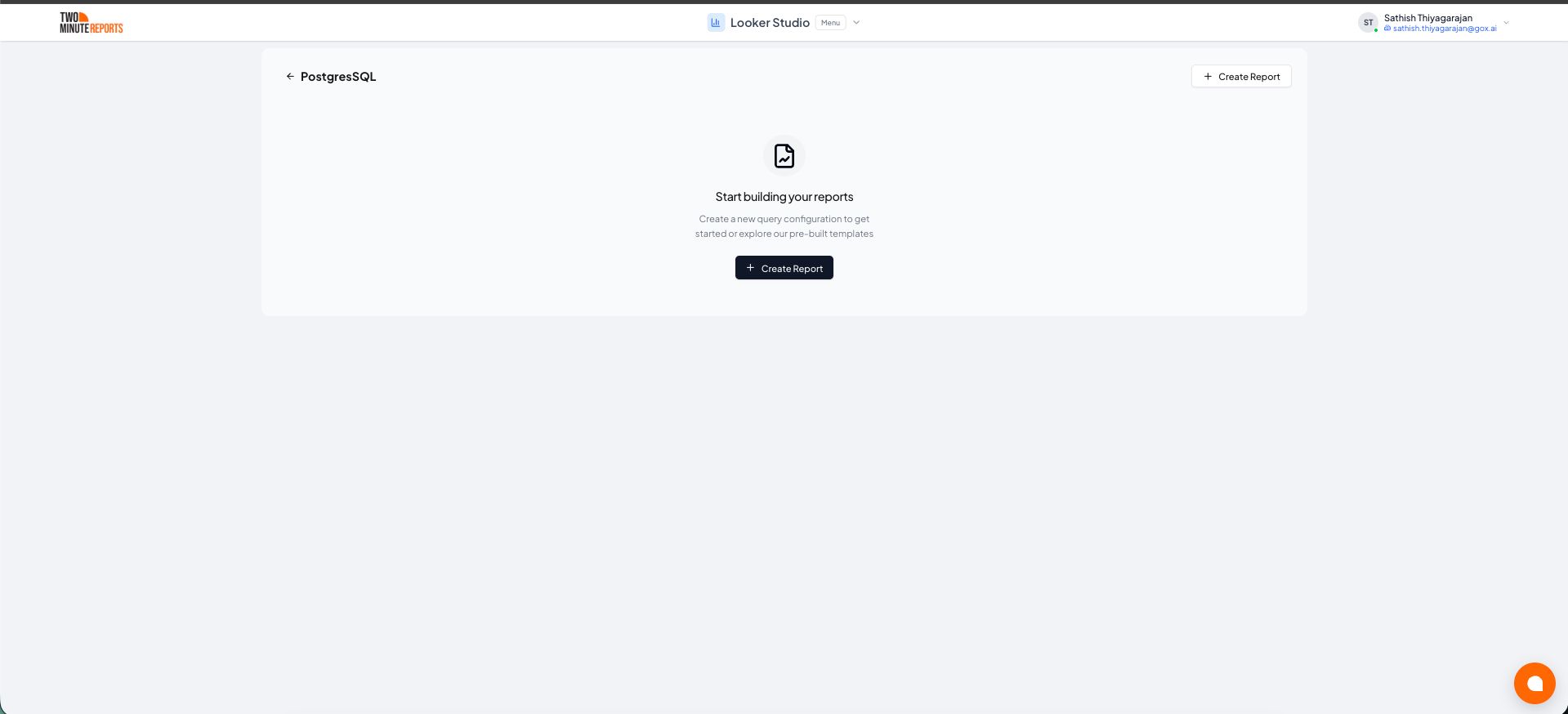
- A query config panel will appear. Do one of the following:
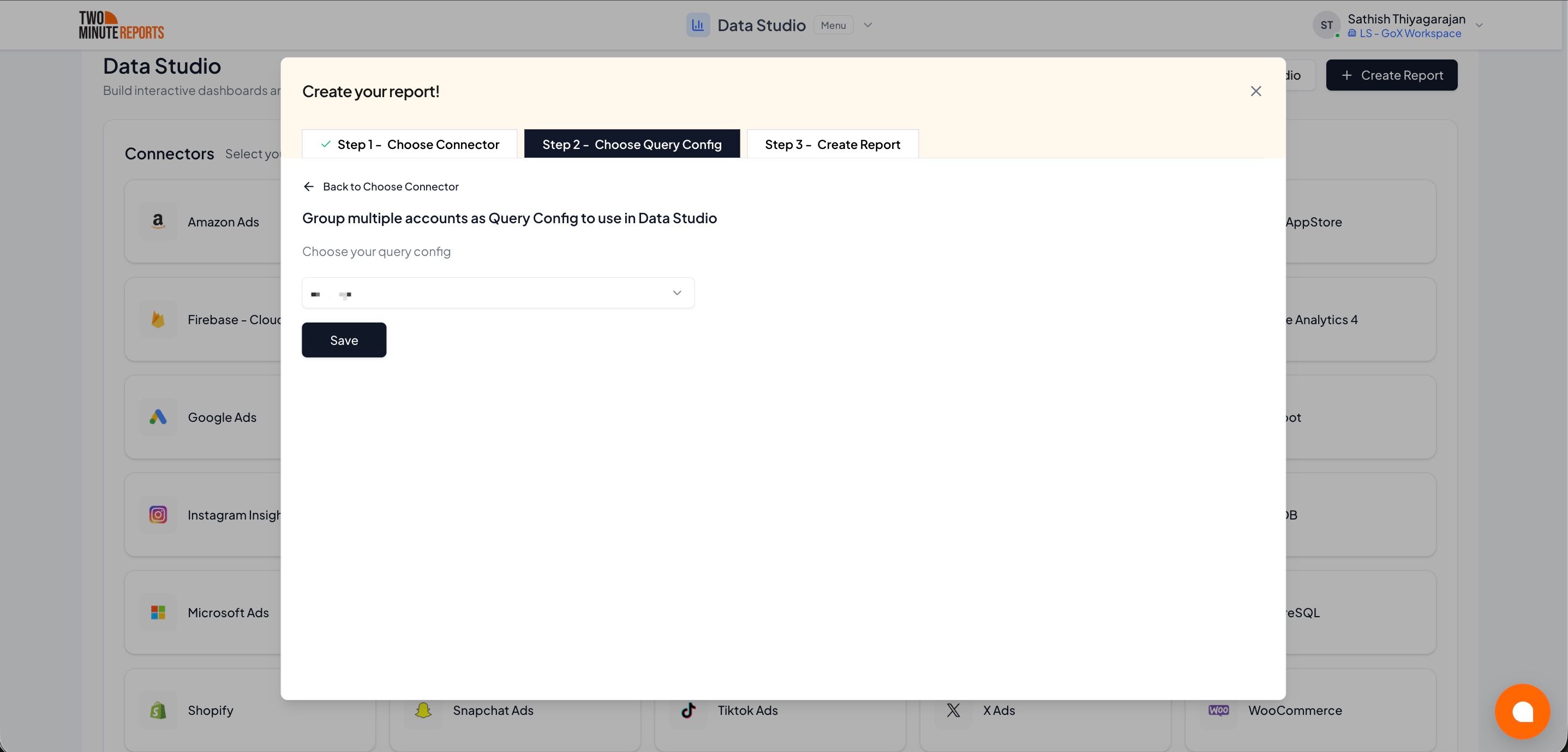
Creating a new query config: Enter a name, select the accounts you want to include from the dropdown, then select Save.
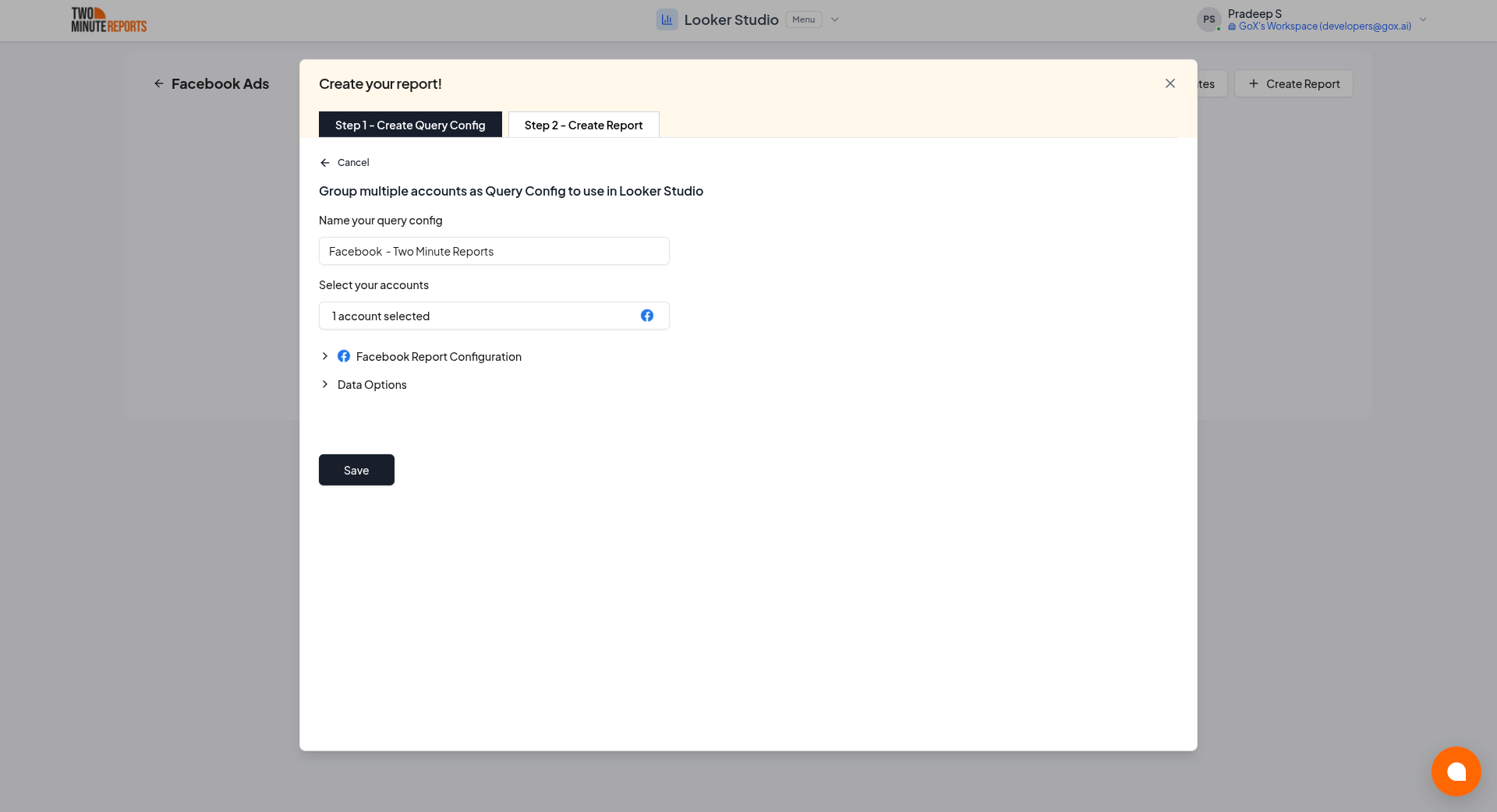
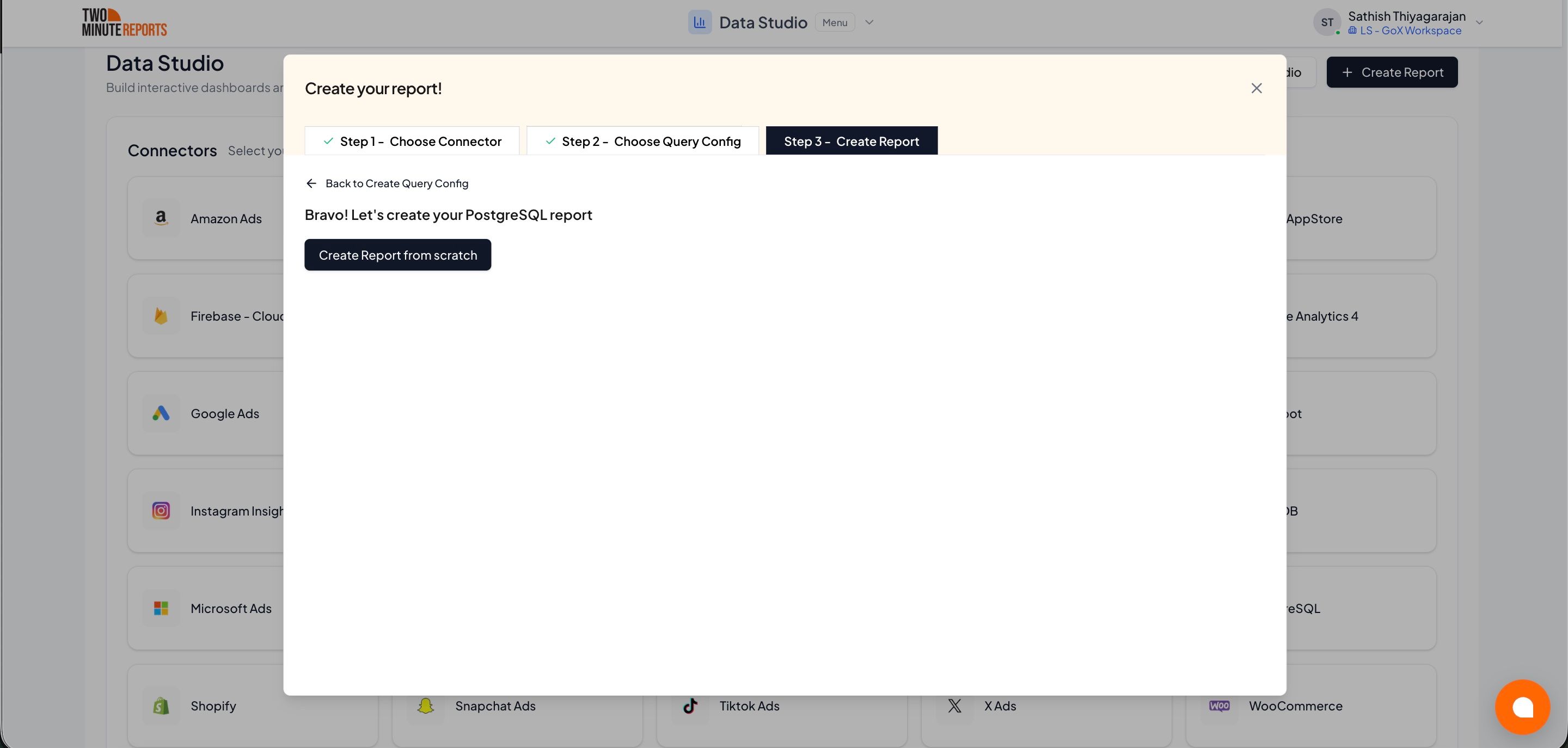
- Choose Create report from scratch to build a custom report, or select one of the pre-built templates to get started quickly.
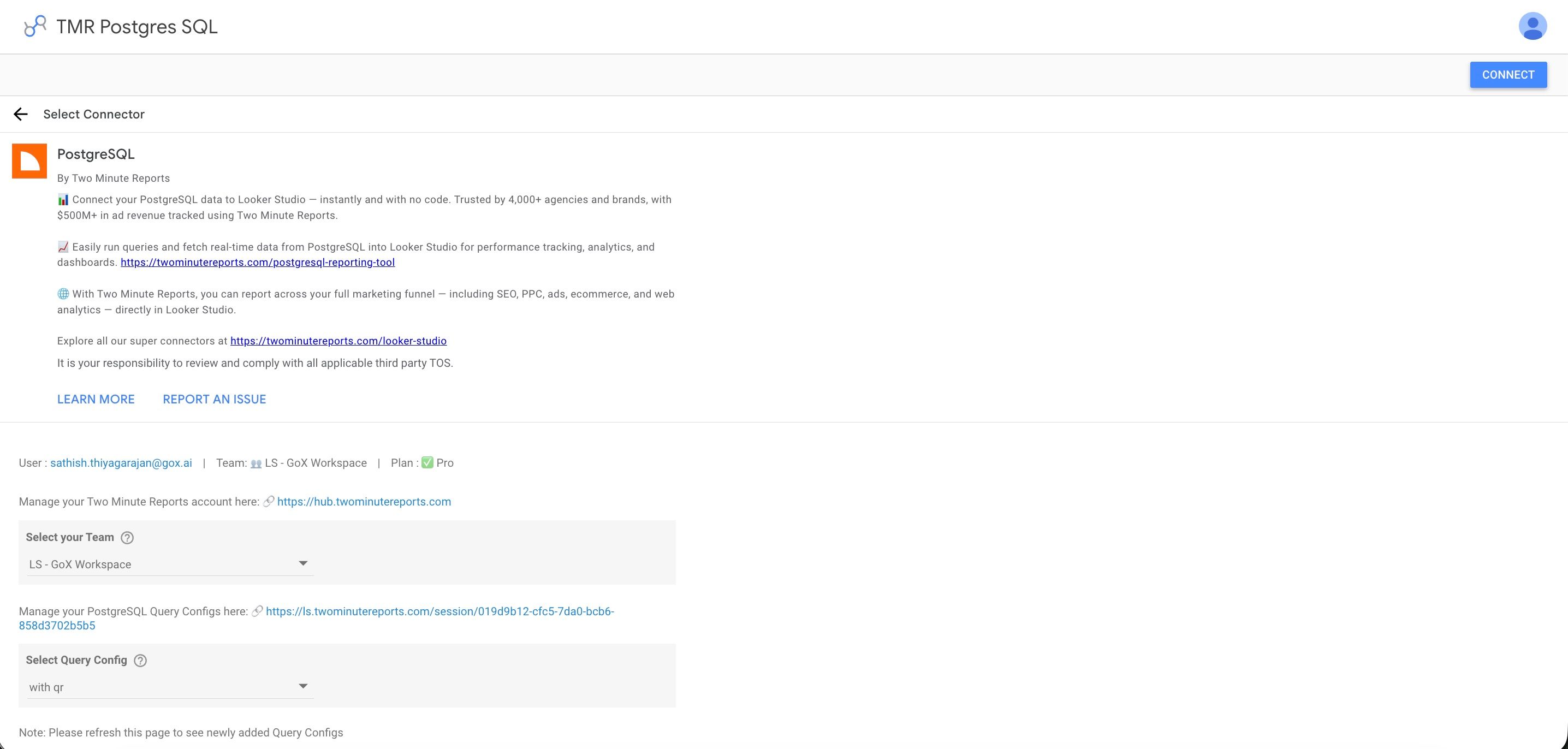
- In the Google Data Studio connector panel, select your team and choose the required query config from the dropdown. Select Connect in the top-right corner.
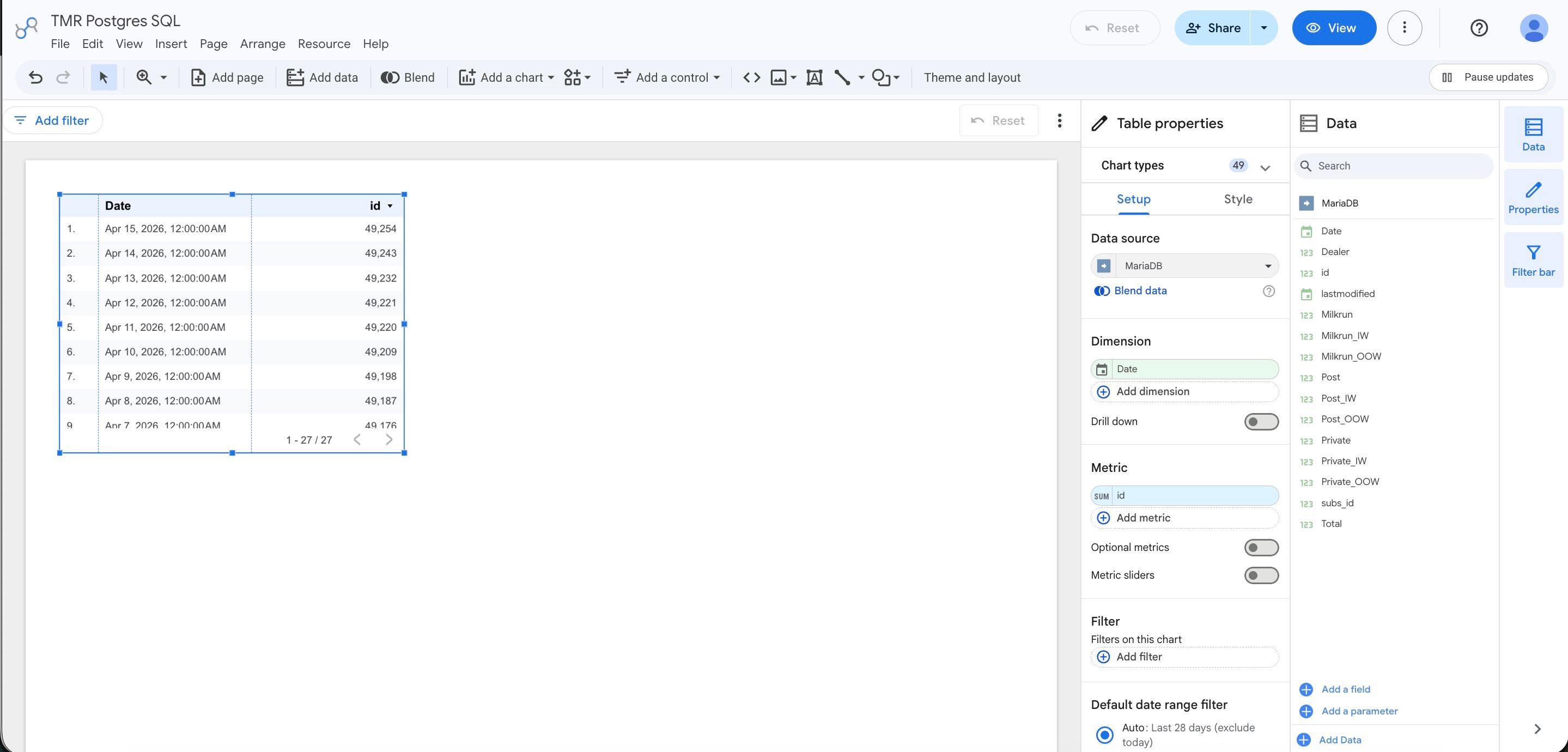
- You'll land on the Google Data Studio dashboard. Drag and drop the available PostgreSQL metrics and dimensions onto your canvas to start analyzing your data.
Dynamic dates
When your query config contains a fixed date range in the SQL WHERE clause, you have to manually update it every time. Instead, use the @startDate and @endDate parameters — TMR replaces them with the date range selected in the report at query time, so the SQL always fetches only the relevant data.
Example — static query:
SELECT * FROM orders
WHERE order_date BETWEEN '2024-01-01' AND '2024-01-31'
Same query with dynamic dates:
SELECT * FROM orders
WHERE order_date BETWEEN @startDate AND @endDate
When the report refreshes, TMR substitutes @startDate and @endDate with the selected date range. This keeps reports fast because the database returns only the requested rows instead of the full table.
IP whitelisting
Two Minute Reports connects from these fixed IP addresses. Add all 5 to your pg_hba.conf file before you create the connection. Allowing only some of them gives you a connection that works until a request leaves from one of the others.
49.13.34.182
5.75.217.220
116.203.164.91
95.216.182.151
91.99.28.86
Add the following lines to your pg_hba.conf file (replace your_database and your_user):
host  your_database  your_user  49.13.34.182/32    md5
host  your_database  your_user  5.75.217.220/32    md5
host  your_database  your_user  116.203.164.91/32  md5
host  your_database  your_user  95.216.182.151/32  md5
host  your_database  your_user  91.99.28.86/32     md5
After editing, reload PostgreSQL: pg_ctlcluster <version> main reload
Still blocked after adding all five? See Connection Blocked by a Firewall or IP Allowlist.