

Require two-factor authentication
A team can require everyone in it to use two-factor authentication (2FA). Once it's on, nobody can open the team in the Hub without a passkey or an authenticator app on their own account. Members who already have 2FA notice nothing; members who don't get a week to set it up.
It is available on every plan, and it lives in the Hub at Settings › Preferences, under Security.
Who can turn it on
Two conditions, both needed:
- Your role includes "Change team settings". Among the standard roles that means Owner, Admin and Deputy Admin; a custom role with that permission can too. See the Permissions matrix.
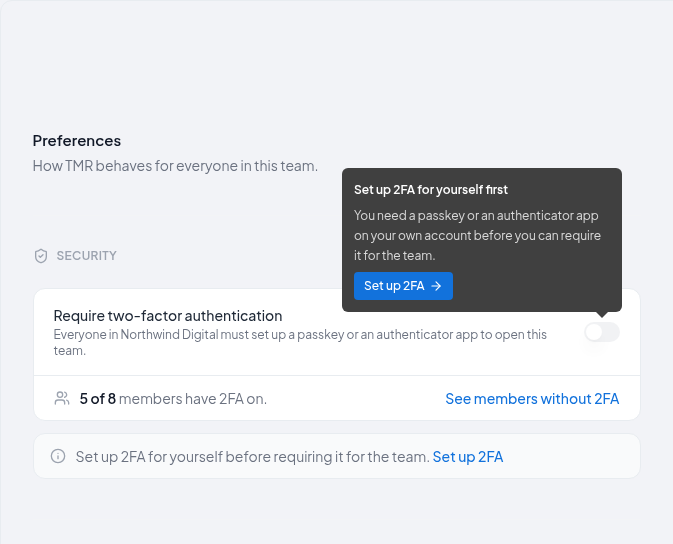
- You have 2FA on yourself. Without it the switch is disabled, with the reason Set up 2FA for yourself before requiring it for the team. and a Set up 2FA link that opens setup in place. Once you've set it up, the switch works.
Everyone else sees the setting read-only: Your role doesn't include changing team settings. Ask an Admin.
Turning it on
Open Preferences
Go to Settings › Preferences. Under Security, find Require two-factor authentication.
Check who has 2FA
The card says how many members have 2FA on, such as 5 of 8 members have 2FA on. Select See members without 2FA to open the member list filtered to those who haven't.
Turn the switch on
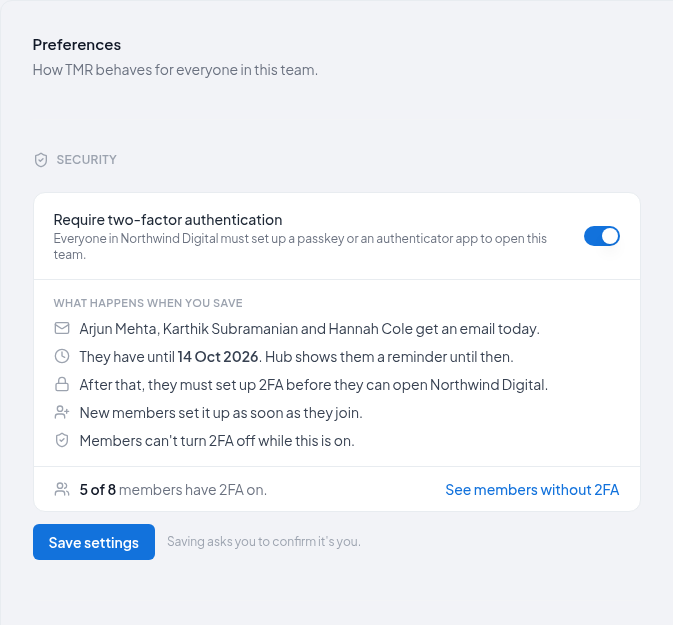
Before anything is saved, the card spells out what will happen, with the real names and date: who gets an email today, the deadline, and that members can't turn 2FA off while this is on.
Save and confirm
Select Save settings, then confirm it's you with your passkey or authenticator app.
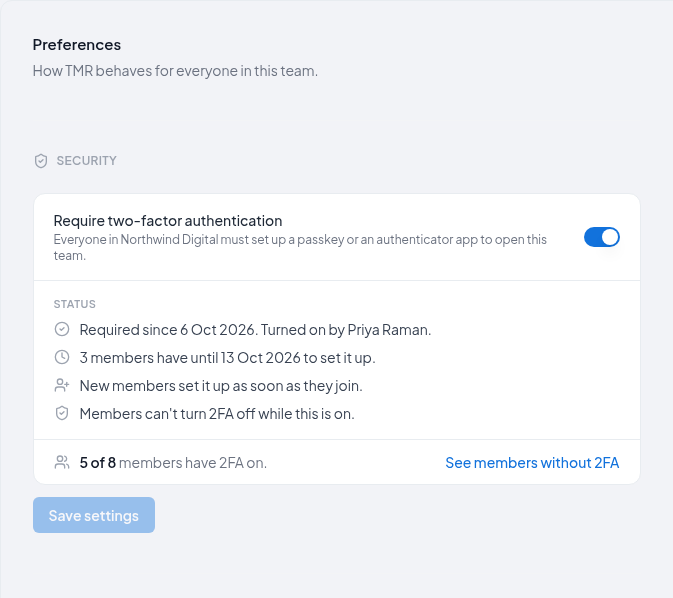
The Hub confirms with Two-factor authentication is now required, and below it We emailed 3 members who haven't set it up. From then on, the card shows who turned it on and when, and how many members are still within their grace period.
The grace period
Members who are already in the team when you turn it on get until the end of the seventh day, in the team's timezone. Turn it on during 1 October and they have until the end of 8 October. If the team has no timezone set, the deadline is in UTC.

During the grace period, each member without 2FA:
- gets an email the day you turn it on: Northwind Digital now requires two-factor authentication, with a Set up two-factor authentication button.
- sees a banner under the top bar on every page while that team is selected: Northwind Digital requires two-factor authentication. Set it up by 8 Oct 2026 (7 days from now) to keep access to this team. Set up 2FA starts setup; Remind me tomorrow hides the banner for a day. On the last day it can't be hidden.
- gets a second email the day before the deadline: Set up 2FA by tomorrow to keep access to Northwind Digital.
- sees 2FA required by 8 Oct next to the team in the team switcher.
Members who already have 2FA get no email and see no banner.
After the deadline
A member who still hasn't set up 2FA is not signed out and loses nothing. The next time they open the team, the Hub shows a full-page screen instead: Northwind Digital requires two-factor authentication. Set up a passkey or an authenticator app to open Northwind Digital. It takes about two minutes.
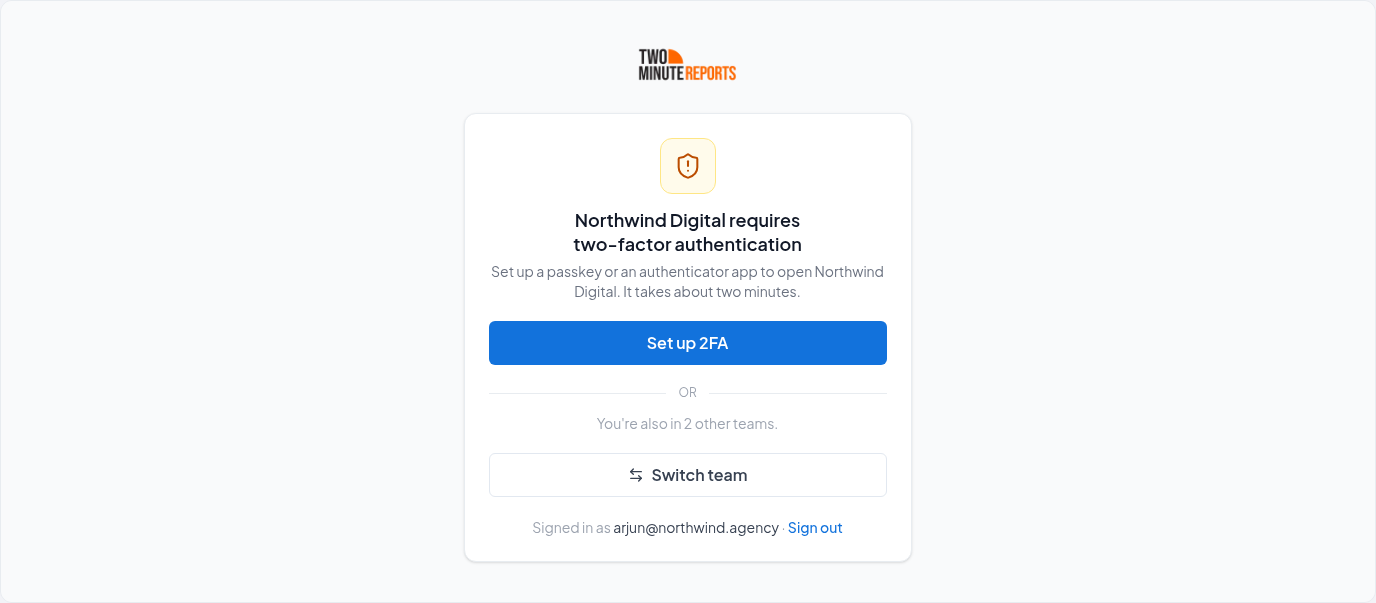
From there they can:
- select Set up 2FA: confirm it's you, choose a passkey or an authenticator app, save recovery codes, and the page they were opening loads
- select Switch team, if they belong to other teams
- select Sign out
In the team switcher, the team stays in their list marked Needs 2FA to open.
People who join after it's on
No grace period. Someone who joins the team after the requirement was turned on sets up 2FA before they see the team. Their invitation email already says the team requires it, and after accepting they see You've joined Northwind Digital with a Set up 2FA button.
Members of several teams
The requirement belongs to the team, not to the person:
- Only that team is blocked. A member who misses the deadline for Northwind Digital can still open every other team they belong to.
- Their own 2FA is locked on. While any team they belong to requires 2FA, they can't turn 2FA off or remove their last method. Settings › Security names the team: Northwind Digital requires 2FA, so you can't turn it off, or Northwind Digital and 2 other teams require 2FA for several. They can still swap methods by adding the new one before removing the old.
API keys and MCP connections
Existing API keys and MCP connections keep working. Turning the requirement on doesn't break any integration a member already set up, whether or not they have 2FA.
What changes for a member without 2FA:
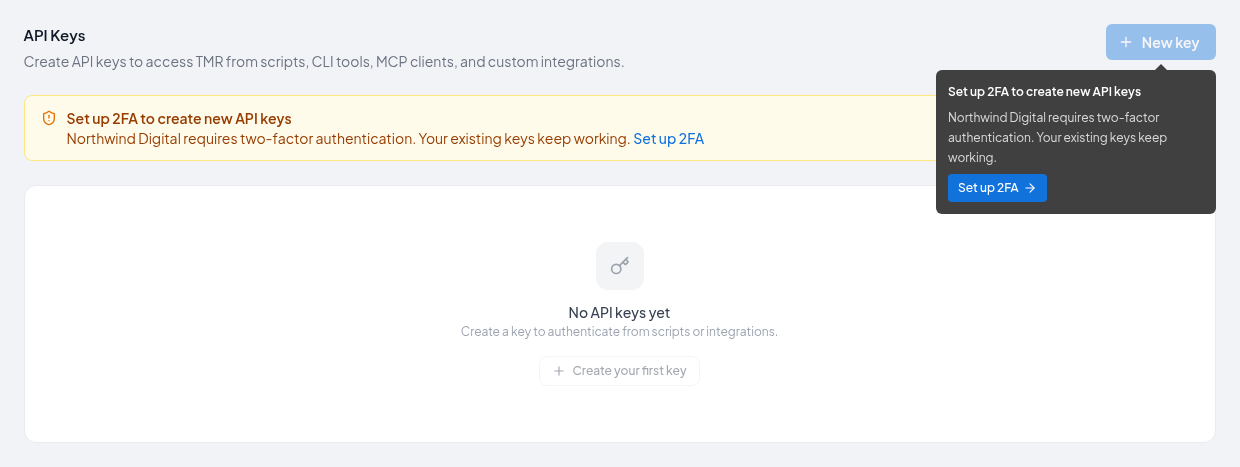
- New API keys. While any team they belong to requires 2FA, they can't create a new API key until they set up 2FA. This starts as soon as the requirement is on, grace period included. The Create key button in Settings › API keys is disabled. Its tooltip says Set up 2FA to create new API keys and Northwind Digital requires two-factor authentication. Your existing keys keep working.
- New MCP connections. Connecting an AI app such as Claude or ChatGPT to a team that is blocking them is refused. The consent page says Northwind Digital requires two-factor authentication and Set it up before connecting Claude to this team. After setting up 2FA, the Hub returns them to the consent page to finish connecting.
What isn't affected
- The Google Sheets add-on and the Google Data Studio connector don't use Hub sign-in, so the requirement doesn't apply to them.
- Scheduled refreshes keep running. They belong to the team's plan, not to a person.
- Members' existing API keys and MCP connections, as above.
Turning it off
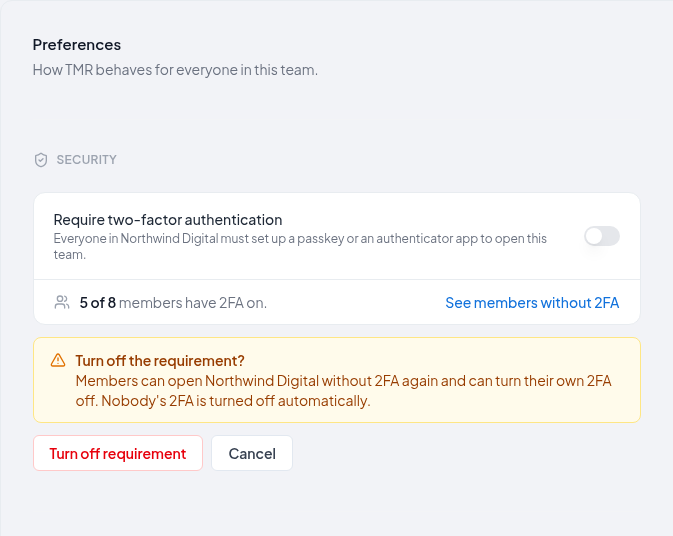
Switch Require two-factor authentication off. The card warns: Members can open Northwind Digital without 2FA again and can turn their own 2FA off. Nobody's 2FA is turned off automatically. Select Turn off requirement, then confirm it's you.
Nobody is emailed. Members who set up 2FA keep it unless they turn it off themselves.
If a member loses their 2FA
Nobody in the team can reset anyone's 2FA, whatever their role. A member who has lost their passkey and authenticator app signs in with a recovery code or, failing that, asks support, which takes three days. After support turns their 2FA off, the Hub asks them to set it up again the next time they open your team.
Manage members
Invite people, change a role, assign and unassign seats, remove a member, and find people by name, role, seat or 2FA. Includes what happens to the dashboards and other work a removed member built.
Account security
Two-factor authentication, passkeys and "Confirm it's you": what they are, how they change signing in to the Hub, and where to manage them.