

Google Analytics 4

Two Minute Reports' Google Analytics 4 connector lets you access and analyze your data directly in Google Sheets or Google Data Studio. Build custom reports, monitor key metrics, and make data-driven decisions - all without writing any code.
What you can report on
- Events, sessions, users, and engagement rate
- Traffic source and acquisition channel performance
- Conversion events and key event tracking
- Audience segments and user behavior flows
- Revenue, e-commerce, and purchase data
Prerequisites
- A Google Analytics 4 property
- Viewer access or higher on the property you want to report on
- To report on revenue or cost, the Google account you authorize with must not carry the No revenue metrics or No cost metrics data restriction — see Revenue or cost metrics come back as 0
How to create a connection
- Go to https://hub.twominutereports.com/connections
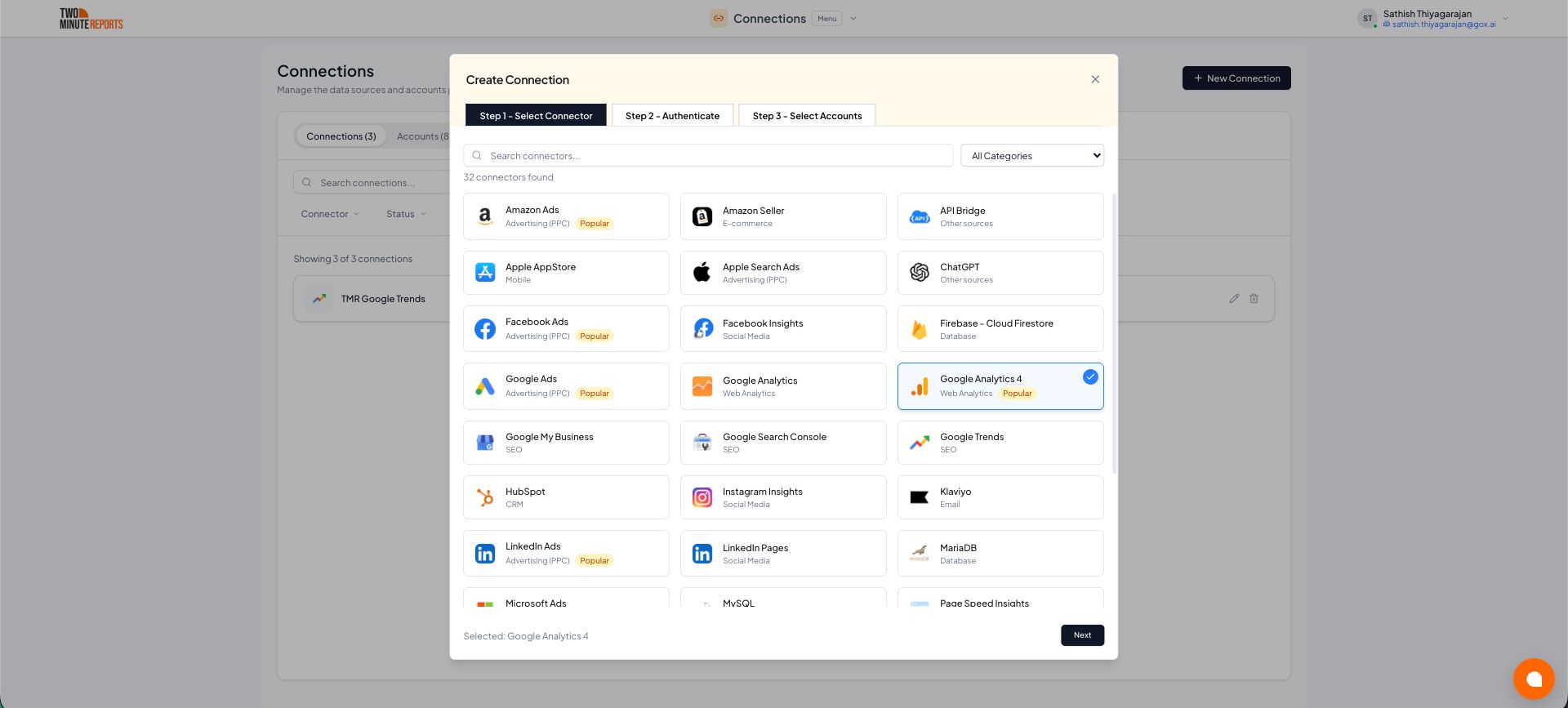
- Select New Connection
- Select Google Analytics 4 from the list of connectors
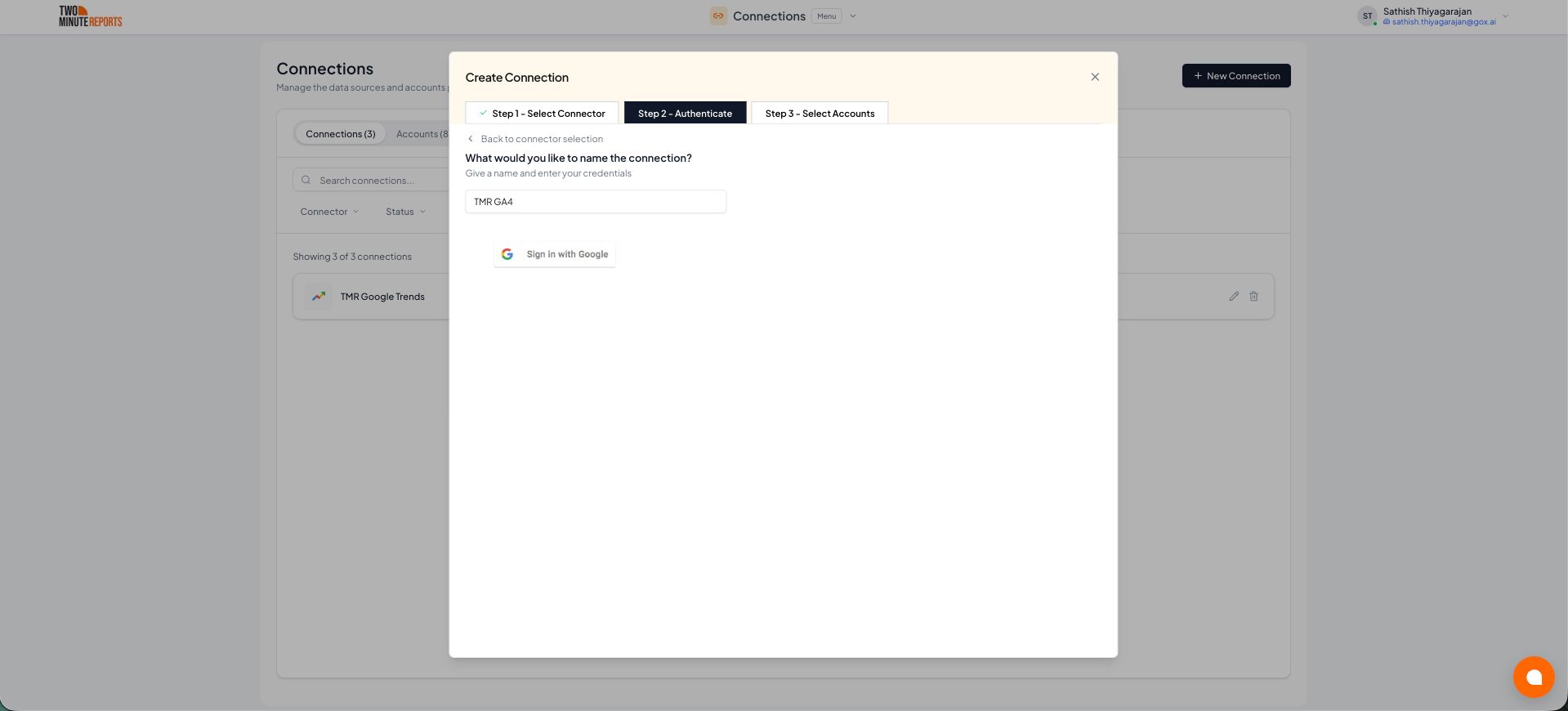
- Name the connection and authorize with your account credentials
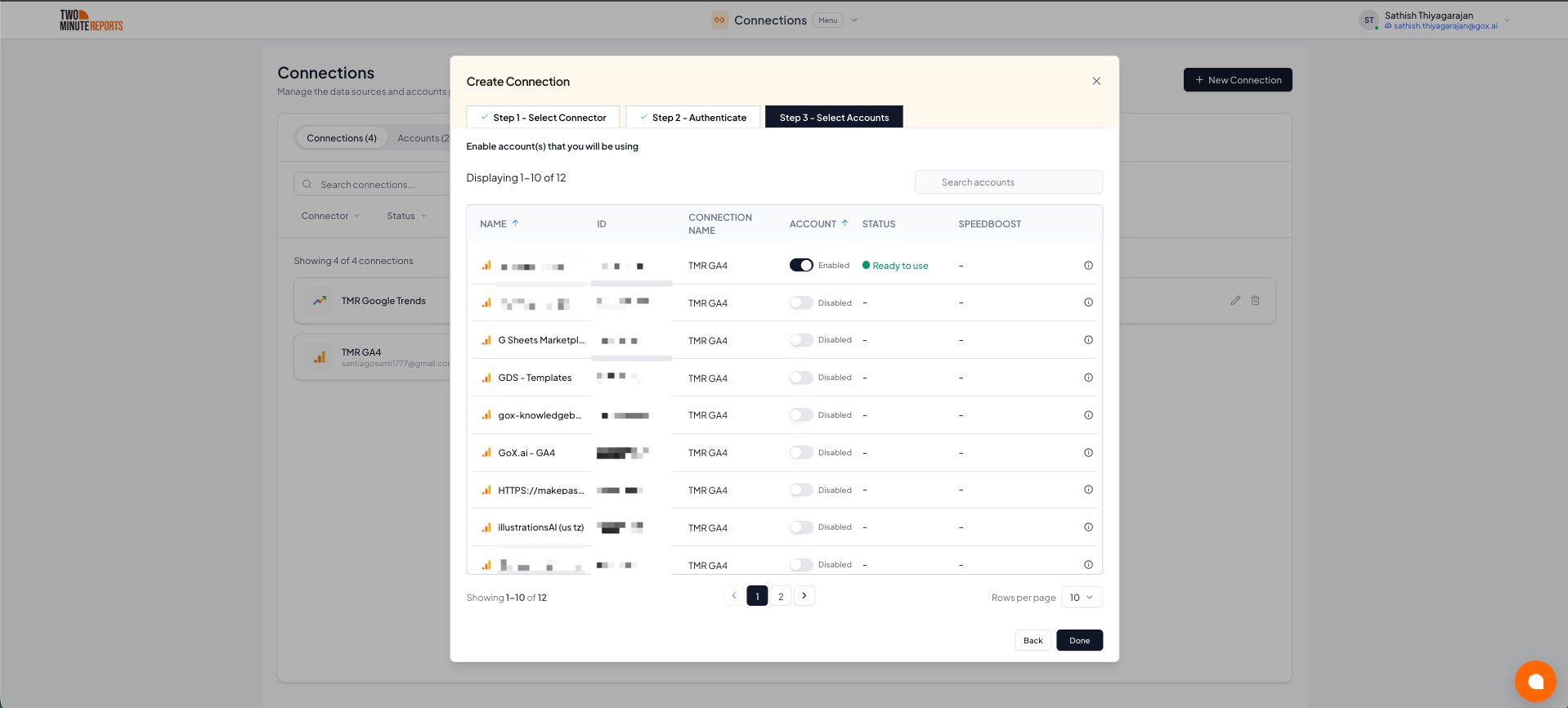
- Enable the accounts you want to report on
How to get Google Analytics 4 data into your reports
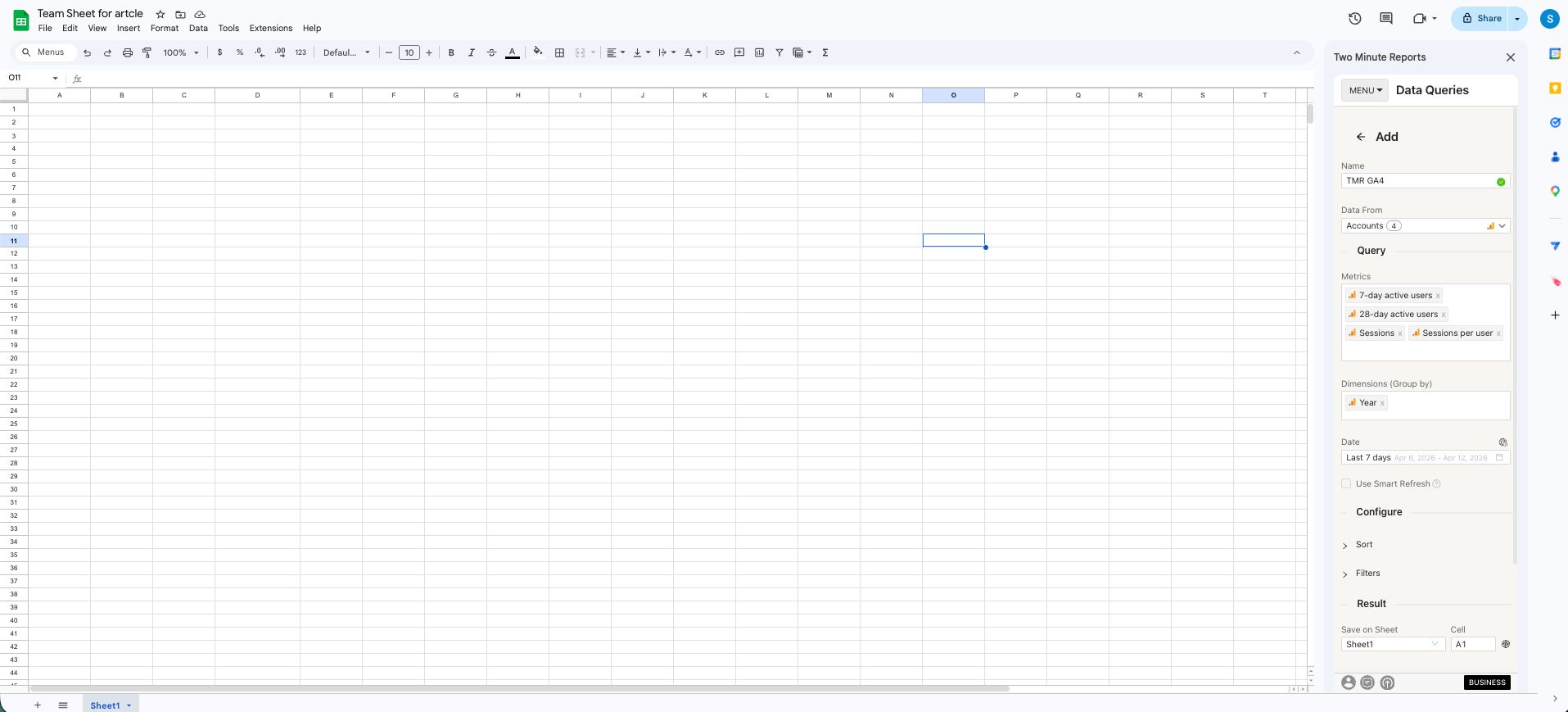
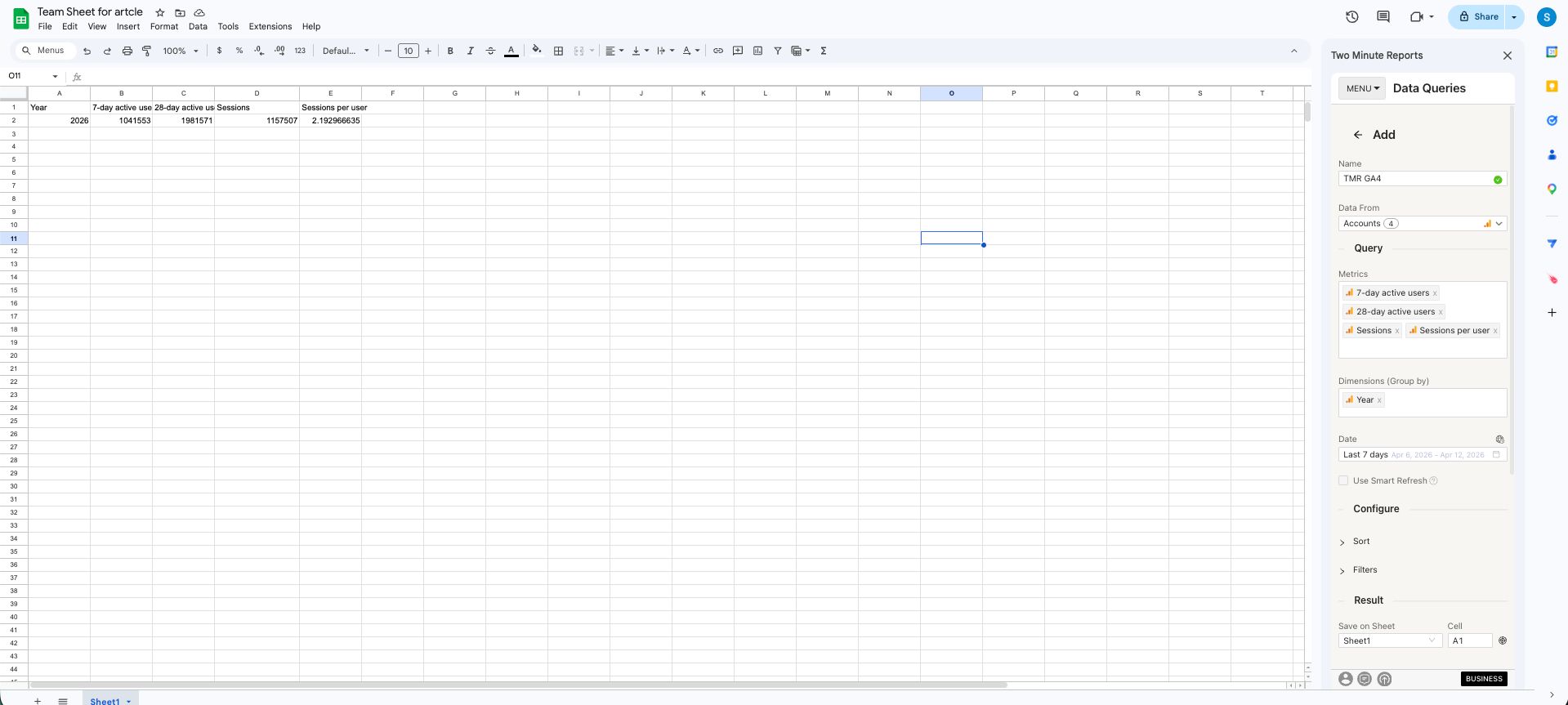
To pull Google Analytics 4 data into Google Sheets:
- In the TMR sidebar, go to Data Queries and select Add
- Select the accounts you want to analyze (can select multiple)
- Choose your metrics and dimensions from available options
- Select the date range for your analysis
- Configure sorting and filtering options as needed
- Select Run Query to populate the data into Google Sheets
To pull Google Analytics 4 data into Google Data Studio:
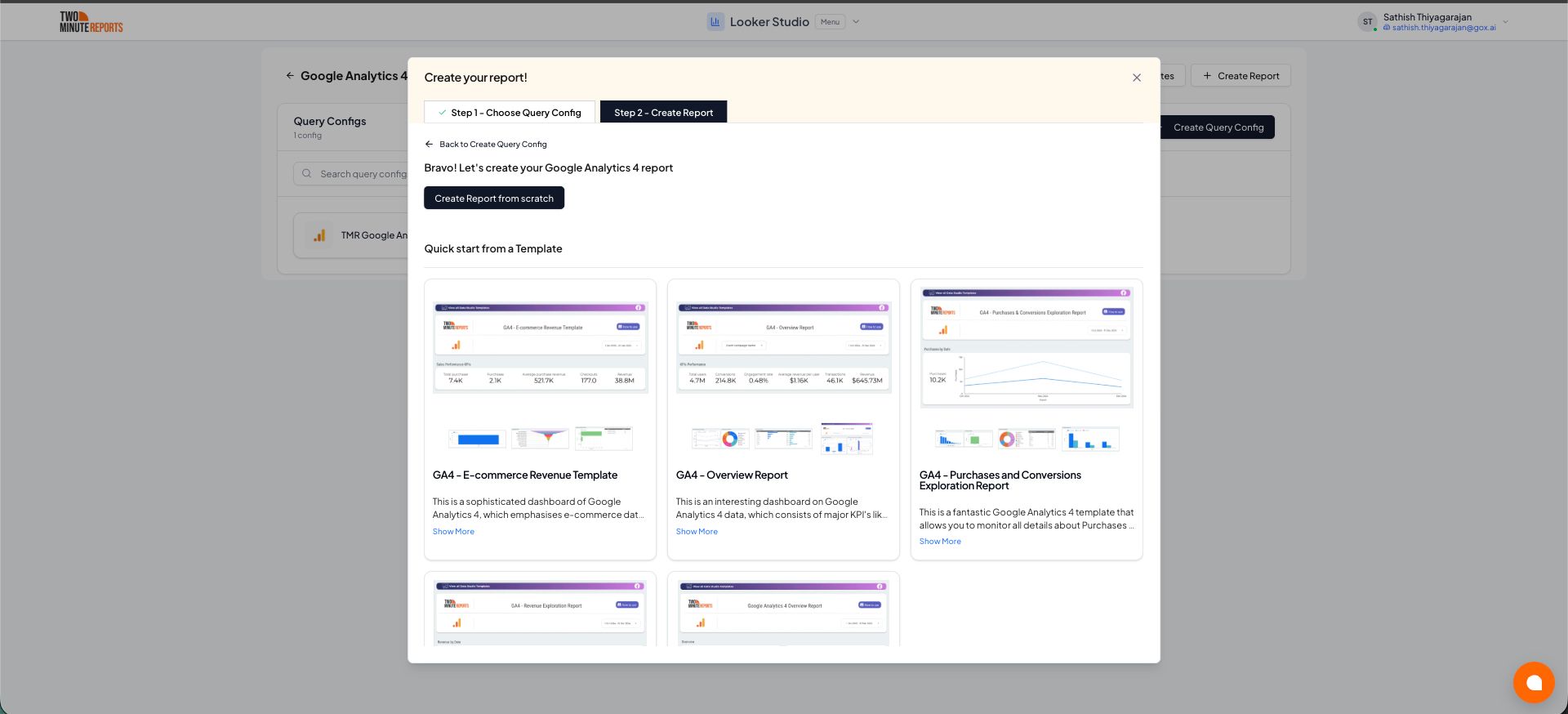
- Select Open in Google Data Studio, then select + Create Report.
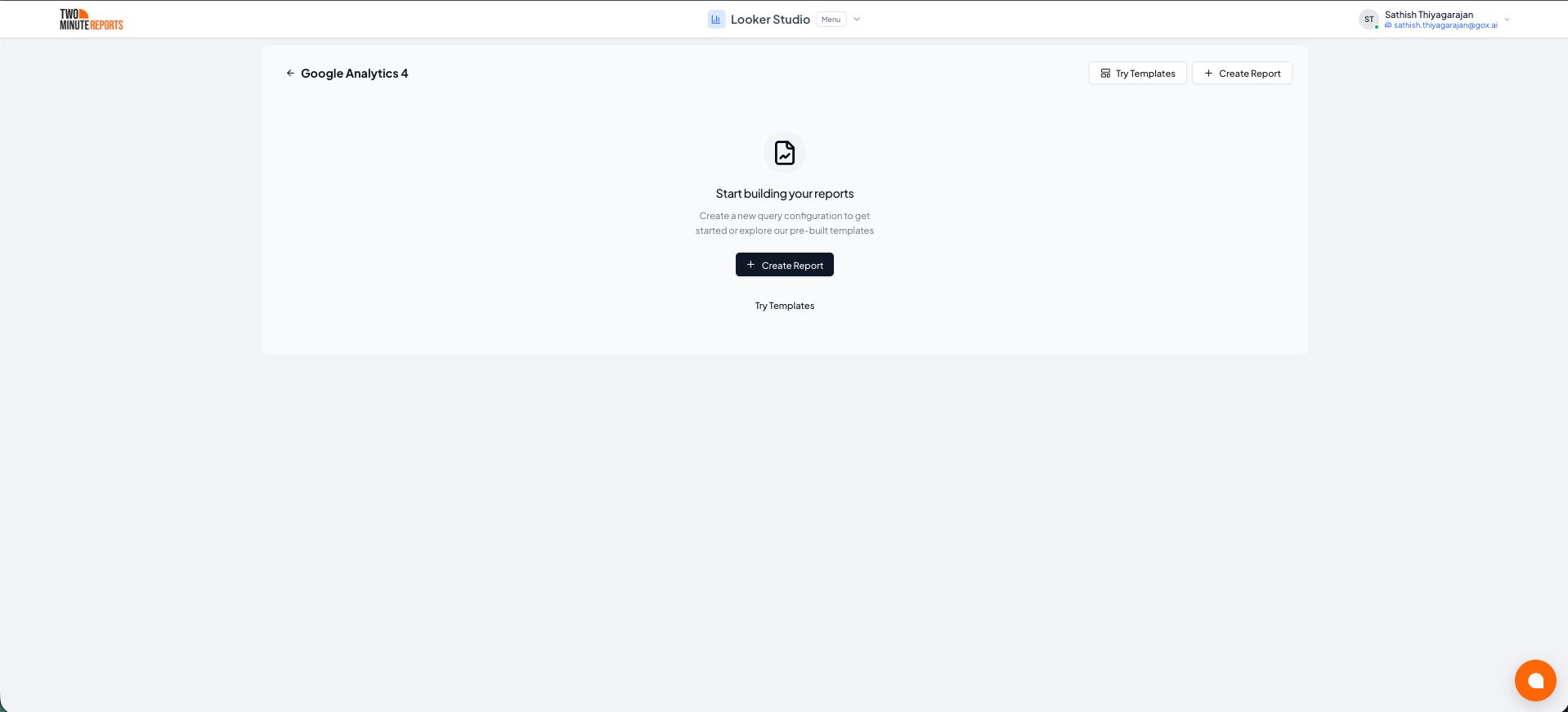
- A query config panel will appear. Do one of the following:
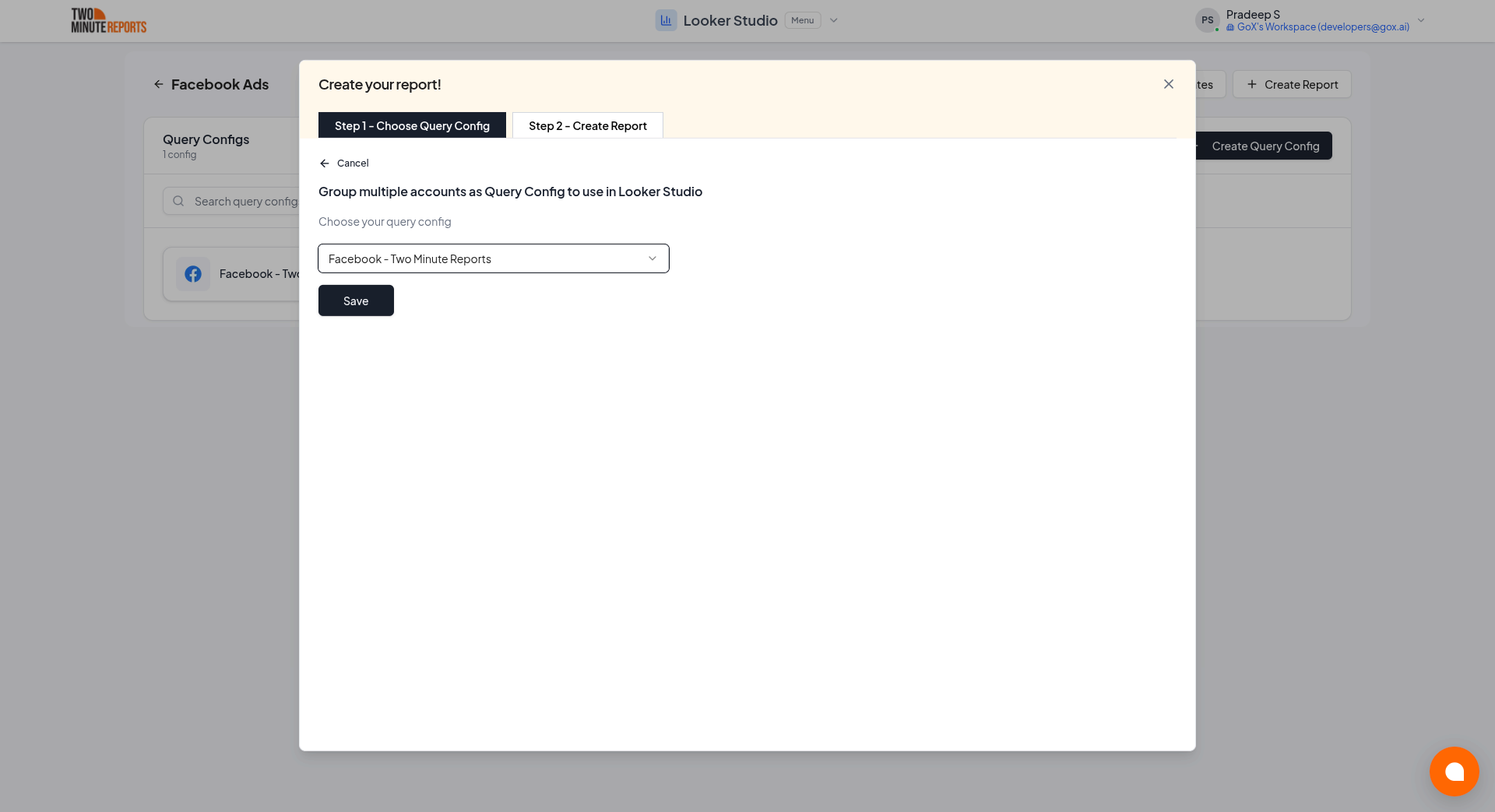
Creating a new query config: Enter a name, select the accounts you want to include from the dropdown, then select Save.
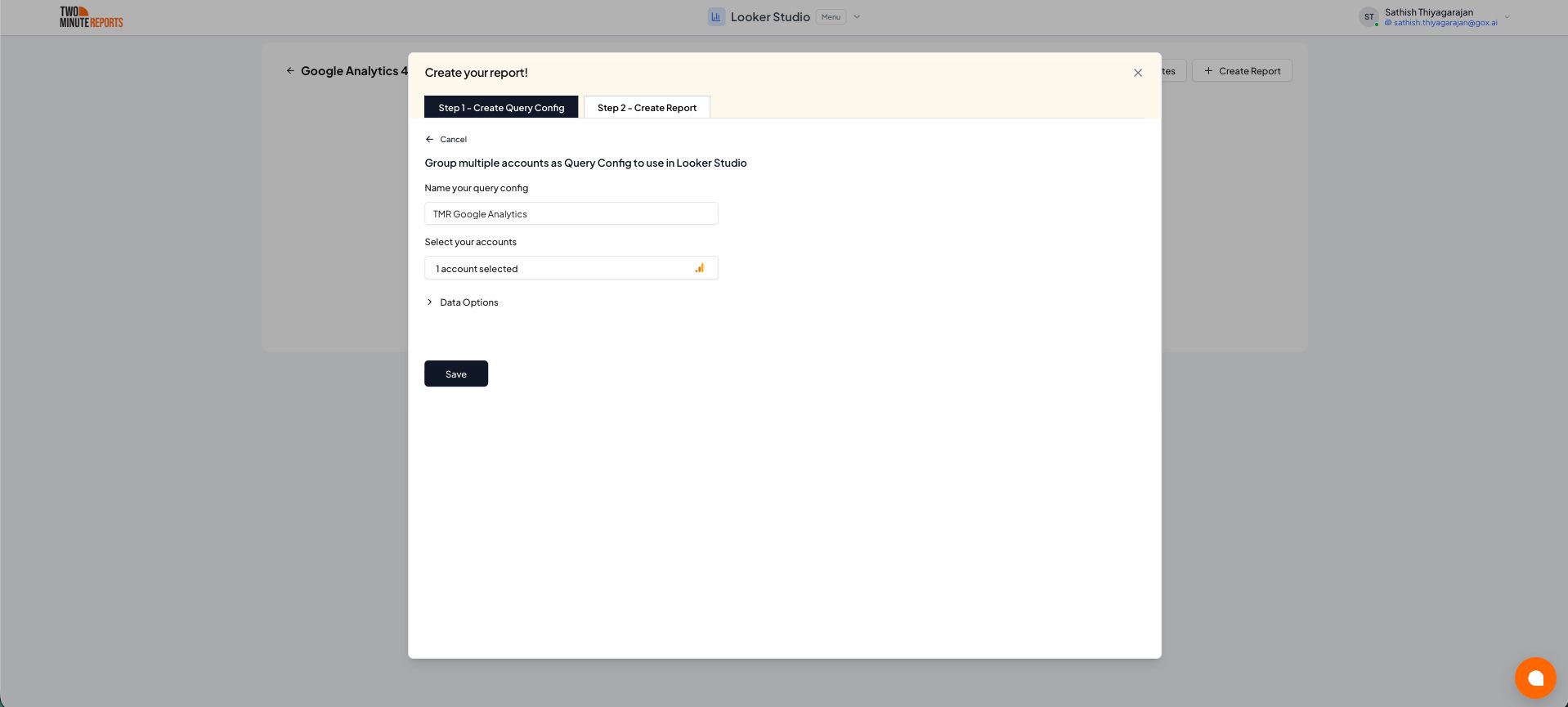
- Choose Create report from scratch to build a custom report, or select one of the pre-built templates to get started quickly.
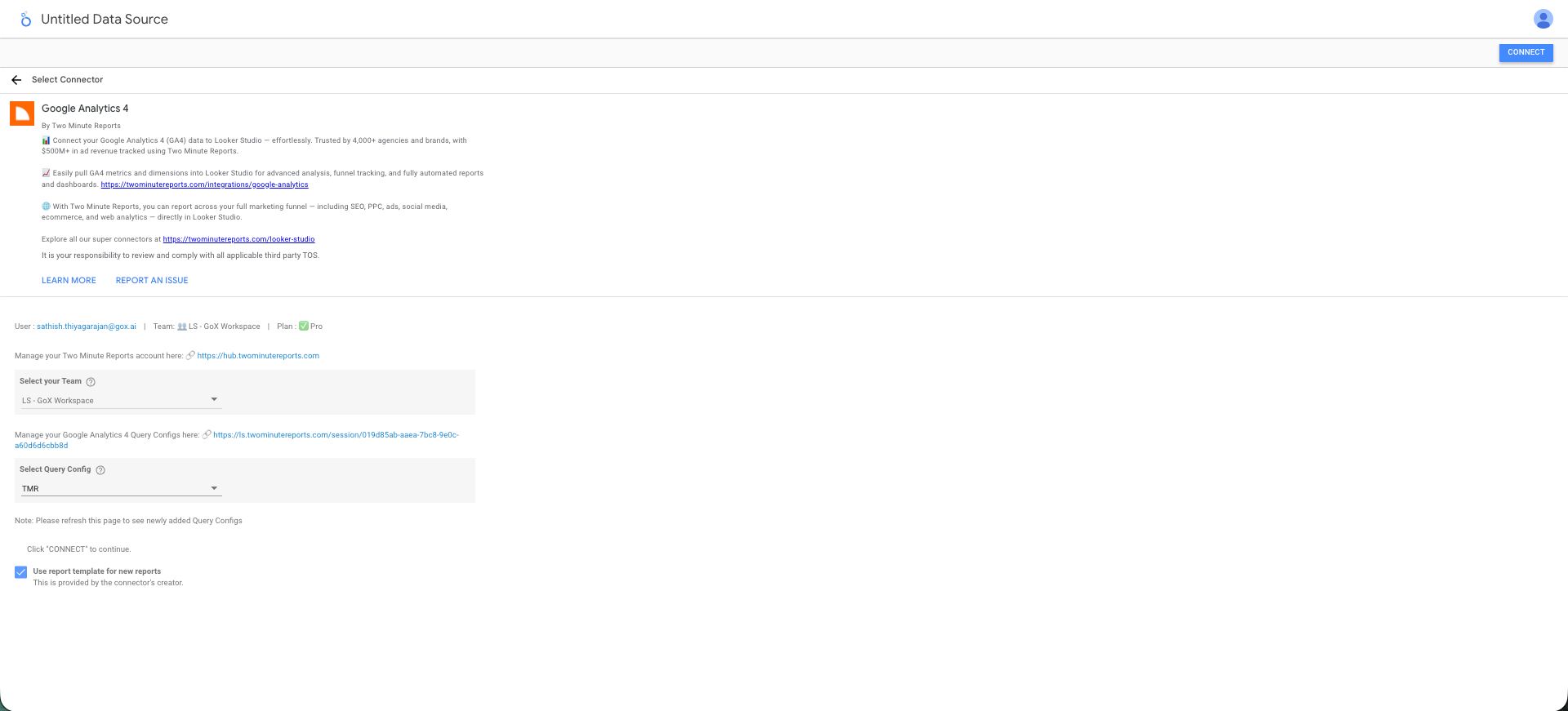
- In the Google Data Studio connector panel, select your team and choose the required query config from the dropdown. Select Connect in the top-right corner.
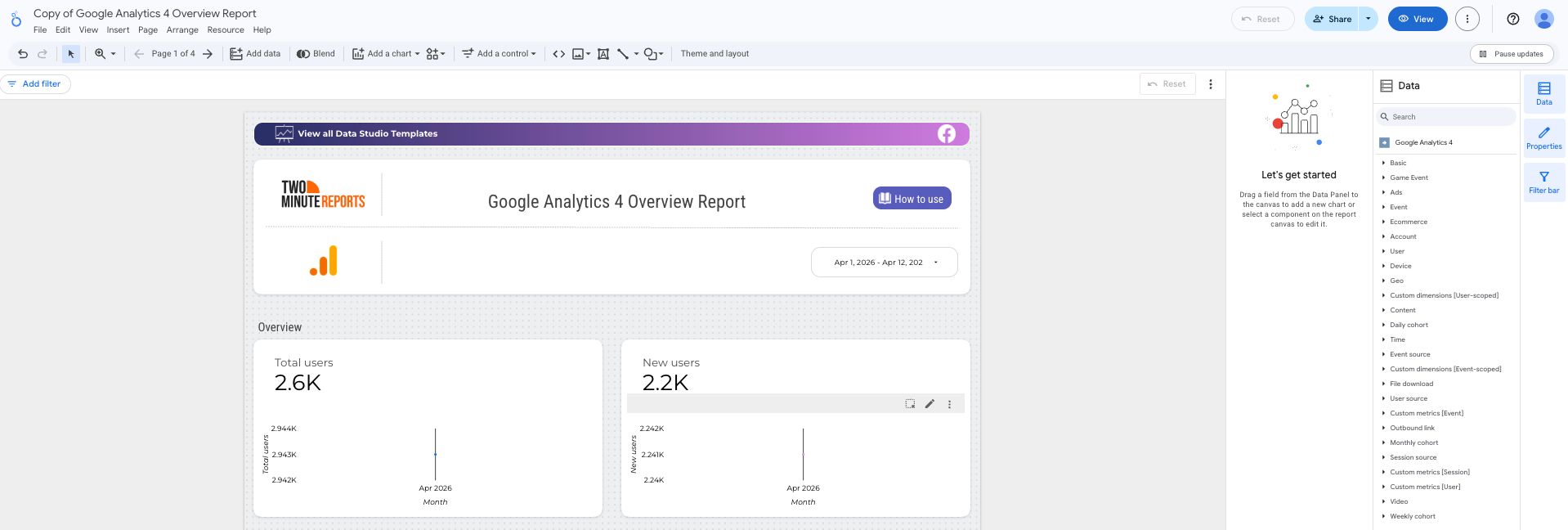
- You'll land on the Google Data Studio dashboard. Drag and drop the available Google Analytics 4 metrics and dimensions onto your canvas to start analyzing your data.
Troubleshooting
Revenue or cost metrics come back as 0
A Google Analytics role can carry a data restriction on top of the role itself: No revenue metrics or No cost metrics. When the account that authorized the connection has one of them, Google Analytics doesn't reject the query. It returns every row and puts 0 in the restricted columns, so the report looks complete and only the restricted fields are wrong.
- No revenue metrics zeroes fields such as Purchase revenue, Revenue, Gross purchase revenue, Item revenue, and Average purchase revenue.
- No cost metrics zeroes fields such as Advertiser ad cost, Advertiser ad cost per click, Advertiser ad cost per key event, and Return on ad spend.
Every other field in the query is unaffected, which is why sessions, users, and key events can match Google Analytics exactly while revenue reads 0 for the same property and date range.
Two Minute Reports flags a run where this happens with a warning that names the zeroed fields, the property, and the connected Google account. The rows are still written to your report, with 0 in the restricted columns.
How to clear the restriction
- Check which Google account the connection uses at https://hub.twominutereports.com/connections.
- In Google Analytics, open Admin.
- Go to Account access management or Property access management, depending on where that account's role is assigned.
- Find the connected Google account in the list and open it.
- Clear the No revenue metrics or No cost metrics data restriction on that account's role, then save. Only an Administrator at that level can change it.
- Run the query again.
If the restricted role can't be changed, authorize a new connection with a Google account whose role carries neither restriction.