

Managing Members
Everything on this page lives in the Hub at hub.twominutereports.com → Settings → Team.
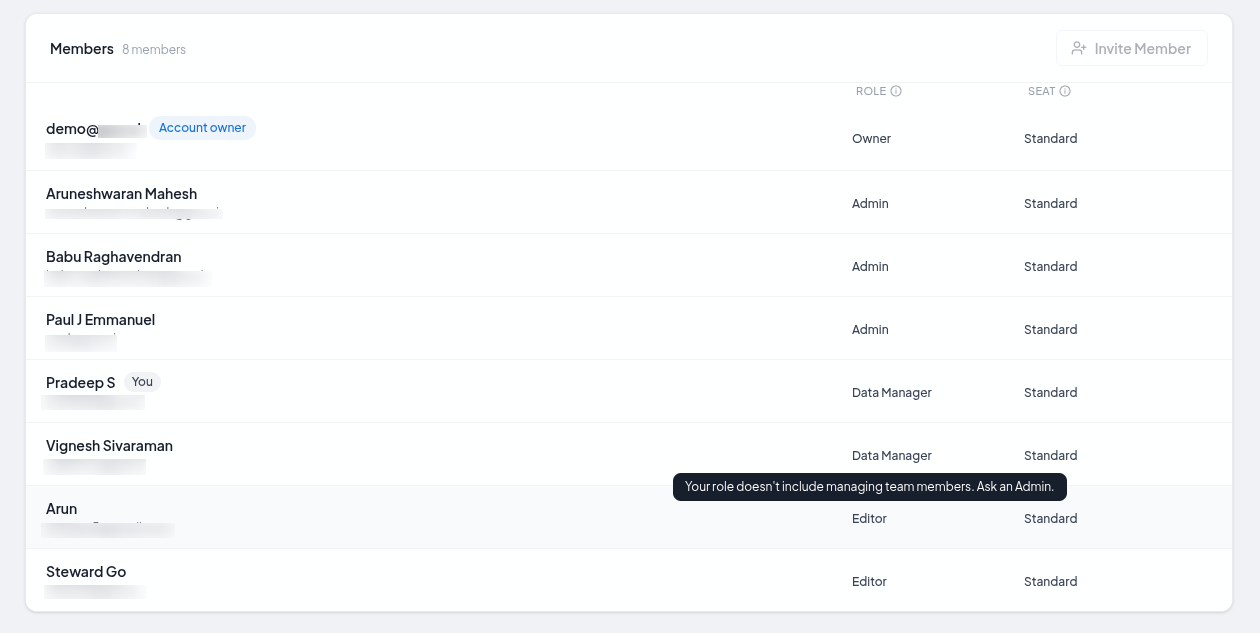
What you can do there depends on your own role. Inviting and re-roling need permissions a Deputy Admin or above holds; assigning seats is separate again. If a control is unavailable, hovering over it says why.
Inviting Someone
- Go to Settings → Team
- Click Invite member
- Enter their email address
- Choose the role they should have — any standard role except Owner, and any of your team's own custom roles
- Click Send invite
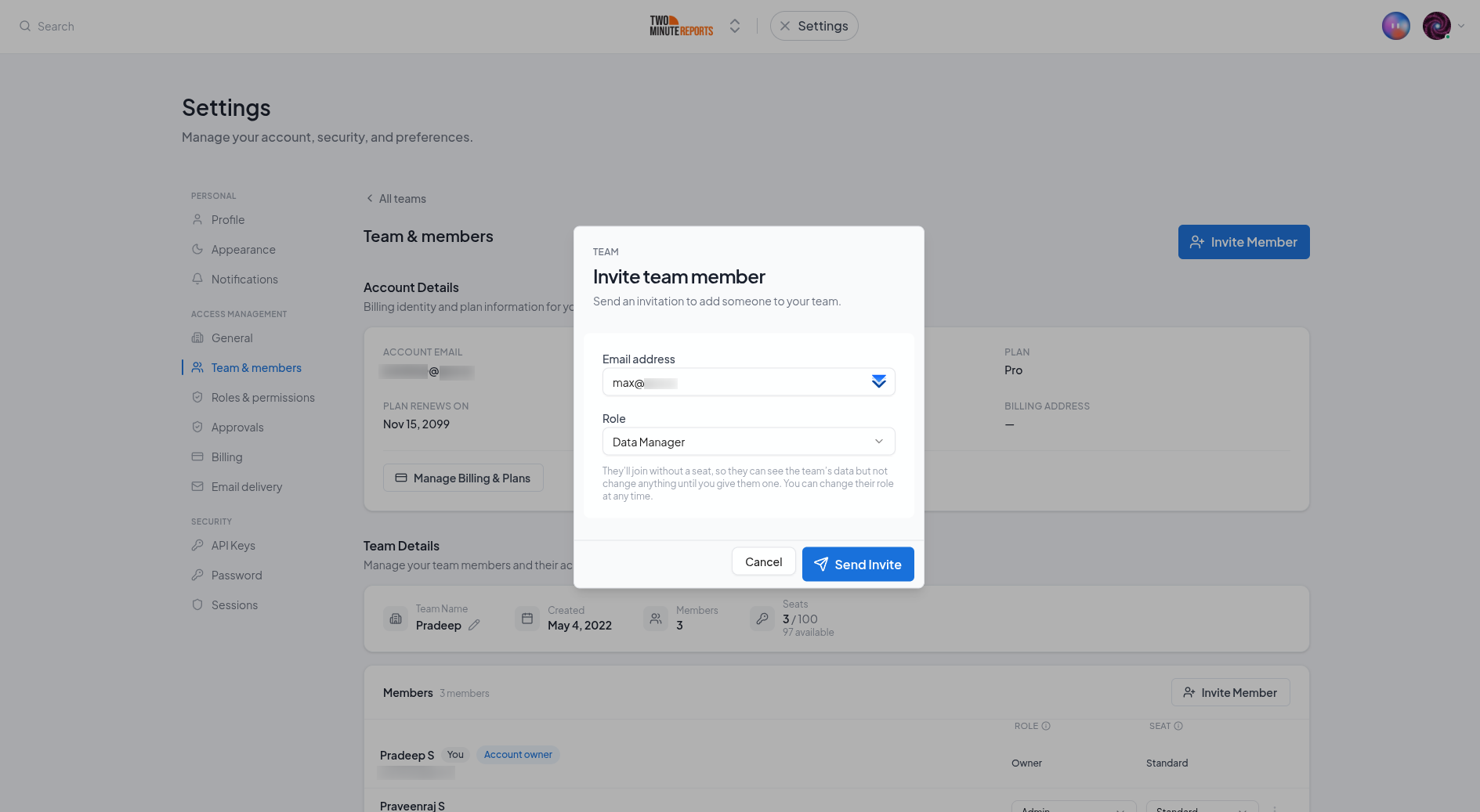
They get an email with a link. Until they accept, they appear under Pending invites, where you can resend or revoke the invitation.
They get a seat automatically, if the team has one free. The invite asks for a seat, and that request is checked again when they accept — a seat that was free when you sent the invite may have been taken by the time they open the link. If one is available they join fully working.
You can only offer a role whose permissions you hold yourself, so the role dropdown may show some options locked. That is the containment rule, and the lock has a tooltip explaining it.
Changing Someone's Role
- Find them in the member list
- Pick a new role from the Role dropdown
- It applies immediately
Three things you cannot do, and each is deliberate:
- You cannot change your own role. Not even to reduce it — the failure mode is the last Admin doing it by accident, after which nobody can undo it.
- You cannot change someone whose role is not smaller than yours. Two Deputy Admins cannot re-role each other, and one Admin cannot change or remove another — Admin and Owner hold the same permissions, so neither is below the other. The account Owner is the exception and can change or remove anybody.
- You cannot give someone a role bigger than your own.
The Owner's row has no role dropdown at all. That role follows the account rather than an assignment — contact support to change who the Owner is.
Assigning and Un-Assigning a Seat
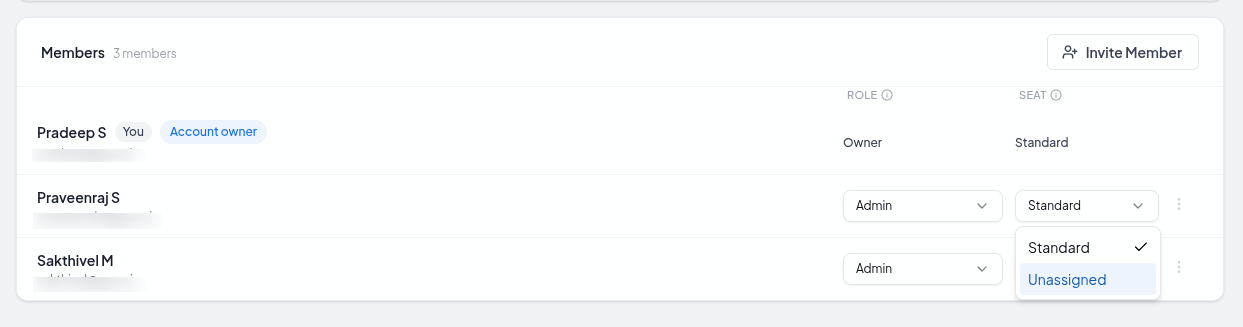
- Find them in the member list
- Set the Seat dropdown to Standard or Unassigned
The Seat column reads Unassigned for a member without one. It takes effect immediately — no sign-out, no waiting.
On Older Plans, Seats Can Run Out
The current plans include unlimited seats, so you can seat as many people as you like and no count is shown.
Some older plans bought before the current lineup carry a fixed seat limit. On one of those, the member list shows how many seats are free, and assigning the last one tells you so. What you can do next depends on your role: if you can change the plan, you are offered the choice of un-assigning someone else's seat or moving to a current plan; if you cannot, the message tells you to ask an Admin — a Deputy Admin can assign seats but cannot change the plan.
What Un-Assigning Actually Does
They keep every read their role allows. They lose the ability to change anything. See Seats for the full surface-by-surface breakdown.
Their scheduled Google Sheets refreshes keep running. A schedule belongs to the team's plan, not to the person who created it, so un-seating somebody never stops a report being delivered.
Removing Someone
- Open the ⋮ menu on their row
- Click Remove from team
- Confirm
Their seat is freed immediately and they lose all access to the team.
You cannot remove yourself, you cannot remove the Owner, and you cannot remove the last remaining Admin — otherwise a team could be left with nobody able to administer it.
What Happens to What They Built
Everything they created stays with the team. Removing a member removes their access, not their work:
| What they made | What happens |
|---|---|
| Dashboards, widgets and themes | Stay, and anyone with the right role can keep editing them |
| Clients, goals, custom fields and initiatives | Stay, unchanged |
| Connections and enabled accounts | Stay connected and keep returning data |
| Google Sheets queries and schedules | Stay, and the schedules keep running |
| Looker Studio query configs | Stay, and keep serving the reports built on them |
| API keys, MCP keys and AI tool connections they created | Stop working — a key carries its holder's permissions, and they no longer have any |
| Their place in the briefing-approval list, if they were an approver | Removed, so the approver count stays accurate |
Removing Versus Un-Seating
If someone is going on leave, or has moved off the account but might come back, un-assign their seat instead of removing them. They keep read access, you get the seat back, and nothing they built is affected.
Remove them when they should no longer see the team's data at all.
Reading the Member List
Each row shows the person's name and email, their role, their seat, whether they have two-factor authentication on, and whether they are the account owner. Your own row is marked You.
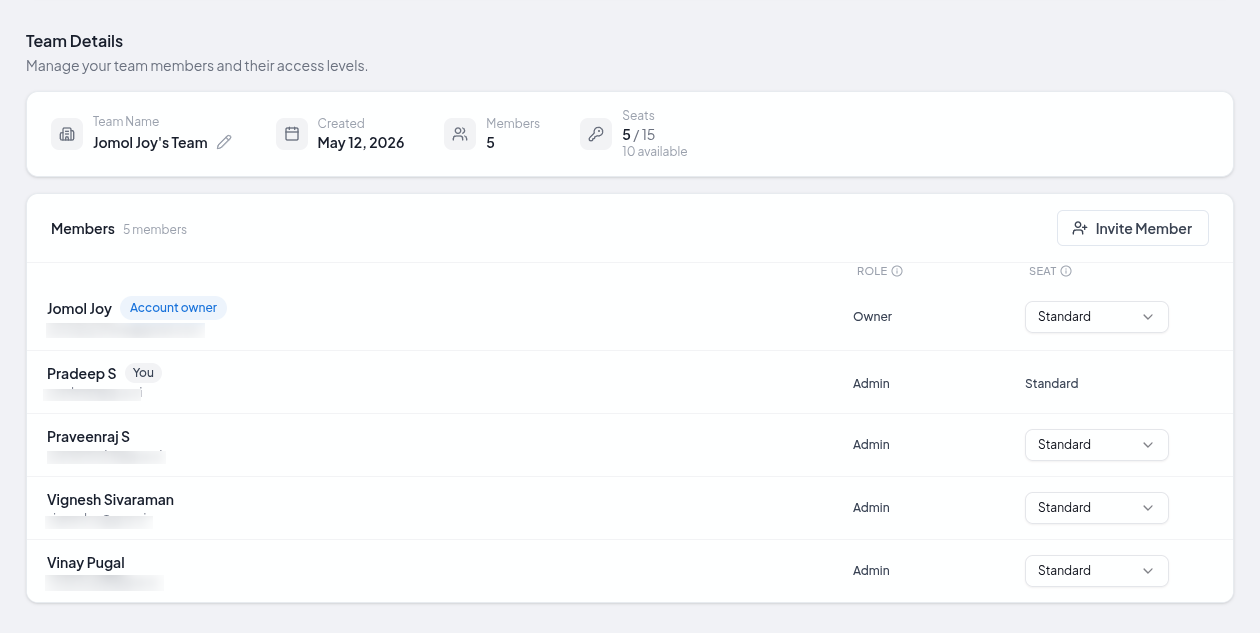
Controls you cannot use are shown disabled rather than hidden, with the reason on hover — so "why can't I change this person's role" has an answer on the screen rather than in a support ticket.
The 2FA Column
The 2FA column shows On for a member who has a passkey or an authenticator app on their account, and Off for one who doesn't. Members with 2FA on are asked for it every time they sign in to the Hub. Pending invites show a dash, because they haven't signed in yet.
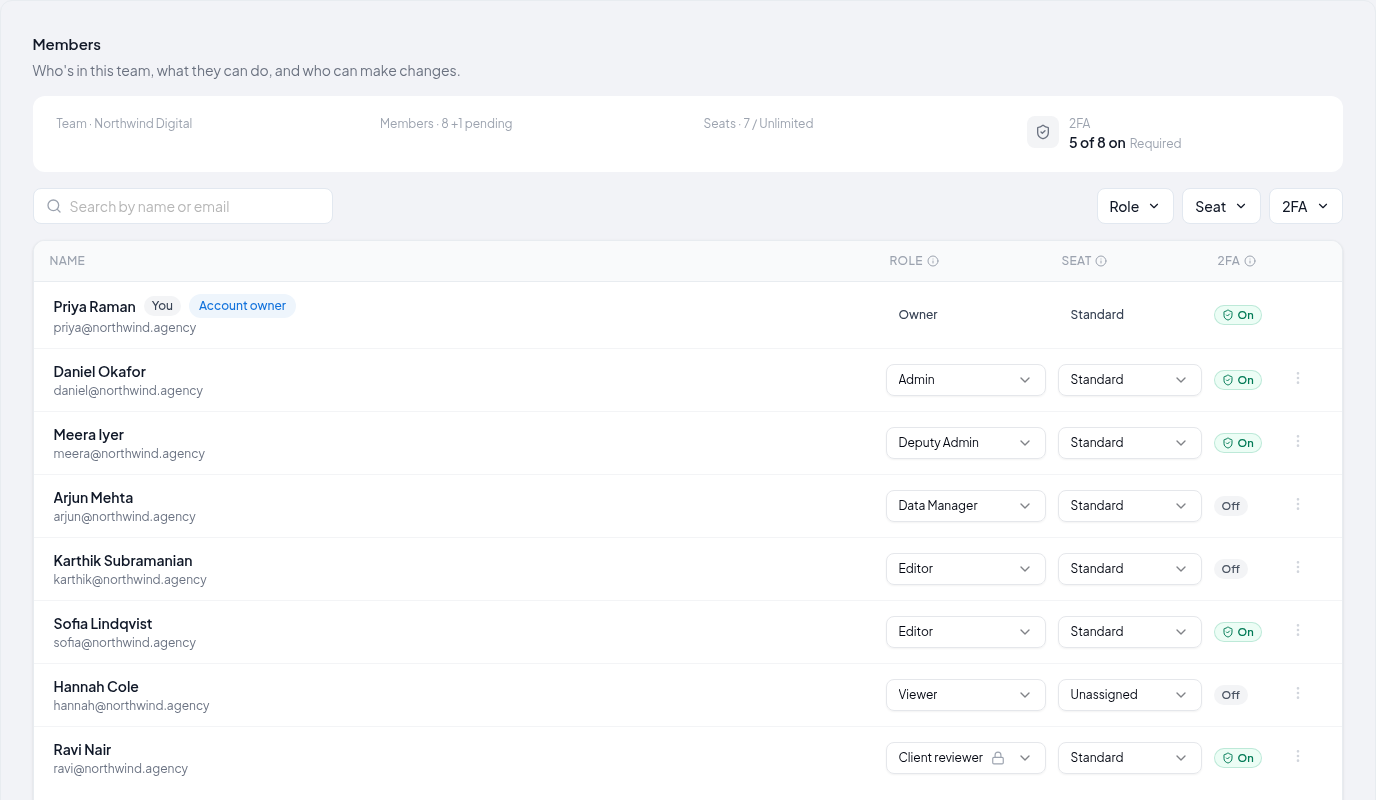
The column appears in every team, whether or not the team requires 2FA, and everyone who can see the member list can see it. The summary above the list counts it too, such as 2FA: 5 of 8 on, marked Required when the team requires two-factor authentication.
Nobody can turn 2FA on or off for someone else. Each member sets it up from their own Settings → Security.
Finding Someone in the List
Searching
Type in Search by name or email above the list. It matches any part of a member's name or email address, and ignores capital letters.
Filtering by Role, Seat and 2FA
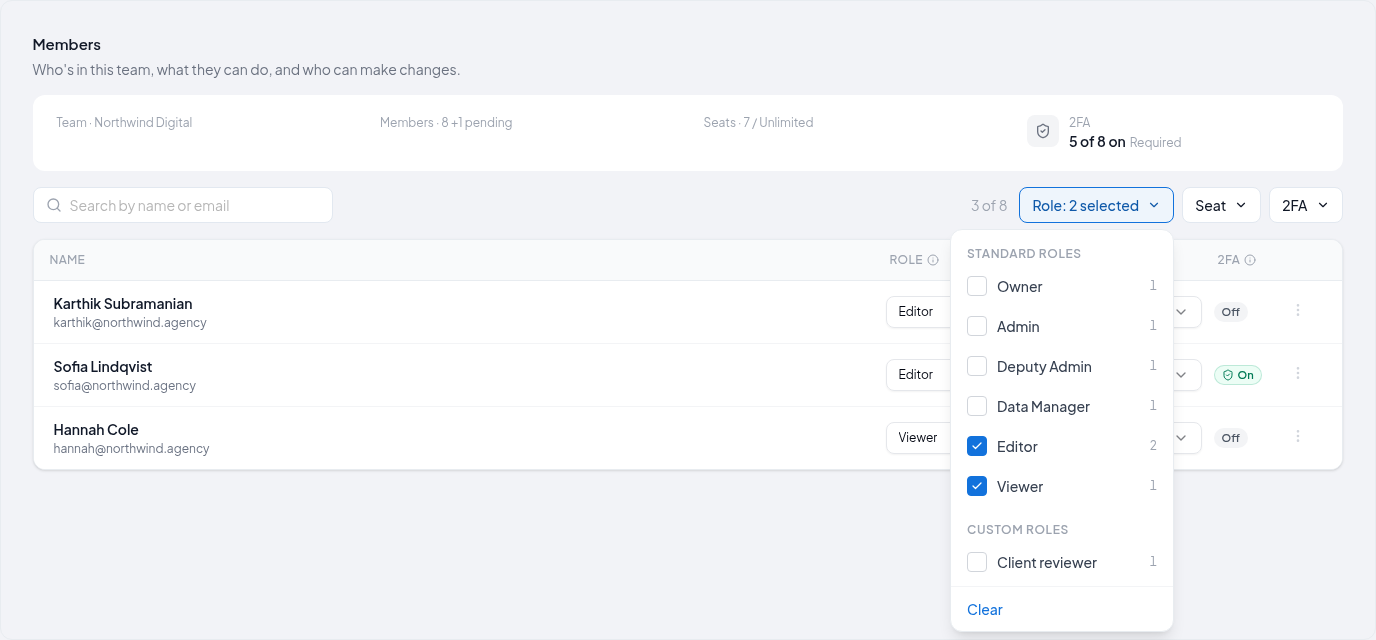
Three filters sit to the right of the search box. Each opens a checklist, with the number of members next to every option, and you can tick more than one:
| Filter | Options |
|---|---|
| Role | The standard roles, then your team's custom roles |
| Seat | Standard and Unassigned |
| 2FA | On and Off |
A filter in use names what it is showing, such as Role: Editor or Role: 2 selected, and Clear at the bottom of its list resets it.
Search and filters combine: 2FA: Off plus Seat: Standard shows seated members who haven't set up 2FA. A count next to the filters says how many members match, such as 3 of 8. While any search or filter is active, pending invites are hidden. If nothing matches, the list says No members match these filters., with Clear filters.
The search and filters are kept in the page address, so you can bookmark a filtered view or send it to a colleague.
Custom Roles
Build a role with exactly the permissions your team needs, and understand the one rule that governs it: you can only grant permissions you hold yourself.
Require Two-Factor Authentication
Make two-factor authentication a requirement for everyone in a team: who can turn it on, the 7-day grace period, what members see, and what happens to API keys, MCP connections and members of several teams.