

Account security
Your Two Minute Reports account reaches your clients' ad accounts, analytics and revenue data. A password on its own, or access to your inbox, is not much of a lock for that. Two-factor authentication (2FA) adds a second step when you sign in to the Hub, so someone who has your password, or has got into your email, still cannot get in.
Everything on these pages lives in the Hub at Settings › Security.
Two-factor authentication in plain words
When 2FA is on, signing in takes two things instead of one: the usual way you sign in (your password, Google, Microsoft or an email code) and something only you have with you. That second thing is one of two methods, and either is a good choice:
- A passkey. Your phone or computer confirms it's you with your fingerprint, your face or your screen lock, the same way you unlock the device. There is nothing to type. Passkeys are saved in a password manager such as iCloud Keychain, Google Password Manager or 1Password, and they cannot be used on a fake sign-in page. See Passkeys.
- An authenticator app. An app on your phone, such as Google Authenticator, Microsoft Authenticator or 1Password, shows a 6-digit code that changes every 30 seconds. You type the code when asked. It works with any computer or browser.
2FA is on as soon as you have at least one of them. You can have both, and you can add more than one passkey. When you set it up you also get ten recovery codes, for the day you cannot use your phone or passkey.
How signing in changes
Once 2FA is on, every way of signing in to the Hub asks for a second step, except a passkey:
| You sign in with | What happens next |
|---|---|
| Your email and password | We ask for your passkey or an authenticator code |
| We ask for your passkey or an authenticator code | |
| Microsoft | We ask for your passkey or an authenticator code |
| An email code | We ask for your passkey or an authenticator code |
| A passkey | You're in. A passkey already checks two things: the device you have, and your fingerprint, face or screen lock |
We ask even when you sign in with Google or Microsoft, because we cannot see whether your Google or Microsoft account has 2FA of its own.
On the second step you can select Don't ask for a second step on this browser for 30 days. Only select it on your own computer. See Trusting a browser.
"Confirm it's you" before sensitive actions
Some actions are worth a second look even when you're already signed in: changing how you sign in, creating an API key, connecting an AI app, changing a team's security setting, or opening billing. Before those, the Hub shows a short Confirm it's you dialog. If you have 2FA, you confirm with your passkey or authenticator app; if you don't, with your password, Google, Microsoft or an email code. See Confirm it's you for the full list.
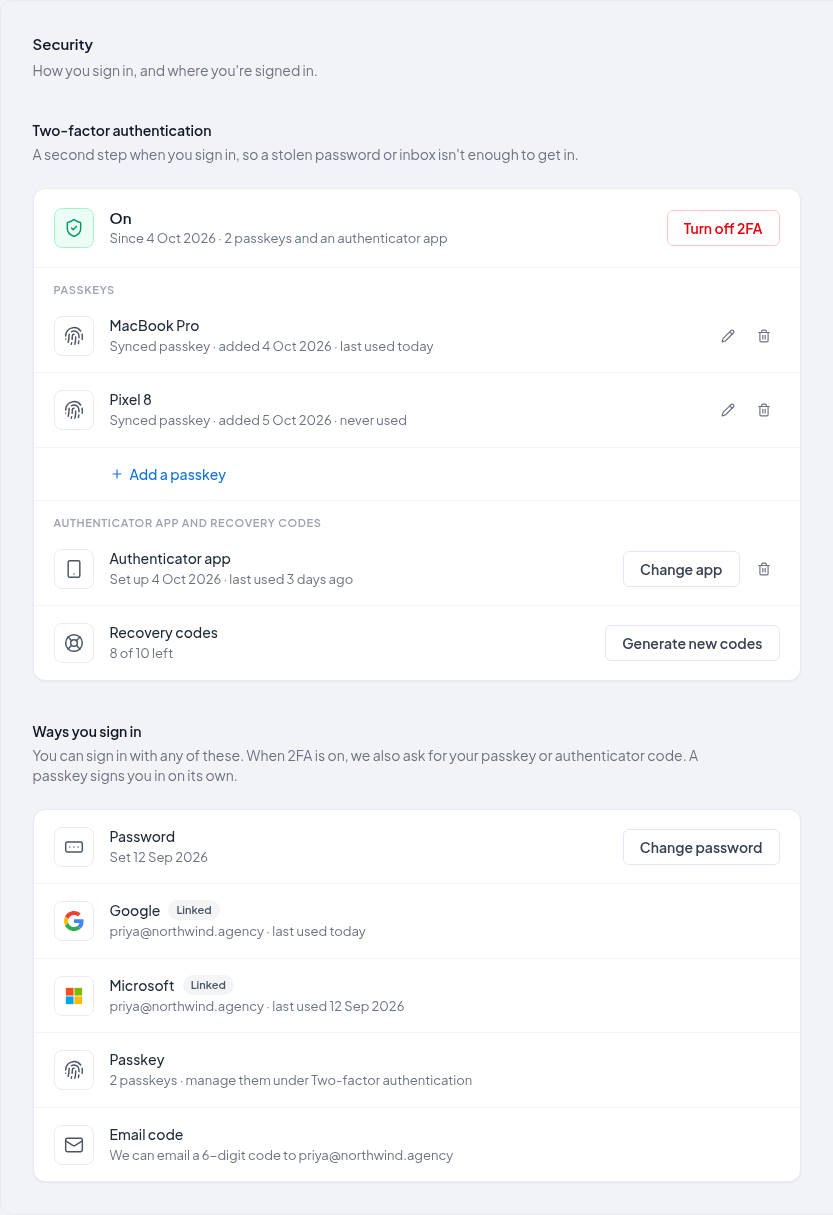
What Settings › Security shows
| Block | What it's for |
|---|---|
| Two-factor authentication | Whether 2FA is on and since when, your passkeys, your authenticator app, and how many recovery codes you have left. Set up 2FA and Turn off 2FA live here |
| Ways you sign in | Every way into your account: password, Google, Microsoft (once you've used it), passkey and email code. Google and Microsoft users can Set a password here |
| Active sessions | Every browser signed in to your account and every connected app, with Sign out of all other browsers. See Active sessions |
What 2FA does not affect
- The Google Sheets add-on and the Google Data Studio connector. Neither uses Hub sign-in, so neither asks for a second step.
- Existing API keys, MCP keys and AI tool connections. They keep working when you turn 2FA on or off.
Security emails
We email you, from [email protected], whenever something changes how your account can be reached: 2FA turned on or off, a method added, removed or changed, new recovery codes, a new password or API key. Each email says when it happened and in which browser. No email ever contains a code, a key or a sign-in link.
The ones you are most likely to see:
| Sent when | |
|---|---|
| Two-factor authentication is on | You add your first passkey or authenticator app |
| A passkey was added to your account | You add another passkey while 2FA is already on |
| Two-factor authentication was turned off | 2FA was turned off, or your last method was removed |
| Two-factor authentication was turned off by support | Support turned off 2FA at your request |
| A recovery code was used to sign in | A recovery code was used, with how many you have left |
| Someone tried to sign in to your account | Someone entered your password correctly, then the wrong second-step code 5 times |
| A password was added to your Two Minute Reports account | A Google or Microsoft user set a password |
| A new API key was created on your Two Minute Reports account | An API key was created on your account. It names the key, never shows it |
If you get one of these and did not do it, change your password and email [email protected].
Requiring 2FA for a whole team
Anyone whose role can change team settings can make 2FA a requirement for everyone in a team. By default, that is the Owner, Admins and Deputy Admins. Members get a week to set it up. See Require two-factor authentication.
In this section
Require two-factor authentication
Make two-factor authentication a requirement for everyone in a team: who can turn it on, the 7-day grace period, what members see, and what happens to API keys, MCP connections and members of several teams.
Two-factor authentication
Turn on two-factor authentication with a passkey or an authenticator app, save your recovery codes, trust a browser, change your authenticator app, or turn 2FA off.