

Lost access to 2FA
If you can't use your passkey or your authenticator app, there are three ways back in, in this order: another method you already have, a recovery code, and, if neither works, our support team.
First: try another method you have
On the Finish signing in screen, select Use another method. It lists every method on your account.
- A passkey saved in a password manager (iCloud Keychain, Google Password Manager, 1Password) is usually on your other devices too. Try your phone, tablet or another computer.
- A passkey on your phone works with any computer: in the browser's passkey window choose Use a phone or tablet and scan the QR code. See Passkeys.
- An authenticator app on a new phone may already have your codes if the app backs them up or syncs them, as Google Authenticator, Microsoft Authenticator and 1Password can.
- A trusted browser, where you selected Don't ask for a second step on this browser for 30 days, signs you in without the second step if that was within the last 30 days.
Sign in with a recovery code
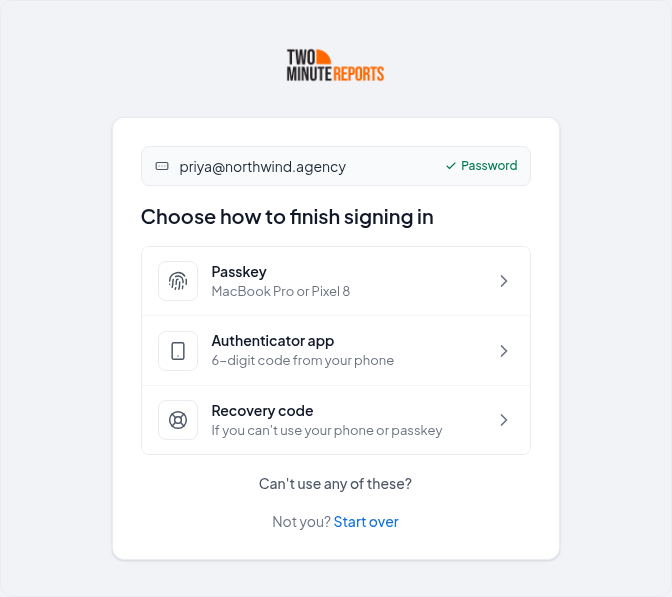
Choose Recovery code
Sign in as usual. On Finish signing in, select Use another method, then Recovery code.
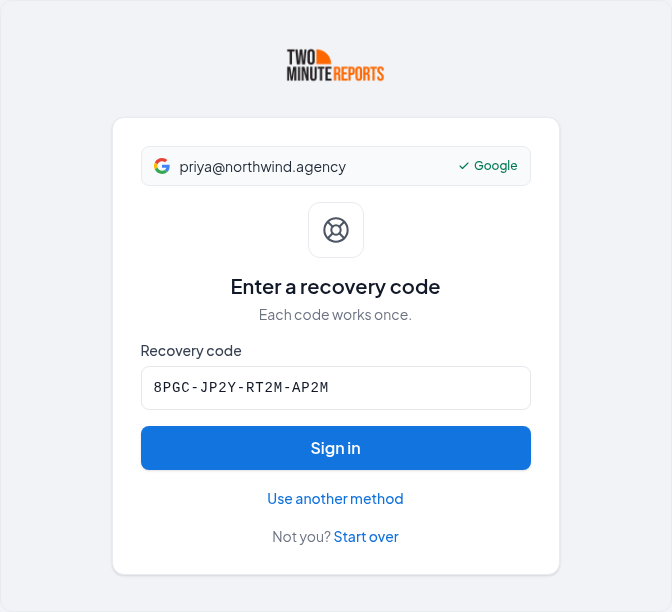
Enter one code
Type one of your recovery codes and select Sign in. Dashes and capital letters don't matter. Each code works once.
Add a new method
The Hub shows You used a recovery code and how many you have left. Select Add a method and set up a new passkey or authenticator app straight away.
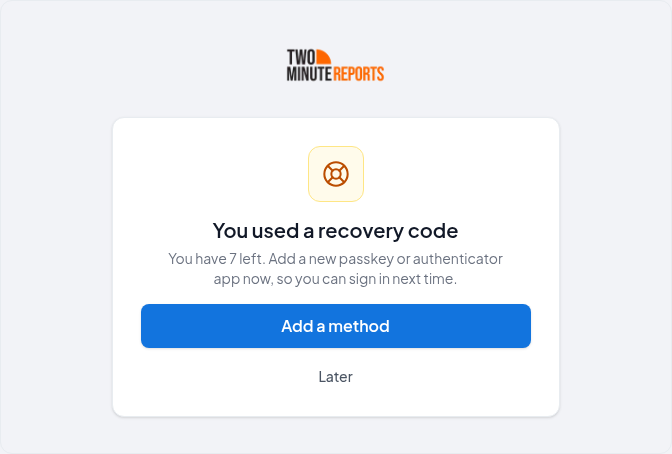
You have 5 minutes after a recovery-code sign-in to add a new method without needing anything else. After that, adding one asks you to confirm with a passkey or authenticator app, which you may not have, so don't select Later unless you have another way in. If the 5 minutes pass, sign out and sign in again with another recovery code.
Then:
- If your authenticator app was on a lost phone, set it up on the new phone with Change app in Settings › Security. A recovery code is accepted to confirm, and codes from the old phone stop working once the new one is verified.
- Generate new recovery codes if you are running low.
- Remove any passkey that was on a lost device, under Passkeys in Settings › Security.
Signing in with a recovery code also forgets every trusted browser, and we email you that a recovery code was used. The second step does not offer to trust the browser when you use a recovery code.
Already signed in somewhere?
If you're still signed in on another browser, you can fix things from there. Two actions in Settings › Security accept a recovery code when the Hub asks you to confirm it's you:
- Change app, to move your authenticator app to a new phone
- Turn off 2FA
When nothing works: ask support
If you can't use your passkey, your authenticator app or a recovery code, select Can't use any of these? on the second step. Our support team can turn off 2FA after checking it's you.
Email us from your account email
Write to [email protected] from the email address you sign in with. A request from any other address can't be acted on.
Give us one more proof
We'll ask for one more proof that it's you, such as signing in with your password or with Google or Microsoft, or using a browser you've signed in from in the last 30 days.
Wait 3 days
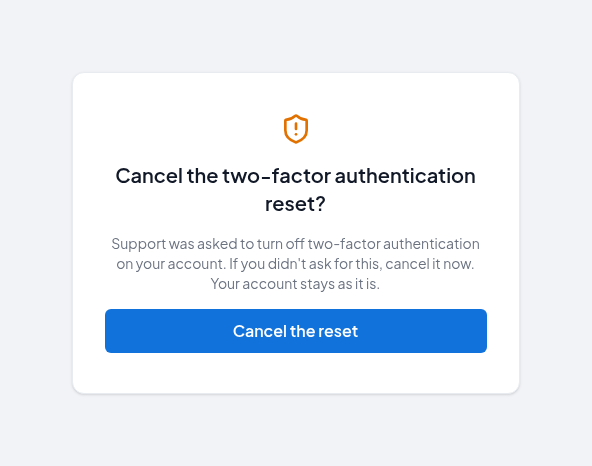
We schedule 2FA to be turned off 3 days later, and email you straight away: Two-factor authentication will be turned off in 3 days. The email has a Cancel the reset link.
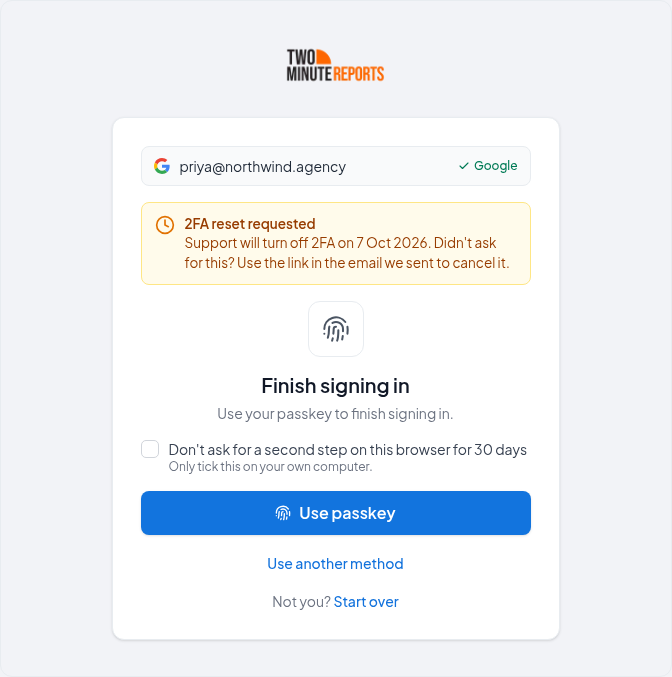
During those 3 days, the second step at sign-in and Settings › Security both show 2FA reset requested, with the date. To cancel the reset, use the link in the email.
When the 3 days are up:
- your passkeys, authenticator app and recovery codes are removed
- every browser is signed out and every trusted browser forgotten
- we email you that two-factor authentication is off, turned off by Two Minute Reports support at your request
You can then sign in with your password, Google, Microsoft or an email code, and set up 2FA again.
Why the wait
Email is the weakest part of most accounts. If someone got into your inbox, they could ask us to turn off your 2FA. The 3 days give the real owner time to notice the email and stop it.
If a team requires 2FA
If you belong to a team that requires two-factor authentication, the next time you open that team the Hub asks you to set 2FA up again before showing it. Your other teams work as normal.
Avoid getting here again
- Save your recovery codes somewhere other than your phone, such as a password manager or a printed copy.
- Have two methods. A passkey and an authenticator app, or passkeys on two devices.
- Use a password manager that syncs passkeys, so a lost phone doesn't take your only passkey with it.
Confirm it's you
Why the Hub asks you to confirm it's you before sensitive actions, which actions trigger it, how long a confirmation lasts, and which methods you can confirm with.
Active sessions
See every browser signed in to your Two Minute Reports account and every connected app, sign one out, or sign out of all other browsers at once.