

Briefings
A briefing is an email to a client. It is how everything you send a client leaves Two Minute Reports, whether that is an update on a dashboard or a note with nothing attached.
Your team writes it, or lets Dash write it. Send it now, at a time you choose, or on a schedule. It goes out from a team member's connected Gmail, so it reads like a person on your team wrote it.
Manage them all on the Briefings page.
What a briefing is about
Every briefing has a source. The source changes what goes in the email.
| Source | What goes in the email | Use it for |
|---|---|---|
| A dashboard | A link your client can open, and a PDF of the dashboard | "Here are this week's numbers" |
| A plain message | Only what you write | A heads-up, a question, an account note |
What you can do
- Email a client about a dashboard, or send a plain message
- Send it once, now or at a time you choose, or on a weekly or monthly schedule
- Let Dash write the email, or write it yourself with fields that fill in when it sends
- Attach a PDF and a link, and choose the period they cover
- Send from any team member's connected Gmail
- See everything still to send, why one is not sending, and the fix for it
- See every email that went out, exactly as it was sent
- Have a team member approve each recurring send before it reaches a client
Before you start
At least one team member must have Gmail connected. Briefings are sent from a connected Google account. Connect one under Settings › Authorized access, on the Send email as you permission.
The composer suggests the contacts of the dashboard's client and your team members. You can also type any address.
Open briefings
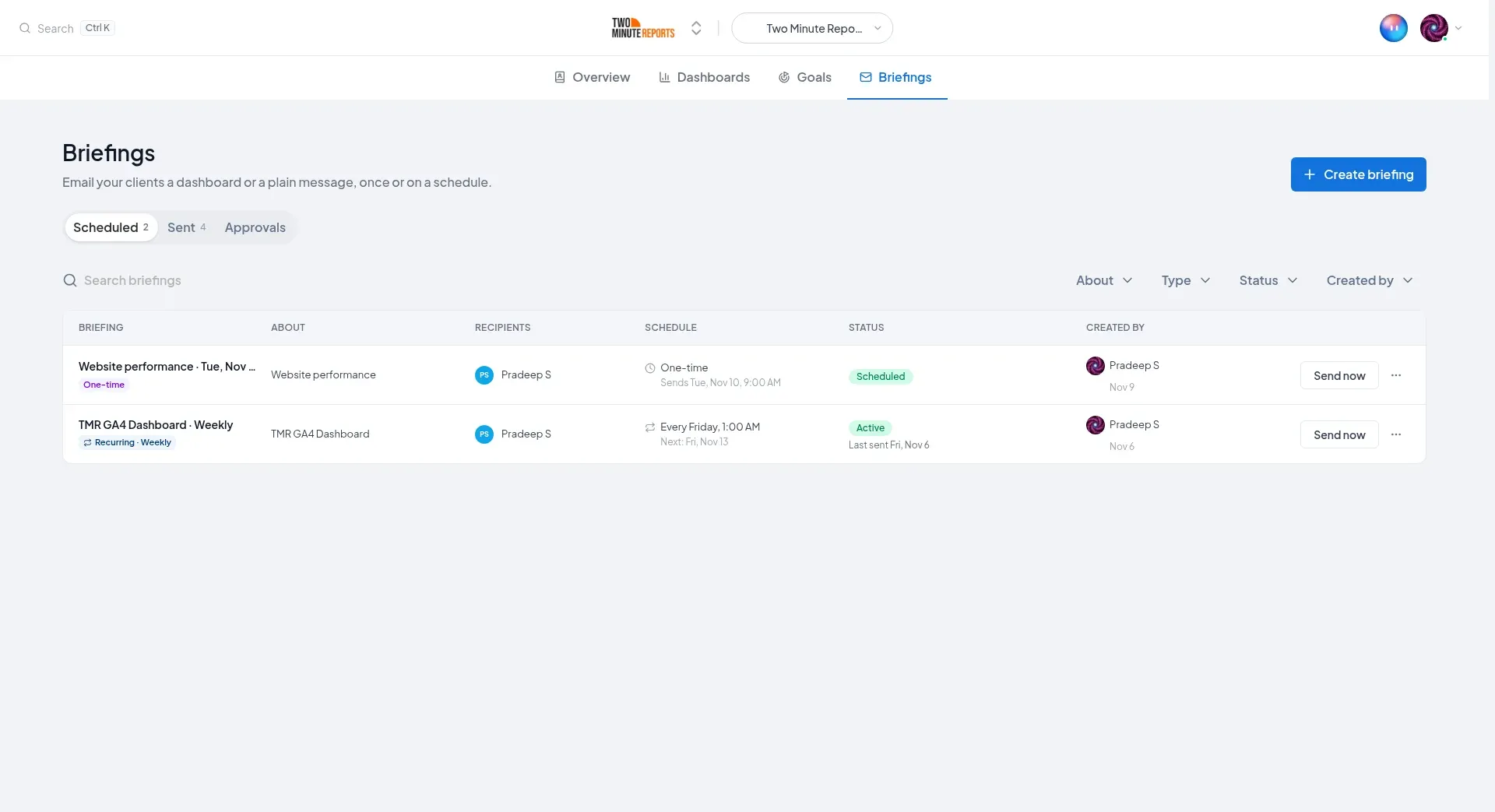
In the menu, open Briefings. The page shows the briefings for the client selected in the client switcher, or for every client when All clients is selected. It has three tabs:
- Scheduled: everything still to send. Recurring briefings, and briefings sent once that have not gone out yet.
- Sent: every email that went out.
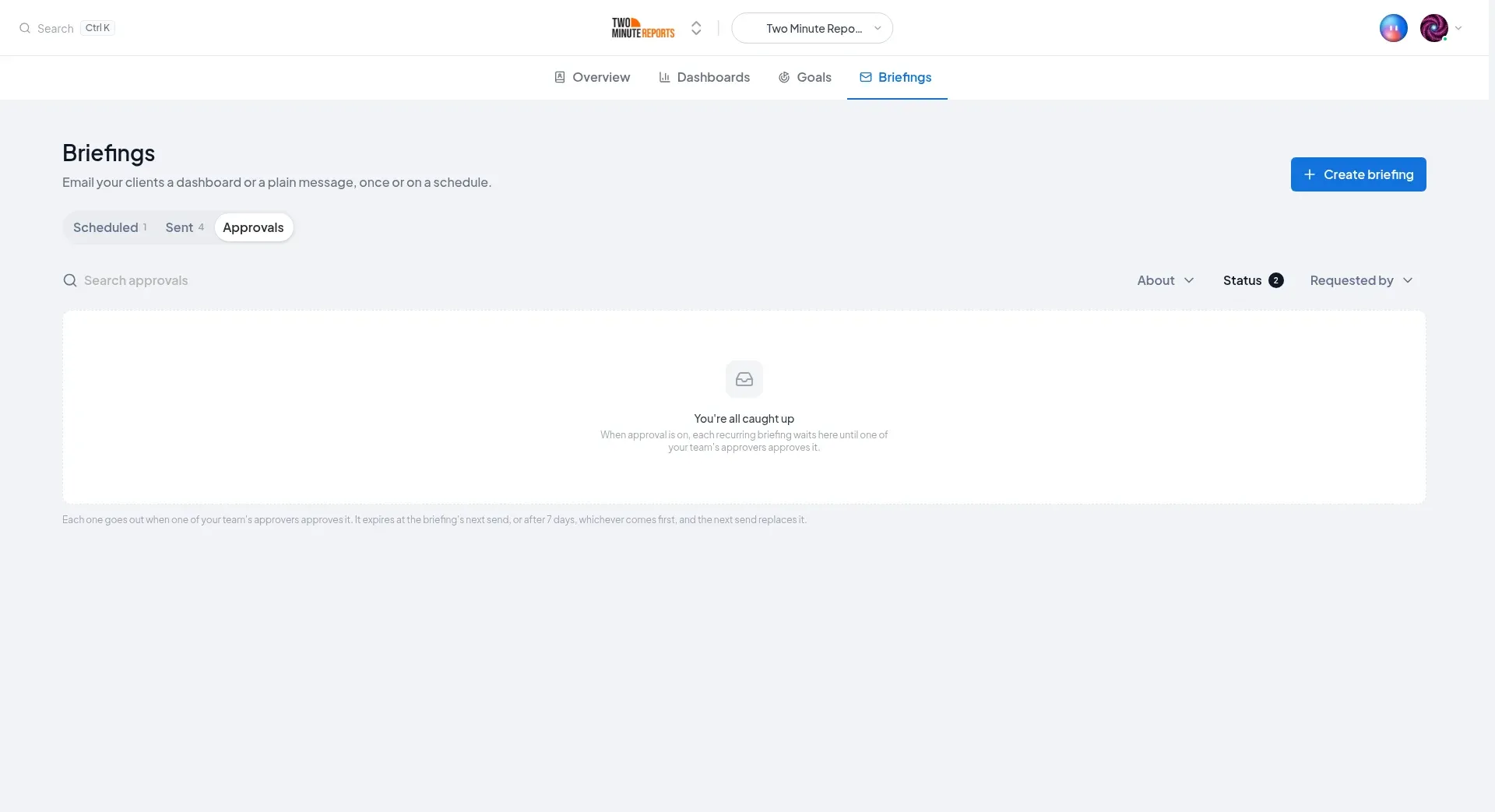
- Approvals: recurring sends that wait for a team member to approve them, when your team requires approval.
Each tab has a search box and filters. On Scheduled, filter by About, Type (Once or Recurring), Status and Created by. With All clients selected, there is also a Client filter.
Start a briefing
There are two ways to start:
- From a dashboard: in the dashboard header, select Send as a briefing (the paper plane icon). The composer opens as Send "{dashboard}" as a briefing, about that dashboard.
- From the Briefings page: select Create briefing, then choose A dashboard or A plain message. For a dashboard, choose which one in the first field.
At the top of the composer, choose Once or Recurring:
- Once: two steps, Compose, then Preview and send. You send it now or at a time you choose.
- Recurring: three steps, Compose, Preview and Schedule. It sends every week or every month.
A saved briefing stays once or recurring. To change it, create a new briefing.
Sender and recipients
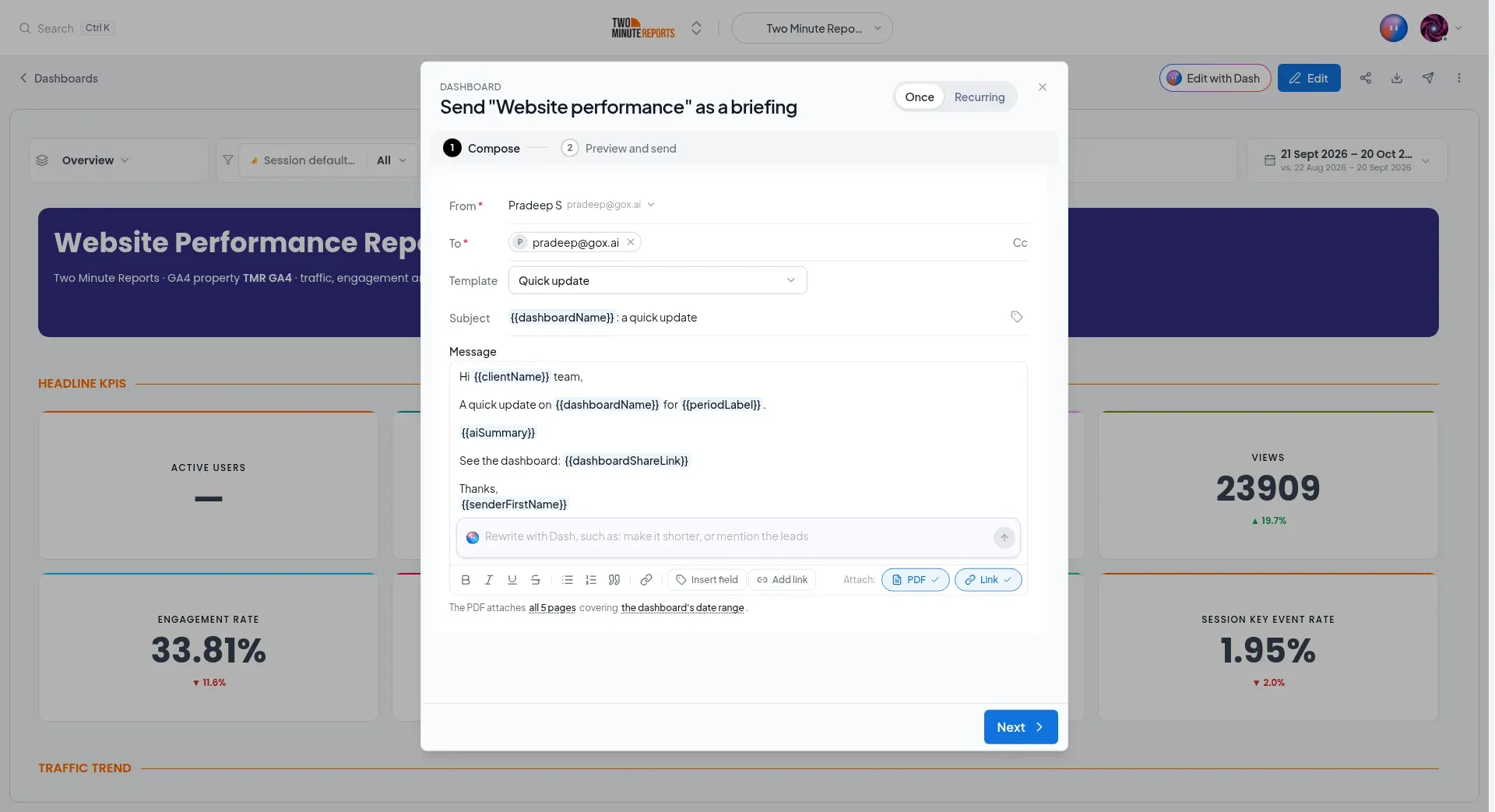
- From: the team member whose Gmail sends the email. You cannot select a team member who has not connected Gmail. The reason shows beside their name.
- To: your client's email addresses. Your client's contacts and your team members are suggested. Press Enter after each address. To copy others, select Cc.
Template, subject and message
Template fills in the subject and the message. A dashboard briefing sent Once starts on Quick update. A recurring one starts on Weekly quick update or Monthly recap, to match how often it sends. You can also choose Executive summary, Wins & watch-outs, Numbers-first snapshot, Goal progress check-in or Warm client note. A recurring plain message gets Check-in, Heads-up and Request. To clear the subject and the message, choose Start blank (no template). If you already changed the text, you confirm first.
Then write the Subject and the Message, and format the text.
On a dashboard briefing, Add link offers two links, each with Copy and Insert:
- Dashboard share link: anyone with it can open the dashboard without signing in, so it is safe to send to clients. When the briefing sends, its recipients get access to the dashboard.
- Hub link (sign-in needed): opens the dashboard in the Hub. Only signed-in team members with access can open it, so do not send it to clients.
Let Dash write it
Under the message is a Dash bar. On an empty message, it is Write with Dash: describe what you want, for example "Summarize this month's performance" or "Highlight the biggest win and one concern", and press Enter. On a written message, it is Rewrite with Dash: describe the change, for example "make it shorter" or "warmer tone".
A recurring plain message has no Dash bar.
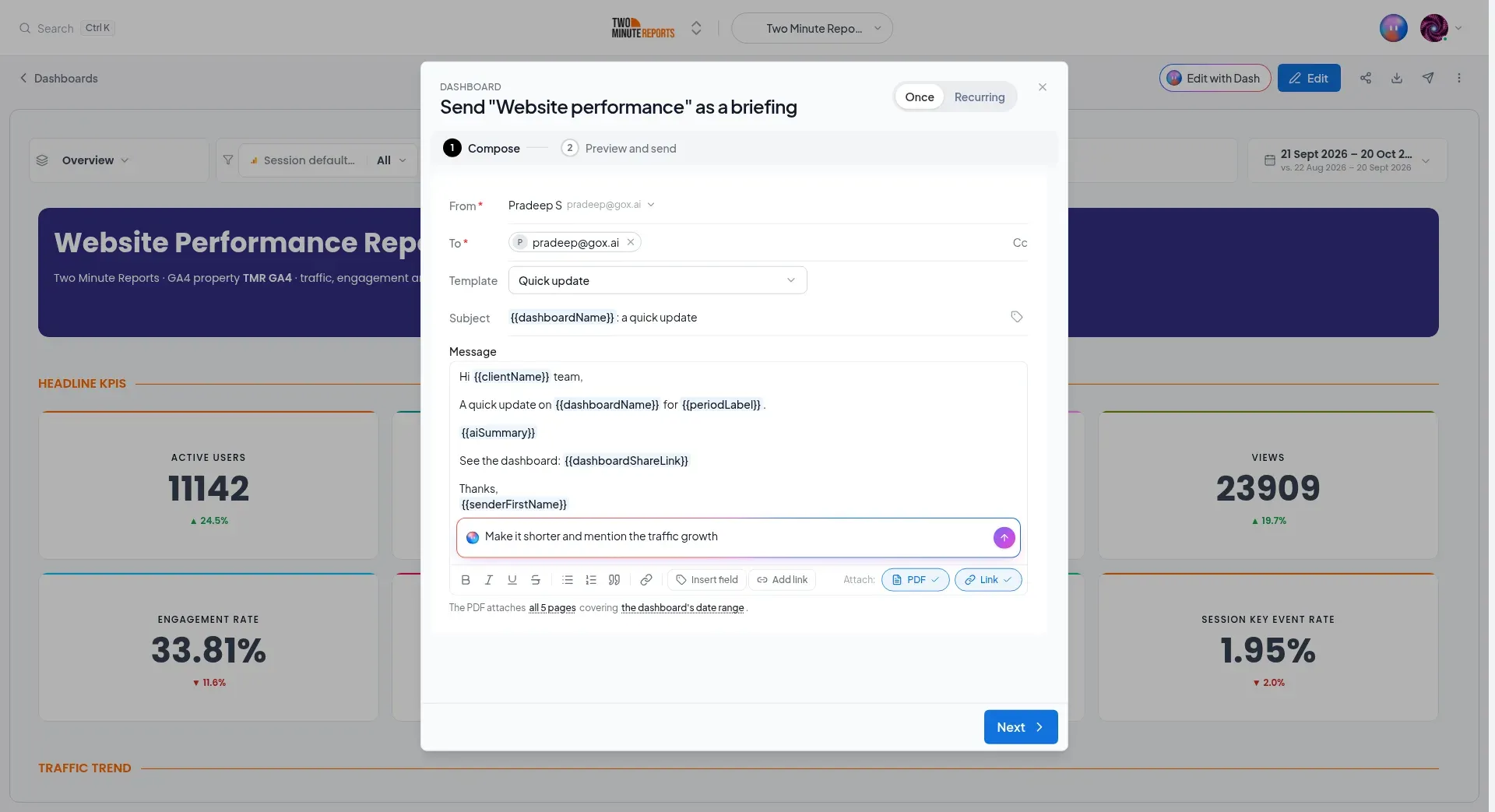
Read what Dash writes before you send it.
Fields
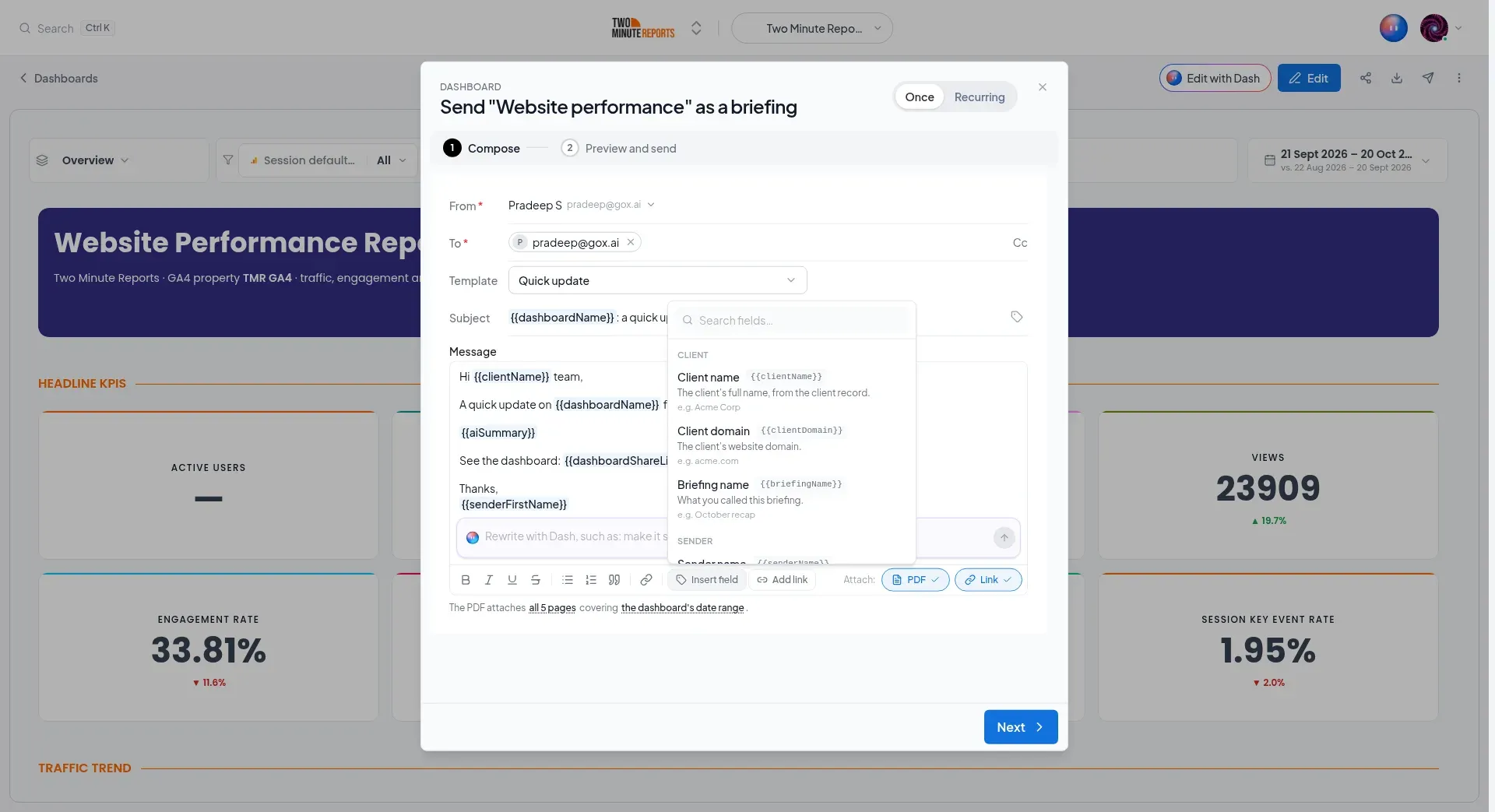
The subject and the message can use fields (merge tags): placeholders that fill in when the email goes, so each recurring email covers its own period. Type {{ or select Insert field, then search or choose a field.
On every briefing
| Field | In the menu | Fills in |
|---|---|---|
{{clientName}} / {{clientDomain}} | Client name / Client domain | The client's name / website domain |
{{briefingName}} | Briefing name | What you called this briefing |
{{senderName}} / {{senderFirstName}} / {{senderEmail}} | Sender name, and so on | Details of the sending team member |
{{sendDate}} / {{sendMonth}} / {{sendYear}} | Send date / Send month / Send year | The day the email goes out, in the briefing's time zone |
On a briefing about a dashboard
| Field | In the menu | Fills in |
|---|---|---|
{{dashboardName}} | Dashboard name | The dashboard's title |
{{dashboardShareLink}} | Dashboard share link | A link anyone can open without signing in |
{{dashboardLink}} | Dashboard link | A link that opens it in the Hub. Recipients need access |
{{periodStart}} / {{periodEnd}} | Period start / Period end | The first and last day of the period |
{{dateRange}} | Date range | The period as one phrase: Jul 1 – Jul 7, 2026 |
{{periodLabel}} | Period label | The period as a phrase for a sentence: the last 7 days |
{{aiSummary}} | AI summary | A short write-up of the figures, written by Dash at each send |
{{aiHighlights}} | AI highlights | The key changes as bullet points, written by Dash at each send |
A plain message has no source, no period and no figures, so it offers only the fields on every briefing. If a dashboard field ends up in a plain message, for example when you copy text, it fills in as nothing. It never shows as {{…}} in your client's email.
Fields accept modifiers: a fallback ({{clientName|"there"}}), a date format ({{sendDate|date:"MMM D, YYYY"}}), or an instruction for Dash ({{aiSummary|"focus on paid search"}}).
Attachment and period
On a dashboard briefing, Attach: has two switches:
- PDF: attach a PDF of the dashboard. On a dashboard with more than one page, select the pages in the sentence below to choose all pages or some of them.
- Link: add the dashboard's share link after the message, if the message does not already have one.
The sentence under the message says what the PDF covers, for example The PDF attaches all 5 pages covering the dashboard's date range. Select the period to change it: The dashboard's date range (on a dashboard briefing), a preset such as Last 7 days or Last month, or Custom range. The period applies to the PDF and to everything Dash writes, so they cover the same dates.
- A briefing sent Once starts on the dashboard's date range: the dates the dashboard shows. If you change it, choose The dashboard's date range to go back. The email's period fields, such as
{{periodLabel}}, name the dashboard's range. If a page in the PDF has its own date range, they stay empty. - A recurring briefing starts on the last 7 days, so each send covers the week before it.
A plain message has nothing to attach.
Preview and test
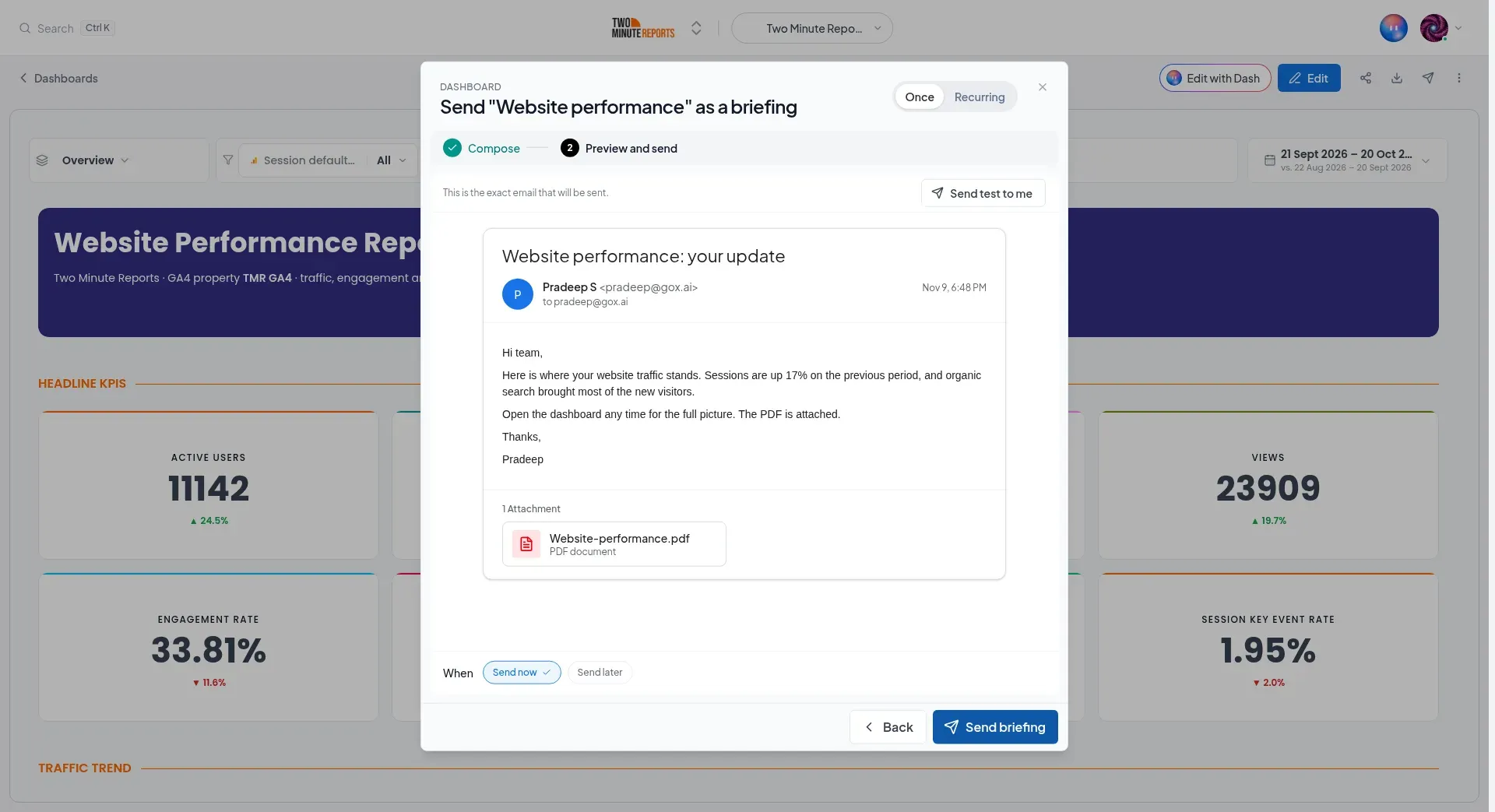
The next step shows the finished email, exactly as your client gets it, with its attachment. Fields that Dash writes are written when the step opens. On a recurring briefing, Dash writes them again at each send, so the preview is a sample.
If Dash can't write a field, the preview says so and nothing is sent. Try again, or write that part of the message yourself.
To send yourself a copy first, select Send test to me.
Send a briefing once
On the Preview and send step, choose When:
- Send now: select Send briefing, then confirm Send now. It shows as Sending… for a minute or two while the attachment is made, then moves to Sent.
- Send later: choose the date, the time and the time zone, then select Schedule send. It starts on the next working day at 9:00 AM. The time must be at least a minute from now, and within a year.
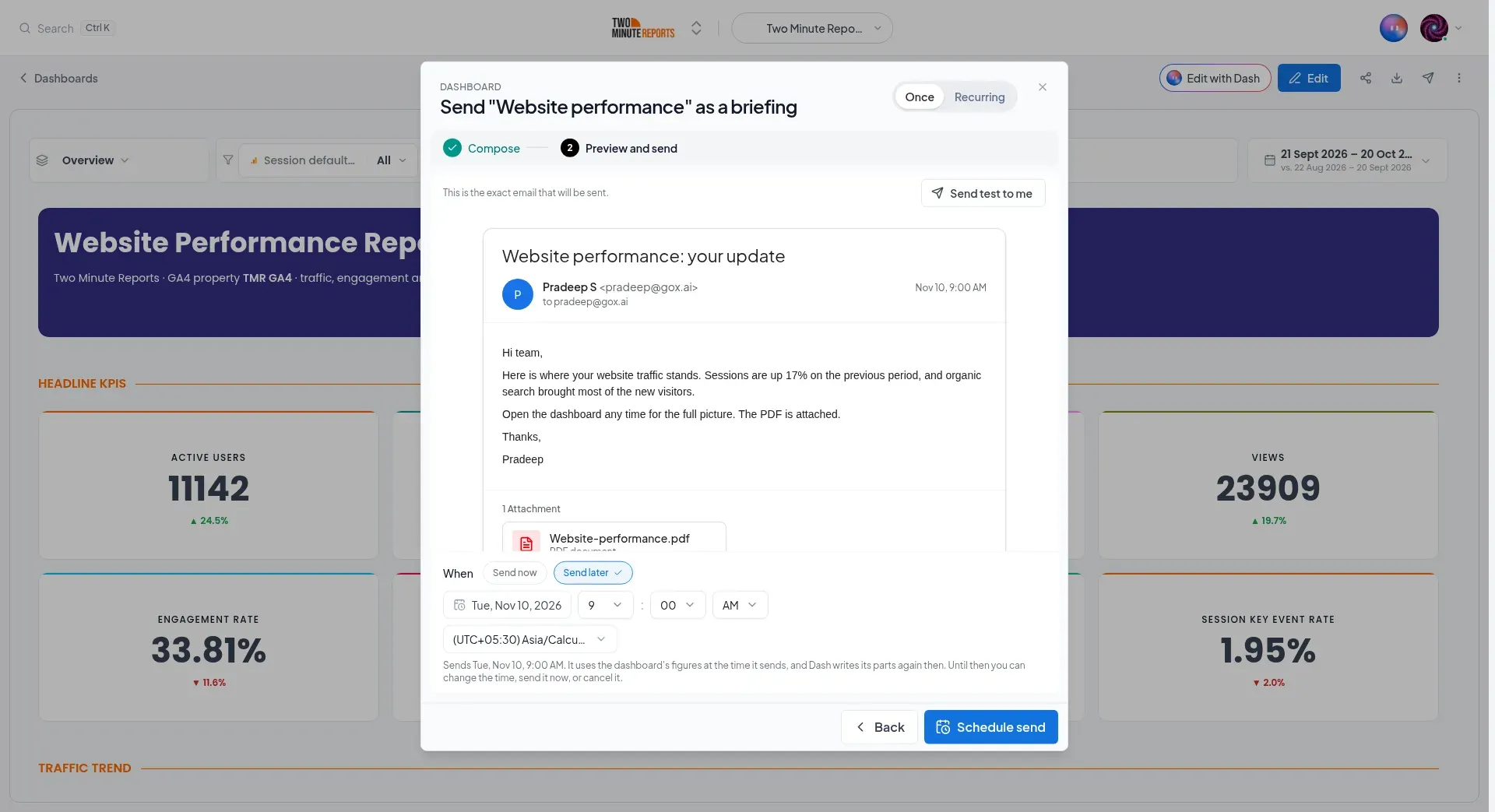
A send set for later shows on the Scheduled tab with the status Scheduled and Sends {date and time}. It uses the dashboard's figures at the time it sends, and Dash writes its parts then. Until then:
- Change the time: select Edit, go to the preview, pick a new time, and select Save changes.
- Send it now instead: select Send now on its row. Or, in Edit, choose Send now instead, then Save and send now.
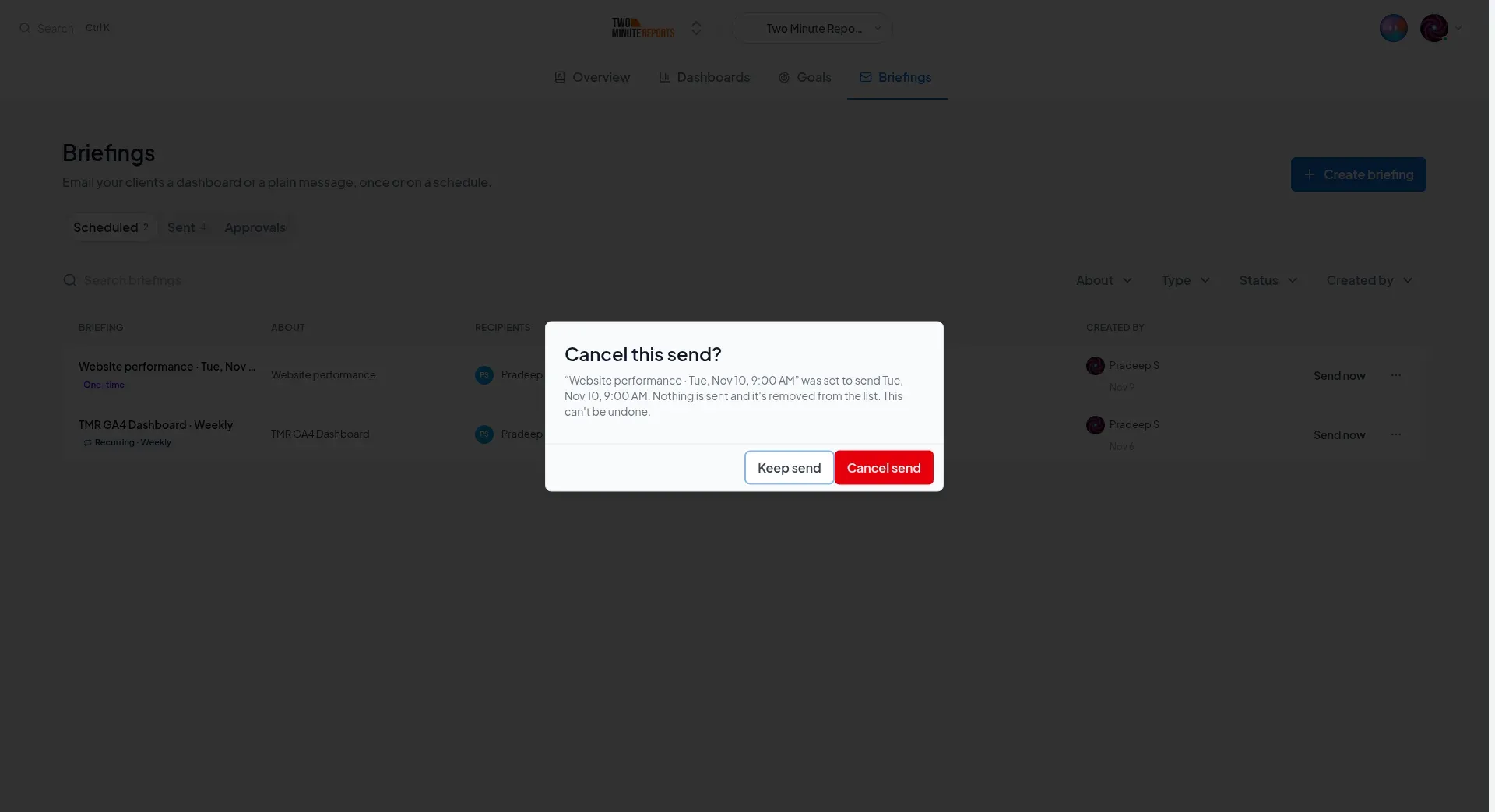
- Cancel it: in the row menu, select Cancel send, then Cancel send again. Nothing is sent and it is removed from the list. Keep send closes the question.
A send set for later never goes early. If it cannot go out within 6 hours of its time, for example during an outage, it is not sent: an email written for Monday morning reads wrong on Tuesday. If a send set for later fails, its author gets an email, even if they did not ask for failure emails.
Send a recurring briefing
On the Schedule step, choose:
- Frequency: Weekly or Monthly
- Day of week (weekly) or Day of month (monthly)
- Time and Time zone
Then select Schedule briefing.
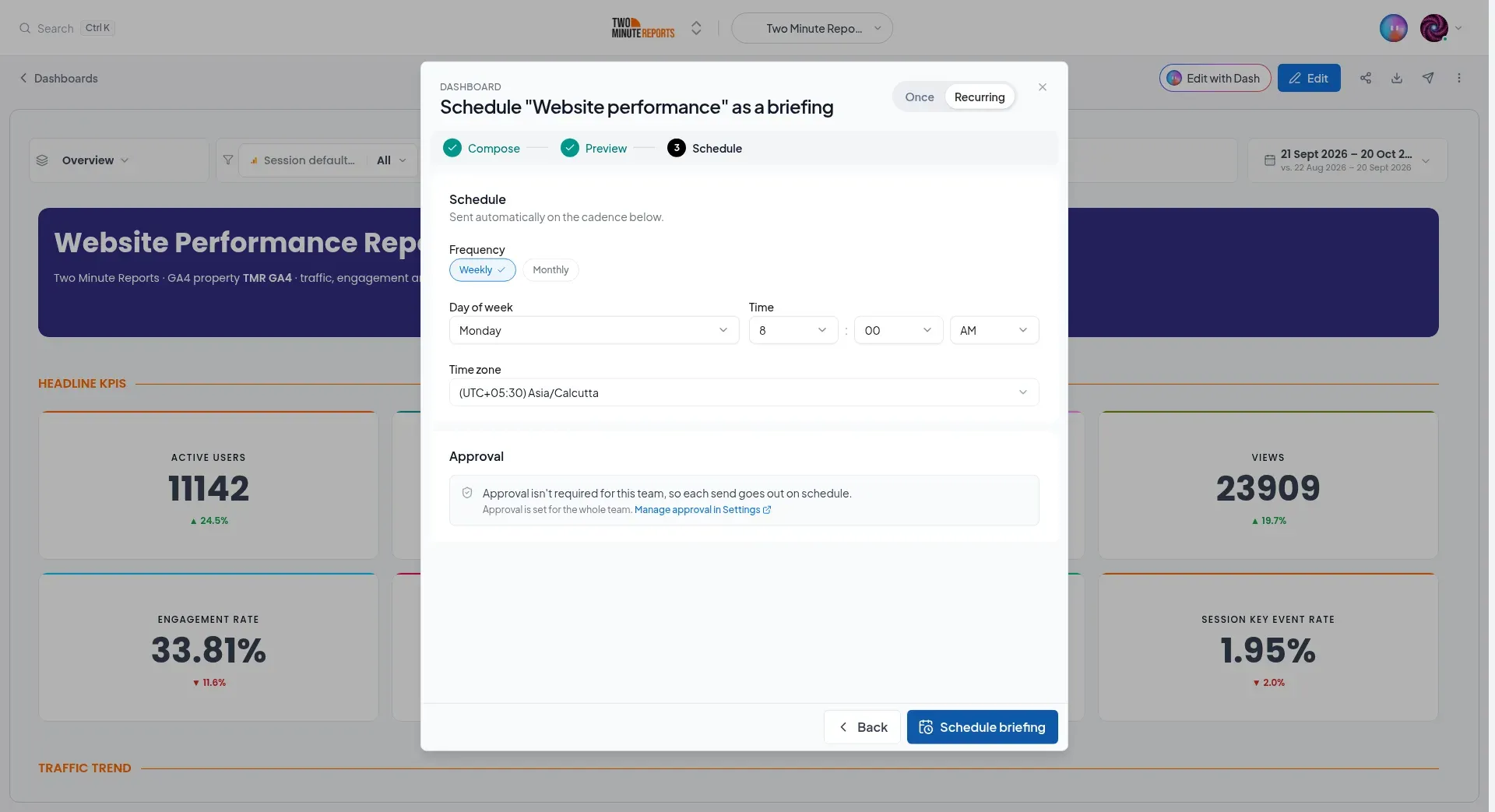
The Approval box on this step says whether your team requires approval. To send a recurring briefing early, select Send now on its row, then confirm. If your team requires approval, that send waits for an approver too.
In the row menu of a recurring briefing:
- Edit: change any part of it.
- View history: every send of this briefing, with its status: Sent, Didn't send, Awaiting approval, Rejected, Approval expired or Skipped, with the reason.
- Pause and Resume: a paused briefing does not send. If a send is awaiting approval or has changes requested, you confirm first: pausing discards it.
- Delete briefing: it stops sending and is deleted. What it already sent stays listed under Sent. You cannot undo it.
When a briefing doesn't send
A send that fails is not retried, so a client never gets the same email twice. A recurring briefing tries again at its next time, and fails again for the same reason until you fix the cause. The Scheduled tab shows each briefing's status, the reason, and the fix.
| Status | What it means |
|---|---|
| Active | Sending on schedule. The line below says when it last went out. |
| Scheduled | A send set for later. The Schedule column says when. |
| Sending… | It is going out now. This usually takes a minute or two. |
| Awaiting approval | It is due, and waits for an approver. See Team approvals. |
| Changes requested | An approver asked for changes. It waits for its author. |
| Last send rejected | An approver rejected the last send. The next send asks again. |
| Didn't send | The last send didn't go out. The line below says why. |
| Won't send | Nothing has failed yet, but the next send will not go out as things are. |
| Paused | It will not send until you resume it. |
| Reason | Fix |
|---|---|
| The sender hasn't connected Gmail, or the sender's Gmail access needs reconnecting | Connect Gmail if you are the sender, which opens Settings › Authorized access. Otherwise, Change sender |
| The person this sends from has left the team | Change sender, and pick a team member with Gmail connected |
| There's nobody to send this to | Add recipients |
| Approval is on, but nobody can approve | Add approver, which opens Settings › Preferences |
| Your plan isn't active, so briefings don't send | View plans |
| The dashboard this briefing is about was deleted | Delete the briefing, or create a new one |
| An approver asked for changes | Make the changes, then resubmit it |
| The last send was rejected | Send now sends a new one for review |
| The last send didn't go out | Send now on a recurring briefing, Send again on one sent once |
View history says why a send failed, for example The PDF of this dashboard couldn't be made, so the briefing wasn't sent. or Dash couldn't write the summary, so it wasn't sent.
Home also shows a briefing that isn't sending under Needs your attention, with Open briefing.
The Sent tab
Every email that went out, once and recurring. Under each time, it says how it went out: On schedule, Sent early by a team member, or Sent by its author for a briefing sent once. A send that waited for approval also says Approved by or Approved with edits by the approver.
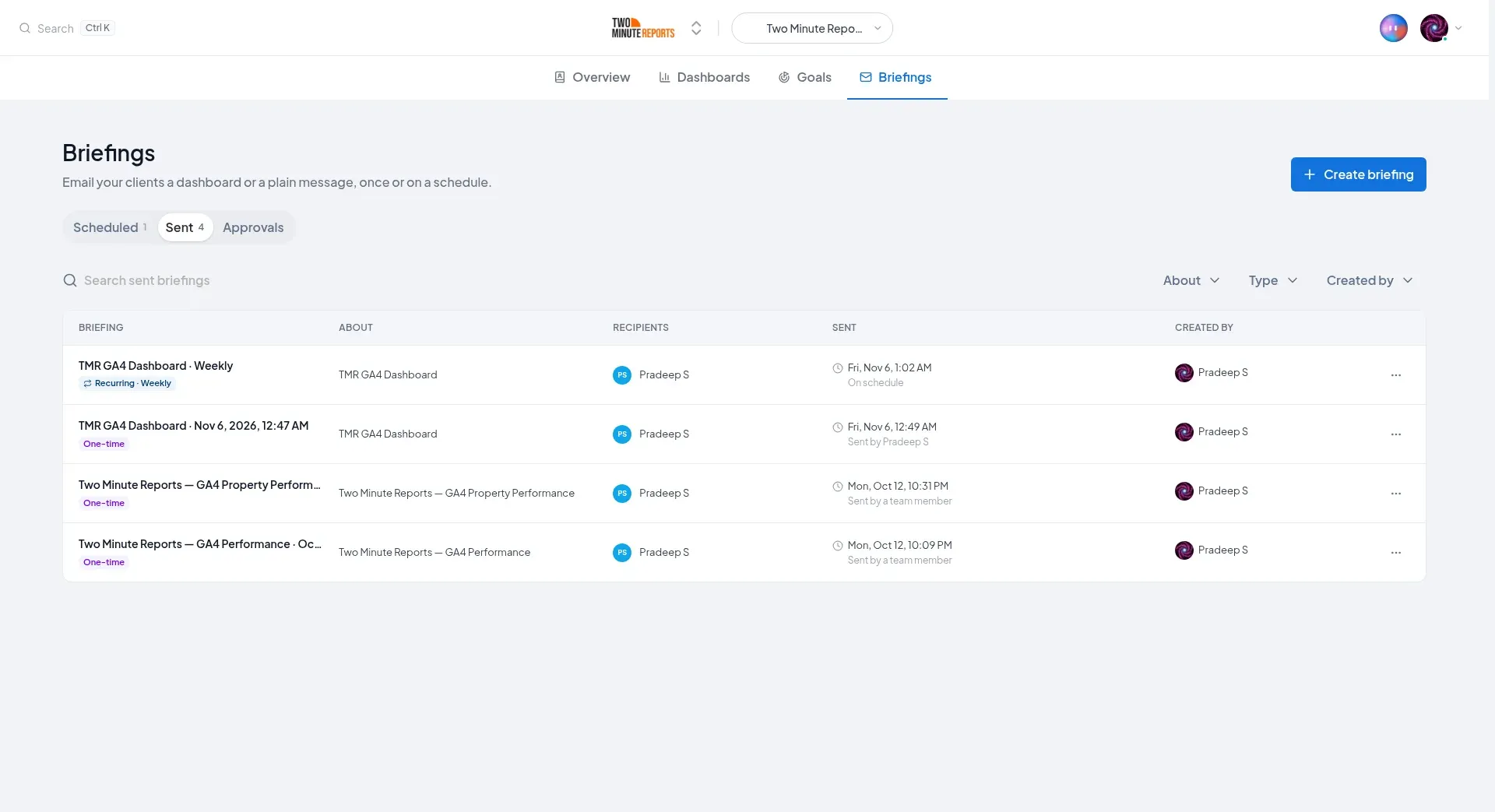
Select View email in an entry's menu to see the exact email that went out: the subject, the message as its recipients read it, who it went to, and the attachment.
From a dashboard, open the menu (⋮) and select Sent and scheduled to see the briefings about that dashboard only, with a Scheduled tab and a Sent tab.
Team approvals
You can require a team member to approve each recurring send before it reaches a client. This is a team-wide policy, not a setting on each briefing.
- Recurring briefings are held, about a dashboard or a plain message. This includes Send now on a recurring briefing.
- Briefings sent once are never held, sent now or later. The person who sends one has just reviewed it.
Turn on approvals
- Open Settings › Preferences.
- Under Briefings, in Approvals, turn on Require approval before sending.
- Under Approvers, select the team members who can approve. Members whose role can create and edit briefings, and who have a seat, are listed.
- Select Save settings.
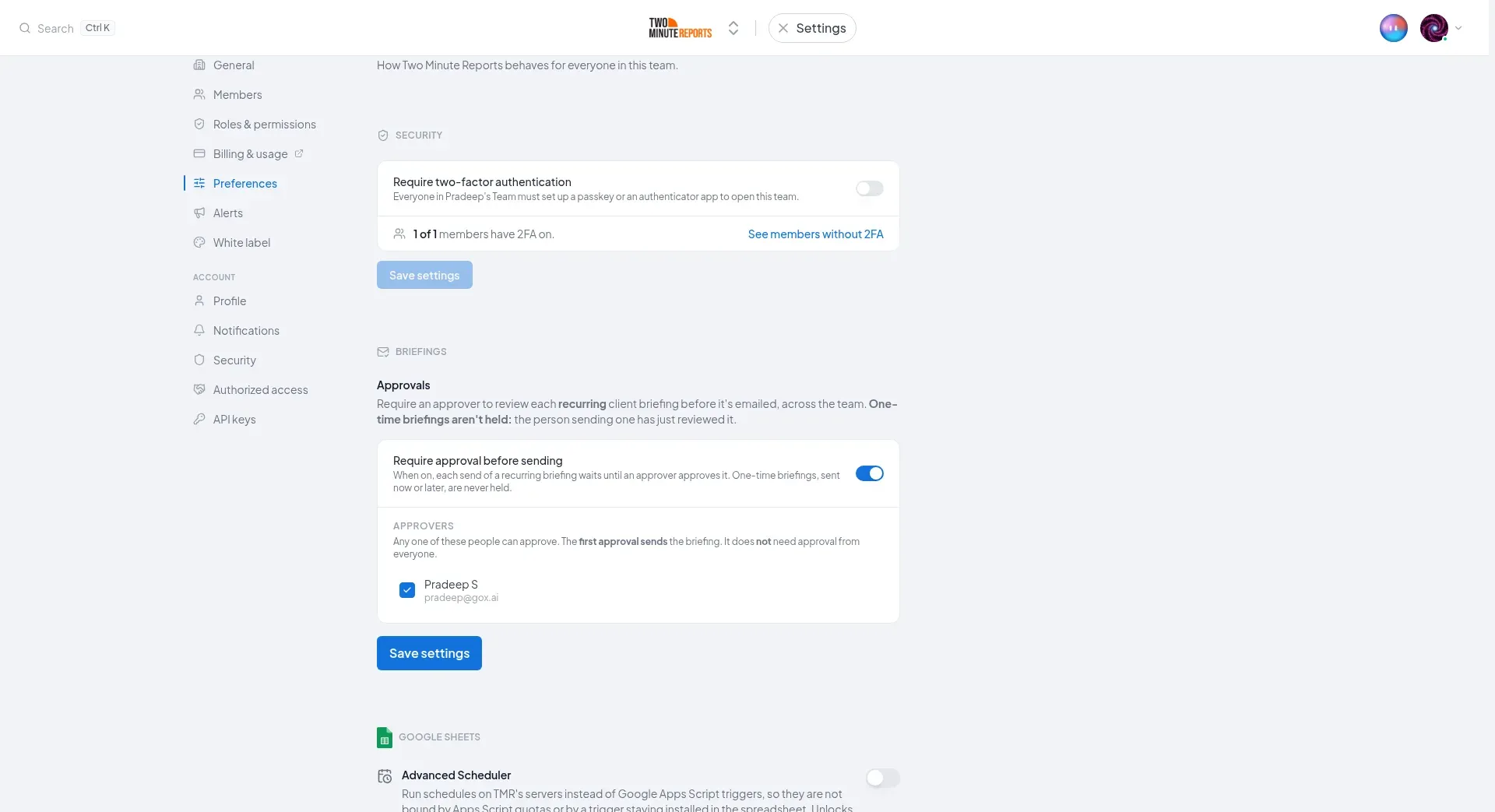
- Any one approver is enough: the first approval sends the briefing.
- Changing these settings needs the Change team settings permission. Without it, the settings are read-only and say why.
- To turn approvals off while sends wait, select Turn off and discard {N} sends. The waiting sends are discarded, and nothing is sent.
The Approvals tab
Sends that wait for approval are on the Approvals tab of the Briefings page. A badge on Briefings shows how many wait for your approval, and they also show on Home under Needs your attention. Everyone who can see briefings can see this tab, so the author can find their send.
Use the Status filter to see Awaiting approval, Changes requested, Approved, Rejected and Expired sends, each with who decided and when.
Review a send
Select Review on its row. The page shows the email exactly as it will go out, and approvers can:
- Approve and send: the email goes out. If the briefing's sender changed, the button names whose Gmail it sends from: Approve and send from {name}.
- Request changes: write what needs to change, then select Request changes. Nothing is sent. The send goes back to its author with your note, and comes back to you when they resubmit it.
- Reject: nothing is sent. Add a reason if you want to, then select Reject briefing. The author gets an email, with your reason. The next send asks again.
- Edit copy: fix the subject or the message before you approve. The attachment and the recipients stay the same. The send is then marked Approved with edits, and the author is told.
You cannot approve a send you asked for while another approver can approve it. If you are the only approver, you can, and it is recorded as approved by its author.
Team members who are not approvers can open the page, but cannot change anything.
Make the changes and resubmit
When an approver requests changes, the author gets an email, Changes requested on your briefing. The briefing shows Changes requested with the note, and Home shows it too.
- Select Make the changes.
- Change the subject or the message.
- Select Resubmit.
It goes back to the approvers as the same send. The approvers get an email.
How held sends behave
- A held send keeps the content it had when it was held. If you edit the briefing after that, the approver still reviews what was held.
- A held send expires at the briefing's next send, or after 7 days, whichever comes first. At the next send, the new send replaces it. Approvers get a reminder a day before a send expires.
- Pausing a briefing discards the send that waits for approval. Deleting it does too.
- If nobody on the list can approve anymore, for example because they left the team, recurring briefings show Won't send with Add approver.
- Each held send has a history: who asked, edits, requested changes, resubmissions, the decision and the send.
Emails about approvals
| Who | When |
|---|---|
| Each approver | A send waits for approval, and again a day before it expires |
| The author | The send was approved and sent, changes were requested, it was rejected, or it expired or was discarded |
Who can do what
| Action | Permission |
|---|---|
| See briefings, their recipients and their history | View briefings |
| Create, edit, send, pause and resume briefings, cancel a send set for later, and approve or request changes | Create and edit briefings |
| Delete briefings | Delete briefings |
| Turn approvals on or off and choose approvers | Change team settings |
Creating, editing and deleting briefings also needs a seat. A control you cannot use stays visible, and says why when you point to it.
Good to know
- If the sender leaves the team or disconnects Gmail, the briefing shows Didn't send or Won't send with the reason. Edit it to pick a connected sender.
- Scheduling uses the time zone you pick, so a briefing always sends at the local time you chose, and
{{sendDate}},{{sendMonth}}and{{sendYear}}use that same calendar. - Deleted briefings stay in the record. What a deleted briefing sent stays under Sent.
Next steps
- Clients - Save the people at each client as contacts
- Share and export dashboards - Choose who can open the dashboard a briefing links to
- Themes - Give the dashboards you send your brand's look