

Active sessions
Active sessions lists every browser signed in to your account, and every app connected to it. It is at the bottom of Settings › Security.
Reading the list
Each row shows:
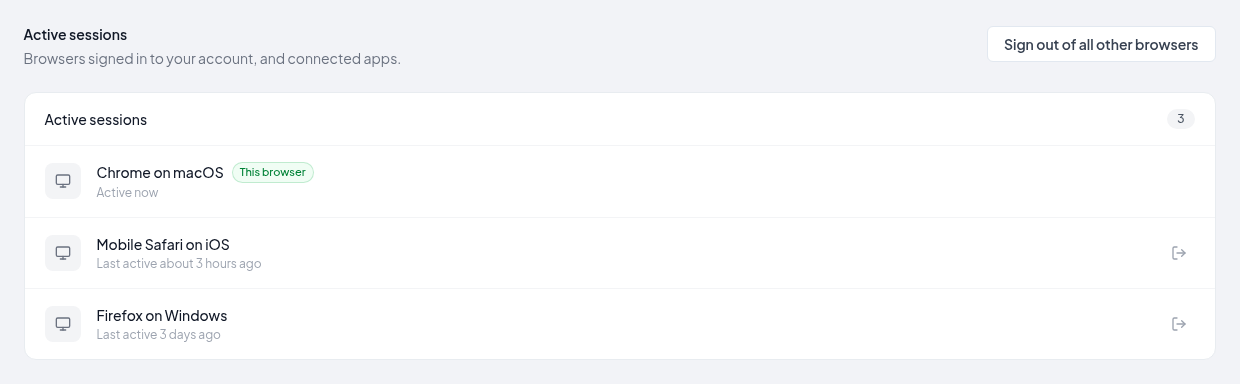
- The browser and device, such as Chrome on Mac or Safari on iPhone. The one you're using now is marked This browser.
- When it was last active: Active now for this browser, and Last active with a time for the others.
The list does not show how a browser signed in, or whether it is trusted for 30 days.
Connected apps, such as Claude or ChatGPT connected over MCP, are listed too, marked Connected app. Their line also says they keep working when you sign out other browsers.
If you see a browser you don't recognize, sign it out, then change your password and check Two-factor authentication for passkeys you didn't add.
Signing out one browser or app
Select the sign-out icon on its row, then select Sign out. That browser has to sign in again the next time it opens the Hub. Signing out a connected app disconnects it; reconnect it from the app when you need it again.
Signing out of all other browsers
Select Sign out of all other browsers. Every browser except the one you're using is signed out straight away, and every trusted browser is forgotten, so each of them will ask for the second step again next time.
It signs out browsers only. Your connected apps and your API keys keep working. To stop one of those, sign out the app from its row, or revoke the key in Settings › API keys.
Use it when:
- you have lost a phone or laptop that was signed in
- you signed in on a shared or borrowed computer and forgot to sign out
- you are not sure who else might be using your account
Things that also sign out other browsers
- Turning off 2FA, or removing your last 2FA method
- Setting a password for the first time, if you have been signing in with Google or Microsoft
When support turns off 2FA at your request, every browser is signed out, including the one you are using.