Apple Search Ads

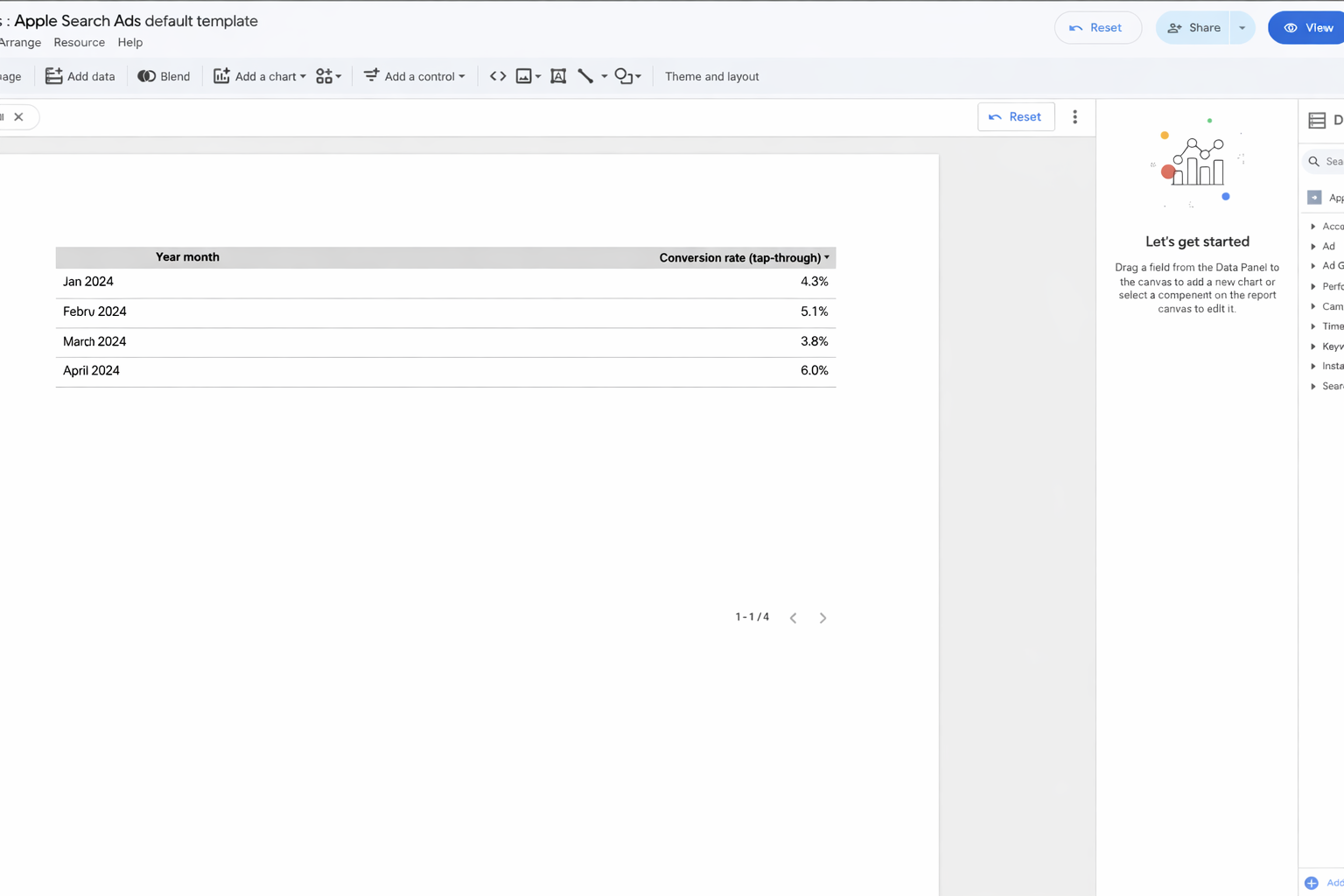
Two Minute Reports' Apple Search Ads connector lets you access and analyze your data directly in Google Sheets or Google Data Studio. Build custom reports, monitor key metrics, and make data-driven decisions — all without writing any code.
What you can report on
- Campaign impressions, taps, and installs
- Cost per tap (CPT) and cost per acquisition (CPA)
- Keyword performance and bid data
- Ad group and campaign-level spend breakdowns
- Conversion rates and install attribution
Prerequisites
- An Apple Search Ads account
- The API Account Manager or API Account Read Only role in Apple Search Ads. Only these two roles can generate API credentials — standard and Account Admin roles cannot
- API access enabled in your Apple Search Ads settings
How to get your credentials
Apple Search Ads authenticates with a public/private key pair. Two Minute Reports generates the public key; you paste it into Apple Search Ads, and Apple gives you back the Client ID, Team ID and Key ID the connection needs.
Keep this page and the Two Minute Reports connection screen open side by side — you copy a key out of one and paste three values back into the other.
Step 1: Set up an API user
Skip this step if you already sign in with an API Account Manager or API Account Read Only account.
- Sign in to your Apple Search Ads dashboard with your Account Admin account
- Select your account name (top right) › Settings
- Go to User Management › Invite User
- Enter the name and Apple ID of the person to invite
- Set the role to API Account Manager or API Account Read Only, then select Send Invite
- Ask them to accept the email invite. If they're new to Apple Search Ads, they complete signup first
Step 2: Generate the API credentials
- Go to ads.apple.com/advanced, select Sign In, then choose Advanced
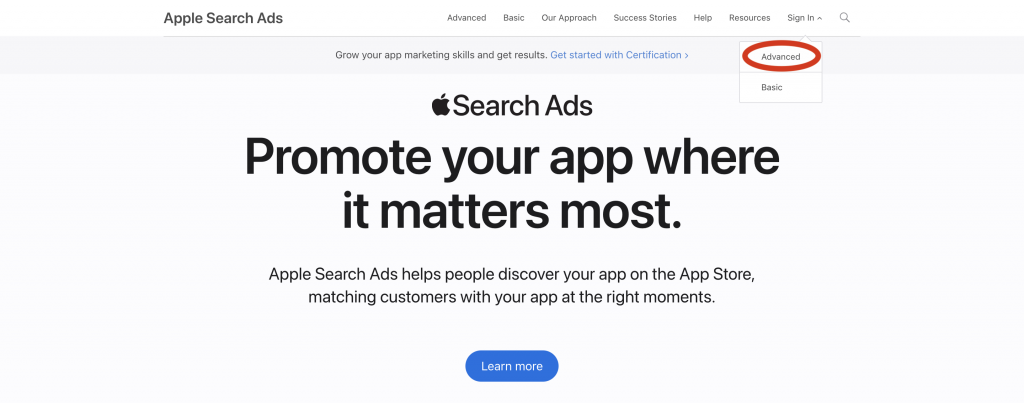
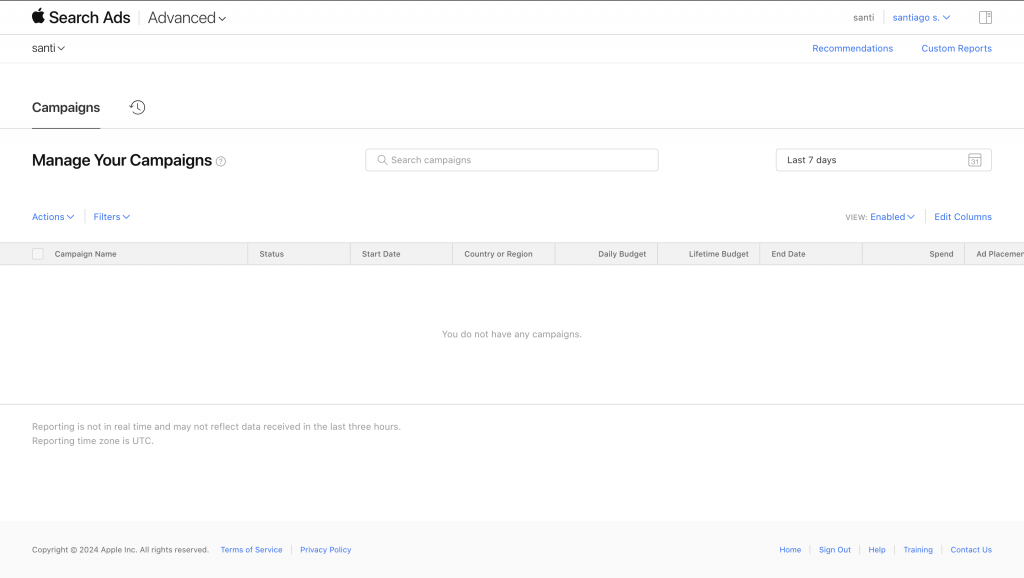
- Sign in with your API Account Manager or API Account Read Only account
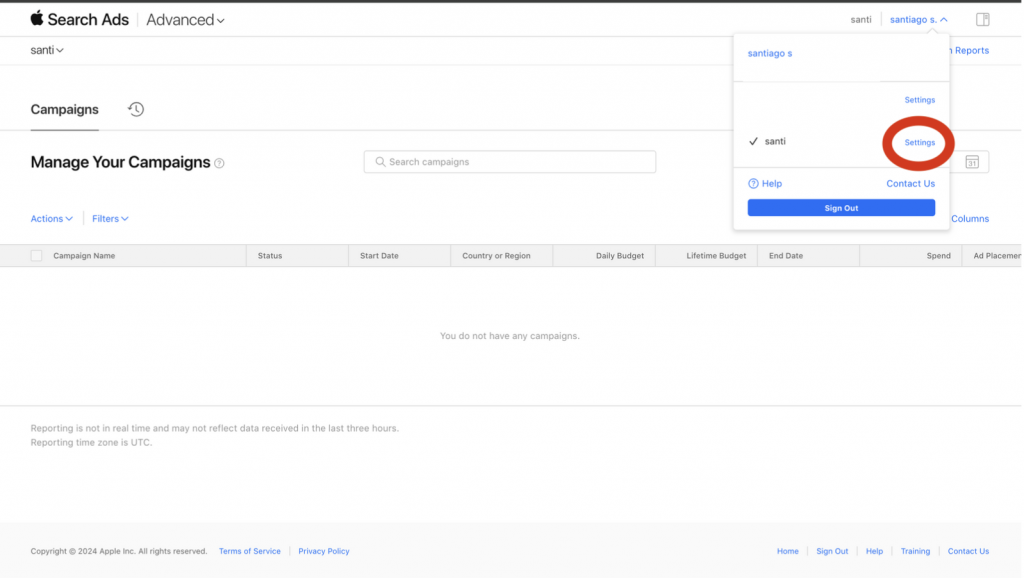
- Select your account name (top right) › Settings. You land on the API Credentials page
- In the Two Minute Reports connection screen, copy the key shown under Public Key to copy
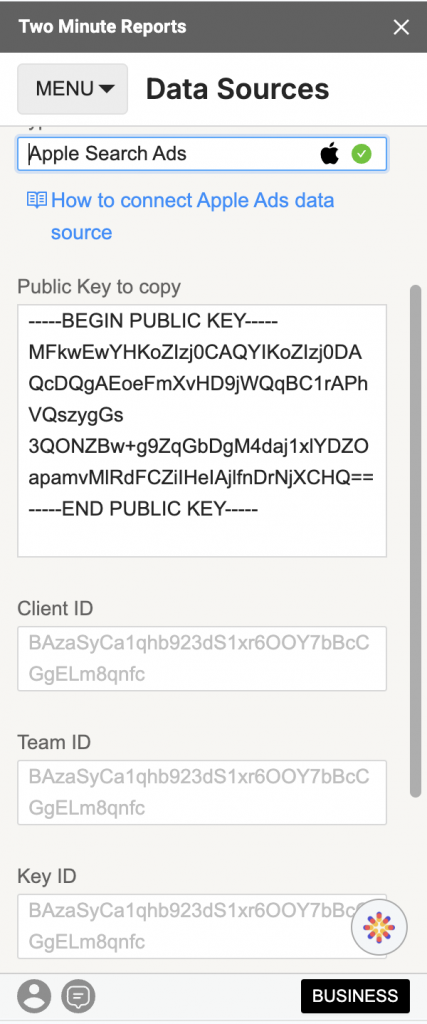
-----BEGIN PUBLIC KEY----- and -----END PUBLIC KEY----- lines. The pasted key needs a line break at the end, or authentication fails.- Paste it into the Public Key field on the Apple Search Ads API Credentials page, then select Save. On a new account where the key fields are empty, the button reads Generate API Client
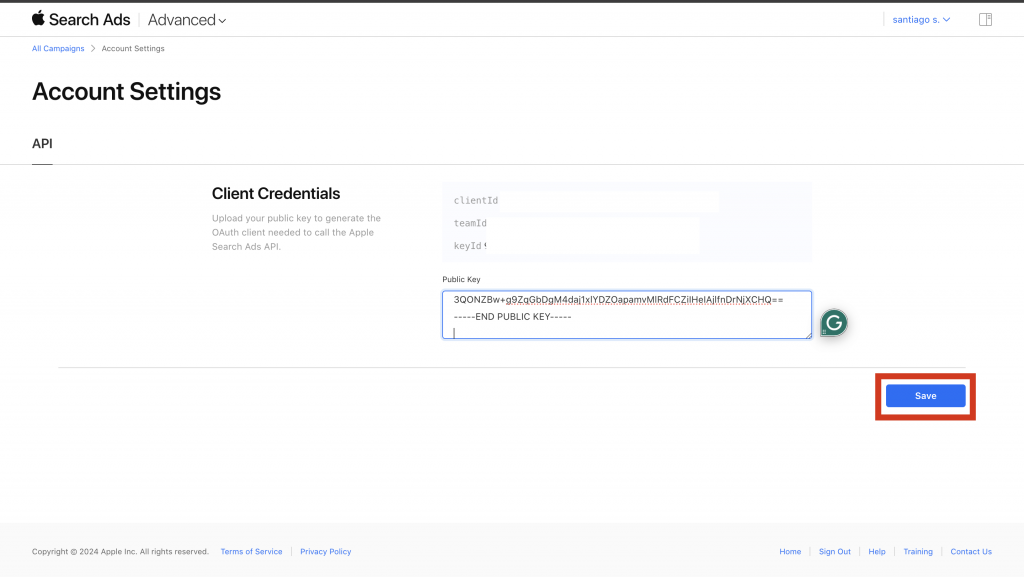
- Apple generates and displays the Client ID, Team ID and Key ID
- Copy all three. You enter them in Two Minute Reports in the next section
How to create a connection
- Go to https://hub.twominutereports.com/connections
- Select New Connection
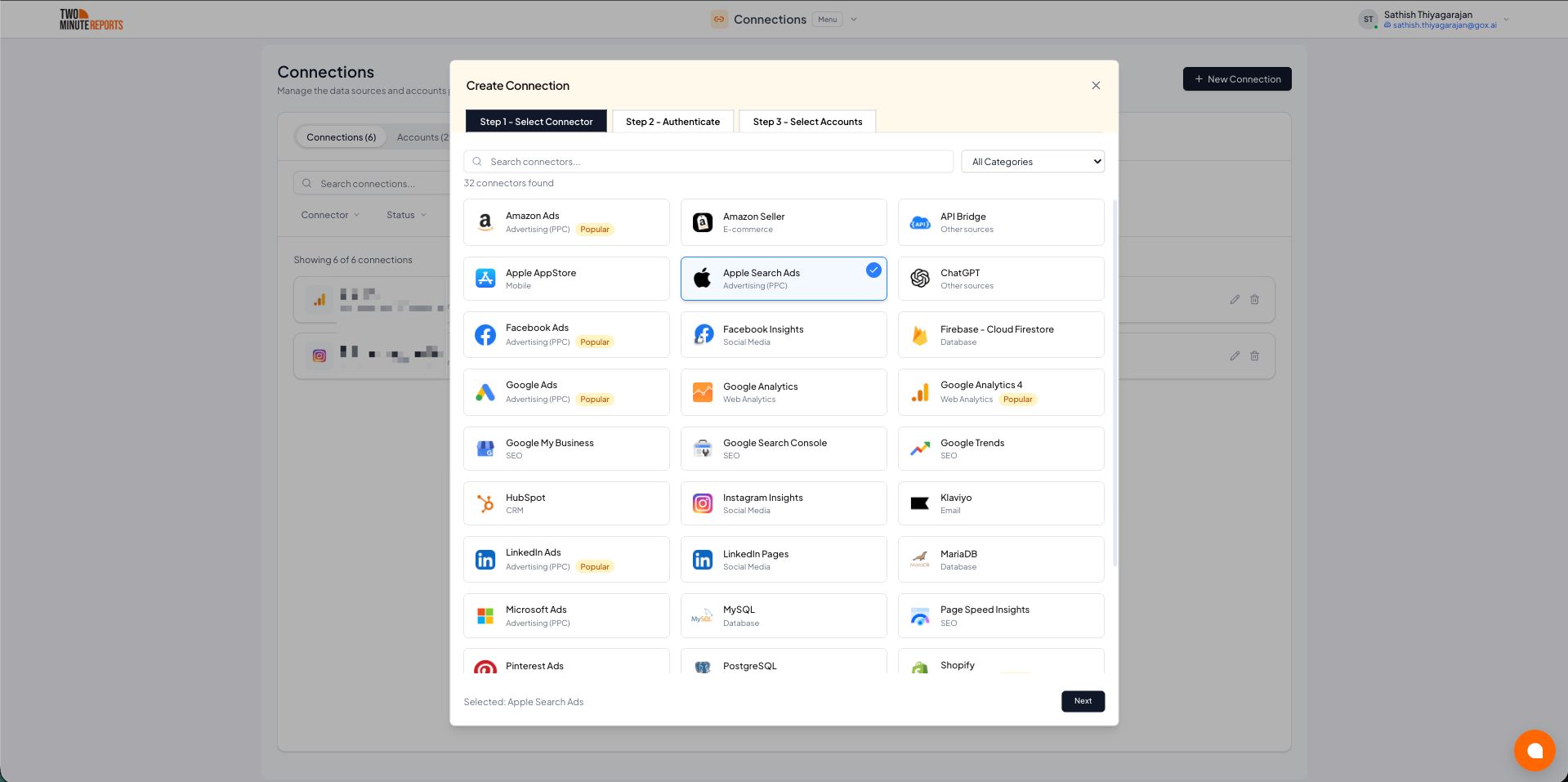
- Select Apple Search Ads from the list of connectors
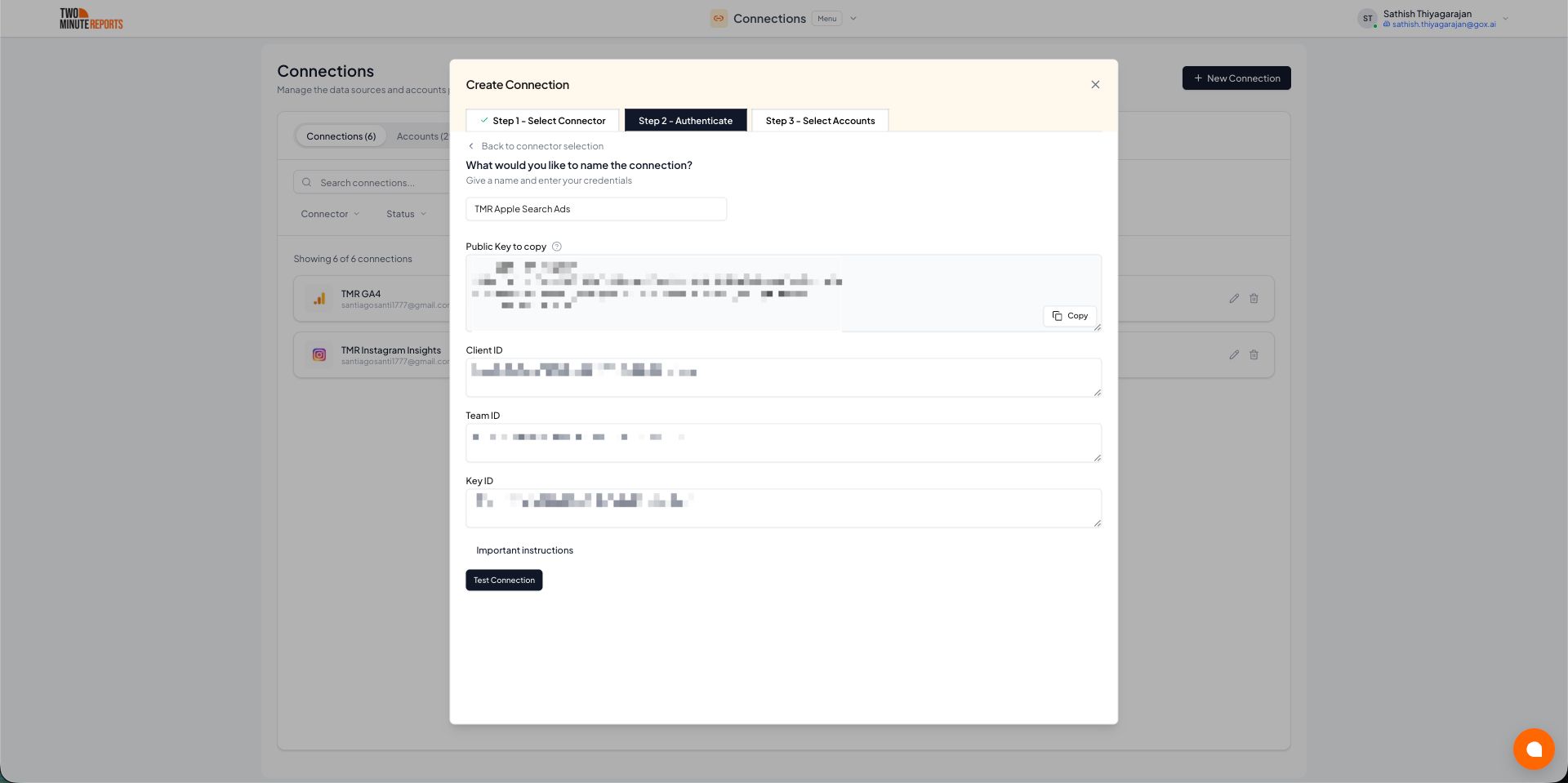
- Name the connection, then enter the Client ID, Team ID and Key ID from Apple Search Ads. If you don't have them yet, see How to get your credentials
- Enable the accounts you want to report on
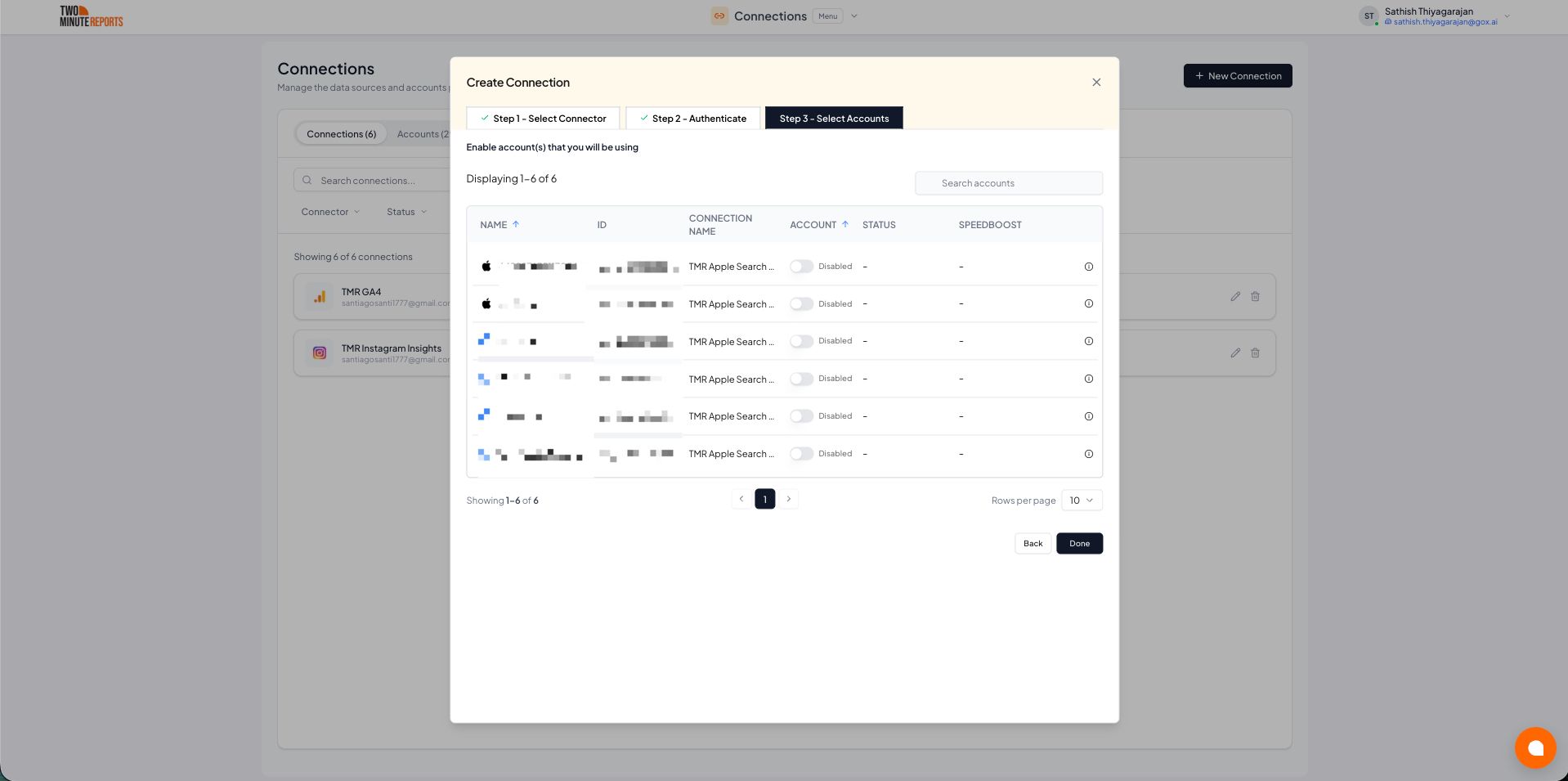
How to get Apple Search Ads data into your reports
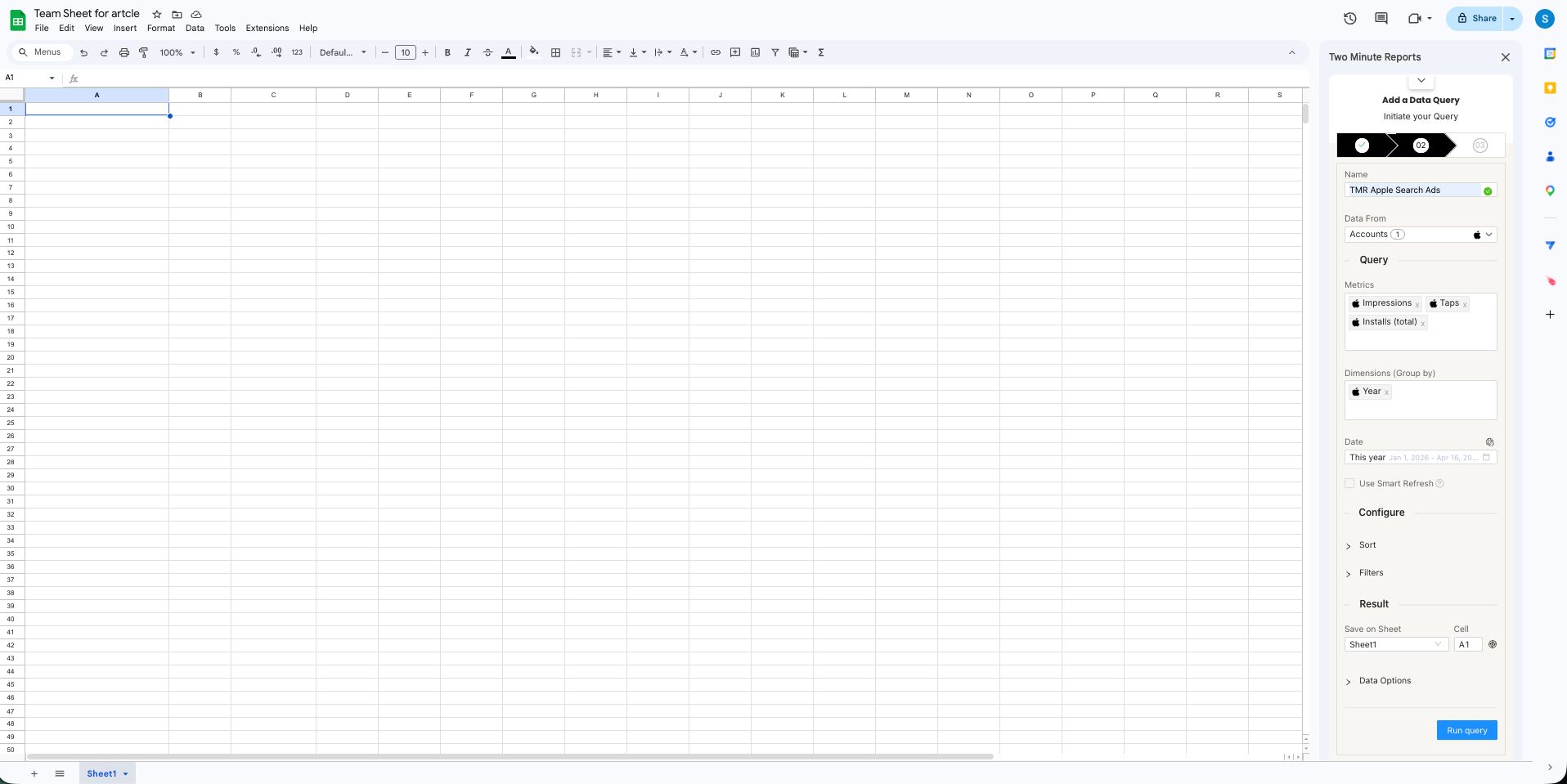
To pull Apple Search Ads data into Google Sheets:
- In the Two Minute Reports sidebar, go to Data Queries and select Add
- Select the accounts you want to analyze. You can select more than one
- Choose your metrics and dimensions
- Select the date range
- Set sorting and filtering if you need them
- Select Run Query to pull the data into Google Sheets
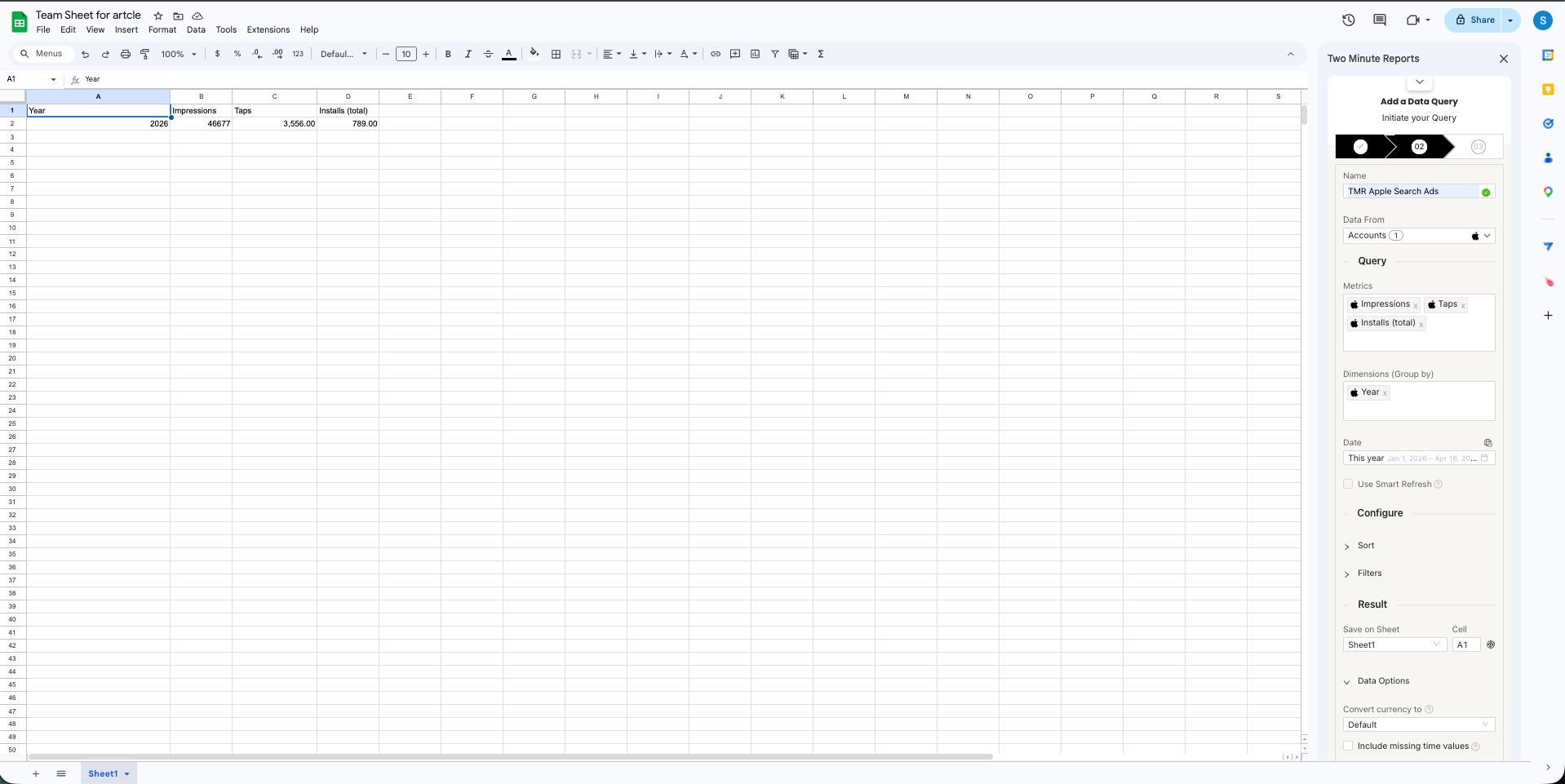
To pull Apple Search Ads data into Google Data Studio:
- Select Open in Google Data Studio, then select + Create Report
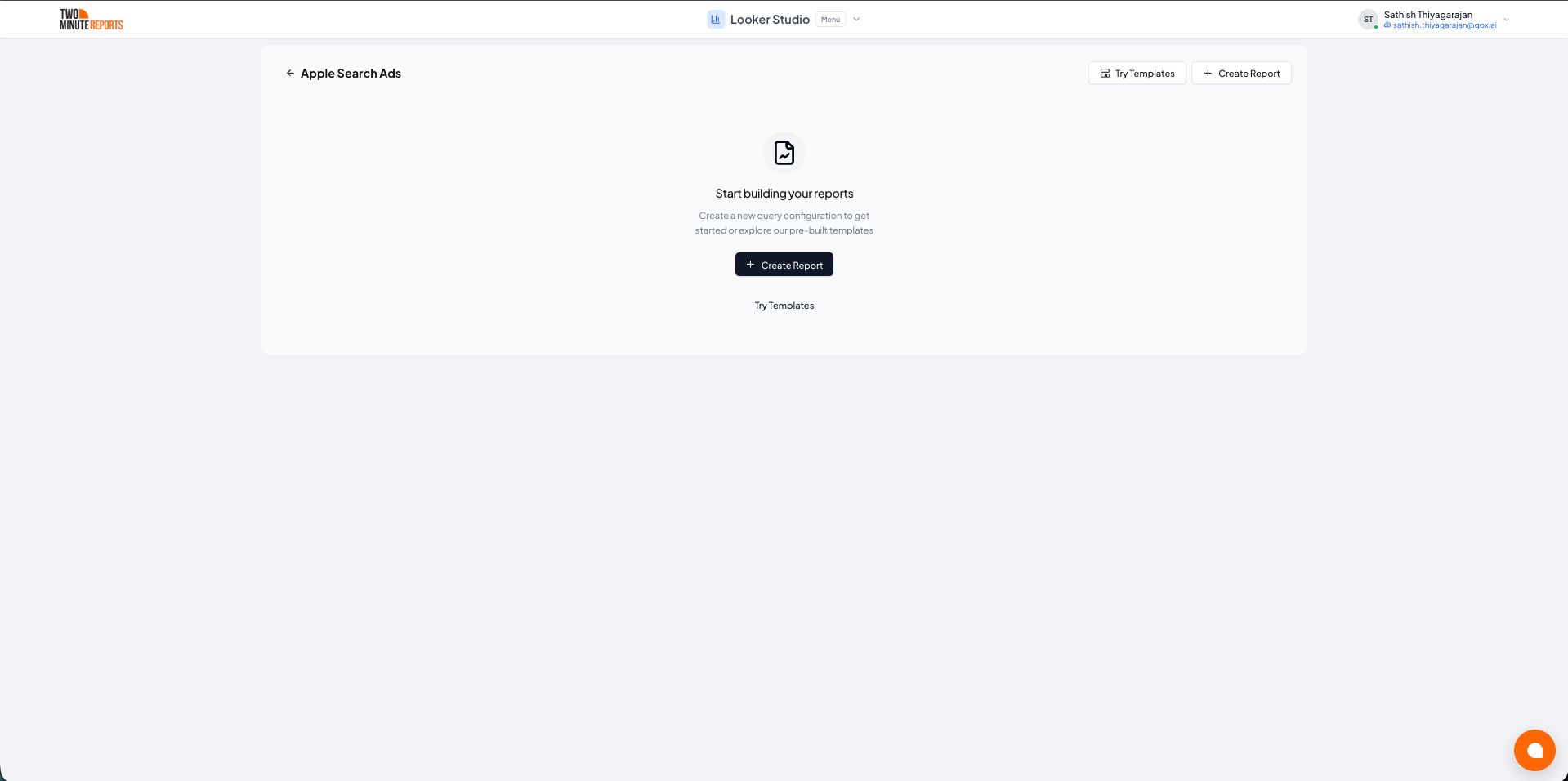
- A query config panel opens. Do one of the following:
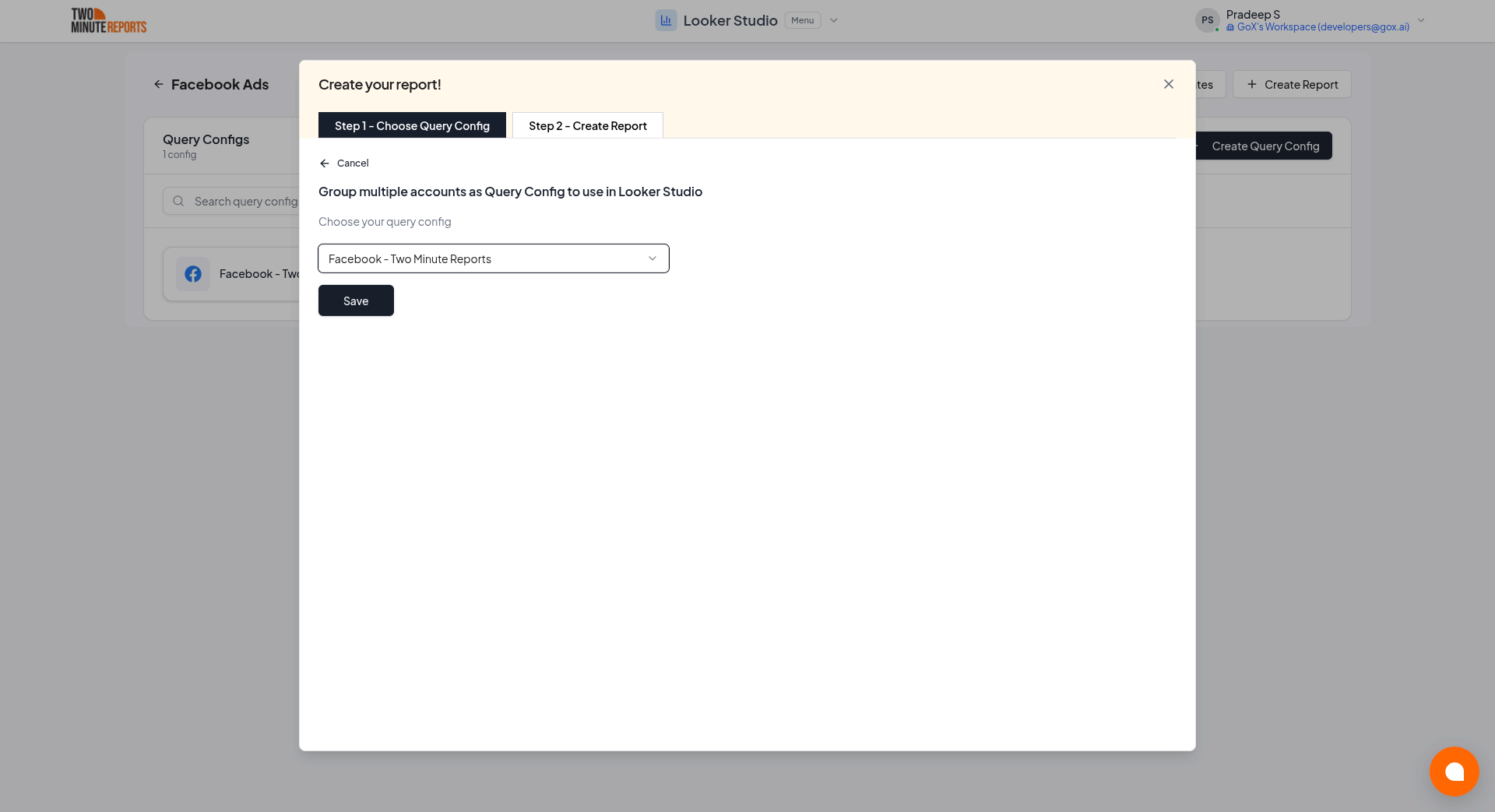
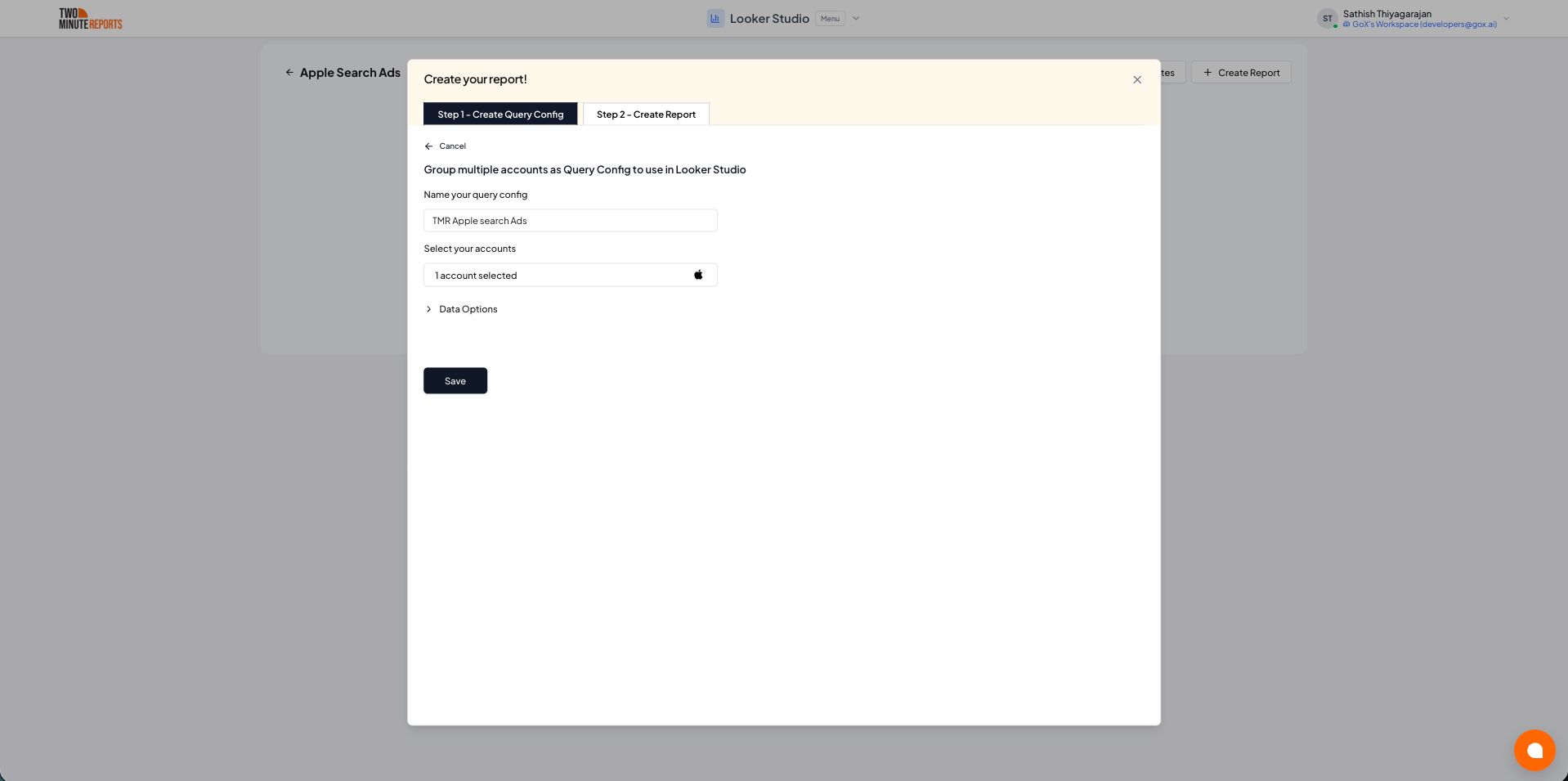
To create a new query config: enter a name, select the accounts to include, then select Save.
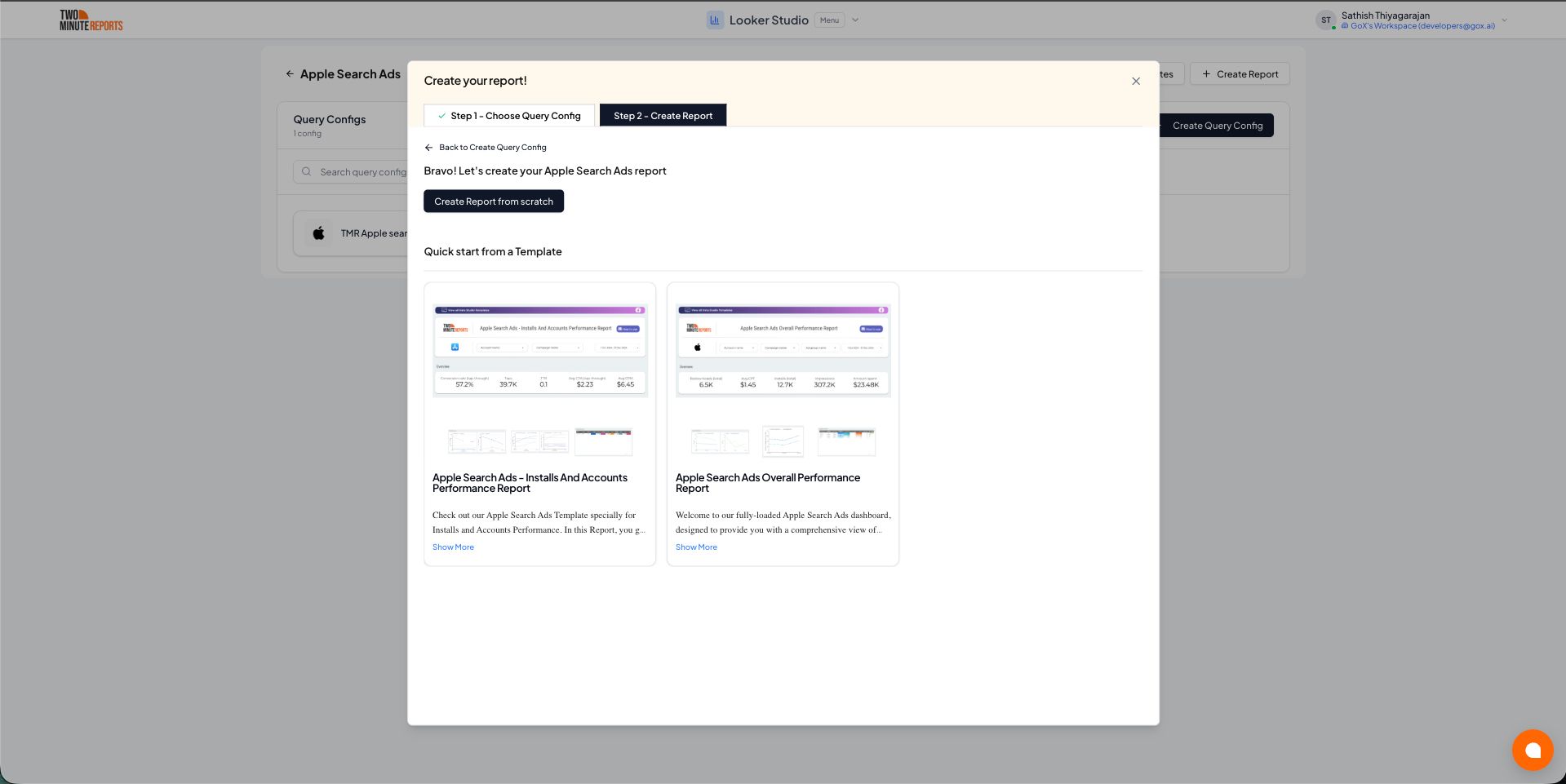
- Choose Create report from scratch, or pick a pre-built template to start faster
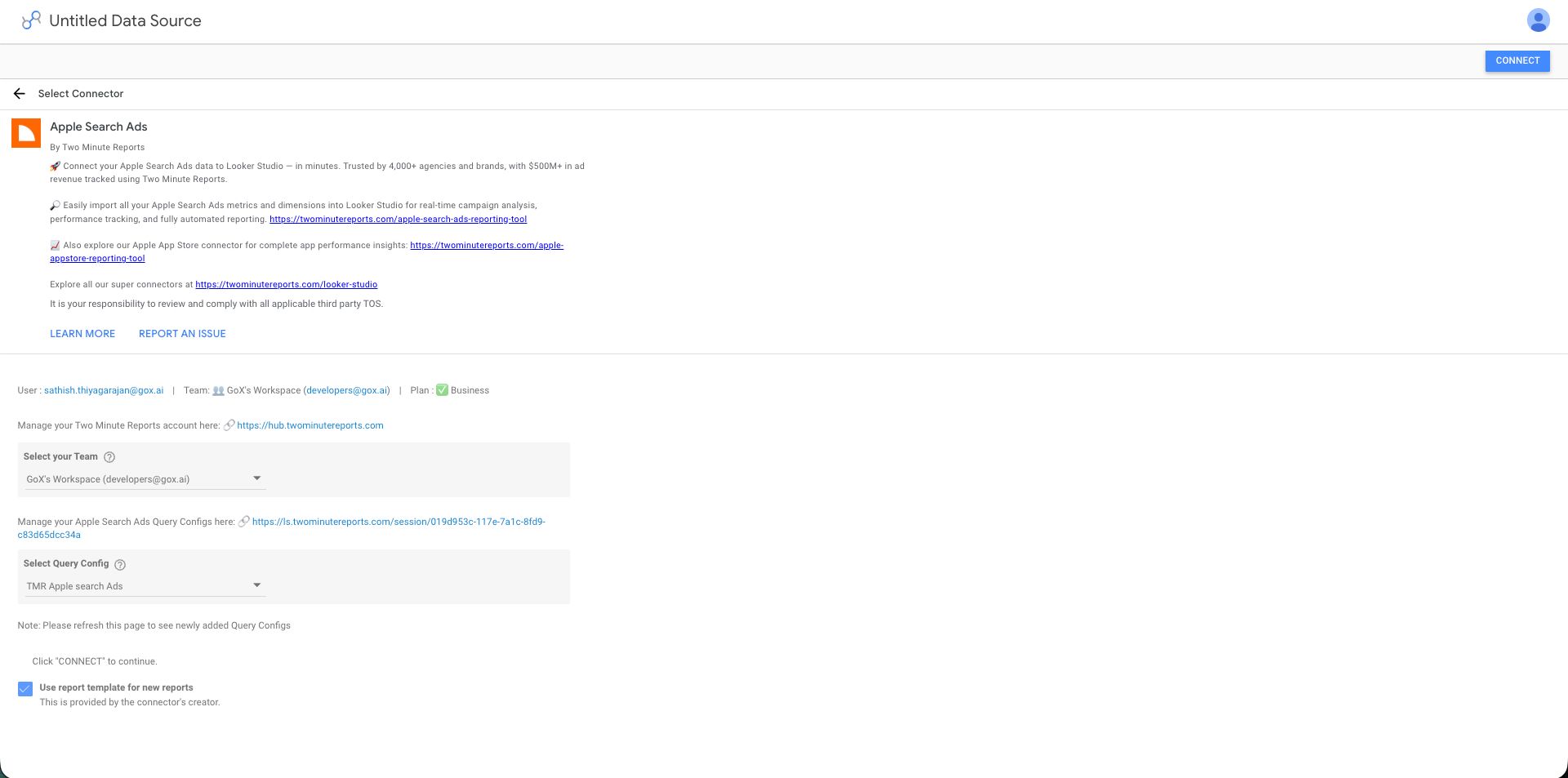
- In the Google Data Studio connector panel, select your team and the query config you want, then select Connect in the top right
- You land on the Google Data Studio report. Drag Apple Search Ads metrics and dimensions onto the canvas to start building