

Data, dates, and filters
A dashboard is only as useful as the data behind it. Choose which accounts feed the dashboard, what date range it covers, and which filters apply.
What you can do
- Choose the default accounts for the dashboard
- Set a date range using presets or a custom range
- Compare any period against the previous period or last year
- Apply filters that narrow every widget at once
- Give an individual page its own date range
Accounts
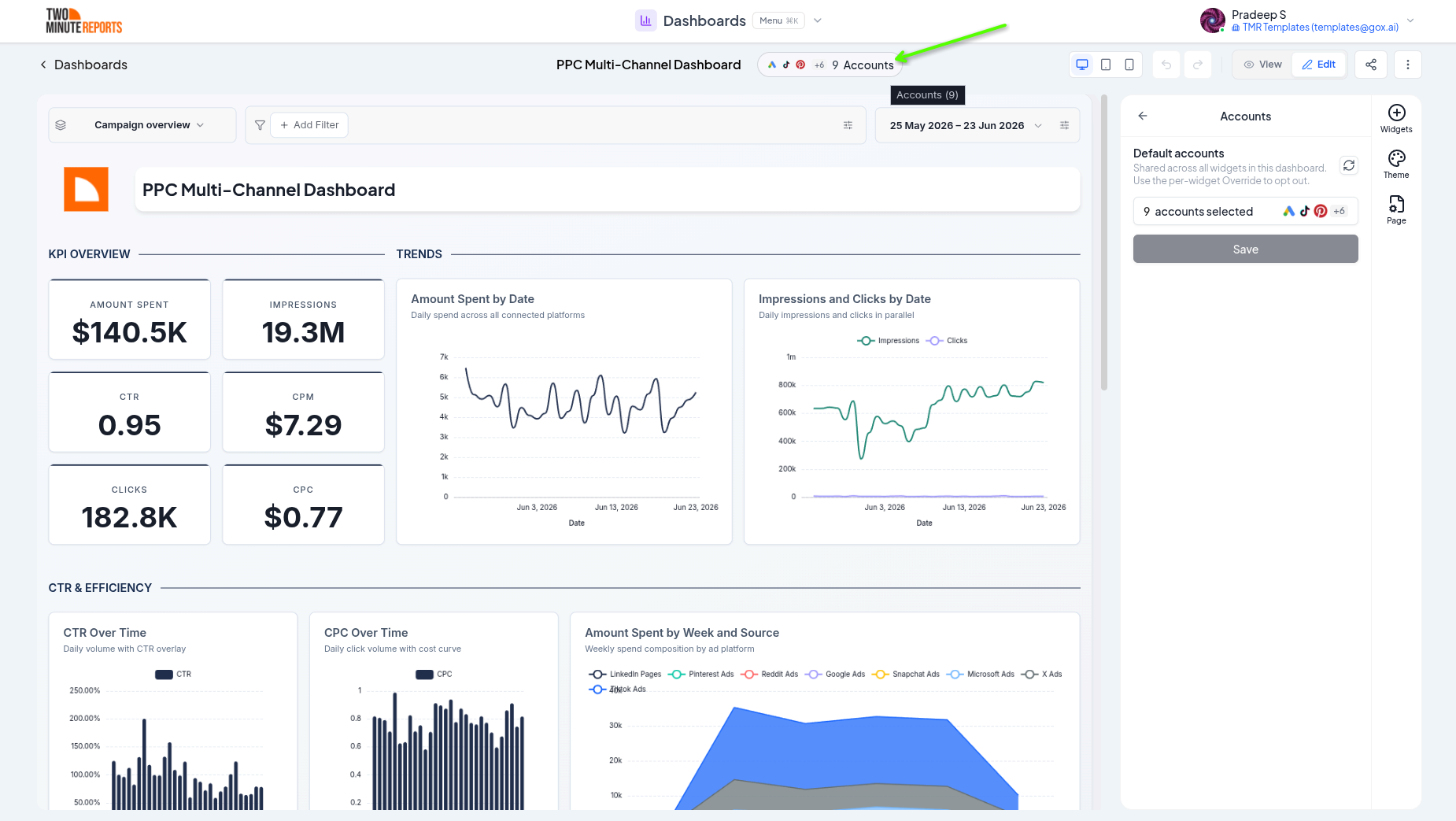
Every dashboard has default accounts that its widgets pull from. To change them, switch to edit mode and select Data in the side panel, or select the accounts button in the dashboard header. Then choose the accounts under Default accounts. Every widget uses these accounts unless you override them on the widget itself (see Widgets and charts).
Date range
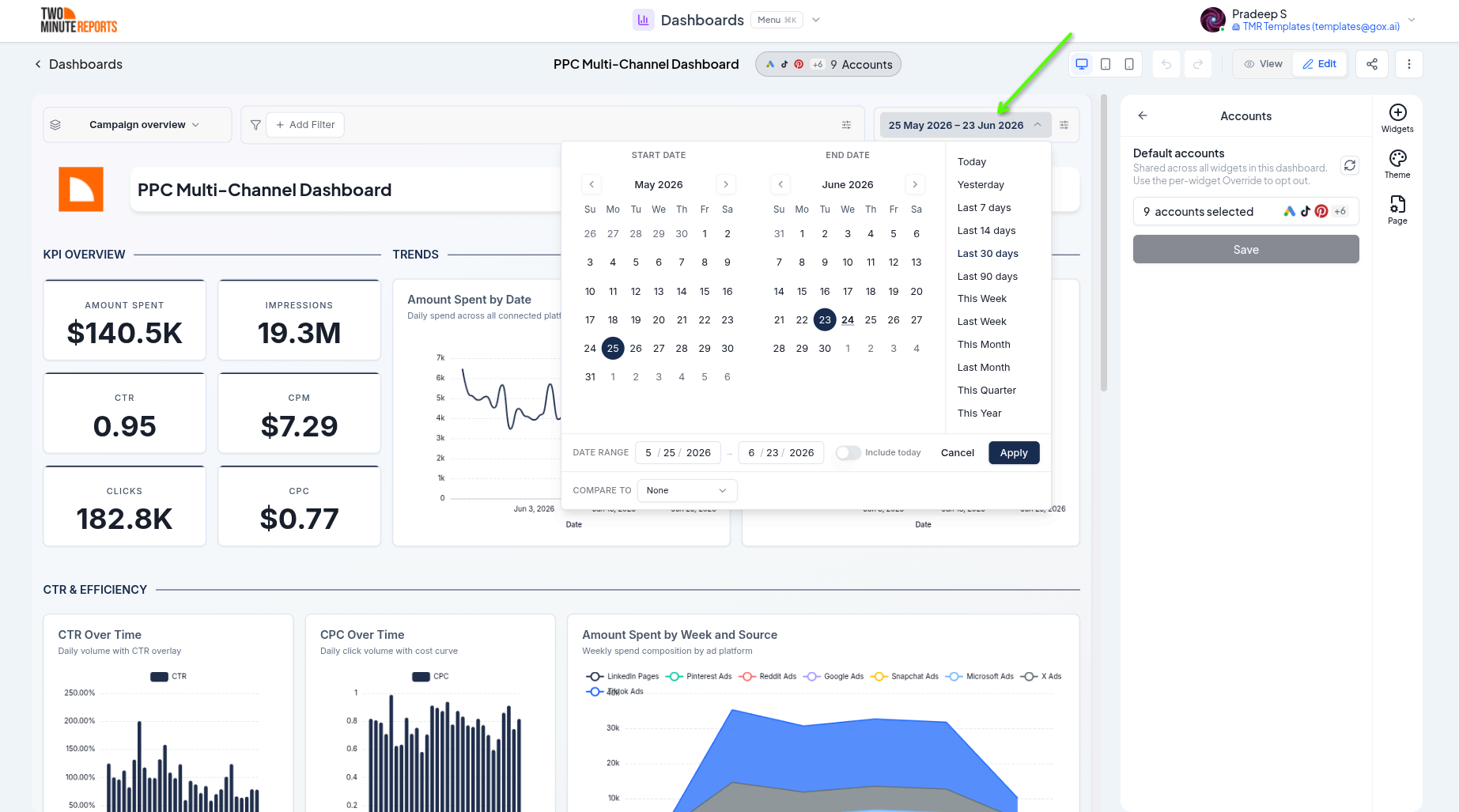
The date picker sets the period every widget reports on. Choose a range, then select Apply.
- Presets - ranges such as Last 7 days, Last 30 days, Last 90 days, Last Month, or This Year
- Custom range - pick exact start and end dates
- Include today - choose whether the current, still-incomplete day is included
Compare periods
To measure change over time, choose a period under Compare to in the date picker:
- Last period - the period immediately before the current one
- Last year - the same dates a year earlier
- None - no comparison
When comparison is on, supported widgets show the change. Each widget decides whether to show the comparison, and whether to show it as a percentage or an absolute difference, in the widget editor.
Filters
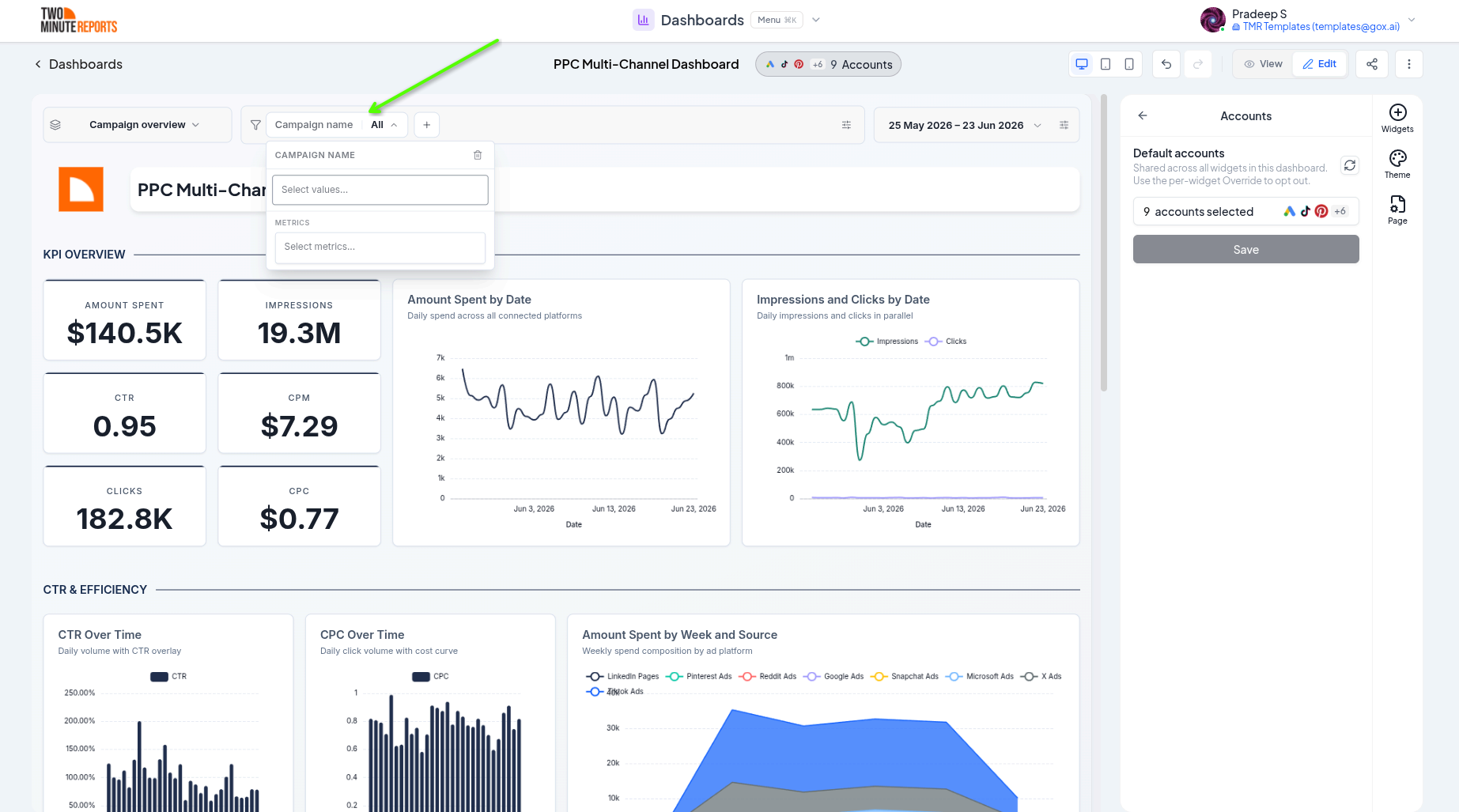
Dashboard filters narrow the data across every widget at once. Select Add filter, then choose a field and the values to include, for example only "Brand" campaigns or a specific country. Filters appear as chips in the control bar, and you can add or remove them at any time.
A page's own date range
By default, the date range and filters apply to the whole dashboard. A page can also have its own date range, so one tab shows a different period than the rest of the dashboard.
To give a page its own date range, ask Dash, for example "Set the This Year page to this year." On that page, the date picker then shows and changes the page's own range. In view mode, its tooltip says the range applies to this page only. The other pages keep the dashboard's range.
When a widget can't load
Widgets load their data from your connected accounts when you open the dashboard. There's no export step to repeat. If an account can't return data, for example because its connection needs reconnecting, that widget shows an error, and the rest of the dashboard keeps working. When trying again can help, the widget also shows a Try again button.
Best practices
- Set the dashboard's default accounts and date range before adding widgets
- Use presets rather than custom dates for dashboards you'll keep over time, so they roll forward automatically
- Give pages their own date range sparingly. Too many different ranges can confuse viewers.
Next steps
- Widgets and charts - Per-widget accounts, filters, and compare display
- Share and export dashboards - Share a dashboard; viewers can change its date range, not its filters
- Browse connectors - Connect more platforms
Layout and pages
Organize a dashboard across multiple pages and arrange widgets on a responsive drag-and-drop grid, with resizing, auto-align, undo/redo, and view and edit modes.
Theming
Style dashboards with custom themes, backgrounds, typography, colors, and per-widget overrides, and save themes to reuse across dashboards.