

Layout and pages
A dashboard is a flexible canvas. You arrange widgets on a responsive grid and organize them across multiple pages, then switch between a clean view mode and a full-control edit mode. This page covers how to lay everything out.
What you can do
- Split a dashboard into multiple pages shown as tabs
- Drag widgets to reposition them and resize them by their corners
- Let the layout auto-align so widgets stay tidy
- Undo and redo recent edits
- Switch between view mode (read-only) and edit mode (full controls)
View and edit modes
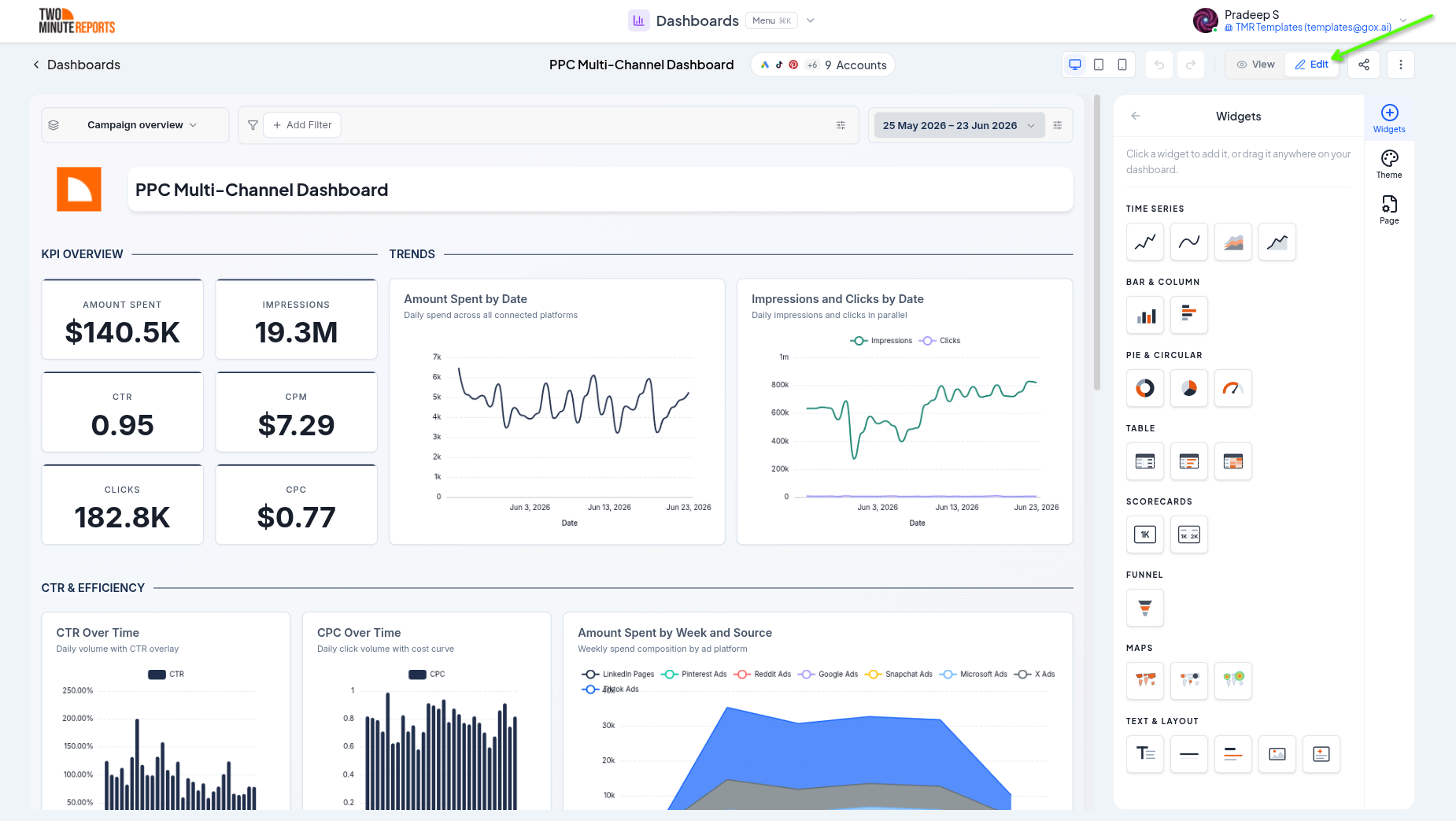
Every dashboard opens in view mode: a clean, read-only presentation with no editing chrome, exactly what your audience sees on a shared link.
Select Edit to switch to edit mode, and View to switch back. In edit mode you can add widgets, move and resize them, open each widget's editor, manage pages, and restyle the dashboard. Changes are saved automatically as you work.
Pages
Pages are the tabs across the top of a dashboard. Use them to group related content, for example an "Overview" page and a "Channels" page, without crowding everything onto one screen.
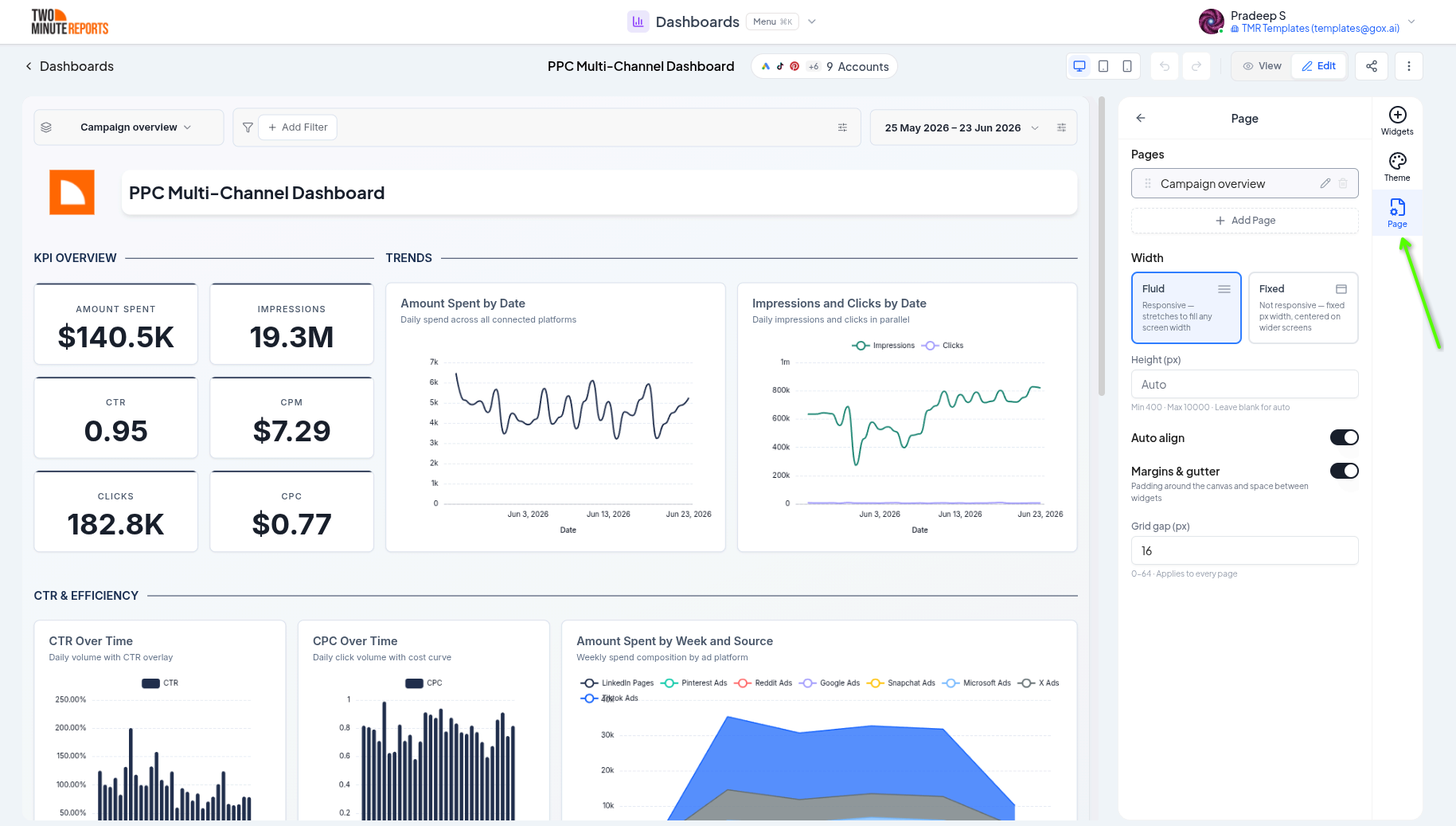
To manage pages, switch to edit mode and select Page in the side panel. Under Pages you can:
- Select Add page to start a new blank tab
- Select the pencil next to a page to rename it
- Drag a page by its handle to change the tab order
- Select the trash icon next to a page to delete it. A dashboard always keeps at least one page.
The grid
Widgets sit on a responsive grid that reflows to fit any screen. The grid uses a wide multi-column layout on large screens and progressively stacks widgets on medium and small screens, so dashboards stay readable on laptops, tablets, and phones.
Move and resize widgets
In edit mode:
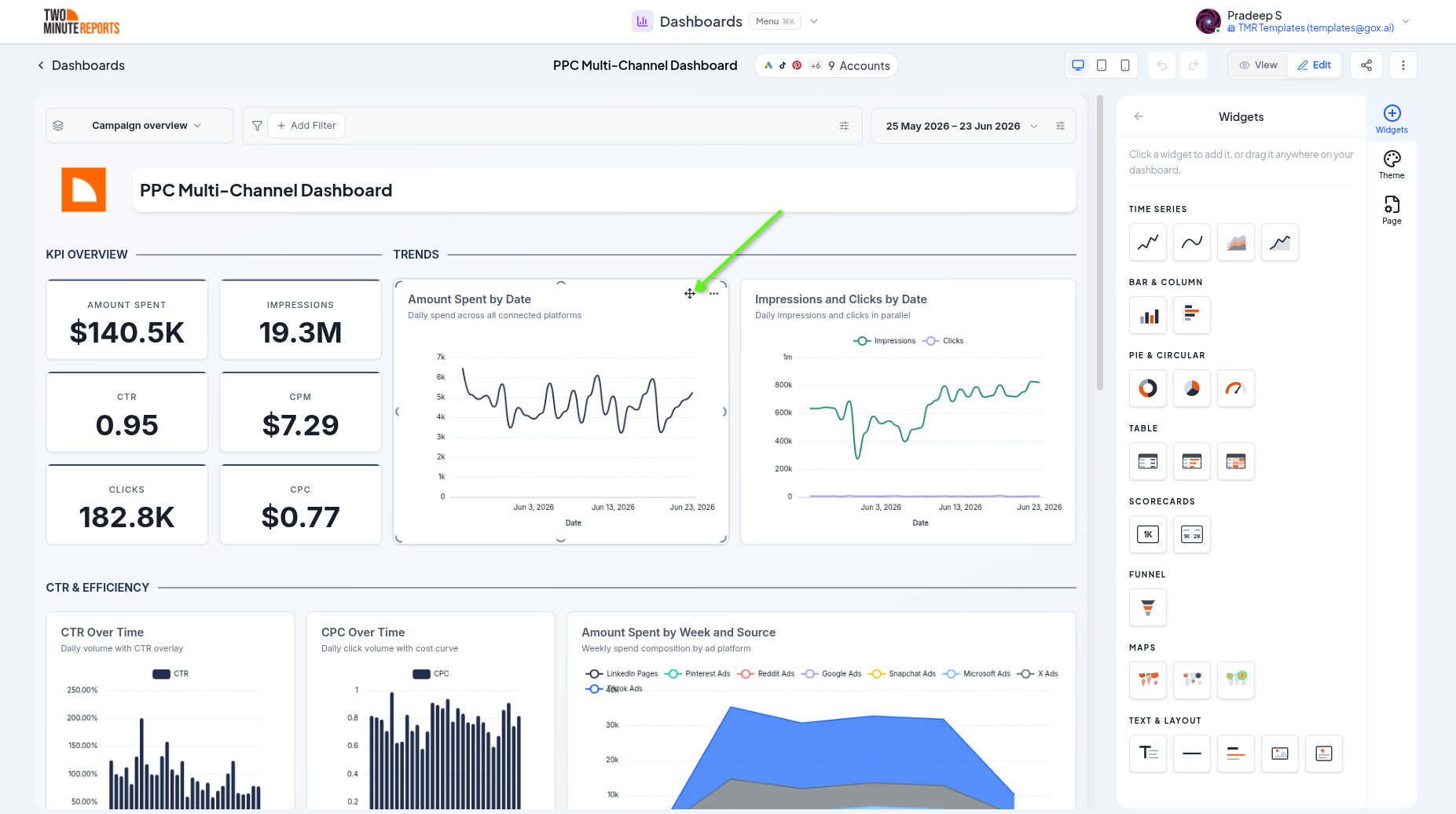
- Drag a widget by its body to move it; other widgets reflow to make room
- Resize a widget by dragging its corner handles; each widget type has a sensible minimum size so its contents never get clipped
- Drop a new widget from the Widgets panel exactly where you want it
Auto align
By default, widgets auto-align: after you move or resize, the layout compacts upward and resolves overlaps so there are no awkward gaps. To turn this off, clear the Auto align switch in the Page panel. In the same panel, Margins & gutter turns the padding around the canvas and the space between widgets on or off, and Grid gap (px) sets that space. These three settings apply to every page.
Clone and delete widgets
In edit mode, point to a widget and open its menu:
- Clone makes a copy of the widget to use as a starting point
- Delete removes the widget
To delete several widgets at once, hold Shift and select them, then press Delete.
Undo and redo
Made a change you didn't mean to? Edit mode keeps your last 20 edits, so you can undo and redo layout and configuration changes. Use the undo and redo buttons in the header, or press ⌘Z and ⌘⇧Z (Ctrl+Z and Ctrl+Y on Windows).
Page size
In the Page panel, each page can have its own canvas size:
- Width: Fluid fills the screen. Fixed uses the width you enter, from 400 to 2000 px, for example for print-style layouts.
- Height (px): from 400 to 10000 px. Leave it blank for an automatic height.
A fixed size is useful when you design a dashboard to export or share at a specific size.
Best practices
- Put the most important widgets at the top-left, where the eye lands first
- Keep one page focused on one theme; add pages rather than overloading a single tab
- Use consistent widget sizes within a row for a clean, grid-aligned look
- Preview in view mode regularly to see what your audience will see
Next steps
- Widgets and charts - Add and configure the content on each page
- Data, dates, and filters - Set controls per dashboard or per page
- Theming - Style the whole canvas
Widgets and charts
The full dashboard widget catalog, from scorecards and charts to tables, maps, and text, and how to configure a chart's data, filters, and display options.
Data, dates, and filters
Choose a dashboard's accounts, set date ranges with period comparisons, and apply filters across a whole dashboard in Two Minute Reports.