

Connectors
Apple App Store
Connect Apple App Store to Google Sheets or Google Data Studio
Two Minute Reports' Apple App Store connector lets you pull your app's sales, downloads, and financial data from App Store Connect directly into Google Sheets or Google Data Studio — automatically, without writing any code.
What you can report on
- App downloads and units sold
- App sales revenue and proceeds
- In-app purchase performance
- Subscription metrics
- Refunds and cancellations
- Regional and storefront breakdowns
Prerequisites
- An Apple Developer account with access to App Store Connect
- Finance access on your App Store Connect account — this permission is required to fetch both sales and financial metrics
- An API key (
.p8file) generated from App Store Connect, along with your Issuer ID and Key ID
How to get your credentials
- Go to App Store Connect → Users and Access → Integrations → App Store Connect API
- Select Generate API Key
- Give the key a name and set the access level to Finance
- Download the
.p8key file — this can only be downloaded once, so save it securely - Note your Issuer ID (shown at the top of the API Keys page) and the Key ID for the key you just created
The
.p8 file can only be downloaded once at the time of creation. If you lose it, you'll need to generate a new key.How to create a connection
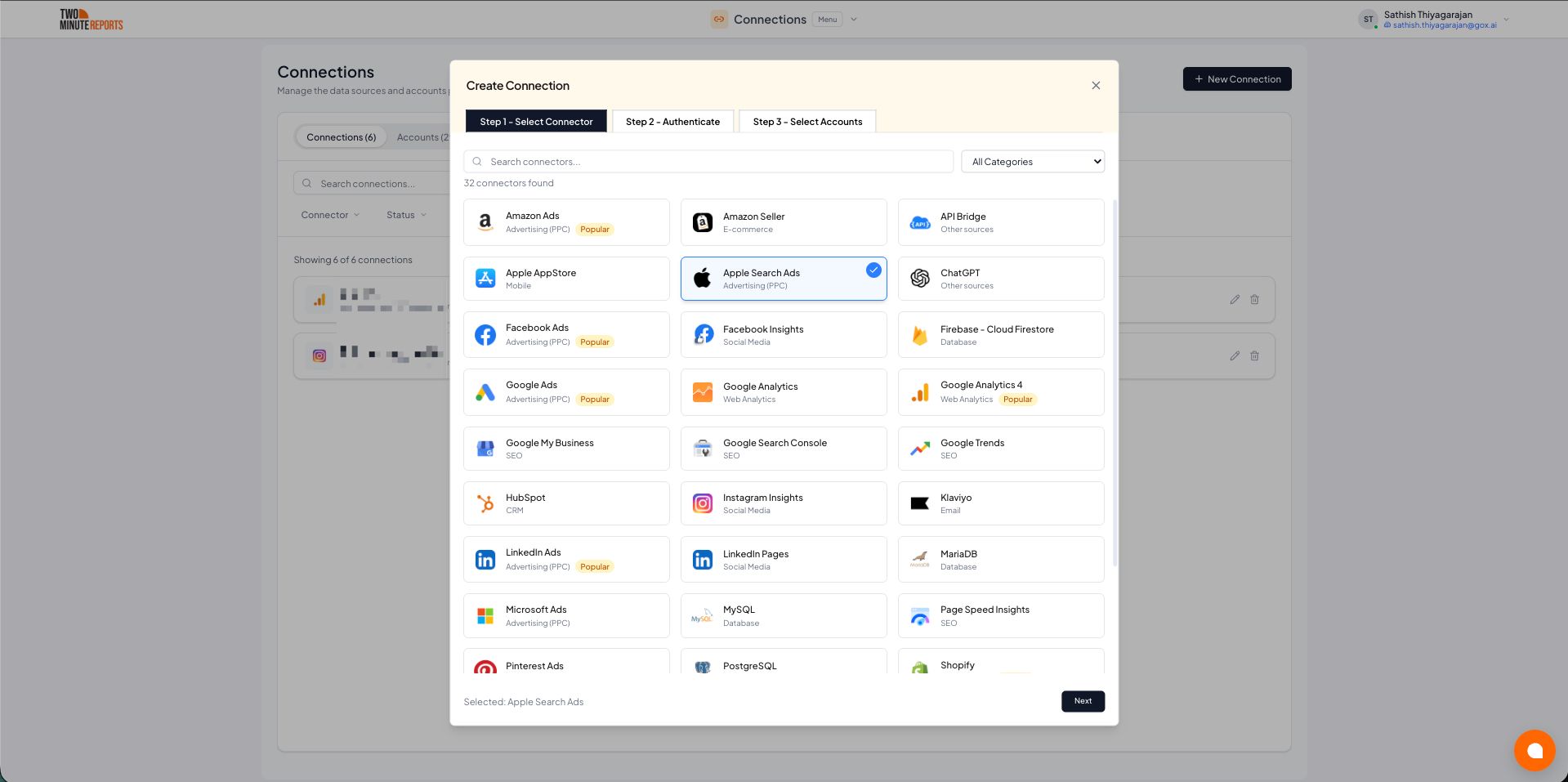
- Go to https://hub.twominutereports.com/connections
- Select New Connection and select Apple App Store from the connector list
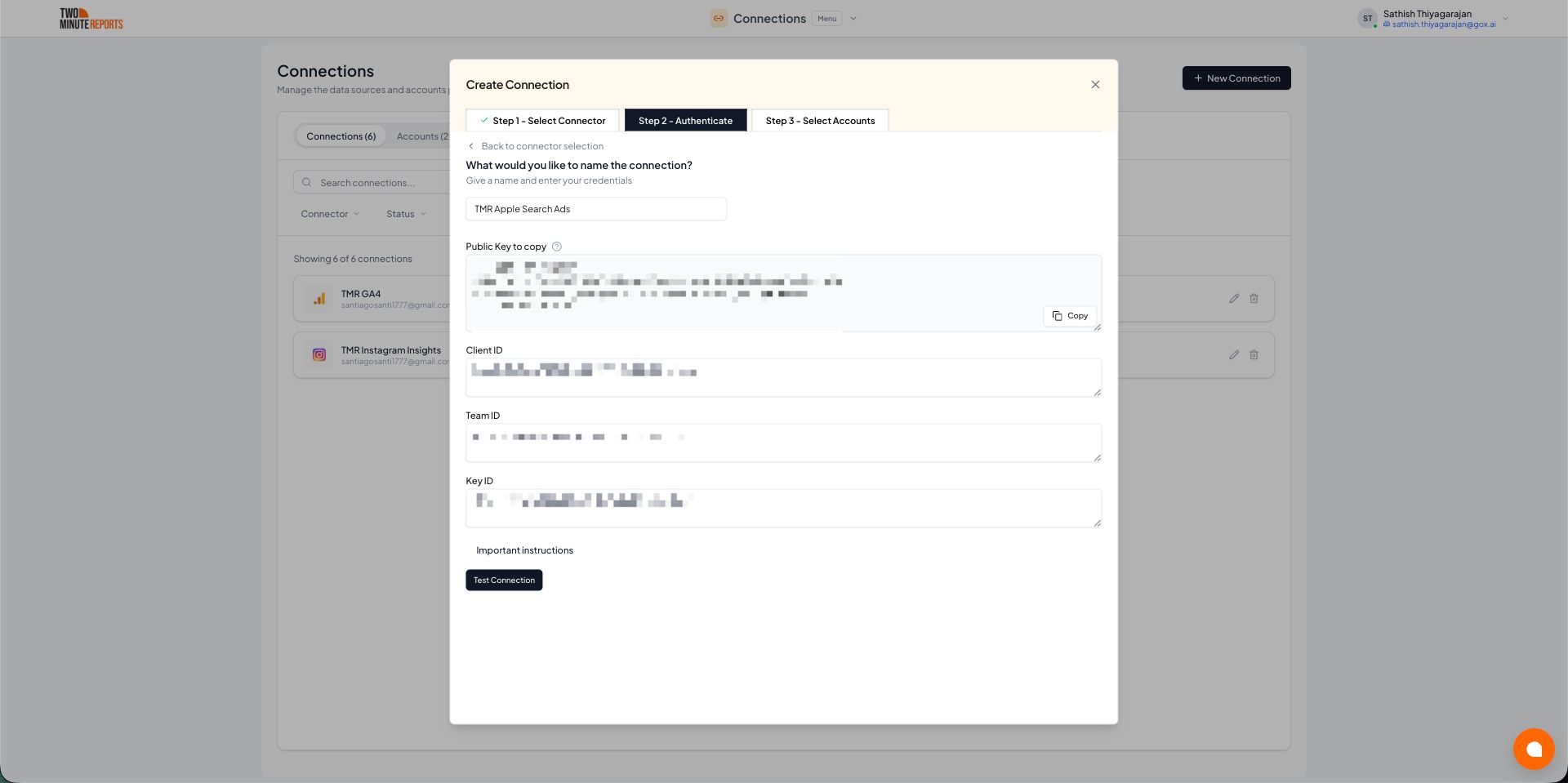
- Enter your Issuer ID and Key ID, and upload or paste the contents of your
.p8API key file. If you don't have them yet, see How to get your credentials - Select Test Connection to verify the credentials
- Enable the App Store accounts (vendor accounts) you want to use
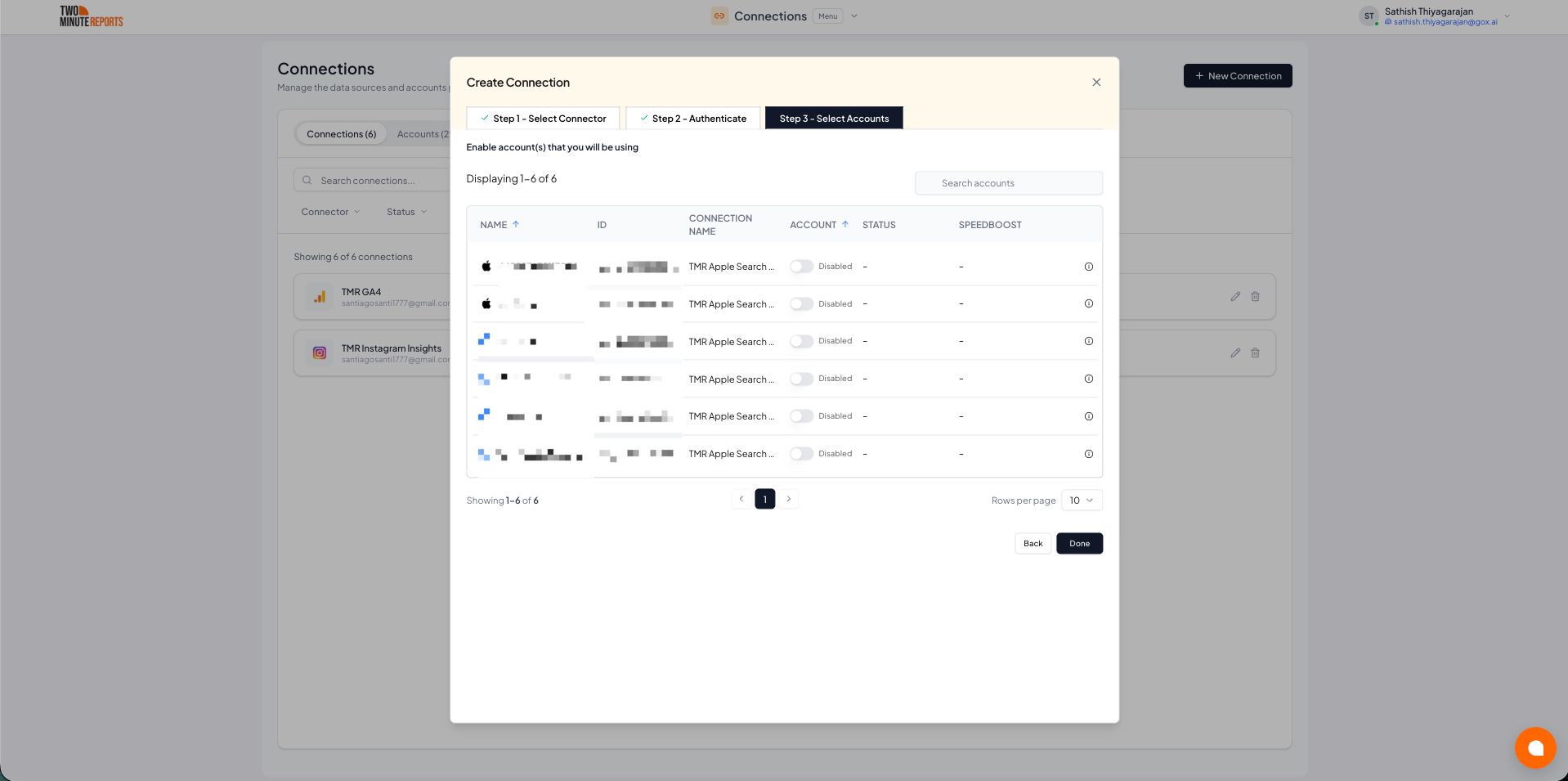
Important: Only enabled accounts can fetch data and count toward your plan usage.
How to get Apple App Store data into your reports
To pull App Store data into Google Sheets:
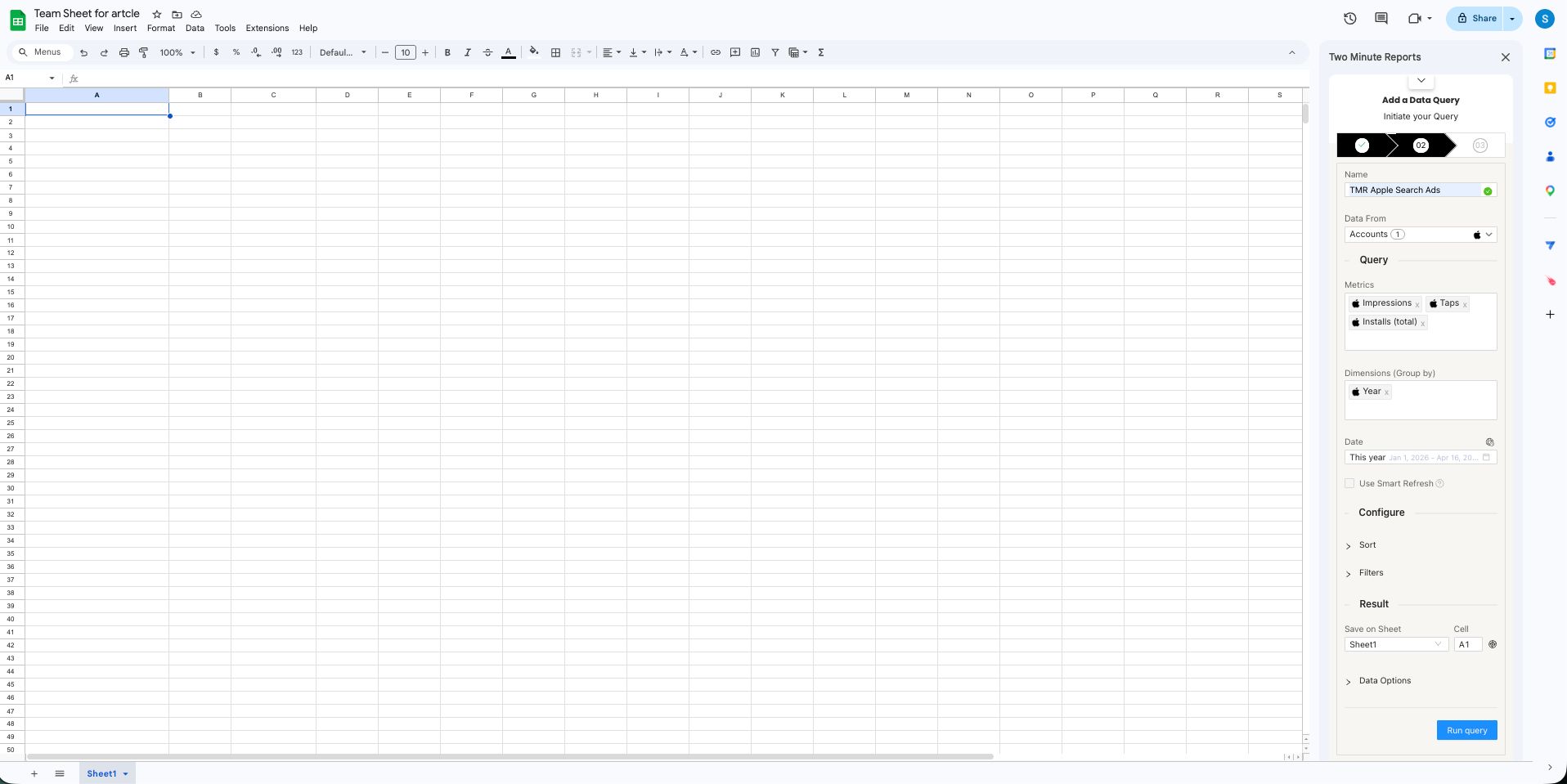
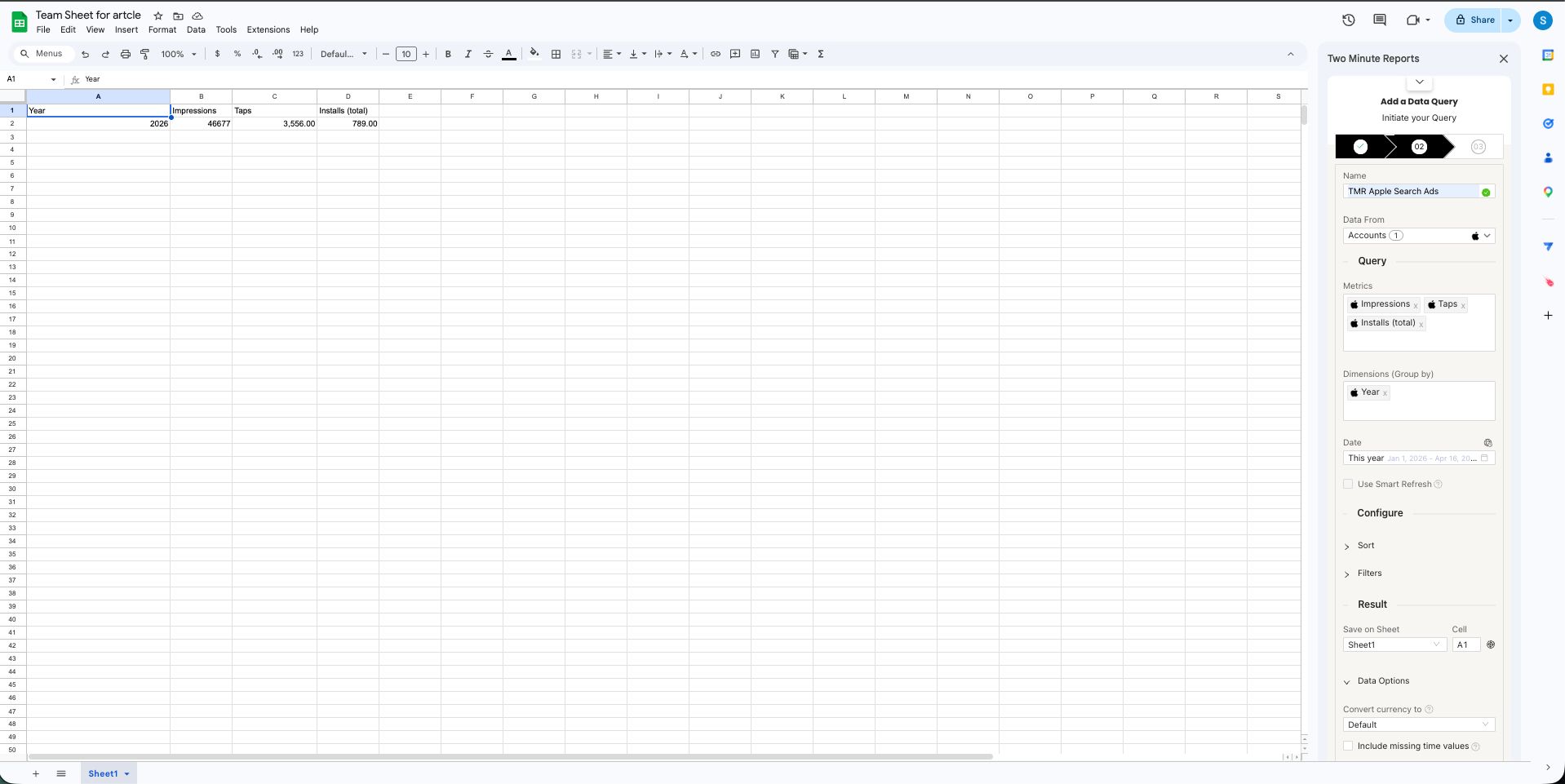
- In the TMR sidebar, go to Data Queries and select Add
- Select the App Store account(s) you want to analyze
- Choose your metrics and dimensions from the available options
- Select the date range for your analysis
- Select Run Query to load results into your sheet
Next steps
To pull App Store data into Google Data Studio:
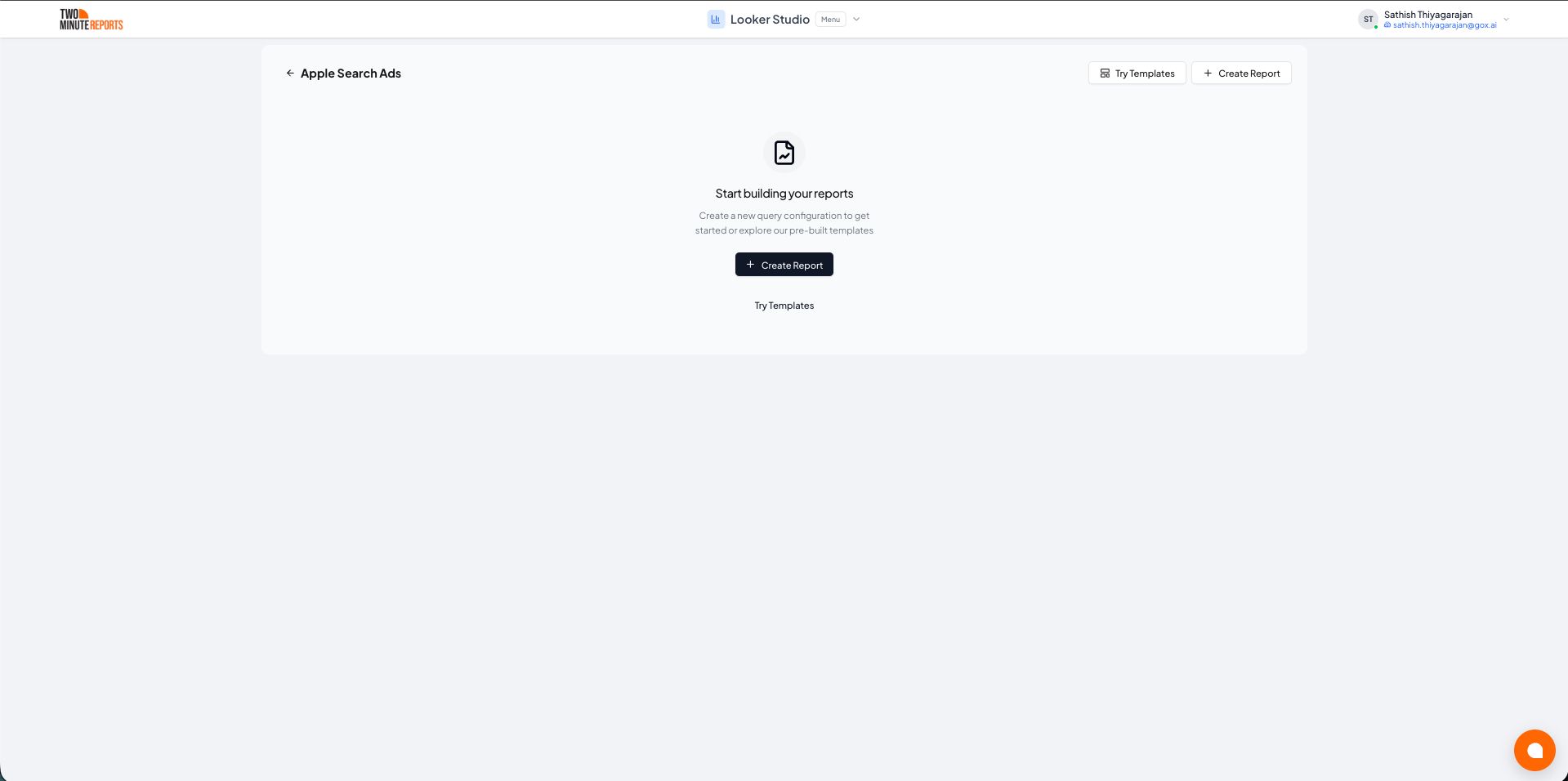
- Select Open in Google Data Studio, then select + Create Report.
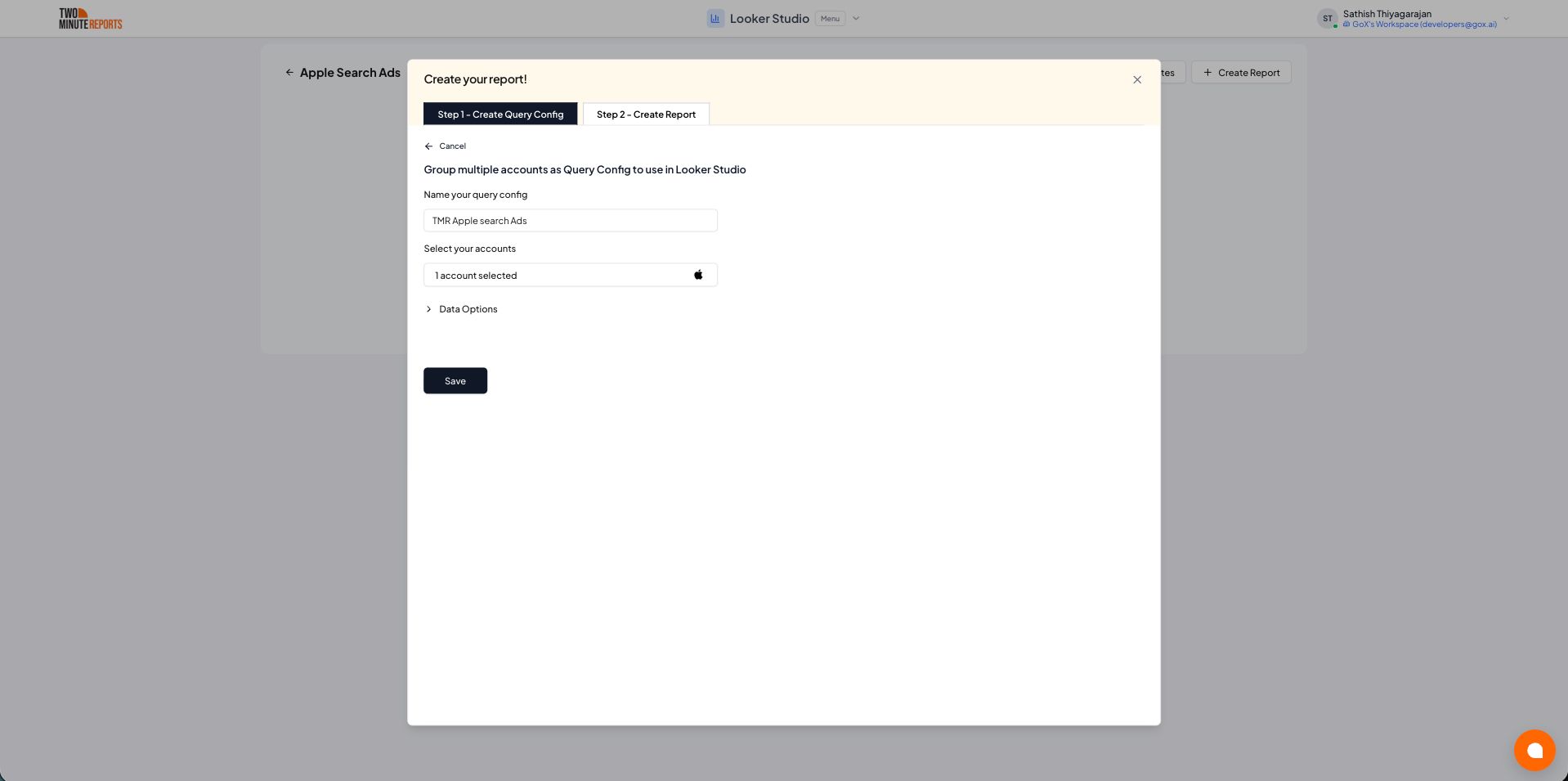
- A query config panel will appear. Do one of the following:
Already have a query config? Select it from the dropdown and skip to step 3.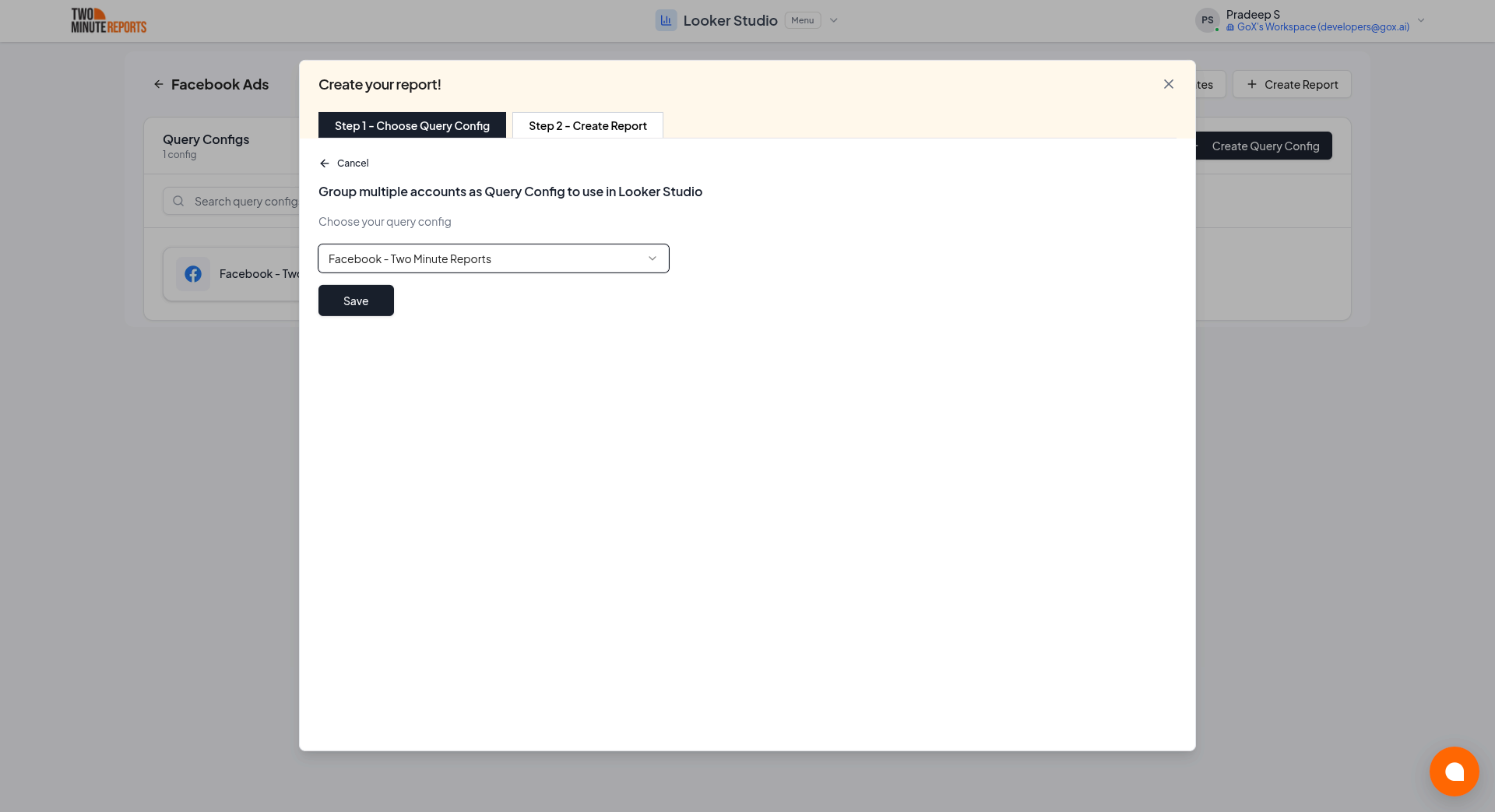
Creating a new query config: Enter a name, select the accounts you want to include from the dropdown, then select Save.
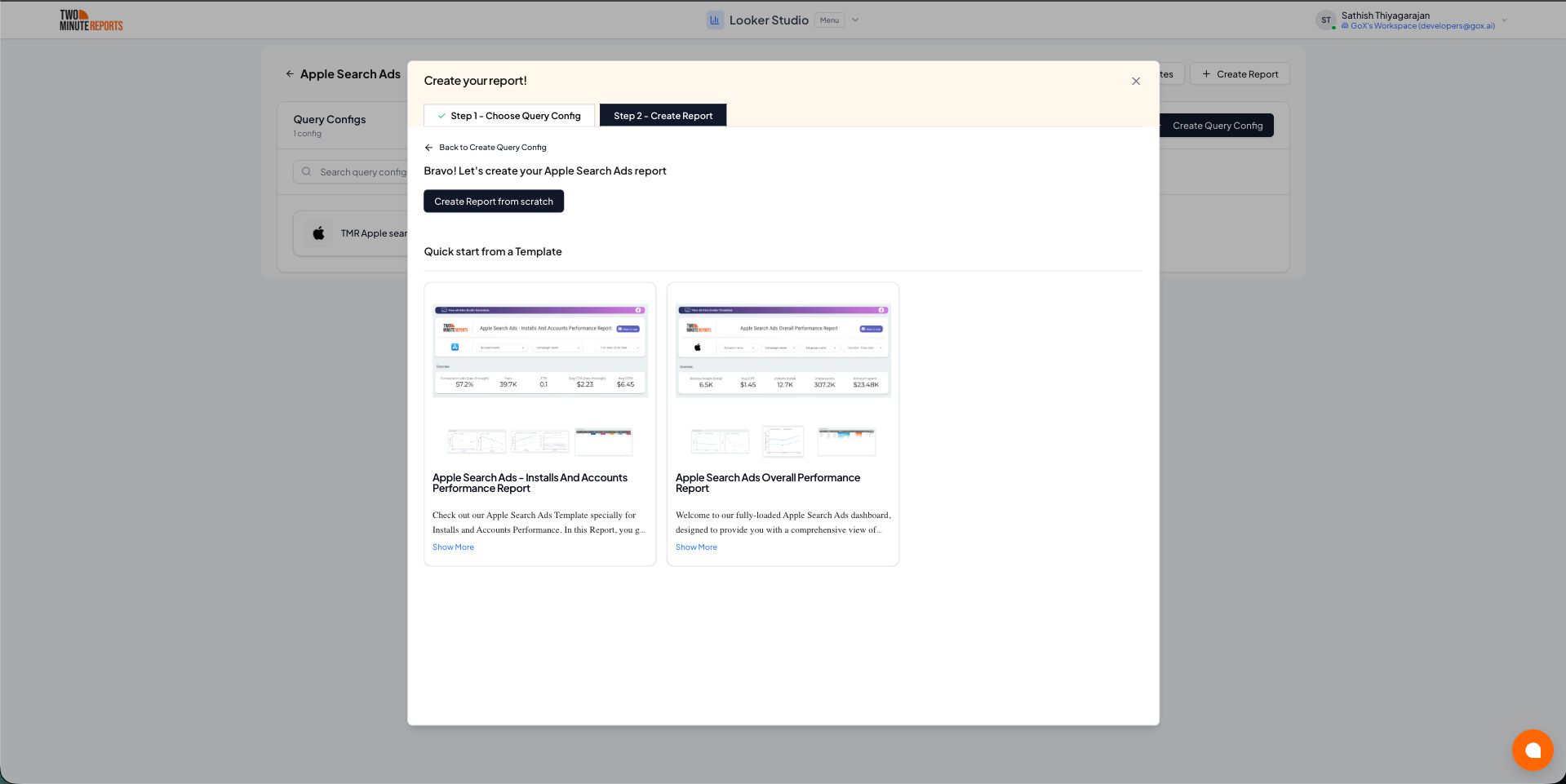
- Choose Create report from scratch to build a custom report, or select one of the pre-built templates to get started quickly.
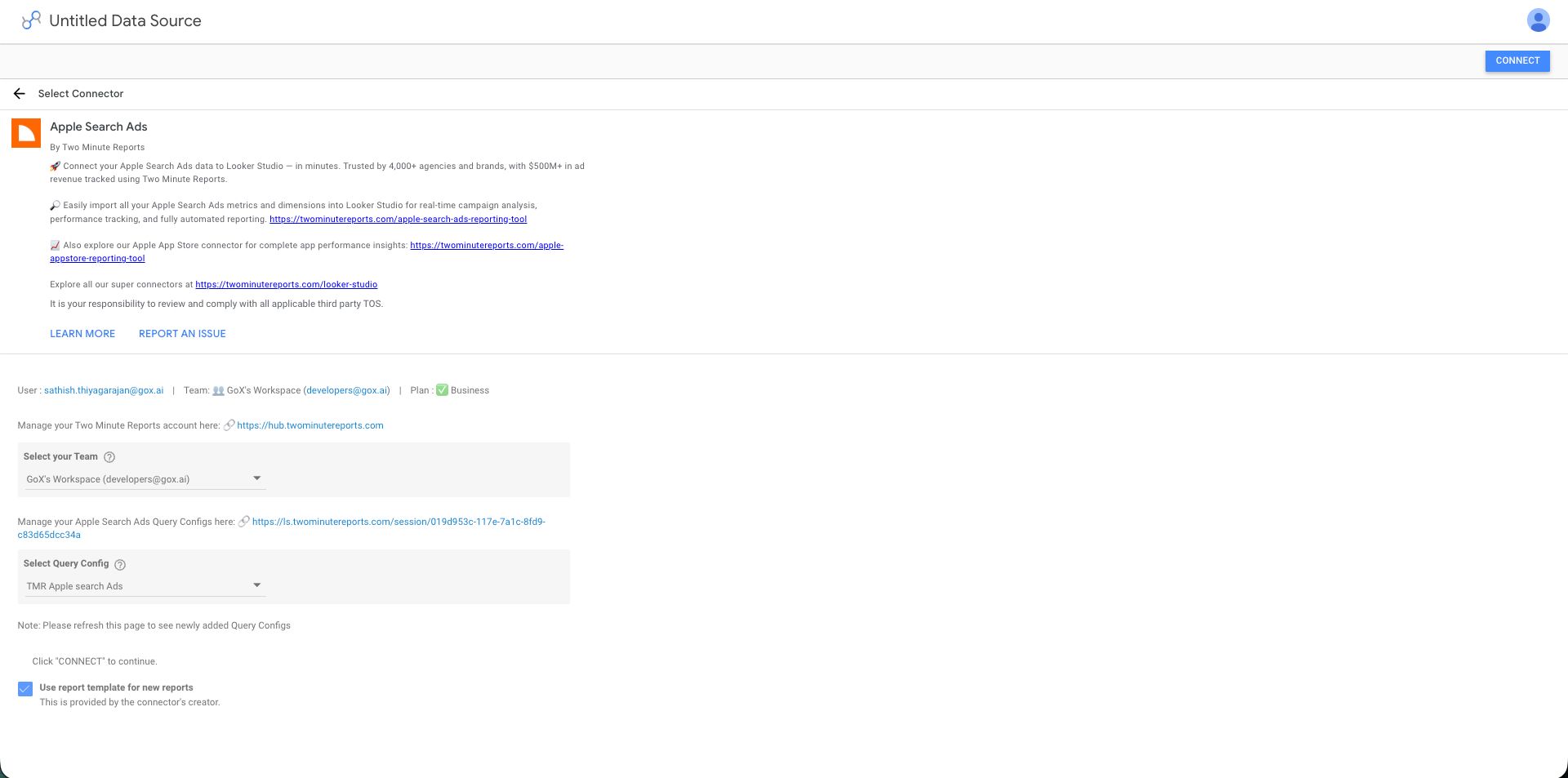
- In the Google Data Studio connector panel, select your team and choose the required query config from the dropdown. Select Connect in the top-right corner.
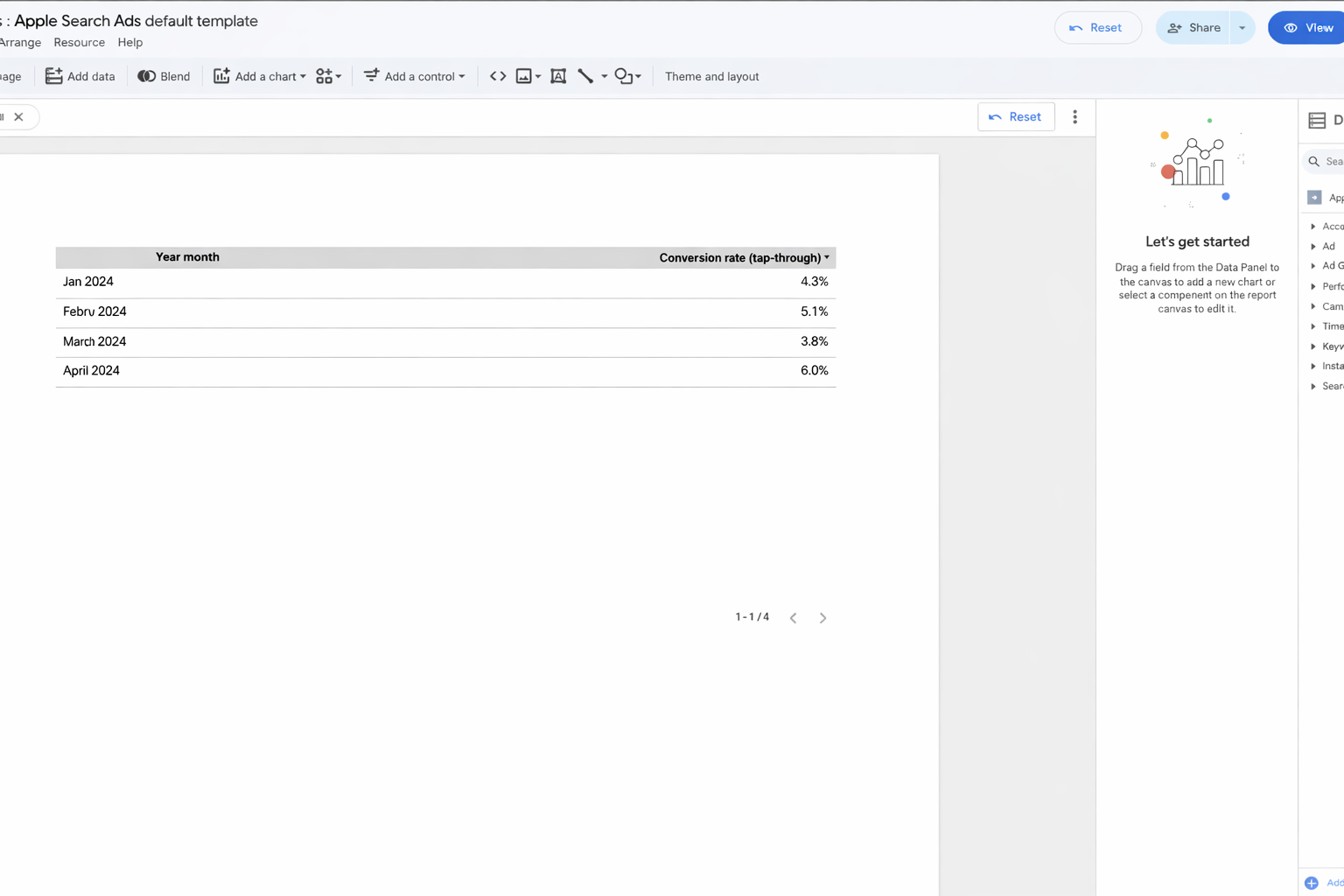
- You'll land on the Google Data Studio dashboard. Drag and drop the available App Store metrics and dimensions onto your canvas to start analyzing your data.
Next steps
If you need help, contact [email protected] or submit a support ticket.