

Widgets and charts
Widgets are the building blocks of a dashboard. Each widget is a single block on the grid that displays your data as a chart, table, scorecard, map, or piece of text. This page covers the full catalog and how to configure a data widget.
What you can do
- Add any of 20+ widget types to your dashboard
- Visualize one or many metrics, broken down by any dimension
- Filter, sort, and add moving averages to a widget's data
- Show period-over-period change directly on a widget
- Fine-tune the appearance of each widget without touching its data
Add a widget
- Select Edit to switch to edit mode.
- In the side panel, select Widgets. Widgets are grouped as Time series, Bar & column, Pie & circular, Table, Scorecards, Funnel, Maps, and Text & layout.
- Select a widget to add it at the bottom of the page. Or drag it onto the canvas to place it where you want it.
- Select the new widget to open its editor, then connect it to data.
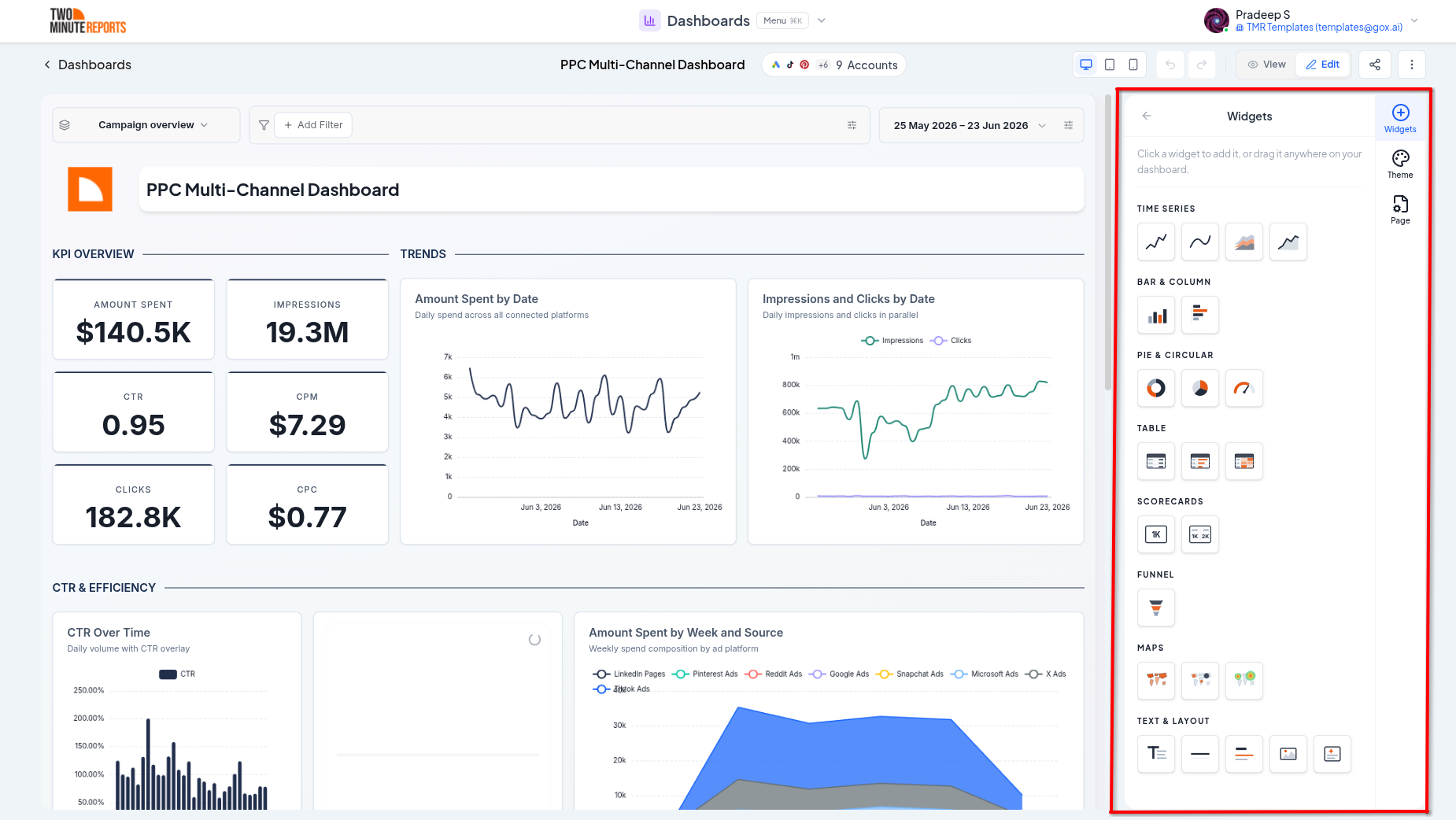
Widget catalog
The names below are the names in the Widgets panel.
Scorecards
Single-number summaries, ideal for headline KPIs.
- Scorecard: one large metric, optionally with a period-over-period change
- Multi score card: up to four metrics side by side in one widget
Time series
- Smooth line chart: trends over time for one or more metrics
- Sparkline chart: a compact trend line for a single trend at a glance
- Area chart / Stacked area chart: trends with filled areas. A stacked area chart breaks a metric down by a second dimension.
Bar, column, and circular charts
- Bar chart / Column chart: compare values across categories, horizontally or vertically
- Pie chart / Donut chart: part-to-whole share of a single metric
- Gauge: a single value on a dial, with optional colored zones
Funnel
- Funnel: stage-to-stage drop-off. Turn on Better funnel to use log-scaled widths, so small stages stay visible.
Tables
- Table: rows and columns of metrics and dimensions
- Table with bars: in-cell bars to compare values at a glance
- Table with heatmap: cells shaded by value to highlight highs and lows
Maps
Each map plots one metric against one geographic dimension (country, country code, or latitude/longitude).
- Filled map: shades countries by value
- Bubble map: sized, color-scaled bubbles at countries or points
- Geo heatmap: a density layer that highlights hot spots
Text and layout
- Text: headings and rich text for titles, notes, and context
- Section divider: a section heading with an optional subtitle and dividing line
- Divider: a simple horizontal rule
- Image: show a logo or image from a URL
- Custom: Markdown content with optional CSS, for anything the built-in widgets don't cover
Configure a chart
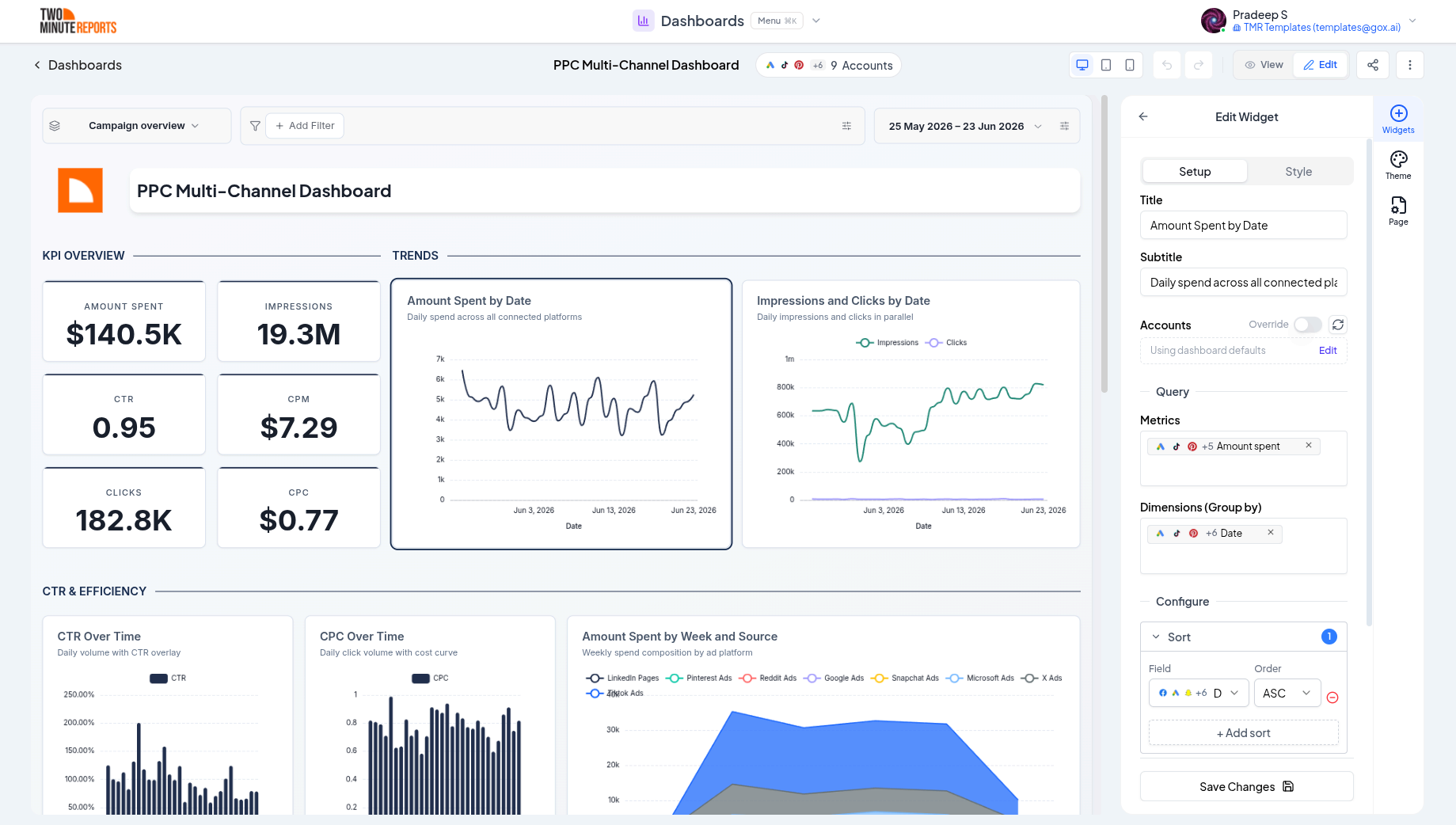
Select a data widget to open its editor. The editor has two tabs: Data and Style. The options depend on the widget type, but most charts share the same building blocks.
Accounts
Choose which connected accounts the widget pulls from. By default a widget uses the dashboard's default accounts, but you can override the accounts for an individual widget.
Metrics and dimensions
- Metrics are the numbers you measure (spend, clicks, revenue, conversions, and so on)
- Dimensions are how you break those numbers down (by date, campaign, country, device, and so on)
Different widgets accept different counts. For example, a scorecard takes one or more metrics and no dimension, while a line chart takes a time dimension plus one or more metrics. For stacked area and other stacked charts, you choose a primary dimension (group by) and a separate breakdown dimension (stack by).
Filters
Narrow a widget's data under Filter by. Choose a field, a condition, and a value. The conditions are:
| Condition | Matches rows where the field… |
|---|---|
| Contains / Not contain | includes (or doesn't include) the text |
| Equals / Not equal | exactly matches (or doesn't) |
| Greater than / Less than | is above or below a number |
| In / Not in | matches (or doesn't match) any value in a list |
| Matches regex / Does not match regex | matches (or doesn't match) a regular expression |
Sorting
Under Sort by, sort the widget's results by any field in ascending (ASC) or descending (DESC) order, for example highest spend first.
Running averages
Add a moving average over a chosen number of days to smooth out noisy day-to-day trends.
Compare
When a compare period is active, supported widgets can show the change versus that period. Each widget has its own Show date comparison on this widget switch, and a Format of Percent or Absolute.
Display options
On the Style tab, each widget has appearance options that don't change its data. Depending on the widget type, these can include:
- Legend - show or hide it and choose its position
- Data labels - show values directly on the chart
- Axis - axis titles and a fixed min/max for the value axis
- Grid lines - show or hide them
- Bar radius - round bar and column corners
- Gradient fill - toggle the gradient under area charts
- Limit rows - cap how many rows or categories are shown
- Donut - hole size and an optional center label
- Color zones - colored thresholds for good, warning, and bad ranges on a gauge
- Value format - prefix, suffix, decimal places, and abbreviation (1.2K, 3.4M) on a score card, plus an accent border
- Column alignment - align dimension and metric columns in a table, and abbreviate large numbers
Best practices
- Lead each page with scorecards for the headline numbers, then detail below
- Keep a single widget focused on one question; split complex views into multiple widgets
- Use tables for precise values and charts for trends and comparisons
- Limit rows on bar and table widgets so the most important categories stand out
Next steps
- Layout and pages - Arrange your widgets
- Data, dates, and filters - Control the data feeding every widget
- Theming - Style your widgets and charts
Create a dashboard
Three ways to start a dashboard in Two Minute Reports: let Dash build it from a description, start from a ready-made template, or start from scratch.
Layout and pages
Organize a dashboard across multiple pages and arrange widgets on a responsive drag-and-drop grid, with resizing, auto-align, undo/redo, and view and edit modes.