

Share a Setup Link
When you add a new connection in the TMR hub, Step 2 asks you to sign in with the platform account (for example, Google Ads, Facebook Ads, or Shopify). If you do not have those credentials — common when an agency sets up reporting for a client — you can generate a setup link and send it to the person who does.
The recipient completes authentication on their side. They do not need a Two Minute Reports account or to sign in to TMR. Once they finish, the connection is added to your team and you can continue with Step 3 to select accounts.
This is available for all connectors supported in the hub.
When to use a setup link
Use a setup link when:
- You are setting up a connection for a client but do not have login access to their ad account, analytics property, or store
- The account owner is not on your TMR team and should not need one
- You want someone else to authorize the platform while you manage reporting in TMR
Generate and share a setup link
Step 1 — Start a new connection
- Go to hub.twominutereports.com/connections
- Click New Connection
- Select the connector you want
- Enter a name for the connection and proceed to Step 2 — Authenticate
Step 2 — Open the share link modal
On the authenticate step, click Need someone else to connect? Share a setup link.
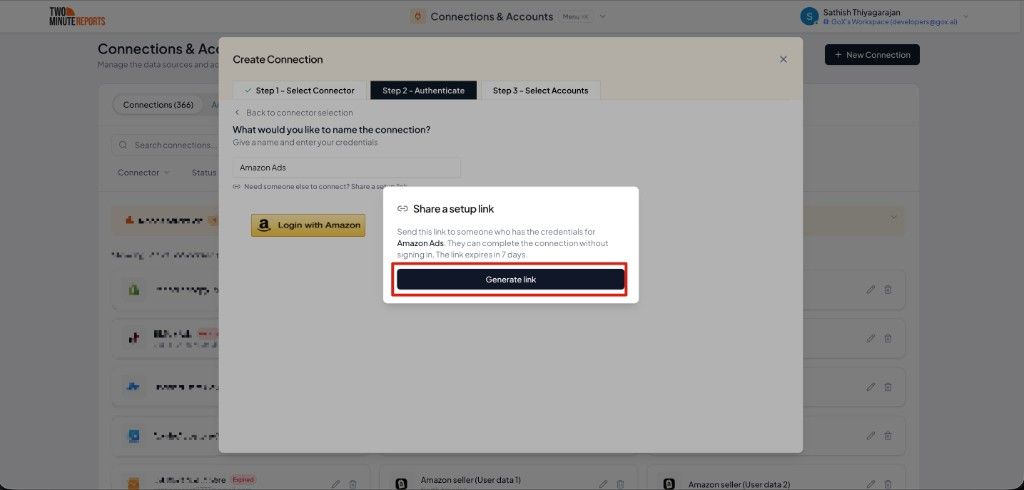
A modal opens with the title Share a setup link and a short description explaining that the recipient can complete the connection without signing in. The connector name in the message matches the connector you selected.
Click Generate link.
Step 3 — Copy or email the link
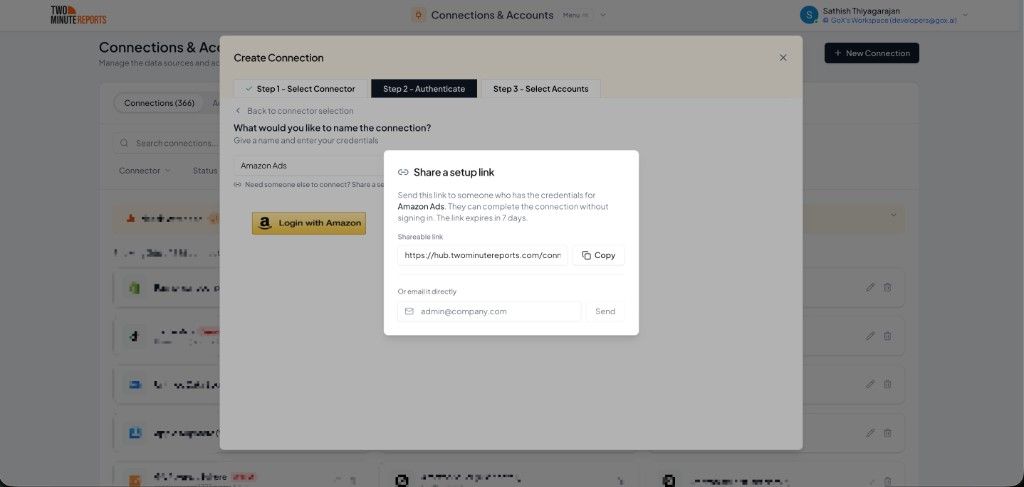
After the link is generated, the modal shows:
- Shareable link — a unique URL you can copy and send through Slack, email, or any messaging tool
- Or email it directly — enter the recipient's email address and click Send. Two Minute Reports sends the email for you.
The link expires 7 days after it is generated. If a link expires before the recipient completes the connection, return to the same connection wizard and generate a new one.
What the recipient receives
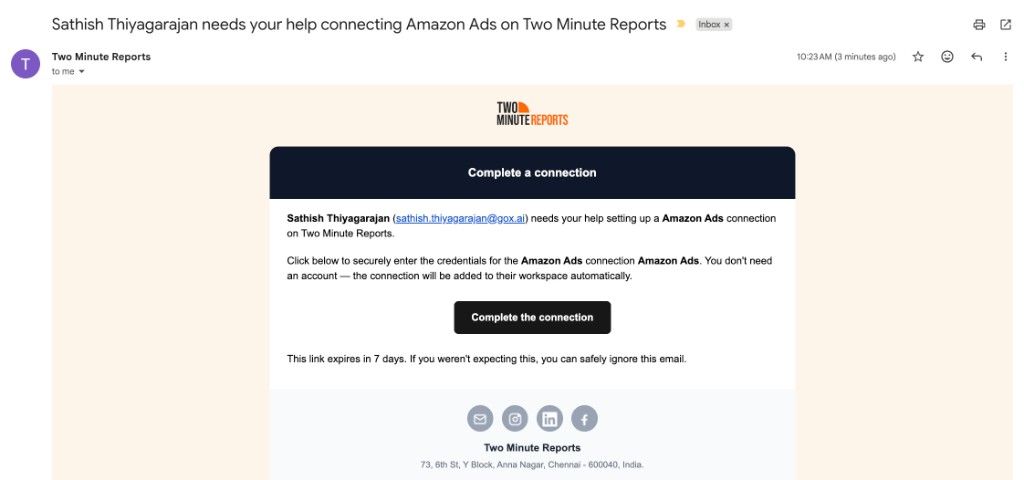
If you use Send, the recipient gets an email from Two Minute Reports with a subject like:
Your name needs your help connecting Connector on Two Minute Reports
The email explains that you need their help setting up the connection and includes a Complete the connection button. It also notes that the link expires in 7 days and that they can safely ignore the email if they were not expecting it.
What the recipient does
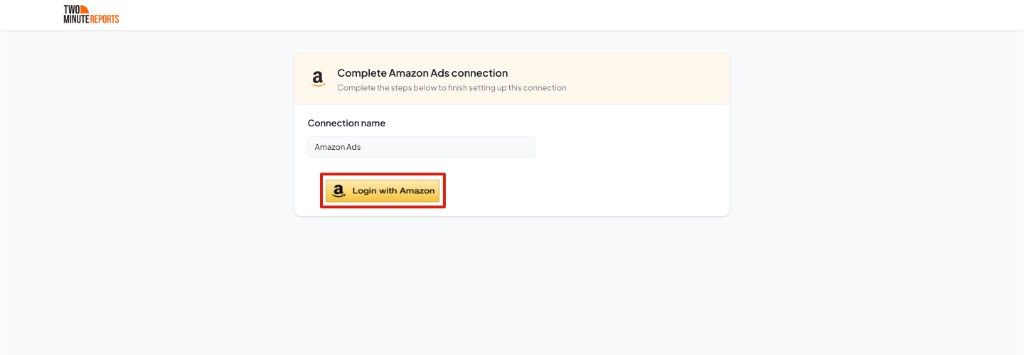
- Open the setup link from the email (or the link you copied and sent)
- A page opens on
hub.twominutereports.comshowing Complete Connector connection - Click the platform login button (for example, Login with Amazon) and sign in with their account credentials
- Complete the authorization flow
They do not need to sign in to Two Minute Reports. When they finish, the connection appears in your team's Connections page and you can enable the accounts you need in Step 3.
Important details
| Detail | Description |
|---|---|
| All connectors | Setup links are available for every connector in the hub — ad platforms, analytics, e-commerce, databases, and more. |
| Link expiry | Setup links expire 7 days after generation. You can regenerate a new link from the same connection wizard. |
| Email delivery | When you click Send, Two Minute Reports emails the link directly to the recipient. |
| Team ownership | The connection is created under the team that generated the link. |
| No TMR account required | The recipient only needs access to the platform being connected — not a TMR login. |
| Connector name | The modal, email, and recipient page all update to match the connector you selected in Step 1. |
Next steps
- Quick Start — connect your first data source and pull a report
- Browse Connectors — see all supported platforms
- Clients — map connected accounts to individual clients
What is Two Minute Reports?
Two Minute Reports pulls data from 30+ marketing and analytics sources into Google Sheets and Google Data Studio - no code required.
Choosing Your Destination
Understand the difference between Google Sheets and Google Data Studio and decide which destination is right for you.