

Edit a report and comment
The editor
The editor sits in the Hub like a dashboard does.
- Top bar: the report's name (select it to rename), its status, the layout, the accounts, the period, Undo and Redo, Edit this report with Dash, Comments, Design, Preview (or Present for Slides), then Share, Download and Send, and the main action: Mark ready on a Draft, Send on a Ready report. When the window is narrow, the buttons that don't fit move into the menu (⋮).
- The menu (⋮): Duplicate report, New report from this, Refresh data, Sent and scheduled, Mark as draft (on a Ready report) and Delete report.
- Left: Pages for a document, or Slides, with a thumbnail of each page. The cover, the contents page and the closing page are in the list too. Select Add page (or Add slide) to add one. A page's menu has Rename, Add page after, Move up, Move down and Delete page.
- Right: one panel, in four modes: Blocks (every block you can add, or Block settings for the selected block), Data (the report's accounts, period and comparison), Design and Comments.
Give each page a name: the Contents block and the contents page list pages by name.
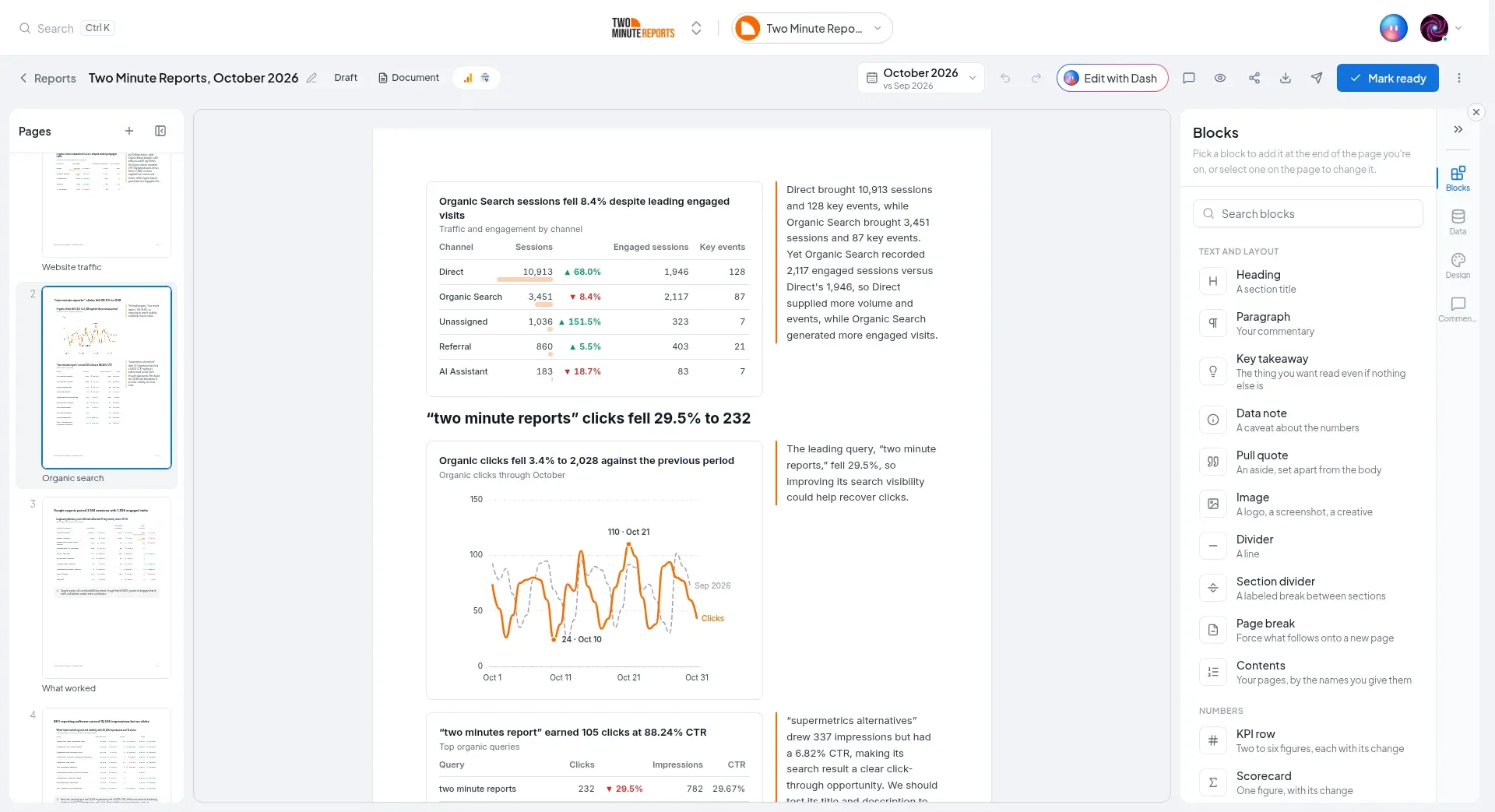
In the Pages list, each page shows the number it prints with. When sections run on from one another, a section that starts partway down the same printed page as the one before it has no number of its own.
The report's period and accounts
Every block reads the report's period and accounts, unless you give a block its own. See Blocks.
- Period: the date picker in the top bar. Under Compare to, choose Last period, Last year or None. See The period and the comparison.
- Accounts: select the accounts in the top bar, or open Data. When a report has no accounts, the top bar says Add accounts. When it has accounts that can't be combined in one report, it says Fix accounts.
On a Ready report, the editor asks first: Change the period? or Change the accounts? The report goes back to Draft and its figures update. Your client keeps the version they have until you mark it ready again.
Write on the page
Select the text of a heading, paragraph, key takeaway, data note or pull quote, and type. The text you type is the text that prints.
- Enter in a paragraph starts a new paragraph below it.
- To change the words on the cover or on the closing page, select them on the page and type. See Edit the cover on the page.
- Backspace in an empty block deletes it.
- Text is plain: pasted text keeps no formatting. For formatted text, use a Custom markdown block.
Add a block
- The slash menu: type
/in an empty paragraph, then type to search. Press Enter to replace the paragraph with that block. - Between rows: point between two rows and select + to add a block below the row.
- Beside a block: select + at either end of a row to add a block into that row. A row holds up to four blocks.
- On the page: select + at the top of a page, or Add block at its end.
- From the panel: with no block selected, the Blocks panel lists every block, with a search box. The block goes at the end of the page you're on.
Move, resize and delete
Select a block to show its toolbar:
- Drag to move: drag the handle into another row, or between two rows.
- Move left and Move right, in a row with more than one block.
- Move row up and Move row down.
- Duplicate block and Delete block.
- More: Open in full, Move into the row above, Move into the row below, and Give it a row of its own.
To change widths, drag the line between two blocks. With the line focused, the arrow keys change it one unit at a time. Widths go in twelfths of the row.
Keyboard
| Key | What it does |
|---|---|
| ⌘Z / ⇧⌘Z | Undo / redo (Ctrl on Windows) |
| ⌘D | Duplicate the selected block |
| Delete or Backspace | Delete the selected block |
| Arrow keys | Select the next block in that direction |
| Esc | Clear the selection |
Saving and undo
Everything saves as you go. There's no save button. The top bar shows Saving… while a save is going through, and Couldn't save. Retrying… if it has to try again.
Undo goes back up to 20 changes. A burst of typing is one change.
If a team member saves the same report while you're editing it, your changes are kept and put back on top of theirs, and the top bar says Updated with a team member's changes.
Preview and Present
- Preview (documents) shows the report as your reader gets it. Select Back to editing, or press Esc.
- Present (Slides) shows the slides full screen. →, ↓, Page Down, Space or Enter go forward. ←, ↑, Page Up or Backspace go back. Home and End go to the first and last slide. Esc stops.
Dash in the editor
Dash, the Two Minute Reports AI assistant, can read the report you have open: its pages, blocks, text, figures, comments and design. Dash never changes the report on its own. It suggests a change, and you decide.
- Edit this report with Dash (top bar) opens Dash with the report attached. For example: "Add a page on Google Ads campaigns", "Rewrite the summary for a CEO", or "Make the cover dark".
- Rewrite with Dash is in Block settings for a heading, paragraph, key takeaway, data note or pull quote. Select Shorter, Friendlier, More detail or Update the figures, or type what you want. On an empty block, it's Write with Dash.
- Ask Dash on a comment thread asks Dash to answer the comment. See Ask Dash about a comment.
Dash can suggest changes to the report's pages, blocks, text and design. The report's own settings are yours: its name, its period and comparison, its accounts, and the theme it uses. Ask Dash to change one of these, and it tells you where the control is: the name and Report period in the top bar, the accounts in Data, and the theme in Design.
Accept or reject a suggestion
Under its reply, Dash shows Suggested changes: each block it adds, removes, moves or rewrites, with the text as it is now and the text Dash suggests, and any change to the design. Nothing changes until you accept.
When Dash suggests more than one change, decide each one on its own, or all at once:
- Accept this change (the check) or Reject this change (the cross) beside a change decides only that one. It then says Accepted or Rejected.
- Changes that only work together, such as a new page and the blocks on it, are grouped and say These go together: one needs the other. You accept or reject them as one.
- Accept all and Reject all decide everything at once. After you decide some, they read Accept the rest and Reject the rest.
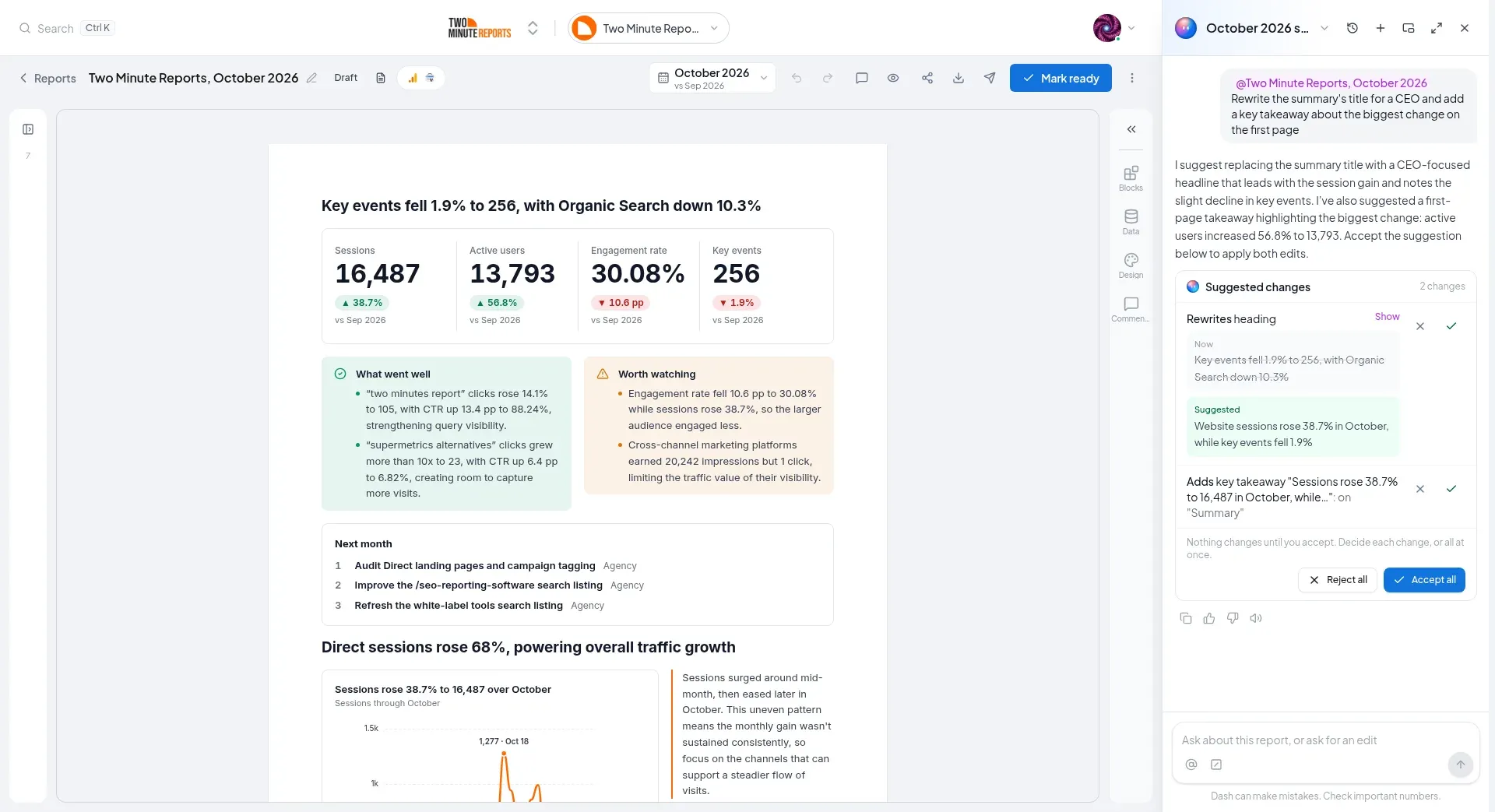
Each accept is one step in the editor's undo. A notice says what changed, for example Dash's suggestion changed 3 blocks, with Undo. If you've edited the report since, use Undo in the top bar to step back one change at a time.
When you've accepted some changes and not others, the suggestion says Some changes accepted.
If the report changes before you decide, the suggestion says Suggestion out of date. Ask Dash again.
An accepted suggestion is an edit like any other, so a Ready report goes back to Draft. A suggestion you don't accept is gone when you reload the page.
Comments
Comments are for your team. They never show on the link, in a download or in a send.
Open Comments in the top bar. The panel has two tabs, Open and Resolved.
- On the report: write in the box at the top of the panel.
- On a block: select the block, then write in the box.
- On selected words: select words in a text block, then select Comment (or press ⌘⌥M). The words are highlighted on the page. Select them to open the thread.
- Reply in the thread, and Resolve it when it's handled. A resolved thread can be reopened with Reopen.
- Edit: you can edit your own comments and replies.
- Delete: you can delete your own comments. Someone who can edit the report can delete any comment. Deleting a comment deletes its replies.
If the block a thread is about is deleted, the thread stays. It moves to the top of the list and says The block this was about was deleted. If you undo the delete, the thread goes back on the block. If the words a thread quotes are changed, it says The text this was about changed.
Mention a team member
Type @ to mention a team member. They get an email with a link to the thread. If they already have a mention on the same report from the last 30 minutes that they haven't opened, they don't get a second email.
When someone mentions you, you see it in these places until you open the comment:
- Home: Needs your attention shows "{name} mentioned you in {report}", with Open comment.
- The navigation: Reports shows the number of reports with comments for you.
- The Reports page: the report shows @ and the number of comments that mention you. To list only these reports, filter Comments by Mentions me.
- The editor: Comments in the top bar has a dot. When you open the report, the panel opens on the newest comment that mentions you. Threads you haven't read say New.
Ask Dash about a comment
Select Ask Dash on a thread. Dash reads the thread and the block it is about:
- If the comment asks for a change, Dash suggests it. Select Accept to apply it, or Accept and resolve to apply it and resolve the thread in one step.
- If the comment asks a question, or says a figure looks wrong, Dash checks the data and answers. Select Reply in thread to post the answer as your reply. It starts with "Dash:" so your team knows where it came from.
Next steps
Blocks
A report page is a stack of rows, and a row holds up to four blocks side by side. Every block you can add, and the settings each one has.
Design and branding
Make a report look like your agency: presets, team and client themes, logos, your own fonts, six cover layouts, a closing page, headers, footers, page numbers and contents.