

Scheduling Auto-Refresh
Two Minute Reports can automatically refresh your data and send reports on a schedule that works for you. This eliminates manual data updates and keeps your stakeholders informed with the latest insights.
Setting Up Scheduled Refreshes
Navigate to Schedule Reports
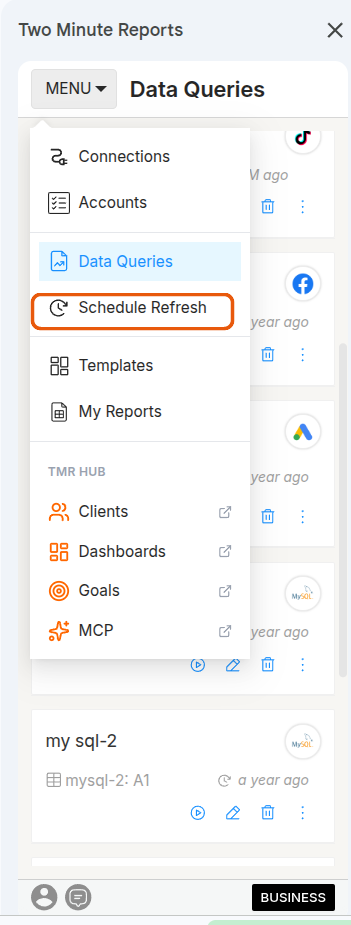
In the TMR sidebar, click Menu and select Schedule Refresh.
Add a New Schedule
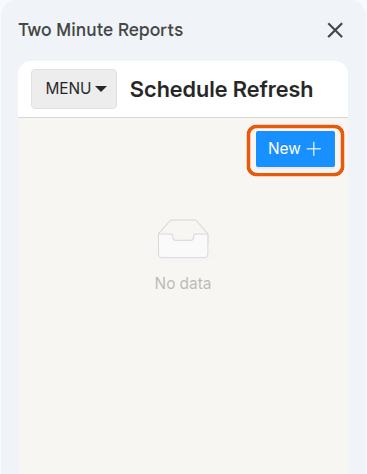
Click New to create a new scheduled refresh. You'll configure:
- Which query or queries to refresh
- When to refresh (frequency and time)
- Who receives automated reports (optional)
Select Queries
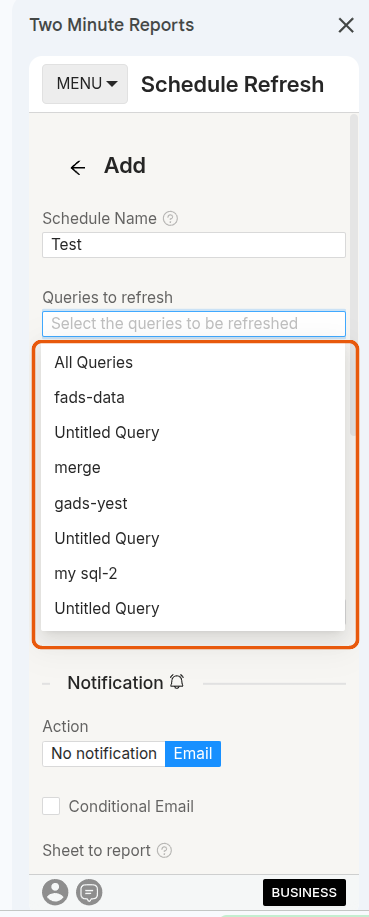
Choose which data queries to include in this schedule. You can select multiple queries if they should refresh on the same schedule.
Set Refresh Frequency
Choose how often you want data to refresh:
- Hourly - Every N hours, starting from a date you choose
- Daily - Every N days, at an hour you choose
- Weekly - Every week on a selected day and hour
- Monthly - On a specific day of the month, at an hour you choose
Set the Time
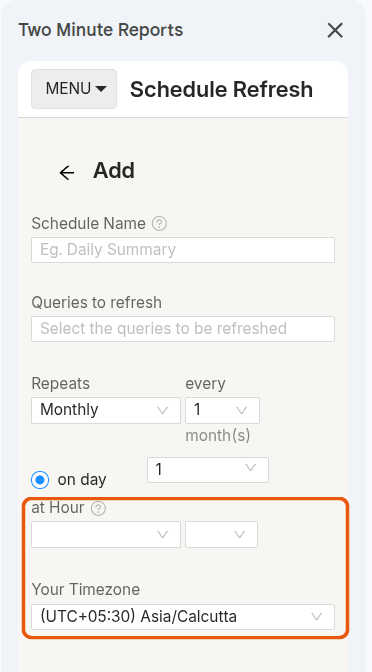
For Daily, Weekly and Monthly schedules, choose the hour the refresh should run and the timezone to interpret it in. Consider scheduling during off-hours if you have large data requests that might impact performance.
Hourly schedules have no time setting — you choose the interval and a start date only. See Choosing the minute of the hour below.
Choosing the Minute of the Hour
Refresh times are set to the hour, not to the minute. There is no setting for "run at :55 past the hour", on any frequency.
For Hourly schedules, a minute within the hour is chosen for you and is not shown anywhere. This is deliberate: if every hourly schedule ran at :00, all of them would hit the ad platform APIs in the same moment, and rate limits would fail a large share of them. Spreading schedules across the hour is what keeps them reliable.
A few consequences worth knowing:
- The minute your schedule lands on is arbitrary, and it is reassigned every time you edit the schedule. A schedule that has been running at :12 may run at :47 after you change its recipients.
- Two hourly schedules in the same sheet will generally not run at the same minute as each other.
- Daily, Weekly and Monthly schedules honour the hour you pick, but the minute within that hour is assigned the same way.
Email Reports (Optional)
You can automatically send reports to your team or clients via email:
Enable Email Delivery
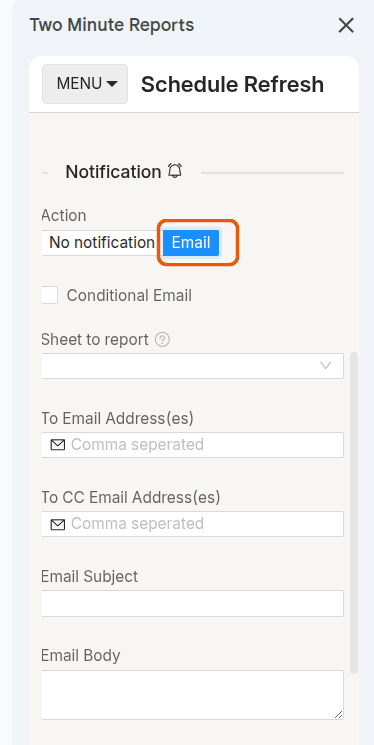
In the Notification section, set Action to Email.
Configure Recipients
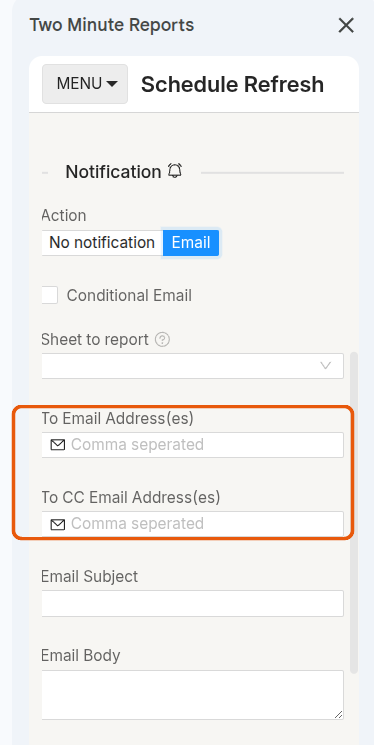
Add email addresses under To Email Address(es) and, optionally, To CC Email Address(es). You can include team members, clients, stakeholders, or distribution lists.
Customize the Subject and Message
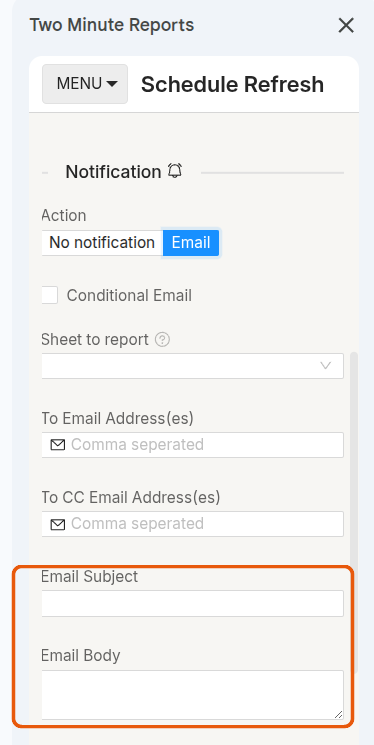
Write a custom Email Subject and optional Email Body to include with each report.
Choose Report Format
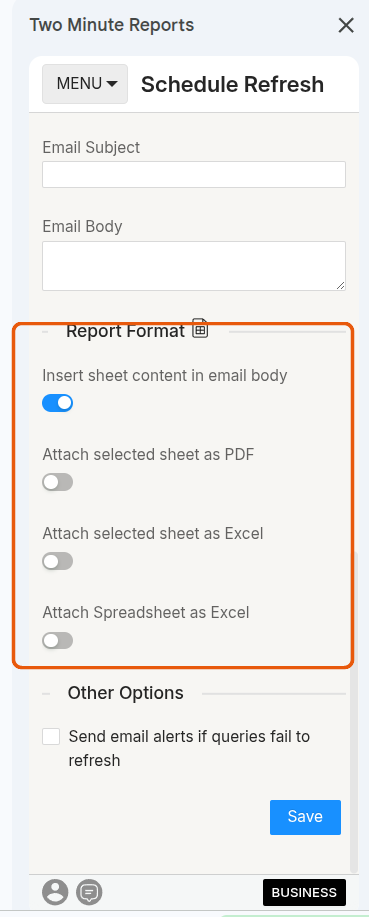
Under Report Format, choose how the data should reach recipients:
- Insert sheet content in email body - the sheet's contents appear directly in the email
- Attach selected sheet as PDF
- Attach selected sheet as Excel
- Attach Spreadsheet as Excel - the entire workbook, not just the selected sheet
These options aren't exclusive — turn on as many as you need.
Smart Refresh
For large data queries, enable Smart Refresh to avoid timeout failures:
- Smart Refresh breaks large requests into smaller chunks
- Data refreshes sequentially rather than all at once
- Reduces the risk of hitting API rate limits or timeout errors
- Takes longer but is much more reliable for complex reports
Managing Active Schedules
You can view all active schedules in the Schedule Reports section:
- View details - Click any schedule to see its configuration
- Pause/Resume - Temporarily disable a schedule without deleting it
- Edit - Modify the frequency, recipients, or other settings
- Delete - Remove a schedule permanently
Testing Your Schedule
Before relying on automated schedules:
- Run your query manually to verify the data looks correct
- Set up a test schedule for a small time window
- Verify that emails arrive as expected
- Check that the data in subsequent refreshes is accurate
Timezone Management
TMR respects the timezone settings in your Google Account. If schedules don't run at expected times:
- Check your Google Account timezone settings
- Verify the time zone in your Google Sheets document
- Contact support if there are persistent discrepancies
Troubleshooting
Refresh ran at an unexpected minute:
- Expected. The minute is assigned by TMR and changes when you edit the schedule — see Choosing the minute of the hour
Schedule didn't run:
- Check that your connected accounts still have valid permissions
- Verify that your data sources haven't changed or been revoked
- Review the schedule settings to ensure the frequency is correct
Email reports not received:
- Verify recipient email addresses are correct
- Check spam/junk mail folders
- Ensure your email settings allow external services to send mail
Data looks incorrect:
- Run the query manually to compare results
- Check if your data source was recently updated or changed
- Review any filters or date range settings
Contact [email protected] if issues persist.
Next Steps
- Manage your reports — organize queries and build dashboards
- Troubleshoot refresh issues — fix common schedule and email problems