

AI tools
AI tools let you ask about your marketing data in plain words. Dash is built into Two Minute Reports. Claude, ChatGPT and other AI tools connect to your data when you sign in to Two Minute Reports from them.
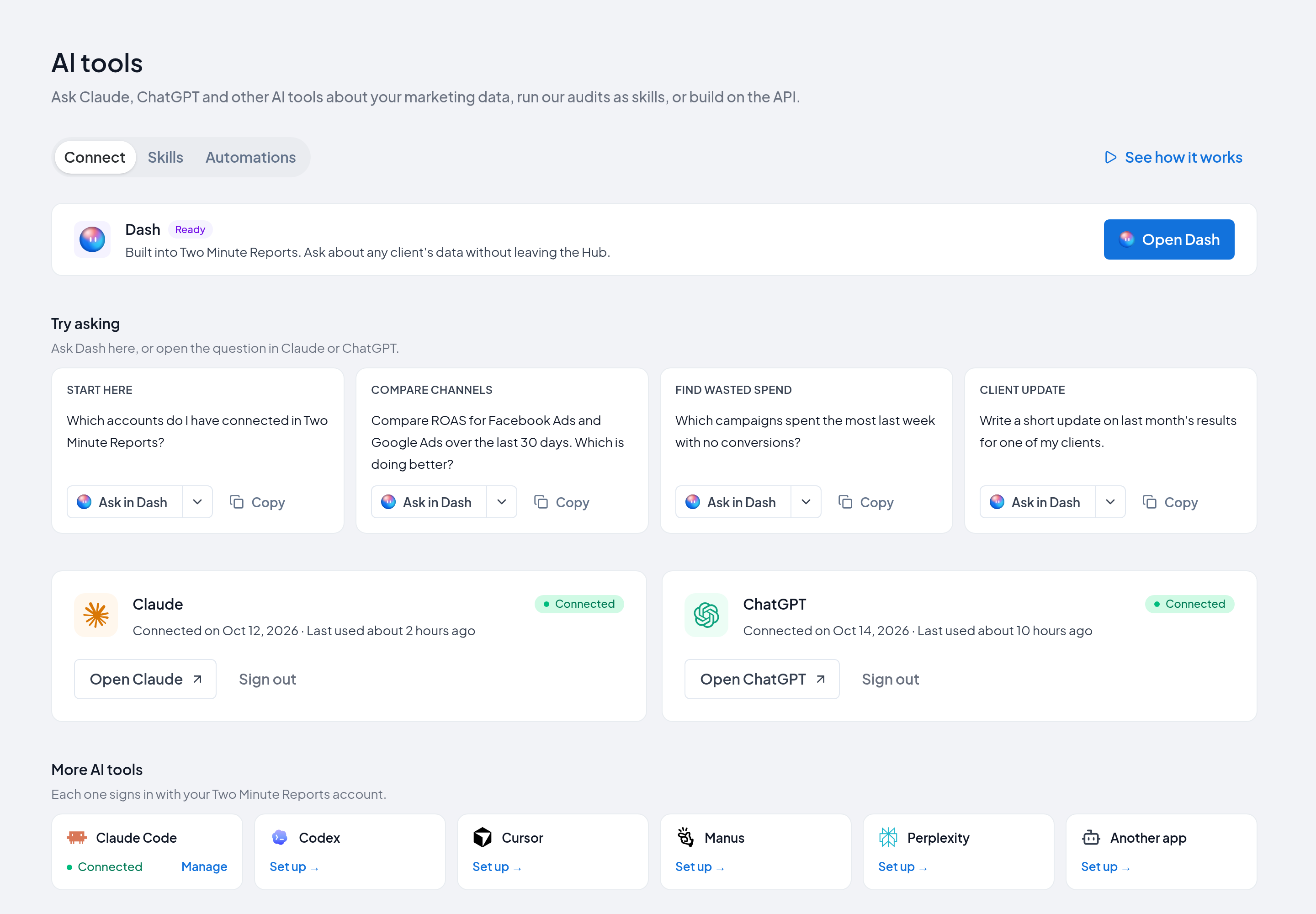
All AI tools are on the AI tools page in the Hub. In the side menu, select AI tools.
What you can do
- Ask about your data, for example spend, conversions or traffic, in plain words.
- Compare channels, campaigns and time periods in one question.
- Get tables and charts as answers.
- Run a skill: a full audit or report, such as a Google Ads audit.
- In some tools, create dashboards and goals. Your role must allow it.
Compare the AI tools
| AI tool | How you connect | Skills | Plan in the AI tool |
|---|---|---|---|
| Dash | Built in. There is nothing to connect. | All skills, built in | None |
| Claude | Add Two Minute Reports from the Claude directory | One plugin with every skill | Pro, Max, Team or Enterprise for the plugin. For the connector, see Claude's plans. |
| ChatGPT | Add the Two Minute Reports app | One upload for each skill | Business, Enterprise, Edu or Healthcare for skills. For apps, see ChatGPT's plans. |
| Claude Code | A terminal command | One plugin with every skill | Claude Code |
| Codex | A terminal command | Copy the skills with one command | Codex |
| Cursor | An Add to Cursor link | Not available | Cursor |
| Manus | A custom connector | Not available | Manus |
| Perplexity | A custom connector | Not available | Perplexity. On Enterprise, an admin must allow custom connectors. |
| Other AI tools | The MCP server URL | Depends on the tool | Depends on the tool |
Which team an AI tool sees
An AI tool connects as you. It sees the teams you are a member of. Your access is checked for each team, on each request.
- If you are a member of more than one team, the AI tool asks which team to use, or you can say it in your question.
- The same AI tool can answer for one team and refuse for a different team. The refusal names the team.
What each person can do
An AI tool can do only what your role on that team allows. It cannot do more, however you write the question.
| What the AI tool can do | Standard roles that allow it |
|---|---|
| Read clients, dashboards, goals and connections | All roles, including Viewer |
| Run data queries, and create dashboards and goals | Editor, Data Manager, Deputy Admin, Admin and Owner |
| Enable and disable accounts, and change custom fields | Data Manager, Deputy Admin, Admin and Owner |
| Create and change clients | Deputy Admin, Admin and Owner |
A Viewer can read, but cannot run data queries. A custom role gives the permissions that it holds. For the full list, see the permissions matrix.
You do not need a seat to connect an AI tool or to read. To change something, you need a seat. See Seats.
Your connections
The Your connections section on the AI tools page shows each AI tool that you connected. It shows when you connected the tool and when it was last used.
To disconnect an AI tool:
- On the AI tools page, go to Your connections.
- Next to the AI tool, select Sign out.
- Select Sign out again to confirm.
The AI tool loses access to your data immediately. Your chats in the AI tool do not change. You can also see and end each sign-in in Settings › Security. See Sessions.
Example questions
Start with one of these questions in any AI tool:
- "Which accounts do I have connected in Two Minute Reports?"
- "Compare ROAS for Facebook Ads and Google Ads over the last 30 days. Which is doing better?"
- "Which campaigns spent the most last week with no conversions?"
- "Write a short update on last month's results for one of my clients."
In Claude, ChatGPT and other external AI tools, start the question with "Using the Two Minute Reports connector". This tells the AI tool to use your data.
Privacy
AI tools read your data through the same permissions as your Hub sign-in. See our Privacy Policy, Data Security and Terms of Service.