

Briefings
Dashboard Briefings let your team email a client a polished summary of their dashboard, automatically on a schedule, or as a one-off send. Each briefing pairs an AI-written summary with a link to the live dashboard and an optional PDF, and goes out from a team member's connected Gmail. An optional team approval step can gate every scheduled send.
Every briefing belongs to a dashboard that's assigned to a client. You manage them all on the Briefings page in the top navigation, or one dashboard at a time from that dashboard's Briefings panel.
What You Can Do
- Email a client a summary of their dashboard, recurring or one-off
- Let AI draft the whole email, or write it yourself with merge tags
- Attach the dashboard as a PDF (all pages or selected pages)
- Choose the date range the summary and PDF cover
- Send from any team member's connected Gmail
- See every briefing still to send, and why one isn't sending, with the fix for it
- Track every email that went out in a Sent log with a Gmail-style viewer
- Optionally require a teammate's approval before scheduled briefings go out
Before You Start
Two things must be in place:
- The dashboard must be assigned to a client. Briefings are a client-facing feature, so the Briefings button stays disabled until the dashboard has a client ("Assign this dashboard to a client to send briefings").
- At least one team member must have Gmail connected. Briefings are sent from a connected Google account. Connect one under Settings › Authorized access, on the Send email as you permission.Authorizing Advanced Scheduler for Google Sheets does not cover briefings. They are two separate permissions on that screen, and each is connected and disconnected on its own.
Open Briefings
There are two ways in.
The Briefings page
Click Briefings in the top navigation, next to Dashboards and Goals. It shows the briefings for the client selected in the client switcher, or for every client when All Clients is selected, in three tabs:
- Scheduled - everything still to send: your recurring briefings, and any one-time briefing that hasn't gone out yet
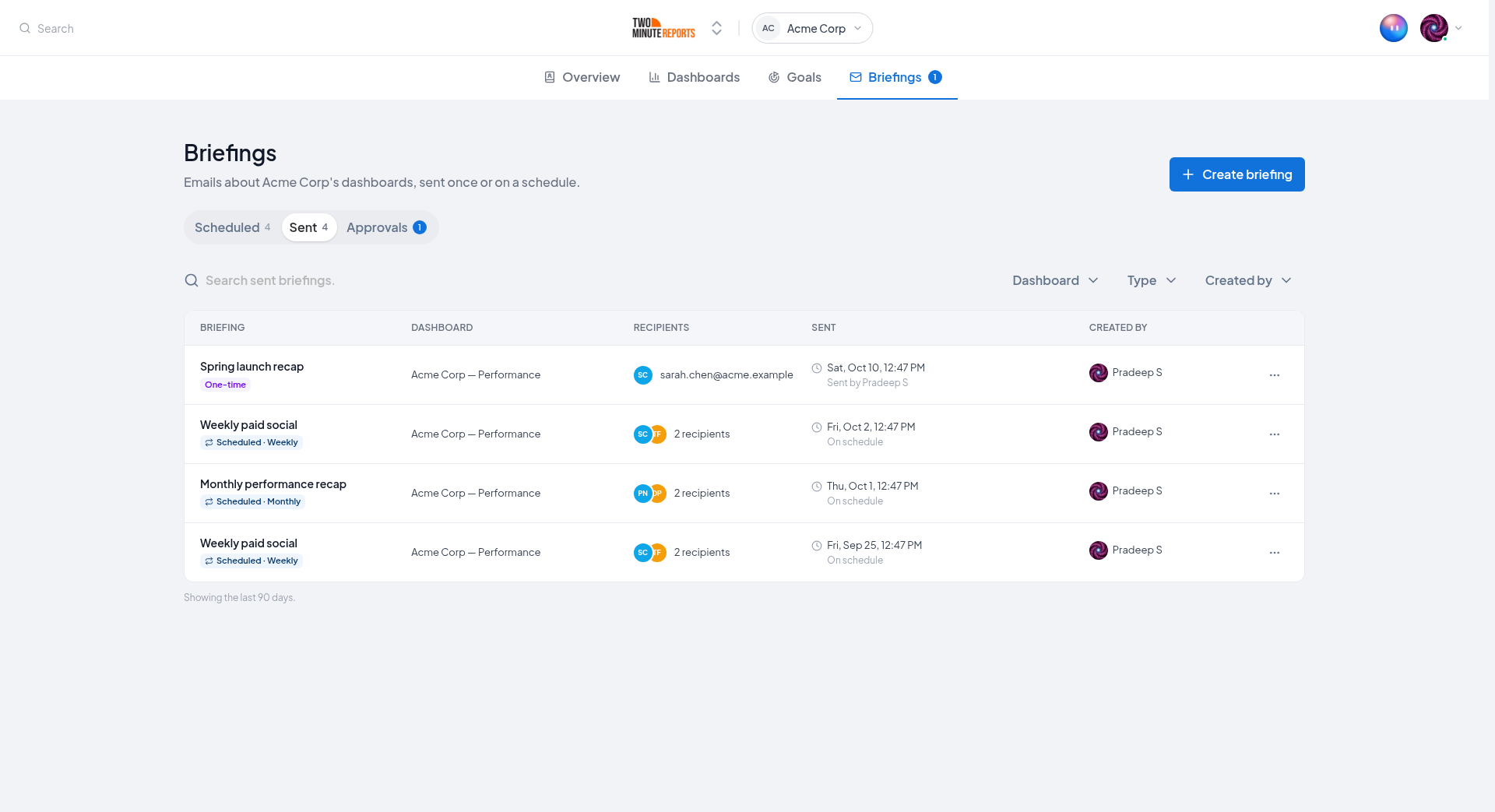
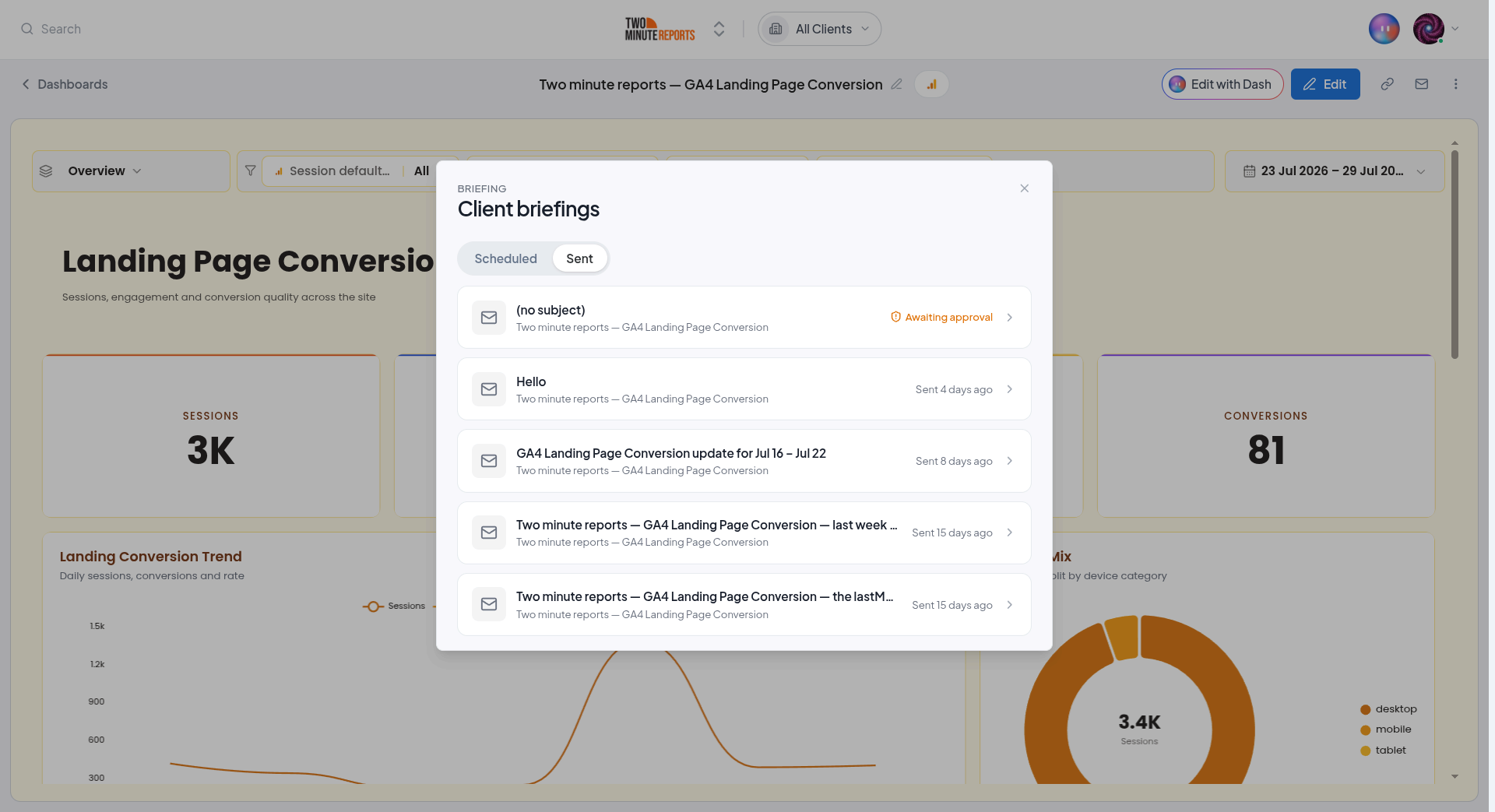
- Sent - every email that went out in the last 90 days
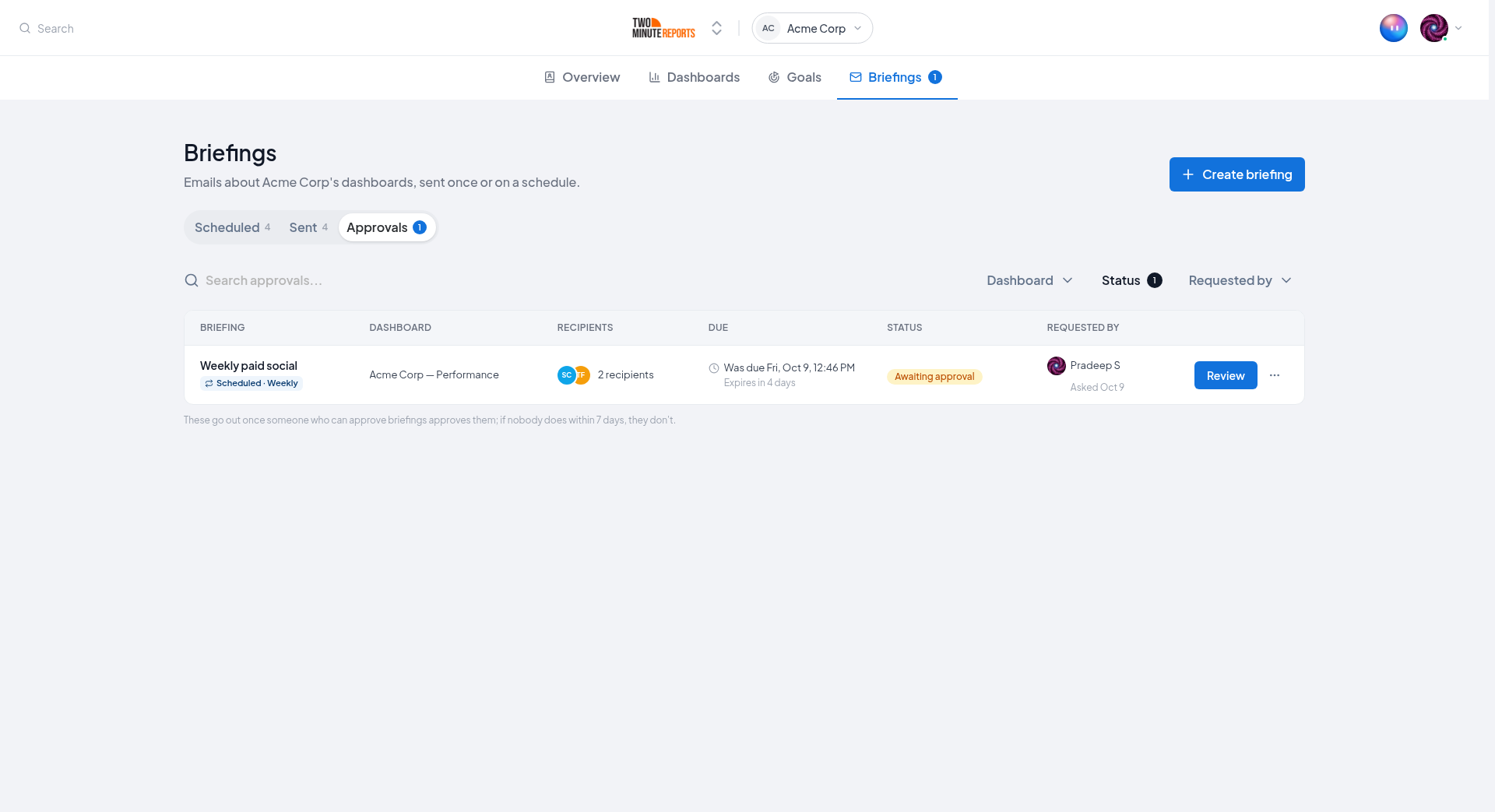
- Approvals - briefings waiting for a teammate's approval, and past decisions (see Team Approvals)
Each tab has a search box and filters for the Dashboard, the Type (one-time or scheduled), the Status and who created it. Under All Clients there's also a Client filter, and each row shows which client the dashboard belongs to.
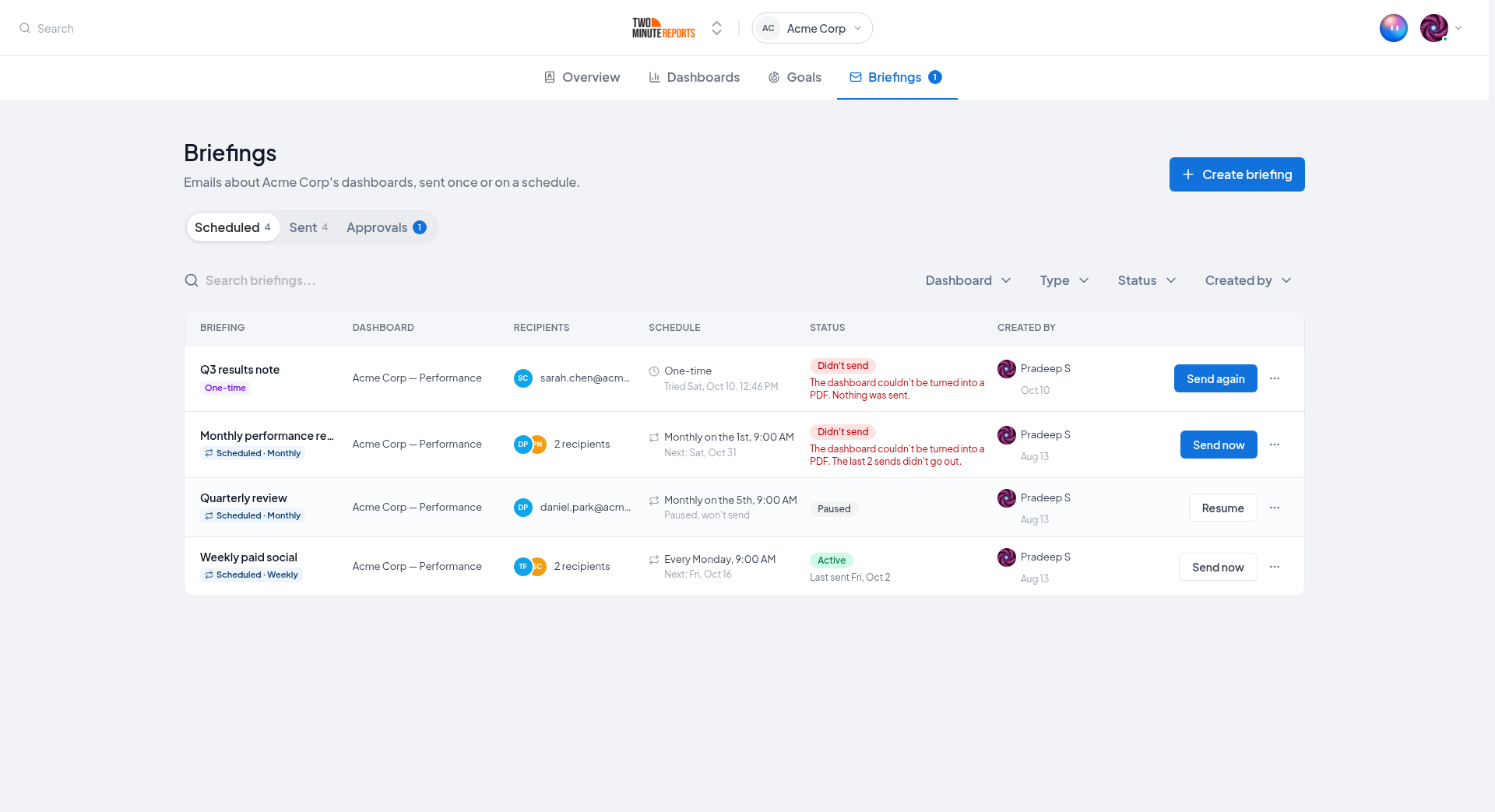
Click Create briefing to start a new one. Because you're not inside a specific dashboard, the composer asks you to pick the dashboard first, then continues just like the in-dashboard composer.
From the dashboard
Open a dashboard assigned to a client and click the mail icon in the dashboard header. The Briefings panel opens with that dashboard's briefings in two tabs:
- Scheduled - its recurring briefings
- Sent - the emails it has sent
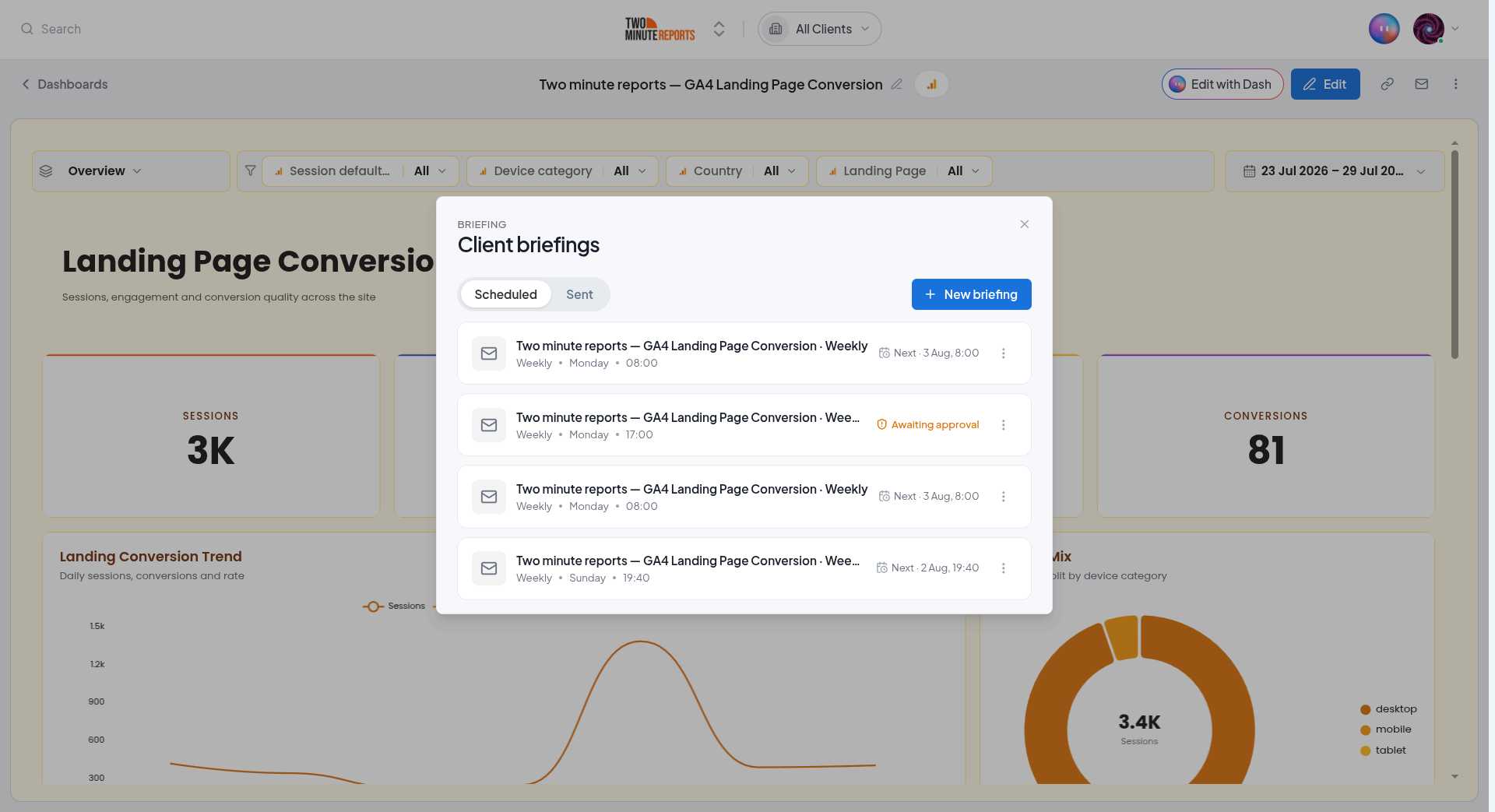
If you haven't created any yet, the empty state ("No briefings yet") takes you straight into the composer.
Compose a Briefing
Every briefing is built in a short wizard. Start by choosing the briefing type with the pill switch at the top:
- One time - Compose → Preview & send
- Scheduled - Compose → Preview → Schedule
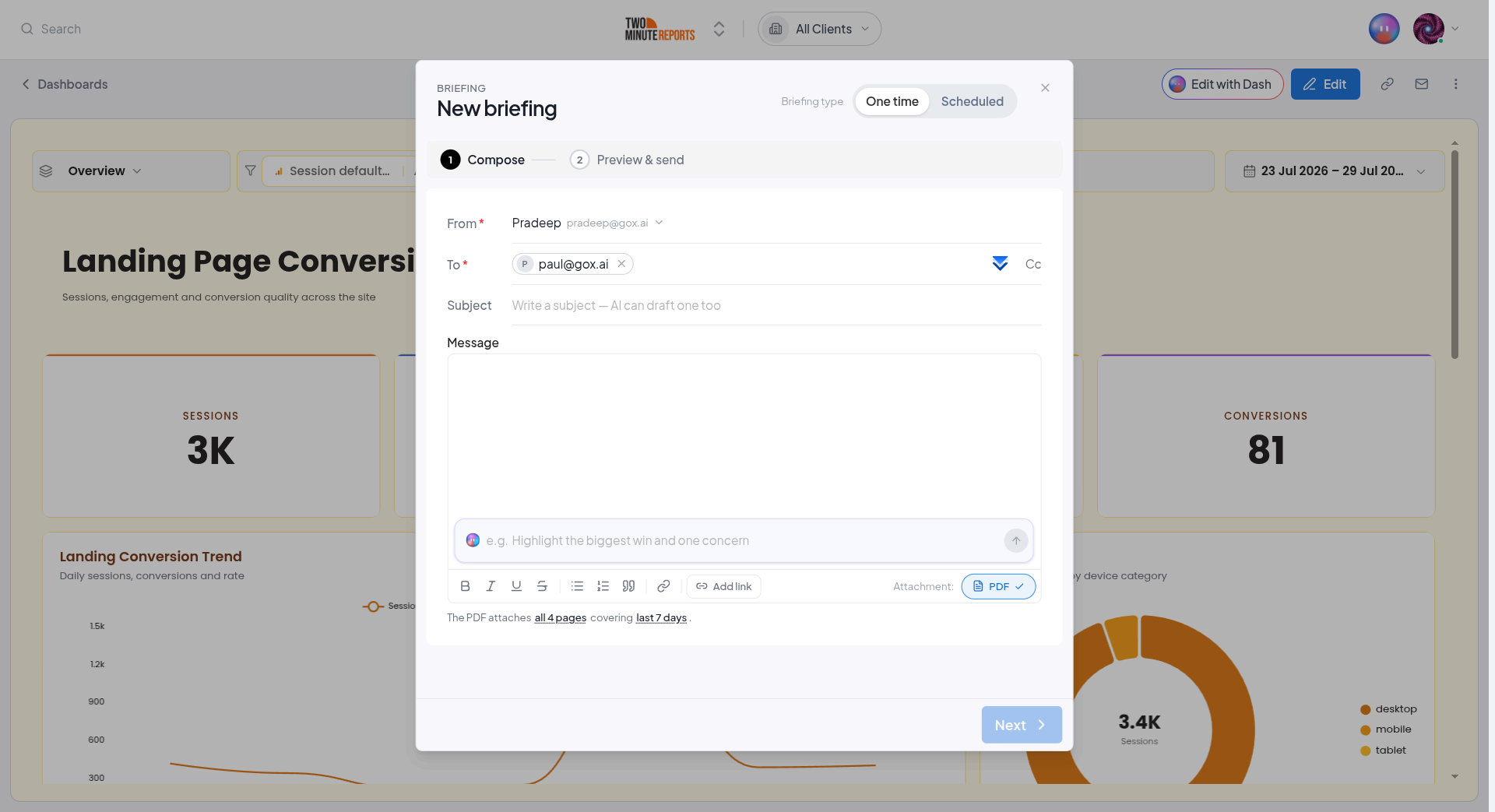
Recipients & Sender
- From - the team member whose Gmail sends the email. Members without Gmail connected appear disabled.
- To - your client's email addresses (press Enter or Space after each). Use the inline Cc toggle to copy others.
Subject & Message
Write the Subject and Message in the editor and format the text. In either briefing type you can insert a link to the dashboard, choose a client-shareable link (public, no login needed) or an internal link (opens in Two Minute Reports, sign-in required).
How you fill in the content differs by briefing type:
One-Time: Draft with AI
One-time briefings have an AI writer built into the message box. Describe what you want, for example "Summarise this month's performance" or "Highlight the biggest win and one concern", and AI drafts the whole email. Ask it to refine ("make it shorter", "warmer tone", "add the CTR drop") until it reads right.
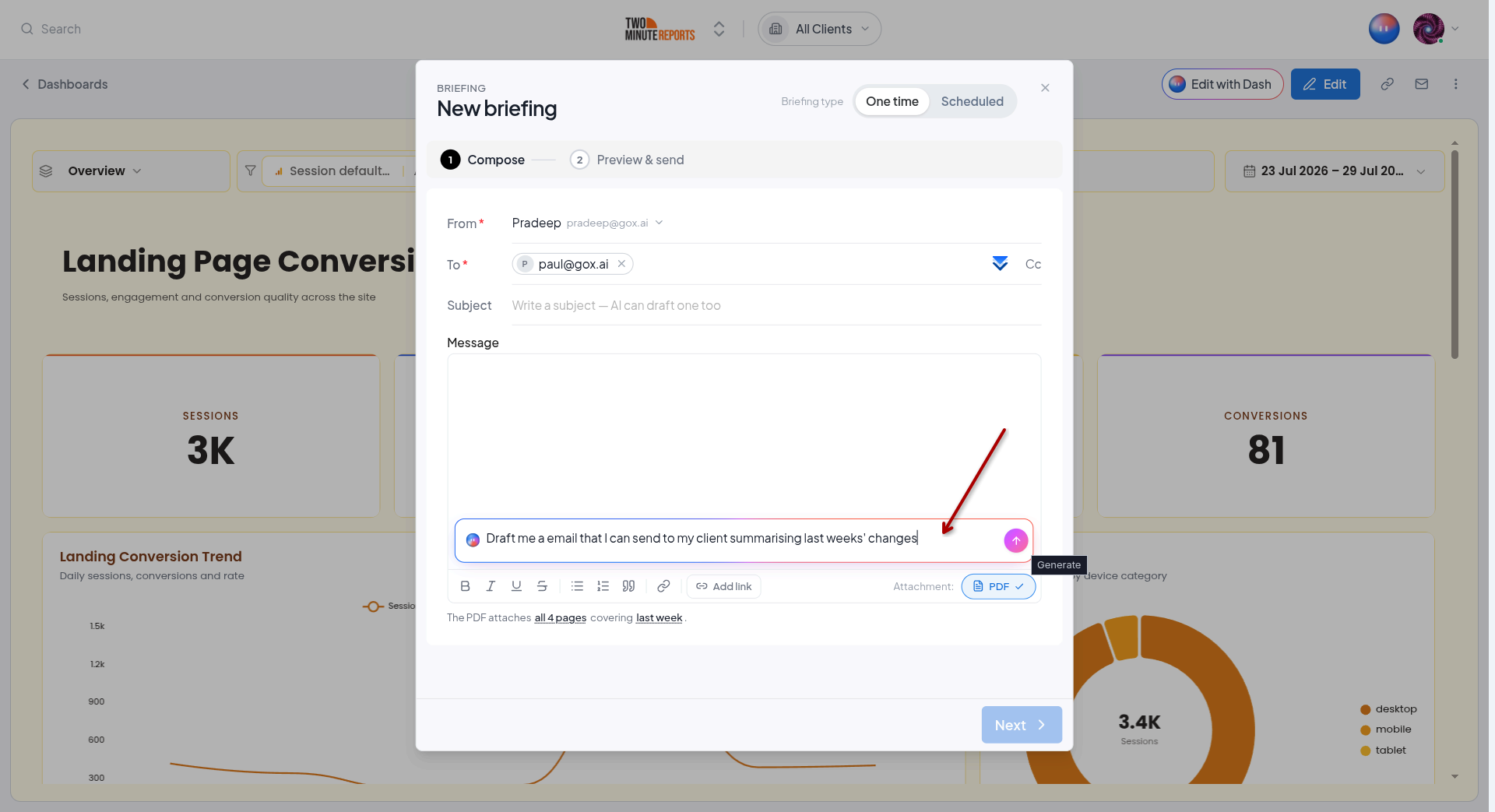
AI writes in a clear, professional tone, and every number it uses comes from your live dashboard data.
Scheduled: Merge Tags & Templates
Scheduled briefings are built with merge tags, placeholders that are filled in fresh on every send, so each recurring email reflects the latest data. Insert them into the subject or message.
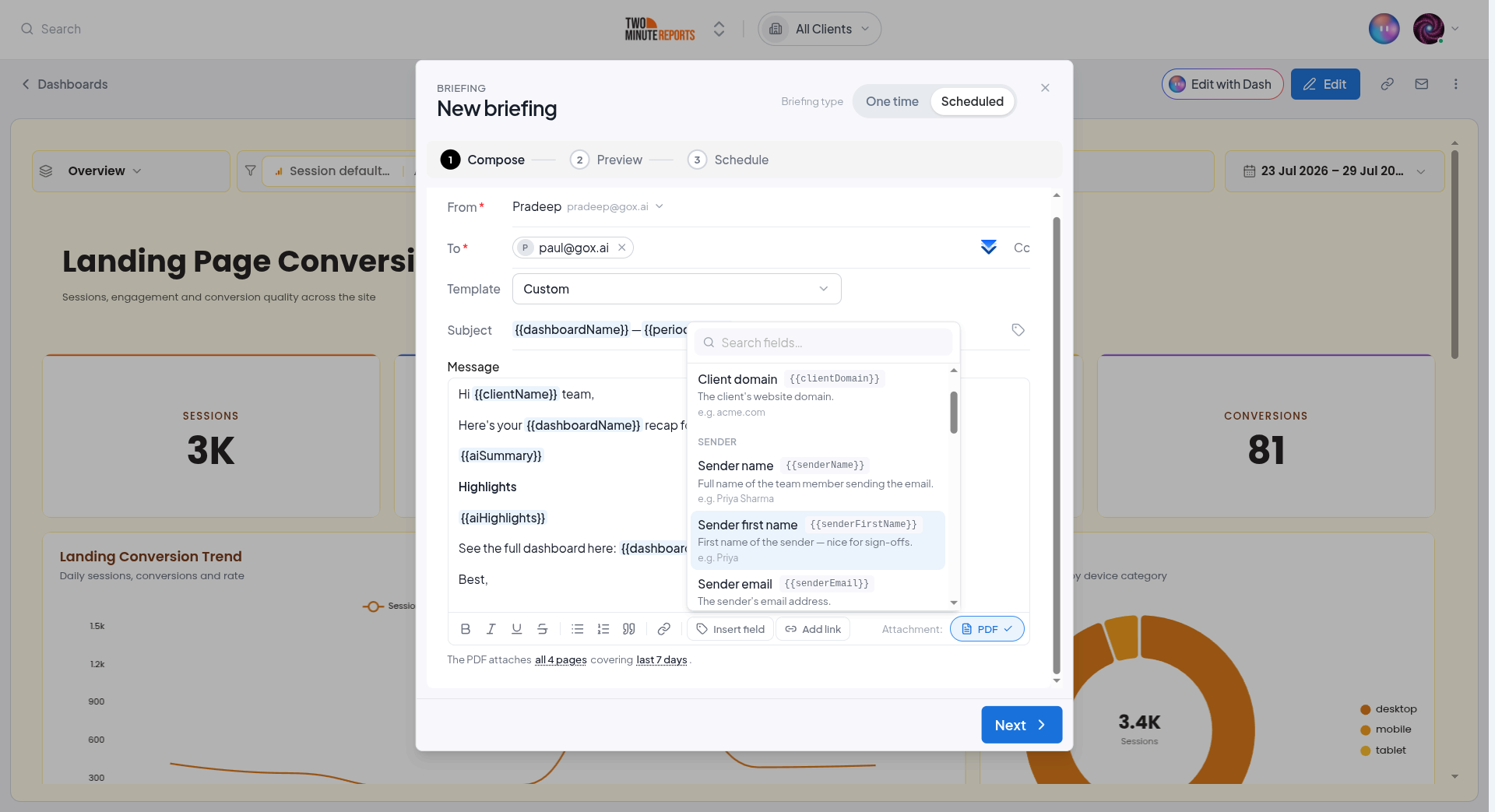
Common merge tags:
| Tag | Fills in |
|---|---|
{{clientName}} / {{clientDomain}} | The client's name / domain |
{{dashboardName}} | The dashboard's name |
{{dashboardShareLink}} | A public, no-login link to the dashboard |
{{dashboardLink}} | A link that opens the dashboard (login required) |
{{senderName}} / {{senderFirstName}} / {{senderEmail}} | Details of the sending team member |
{{aiSummary}} | An AI-written summary of the period (fresh each send) |
{{aiHighlights}} | AI-written key highlights (fresh each send) |
{{dateRange}} / {{periodStart}} / {{periodEnd}} | The data window the briefing covers |
{{sendDate}} / {{sendMonth}} / {{sendYear}} | When the briefing is sent |
Tags also accept modifiers, for example a fallback ({{clientName|"there"}}), a date format ({{sendDate|date:"MMM D, YYYY"}}), or an instruction for the AI tags ({{aiSummary|"focus on paid search"}}).
Start from a template, Monthly recap, Weekly quick update, Executive summary, and more, or start blank.
Attachment & Date Range
- PDF attachment - toggle the PDF on to attach the dashboard as a document. On multi-page dashboards you can attach all pages or selected pages.
- Date range - use the dashboard's default, a preset (like last 7 days), or a custom window. Presets resolve in the briefing's timezone, so the AI copy and the PDF always cover the same period.
Preview & Test
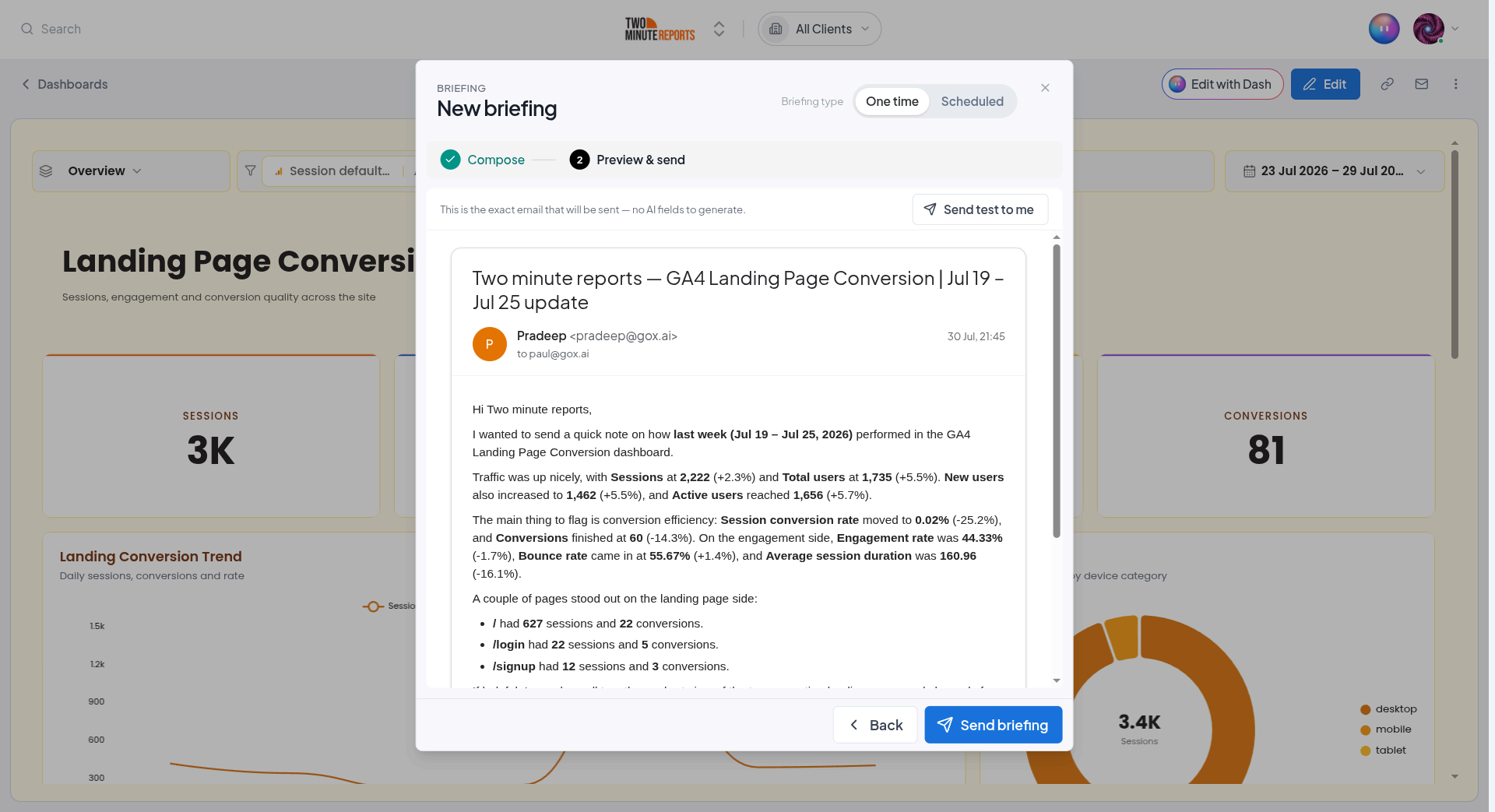
On the Preview step you can see the finished email and click Send test to me to send yourself a copy before it reaches the client.
Sending: One-Time vs Scheduled
Send Now (one-time)
A one-time briefing starts sending as soon as you confirm ("Send to N recipients now?"). It shows as Sending… under Scheduled for a minute or two while the dashboard is prepared, and you get a message when it's delivered. One-time sends are never held for approval. Once it's delivered it appears under Sent; if it couldn't be sent, it stays under Scheduled with the reason and a Send again button.
Schedule (recurring)
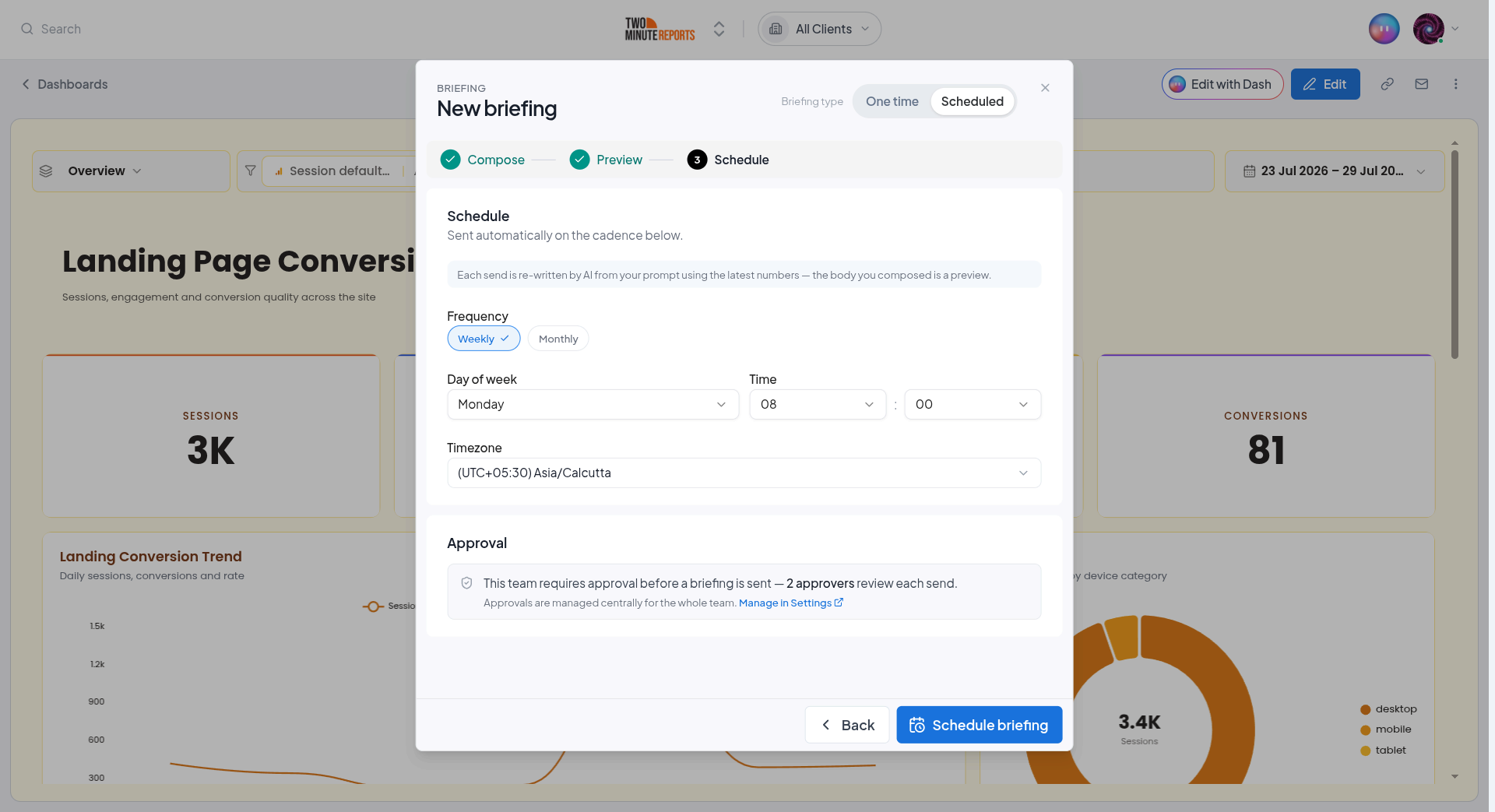
A scheduled briefing repeats automatically. Choose:
- Frequency - weekly or monthly
- Day - day of the week (weekly) or day of the month (monthly)
- Time & timezone - when it sends, in the timezone you pick
Scheduled briefings appear in the Scheduled tab with their next send date, and each email that goes out is listed under Sent.
To send a scheduled briefing early, choose Send now on its row. You'll confirm first; if approvals are on, it goes to an approver before it sends.
When a Briefing Doesn't Send
A briefing that can't send isn't retried. It tries again at its next scheduled time, and fails again for the same reason until the cause is fixed. So the Scheduled tab shows each briefing's status, says why one isn't sending, and offers the fix:
| Status | What it means |
|---|---|
| Active | Sending on schedule. The line below says when it last went out. |
| Didn't send | The last send (or sends) didn't go out. The line below says why, and whether the next one will. |
| Won't send | Nothing has failed yet, but the next send won't go out as things stand. |
| Paused | It won't send until you resume it. |
The button on the row fixes the cause:
| Cause | Fix |
|---|---|
| Your Gmail isn't connected, or was disconnected | Connect Gmail opens Settings › Authorized access |
| The sender is someone else who hasn't connected Gmail, or has left the team | Change sender, and pick a teammate with Gmail connected |
| There's nobody to send it to | Add recipients |
| The pages it sends were deleted | Choose pages |
| Approval is on, but nobody can approve | Add approver opens Settings › Preferences |
| Your plan isn't active | View plans |
| The dashboard couldn't be turned into a PDF | Send now (or Send again for a one-time briefing) once it's resolved |
Once the cause is fixed, Send now sends straight away instead of waiting for the next scheduled time.
The Sent Log
The Sent tab lists every email that went out, one-time and scheduled. Under each time it says how it went out: On schedule, Sent early by a teammate, or Sent by its author for a one-time briefing. A briefing that waited for approval also names who approved it.
Open any entry to see the exact email that went out in a Gmail-style viewer, including the PDF attachment.
Team Approvals (optional)
You can require a teammate to approve scheduled briefings before they reach a client. This is a team-wide policy, not a per-briefing setting.
Turn On Approvals
Go to Settings › Preferences (the "Approvals" section under Dashboard briefings), turn on Require approval before sending, and choose your approvers (any team member who isn't a viewer).
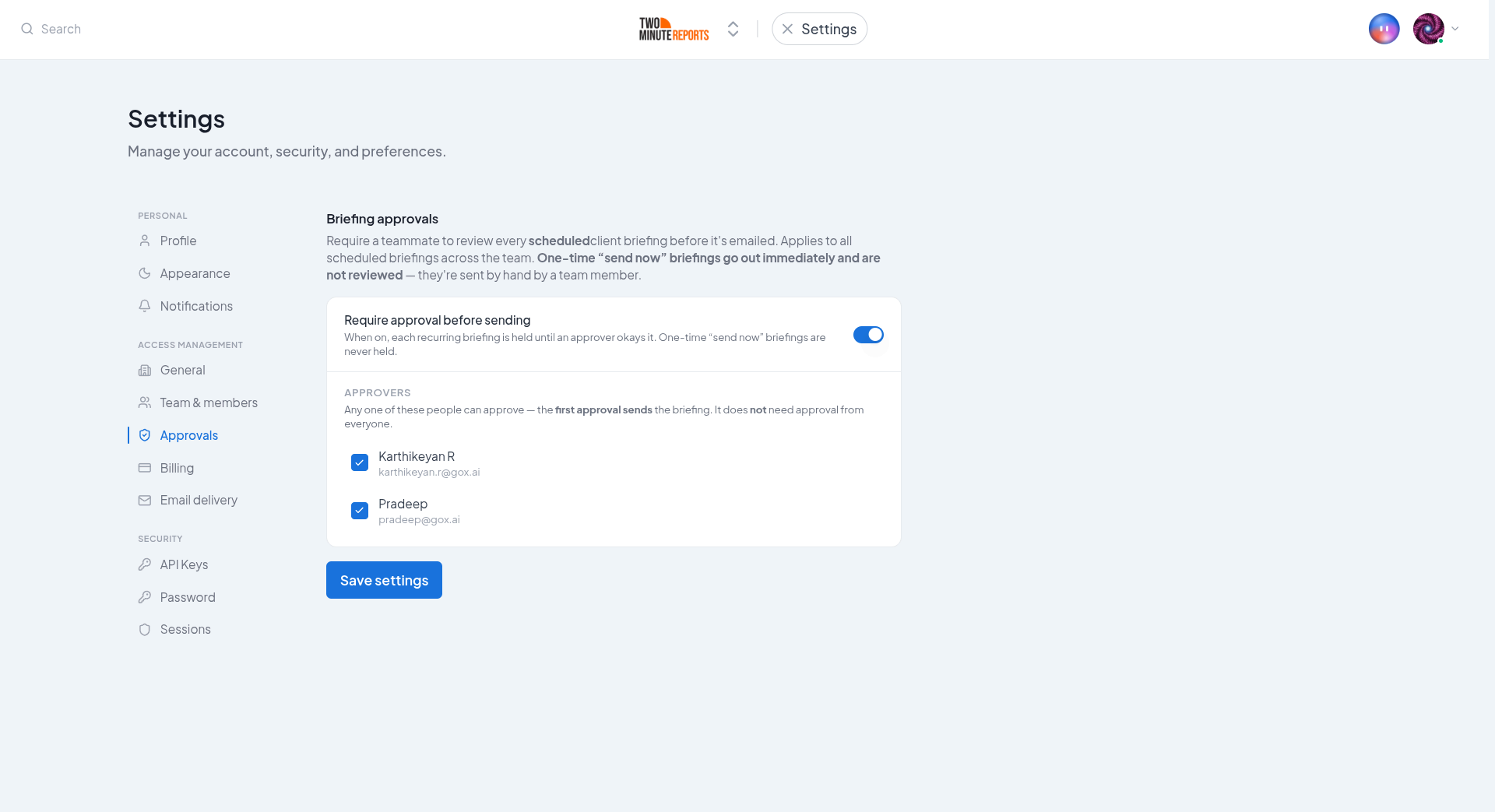
- Any one approver is enough - the first approval sends the briefing; it doesn't need everyone.
- Only team admins (owner or manage permission) can change these settings.
The Approvals Queue
Held briefings wait in the Approvals tab of the Briefings page. A badge on Briefings in the navigation shows how many are waiting for your approval. Everyone on the team can see the queue, so the person who wrote a briefing can find theirs; only approvers can approve or reject.
The tab opens on Awaiting approval. Use the Status filter to see Approved, Rejected and Expired briefings too, each with who decided and when, the reason given for a rejection, and why an approval expired.
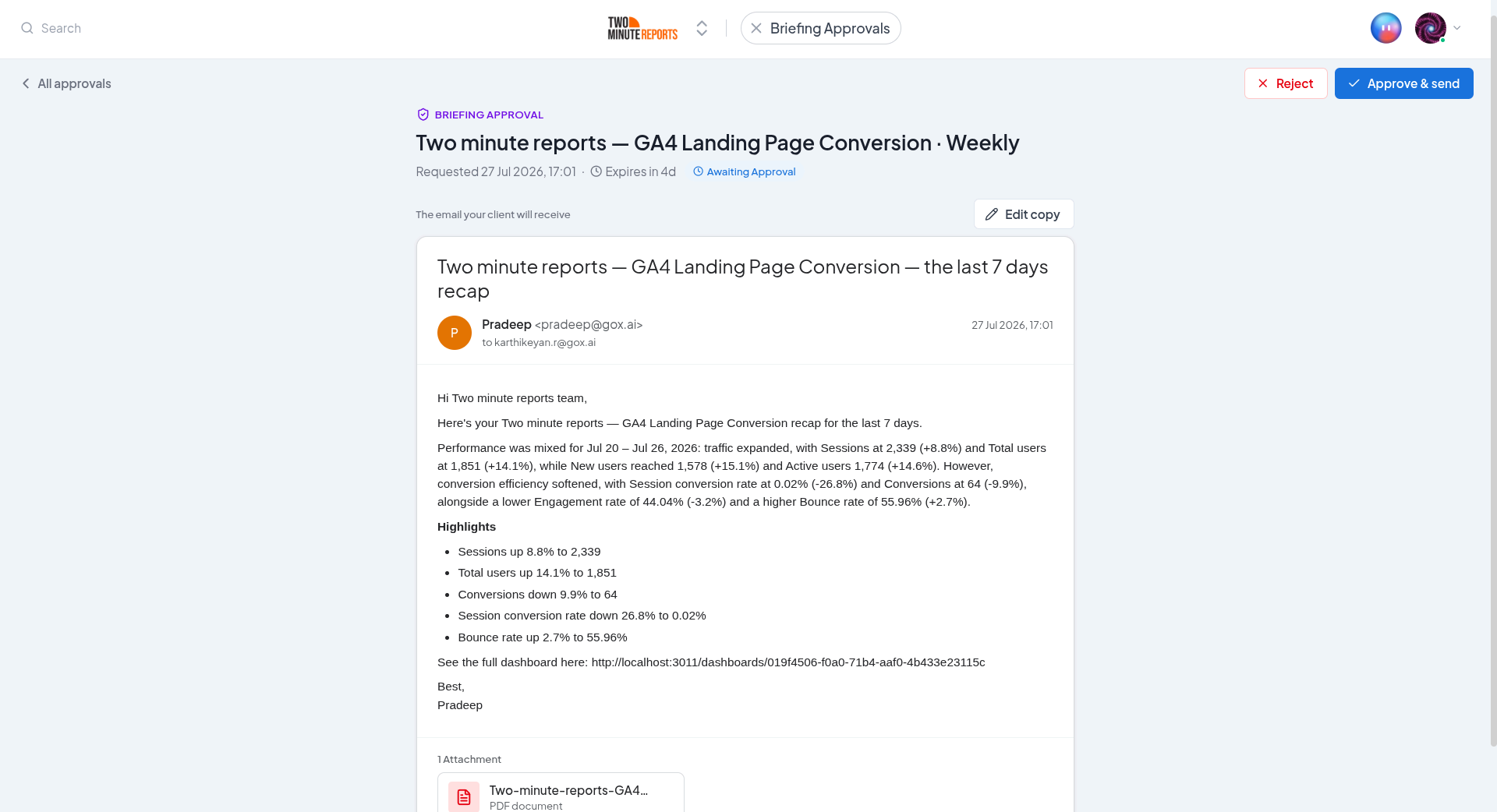
Click a briefing to open it. The review shows the frozen email exactly as it will send, and approvers can:
- Approve & send - the briefing goes out
- Reject - nothing is sent; the owner is notified, with an optional reason
- Edit copy - fix the subject or message wording before approving (the PDF and recipients stay the same)
How Holds Behave
- A held briefing freezes its content at hold time, editing it afterward won't change what the approver reviews.
- Holds expire after a while if no one acts on them.
- Turning approval off cleanly discards anything still held (you'll confirm first), nothing is sent.
- One-time "send now" briefings are never held by approval.
Good to Know
- Approval is all-or-nothing for the team, and only takes effect once at least one approver is set.
- If the sender leaves the team or disconnects Gmail, the briefing shows Didn't send with the reason. Edit it to pick a connected sender. An approver can still approve a held briefing once its sender is fixed.
- Scheduling is timezone-aware, so a briefing always sends at the local time you chose.
Next Steps
- Editing with Dash - Have the AI assistant summarize a dashboard in chat
- Share and export dashboards - Share the dashboard or export a PDF
- Manage Clients - Assign a dashboard to a client to enable briefings
Editing with Dash
Use Dash, the Two Minute Reports AI assistant, to build and edit dashboards live and to summarize your data, just by asking in plain language.
Migrating Existing Reports
Recreate an existing Google Sheets or Google Data Studio report as a live Two Minute Reports dashboard by uploading its PDF or a screenshot.