

Advanced Scheduler Lost Access to Your Google Account
Problem
You see an error message like:
Advanced Scheduler lost access to your Google account. Re-authorize in My Account → Team Preferences to continue. #myAccount
This can appear when you run a query or when a scheduled refresh runs. Advanced Scheduler needs ongoing access to your Google account to refresh Google Sheets and send schedule-related email.
Why This Happens
Advanced Scheduler stops working when Google access is no longer valid. Common causes include:
- Permissions revoked — You or an admin removed Two Minute Reports access in your Google account settings
- Password or security change — A Google password change or security event invalidated the connection
- Missing scopes — Required Google Sheets or Gmail permissions were not granted during authorization
- Wrong Google account — You signed in with a different Google account than the one used for schedules
Solution: Re-authorize from the Hub
Open Authorized access
Go to Settings → Authorized access.
Reconnect Advanced Scheduler
Under Google, find Advanced Scheduler and select Reconnect. Grant both Google Sheets and Gmail access when Google asks.
Dashboard briefings is a separate permission on the same screen. Reconnecting one does not change the other, so if briefings were working they keep working.
Or re-authorize from the Google Sheets add-on
Either route fixes the same thing. Use this one if you are already in the spreadsheet.
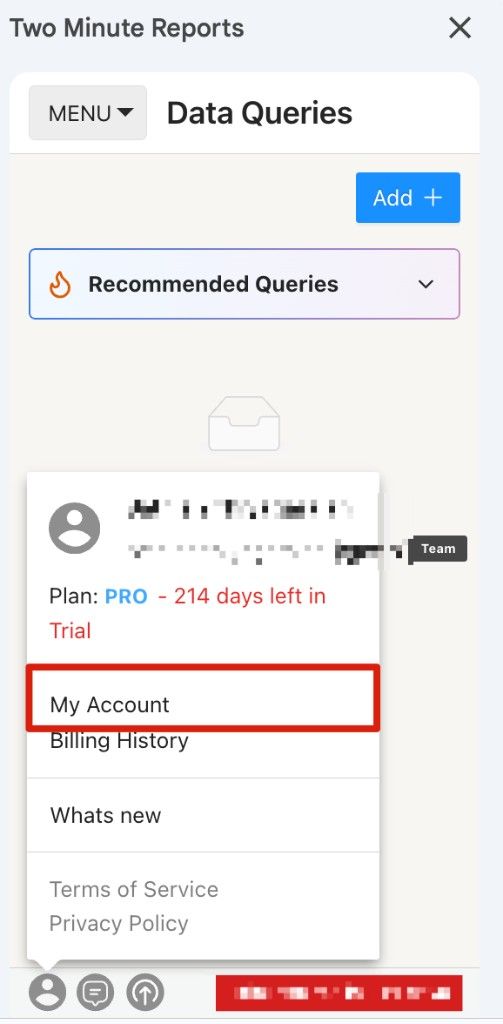
Open My Account
In the TMR navigation panel, click the user icon at the bottom of the sidebar. Select My Account.
Open Team Preferences
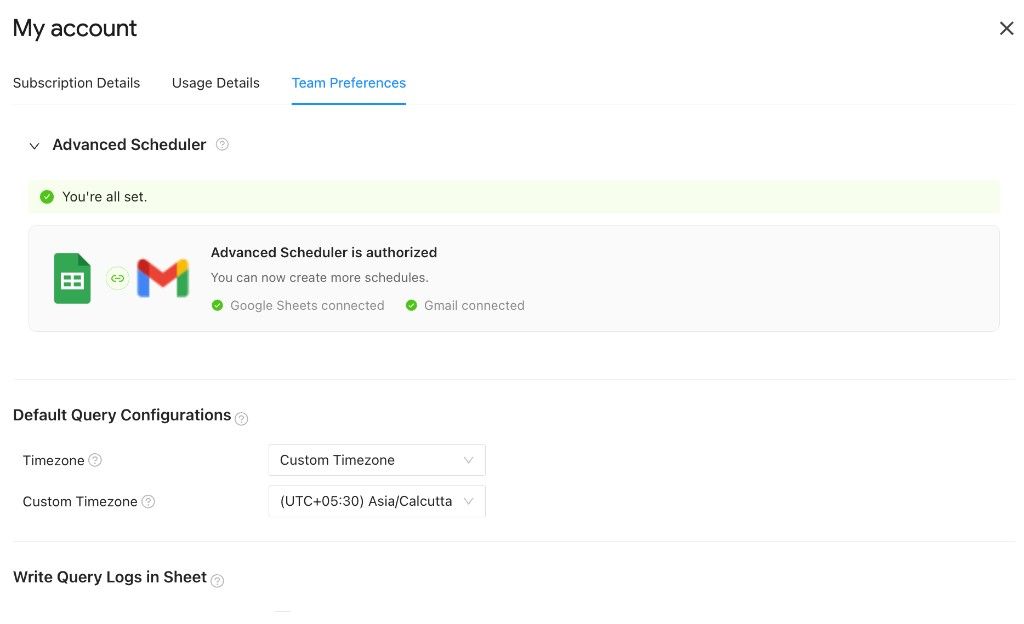
In My account, select the Team Preferences tab.
Re-authorize Advanced Scheduler
In the Advanced Scheduler section:
- If access was revoked or permissions are missing, follow the prompts to connect Google Sheets and Gmail again
- Grant all permissions when Google asks you to authorize Two Minute Reports
When authorization succeeds, you should see a confirmation such as You're all set and Advanced Scheduler is authorized, with both Google Sheets connected and Gmail connected shown.
Verify the Fix
- Return to your query or Schedule Reports and run or test the schedule again
- Confirm the error no longer appears
- Check that the next scheduled refresh completes successfully
Still Having Issues?
If you re-authorized and still see the error:
- Confirm you used the same Google account that owns the spreadsheet and schedules
- In Google Account → Security → Third-party apps, remove Two Minute Reports, then re-authorize. Note this removes all Two Minute Reports access at once, so you will need to reconnect dashboard briefings too
- Ask a team admin to re-authorize if your team uses a shared workspace account
Contact [email protected] with a screenshot of the error and your team name if the problem continues.