

Claude

Use your Two Minute Reports data in Claude on the web, desktop and mobile. Ask about your marketing data in plain words, and run audits as skills.
What you can do
- Ask about spend, conversions, traffic and sales across your connected accounts.
- Compare channels, campaigns and time periods in one question.
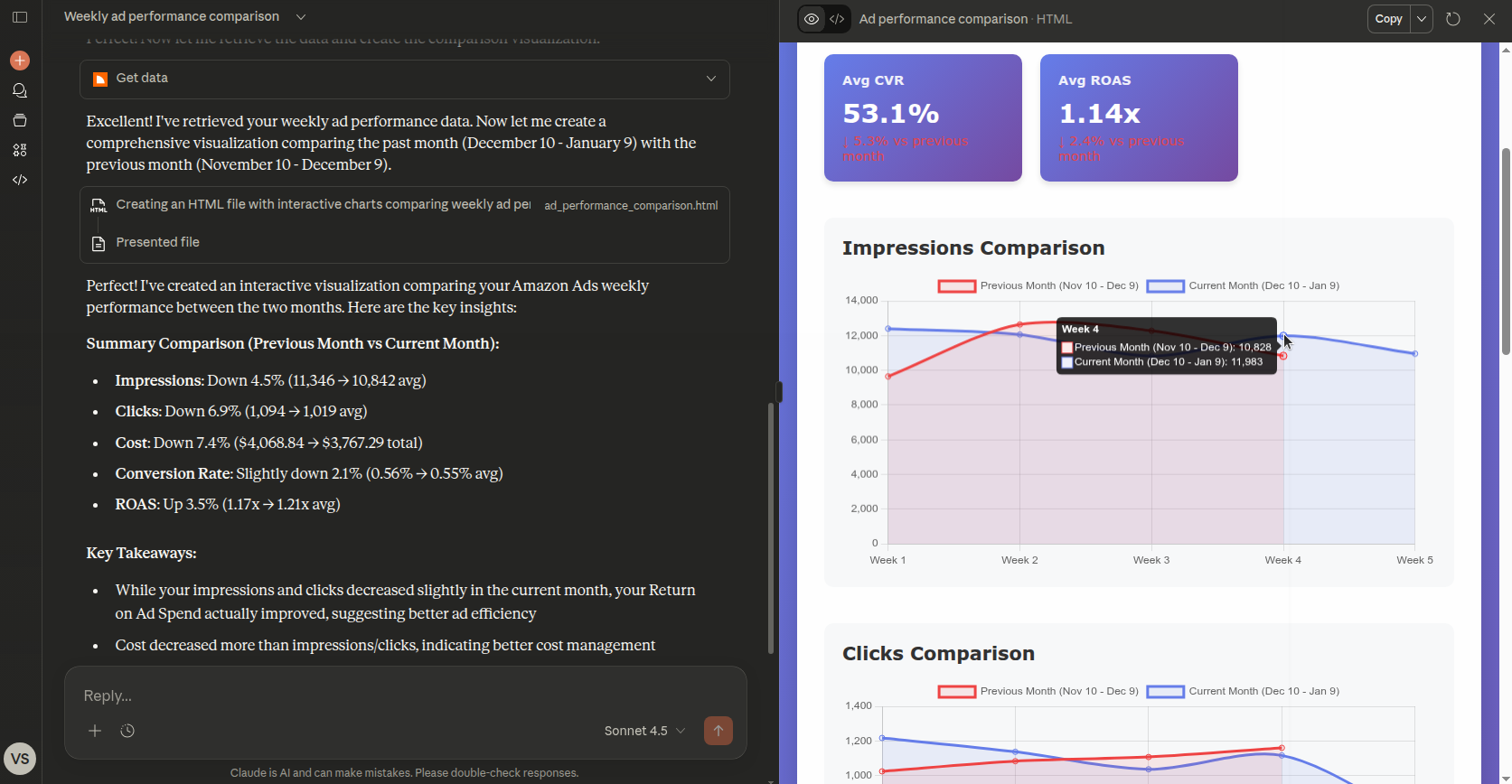
- Get tables and charts as answers.
- Run the Two Minute Reports skills, for example a Google Ads audit.
Before you start
- A Claude account. To install the skills plugin, you need a Pro, Max, Team or Enterprise plan.
- A Two Minute Reports account with at least one connection.
- To run data queries, a role on the team that allows them, such as Editor. See What each person can do.
Connect Two Minute Reports
From the AI tools page
- In the Hub, select AI tools.
- On the Connect tab, on the Claude card, select Add to Claude.
- The Claude directory opens. Select Connect.
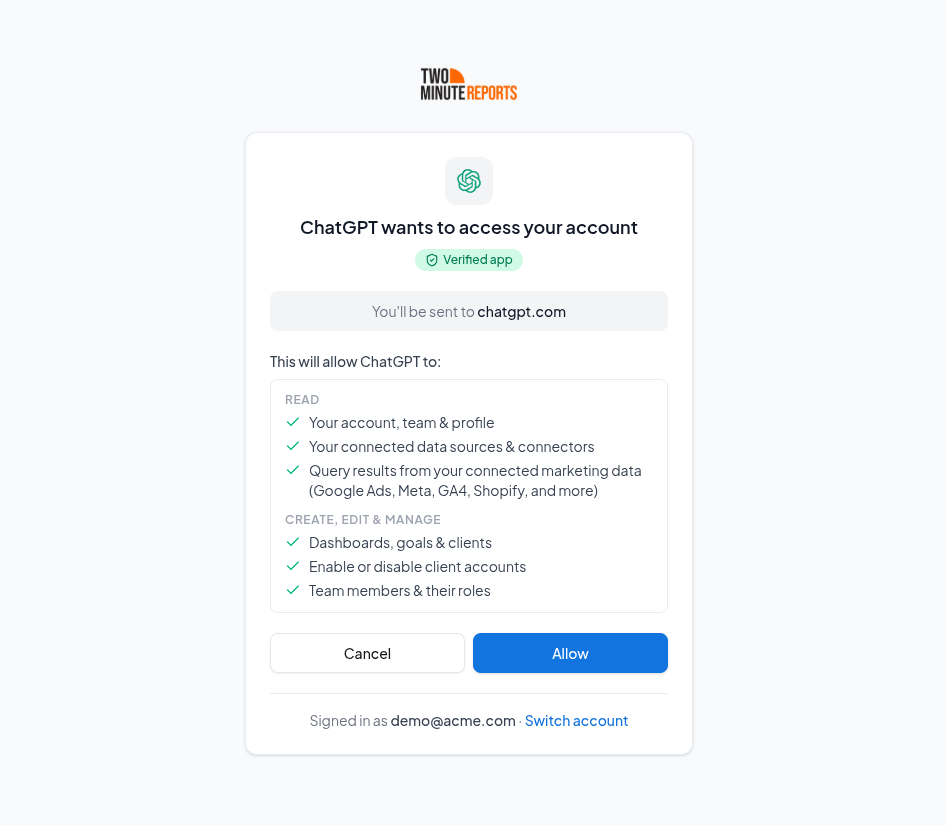
- Sign in to Two Minute Reports, then select Allow.
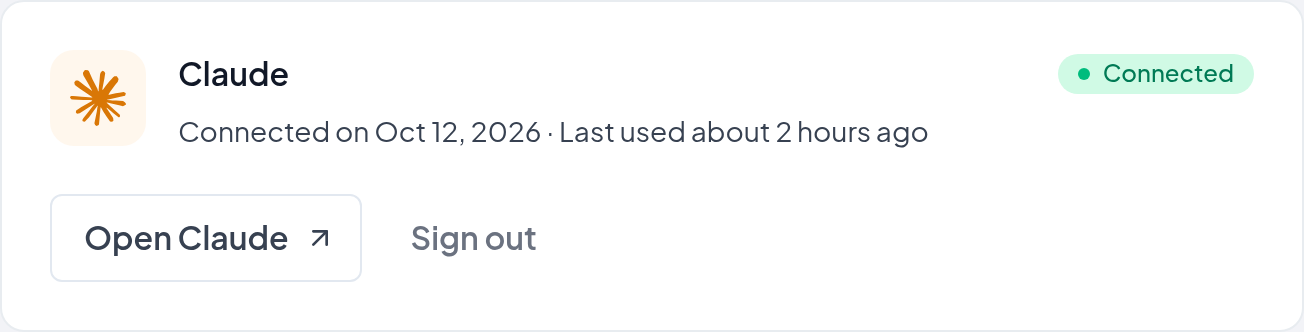
When Claude connects, the Claude card on the AI tools page shows Connected.
From Claude
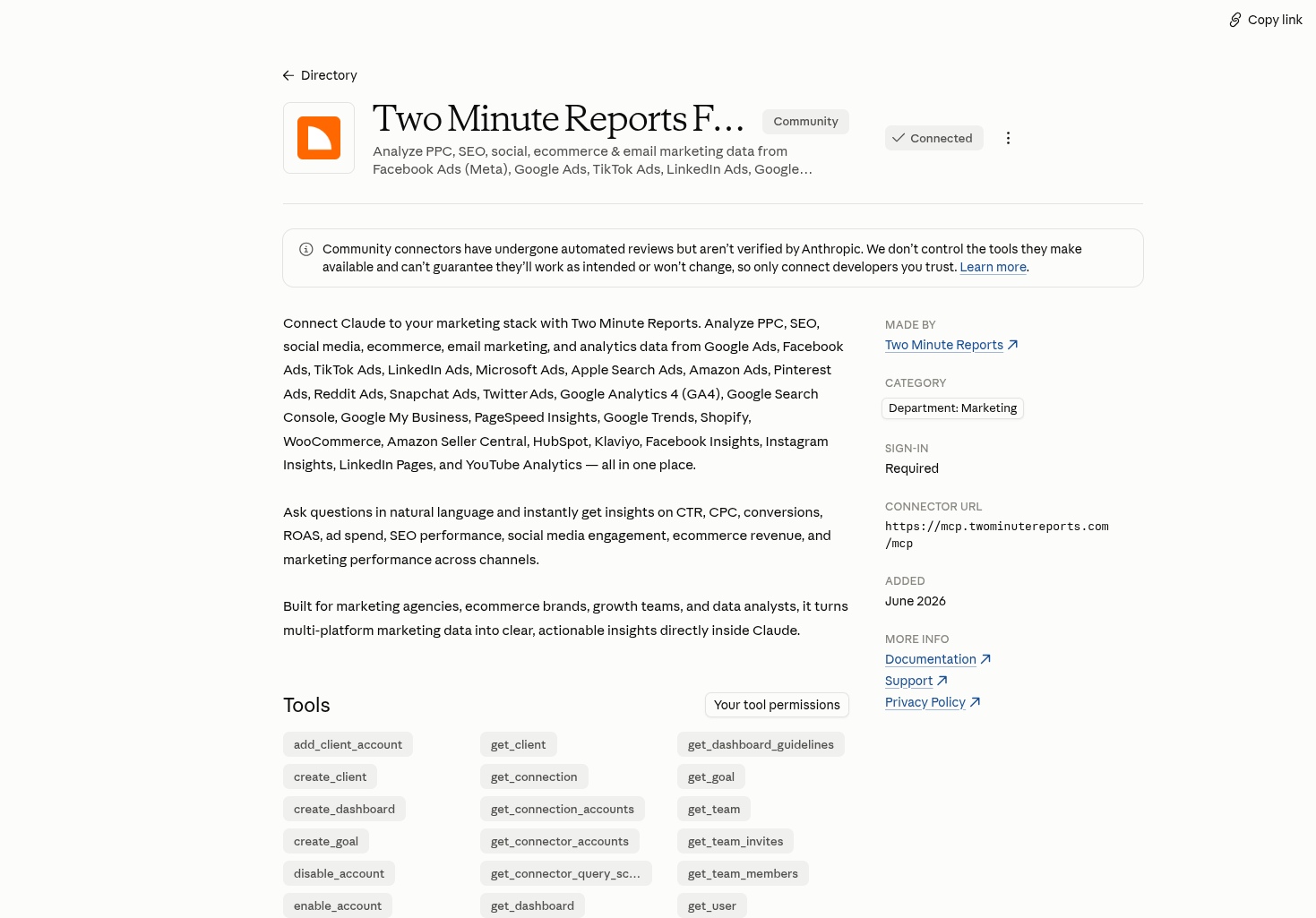
- Open the Two Minute Reports page in the Claude directory.
- Select Connect.
- Sign in to Two Minute Reports, then select Allow.
Check that it works
In a new Claude chat, ask:
Using the Two Minute Reports connector, list the accounts I have connected.
Claude lists your connected accounts. If it does not, see Troubleshooting.
Install the skills
One Claude plugin gives you every Two Minute Reports skill. The plugin also adds the Two Minute Reports connector. It can update itself from our skills repository.
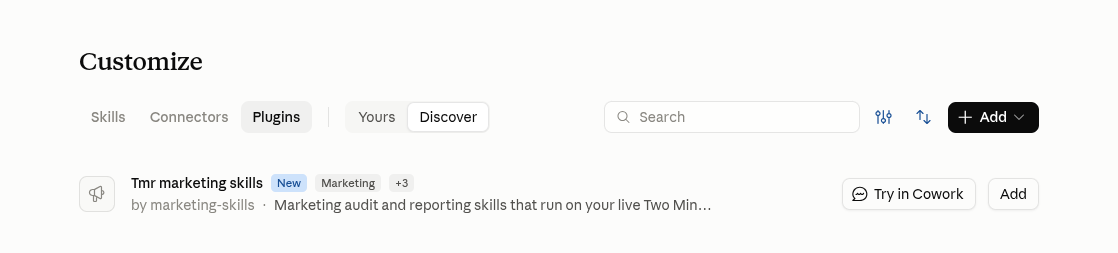
- In Claude, open Customize › Plugins.
- Select Add, then Add marketplace.
- Enter
twominutereports/marketing-skills. - Under Discover, find Tmr marketing skills and select Add.
- Turn on Sync automatically for the marketplace. New and changed skills then come to you automatically.
If you already added Two Minute Reports from the Claude directory, keep it. You do not need to remove it.
The plugin also works in Claude Code with the same Claude account.
Add one skill only
- In the Hub, on the AI tools page, select the Skills tab.
- Find the skill. In its menu, select Download.
- In Claude, open Customize › Skills.
- Select +, then Create skill, then Upload a skill.
- Select the .zip file.
Use Two Minute Reports in Claude
Ask about your data
Type your question in plain words. Start it with "Using the Two Minute Reports connector" so that Claude uses your data. For example:
- "Using the Two Minute Reports connector, compare ROAS for Facebook Ads and Google Ads over the last 30 days."
- "Using the Two Minute Reports connector, find the campaigns that spent the most last week with no conversions."
If you are a member of more than one team, say the team name. Or Claude asks you which team to use.
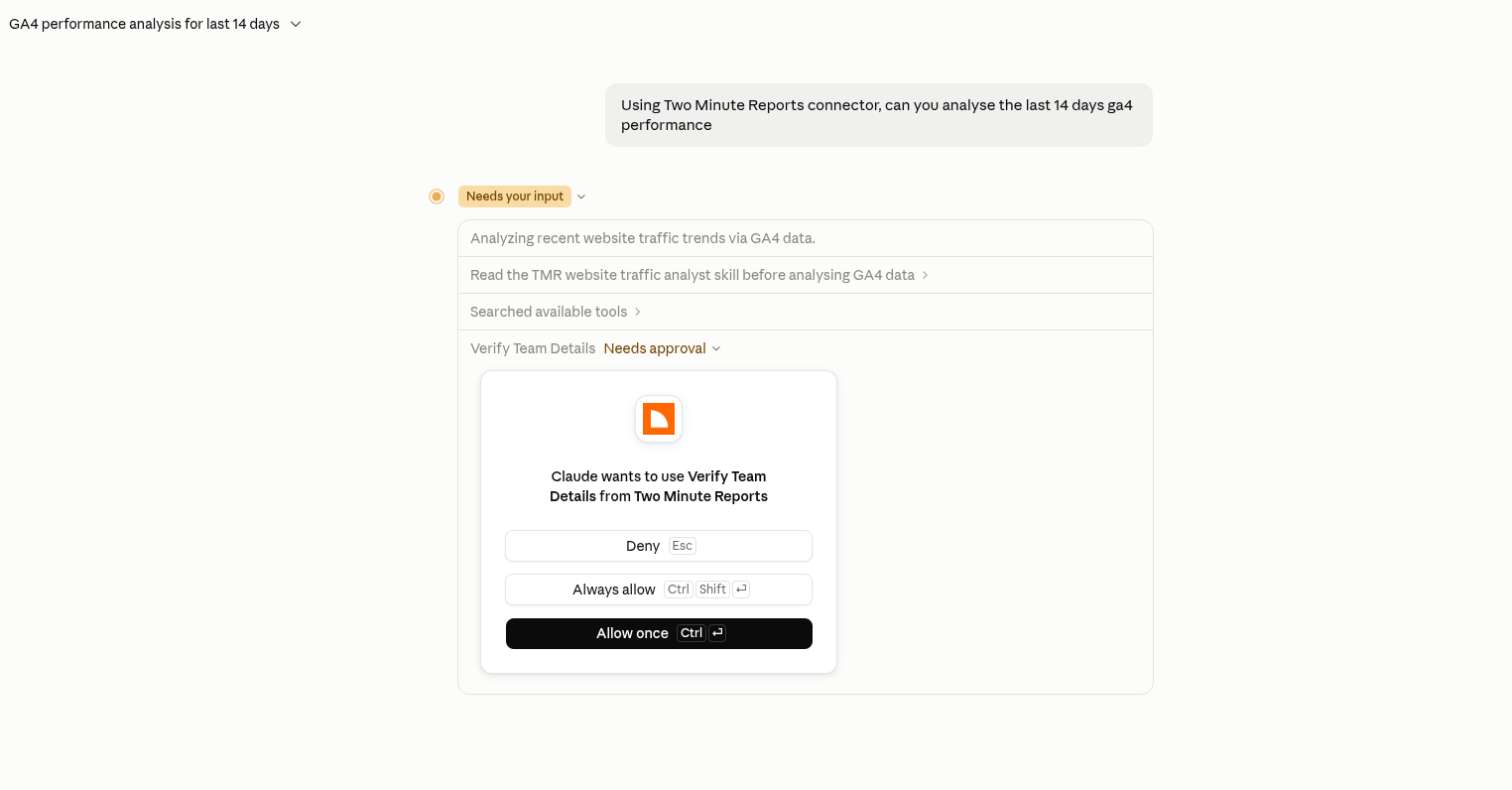
The first time that Claude uses a Two Minute Reports tool, it asks for your permission. Select Always allow to let Claude use the tool in all chats, or Allow once for this time only.
Run a skill
- Ask for the skill's job, for example "Audit my Google Ads account". Claude uses the skill when your request agrees with what the skill does.
- Or type
/and select the skill. - Or, in the Hub, on the Skills tab, open the skill's menu and select Use in Claude. Claude opens a new chat with the skill's question.
Manage or disconnect
- To disconnect, go to the AI tools page. In Your connections, next to Claude, select Sign out. Claude loses access to your data immediately.
- To remove the connector from Claude also, remove it in Claude's connector settings.
Limits
Each person can make up to 120 requests a minute. See Limits.
Troubleshooting
- The plugin is not in Customize › Plugins. Plugins need a Pro, Max, Team or Enterprise plan.
- Claude answers without your data. Start your question with "Using the Two Minute Reports connector". In the chat, make sure that the Two Minute Reports connector is on.
For problems in all AI tools, see Troubleshooting AI tools.
We checked these steps on 15 October 2026. If Claude shows something different, see Claude's help.