

YouTube Analytics

The YouTube Analytics connector gets your YouTube Analytics data into Google Sheets and Google Data Studio. Use it to track your key metrics in a spreadsheet or a Google Data Studio report.
What you can report on
- Views, watch time, and average view duration
- Subscriber gains and losses
- Traffic source breakdown, such as search, suggested and external
- Audience demographics: age, gender, and geography
- Revenue, RPM, and monetization metrics (if monetized)
Prerequisites
- A YouTube channel linked to a Google account
- The channel must have YouTube Analytics read access enabled
How to create a connection
- In the Hub, open Connections & accounts.
- Select Create connection.
- Select YouTube Analytics in the connector list.
- Select Next.
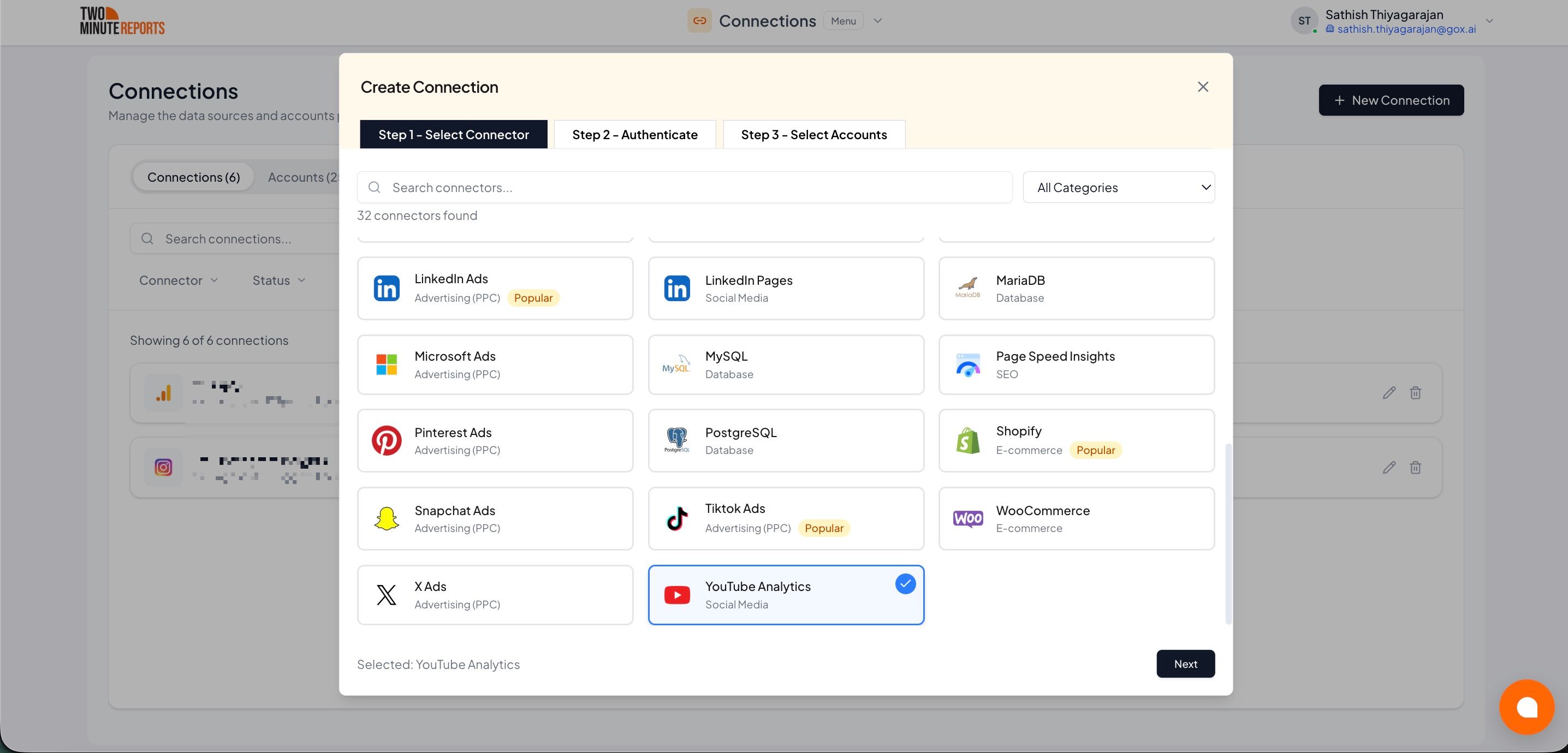
- In Name the connection, enter a name.
- Sign in with the Google account that owns your YouTube channel. Then allow Two Minute Reports access. If Google asks which channel or Brand Account to use, see Connect a channel that uses a Brand Account.
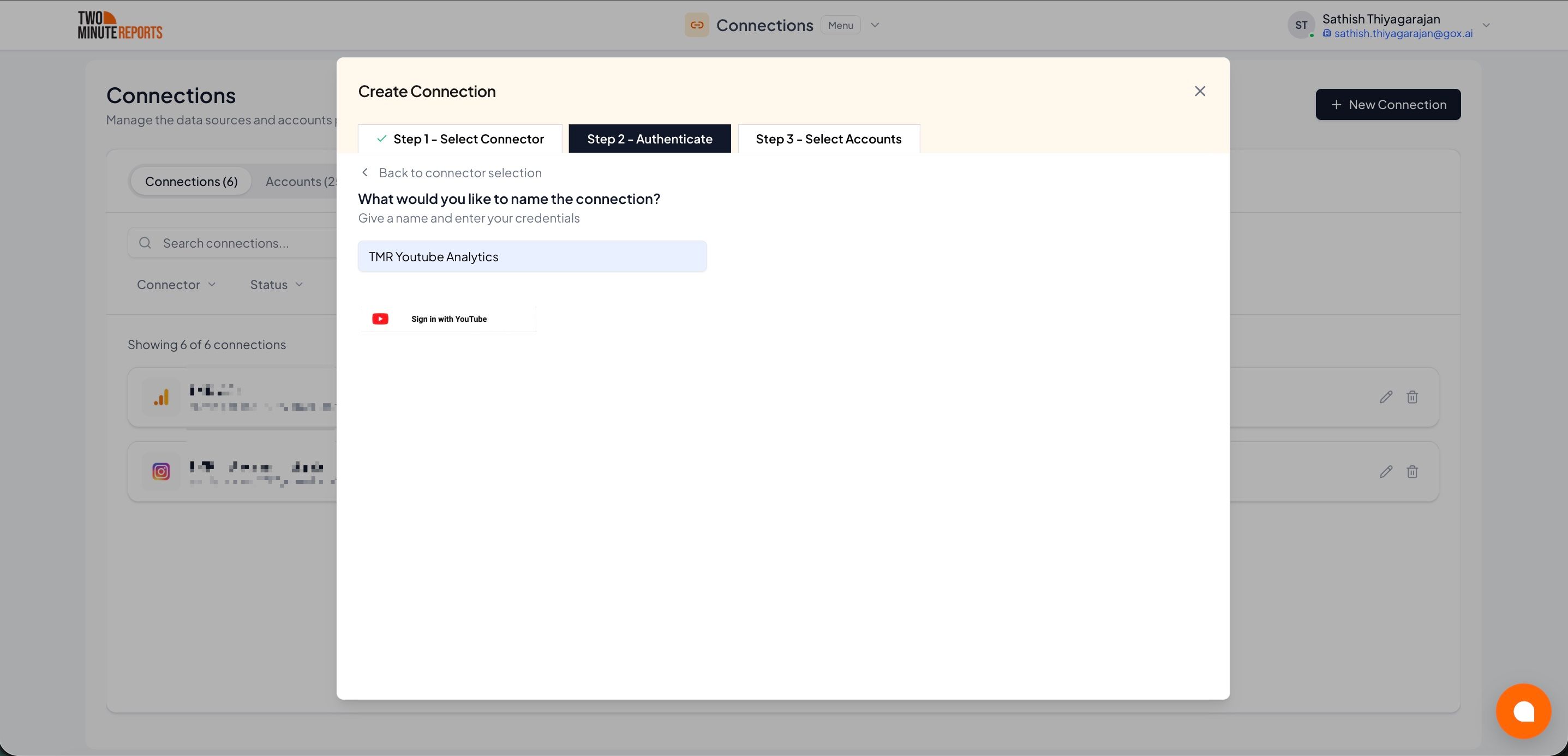
- Enable the accounts you want to report on.
- Select Done.
Connect a channel that uses a Brand Account
One YouTube Analytics connection gives access to one channel: the channel that you select when you sign in to Google. A Google account can manage many channels through Brand Accounts, but Google gives Two Minute Reports access only to the channel that you select.
If the channel that you want is not in the list of accounts, the connection uses a different channel. Usually, this is the personal channel of your Google account.
To connect a channel that uses a Brand Account:
- In the Hub, open Connections & accounts.
- Select Create connection, select YouTube Analytics, and select Next.
- In Name the connection, enter a name, for example the name of the channel.
- Sign in with a Google account that is an owner or a manager of the Brand Account.
- When Google shows the list of channels or Brand Accounts, select the Brand Account of the channel. Do not select your personal name.
- Enable the channel, and select Done.
Do these steps again for each channel. Each channel gets its own connection.
How to get YouTube Analytics data into Google Sheets or Google Data Studio
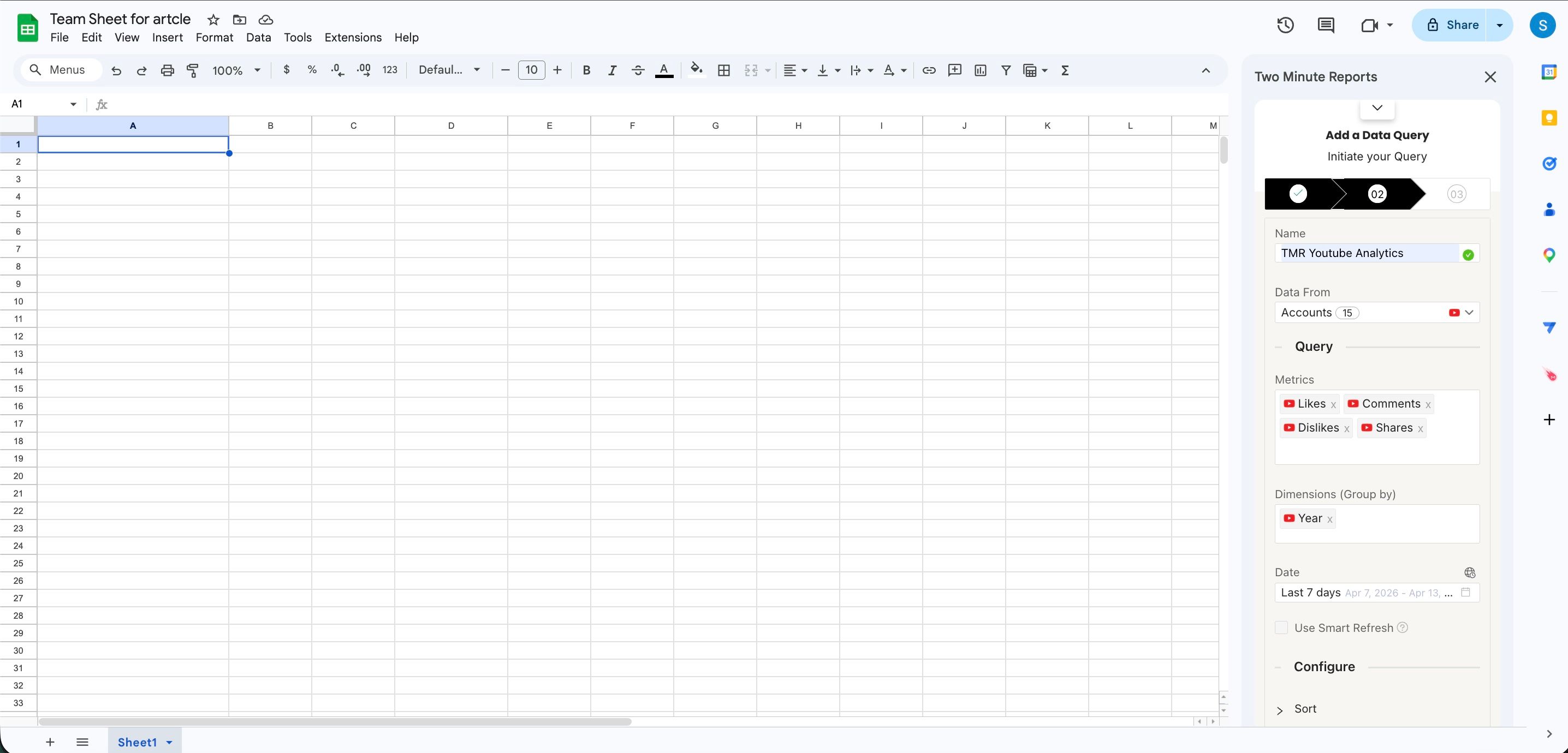
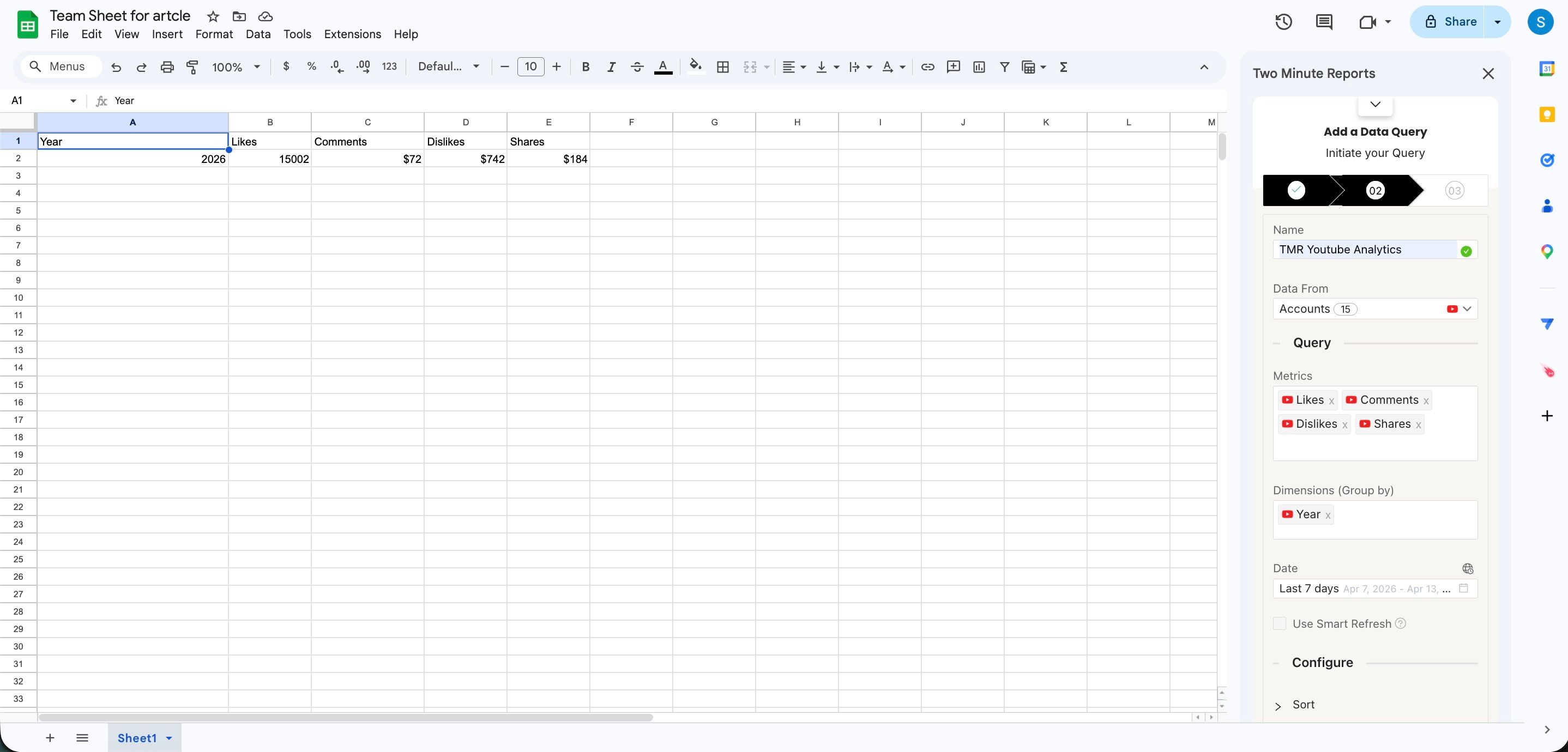
To get YouTube Analytics data into Google Sheets:
- In the Two Minute Reports sidebar, open Data Queries.
- Select Add.
- Select the accounts you want to report on. You can select more than one.
- Select your metrics and dimensions.
- Select the date range.
- Set sorting and filters if you need them.
- Select Run query. Two Minute Reports adds the data to your sheet.
To get YouTube Analytics data into Google Data Studio:
- In the Hub, open Google Data Studio › YouTube Analytics.
- Select Create report.

- Select or create a query config:
- To use a query config you have: select it in Choose your query config. Then select Save.
- To create a query config: if you already have one, first select Create new query config in the list. Enter a name in Name your query config, and select the accounts in Select your accounts. Select Save.


- Select Create from scratch. If templates show under Quick start from a template, you can select one instead.

- Looker Studio (formerly Google Data Studio) opens in a new tab, with the Two Minute Reports connector. If you are in more than one team, select your team in Select your Team.
- In Select Query Config, select your query config.
- Select Connect in the top-right corner.

- In your new report, add YouTube Analytics metrics and dimensions to the canvas.
