

Snapchat Ads

The Snapchat Ads connector gets your Snapchat Ads data into Google Sheets and Google Data Studio. Use it to track your key metrics in a spreadsheet or a Google Data Studio report.
What you can report on
- Impressions, swipes, clicks, and swipe up rate
- Cost per swipe (eCPSU), cost per install (eCPI), and purchase ROAS
- Results and cost per result. See Limitations of Results and Cost per result
- Landing page views, cost per landing page view, profile clicks, and average screen time
- Video views, completion rates, and quartile breakdowns
- Audience targeting and demographic performance
- Ad, ad set, and campaign-level spend and conversion data
Prerequisites
- A Snapchat Business account
- Account Admin or Campaign Manager access on the ad accounts you want to report on
How to create a connection
- In the Hub, open Connections & accounts.
- Select Create connection.
- Select Snapchat Ads in the connector list.
- Select Next.
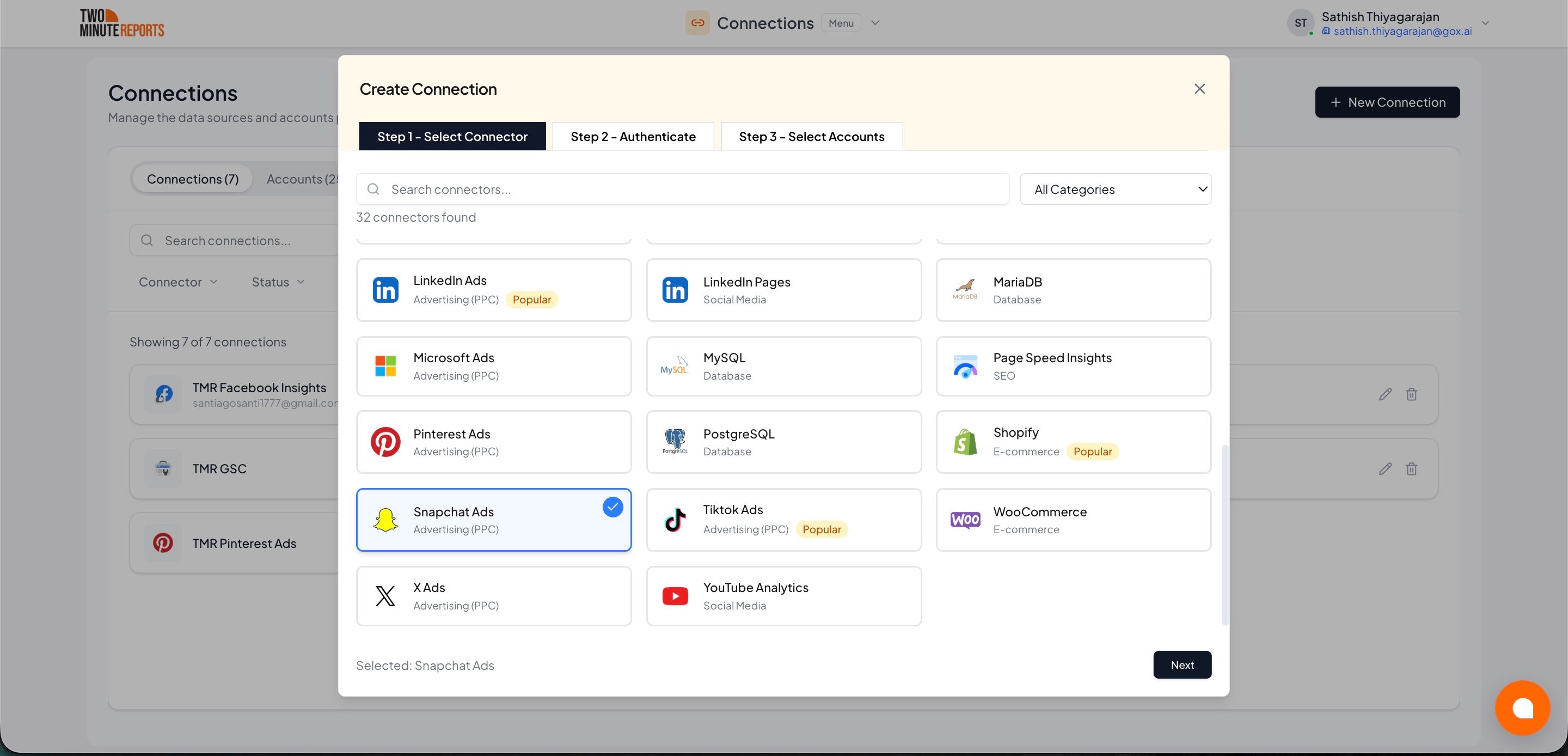
- In Name the connection, enter a name.
- Sign in with Snapchat. Then allow Two Minute Reports access.
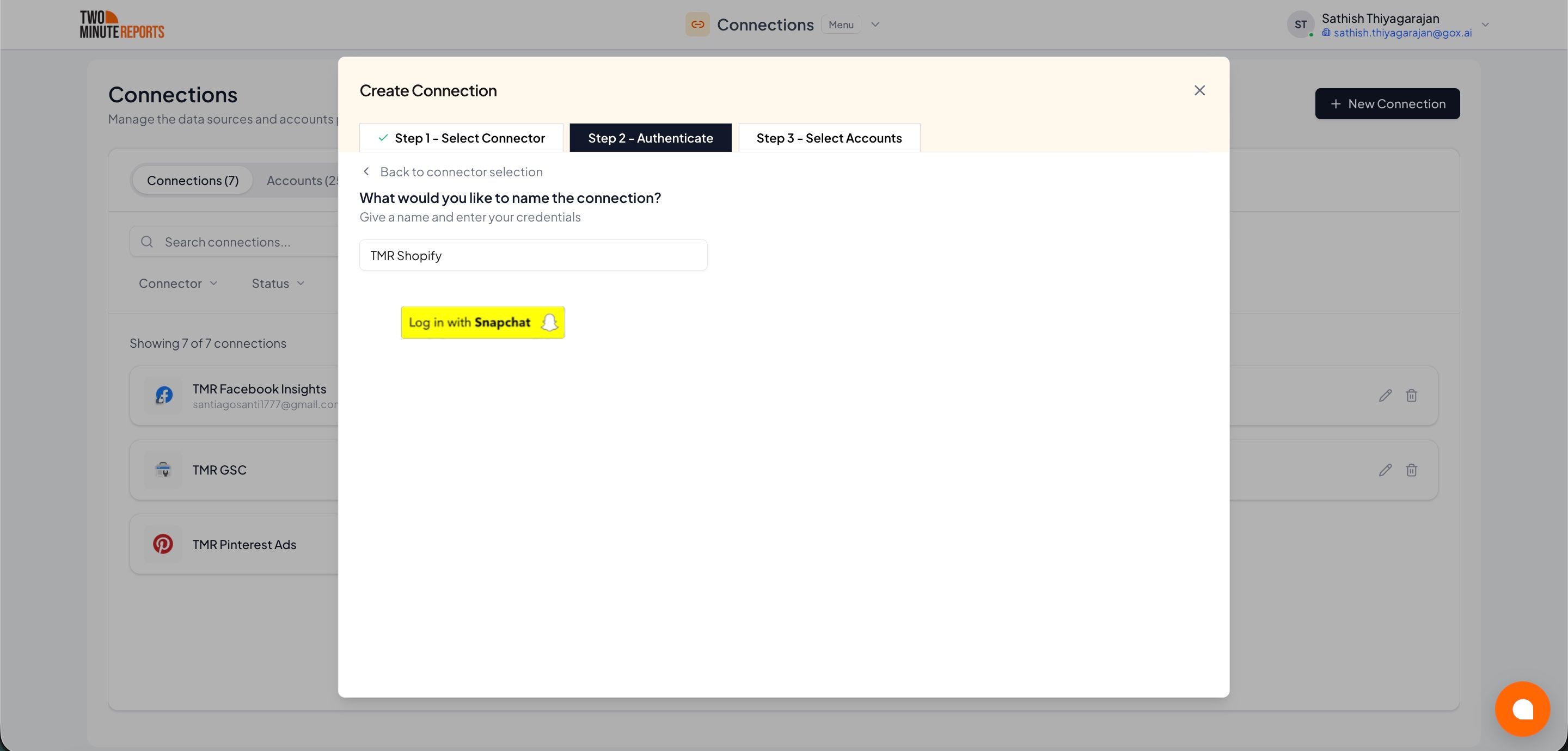
- Enable the accounts you want to report on.
- Select Done.
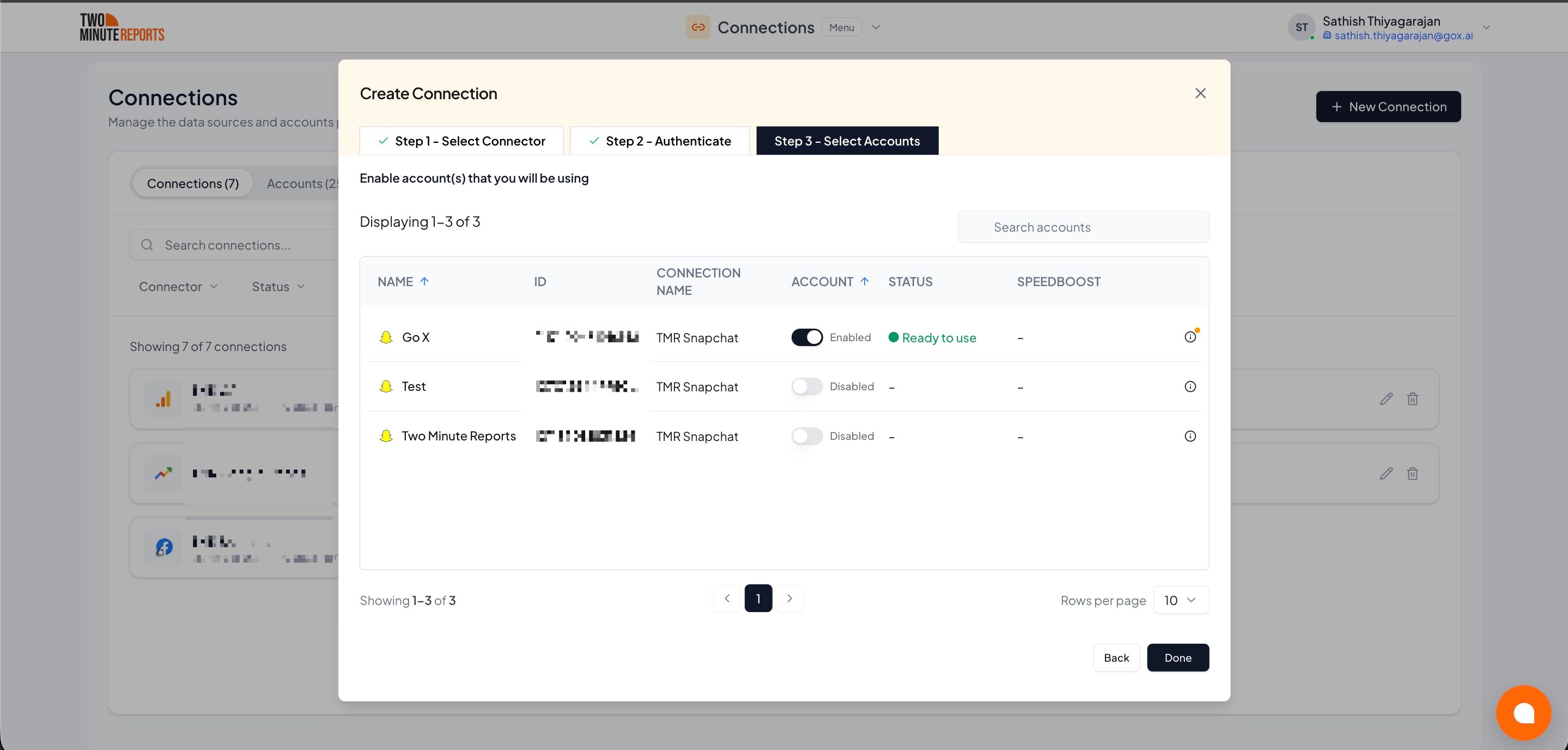
How to get Snapchat Ads data into Google Sheets or Google Data Studio
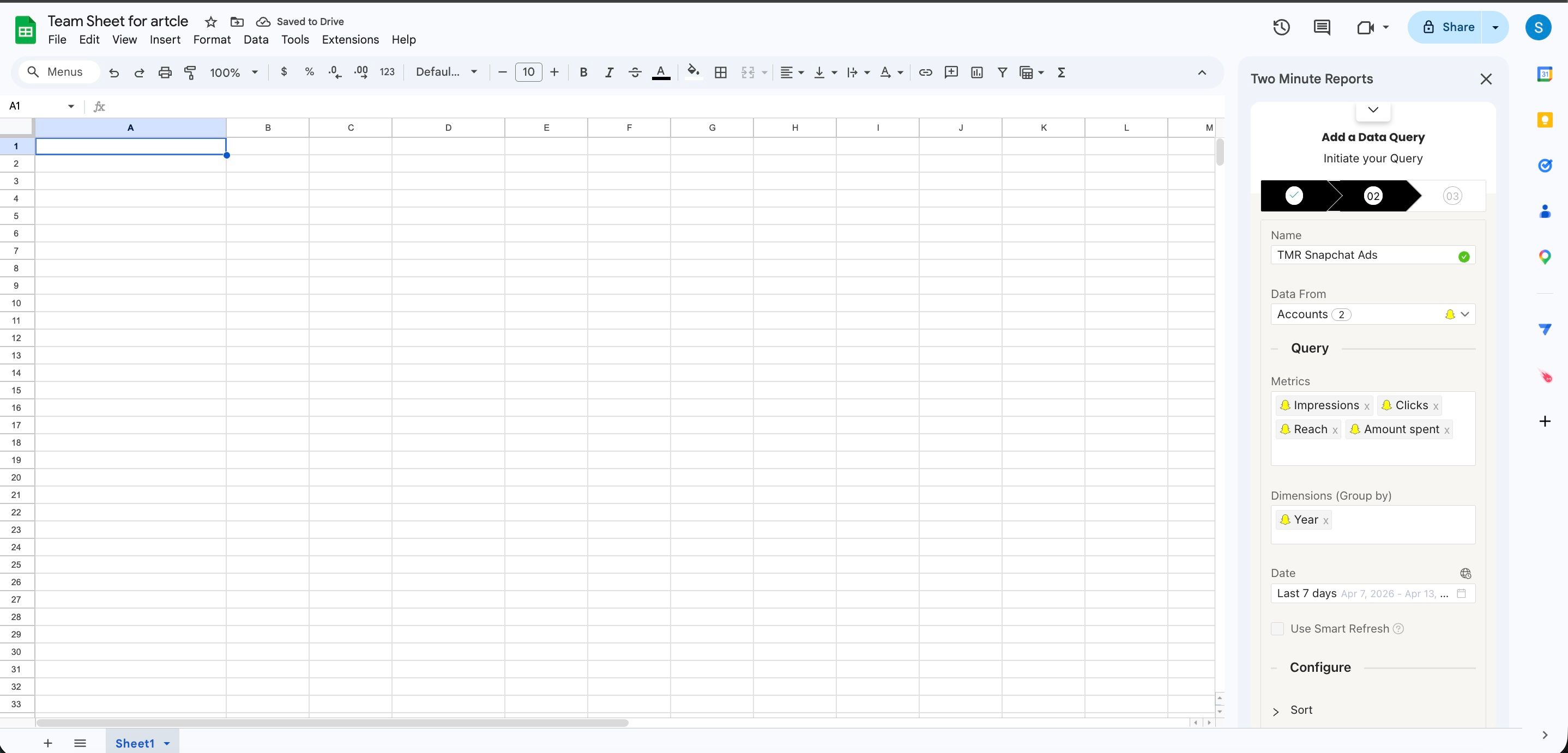
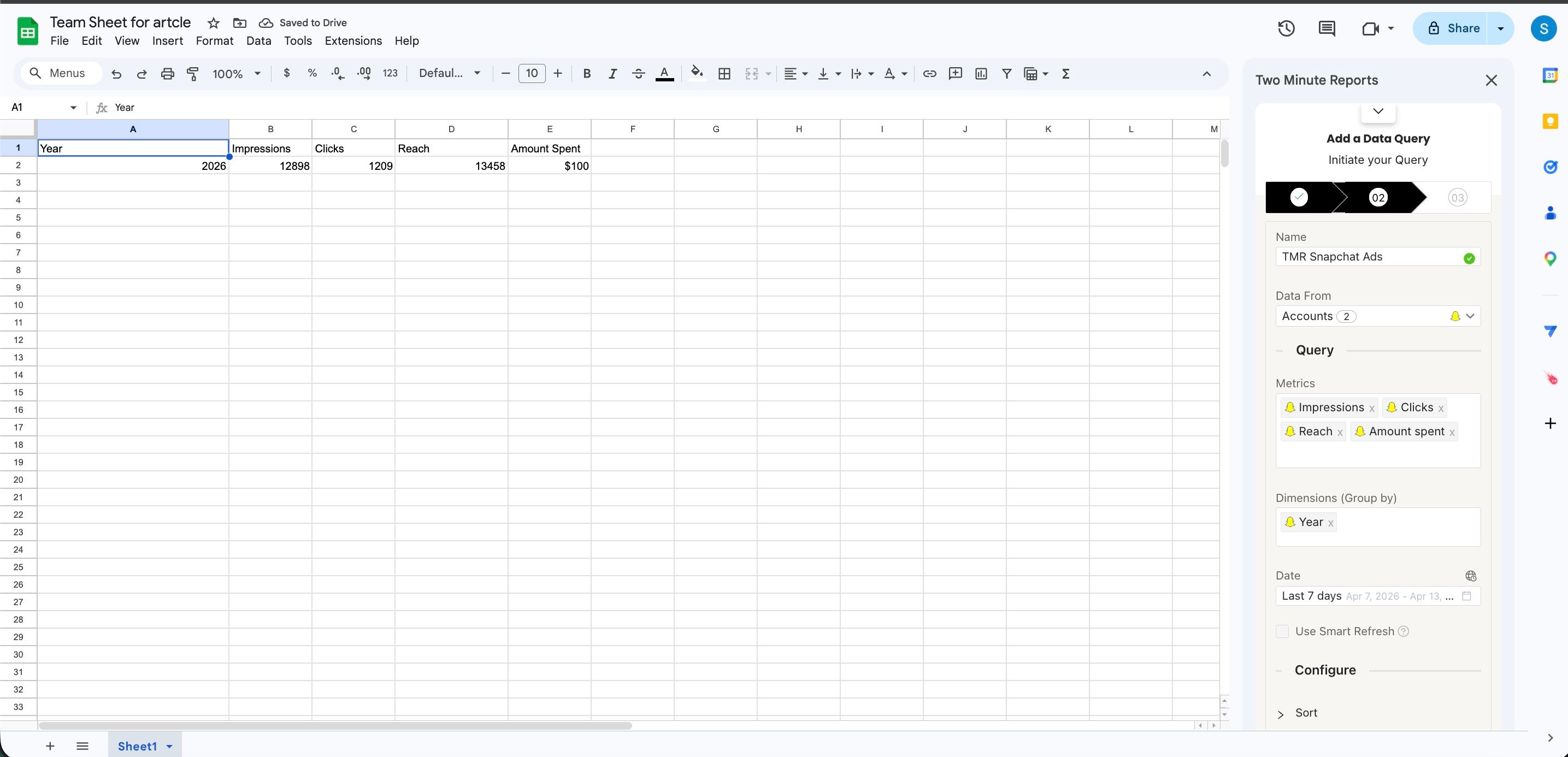
To get Snapchat Ads data into Google Sheets:
- In the Two Minute Reports sidebar, open Data Queries.
- Select Add.
- Select the accounts you want to report on. You can select more than one.
- Select your metrics and dimensions.
- Select the date range.
- Set sorting and filters if you need them.
- Select Run query. Two Minute Reports adds the data to your sheet.
To get Snapchat Ads data into Google Data Studio:
- In the Hub, open Google Data Studio › Snapchat Ads.
- Select Create report.

- Select or create a query config:
- To use a query config you have: select it in Choose your query config. Then select Save.
- To create a query config: if you already have one, first select Create new query config in the list. Enter a name in Name your query config, and select the accounts in Select your accounts. Select Save.


- Select Create from scratch. If templates show under Quick start from a template, you can select one instead.

- Looker Studio (formerly Google Data Studio) opens in a new tab, with the Two Minute Reports connector. If you are in more than one team, select your team in Select your Team.
- In Select Query Config, select your query config.
- Select Connect in the top-right corner.

- In your new report, add Snapchat Ads metrics and dimensions to the canvas.

Limitations of Results and Cost per result
The Snapchat API does not give a Results metric. Two Minute Reports calculates Results from the optimization goal of each ad set. For example, if the goal of an ad set is swipes, Results shows the swipes of that ad set.
The optimization goal is a setting of the ad set. Because of this, when you select Results or Cost per result, Two Minute Reports gets the data for each ad set. Then it adds the ad set rows together to give the totals for each campaign or account.
Results is a count, so its total is correct. But some metrics are not correct when Two Minute Reports adds ad sets together:
- Reach, Unique impressions and Attachment uniques: one person can see ads from two ad sets. The total counts this person two times.
- Frequency, Attachment frequency, Avg. screen time and Attachment avg. view: these are averages, and an average of averages is not the correct average.
Because of this, these metrics do not match Snapchat at campaign or account level. To get correct values, do one of these:
- Add Ad set name to the query. Each row is then one ad set, and Two Minute Reports does not add rows together.
- Put Results and these metrics in different queries.
Results is blank for AR Lens and Filter ad sets. See Results is blank.
Troubleshooting
You cannot find Ad Squad fields or Swipes
Snapchat changed the name "Ad Squad" to Ad Set, and the field list uses the new name. Look in the Ad Set group for Ad set name, Ad set ID, Ad set status and the other ad set fields.
Swipes and Clicks show the same number. Use the name that you see in Snapchat Ads Manager.
Only the names changed. Your queries, query configs and Google Data Studio reports continue to operate. But Google Sheets writes the field name into the header row. Because of this, after a refresh, the header shows Ad set name, not Ad squad name. If a spreadsheet formula uses an old header, change the formula.
Results is blank
Results is blank for AR Lens and Filter ad sets. The optimization goal of these ad sets is uses: the number of times that a person applied your lens or filter to a Snap. Snapchat bills for uses, but its API does not give a uses metric. Because of this, Two Minute Reports cannot calculate Results for these ad sets.
To measure these ad sets, use Camera shares, Camera saves, Paid impressions, Earned impressions and Reach.
Conversion page views does not match Landing page views
Conversion page views and Landing page views count different things:
| Field | Group | What it counts |
|---|---|---|
| Landing page views | Attachments | The number of times a person loaded the landing page of the ad after a click. This is the Landing Page Views number in Snapchat Ads Manager. Snapchat gives this number from 10 December 2024. |
| Conversion page views | Conversion | The page view events that the Snap Pixel on your website sends, and that Snapchat attributes to the ad. Snapchat attributes an event to a swipe or to a view of the ad. |
Thus, the two numbers are different. For example, Conversion page views can be higher, because it also counts the page views after a person only viewed the ad. It can also be lower, for example if the Snap Pixel is not on all the pages of your website.
To get the same number as Landing Page Views in Snapchat Ads Manager, use Landing page views. For dates before 10 December 2024, Landing page views is blank.
To see only the page views after a swipe, use Page views swipe up.
Reach or Frequency does not match Snapchat
Your query possibly has Results or Cost per result. With these fields, Two Minute Reports adds the ad set rows together. Because of this, Reach, Frequency, Unique impressions, Attachment uniques, Attachment frequency, Avg. screen time and Attachment avg. view do not match Snapchat at campaign or account level.
To get correct values, add Ad set name to the query, or put Results and these metrics in different queries. See Limitations of Results and Cost per result.