

Google says "Service unavailable" when you open the add-on
Problem
You open Extensions › Two Minute Reports in Google Sheets. Instead of the sidebar, Google shows its own page:
Service unavailable
You tried to access a service that isn't available for your account.
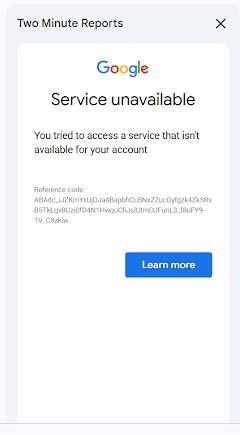
The page has Google's branding and a reference code at the bottom. It can appear when you install the add-on, when you open the sidebar, or when you are asked to authorize it.
This error comes from Google, not from Two Minute Reports
Google decides whether your account is allowed to run the add-on, and it makes that decision before anything reaches Two Minute Reports. Two things follow from that:
- Nothing in your Two Minute Reports account causes it. Your plan, your team, your connections and your saved queries are not involved, and changing them will not help.
- It is a managed-account restriction. This screen appears for Google accounts that an organization administers: a work address at your own company's domain. Google's own explanation of the screen is at accounts.google.com/info/servicerestricted.
Try these before you contact your administrator
Sign out of Google entirely, then sign back in.
This is different from an incognito window: incognito only isolates the browser session, while a full sign-out clears the stale authorization Google has cached for the add-on and forces it to re-check your access from scratch. Sign out of your Google account completely (not just close the incognito window), sign back in, and reopen the spreadsheet. This alone has resolved the error for at least one person who saw it, without any administrator change.
Are several Google accounts signed in?
If you are signed in to more than one Google account in the same browser, the request may be going out as the wrong one. Open the spreadsheet in an incognito window signed in only with the account you use for Two Minute Reports. See Multiple account sign-in issues. Incognito alone does not force the same check that a full sign-out does. If incognito does not help, try the full sign-out above.
Is this a work account or a personal one?
If your address is at your company's domain, somebody administers it, and the next section is for them. If you use a personal @gmail.com address, there is no administrator to ask. Contact support with the reference code from the screen.
What your Google Workspace administrator needs to check
Send this section to whoever administers Google Workspace at your organization. Any one of these three settings can produce the screen above, so it is worth checking all three.
1. Check the Marketplace allowlist setting
- In the Google Admin console, go to Menu › Apps › Google Workspace Marketplace apps › Manage access to apps.
- Under Manage Google Workspace Marketplace allowlist access, see which of the three options is selected for the organizational unit the affected user is in:
- Allow users to install and run any app from the Marketplace: no allowlist is enforced, so this setting is not what is blocking the add-on. Move on to the next two checks.
- Allow users to install and run allowlisted apps from the Marketplace: the add-on must be added to that allowlist, or it is blocked. Continue with the steps below.
- Don't allow users to install and run apps from the Marketplace: no Marketplace app can run for that unit, including this one. This setting needs to change before anything else will help.
- If the setting is allowlisted apps only, allowlist the add-on: go to Google Workspace Marketplace apps › Apps list and select Allowlist app. Search for Two Minute Reports, and select its name to confirm the listing. Then select Select, choose to allow it, and select Continue.
- Choose who the setting applies to: the whole organization, or the organizational units and groups that use the add-on.
Making the change needs the Google Workspace Marketplace administrator privilege.
Google's documentation: Manage the Marketplace app allowlist for your organization.
2. Check that Apps Script is on for that person
The add-on runs on Google Apps Script. If the service is off for the user's organizational unit, the add-on cannot run even when it is allowlisted.
In the Admin console, go to Apps › Google Workspace › Drive and Docs › Google Apps Script, select the organizational unit, and confirm the service status is On.
Google's documentation: Turn Apps Script on or off for users.
3. Check third-party app access for the permissions the add-on asks for
Under Security › Access and data control › API controls › Manage Third-Party App Access, an organization can restrict which apps may hold which Google permissions. These are the permissions the add-on requests, and what each one is for:
| Permission | Google OAuth scope | Why the add-on needs it |
|---|---|---|
| Read and write your spreadsheets | spreadsheets | Write report data into the sheet, and read the ranges your queries point at |
| Show content in sidebars and dialogs | script.container.ui | Draw the Two Minute Reports sidebar inside Google Sheets |
| Connect to an external service | script.external_request | Call the Two Minute Reports API to fetch your data |
| Run when you are not present | script.scriptapp | Run scheduled refreshes on a trigger |
| Send email as you | script.send_mail | Send the scheduled report emails you configure |
| See your email address and basic profile | userinfo.email, userinfo.profile | Identify which Two Minute Reports account you are |
The add-on does not request access to Drive files other than the spreadsheet it is running in, and it does not read your mail.
Changes in the Admin console usually take effect within a few minutes, but they can take longer to apply across a whole organization. Wait, and try once more, before you decide that the change did not work.
Still having issues?
If you have tried a full sign-out and sign-in, and your administrator has checked all three settings above, and Google still shows the same screen, email [email protected] with:
- The full reference code from Google's error page
- The email address you are signing in with, and whether it is a work or personal account
- What you were doing when it appeared: installing, opening the sidebar, or authorizing
- Whether colleagues at the same organization can use the add-on
- Whether a full sign-out and sign-in was tried
- Which of the three settings above the administrator has already changed
Because the request never reaches us, we cannot see the refusal from our side. If all three settings are confirmed open and Google still refuses, the reference code is what Google Workspace support will ask for.
Related
- Install the add-on: install the add-on from the Google Workspace Marketplace
- Multiple account sign-in issues: when Google uses the wrong account
- Troubleshoot Google Sheets issues: other add-on problems
Can't sign in with Google or Microsoft
Fix a Hub sign-in with Google or Microsoft that does not complete or is cancelled, and what to ask your administrator if your organization blocks the app.
Microsoft Ads: organization hasn't enabled the Advertising API
Fix 'Microsoft declined the sign-in' when connecting Microsoft Ads with a work or school account.