

Klaviyo

Two Minute Reports' Klaviyo connector lets you access and analyze your data directly in Google Sheets or Google Data Studio. Build custom reports, monitor key metrics, and make data-driven decisions — all without writing any code.
What you can report on
- Email campaign performance: opens, clicks, and bounces
- Flow analytics and automated message performance
- Revenue attributed to email and SMS campaigns
- List growth, unsubscribes, and subscriber churn
- Segment performance and A/B test results
Prerequisites
- A Klaviyo account with the Admin, Owner or Manager role
- A private API key with read-only scope. See How to get your credentials
Klaviyo documents what each role can do in their help article.
How to get your credentials
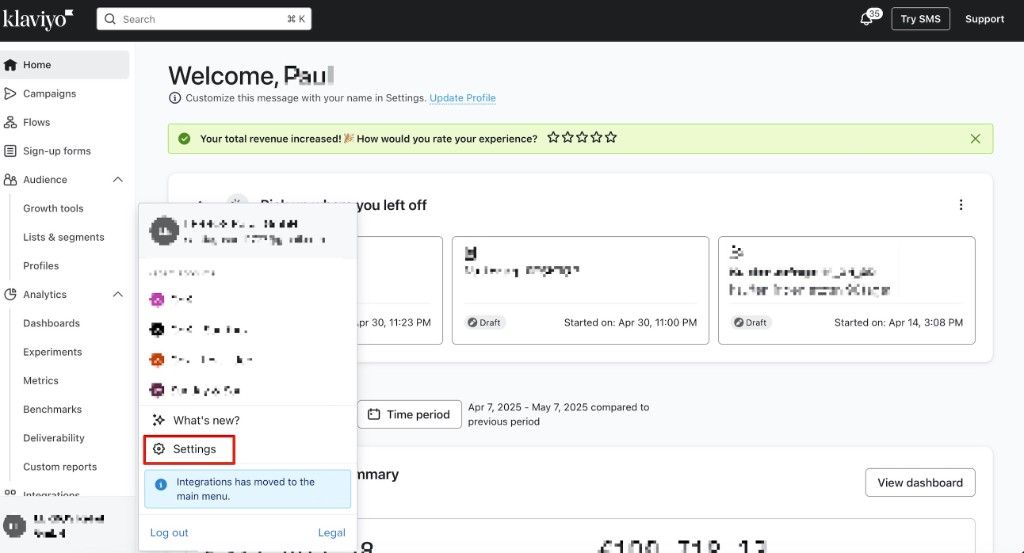
- In your Klaviyo dashboard, open your Profile menu, then select Settings
- Under Account, select API keys
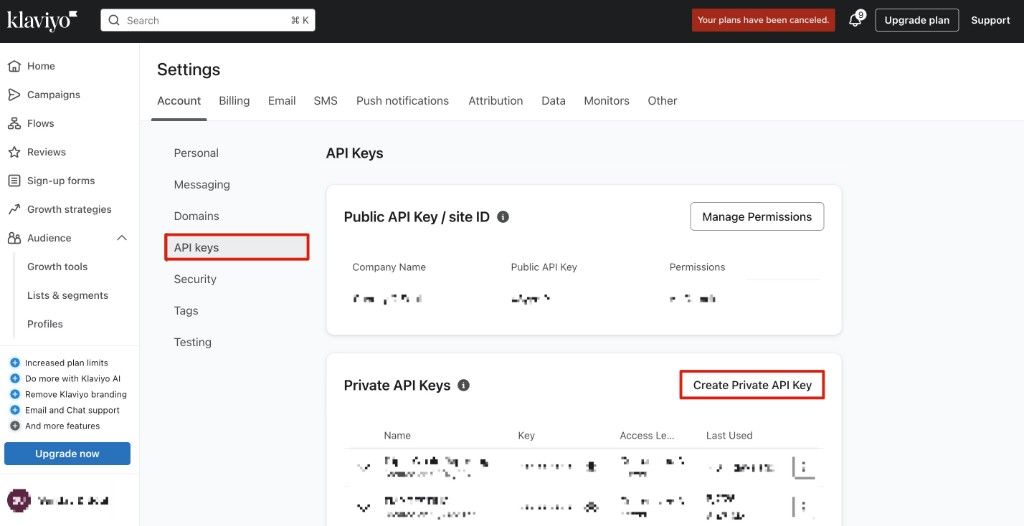
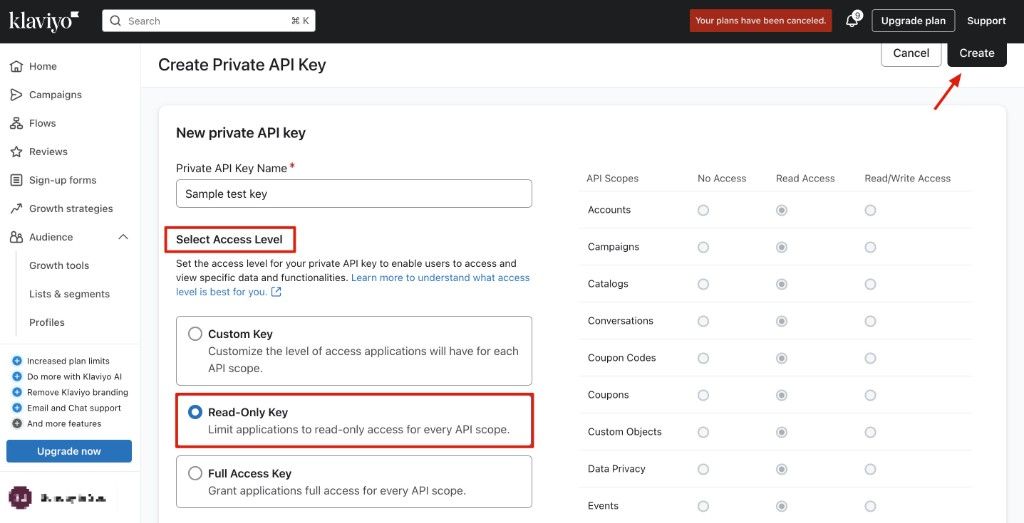
- Select Create Private API Key, enter a name, and under Select Access Level choose Read-Only Key. Select Create
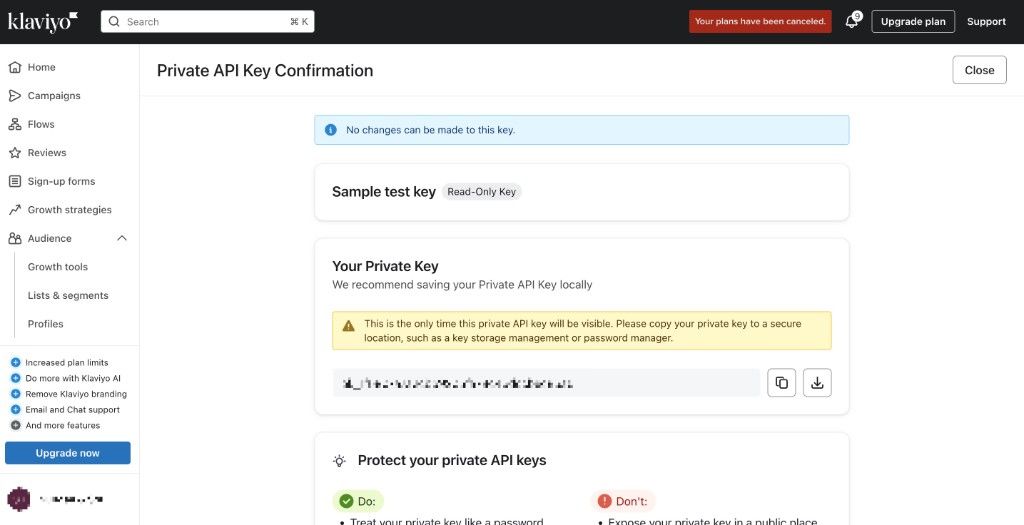
- Copy or download the key from the confirmation screen
How to create a connection
- Go to https://hub.twominutereports.com/connections
- Select New Connection
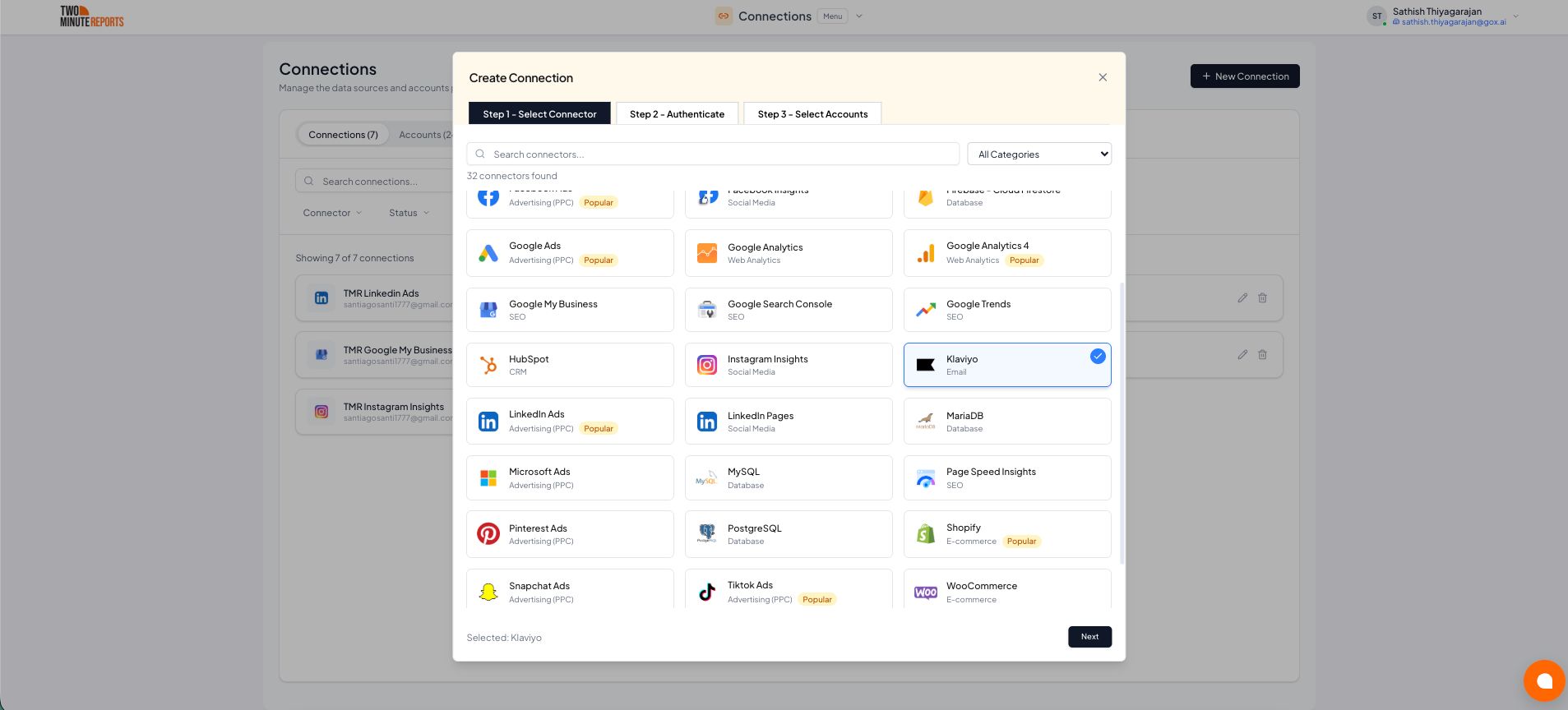
- Select Klaviyo from the list of connectors
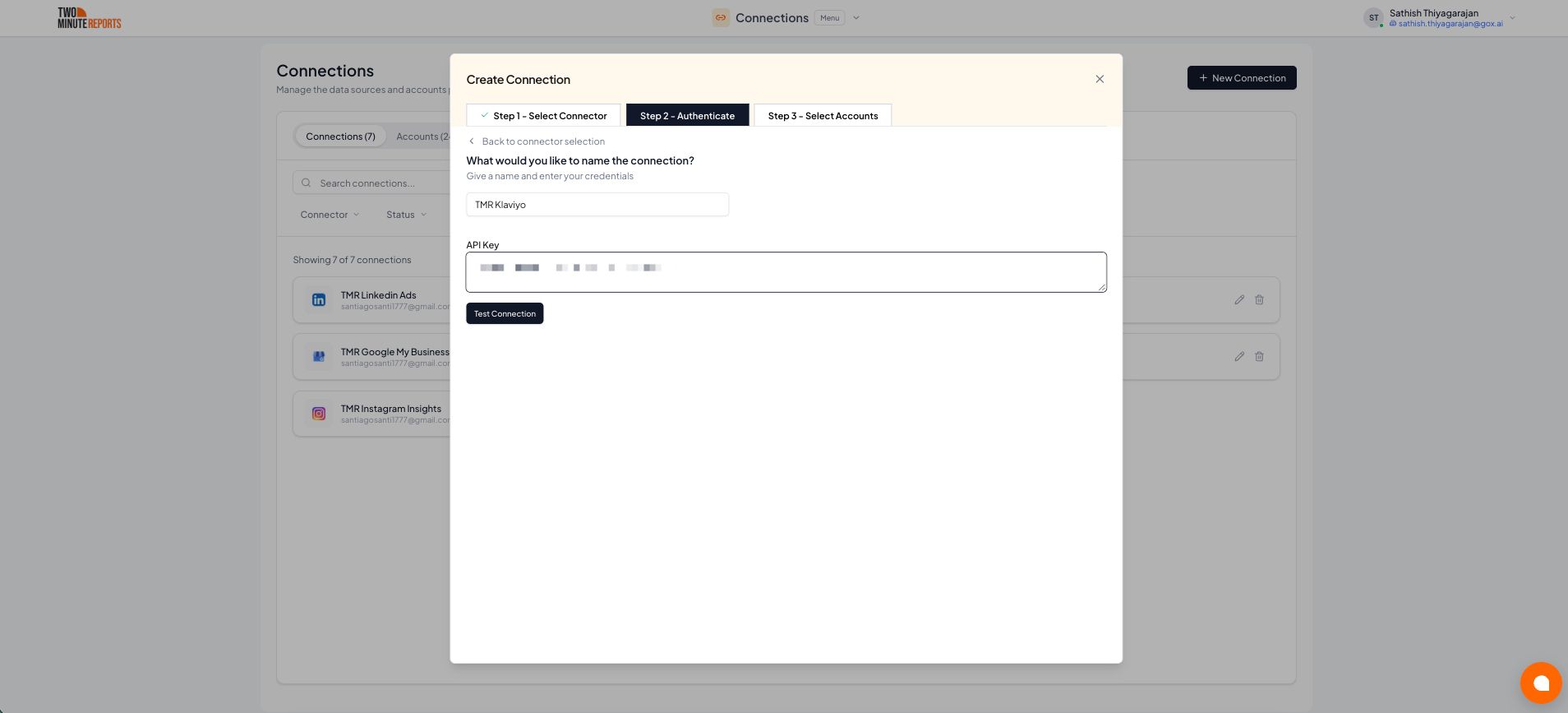
- Name the connection and enter your API Key. If you don't have one yet, see How to get your credentials
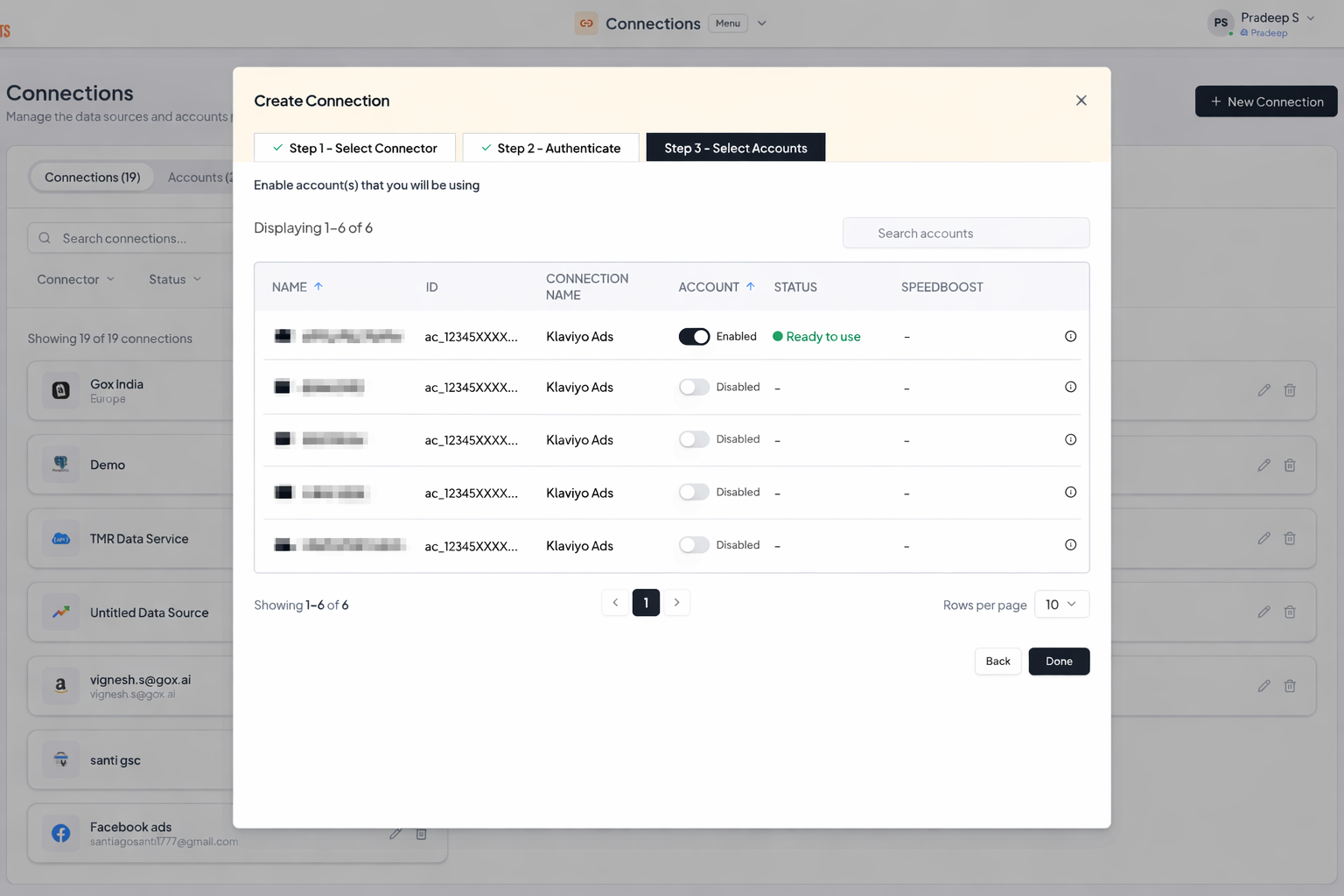
- Enable the accounts you want to report on
How to get Klaviyo data into your reports
To pull Klaviyo data into Google Sheets:
- In the Two Minute Reports sidebar, go to Data Queries and select Add
- Select the accounts you want to analyze. You can select more than one
- Choose your metrics and dimensions
- Select the date range
- Set sorting and filtering if you need them
- Select Run Query to pull the data into Google Sheets
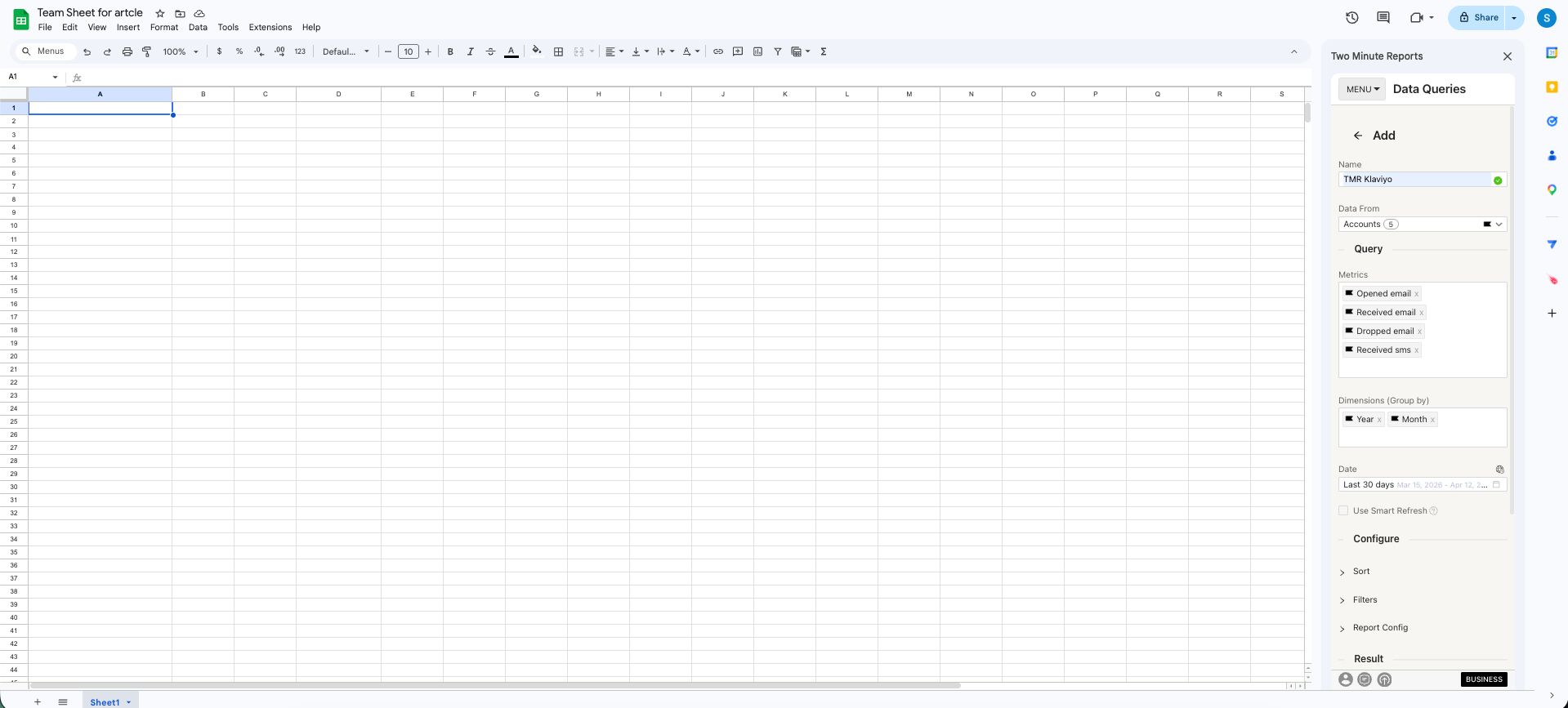
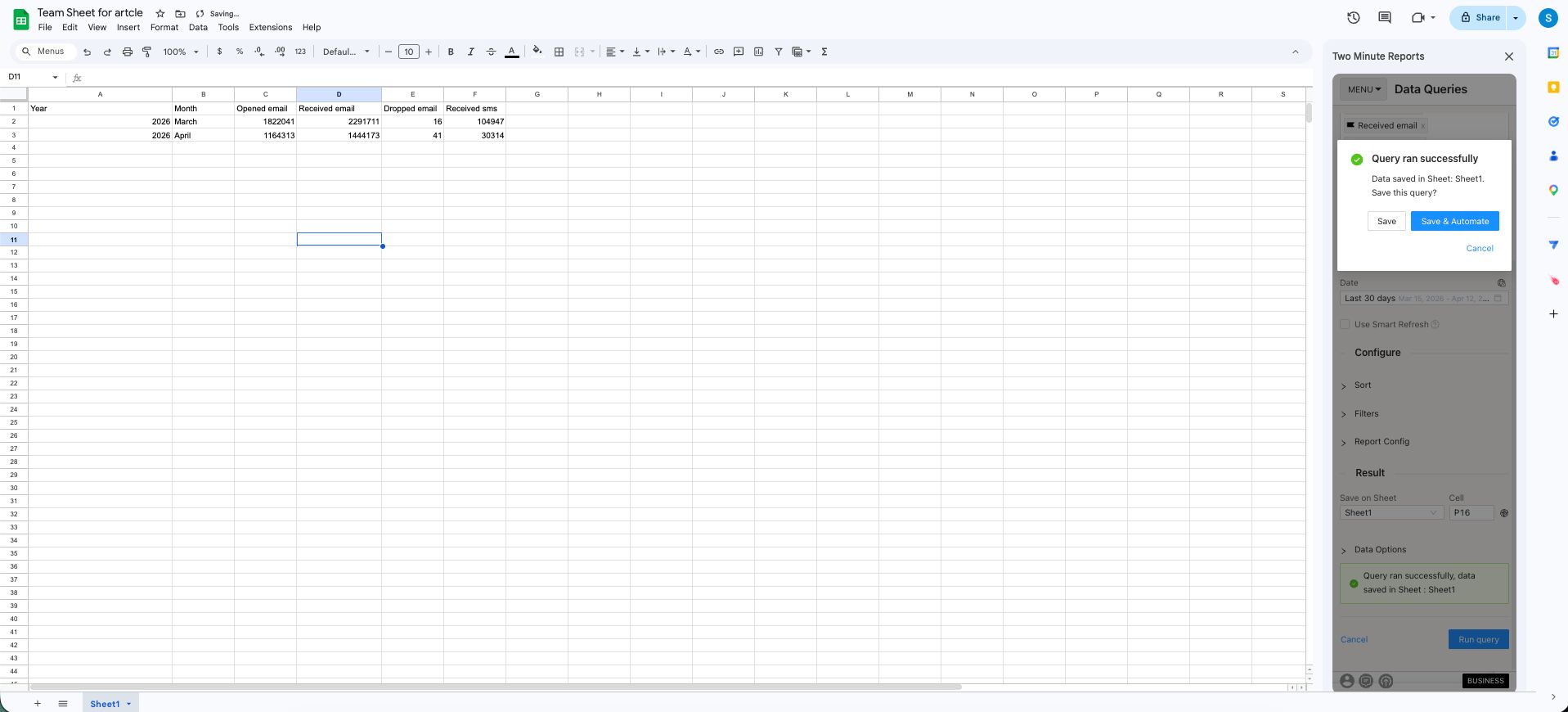
Reporting on several Klaviyo accounts. Select more than one account when you create a query. You can also go to Clients, add a client, map their Klaviyo accounts and select Save & Close, so the mapping is there for future queries.
To pull Klaviyo data into Google Data Studio:
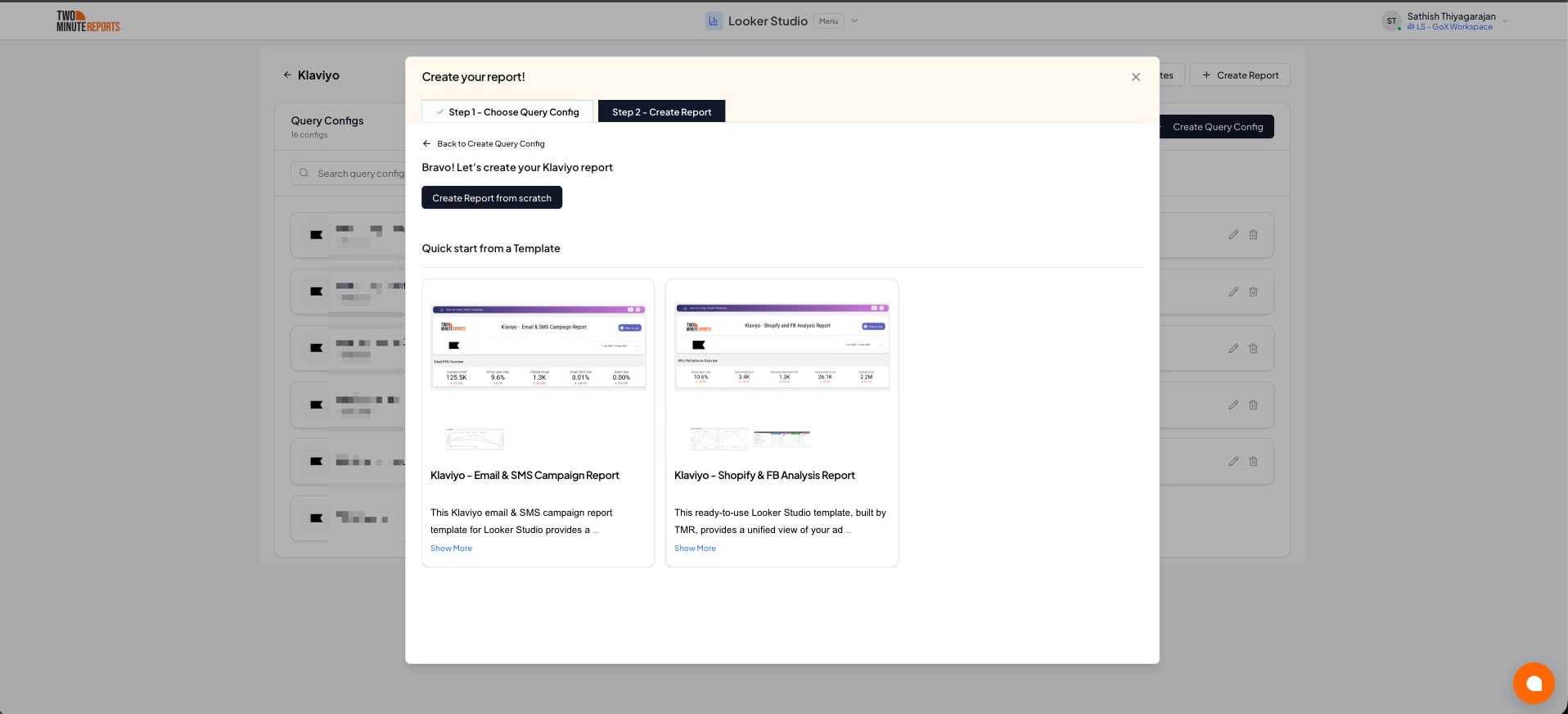
- Select Open in Google Data Studio, then select + Create Report
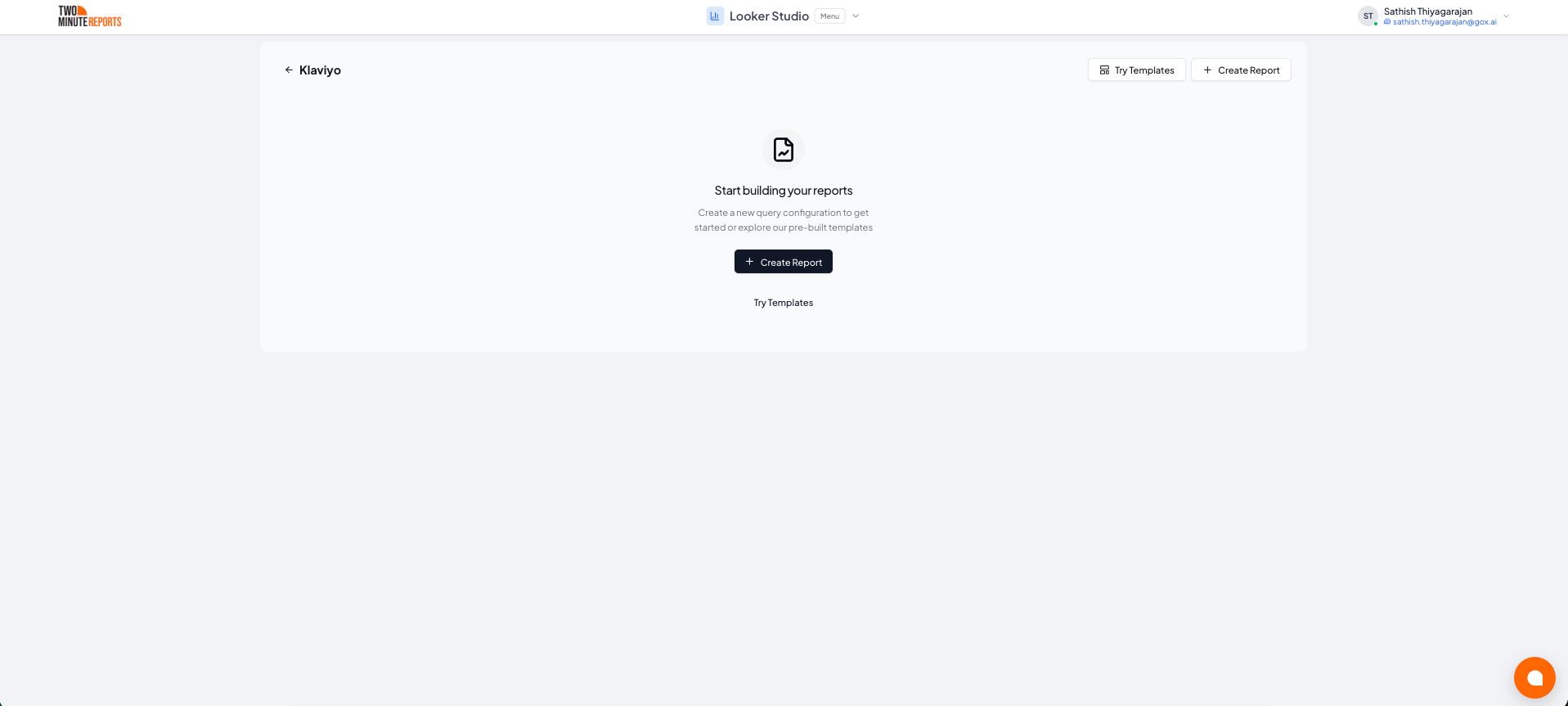
- A query config panel opens. Do one of the following:
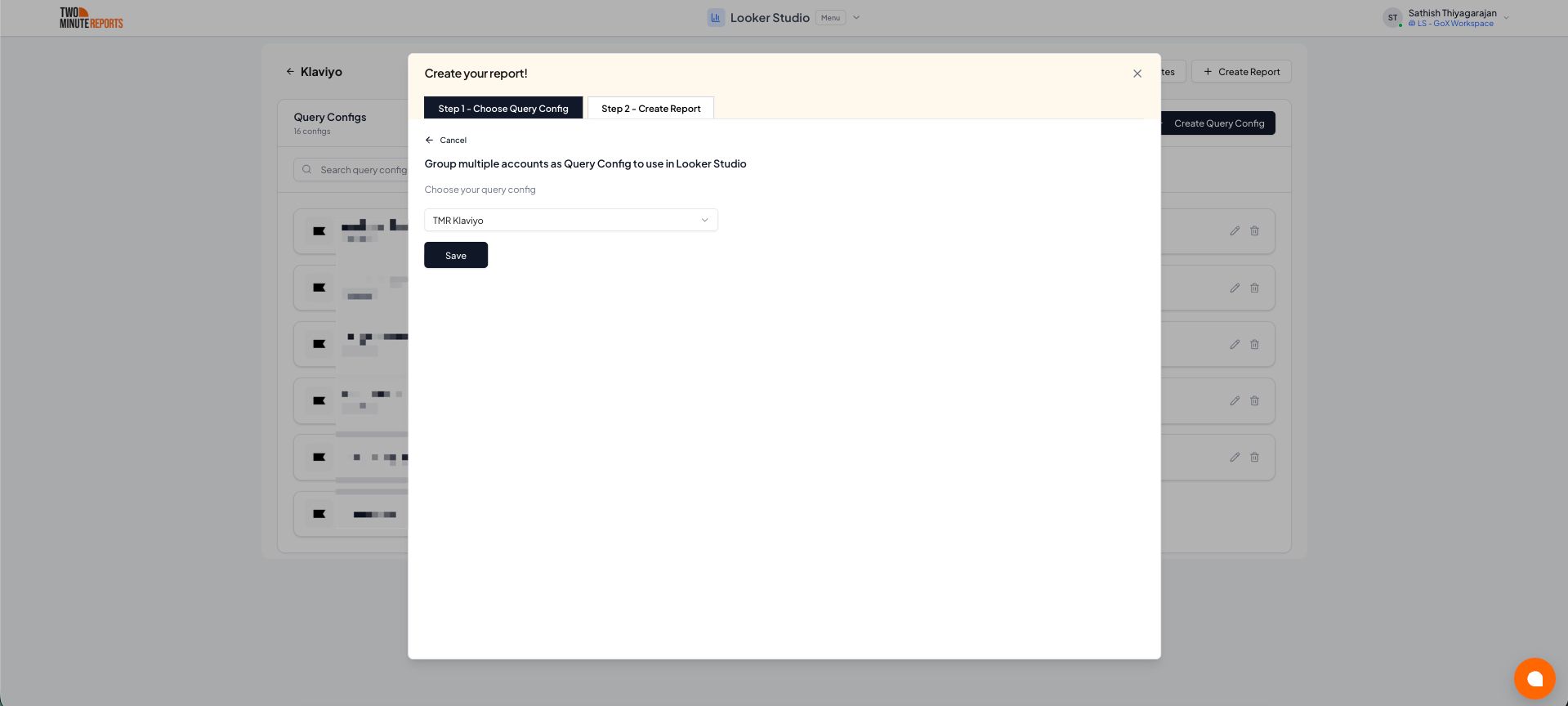
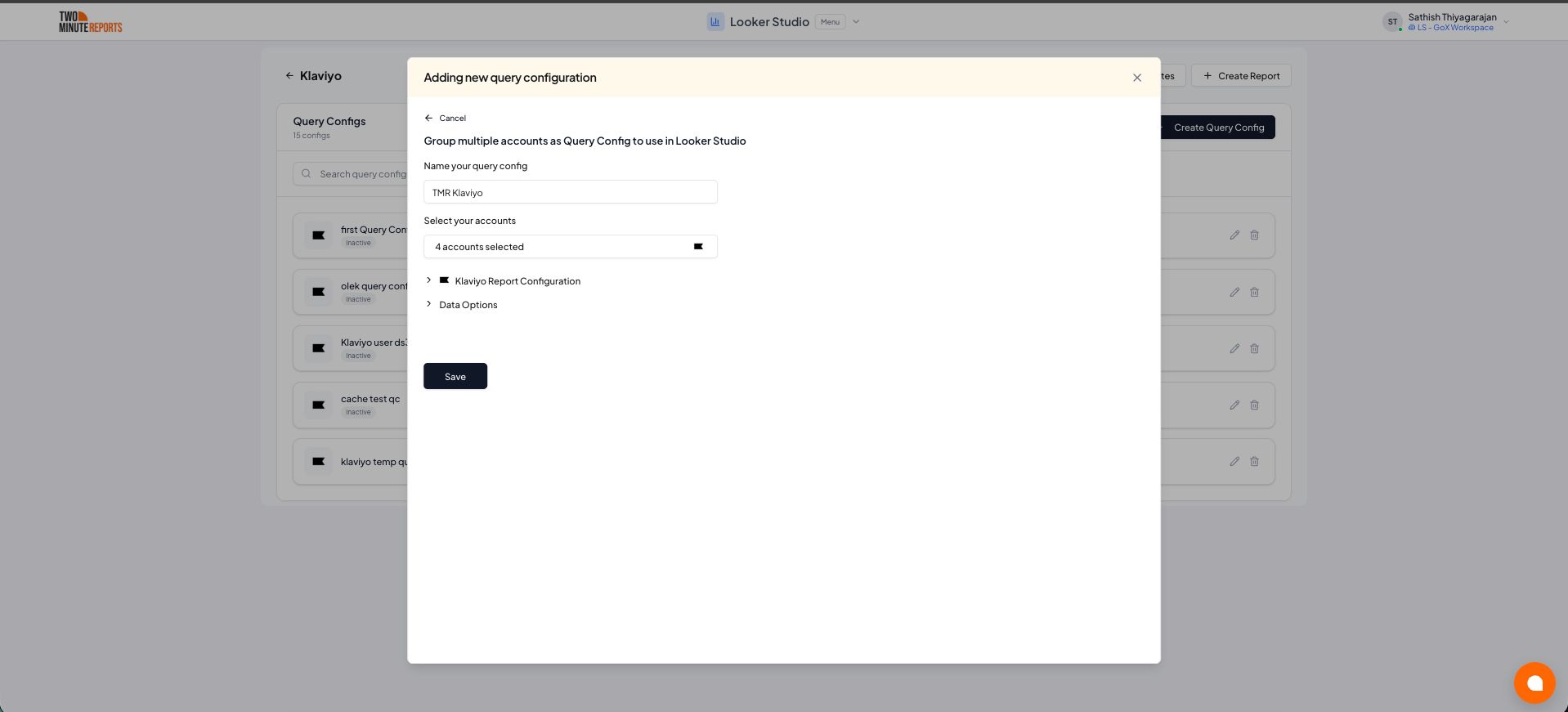
To create a new query config: enter a name, select the accounts to include, then select Save.
- Choose Create report from scratch, or pick a pre-built template to start faster
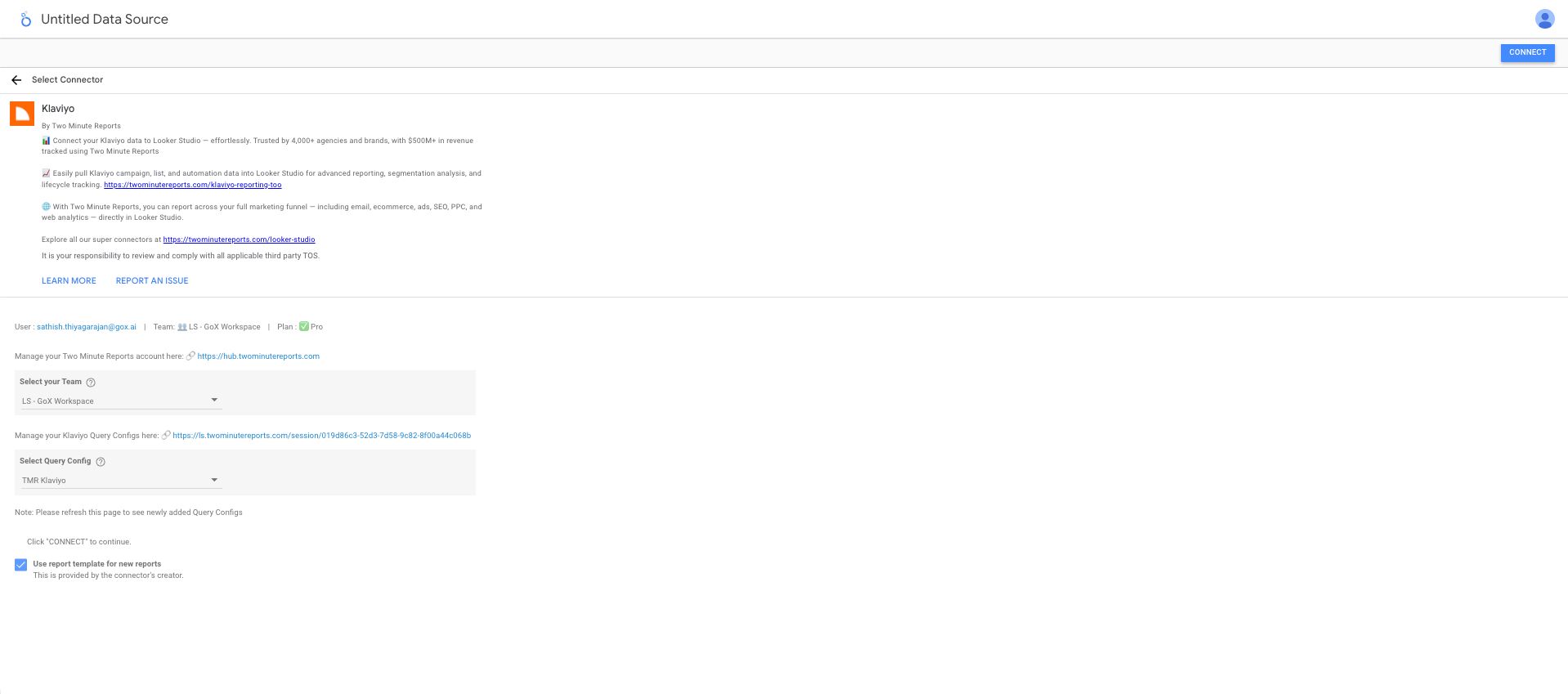
- In the Google Data Studio connector panel, select your team and the query config you want, then select Connect in the top right
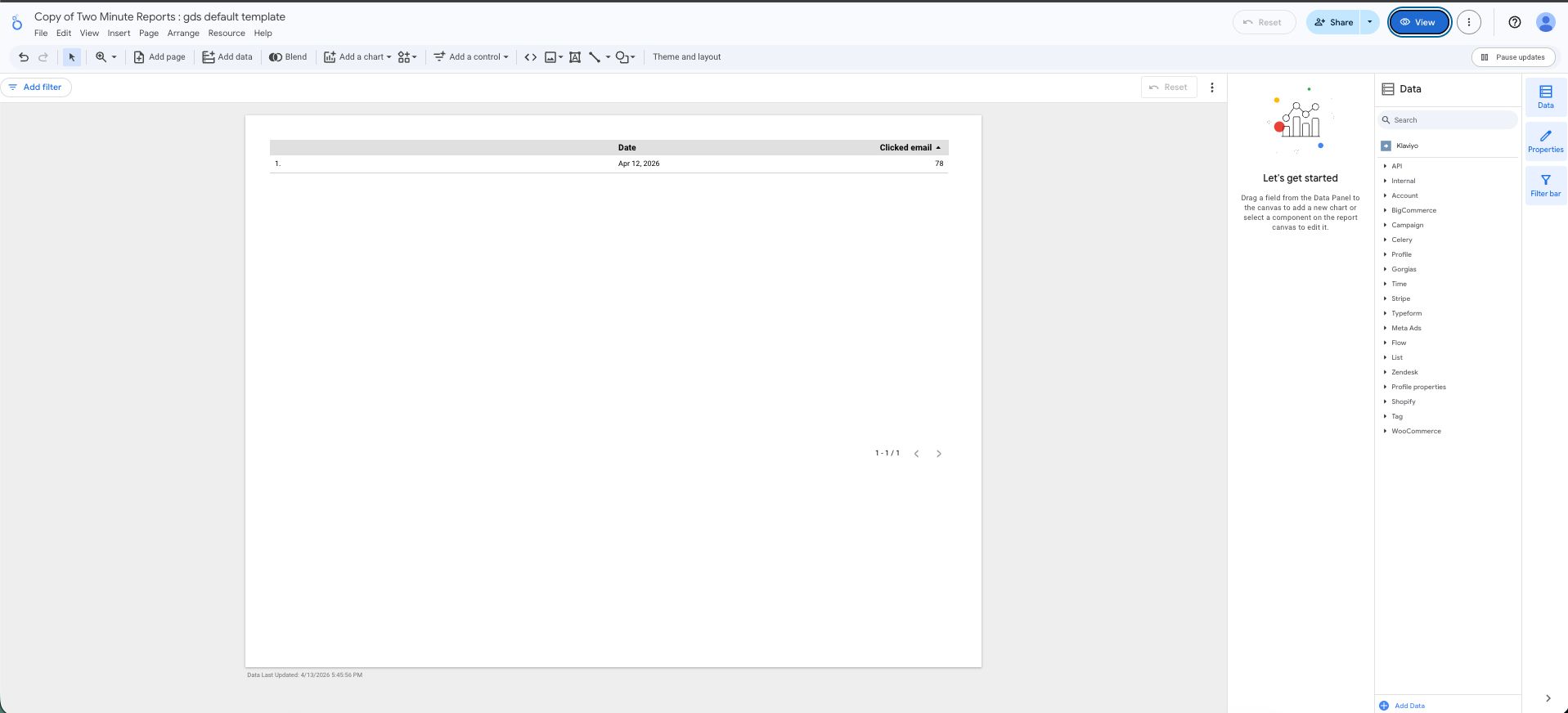
- You land on the Google Data Studio report. Drag Klaviyo metrics and dimensions onto the canvas to start building
Next steps
- Scheduling auto-refresh in Google Sheets
- Running queries
- Managing reports
- Google Sheets troubleshooting
Understanding and resolving data discrepancies
You might encounter discrepancies between data in Two Minute Reports and what you see in the Klaviyo dashboard. Below are the common causes and how to resolve each one.
Flow emails displayed as campaigns
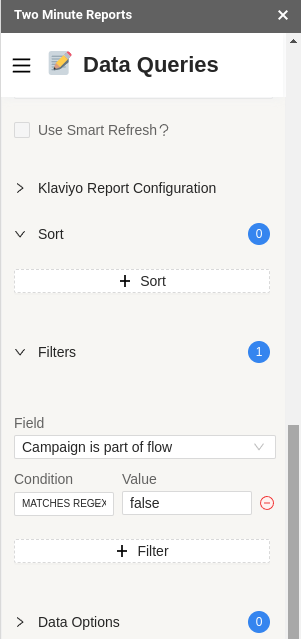
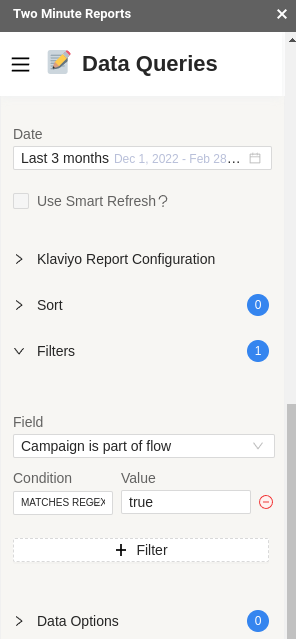
In Two Minute Reports, all email types — campaigns and flows — are listed under campaigns. To separate them, use a filter on the Campaign is part of a flow dimension.
Filter for campaigns only:
| Setting | Value |
|---|---|
| Field | Campaign is part of a flow |
| Condition | MATCHES REGEX |
| Value | false |
Filter for flows only:
| Setting | Value |
|---|---|
| Field | Campaign is part of a flow |
| Condition | MATCHES REGEX |
| Value | true |
Discrepancies in metrics
Klaviyo attributes email and sales events differently in its dashboard vs. its API.
- In the dashboard, events are assigned to the date the user received the email.
- In the API, events are assigned to the date they actually occurred.
Two Minute Reports uses the API, so results may differ from the Klaviyo dashboard. Using longer date ranges in your queries reduces the impact of this difference.
Discrepancies in open and click rate data
Two Minute Reports calculates open and click rates by dividing unique opens or clicks by total emails delivered. When a query uses an incomplete time frame, multiple API requests may run and count unique values more than once.
For best accuracy, use these date ranges:
- A complete week (Monday to Sunday)
- A full calendar month
- The current month (for month-to-date performance)
Open rate or click rate exceeding 100%
When breaking down rates by date, values can exceed 100% because opens don't always happen on the same day emails are received. Metrics are attributed to the day the event occurred, not the send date.
Example: 40 emails sent Monday, 20 on Tuesday. 5 opened Monday, 30 opened Tuesday.
- Monday open rate = (5 ÷ 40) × 100% = 12.5%
- Tuesday open rate = (30 ÷ 20) × 100% = 150%
To avoid this, pull rates by campaign or over a longer time frame (a full month) rather than a daily breakdown.
Total integration value instead of Klaviyo attributed value
By default, Two Minute Reports may show total integration value. To show only Klaviyo-attributed value, enable Filter insights, only attributed to Klaviyo Campaigns and Flows in your query configuration.
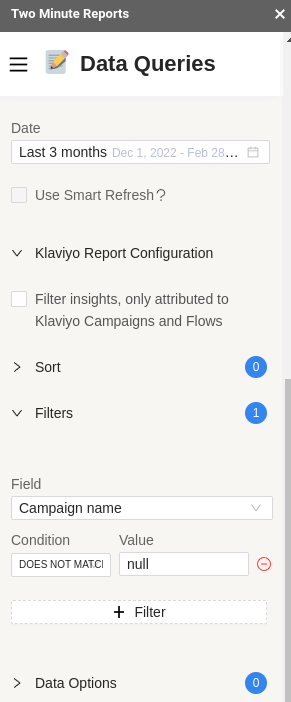
Alternatively, apply this filter:
| Setting | Value |
|---|---|
| Field | Campaign name |
| Operator | DOES NOT MATCH REGEX |
| Value | null |