

Goals
Goals let you define performance targets and track progress against them using your connected data sources. Instead of manually comparing numbers across reports, you set a clear target (like revenue, leads, or conversions) and the system monitors whether you are on track to achieve it.
Goals use the same underlying data as your reports, so performance is always based on live, automatically refreshed numbers.
What You Can Do
- Define targets for key metrics like revenue, leads, ROAS, or conversions
- Track performance in real time without manual calculations
- View projected outcomes based on current trends
- Identify goals that are on track, at risk, or exceeding expectations
- Monitor multiple goals across accounts and sources in one place
- Set recurring goals for ongoing campaigns or one-time goals for fixed campaigns
- Set budget targets and track daily spend pacing
How Goals Work
Goals are built on top of your existing data setup in Two Minute Reports:
- Data sources: Connected platforms like Google Ads, Facebook Ads, Shopify, and more
- Live data: Automatically refreshed based on your query schedules
- Goal logic: Compares current performance against your defined target
You are not creating separate reports. You are adding a performance layer on top of the data you already pull.
Create a Goal
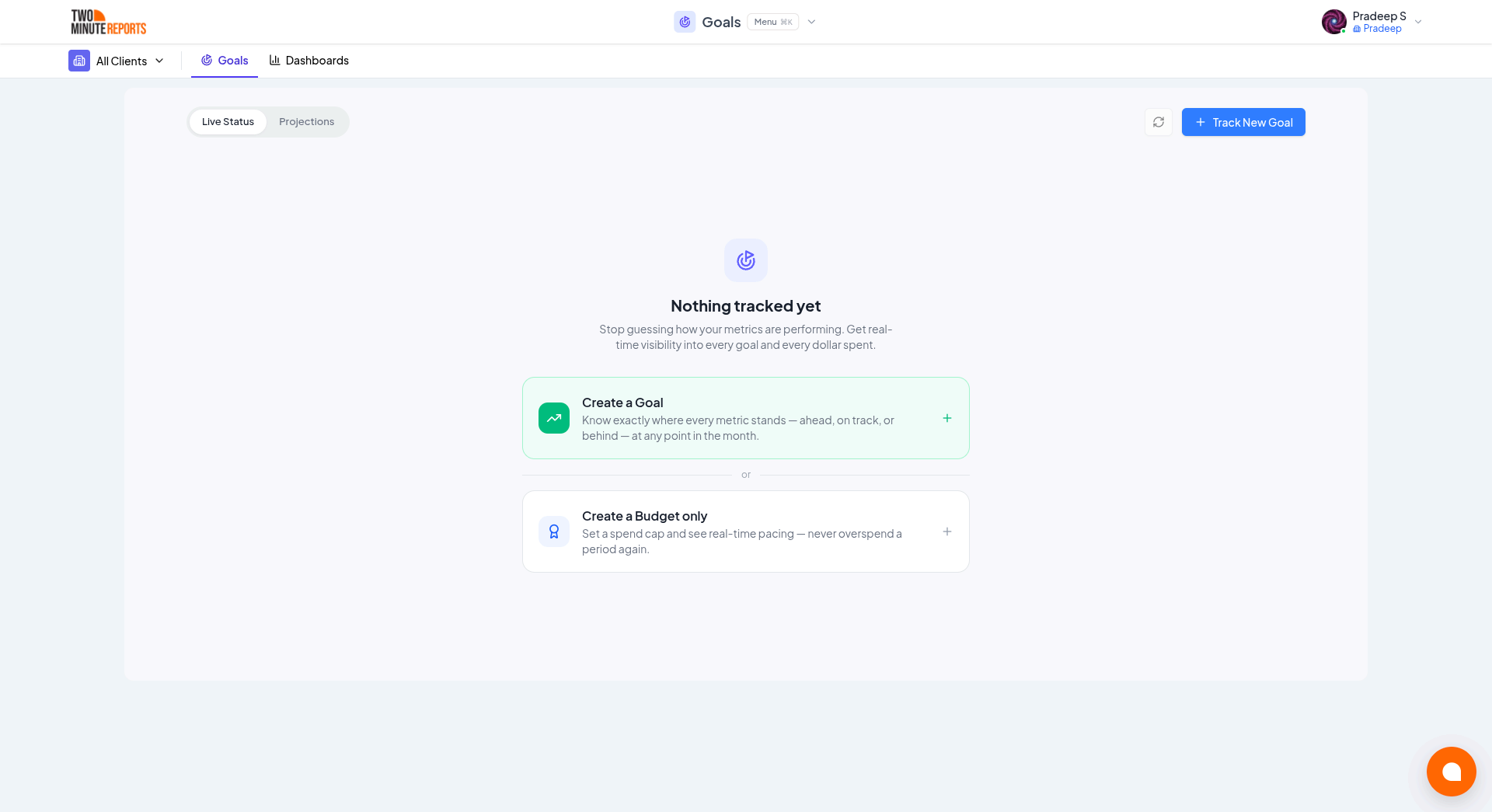
Step 1 - Open Goals
From the top navigation, click Goals, then click Track New Goal.
Step 2 - Define Goal Details
Select the metric you want to track:
| Metric | Description |
|---|---|
| Leads | Generate qualified leads |
| ROAS | Improve return on ad spend |
| Conversions | Increase completed actions |
| Revenue | Track sales performance |
| Growth | Measure percentage improvement |
| Custom | Define your own metric |
Each goal can pull data from multiple sources.
Step 3 - Configure Goal Settings

Configure the following options:
- Budget Constraint (optional): Limit the goal based on a defined budget
- Goal Recurrence: Choose how often the goal resets (e.g. monthly, quarterly, annually)
- Start Date / End Date: Define the goal duration
Step 4 - Set Your Target
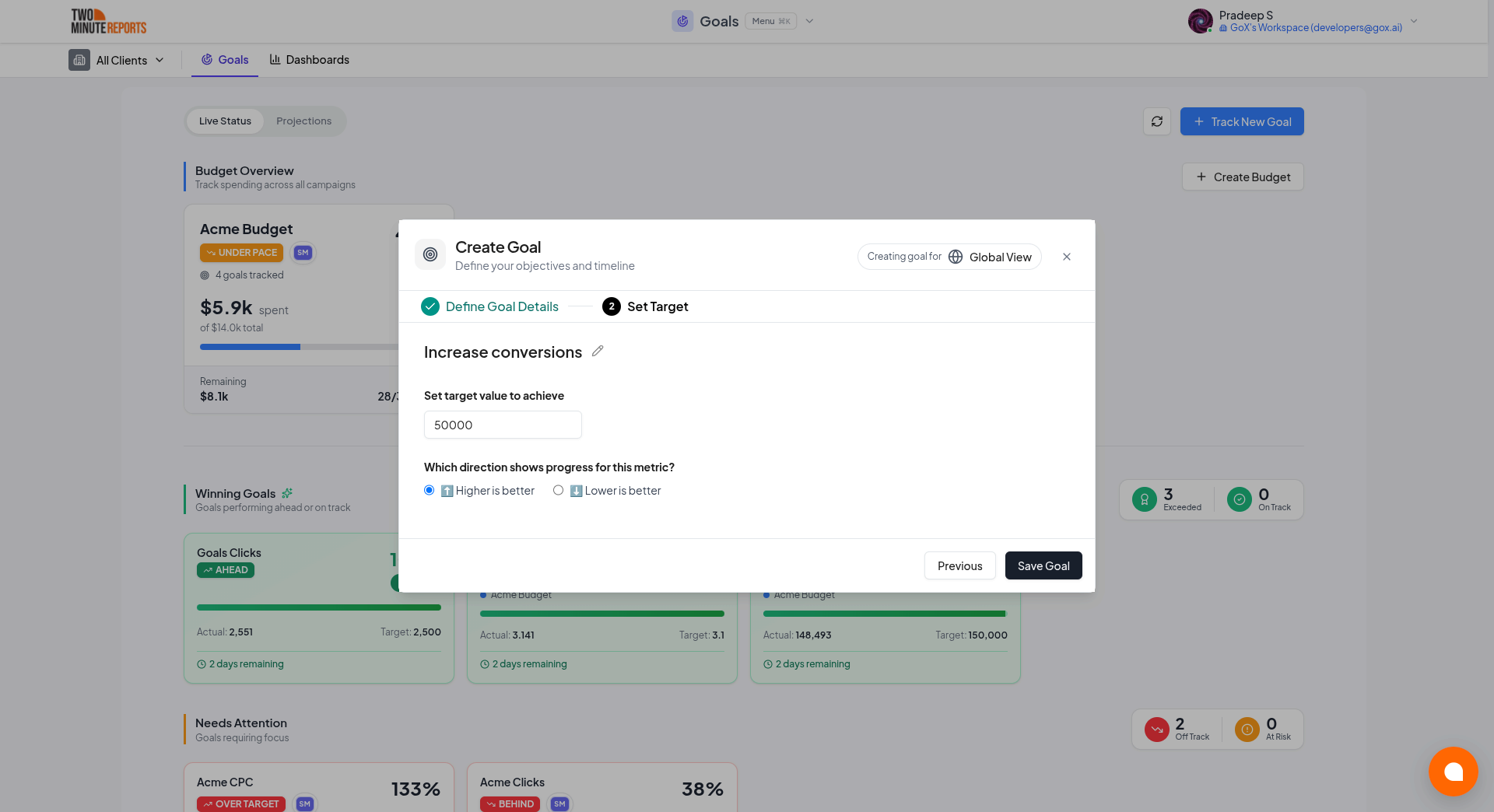
Enter a numeric target value and choose how progress is measured:
- Higher is better (e.g. conversions, revenue, leads)
- Lower is better (e.g. cost per lead, bounce rate)
Click Save Goal to create the goal.
View Goal Progress
Once created, goals appear in the Goals dashboard with live status and projections.
Live Status
Each goal shows current performance against the target and is labeled as one of:
- On Track: Performance is within expected range to hit the target
- At Risk: Performance is falling behind the required pace
- Exceeding: Performance is ahead of the target
Projections
The projections panel displays expected end-of-period performance based on current pacing. This helps you understand whether you are likely to meet your goal before the deadline, so you can act early if a campaign is falling short.
Goals Dashboard
The dashboard gives you a consolidated view of all goals across clients and accounts.
Budget Overview: Tracks total spend and remaining budget, and shows pacing against the defined budget limit.
Goal Projections: Compares current vs projected performance and highlights gaps between actual and target values.
Goal Cards: Each goal card displays:
- Current value
- Target value
- Projected value
- Status indicator (On Track / At Risk / Exceeding)
- Time remaining
Budget Management
Goals include built-in budget tracking so you can manage client ad spend alongside performance.
- Set hard spending limits per campaign and see exactly where the budget stands
- View and manage all client budgets across every platform in one dashboard
- Plan budget targets upfront so every campaign starts with a clear spending plan
- Create custom budgets for any cycle length or time period
Budget pacing tracks how spend is distributed across the campaign period. It shows whether you are on track to use the full budget by the end of the period, helping you avoid overspending or underspending before clients notice.
Errors and Data Availability
If data cannot be fetched, the goal may show an error such as:
Could not load realtime data
Common causes:
- The data source is not connected
- The query is not configured correctly
- A temporary sync delay
Check your connector status and query settings if a goal shows an error. See Troubleshooting for more help.
Frequently Asked Questions
Can I set different goals for different clients? Yes. You can create individual goals for each client based on the metrics they care about most.
What is the difference between a recurring goal and a one-time goal? A recurring goal resets automatically at the end of each period, making it ideal for ongoing campaigns. A one-time goal has a fixed start and end date, making it suitable for seasonal campaigns or product launches.
Can I set both a performance goal and a budget target at the same time? Yes. You can combine a performance goal with a budget target to track both what you are achieving and what you are spending in one place.
How does budget pacing work? Budget pacing tracks how your spend is distributed across a campaign period. It shows whether you are on track to use your full budget by the end of the period, so you can catch overspend or underspend early.
What happens if my data source goes down? Goals will show an error state and pause progress tracking until the data source reconnects. No data is lost.
Next Steps
- Manage Clients - Organize accounts and map data sources per client
- Browse Connectors - Connect the platforms that feed your goals
- Getting Started - New to Two Minute Reports? Start here
Migrating Existing Reports
Recreate an existing Google Sheets or Google Data Studio report as a live Two Minute Reports dashboard by uploading its PDF or a screenshot.
Custom Fields
Create your own metrics and dimensions, from formulas and conditional rules to blending fields across data sources and splitting text, and reuse them across dashboards and goals.