

Permission denied errors
Problem
You see one of these error messages.
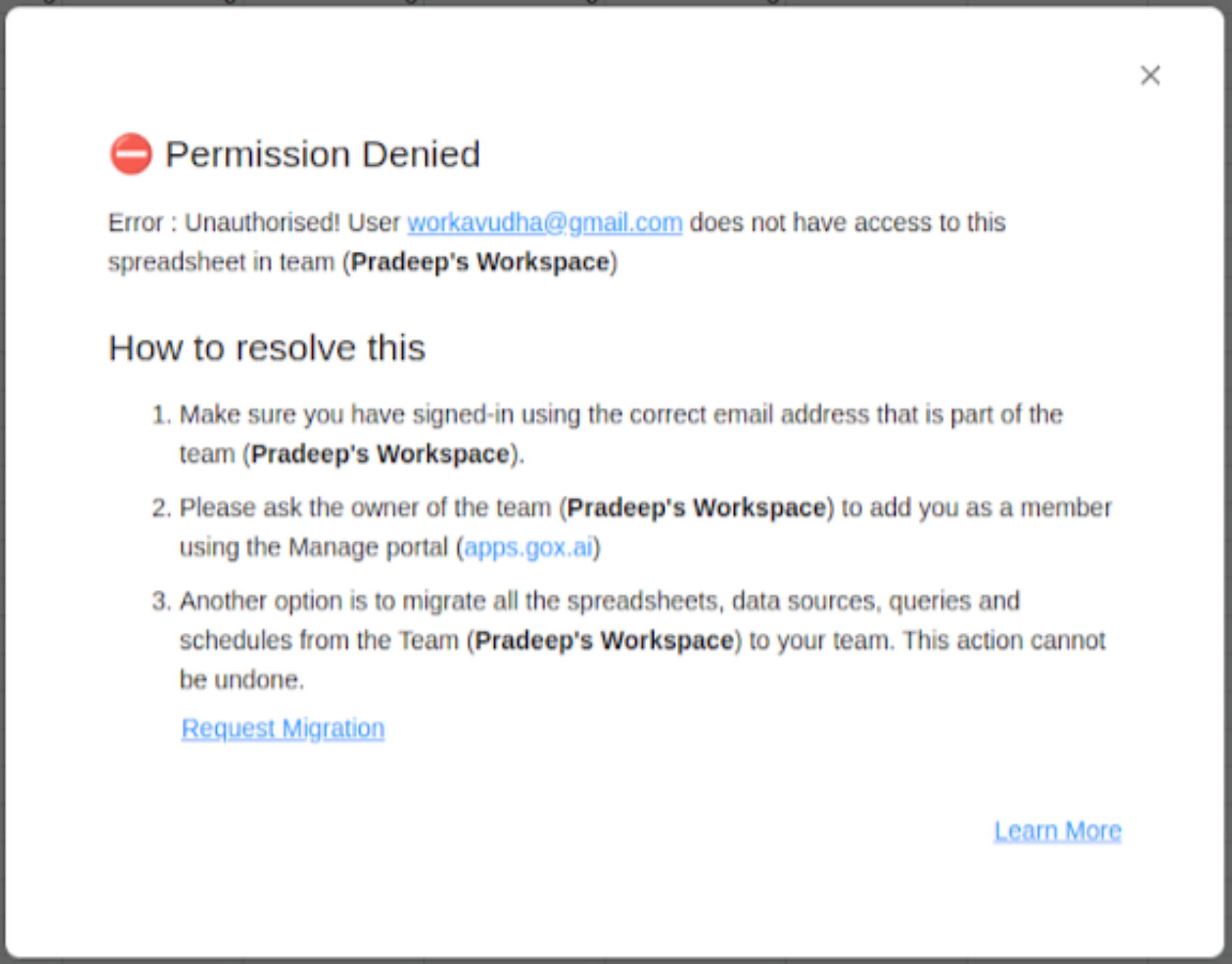
In Google Sheets, in a dialog titled Unauthorized:
Unauthorised! User email does not have access to this spreadsheet in team team name
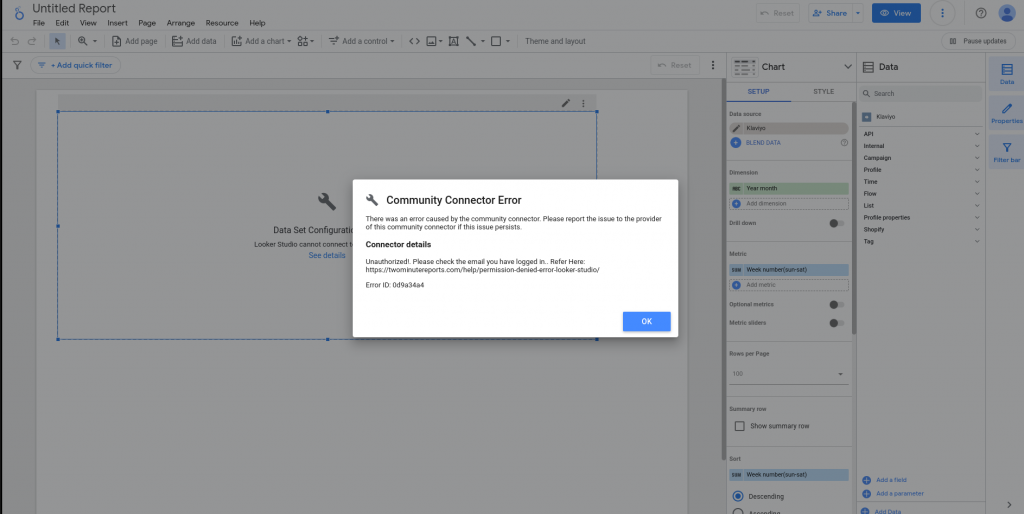
In Google Data Studio, in the connector error details:
Unauthorized!. Please check the email you have logged in.
The email address "email" used for this Looker Studio data source doesn't have permission to access this team's query config. Please verify your access rights.
In the Hub, Google Sheets, Google Data Studio, or an AI tool that uses the MCP server:
email does not have access to this team.
These errors occur when you open a team, or a spreadsheet, a report, or a data source that belongs to a team, and you are not in that team.
Why this happens
In Two Minute Reports, each team owns its own resources. When someone first uses the add-on in a spreadsheet, or creates a query config, that person's team owns it. If you open a resource that another team owns, you see a permission error. This is true even when someone shares the spreadsheet or report with you.
| Resource | Owned by | Who can use it |
|---|---|---|
| Connections | The team that created them | Only team members |
| Queries | The team that created them | Only team members |
| Spreadsheets and schedules | The team that created them | Only team members |
| Query configs | The team that created them | Only team members |
| Google Data Studio reports | The Google account that created them | Anyone they are shared with in Google Data Studio |
The important difference: anyone can open a shared Google Data Studio report. But the Two Minute Reports query config under it still belongs to the team that created it, and only members of that team can use it.
Common scenarios
Scenario 1: Someone in a different team created the spreadsheet or report, and you are not in that team.
Scenario 2: You have more than one Google account or Two Minute Reports team, and you are signed in with the wrong one.
Scenario 3: You use a different email address from the one that the team invited.
Scenario 4: Two Minute Reports works in new spreadsheets, but not in a spreadsheet that you used before an account or ownership change. See A spreadsheet stops working after an account change.
Solutions
Solution 1: Check the email that you are signed in with
Check that you are signed in to the correct Google account in Google Sheets or Google Data Studio.
- Open your Google account menu at the top right of Google Sheets or Google Data Studio.
- Check the email address.
- If it is not correct, sign out and sign in with the correct email address.
- Reload your spreadsheet or report, then try again.
Solution 2: Ask to be added to the team
To use a spreadsheet or query config that another team owns, you must be a member of that team:
- Contact someone in the team that owns the resource. They need a role that can invite team members.
- In the Hub at hub.twominutereports.com, they open Settings › Members and select Invite team member.
- They enter your email address. Use the email that you sign in to Google Sheets or Google Data Studio with.
- They choose a role for you, such as Viewer or Editor, and select Invite team member.
- Accept the invitation. Then reload your spreadsheet or report, and try again.
Solution 3: Combine several Two Minute Reports accounts
If you have more than one Two Minute Reports account, and you want to use only one:
- Choose the account that you want to keep.
- Email [email protected]. Ask to move your connections, queries, and schedules from the old account to the account that you keep.
- Our support team helps you through the move.
A spreadsheet stops working after an account change
This can occur after you change the Google account that you use with Two Minute Reports, or after the ownership of a Two Minute Reports account moves to a different person. The add-on works in new spreadsheets, but a spreadsheet that you used before the change shows this error:
Unauthorised! User email does not have access to this spreadsheet in team TeamName
Why only the older spreadsheet fails
The first time that you open the add-on in a spreadsheet, Two Minute Reports links the spreadsheet to one team. The queries and schedules in that spreadsheet belong to that team. Two Minute Reports keeps this link on its servers, not in the spreadsheet, and you cannot change the link yourself.
A new spreadsheet has no link. When you open the add-on in it, Two Minute Reports links it to your team. If you are in more than one team, you select the team. This is why new spreadsheets work.
Because the link is not in the spreadsheet or in your Google account, these actions do not reset it:
- Uninstall and install the add-on again
- Remove the access of Two Minute Reports from your Google account, then authorize it again
- Sign out of Google and sign in again
Fix it
The error message gives the name of the team that has the spreadsheet. Use one of these two options.
Option 1: Join the team that has the spreadsheet. Ask an Admin of that team to invite the Google account that you use now. See Invite someone. After you accept the invitation, open the spreadsheet and open the add-on again.
Option 2: Move the old team's resources to your current team. Use this option if nobody uses the old team now. Send these items to [email protected]:
- The name of the old team, from the error message
- The name of your current team
- The Google account that you use now
Our support team moves the spreadsheets, connections and queries of the old team into your current team. This moves all of the old team's resources, not only one spreadsheet.
Prevention
For the team: Before you share a spreadsheet or report, invite the people who need to use it to your team.
For team members: Use the same email address for your Google account and your Two Minute Reports team membership.
Still seeing the error?
If you tried all the solutions and still see the error:
- Take a screenshot of the error message.
- Write down the email address in the error.
- Write down the team name in the error, if there is one.
- Email [email protected] with this information.