

AI tools
Other AI tools
Connect any AI tool that supports remote MCP servers to Two Minute Reports.
Many AI tools can use a remote MCP server. Add the Two Minute Reports MCP server to the tool, then ask about your data.
Before you start
- An AI tool that supports remote (HTTP) MCP servers.
- A Two Minute Reports account with at least one connection.
- To run data queries, a role on the team that allows them, such as Editor. See What each person can do.
Connect Two Minute Reports
- In the AI tool's settings, find where to add a remote MCP server. It is often called Connectors, Integrations or MCP.
- Select a remote (HTTP) server and paste this URL:
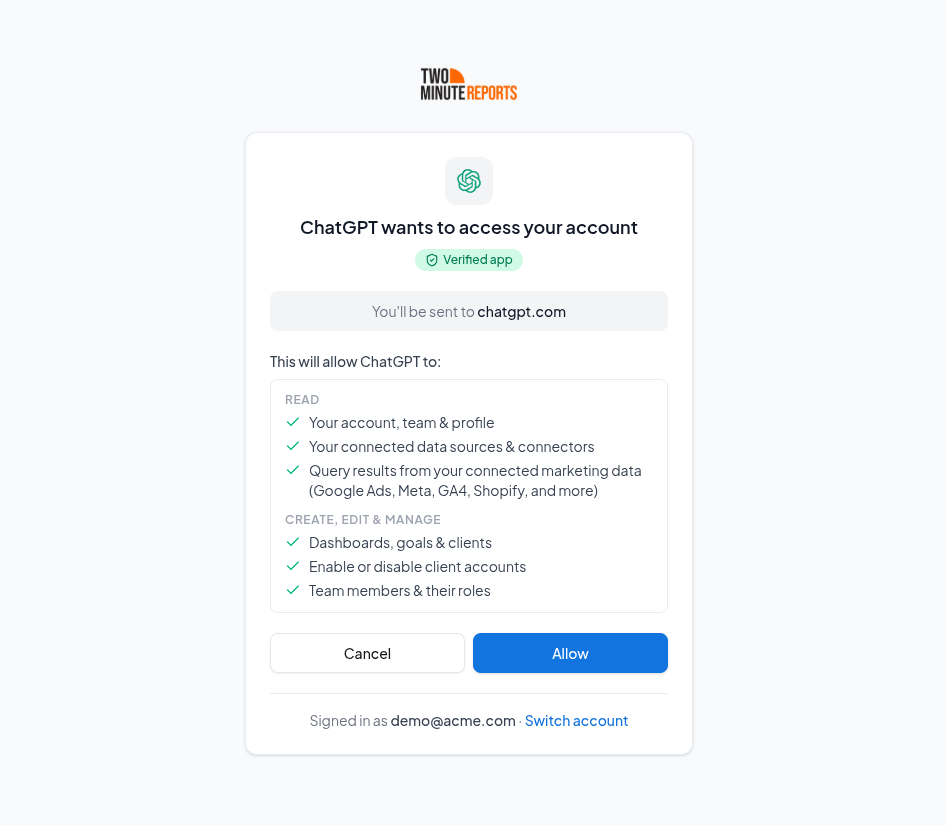
https://mcp.twominutereports.com/mcp - If the tool asks how to sign in, select OAuth. Your browser opens. Sign in to Two Minute Reports, then select Allow.
If the tool asks for a key
Some tools and agents cannot sign in. For these, use an MCP key:
- In the Hub, select AI tools, then the Automations tab.
- In the MCP server section, select Create key. Enter a Key name, then select Create key.
- In the AI tool, send the key in this header:
Authorization: Bearer <your MCP key>
An MCP key acts as you. Keep it secret. See The MCP server.
Check that it works
Ask the AI tool:
Using the Two Minute Reports connector, list the accounts I have connected.
The AI tool lists your connected accounts.
Install the skills
Some AI tools can use skills. Download a skill from the Skills tab on the AI tools page, then follow your tool's steps to add a skill. See Skills.
Manage or disconnect
- For a sign-in, go to the AI tools page. In Your connections, next to the tool, select Sign out.
- For an MCP key, revoke the key on the Automations tab.
Limits
Each person can make up to 120 requests a minute. See Limits.
Troubleshooting
For problems in all AI tools, see Troubleshooting AI tools.