

Filter by a field that is not in your report
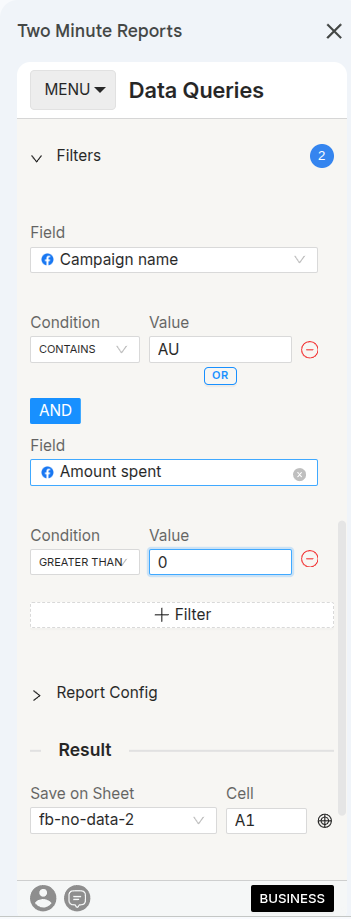
A filter does not have to use one of the columns of your report. You can filter a query by any field of the connector, also by a field that is not in Metrics or Dimensions. Two Minute Reports uses the field to select the rows. The field does not go into your sheet.
This is useful when something else reads your columns, for example a dashboard, a script or a formula that reads a fixed range. You can change which rows count, and the report keeps the same columns.
How it works
When you filter by a field that is not one of your columns:
- Two Minute Reports uses the field to select the rows that match the filter.
- It adds up the numbers of those rows for the metrics and dimensions that you selected.
The result has the columns that you selected, in the same order. The filter field is not written to the sheet.
Each filter row in Filters is a rule. A row must obey all the rules to count. In one rule, you can give more than one value:
- With CONTAINS, NOT CONTAIN, EQUALS and NOT EQUAL, select OR under the value to add one more value.
- With IN and NOT IN, select more than one value in the list.
- With GREATER THAN, LESSER THAN, MATCHES REGEX and DOES NOT MATCH REGEX, you can give only one value.
Example: count only one type of conversion
Conversions are the usual reason to use this type of filter. An ad platform gives one Conversions number for all the conversion actions that you set up: purchases, form submissions, page views and add-to-carts. If a person adds a new conversion action, your Conversions column starts to include it, and you get no warning.
On Google Ads, you can count only some conversion actions, and keep the same columns:
Open the filters of the query
In the query, open Filters and select + Filter.
Select the conversion field
In the field list, select Conversion action name or Conversion action category. Do not add this field to your dimensions.
Set the condition
For example, set Conversion action name CONTAINS Purchase, or Conversion action name NOT CONTAIN Page view. To add more values to the same rule, select OR.
Run the query
Your columns do not change. Conversions and Conversion value now count only the conversion actions that match the filter.
Use only conversion metrics in this query
Google Ads accepts a conversion action only with conversion metrics. It does not accept it with metrics such as Impressions, Clicks or Cost. Thus, in a query that you filter by conversion action, use only conversion metrics: Conversions, Conversion value and the rates that come from them. Get impressions, clicks and cost from a different query.
Count only purchases, for each connector
Each platform has a different method to show conversion types. Thus, the field that you use is different on each platform.
| Platform | How to count only purchases |
|---|---|
| Google Ads | Filter by the Conversion action name or Conversion action category dimension, as in the example above. Google Ads has one Conversions metric for all conversion actions, so a filter is the only method to count only purchases. |
| Facebook Ads | There is no conversion type dimension to filter by. Select a purchase metric: Purchases (all), Website purchases or Purchases value (all). Do not select a general conversion or results metric. |
| TikTok Ads | Select Complete payment and Total complete payment Value. Do not select Conversions. |
Click-through and view-through conversions
A filter cannot remove view-through conversions. The attribution window sets if a view-through conversion counts.
- Facebook Ads: in the query, open Report Config, then FACEBOOK ADS. In Conversion/Attribution Window(s), replace Default with a click-only window, for example 7 d click. If you select only one window, the column names do not change. If you select more than one window, you get one column for each window, for example Purchases (all) (7 d click).
- TikTok Ads: CTA conversions (click-through) and VTA conversions (view-through) are two different metrics. Select CTA conversions.
Related pages
- Running queries: where to find Filters in a query
- Custom fields: make a calculated field when a filter is not sufficient