

Facebook Ads

The Facebook Ads connector gets your Facebook Ads data into Google Sheets and Google Data Studio. Use it to track your key metrics in a spreadsheet or a Google Data Studio report.
What you can report on
- Campaign, ad set, and ad-level performance metrics
- Reach, impressions, clicks, and CTR
- Cost per click (CPC), cost per result, and ROAS
- Audience demographics and placement breakdowns
- Video views, engagement, and conversion tracking
Prerequisites
- A Facebook Business Manager account
- Employee access with View Performance enabled, or Ad Account Analyst access on the ad accounts you want to report on
- All the permissions that Facebook asks for when you authorize, including Business management. Two Minute Reports uses this permission to find the ad accounts of a Business Manager. These are the ad accounts that the Business Manager owns and the client ad accounts that are shared with it. Without this permission, you see only the ad accounts on which you have a direct role.
New Pages experience: If your Business Manager uses Meta's new Pages experience, your account also needs partial access to the linked Facebook Page. This is required because Meta separates personal profiles from page management.
Agencies and connections made before 25 August 2026: You do not need a direct role on each ad account. Two Minute Reports also shows the client ad accounts of a Business Manager that you have access to. On 25 August 2026, Two Minute Reports started to ask for the Business management permission. If you authorized your connection before this date, its Facebook token does not have this permission. Because of this, you do not see Business Manager ad accounts in the Hub or through the API until you reconnect. See An ad account is missing from the list.
How to create a connection
- In the Hub, open Connections & accounts.
- Select Create connection.
- Select Facebook Ads in the connector list.
- Select Next.
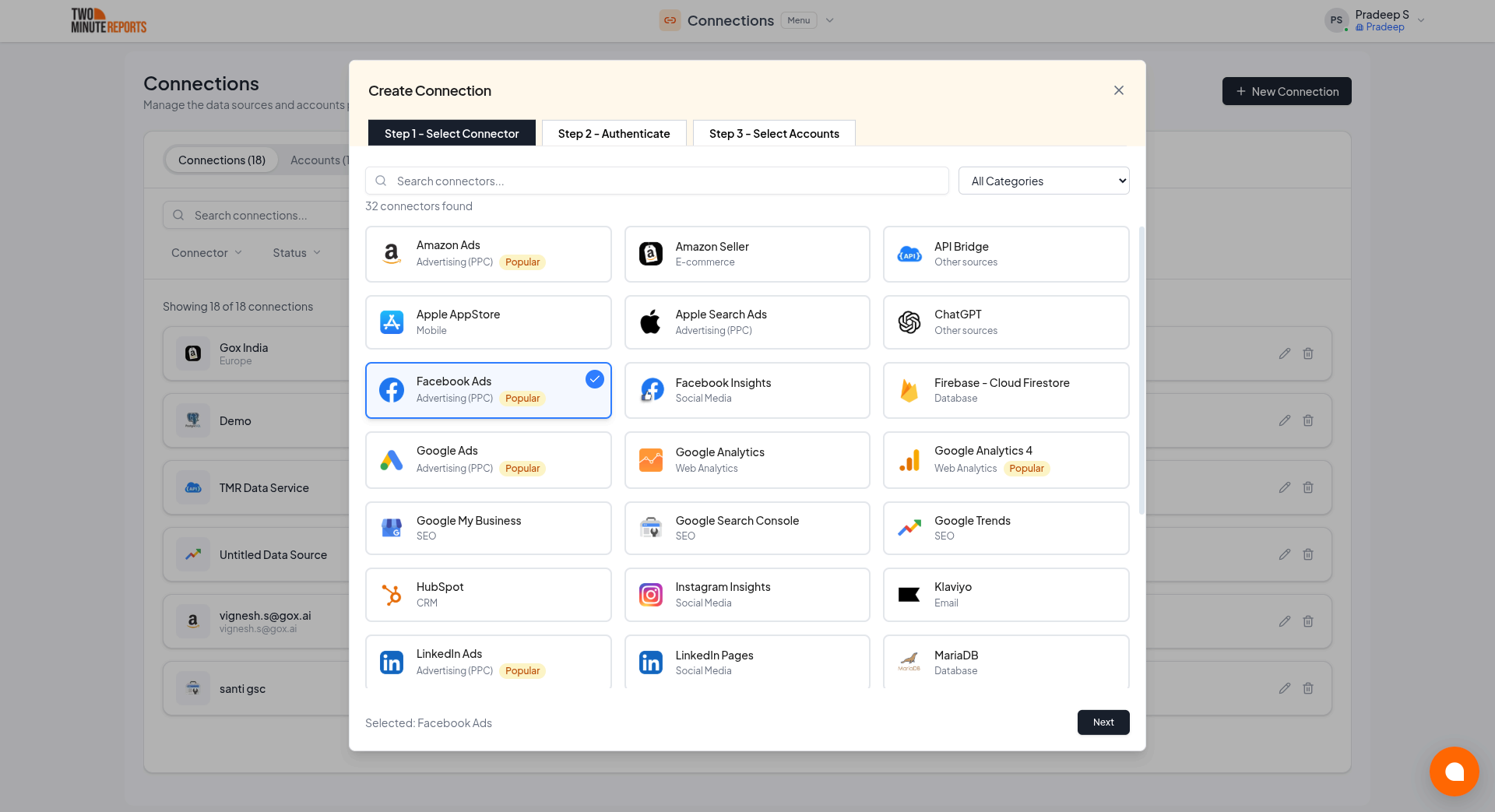
- In Name the connection, enter a name.
- Sign in with Facebook. Then allow Two Minute Reports access.
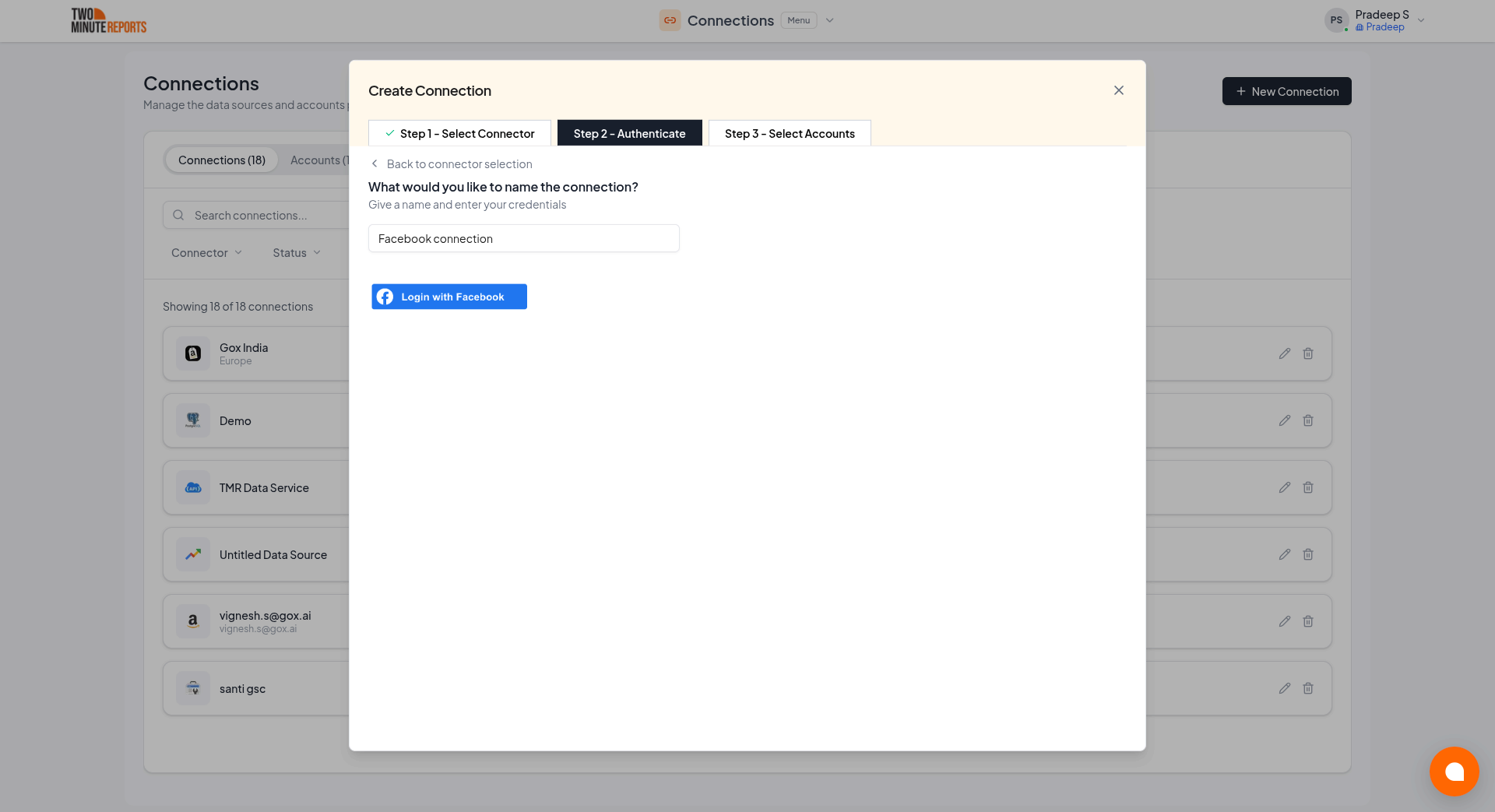
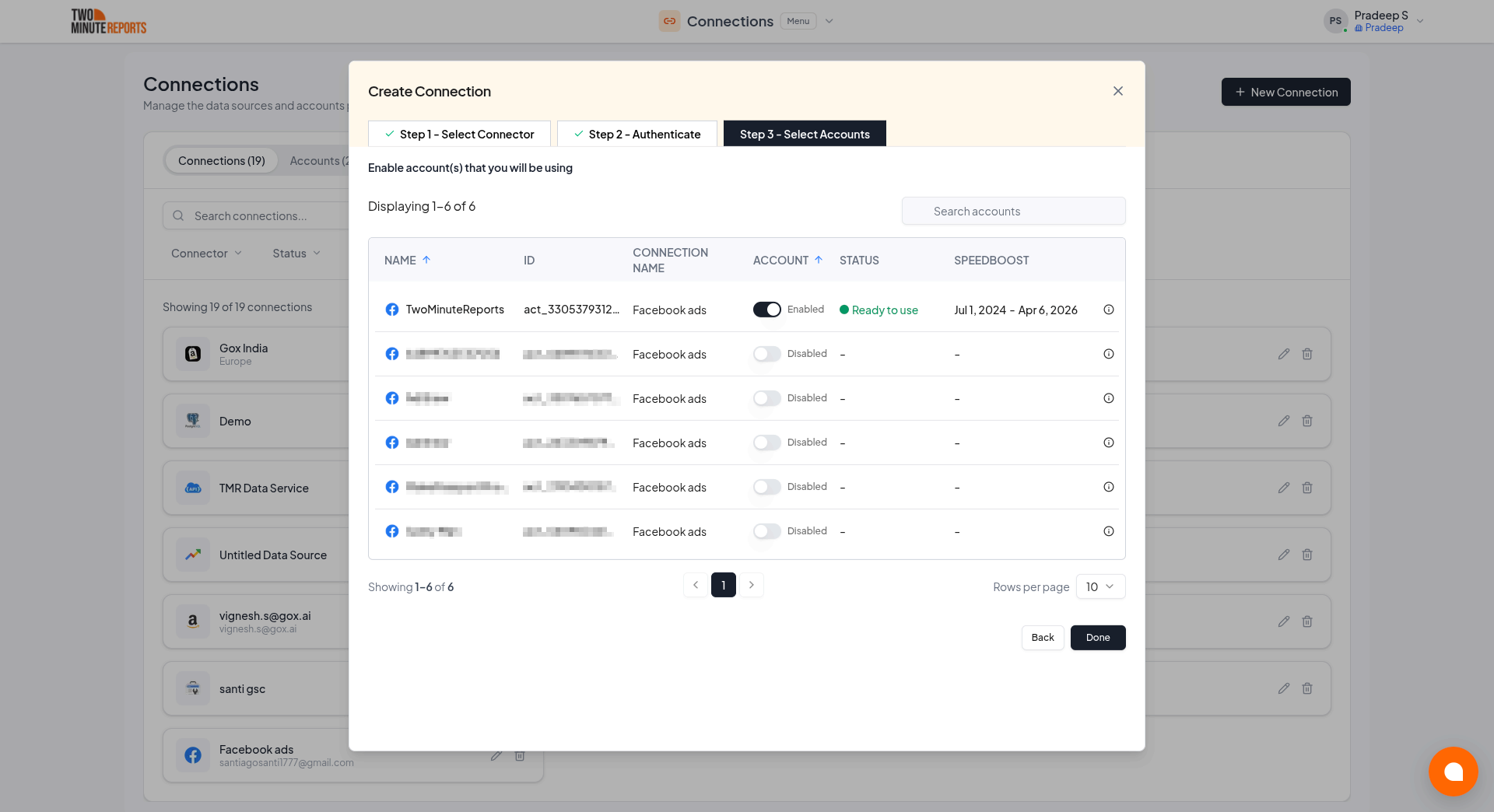
- Enable the accounts you want to report on.
- Select Done.
How to get Facebook Ads data into Google Sheets or Google Data Studio
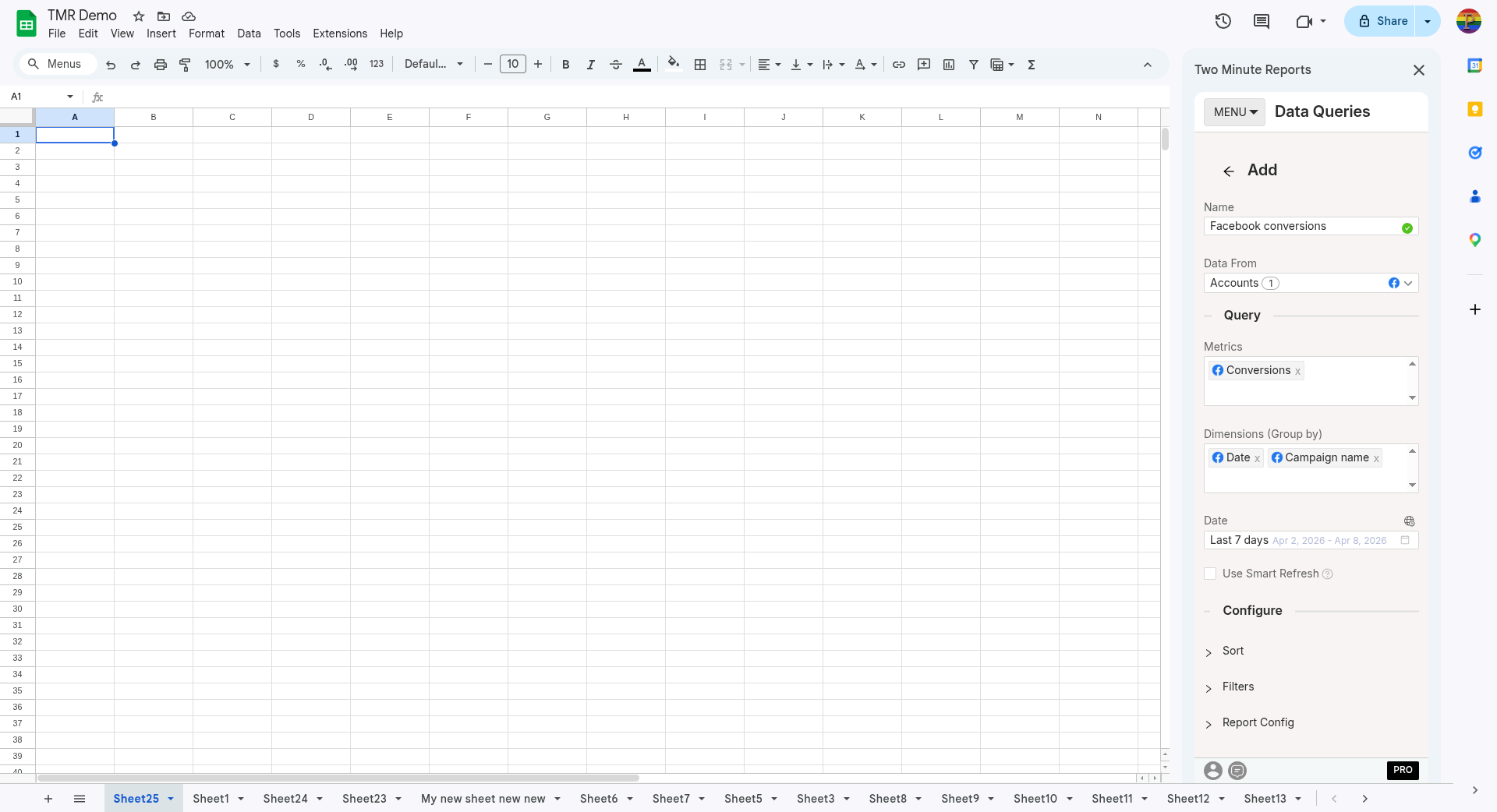
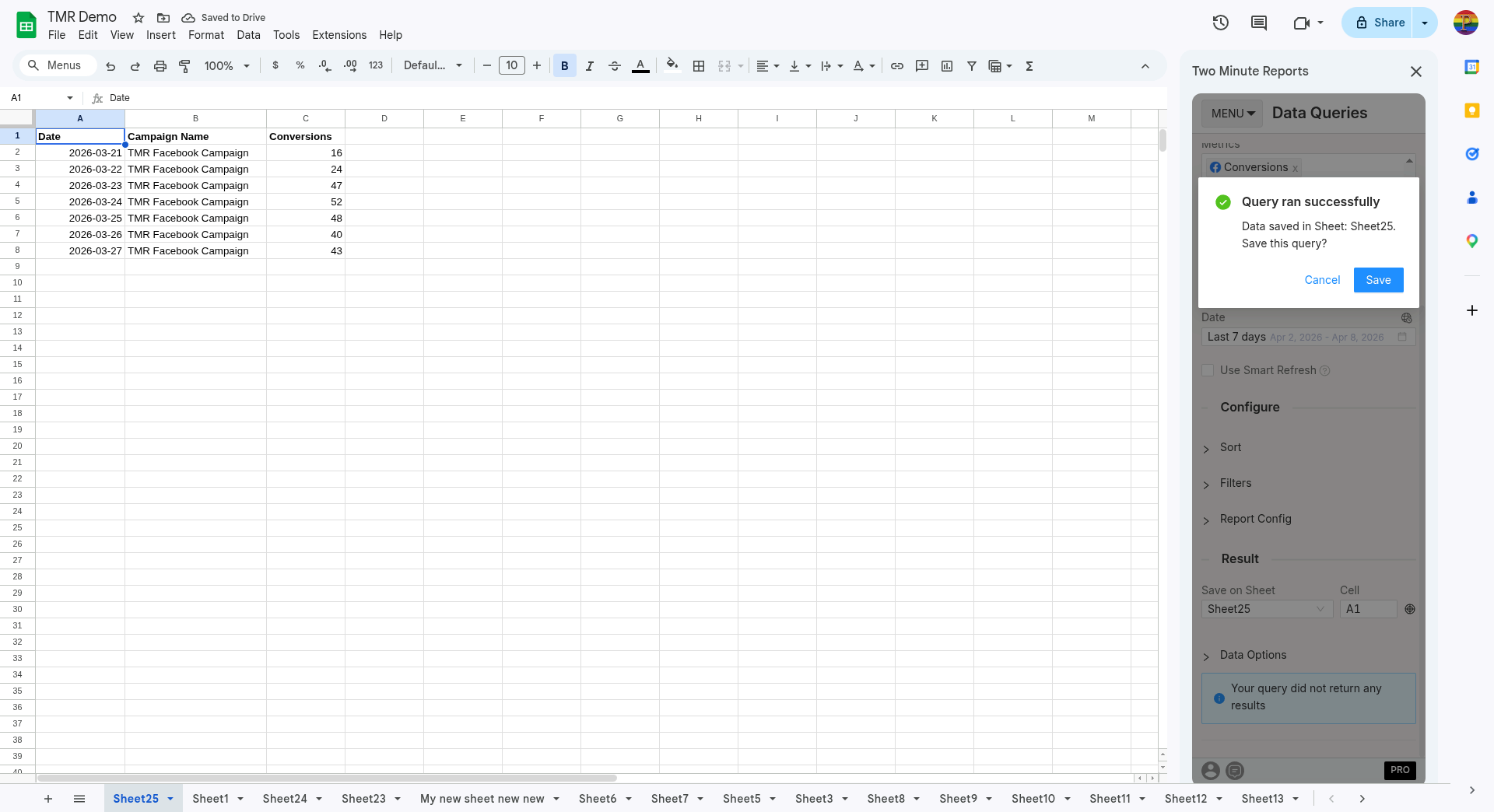
To get Facebook Ads data into Google Sheets:
- In the Two Minute Reports sidebar, open Data Queries.
- Select Add.
- Select the accounts you want to report on. You can select more than one.
- Select your metrics and dimensions.
- Select the date range.
- Set sorting and filters if you need them.
- Select Run query. Two Minute Reports adds the data to your sheet.
To get Facebook Ads data into Google Data Studio:
- In the Hub, open Google Data Studio › Facebook Ads.
- Select Create report.
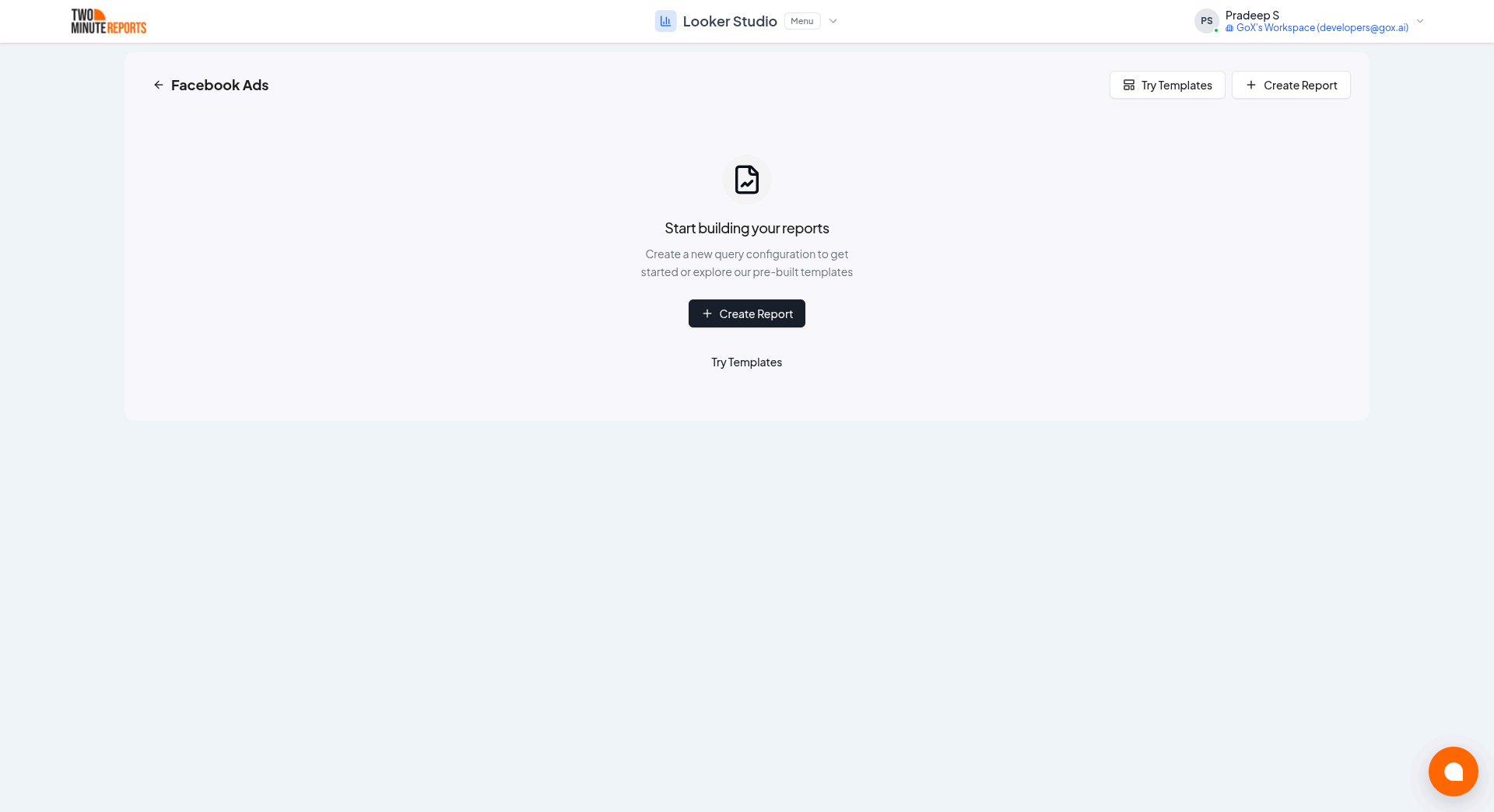
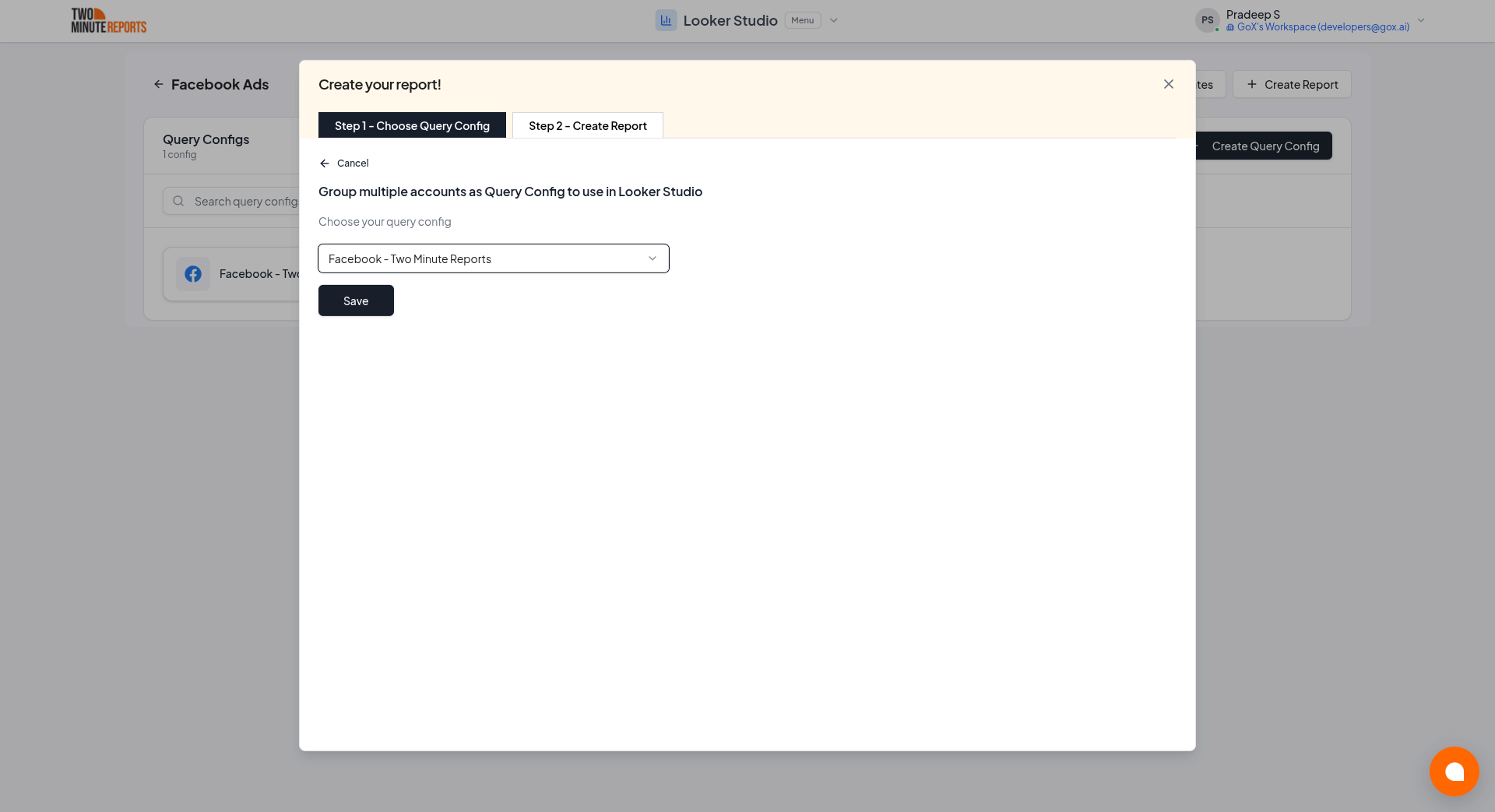
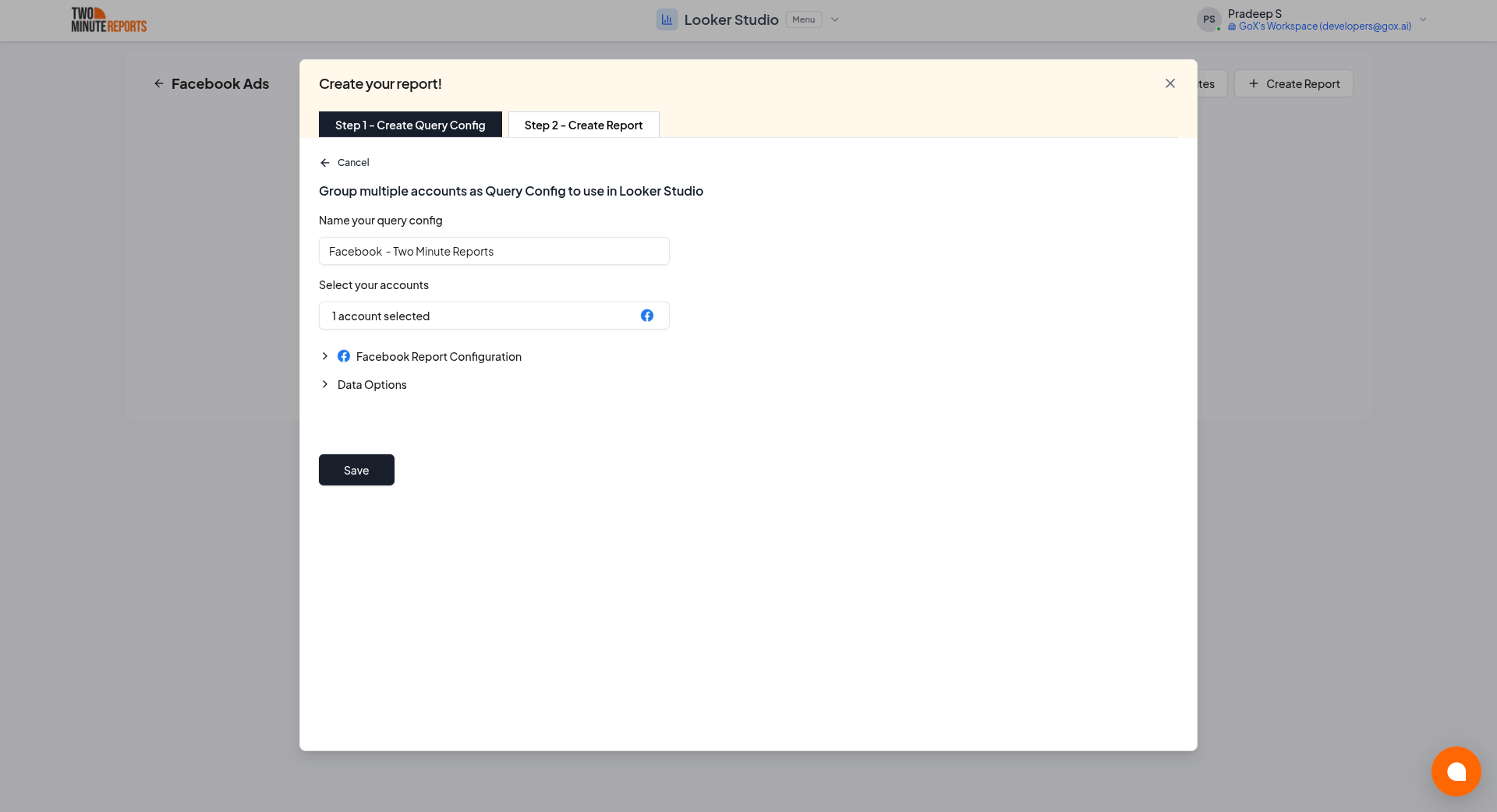
- Select or create a query config:
- To use a query config you have: select it in Choose your query config. Then select Save.
- To create a query config: if you already have one, first select Create new query config in the list. Enter a name in Name your query config, and select the accounts in Select your accounts. Select Save.
- Select Create from scratch. If templates show under Quick start from a template, you can select one instead.
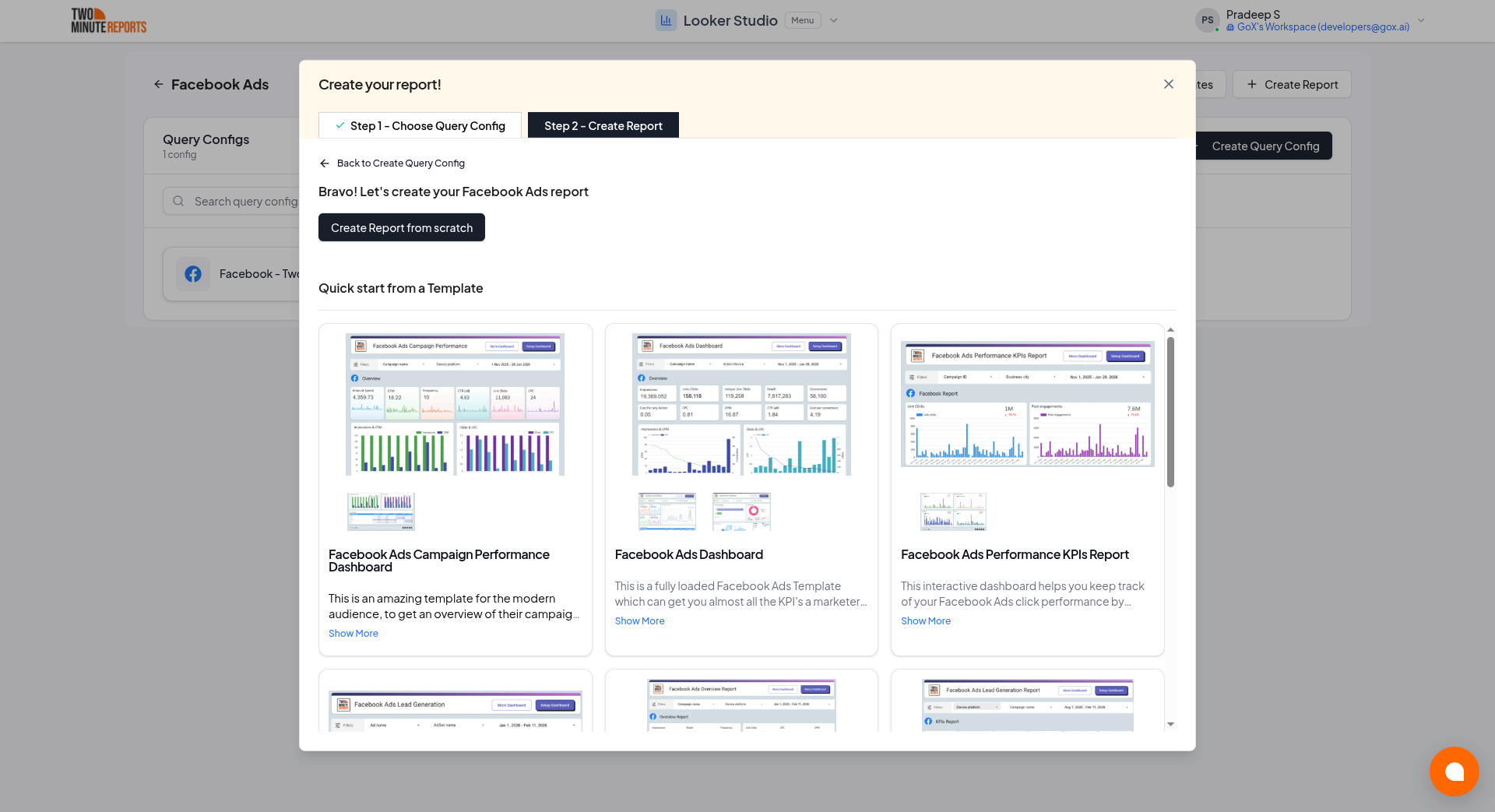
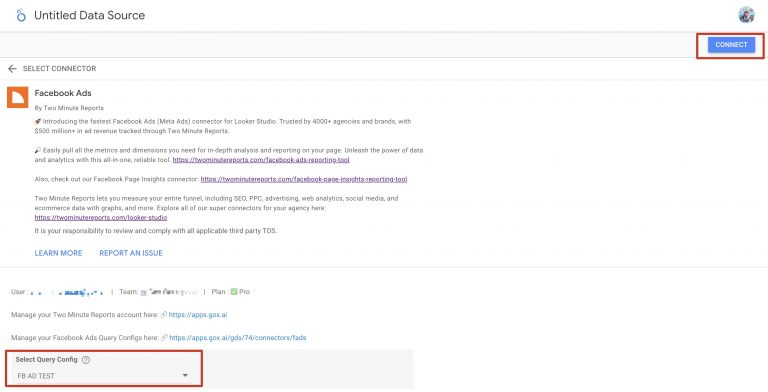
- Looker Studio (formerly Google Data Studio) opens in a new tab, with the Two Minute Reports connector. If you are in more than one team, select your team in Select your Team.
- In Select Query Config, select your query config.
- Select Connect in the top-right corner.
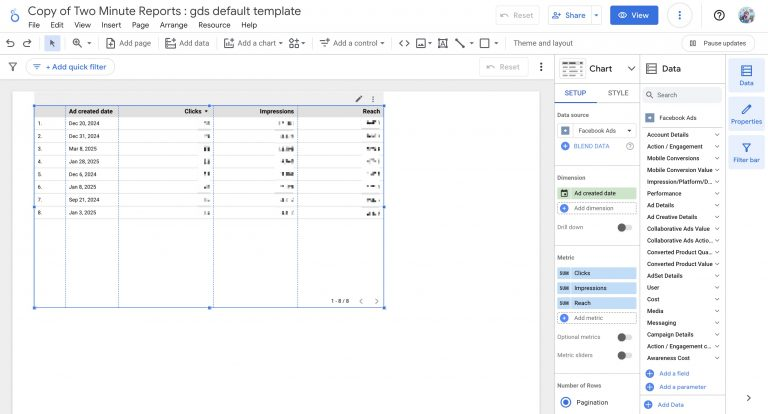
- In your new report, add Facebook Ads metrics and dimensions to the canvas.
Troubleshooting
An ad account is missing from the list
First, reconnect the connection. Usually, the cause is that the Facebook token does not have the Business management permission. This occurs when:
- You authorized the connection before 25 August 2026. On this date, Two Minute Reports started to ask for this permission.
- You turned off this permission in the Facebook authorization dialog.
Without this permission, Two Minute Reports cannot get the ad accounts that you can access only through a Business Manager. This applies to the Hub and to the API.
When you reconnect, Facebook asks for this permission again, also if you turned it off before.
- In the Hub, open Connections & accounts.
- Find the Facebook Ads connection and select its edit icon (the pencil). If the connection is listed under Needs reconnecting, select Reconnect instead.
- Do the Facebook authorization steps again.
- Keep all the permissions on. Make sure that Business management is on.
- In the Hub, enable the accounts that you want to report on.
If the new accounts do not show after you reconnect, wait a few minutes and refresh the account list.
If the account is still missing:
- Make sure that you have Employee access with View Performance or Ad Account Analyst access on the ad account. See Prerequisites.
- Make sure that a Business Manager that you are a member of owns the ad account, or that the ad account is shared with this Business Manager as a client account.
- Sign in to Facebook and make sure that the ad account is active and not restricted.
Data stops loading and the connection shows an error
The Facebook token is expired or not valid. Usually, this occurs after a password change, a change to security settings, or when a person removes access. Reconnect it in Connections & accounts: the connection is listed under Needs reconnecting, with a Reconnect button. For the full procedure, see Token expiration and authentication.
If you need help, contact [email protected].