

Token expiration and authentication
Two Minute Reports shows three errors about access to your platforms. They look similar, but they have different causes and different fixes.
| Error | What happened |
|---|---|
| Token expired | The platform (Google, Facebook, and others) cancelled the access that the connection had. For example, after a password change, a long time without use, or a security setting change. |
| Account missing access permissions | The connection still works, but it no longer has the role or permissions that it needs on that account. |
| Connection expiry | The connection expired. You must reconnect it before its accounts can get data again. |
Token expired
Error messages
You see messages like these:
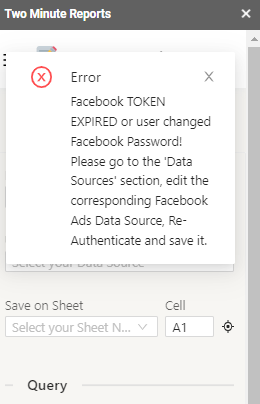
Facebook TOKEN EXPIRED or user changed Facebook Password! Please go to the 'Connections' section, edit the corresponding Facebook Ads Connection, Re-Authenticate and save it.
Google Ads TOKEN EXPIRED or user changed Password! Please go to the 'Connections' section, edit the corresponding Google Ads Connection, Re-Authenticate and save it.
The connector name changes with the platform.
Why this happens
- You changed your password on the platform after you created the connection.
- The platform expired the access after a time without use.
- Two-factor authentication or security settings changed on the platform.
- You or an admin removed the access of Two Minute Reports on the platform.
How to fix it
Google Sheets:
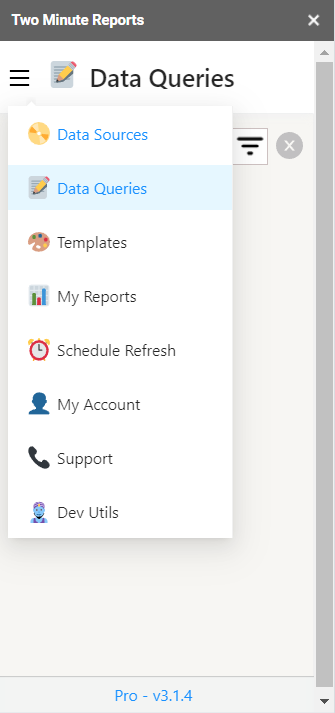
- In the Two Minute Reports sidebar, select Menu, then select Connections.
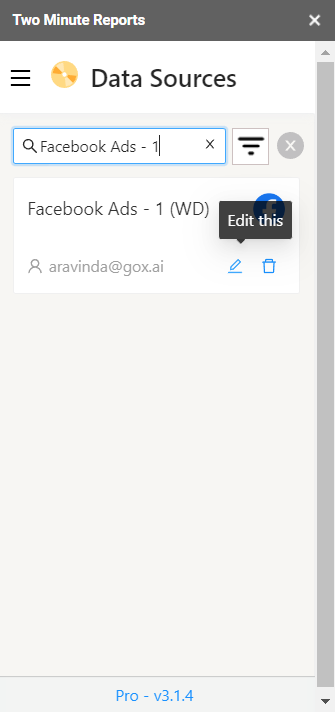
- Find the connection that shows the error.
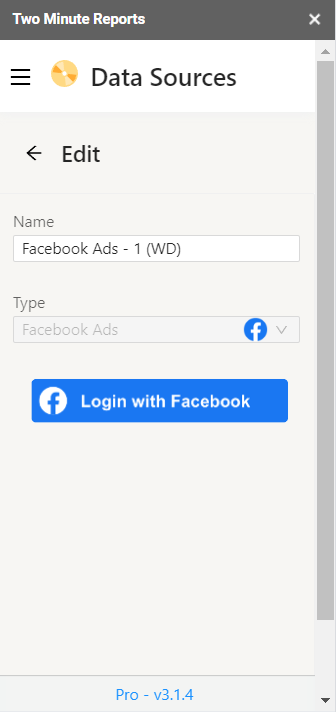
- Select the edit button next to it, and sign in to the platform again.
- Grant all the permissions that the platform asks for.
Google Data Studio:
- In the Hub, open Connections & accounts.
- Find the connection with the status Needs reconnecting, and select Reconnect.
- Sign in to the platform, and grant the permissions.
After you reconnect, your queries, schedules, and reports can get data again.
Account affected due to connection expiry
What this means
An account in your queries or schedules can't get data, because its connection expired. Queries and schedules that use the account fail until you reconnect the connection.
The notice in the Google Sheets add-on
You see a notice on Data Queries, Schedule Refresh, Connections, and in Accounts. You also get email reminders before the account is disabled. On Data Queries, the notice looks like this:
1 account linked to these queries lost access due to connection expiry. This account is at risk of being disabled. Re-authenticate connection or disable it to avoid disruptions.
If you do not fix it: after 10 days, the account is disabled and removed from all queries.
How to fix it
Option 1: Reconnect the connection
- In the notice, select Fix Connections.
- Connections opens, and shows the expired connections.
- Select the edit button next to the expired connection.
- Sign in to the platform again.
Option 2: Disable the account (if you no longer need it)
- In the notice, select Disable Account (or Disable Accounts).
- Accounts opens, and shows the accounts whose connection expired.
- Turn off the account to disable it.
Account missing access permissions
This is a different error from an expired token. The connection still works, but it no longer has the permissions that it needs on the account.
For the details and the fix, see Account missing access or connection expiry.
Still having issues?
If you reconnected and still see errors:
- Check that you can sign in to the platform directly (Facebook, Google Ads, and others).
- Check that the account has the correct permissions. See Account missing access or connection expiry for the roles that each connector needs.
- Email [email protected] with the error message, the connector, and what you already tried.